


Full Stack Development Articles
Claude for Architecture and Engineering Documentation
Freelancing as a Python Developer: Getting Your First Client

Get In Touch For Details! Request More Information
Google Cloud Run Tutorial: Build, Deploy, and Scale Apps Easily
Sep 21, 2026 3 Min Read 298 Views
(Last Updated)
Deploying apps should not always mean managing servers, scaling rules, or infrastructure headaches. Google Cloud Run makes it easier to run containerized apps on a fully managed serverless platform.
In this Google Cloud Run tutorial, you will learn how to deploy a containerized app, update it, monitor logs, and clean up resources step by step. Read the full blog to understand how Cloud Run helps developers ship apps faster without handling server management.
Table of contents
- TL;DR
- What is Google Cloud Run?
- Google Cloud Run Tutorial: Deploy Containerized Apps Without Managing Servers
- Set Up Your Google Cloud Project
- Add a Package File
- Create a Dockerfile
- Create an Artifact Registry Repository
- Build and Push the Container Image
- Deploy the Container to Cloud Run
- Update the Application
- Configure Environment Variables
- Check Logs and Monitor the Service
- Clean Up Resources
- Conclusion
- FAQs
- What is Google Cloud Run used for?
- Is Google Cloud Run serverless?
- Does Cloud Run need Docker?
- Can Cloud Run scale automatically?
- Is Google Cloud Run good for beginners?
TL;DR
- Google Cloud Run runs containerized apps without server management.
- It supports apps built with Node.js, Python, Go, Java, Ruby, .NET, and more.
- Developers can deploy containers from Artifact Registry or other supported image sources.
- Cloud Run automatically scales apps based on traffic.
- It is useful for APIs, microservices, web apps, background jobs, and event-driven workloads.
What is Google Cloud Run?
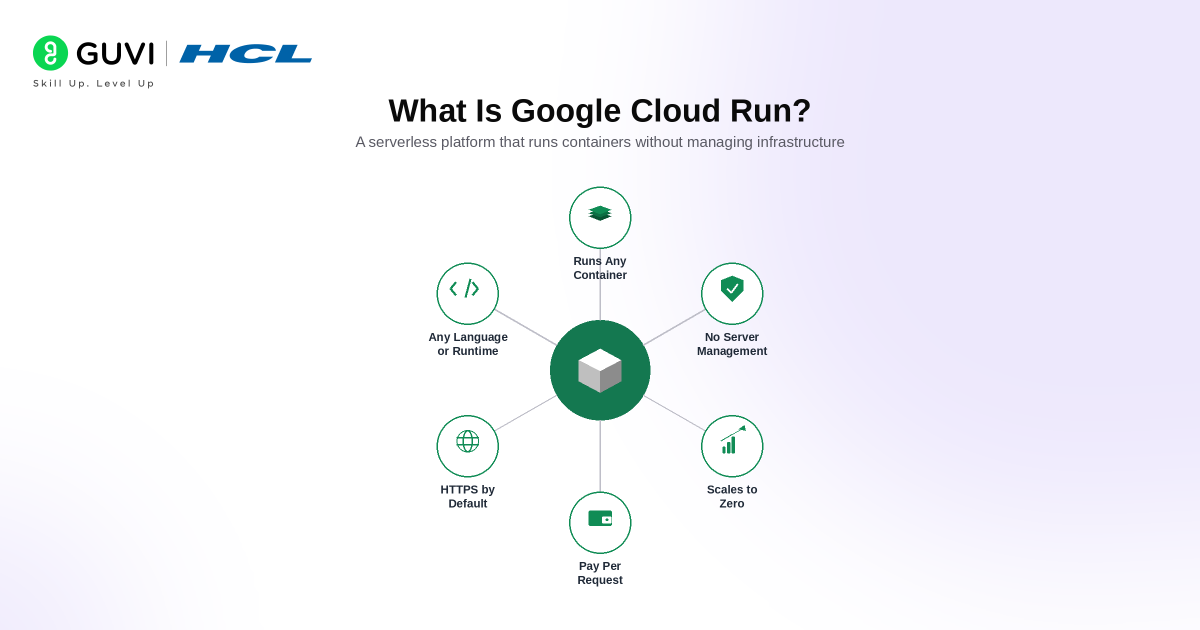
Google Cloud Run is a fully managed serverless platform from Google Cloud that lets developers deploy and run containerized applications.
Instead of creating virtual machines, setting up servers, or managing clusters, you package your application into a container and deploy it to Cloud Run. Google Cloud handles the infrastructure, scaling, load balancing, and service availability.
Cloud Run is useful when you want to run apps that respond to HTTP requests, APIs, webhooks, microservices, or event-based workloads. It gives developers the flexibility of containers with the simplicity of serverless deployment.
Google Cloud Run Tutorial: Deploy Containerized Apps Without Managing Servers
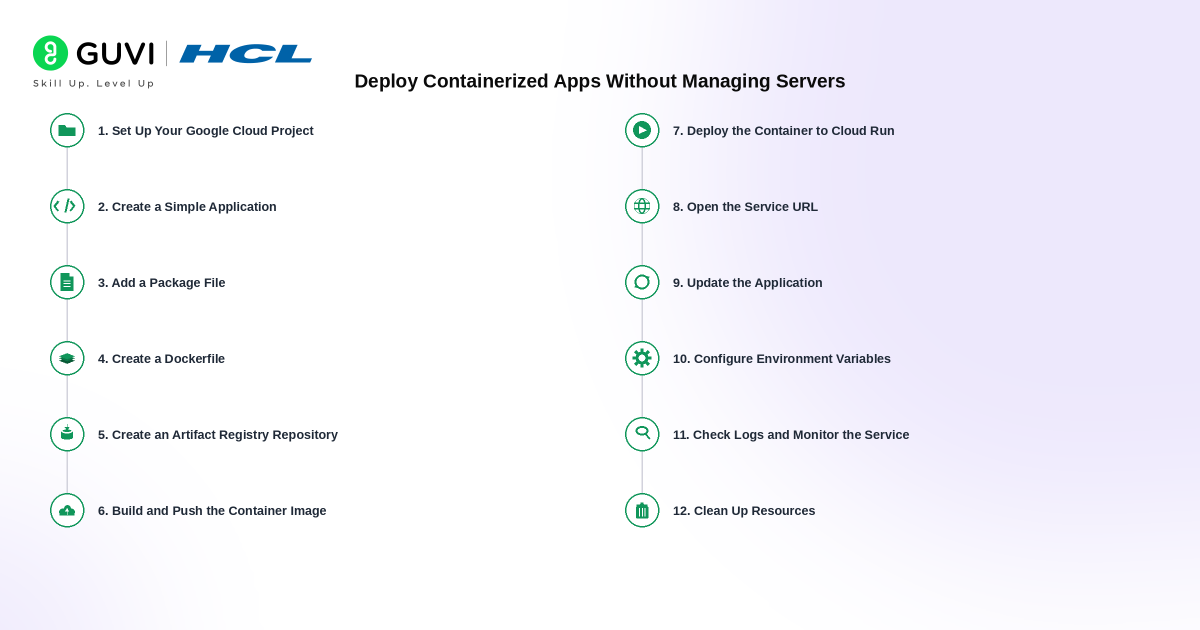
1. Set Up Your Google Cloud Project
Start by creating or selecting a Google Cloud project. This project will hold your Cloud Run service, container image, billing setup, and deployment configuration.
gcloud config set project PROJECT_IDNext, enable the required Google Cloud services.
gcloud services enable run.googleapis.com cloudbuild.googleapis.com artifactregistry.googleapis.comCloud Run is a fully managed platform that runs containerized applications on Google’s infrastructure, so developers do not need to manage servers directly.
2. Create a Simple Application
Create a basic application that listens for HTTP requests. Cloud Run supports apps written in many languages, including Node.js, Python, Go, Java, Ruby, and .NET.
For a Node.js example, create an index.js file:
const express = require("express");

const app = express();

const PORT = process.env.PORT || 8080;

app.get("/", (req, res) => {

  res.send("Hello from Google Cloud Run!");

});

app.listen(PORT, () => {

  console.log(`App running on port ${PORT}`);

});
Cloud Run expects the container to listen on the port provided through the PORT environment variable.
3. Add a Package File
Create a package.json file to define dependencies and the start command.
{

  "name": "cloud-run-demo",

  "version": "1.0.0",

  "main": "index.js",

  "scripts": {

    "start": "node index.js"

  },

  "dependencies": {

    "express": "^4.18.2"

  }

}
This tells the container how to start the application after deployment.
4. Create a Dockerfile
A Dockerfile packages your application, runtime, and dependencies into one portable container image.
FROM node:20-slim

WORKDIR /app

COPY package*.json ./

RUN npm install

COPY . .

CMD ["npm", "start"]
This image contains everything your app needs to run on Cloud Run.
5. Create an Artifact Registry Repository
Artifact Registry stores your container images before deployment.
gcloud artifacts repositories create cloud-run-repo \

  --repository-format=docker \

  --location=us-central1 \

  --description="Cloud Run container images"
This repository will hold the Docker image used by Cloud Run.
6. Build and Push the Container Image
Use Cloud Build to build the image and push it to Artifact Registry.
gcloud builds submit \

  --tag us-central1-docker.pkg.dev/PROJECT_ID/cloud-run-repo/cloud-run-demo
Google Cloud Run can deploy container images to a new service or a new revision of an existing service.

Build job-ready DevOps skills with HCL GUVI’s DevOps Course. Learn CI/CD, cloud deployment, containerization, infrastructure automation, and real-world DevOps workflows through live and recorded sessions, NSDC and HCL GUVI certification, 140+ hours of high-impact training, and access to 1000+ hiring partners.
7. Deploy the Container to Cloud Run
Deploy the container image as a Cloud Run service.
gcloud run deploy cloud-run-demo \

  --image us-central1-docker.pkg.dev/PROJECT_ID/cloud-run-repo/cloud-run-demo \

  --platform managed \

  --region us-central1 \

  --allow-unauthenticated
The gcloud run deploy command creates or updates a Cloud Run service.
8. Open the Service URL
After deployment, Cloud Run provides a public service URL.
gcloud run services describe cloud-run-demo \

  --region us-central1 \

  --format="value(status.url)"
Open the URL in your browser. You should see your application response.
9. Update the Application
Make a small change in your application code, then rebuild and redeploy the image.
gcloud builds submit \

  --tag us-central1-docker.pkg.dev/PROJECT_ID/cloud-run-repo/cloud-run-demo

gcloud run deploy cloud-run-demo \

  --image us-central1-docker.pkg.dev/PROJECT_ID/cloud-run-repo/cloud-run-demo \

  --region us-central1
Cloud Run creates a new revision for every deployment. This makes updates easier to manage without manually handling servers.
10. Configure Environment Variables
Many applications need environment variables for API keys, database URLs, feature flags, or runtime settings.
gcloud run services update cloud-run-demo \

  --region us-central1 \

  --set-env-vars NODE_ENV=production
Environment variables help keep configuration separate from application code.
11. Check Logs and Monitor the Service
Use logs to troubleshoot errors and review service activity.
gcloud logging read "resource.type=cloud_run_revision" --limit=20You can also open Cloud Run in the Google Cloud Console to view traffic, revisions, logs, metrics, and settings.
12. Clean Up Resources
Remove the Cloud Run service when it is no longer needed.
gcloud run services delete cloud-run-demo \
  --region us-central1
Cleaning up unused services helps control cloud costs.
Conclusion
Google Cloud Run is a practical choice for teams that want to deploy containerized apps without managing servers. It lets developers focus on application logic while Google Cloud handles infrastructure, scaling, and runtime management.
With a simple workflow, you can build a container image, push it to Artifact Registry, deploy it to Cloud Run, update the service, check logs, and remove resources when needed. This makes Cloud Run useful for modern apps, APIs, microservices, and quick production deployments.
FAQs
What is Google Cloud Run used for?
Google Cloud Run is used to deploy and run containerized apps, APIs, microservices, and event-driven workloads without managing servers.
Is Google Cloud Run serverless?
Yes, Google Cloud Run is serverless. Google Cloud manages the infrastructure, scaling, and runtime environment for your containerized app.
Does Cloud Run need Docker?
Cloud Run runs containers, so your app needs a container image. Docker is commonly used to build that image.
Can Cloud Run scale automatically?
Yes, Cloud Run automatically scales services based on incoming traffic. It can also scale down when there is no traffic.
Is Google Cloud Run good for beginners?
Yes, Google Cloud Run is beginner-friendly for developers who understand basic containers and want to deploy apps without managing servers.
Success Stories

About the Author
Vaishali
I'm a seasoned writer with four years of experience across technical, non-technical, and just about every genre or niche you can imagine. Adaptable and curious, I enjoy exploring new topics and making information engaging and easy to understand. Fueled by a steady stream of tea, I approach each project with creativity, reliability, and genuine enthusiasm for storytelling.
View all posts by Vaishali
Connect with me @
























Did you enjoy this article?