


Data Science Articles
My Data Scientist Interview Experience: From Rejection to 6-Figure Offer
My Data Analyst Interview Experience: From Rejection to Success Story
Validation and Metrics: Are They Being Ignored in Modern Data Science?


Get In Touch For Details! Request More Information

Face recognition is used everywhere today — from unlocking phones to securing offices and tagging photos on social media. All these systems rely on a Face Recognition Dataset to learn and identify human faces accurately.
A well-structured Face Recognition Dataset allows models to recognize faces under different lighting conditions, angles, and expressions. By understanding how datasets work and how to create your own, you can build customized face recognition systems for personal or professional use.
In this blog, we will show you how to create your own Face Recognition Dataset, work with popular public datasets like LFW, preprocess images, train a simple model using Python, and test it. You will also see how these datasets can be applied in real-world applications. All explanations are beginner-friendly and include easy-to-follow code examples.
Table of contents
- Understanding The Face Recognition Dataset Workflow
- Popular Face Recognition Datasets
- Creating Your Own Face Recognition Dataset
- Step 2.1: Install Required Libraries
- Step 2.2: Set Up the Dataset Folder
- Step 2.3: Capture Faces from Webcam
- Setting Up Your Environment
- Step 3.1: Install Required Libraries
- Step 3.2: Verify Installation and Import Libraries
- Step 3.3: Test the Environment with a Sample Image
- Loading And Exploring Face Recognition Datasets
- Step 4.1: Load Images from Your Custom Dataset
- Step 4.2: Load a Public Dataset (Example: LFW)
- Preprocessing the Dataset
- Step 5.1: Convert Images to Grayscale
- Step 5.2: Resize Images for Consistency
- Step 5.3: Normalize Pixel Values
- Step 5.4: Optional – Data Augmentation
- Training a Face Recognition Model
- Step 6.1: Encode Faces in the Dataset
- Step 6.2: Train a Classifier
- Step 6.3: Save the Model for Later Use
- Step 6.4: Test the Model with a New Image
- Testing and Evaluating the Model
- Step 7.1: Load the Trained Model
- Step 7.2: Test with a New Image
- Step 7.3: Evaluate Accuracy on Multiple Images
- Augmenting the Dataset
- Step 8.1: Using ImageDataGenerator for Augmentation
- Step 8.2: Visualize the Augmented Images
- Step 8.3: Use the Augmented Dataset for Retraining
- Real-World Applications of Face Recognition Datasets
- Automated Attendance Systems
- Security and Access Control
- Smart Surveillance Systems
- Personalized User Experiences
- Healthcare and Emotion Detection
- Device Authentication
- Conclusion
- FAQs
- What are the ethical concerns when creating a face recognition dataset?
- How much data is needed to train an accurate face recognition model?
- Can I use synthetic or AI-generated faces for training my model?
- What are the common challenges faced in dataset labeling for face recognition?
- How do researchers ensure fairness in face recognition datasets?
Understanding The Face Recognition Dataset Workflow
In this blog, we will follow a structured approach to build and use a Face Recognition Dataset. The workflow includes:
- Exploring Popular Public Datasets – Understanding datasets like LFW, VGGFace2, and CelebA, which help benchmark models and give context.
- Creating Your Own Custom Dataset – Capturing images of individuals using a webcam and organizing them into a structured folder system.
- Setting Up the Environment – Installing and configuring Python libraries such as OpenCV, face_recognition, NumPy, and Matplotlib.
- Loading and Exploring the Dataset – Loading images from both custom and public datasets, visualizing sample images, checking labels, dimensions, and overall dataset structure to ensure everything is ready for preprocessing.
- Preprocessing the Dataset – Converting images to grayscale, resizing, and normalizing them for model training.
- Training a Face Recognition Model – Encoding faces into numeric vectors and teaching the model to recognize them.
- Testing and Evaluating the Model – Using both custom and public datasets to check accuracy and performance.
- Augmenting the Dataset – Improving model performance with image transformations such as flips, rotations, and zooms.
This step-by-step workflow ensures that even beginners can understand, create, and implement a Face Recognition Dataset efficiently.
Do check out HCL GUVI’s Data Science eBook, which gives you a clear, structured overview of how to collect, clean, and prepare image data for machine learning. It also walks you through essential concepts like data preprocessing, model training, and evaluation — all explained through beginner-friendly examples.
1. Popular Face Recognition Datasets
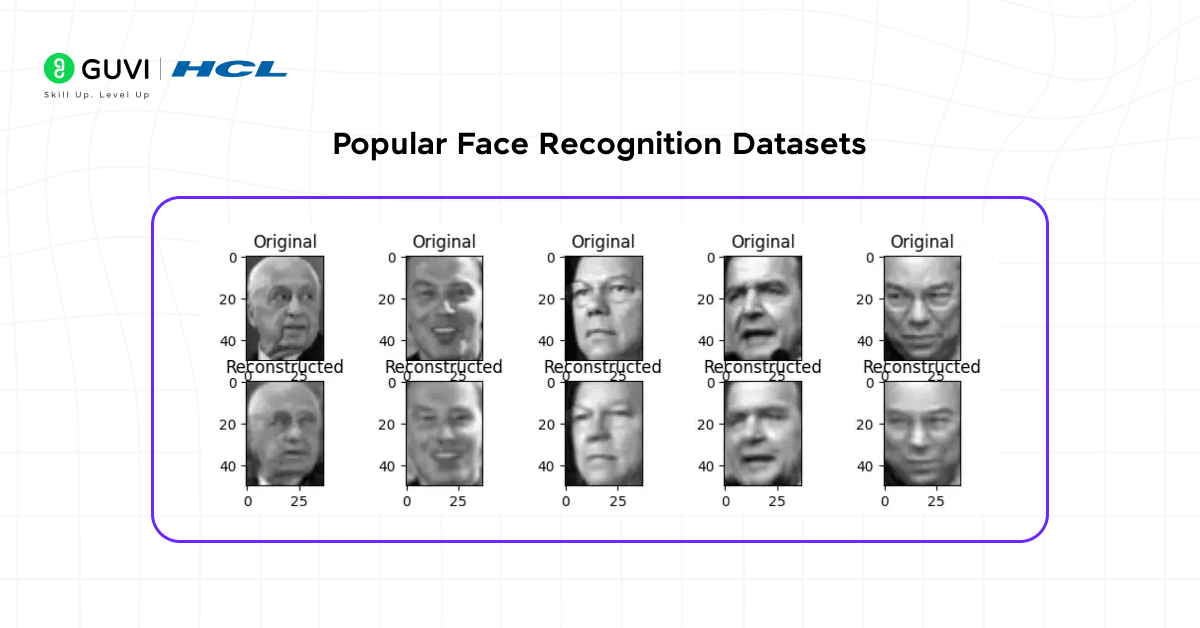
Before creating your own Face Recognition Dataset, it is helpful to know about the widely used public datasets in face recognition. These datasets provide a large collection of images that can be used for training, testing, and benchmarking models. Here are some of the most popular ones:
- LFW (Labeled Faces in the Wild): This dataset contains over 13,000 images of faces collected from the internet. Each image is labeled with the person’s name, making it ideal for testing face verification and recognition algorithms. LFW is especially useful for beginners who want a simple, real-world dataset to practice on. Download the dataset here – Kaggle
- VGGFace2: VGGFace2 has 3.3 million images of more than 9,000 people. It includes faces under different poses, lighting conditions, and ages. This variety makes it perfect for building robust face recognition models that can handle real-world variations. Download the dataset here – Kaggle
- CelebA: With around 200,000 images of celebrities, CelebA not only provides face images but also includes 40 facial attributes such as glasses, smiling, or gender. This dataset is useful if you want to train models for both face recognition and facial attribute detection. Download the dataset here – Kaggle
- CASIA-WebFace: CASIA-WebFace consists of 494,414 images of 10,575 individuals. It is widely used in research for large-scale face recognition projects and provides a good balance between dataset size and diversity. Download the dataset here – Kaggle
- MS-Celeb-1M: This massive dataset contains 10 million images of 100,000 identities. It is designed for large-scale face recognition and can help train high-performance models, but it requires significant computational resources to handle. Download the dataset here – MS-Celeb
While these public datasets are excellent for learning and benchmarking, creating your own custom Face Recognition Dataset becomes important when you need a system tailored to your specific scenario, like an office attendance system, classroom monitoring, or personalized authentication. A custom dataset ensures the model learns the exact faces it will encounter, which improves accuracy in practical applications.

2. Creating Your Own Face Recognition Dataset
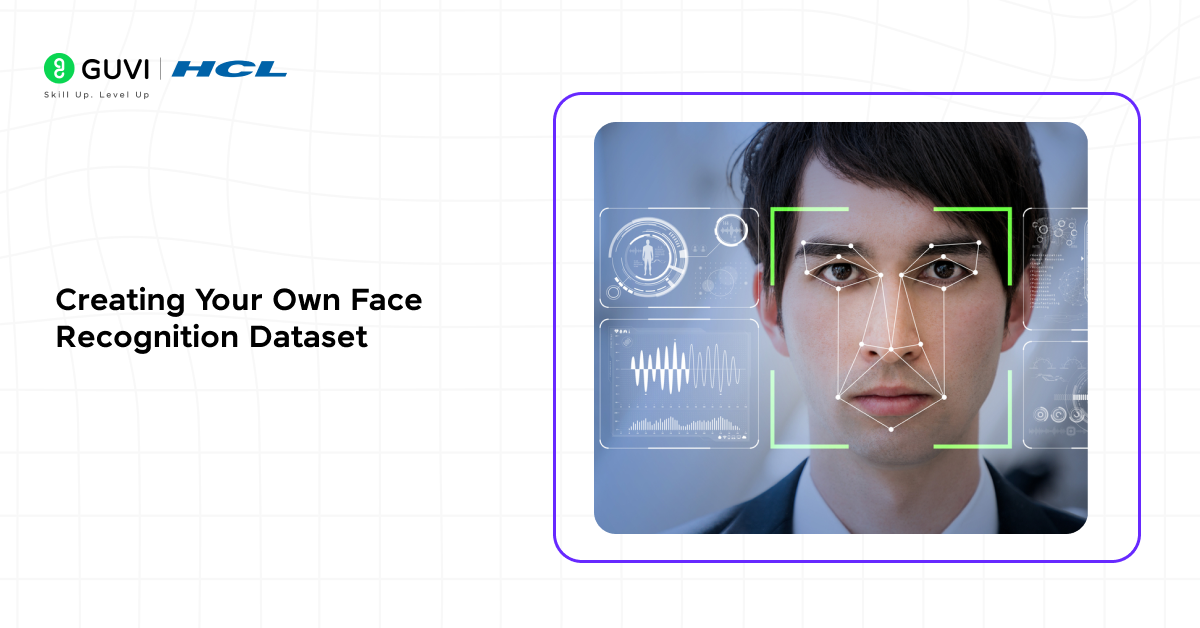
Creating a custom Face Recognition Dataset allows you to train a model that works for your specific environment. Custom datasets are important when you need a system to recognize specific people, such as for office attendance, classroom monitoring, or personal authentication.
Here’s a simple way to capture faces using Python and OpenCV.
Step 2.1: Install Required Libraries
Purpose: These libraries allow you to access your webcam, process images, and store them in an organized way.
pip install opencv-python
pip install numpy
OpenCV: Captures images from your webcam and processes them.
NumPy: Handles image data in arrays for easy manipulation.
Step 2.2: Set Up the Dataset Folder
Purpose: Organize images for each person separately so your model can easily identify them later.
import os

dataset_path = "dataset"
if not os.path.exists(dataset_path):
    os.makedirs(dataset_path)

person_name = input("Enter the name of the person: ")
person_path = os.path.join(dataset_path, person_name)
if not os.path.exists(person_path):
    os.makedirs(person_path)
Explanation:
- Creates a main folder named as dataset
- Each person has a subfolder named after them
- Keeps your Face Recognition Dataset structured and easy to manage
Step 2.3: Capture Faces from Webcam
Purpose: Collect multiple images of each person under different conditions to improve model accuracy.
import cv2
# Initialize webcam
cap = cv2.VideoCapture(0)
face_cascade = cv2.CascadeClassifier(cv2.data.haarcascades + "haarcascade_frontalface_default.xml")
count = 0
while True:
    ret, frame = cap.read()
    if not ret:
        break
    gray = cv2.cvtColor(frame, cv2.COLOR_BGR2GRAY)
    faces = face_cascade.detectMultiScale(gray, 1.3, 5)
    for (x, y, w, h) in faces:
        count += 1
        face_img = gray[y:y+h, x:x+w]
        cv2.imwrite(f"{person_path}/{person_name}_{count}.jpg", face_img)
        cv2.rectangle(frame, (x, y), (x+w, y+h), (255, 0, 0), 2)
    cv2.imshow("Capturing Faces", frame)
    if cv2.waitKey(1) & 0xFF == ord('q') or count >= 50:
        break
cap.release()
cv2.destroyAllWindows()
print(f"Collected {count} images for {person_name}")
Explanation:
- Uses OpenCV to capture live video from the webcam
- Detects faces using a Haar Cascade classifier
- Saves 50 face images per person by default
- Draws a rectangle around the detected face for visual feedback
Tip: Capture faces with different angles, expressions, and lighting conditions to create a robust Face Recognition Dataset.
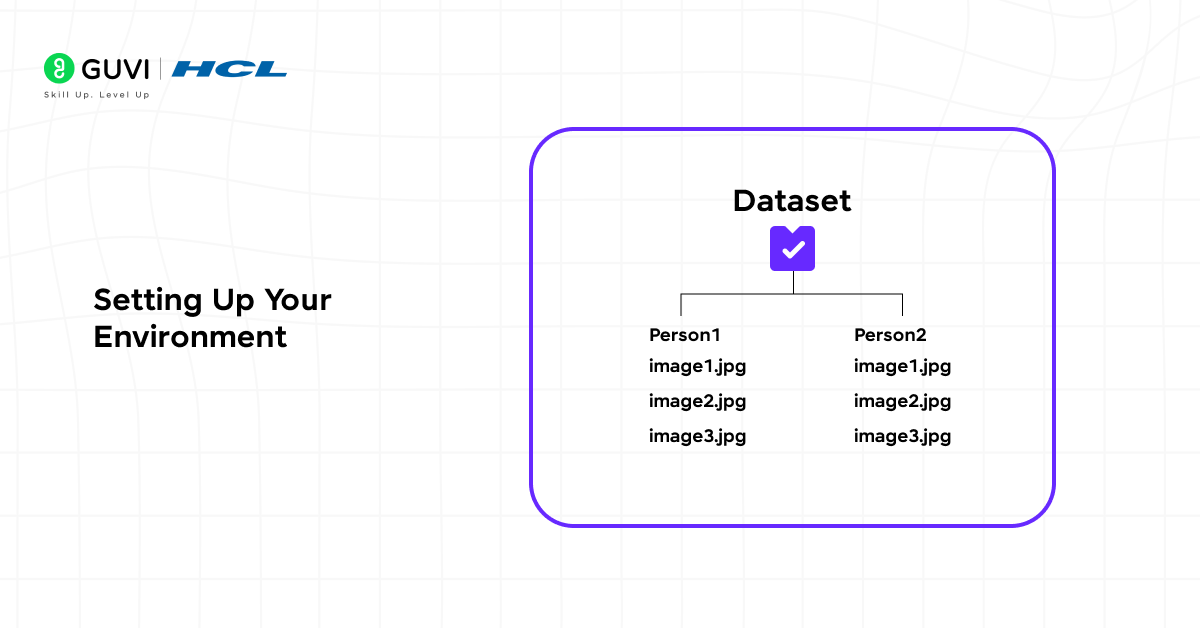
Folder Structure:
dataset/
 ├── person1/
 │    ├── person1_1.jpg
 │    ├── person1_2.jpg
 │    └── ...
 └── person2/
      ├── person2_1.jpg
      ├── person2_2.jpg
      └── ...
3. Setting Up Your Environment
Before using your custom Face Recognition Dataset or any public datasets, you need to set up a Python environment with the necessary libraries. This ensures that your model can capture, process, and recognize faces efficiently.
Step 3.1: Install Required Libraries
pip install face_recognition
pip install matplotlib
pip install scikit-learn
Explanation:
- face_recognition: Converts faces into numerical encodings and compares them for recognition.
- Matplotlib: Visualizes images, face locations, and recognition results.
- scikit-learn: Provides tools for training, evaluating, and processing data efficiently.
These libraries work alongside OpenCV and NumPy, which were installed earlier, to handle image capture, manipulation, and analysis.
Step 3.2: Verify Installation and Import Libraries
import cv2
import face_recognition
import numpy as np
import matplotlib.pyplot as plt
Explanation:
- Ensures all required libraries are installed and ready to use.
- Opens the path to work seamlessly with both custom and public Face Recognition Datasets.
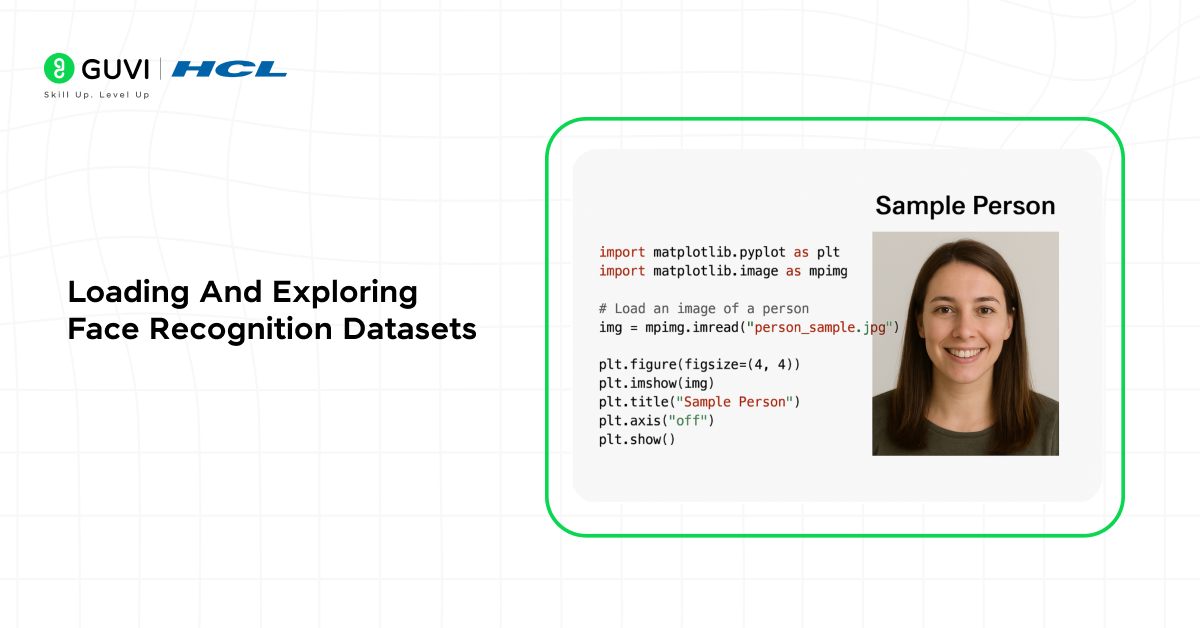
Step 3.3: Test the Environment with a Sample Image
# Load a sample image from the custom dataset
image_path = "dataset/person1/person1_1.jpg"
image = face_recognition.load_image_file(image_path)
# Display the image
plt.imshow(image)
plt.title("Sample Face Image")
plt.axis('off')
plt.show()
Explanation:
- Confirms that the libraries can read and display images correctly.
- Helps you visualize how images are stored in your Face Recognition Dataset.
4. Loading And Exploring Face Recognition Datasets
After setting up your environment, the next step is to load and explore your Face Recognition Dataset. This step ensures that your images are correctly organized, labeled, and ready for preprocessing. You can apply this to both your custom dataset and popular public datasets like LFW or VGGFace2.
Step 4.1: Load Images from Your Custom Dataset
import cv2
import os
import matplotlib.pyplot as plt

dataset_path = "dataset"

# Display a few images from each person
for person in os.listdir(dataset_path):
    person_path = os.path.join(dataset_path, person)
    for img_name in os.listdir(person_path)[:5]:  # Show first 5 images
        img_path = os.path.join(person_path, img_name)
        img = cv2.imread(img_path)
        img = cv2.cvtColor(img, cv2.COLOR_BGR2RGB)
        plt.imshow(img)
        plt.title(person)
        plt.axis('off')
        plt.show()
Explanation:
- Loops through each person’s folder in the custom Face Recognition Dataset.
- Loads the first few images for quick verification.
- Converts images from BGR to RGB for correct display in Matplotlib.
- Helps confirm that your dataset is structured correctly and images are readable.
Step 4.2: Load a Public Dataset (Example: LFW)
from sklearn.datasets import fetch_lfw_people
import matplotlib.pyplot as plt

# Load LFW dataset with at least 20 images per person
lfw_dataset = fetch_lfw_people(min_faces_per_person=20, resize=0.5)
print("Number of images:", lfw_dataset.images.shape)
print("Number of people:", len(lfw_dataset.target_names))

# Display the first image
plt.imshow(lfw_dataset.images[0], cmap='gray')
plt.title(lfw_dataset.target_names[lfw_dataset.target[0]])
plt.axis('off')
plt.show()
Explanation:
- Fetches a subset of the LFW dataset for training and testing.
- Prints the dataset shape and number of identities to understand the dataset size.
- Displays a sample image to check quality and content.
- Using public datasets helps benchmark your custom Face Recognition Dataset and ensures your workflow works with standard datasets.
Why Loading and Exploring is Important
- Confirms that images are correctly labeled and organized.
- Detects low-quality, corrupted, or misaligned images before preprocessing.
- Helps plan preprocessing steps such as resizing, grayscaling, or normalization.
- Ensures your Face Recognition Dataset is ready for training a reliable model.
5. Preprocessing the Dataset
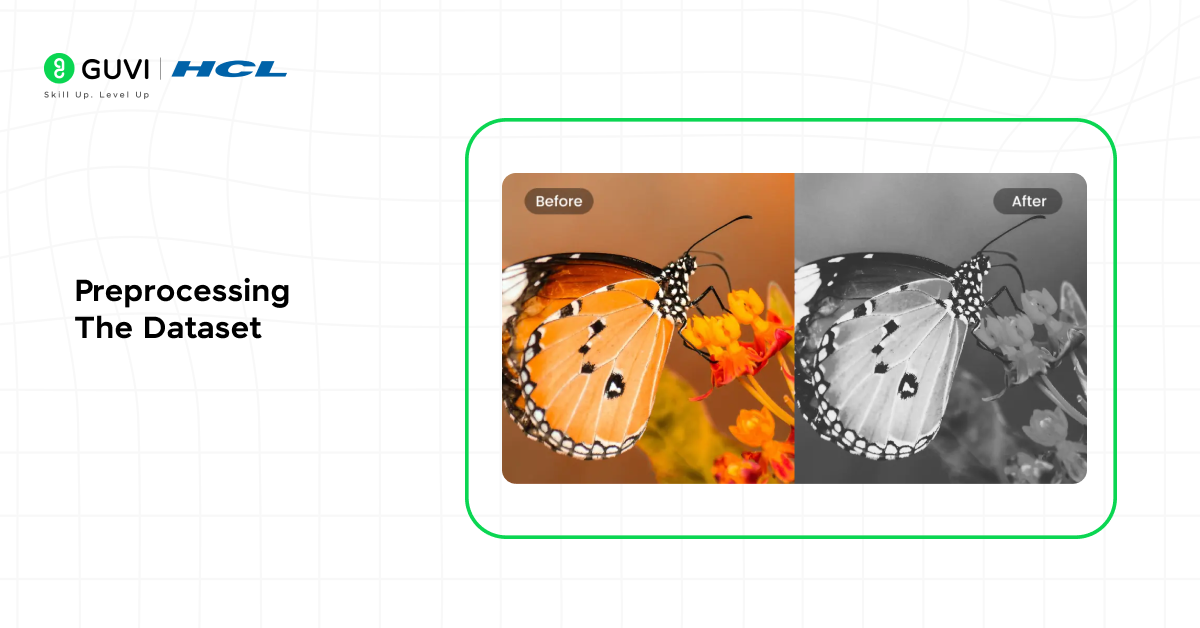
Before training a face recognition model, it’s essential to preprocess your Face Recognition Dataset. Preprocessing ensures that images are consistent in size, color format, and quality, which improves model performance. Both custom and public datasets need preprocessing.
Step 5.1: Convert Images to Grayscale
import cv2
import os

dataset_path = "dataset"

for person in os.listdir(dataset_path):
    person_path = os.path.join(dataset_path, person)
    for img_name in os.listdir(person_path):
        img_path = os.path.join(person_path, img_name)
        img = cv2.imread(img_path)
        gray_img = cv2.cvtColor(img, cv2.COLOR_BGR2GRAY)
        cv2.imwrite(img_path, gray_img)
Explanation:
- Converts images from RGB/BGR to grayscale to reduce complexity.
- Grayscale images remove unnecessary color information, focusing on facial features.
- Works for both custom images and public datasets like LFW.
Step 5.2: Resize Images for Consistency
target_size = (100, 100)  # width x height

for person in os.listdir(dataset_path):
    person_path = os.path.join(dataset_path, person)
    for img_name in os.listdir(person_path):
        img_path = os.path.join(person_path, img_name)
        img = cv2.imread(img_path, cv2.IMREAD_GRAYSCALE)
        resized_img = cv2.resize(img, target_size)
        cv2.imwrite(img_path, resized_img)
Explanation:
- Ensures all images have the same dimensions, which is crucial for model training.
- Reduces computational load and speeds up training.
- Target size can be adjusted based on your model requirements.
Step 5.3: Normalize Pixel Values
import numpy as np

image_data = []

for person in os.listdir(dataset_path):
    person_path = os.path.join(dataset_path, person)
    for img_name in os.listdir(person_path):
        img_path = os.path.join(person_path, img_name)
        img = cv2.imread(img_path, cv2.IMREAD_GRAYSCALE)
        normalized_img = img / 255.0  # Scale pixels to [0,1]
        image_data.append(normalized_img)
Explanation:
- Normalizes pixel values to a range of 0 to 1.
- Improves training stability and model accuracy.
- Works for both custom and public datasets.
Step 5.4: Optional – Data Augmentation
For small datasets, you can augment images to increase diversity:
from tensorflow.keras.preprocessing.image import ImageDataGenerator

datagen = ImageDataGenerator(
    rotation_range=15,
    width_shift_range=0.1,
    height_shift_range=0.1,
    horizontal_flip=True
)

# Example: augment one image
img = np.expand_dims(image_data[0], axis=(0, -1))
aug_iter = datagen.flow(img)
augmented_img = next(aug_iter)[0].astype('float32')
Explanation:
- Applies rotations, shifts, and flips to create more training data.
- Helps the model handle different angles and positions of faces.
- Especially useful if your custom Face Recognition Dataset has few images per person.
Why Preprocessing is Important
- Standardizes image size and format for the model.
- Reduces noise and irrelevant information.
- Improves model performance and generalization for both custom and public datasets.
6. Training a Face Recognition Model
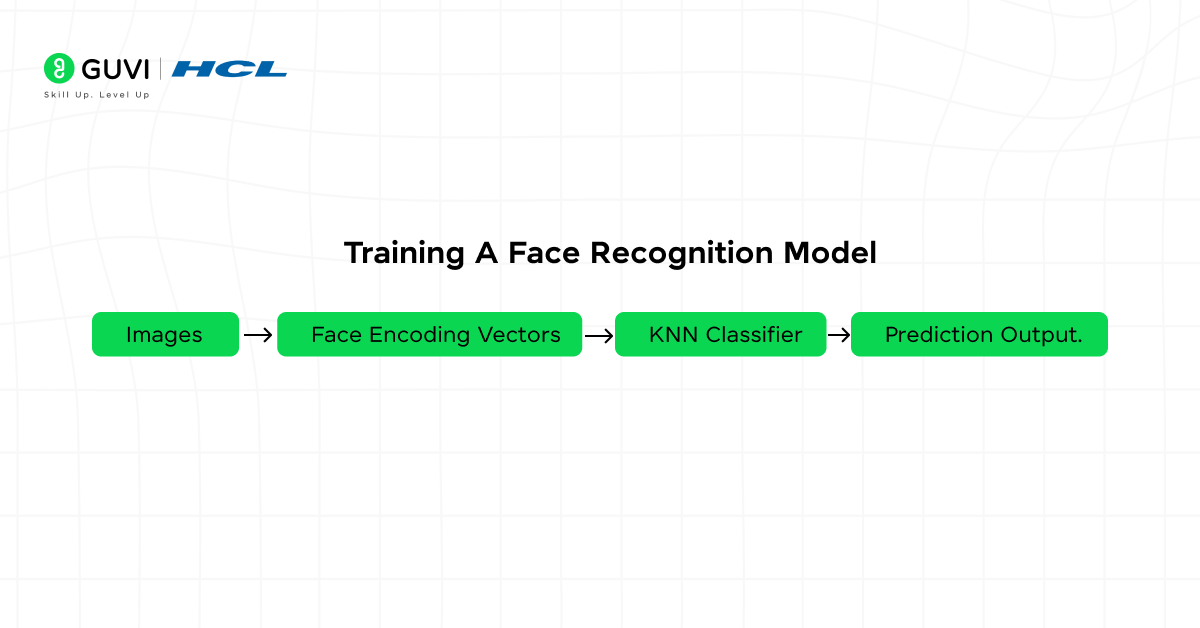
Once your Face Recognition Dataset is preprocessed, the next step is to train a model that can recognize and distinguish between different individuals. We will use the face_recognition library for encoding and comparing faces, which works with both custom and public datasets.
Step 6.1: Encode Faces in the Dataset
import face_recognition
import os

dataset_path = "dataset"
encodings = []
labels = []

for person in os.listdir(dataset_path):
    person_path = os.path.join(dataset_path, person)
    for img_name in os.listdir(person_path):
        img_path = os.path.join(person_path, img_name)
        image = face_recognition.load_image_file(img_path)
        face_enc = face_recognition.face_encodings(image)
        if len(face_enc) > 0:
            encodings.append(face_enc[0])
            labels.append(person)
Explanation:
- Encodes each face into a 128-dimensional vector using face_recognition.
- Each vector represents the unique facial features of a person.
- Works for your custom dataset or public datasets like LFW.
- Stores both face encodings and labels for training and recognition.
Step 6.2: Train a Classifier
For simplicity, we can use a K-Nearest Neighbors (KNN) classifier to recognize faces:
from sklearn.neighbors import KNeighborsClassifier

# Initialize KNN classifier
knn = KNeighborsClassifier(n_neighbors=3, metric='euclidean')

# Train the classifier
knn.fit(encodings, labels)
Explanation:
- KNN compares the encoding of an unknown face to known faces.
- Predicts the label of the closest match.
- Easy to implement and works well for small to medium-sized Face Recognition Datasets.
Step 6.3: Save the Model for Later Use
import pickle

# Save the trained model
with open('face_recognition_knn.pkl', 'wb') as f:
    pickle.dump(knn, f)
Explanation:
- Saves the trained classifier so you don’t have to retrain it every time.
- Makes deployment easier for real-world applications like attendance systems or security access.
Step 6.4: Test the Model with a New Image
# Load test image
test_image = face_recognition.load_image_file("dataset/person1/person1_1.jpg")
test_enc = face_recognition.face_encodings(test_image)[0]

# Predict using KNN
prediction = knn.predict([test_enc])
print("Predicted person:", prediction[0])
Explanation:
- Encodes a new face and compares it with the trained dataset.
- Prints the predicted label (person’s name).
- Confirms that your Face Recognition Dataset and model are working correctly.
Why Training is Important
- Converts raw face images into numerical representations the computer can understand.
- Allows the model to differentiate between multiple identities.
- Provides a foundation for real-world applications like security systems, attendance monitoring, or personal face verification.
7. Testing and Evaluating the Model
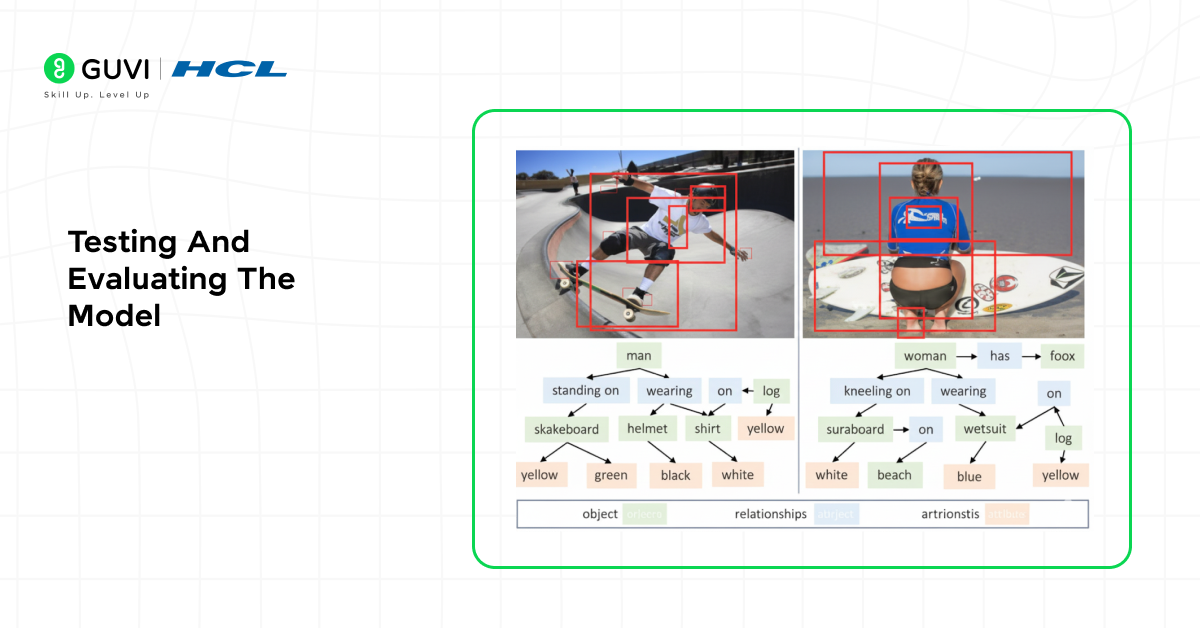
After training your model with a Face Recognition Dataset, it’s essential to test and evaluate its performance. This ensures that the model can accurately recognize new faces from both custom and public datasets.
Step 7.1: Load the Trained Model
import pickle

# Load the trained KNN classifier
with open('face_recognition_knn.pkl', 'rb') as f:
    knn = pickle.load(f)
Explanation:
- Loads the model you trained earlier.
- Allows you to test new images without retraining.
Step 7.2: Test with a New Image
import face_recognition

# Load a new face image
test_image = face_recognition.load_image_file("dataset/person2/person2_1.jpg")
test_encoding = face_recognition.face_encodings(test_image)[0]

# Predict using the trained KNN model
prediction = knn.predict([test_encoding])
print("Predicted person:", prediction[0])
Explanation:
- Encodes the new face into a numerical vector.
- Uses the KNN classifier to compare it with known encodings.
- Prints the predicted label, confirming whether the model recognizes the person.
Step 7.3: Evaluate Accuracy on Multiple Images
correct = 0
total = 0

for person in os.listdir("dataset"):
    person_path = os.path.join("dataset", person)
    for img_name in os.listdir(person_path):
        img_path = os.path.join(person_path, img_name)
        image = face_recognition.load_image_file(img_path)
        enc = face_recognition.face_encodings(image)
        if len(enc) > 0:
            prediction = knn.predict([enc[0]])
            total += 1
            if prediction[0] == person:
                correct += 1

accuracy = correct / total * 100
print(f"Model Accuracy: {accuracy:.2f}%")
Explanation:
- Loops through all images in your Face Recognition Dataset.
- Compares predictions with actual labels.
- Calculates the overall accuracy of your model.
- Helps identify if the model performs well with both custom and public datasets.
Why Testing and Evaluation is Important
- Ensures your Face Recognition Dataset is useful for real-world predictions.
- Helps you identify misclassifications and improve dataset quality.
- Provides confidence in deploying your model in applications like attendance systems or security checks.
8. Augmenting the Dataset
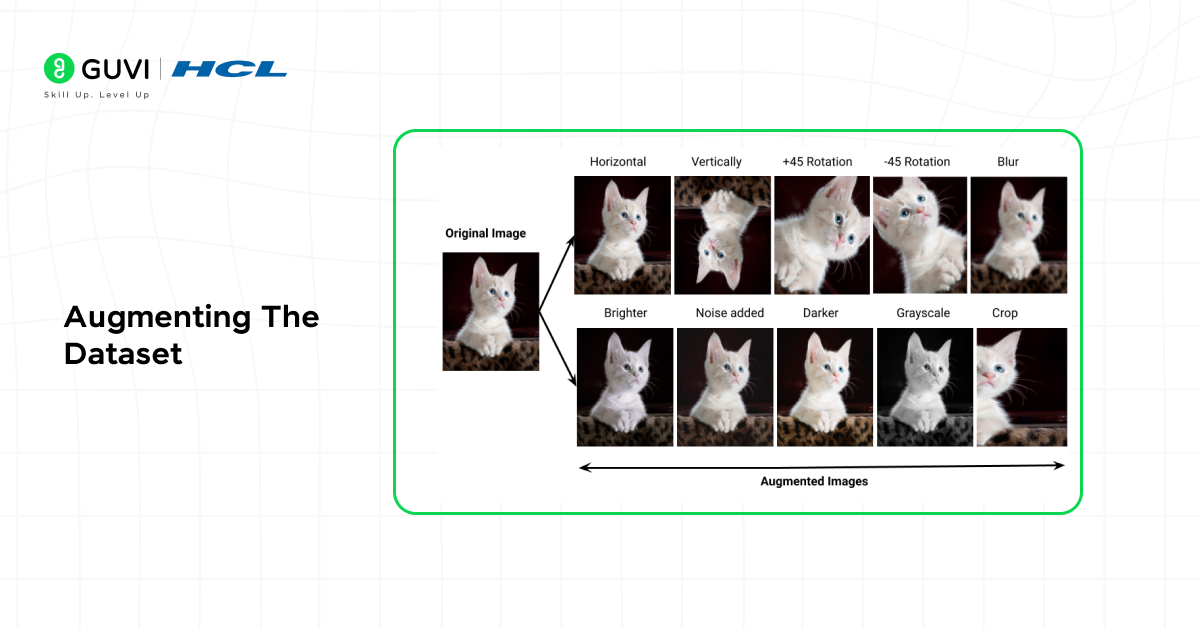
Even with a well-prepared Face Recognition Dataset, models can struggle when faces appear under different lighting, angles, or expressions. That’s where data augmentation comes in — it helps create more varied training samples without collecting new images.
Augmentation techniques make your dataset more robust, improving the model’s ability to recognize faces in real-world conditions.
Step 8.1: Using ImageDataGenerator for Augmentation
from tensorflow.keras.preprocessing.image import ImageDataGenerator
import cv2
import os
import numpy as np

# Define augmentation parameters
datagen = ImageDataGenerator(
    rotation_range=15,
    width_shift_range=0.1,
    height_shift_range=0.1,
    zoom_range=0.1,
    horizontal_flip=True
)

dataset_path = "dataset"
augmented_path = "augmented_dataset"

if not os.path.exists(augmented_path):
    os.makedirs(augmented_path)

# Loop through existing images and generate new ones
for person in os.listdir(dataset_path):
    person_path = os.path.join(dataset_path, person)
    save_path = os.path.join(augmented_path, person)
    os.makedirs(save_path, exist_ok=True)

    for img_name in os.listdir(person_path):
        img_path = os.path.join(person_path, img_name)
        img = cv2.imread(img_path)
        img = cv2.cvtColor(img, cv2.COLOR_BGR2RGB)
        img = np.expand_dims(img, axis=0)

        # Generate 5 new variations per image
        aug_iter = datagen.flow(img, batch_size=1, save_to_dir=save_path, save_prefix='aug', save_format='jpg')
        for _ in range(5):
            next(aug_iter)
Explanation:
- Uses Keras’ ImageDataGenerator to apply transformations such as rotation, shift, and flip.
- Generates new augmented images automatically and saves them in a new folder.
- Expands the dataset significantly, improving recognition accuracy.
Step 8.2: Visualize the Augmented Images
import matplotlib.pyplot as plt
from tensorflow.keras.preprocessing import image

# Load a few augmented samples for visualization
sample_dir = os.path.join(augmented_path, os.listdir(augmented_path)[0])
sample_imgs = os.listdir(sample_dir)[:5]

plt.figure(figsize=(10, 4))
for i, img_name in enumerate(sample_imgs):
    img = image.load_img(os.path.join(sample_dir, img_name))
    plt.subplot(1, 5, i + 1)
    plt.imshow(img)
    plt.axis('off')
plt.show()
Explanation:
- Displays a few augmented images to verify transformations.
- Confirms that the Face Recognition Dataset now includes a variety of lighting, angles, and expressions.
Step 8.3: Use the Augmented Dataset for Retraining
After generating the augmented images, retrain your model using the same workflow:
- Load and preprocess the augmented images.
- Encode faces again using face_recognition.
- Retrain your KNN or neural network classifier.
This ensures the model learns from the enhanced diversity in your dataset.
Why Dataset Augmentation Matters
- Improves generalization: The model learns to handle real-world variations like rotations or shadows.
- Reduces overfitting: Prevents the model from memorizing training images.
- Expands the dataset size: Especially useful when you have fewer samples per person.
- Works for both custom and public datasets (LFW, VGGFace2, etc.).
Real-World Applications of Face Recognition Datasets
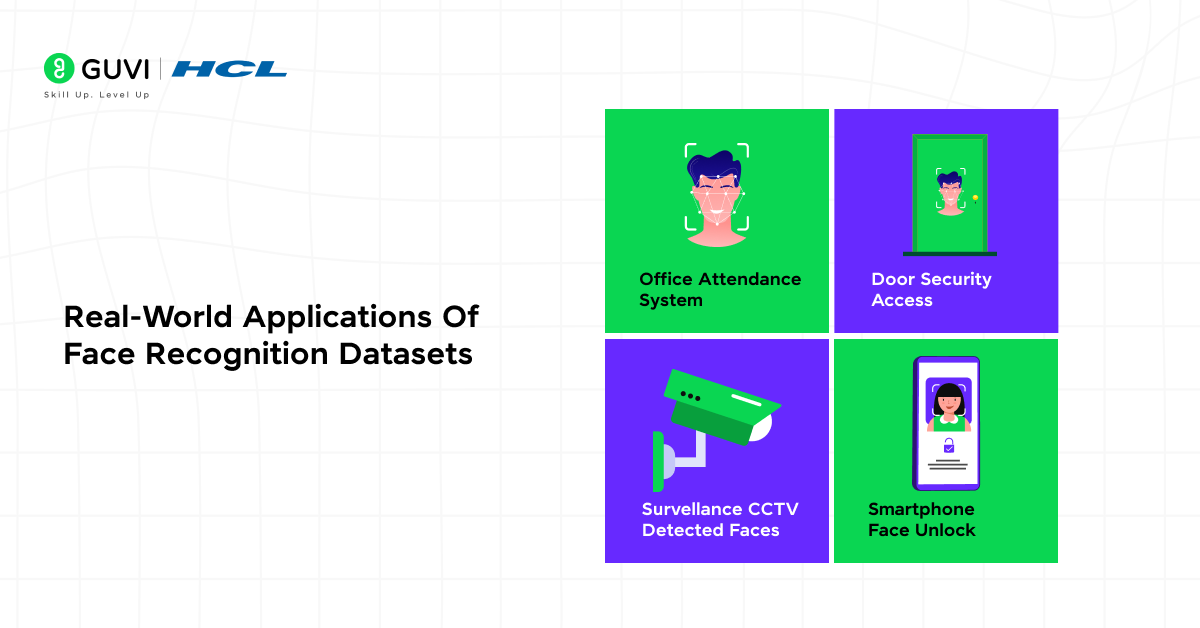
Once your Face Recognition Dataset and model are ready, they can be applied across multiple real-world domains. From security to personalization, the ability to identify and verify faces accurately opens up a range of innovative possibilities.
1. Automated Attendance Systems
Organizations and educational institutions use face recognition datasets to automate attendance tracking.
- Employees or students simply look into a camera.
- The system compares the live face to stored encodings in your dataset.
- Attendance is marked automatically, reducing manual effort.
Example:
Your custom dataset, trained with images of office employees, can detect and mark their attendance when they arrive at work each day.
2. Security and Access Control
Face recognition enhances security systems by allowing authorized access only to registered individuals.
- Door locks, mobile apps, and workplaces integrate these systems.
- Face encodings are compared in real time against your trained dataset.
Example:
A company can use a camera-based entry system that unlocks the door only when a match from the Face Recognition Dataset is found.
3. Smart Surveillance Systems
In public safety, face recognition datasets help identify persons of interest from CCTV footage.
- Systems use real-time face detection and matching.
- Alerts are triggered when a recognized face appears in the frame.
Example:
Law enforcement agencies use large-scale public datasets like VGGFace2 or MS-Celeb-1M to train recognition systems that can spot missing persons or suspects in crowds.
4. Personalized User Experiences
E-commerce and entertainment platforms use face recognition to enhance user experience.
- Recommendations or AR filters can be tailored to each face.
- Businesses use recognition to identify loyal customers for personalized greetings or offers.
Example:
Retail stores use cameras trained on a custom Face Recognition Dataset to recognize VIP customers and notify staff instantly.
5. Healthcare and Emotion Detection
Modern healthcare systems use face recognition datasets to analyze patient emotions, stress, or pain levels.
- Detects micro-expressions in real-time.
- Helps track patient comfort during treatment or therapy.
Example:
Hospitals can integrate emotion recognition models trained on facial datasets to monitor patient well-being remotely.
6. Device Authentication
From unlocking smartphones to logging into secure applications, face recognition datasets ensure seamless and secure authentication.
- Trained models identify faces instantly with high accuracy.
- Used widely in mobile devices, laptops, and banking apps.
Example:
Apple’s Face ID or Android’s face unlock features rely on proprietary datasets that follow the same structure you’ve learned in this blog.
Join our 5-Day Free Data Science Email Series, designed for beginners who want to master the essentials of data collection, cleaning, visualization, and model building. Each day covers a focused topic — from Python setup and data preprocessing to real-world applications like image recognition and machine learning for faces — delivered straight to your inbox.
Conclusion
Building a Face Recognition Dataset from scratch not only deepens your understanding of how face recognition systems work but also gives you complete control over your model’s accuracy and adaptability. From collecting images and preprocessing them to encoding, training, and testing your model, each step plays a vital role in developing a robust recognition system.
Public datasets like LFW, VGGFace2, and CelebA help you benchmark and refine your model, while your custom dataset ensures personalization for your specific use case — whether it’s attendance tracking, authentication, or smart surveillance.
Ready to take your learning beyond datasets and dive into real-world projects? Join HCL GUVI’s Data Science Course — an industry-aligned course that helps you build hands-on expertise in data collection, preprocessing, visualization, and real-world applications.
FAQs
1. What are the ethical concerns when creating a face recognition dataset?
Ethical concerns include issues like privacy, data consent, and bias. It’s crucial to collect images only with permission and ensure that your dataset represents diverse ethnicities, ages, and genders to avoid discrimination or model bias in real-world applications.
2. How much data is needed to train an accurate face recognition model?
The amount of data depends on the model’s complexity and goal. For simple applications, even a few hundred well-labeled images per person can work. However, for large-scale or production-level systems, thousands of varied images per identity may be needed to ensure reliability across lighting, pose, and background conditions.
3. Can I use synthetic or AI-generated faces for training my model?
Yes, synthetic datasets generated using tools like StyleGAN or DeepFaceLab can supplement real-world images. They help increase dataset diversity, reduce bias, and improve performance, especially when collecting real human faces is difficult due to privacy concerns.
4. What are the common challenges faced in dataset labeling for face recognition?
Manual labeling can be time-consuming and prone to human error. Common challenges include incorrectly tagging faces, duplicate identities, and poor-quality images. Using semi-automated labeling tools and consistent naming conventions helps reduce these issues.
5. How do researchers ensure fairness in face recognition datasets?
Researchers ensure fairness by balancing the dataset across different demographic groups, genders, and age ranges. They also evaluate models for bias and retrain them using inclusive datasets to maintain equitable performance across all user groups.
Success Stories

About the Author
Jebasta
I translate the language of data into stories that anyone can understand. As a writer with a data science background, I simplify analytics, AI, and decision-making so beginners and enthusiasts can confidently explore the world of data.
View all posts by Jebasta
Connect with me @













Did you enjoy this article?