


Data Visualization Articles
Best Power BI Course With Certificate: Top Options for Beginners
Power BI and Tableau: A Comprehensive Comparison
Data Visualization with Seaborn in 2026: Complete Beginner's Guide + Examples


Get In Touch For Details! Request More Information
Plotly for Data Visualization: Complete Guide
Oct 23, 2026 9 Min Read 4744 Views
(Last Updated)
Interactive data visualization makes complex datasets easier to explore, compare, and explain. Instead of relying only on static charts, analysts can use filters, hover details, zoom controls, and dynamic dashboards to investigate patterns directly.
Plotly is an open-source visualization library widely used in Python for building interactive line charts, bar charts, scatter plots, heatmaps, maps, 3D visuals, and analytical dashboards. Plotly Express makes common charts quick to create, while Graph Objects provides deeper customization. Plotly also integrates with Dash for building interactive data applications.
This guide explains Plotly for data visualization, from installation and chart creation to customization, dashboard development, large-dataset handling, exporting, and practical code examples.
Table of contents
- Quick Answer
- Introduction to Plotly for Interactive Data Visualization
- Plotly Express vs Graph Objects
- Core Features of Plotly
- Simple Plotly Visualization Example
- Plotly Architecture Overview
- Rendering Engine Selection: SVG vs WebGL
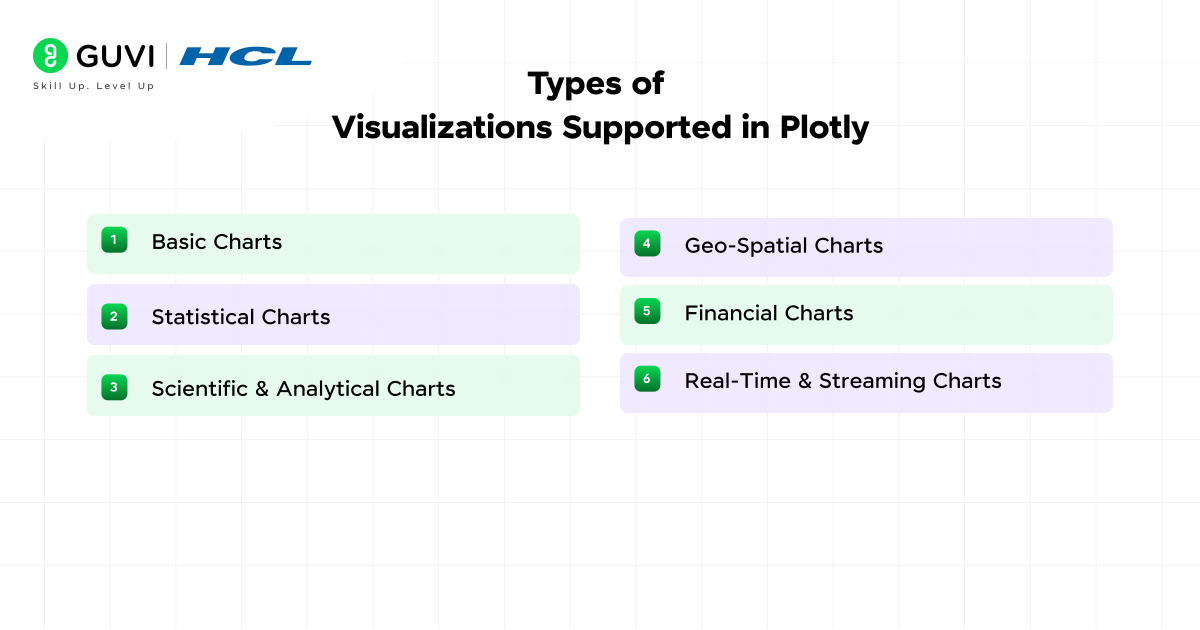
- Types of Visualizations Supported in Plotly
- Basic Charts
- Statistical Charts
- Scientific and Analytical Charts
- Geo-Spatial Charts
- Financial Charts
- Real-Time and Streaming Charts
- Specialized Visual Forms
- Installing Plotly and First Plot
- Plotly Installation in Python
- Creating a Basic Scatter Plot
- How the Figure Object Works?
- Running Plotly in Jupyter
- Plotly Code Examples for Data Visualization
- Interactive Bar Chart
- Interactive Line Chart
- Interactive Scatter Plot
- Build an Interactive Plotly Dashboard With Dash
- Which Plotly Chart Should You Use?
- Customization and Styling in Plotly
- Plotly Express vs Plotly Graph Objects
- Interactive Dashboards with Dash
- Example: Basic Dash App with a Plotly Chart
- Working with Large Datasets in Plotly
- Exporting and Sharing Visualizations
- Comparison with Other Visualization Libraries
- Best Practices for Plotly in Production
- Conclusion
- FAQs
- 1: Is Plotly free for personal and commercial use?
- 2: Does Plotly work without internet access?
- 3: Can Plotly be used with machine learning workflows?
Quick Answer
Plotly is an open-source data visualization library used to create interactive, publication-quality charts and dashboards in Python and other programming languages.
- Interactive Charts: Supports hover, zoom, selection, and legend controls.
- Chart Types: Includes line, bar, scatter, histogram, heatmap, map, financial, and 3D charts.
- Plotly Express: Best for quick visualizations with concise syntax.
- Graph Objects: Provides deeper control over traces, layouts, and customization.
- Dashboard Support: Integrates with Dash to build interactive analytical applications.
- Notebook Friendly: Works with Jupyter Notebook, Google Colab, and browser-based workflows.
- Best For: Data analysis, dashboards, business intelligence, research, and data science projects.
Introduction to Plotly for Interactive Data Visualization
Data visualization has become a core part of modern analytics because raw numbers alone rarely provide clear insight. Graphs and interactive charts help teams understand trends, evaluate patterns, and communicate findings with clarity. Organizations rely on visualization tools to support decisions across product development, finance, healthcare, scientific research, and artificial intelligence.
Plotly is an open-source graphing library that allows users to create interactive and publication-quality visualizations. It supports multiple programming languages such as Python, R, Julia, MATLAB, and JavaScript. The library renders visual output directly in web browsers through HTML, SVG, and WebGL, which makes it suitable for notebooks, dashboards, and standalone web pages.
Developers choose Plotly for data visualization because it offers a single workflow for statistical charts and real-time data streams. Analysts value its high-level API that reduces the amount of code required to build a chart. Researchers use it because Plotly produces vector graphics that maintain precision in scientific papers and technical reports. The library gives full control over layout and interaction logic, which supports both quick exploration and production-ready visualization.
Plotly Express vs Graph Objects
Plotly provides two main approaches for creating figures in Python:
| Feature | Plotly Express | Graph Objects |
|---|---|---|
| API level | High-level | Lower-level |
| Best for | Common charts and quick analysis | Detailed customization |
| Code required | Usually less | Usually more |
| Ease of learning | Easier for beginners | Requires more understanding |
| Custom traces | More limited | Extensive control |
| Typical import | import plotly.express as px | import plotly.graph_objects as go |
Plotly Express is the recommended starting point for most common figures. It creates complete figures with concise functions such as px.bar(), px.line(), and px.scatter().
Graph Objects provides more detailed control over traces, layouts, annotations, and complex figures. Plotly Express figures also return graph_objects.Figure objects, so they can be further customized using Graph Objects methods.
Core Features of Plotly
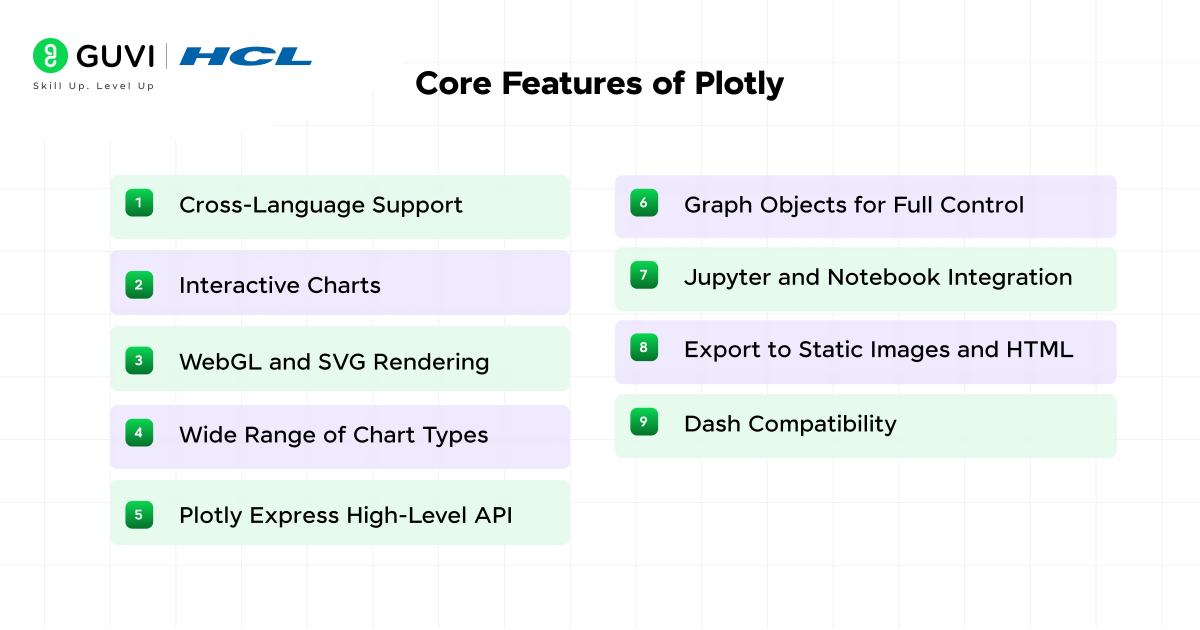
- Cross-Language Support: Plotly works with Python, R, Julia, MATLAB, and JavaScript, which allows teams to use the same visualization library across different tech stacks.
- Interactive Charts: Every plot supports zoom, hover labels, legend toggling, and data selection. Interaction happens in the browser with no extra plugins.
- WebGL and SVG Rendering: The library switches between WebGL for large datasets and SVG for crisp vector output. This balance helps with both performance and visual quality.
- Wide Range of Chart Types: Plotly covers line charts, bar charts, scatter plots, heatmaps, 3D surface plots, choropleth maps, and financial charts. Users work with one library instead of multiple tools.
- Plotly Express High-Level API: A concise syntax helps create charts with fewer lines of code. It speeds up exploratory analysis while keeping configuration readable.
- Graph Objects for Full Control: The lower-level API exposes every layout and styling parameter. It supports complex dashboards, multi-axis charts, and deeply customized visuals.
- Jupyter and Notebook Integration: Plots render inline in Jupyter, Google Colab, and other notebook environments. This makes Plotly a natural fit for data science workflows.
- Export to Static Images and HTML: Visuals export as PNG, PDF, SVG, or standalone HTML files, which helps with sharing results in reports and web pages.
- Dash Compatibility: Plotly works with the Dash framework to build analytical web apps using pure Python, without writing separate frontend code.
Creating charts is only the beginning. Strong data professionals also know how to clean data, identify meaningful patterns, build interactive dashboards, and communicate findings clearly. Build practical skills in Python, data visualization, analytics, machine learning, and dashboard development with HCL GUVI’s Data Science Course. Apply what you learn through hands-on projects and build portfolio-ready data solutions that demonstrate real analytical ability.
Simple Plotly Visualization Example
Here is a basic scatter plot using Plotly Express:
import plotly.express as px

df = px.data.iris()

fig = px.scatter(
    df,
    x="sepal_width",
    y="sepal_length",
    color="species",
    title="Iris Dataset"
)

fig.show()
Unlike a static image, the resulting chart can be explored interactively by hovering over points, zooming, and using the chart controls.
Plotly Architecture Overview
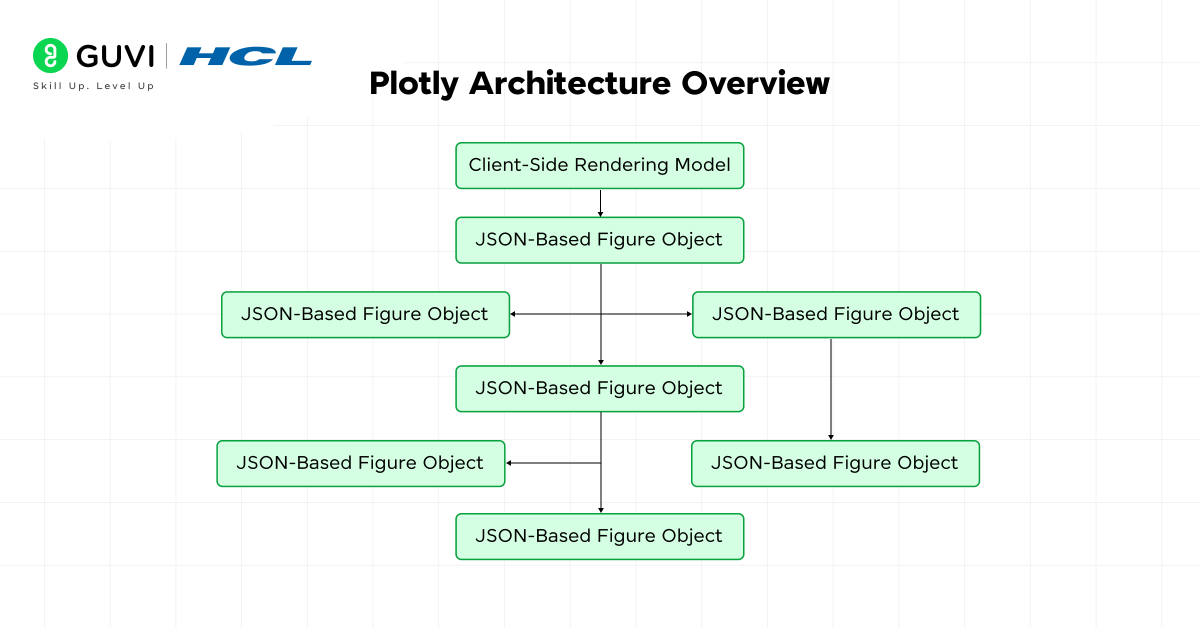
- Client-Side Rendering Model
Plotly builds every chart through a JavaScript rendering engine that runs entirely in the browser. The core library draws shapes, text, and traces using either SVG or WebGL. Interaction events such as hover, zoom, pan, drag, and selection are handled on the client side, which keeps latency low even in offline environments.
- JSON-Based Figure Object
Every Plotly figure is defined as a structured JSON object. The object contains three main sections:
- data for traces
- layout for visual configuration
- config for interaction rules and export controls
This structure allows the same chart definition to be transferred across languages, stored in databases, or sent over a network API without conversion.
- Trace and Layout Separation
A trace defines the geometry of a plot, such as points, lines, bars, or surfaces. Layout controls global elements such as axes domains, margins, legend placement, grid overlays, and color themes. This modular structure allows a single layout to be reused while swapping traces, which helps in automated reporting pipelines.
Rendering Engine Selection: SVG vs WebGL
Plotly chooses the render backend based on trace type and data size.
- SVG runs with high typographic precision and is ideal for scientific papers and vector export.
- WebGL supports GPU acceleration, which scales to millions of points in scatter, heatmap, and surface plots.
This dual system lets users control memory footprint and visual accuracy.
- Language Wrappers and Data Flow
Python, R, Julia, and MATLAB packages serve as thin wrappers. They convert user code into the same JSON payload that the JavaScript core interprets. This design avoids duplicated logic across languages. The browser becomes the final execution layer, which guarantees uniform rendering whether the chart was written in a notebook, a Dash app, or a standalone HTML file.
- Reactive Update Pipeline
Plotly uses a diff-based update mechanism. Only the changed sections of the JSON structure trigger redraws. Axes, legends, and traces are updated independently. This selective redraw process reduces GPU load in dashboards that refresh on a schedule or through user input.
- Support for Server-Linked Interactivity
Although charts render in the browser, Plotly can link to backend data sources through frameworks like Dash. A callback system passes filtered or updated data into the figure object, which allows time-series streaming, database queries, and live sensor feeds.
- Export and Serialization Layer
Charts export through a static image server or a local rendering engine that converts the figure into PNG, JPEG, SVG, or PDF. Serialized figures can also be embedded in HTML with no external dependencies, which supports long-term archival and offline viewing.
Also, Explore: Free Python Tutorial for Beginners from Basics to Advanced
Types of Visualizations Supported in Plotly
1. Basic Charts
Plotly covers core chart types used in exploratory analysis and reporting. Line charts track changes across a continuous scale such as time. Bar charts compare values across categories with clear height ratios. Scatter plots reveal relationships between two numeric variables through marker placement. Each of these charts supports hover data, zoom control, legends, annotations, and custom color mapping, which helps analysts review data patterns with accuracy.
2. Statistical Charts
Statistical charts provide distribution-level insight without manual computation. Box plots summarize quartiles and outliers through a single visual form. Violin plots extend this idea with a density curve that reflects value concentration. Histograms group numeric values into bins to show frequency patterns. These charts help spot skewness, gaps, and clustering in datasets.
3. Scientific and Analytical Charts
Plotly supports visual workflows in physics, chemistry, engineering, and geoscience. Heatmaps display intensity values across two axes with a color range. Contour charts draw lines of equal value, which helps interpret gradients. 3D surface charts add a z-axis for terrain, simulation output, and mathematical functions. These charts work with both static datasets and live computation models.
4. Geo-Spatial Charts
Geographic visualizations in Plotly operate on both vector and tile map layers. Choropleth maps shade regions based on numeric values such as population density or infection rate. Scatter map plots show point data over city, street, or satellite layers sourced through Mapbox. Plotly supports projections, zoom bounds, and geographic coordinate systems, which makes it suitable for demographics, mobility analysis, and logistics planning.
5. Financial Charts
Plotly includes chart structures used in quantitative finance. Candlestick charts display open, high, low, and close values for markets. OHLC charts offer the same information with a minimal stroke design. These charts work with time-series indexing and can include overlays such as moving averages or volatility bands.
6. Real-Time and Streaming Charts
Plotly refreshes graphics without reloading the page through partial JSON updates. This capability supports dashboards that read data from APIs, sensors, or databases. Plots can refresh on intervals or react to user input through callbacks. This is useful in manufacturing telemetry, medical monitoring, trade analytics, and control systems.
7. Specialized Visual Forms
Plotly provides Sankey diagrams for flow analysis such as energy transfer or user funnels. Treemaps display hierarchical data through nested rectangles. Parallel coordinates charts help compare multi-feature records. These charts support interaction through brushing, highlighting, and filtering.
Also, Read: 10 Impressive Data Visualization Project Ideas [With Source Code]
Installing Plotly and First Plot
Plotly Installation in Python
Plotly can be installed through pip or conda, which makes it accessible in both virtual environments and system-wide setups. The command below installs the latest stable build through pip:
pip install plotly
Users who work with Anaconda can install it through the main channel:
conda install -c plotly plotly
Once installed, Plotly works in Jupyter Notebook, JupyterLab, IPython, Google Colab, and plain Python scripts.
Creating a Basic Scatter Plot
The example below builds a scatter chart with Plotly Express. It uses two numeric lists to define points on the x and y axes.
import plotly.express as px
x_values = [1, 2, 3, 4, 5]
y_values = [10, 15, 13, 17, 19]
fig = px.scatter(x=x_values, y=y_values, title=”Sample Scatter Plot”)
fig.show()
The fig object holds the complete chart structure. Calling fig.show() renders the plot in the browser or notebook output cell.
How the Figure Object Works?
The figure contains two main components: traces and layout. Traces store the data points, and the layout controls labels, margins, axis titles, and background. This separation keeps the visual configuration independent from the stored data.
Running Plotly in Jupyter
Plotly auto-detects the notebook environment and displays charts inline. Users working in JupyterLab may install the Plotly JupyterLab extension for older versions, although current releases render without extra plugins.
Plotly Code Examples for Data Visualization
1. Interactive Bar Chart
import plotly.express as pxdf = px.data.gapminder().query("year == 2007")fig = px.bar( df.head(10), x="country", y="pop", title="Population by Country")fig.show()This creates an interactive bar chart where users can hover over values, zoom, and explore individual categories.
2. Interactive Line Chart
import plotly.express as pxdf = px.data.gapminder().query("country == 'India'")fig = px.line( df, x="year", y="lifeExp", markers=True, title="Life Expectancy in India")fig.show()Line charts work well for displaying trends and changes across time.
3. Interactive Scatter Plot
import plotly.express as pxdf = px.data.iris()fig = px.scatter( df, x="sepal_length", y="petal_length", color="species", hover_data=["sepal_width", "petal_width"], title="Iris Dataset Analysis")fig.show()The hover_data parameter adds extra information without overcrowding the visualization.

Build an Interactive Plotly Dashboard With Dash
Plotly becomes more powerful when combined with Dash. You can connect charts with dropdowns, filters, and other controls to create interactive analytics dashboards.
Here is a simple dashboard demo:
from dash import Dash, dcc, html, Input, Outputimport plotly.express as pxdf = px.data.gapminder()app = Dash(__name__)app.layout = html.Div([ html.H2("Country Analytics Dashboard"), dcc.Dropdown( options=[ {"label": country, "value": country} for country in df["country"].unique() ], value="India", id="country-filter" ), dcc.Graph(id="trend-chart")])@app.callback( Output("trend-chart", "figure"), Input("country-filter", "value"))def update_chart(country): filtered_df = df[df["country"] == country] return px.line( filtered_df, x="year", y="lifeExp", markers=True, title=f"Life Expectancy Trend: {country}" )The workflow is simple:
User selects a country → Dash callback filters the data → Plotly rebuilds the chart → Dashboard updates automatically
This pattern can be extended to build sales dashboards, financial reports, healthcare analytics, IoT monitoring, and business intelligence applications.
Which Plotly Chart Should You Use?
| Goal | Recommended Chart |
|---|---|
| Compare categories | Bar chart |
| Show change over time | Line chart |
| Show relationships between variables | Scatter plot |
| Show distribution | Histogram or box plot |
| Show correlation across a matrix | Heatmap |
| Show part-to-whole relationships | Pie chart, treemap, or sunburst |
| Show geographic data | Map-based charts |
| Show three-dimensional relationships | 3D scatter or surface chart |
| Show financial price data | Candlestick or OHLC chart |
Plotly currently supports a broad range of statistical, scientific, financial, geographic, and 3D visualizations.
Customization and Styling in Plotly
Plotly offers detailed control over chart appearance, labels, interactions, and layout. Key customization options include:
- Colors and Themes: Apply categorical or continuous color scales, predefined templates, or custom palettes.
- Axis Formatting: Customize axis titles, ranges, tick labels, grid lines, and linear or logarithmic scales.
- Titles and Labels: Add chart titles, data labels, annotations, and callouts to highlight important values.
- Hover Information: Control hover text, value formatting, and comparison behavior for interactive exploration.
- Legends: Change legend position, grouping, visibility, and click-to-hide interactions.
- Markers and Lines: Adjust marker size, symbols, line width, and trace appearance.
- Layout Settings: Modify margins, spacing, backgrounds, fonts, and overall chart dimensions.
- Annotations: Add arrows, notes, or thresholds to explain peaks, events, and important data points.
- Interactive Controls: Use sliders, buttons, dropdowns, and update menus for dynamic chart exploration.
- Responsive Design: Configure charts to resize across notebooks, dashboards, and different screen sizes.
- Export Styling: Maintain chart formatting when exporting visuals to PNG, SVG, PDF, or HTML.
- Dashboard Consistency: Reuse themes, fonts, spacing, and layout settings across multiple Plotly charts for a unified dashboard design.
Plotly Express vs Plotly Graph Objects
The table below presents a clear technical comparison between Plotly Express (PX) and Plotly Graph Objects (GO), fully aligned with your writing rules.
| Feature | Plotly Express | Plotly Graph Objects |
| API Level | High-level wrapper | Low-level, full control |
| Code Length | Fewer lines for common charts | More lines because every element is defined |
| Best Use Case | Quick exploration and prototyping | Complex dashboards and deeply customized visuals |
| Data Handling | Accepts data frames directly | Requires explicit x and y values or trace definitions |
| Customization Depth | Limited to layout edits | Full access to every trace and layout attribute |
| Multiple Traces | Created automatically when grouping data | Added manually through go.Figure().add_trace() |
| Figure Structure | One function builds the full chart | User builds figure, traces, and layout separately |
| Learning Curve | Faster to get started | More verbose but offers full flexibility |
| Exporting and Embedding | Same export options as GO | Same export options as PX |
| Interaction Logic | Basic hover and legend control | Extended control with update menus, sliders, and buttons |
Interactive Dashboards with Dash
- What Dash Brings to Plotly
Dash is a Python framework that builds web dashboards with Plotly charts. It removes the need to write separate frontend code in HTML, CSS, or JavaScript. A dashboard built in Dash runs as a web app, which means users can view it in any browser on any device inside a local network or over the internet.
- Core Building Blocks
A Dash app has three main parts:
| Component | Purpose |
| Layout | Defines the structure of the page such as charts, text, buttons, and input fields |
| Callbacks | Connect user actions to chart updates through Python functions |
| Server | Runs the app and responds to browser requests |
Each part works in the same Python file, which keeps deployment simple.
Example: Basic Dash App with a Plotly Chart
from dash import Dash, dcc, html
import plotly.express as px
app = Dash(__name__)
fig = px.line(x=[1, 2, 3, 4], y=[10, 12, 15, 18], title=”Line Chart”)
app.layout = html.Div([
dcc.Graph(figure=fig)
])
if __name__ == “__main__”:
app.run_server(debug=True)
The example above loads a Plotly chart inside a web app. The app runs on a local server and opens in the browser.
- Callback Logic for Interaction
Dash updates charts through callback functions. A callback listens to components such as dropdowns, sliders, or text inputs. The output of the callback updates the figure object, which refreshes the chart without reloading the page. This flow makes Dash suitable for parameter controls, scenario analysis, and streaming displays.
- Deployment Options
Dash apps can run on Flask, Gunicorn, or cloud platforms such as Heroku and Azure. A single Python script can scale to a production service without rewriting the chart logic.
Working with Large Datasets in Plotly
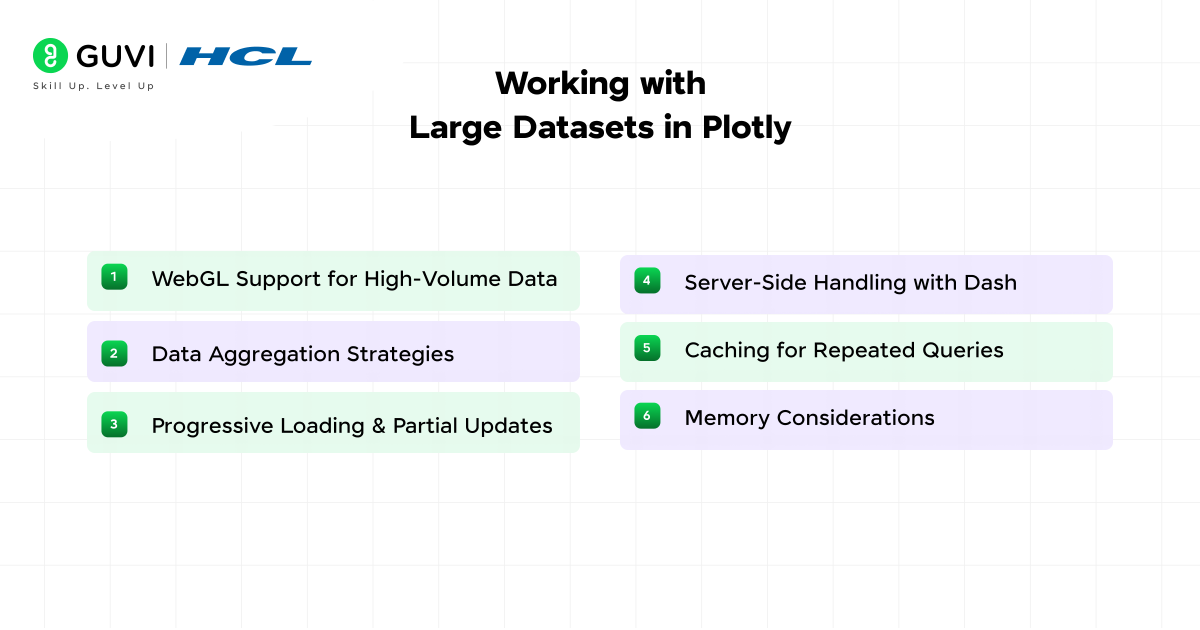
- WebGL Support for High-Volume Data
Plotly switches to WebGL rendering for charts with large point counts. WebGL uses GPU acceleration, which helps display datasets that reach hundreds of thousands or millions of points without freezing the browser. Scattergl, heatmapgl, and surfacegl are WebGL variants that handle heavy workloads with stable frame rates.
- Data Aggregation Strategies
Large datasets often slow down chart rendering. Plotly supports downsampling and binning to reduce load. Downsampling keeps representative points, and binning groups values into ranges. These approaches maintain data shape while reducing memory use.
- Progressive Loading and Partial Updates
Plotly supports patching, which updates only part of a figure instead of rebuilding the full chart. This method is useful for real-time dashboards that stream values from sensors or APIs. The browser redraws only the updated trace, which helps maintain smooth interaction.
- Server-Side Handling with Dash
Dash can preprocess large datasets on the backend before pushing data to the browser. Heavy computation such as grouping, resampling, or summarizing can run in Python with NumPy or Pandas. The frontend receives only the reduced result, which keeps the chart responsive.
- Caching for Repeated Queries
Dash supports caching layers that store processed data. Frequent user actions such as filter selection or date range change can reuse cached output. This reduces CPU load and shortens response time.
- Memory Considerations
Browser limits apply when loading extremely large arrays. WebGL helps, but it still allocates memory per trace. Breaking data into multiple traces or paging through subsets reduces memory pressure. Vector export requires SVG mode, which is not ideal for huge datasets, so static image output should be done after filtering.
Exporting and Sharing Visualizations
- Static Image Export
Plotly figures can export to PNG, JPEG, SVG, and PDF through the write_image() function or the built-in download button in the chart toolbar. SVG and PDF preserve vector quality, which keeps lines and labels sharp in printed reports. PNG and JPEG are useful for slide decks and web uploads that require raster output.
- HTML Export for Offline Sharing
A Plotly figure can be saved as a standalone HTML file. The file contains the full chart definition and the Plotly JavaScript engine, which means the recipient does not need Plotly installed. This format supports hover labels, zoom, and interaction even without an internet connection.
fig.write_html(“chart.html”)
- Embedding in Web Pages and CMS Platforms
Plotly charts can embed into any site through a simple <script> tag or iframe. Content platforms such as WordPress, Ghost, and Medium accept HTML embeds. This helps share analytics dashboards without converting them into static images.
- Export Through Dash Apps
Dash supports export triggers that let users download the current state of a chart from a dashboard. Exports can include filtered or updated data, which gives each viewer a personalized output.
- Version Control of Figures
Since every Plotly figure is a JSON object, it can be stored in Git, databases, or API responses. This allows teams to track changes in layout and data structure the same way they track source code. Figure JSON can recreate the exact same chart in any Plotly-supported language.
- Sharing in Jupyter and Colab
Jupyter Notebook and Google Colab display Plotly plots inline. Notebooks can be shared through GitHub, nbviewer, or Colab links. Anyone who opens the file sees the chart with full interaction, which makes Plotly a reliable choice for collaborative research.
Comparison with Other Visualization Libraries
| Library | Output Type | Interactivity | 3D Support | WebGL Support | Primary Language | Best Fit |
| Plotly | Static and interactive | Yes | Yes | Yes | Python, R, Julia, JS | Dashboards, analytics apps, research visuals |
| Matplotlib | Static | No | Limited | No | Python | Academic papers and static reports |
| Seaborn | Static | No | No | No | Python | Statistical summaries and quick plots |
| Bokeh | Interactive | Yes | Limited | Partial | Python | Browser-based visuals and streaming panels |
| D3.js | Interactive | Yes | Custom only | Manual | JavaScript | Fully custom visual design at SVG level |
| Chart.js | Interactive | Yes | No | No | JavaScript | Lightweight web charts for front-end use |
Best Practices for Plotly in Production
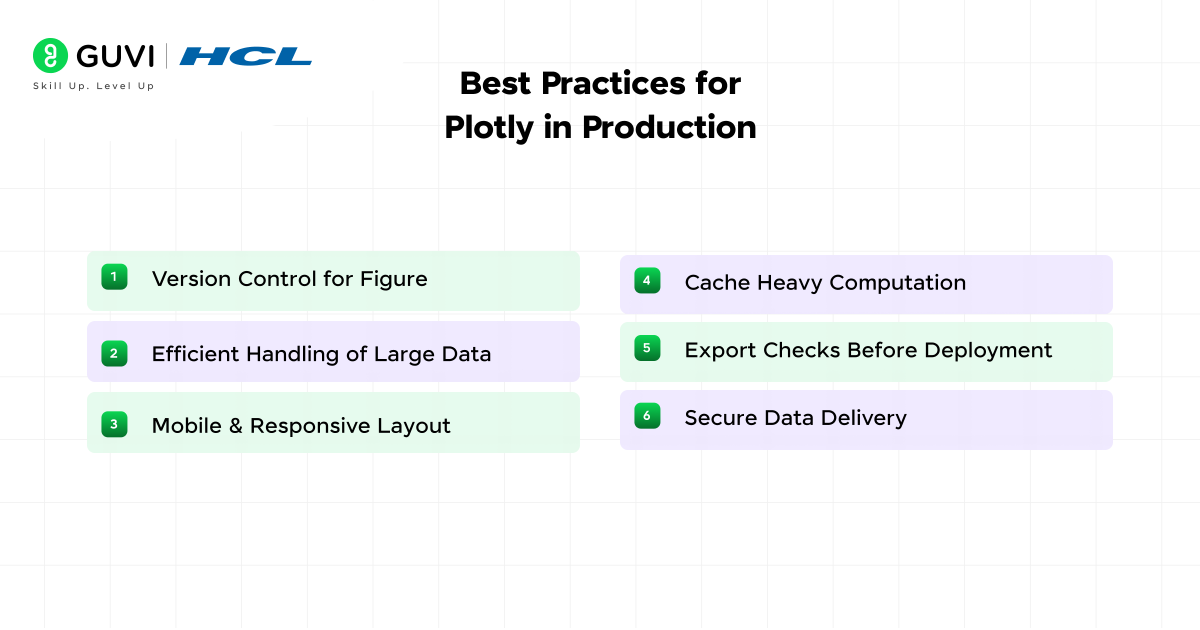
- Version Control for Figures: Store figure configurations or JSON in Git so chart changes can be tracked and reproduced.
- Efficient Handling of Large Data: Reduce unnecessary data points through filtering, aggregation, downsampling, or binning before rendering.
- Mobile and Responsive Layout: Test charts across screen sizes and use responsive layouts so labels, legends, and controls remain readable.
- Cache Heavy Computation: Cache repeated calculations or processed datasets in Dash applications to reduce response time.
- Export Checks Before Deployment: Test PNG, SVG, PDF, and HTML exports to confirm that fonts, margins, and labels render correctly.
- Secure Data Delivery: Avoid exposing sensitive data directly in the browser. Use controlled backend processing and filtered outputs where required.
Conclusion
Plotly gives data professionals a flexible way to move from simple exploratory charts to interactive dashboards and analytical applications. Plotly Express keeps common visualizations concise, while Graph Objects provides detailed control over traces, layouts, and interactions.
Its support for notebooks, browser-based rendering, Dash dashboards, WebGL, multiple chart types, and export formats makes it useful across data science, business intelligence, research, and reporting workflows. Pasted text
The best way to learn Plotly is through practice. Start with basic charts, experiment with interactivity and customization, then build a dashboard that combines multiple visuals and user controls.
FAQs
1: Is Plotly free for personal and commercial use?
Plotly’s core graphing library is open source under the MIT license. It can be used in personal projects, enterprise systems, and academic work without a paid plan.
2: Does Plotly work without internet access?
Plotly charts render in the browser through local JavaScript files, so they can run offline in notebooks, HTML exports, and Dash apps that do not depend on external CDNs.
3: Can Plotly be used with machine learning workflows?
Plotly integrates smoothly with NumPy, Pandas, scikit-learn, TensorFlow, and PyTorch. This allows models to output predictions directly into visual plots for error analysis, performance tracking, and model comparison.
Success Stories

About the Author
Vaishali
I'm a seasoned writer with four years of experience across technical, non-technical, and just about every genre or niche you can imagine. Adaptable and curious, I enjoy exploring new topics and making information engaging and easy to understand. Fueled by a steady stream of tea, I approach each project with creativity, reliability, and genuine enthusiasm for storytelling.
View all posts by Vaishali
Connect with me @













Did you enjoy this article?