


Artificial Intelligence and Machine Learning Articles
Finance Manager to Data Analytics: Career Growth, Salary and Seniority
How to Evaluate LLM Outputs in Production Deployments
AI/ML Skills Gap 2026: Why Companies Can't Find Job-Ready Talent
20 AI/ML Interview Questions Recruiters Can Use Without a Tech Background - Best Guide


Get In Touch For Details! Request More Information

How to Use Jupyter Notebooks: A Complete Beginner to Advanced Guide
Aug 04, 2026 3 Min Read 1477 Views
(Last Updated)
Imagine writing code, seeing results instantly, visualizing data beautifully, and documenting your entire thought process under the same roof. This is what Jupyter Notebooks does.
In a typical programming setup, you often juggle multiple tools, a code editor, a terminal, and sometimes separate software for visualization. This fragmented workflow can slow you down, especially when you’re learning Python or working on data science tasks.
Jupyter Notebooks simplify this entire process.
They offer an interactive, homogeneous setting in which you can write Python code, run it in depth, visualise results, and clarify your reasoning in a single notebook. This makes them compelling for both beginners and experts.
Knowing how to use Jupyter Notebooks can greatly enhance your productivity and knowledge, whether you are going through data, creating machine learning models, or just learning Python in general.
In this blog, you will get to know everything about the installation process to the advanced usage straightforwardly and practically.
Quick Answer:
Jupyter Notebooks are interactive coding environments that allow you to write and execute Python code in small sections called cells. You can combine code, text explanations, equations, and visualizations in a single document.
Table of contents
- What are Jupyter Notebooks?
- Key Characteristics
- How to Install Jupyter Notebooks
- Method 1: With Anaconda (Easiest to Learn)
- Method 2: Using pip
- How to Launch Jupyter Notebook
- The reason why Jupyter Notebooks are so popular
- Interactive Coding
- Instant Output
- Ideal in Data Science
- Combines Code + Explanation
- Beginner-Friendly
- Understanding the Interface
- Key Components
- Writing Python Code in Jupyter
- Example 1: Basic Code
- Example 2: Variables
- Example 3: Using Libraries
- Data Visualization in Jupyter Notebooks
- Example:v
- Using Markdown for Better Understanding
- Example:
- Working with Data in Jupyter
- Load Data
- Clean Data
- Analyze Data
- Advanced Features of Jupyter Notebooks
- Magic Commands
- Inline Visualization
- Keyboard Shortcuts
- Jupyter Extensions
- Jupyter Notebook vs Traditional IDEs
- Wrapping it up:
- FAQs:
- What is the purpose of Jupyter Notebooks?
- Are Jupyter Notebooks beginner-friendly?
- Can I use Jupyter Notebook without using Python?
- Is Jupyter Notebook free?
What are Jupyter Notebooks?
Jupyter Notebooks are free, web-based programmes that enable you to create documents with live code, visualizations, and explanations.
The name “Jupyter” comes from three languages it originally supported:
- Ju → Julia
- Py → Python
- R → R
Jupyter is a language that supports several other languages, but is most often used with Python.
A notebook file (ipynb extension) is more of a dynamic document in which code is executed and documented simultaneously.
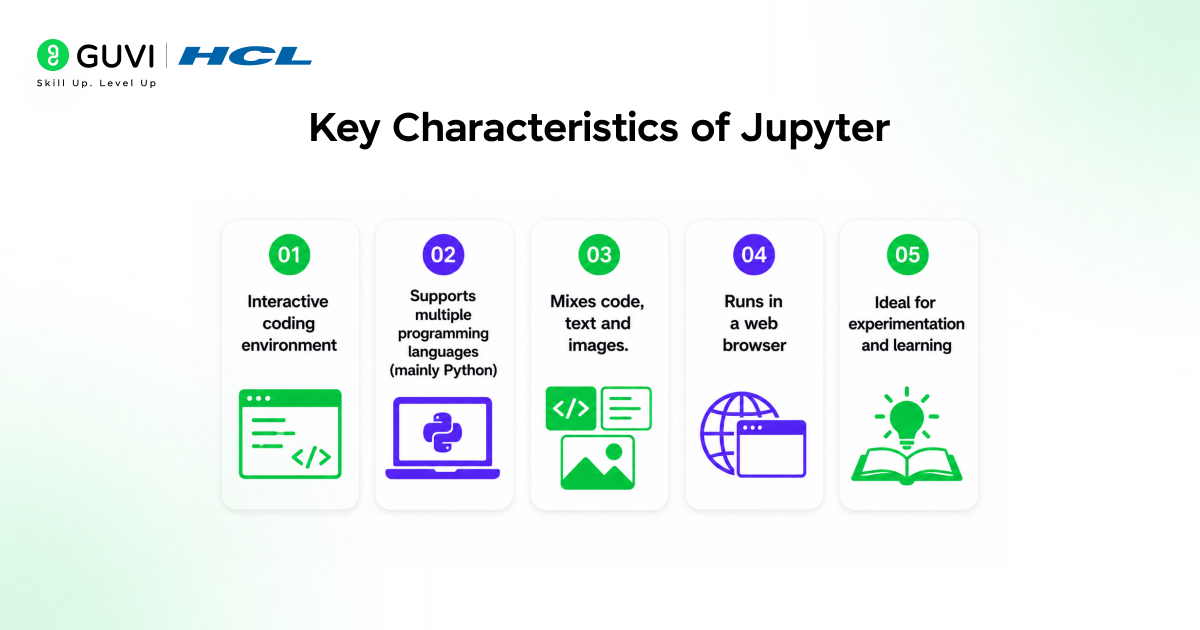
Key Characteristics
- Interactive coding environment
- Supports multiple programming languages (mainly Python)
- Mixes code, text and images.
- Runs in a web browser
- Ideal for experimentation and learning
How to Install Jupyter Notebooks
It has two primary methods:
Method 1: With Anaconda (Easiest to Learn)
Anaconda is a one-stop shop in Python and data science.
Steps:
- Download Anaconda
- Install it
- Open Anaconda Navigator
- Click “Launch” under Jupyter Notebook
This approach is usually suggested as all the necessary libraries are installed automatically.
Method 2: Using pip
Assuming you have Python:
Open Terminal or the command prompt.
Run:
| pip install notebook |
Launch:
| jupyter notebook |
How to Launch Jupyter Notebook
Once installed:
- Open terminal
- Type jupyter notebook
- A browser will open
- Open to your folder.
- New Python Notebook
The reason why Jupyter Notebooks are so popular

1. Interactive Coding
You can use a small chunk of code, rather than having to run a complete script. This simplifies the process of debugging and learning.
2. Instant Output
Your results are automatically displayed below your code. No more window switches or use of separate commands.
3. Ideal in Data Science
Data science Jupyter finds extensive use as it enables:
- Data cleaning
- Analysis
- Visualization
- Model building
All in one place.
4. Combines Code + Explanation
You can add explanations using Markdown, making your notebook easy to understand.
5. Beginner-Friendly
Compared to complex IDEs, Jupyter has a basic interface, which is suitable for learning Python as a beginner.
Understanding the Interface
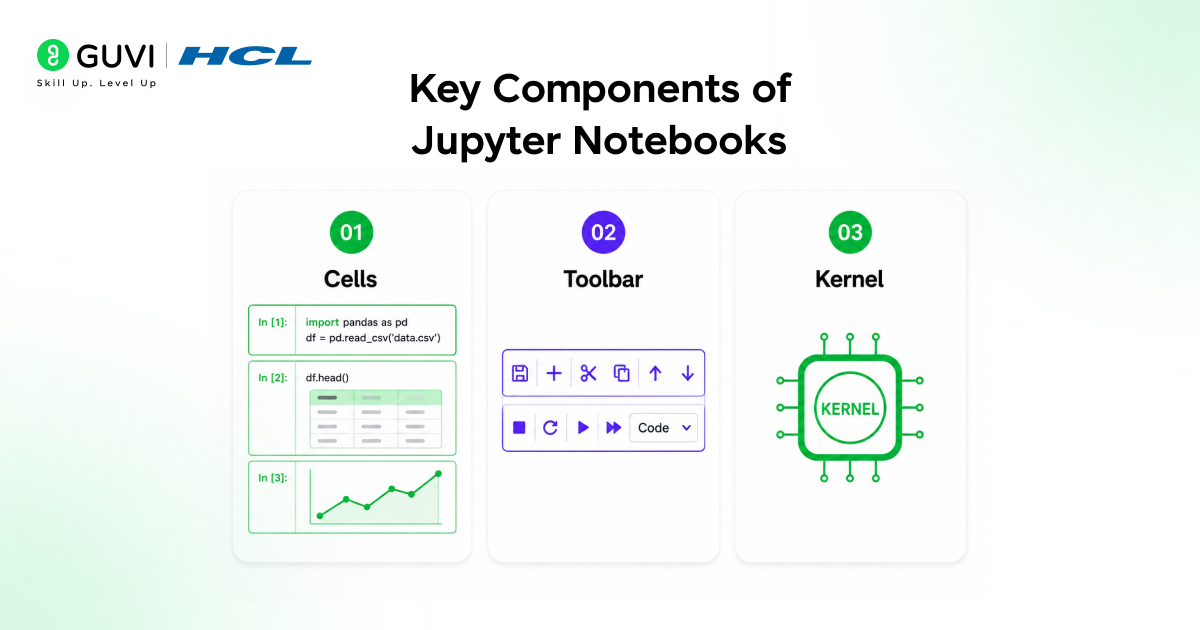
At first glance, the interface of Jupyter Notebooks might not seem a complicated one, but it is created to make the interactive coding process easy and user-friendly. All this is done in a way that you can write, execute and understand your code in one place.
Key Components
1. Cells
Cells are the most important part of a Jupyter Notebook. Imagine them as tiny blocks in which you can write text or code.
- All the cells are independent.
- You can execute a single cell rather than the whole program
- The output is shown immediately under the cell
- You are able to reorganize cells in order to alter the flow of your notebook
This makes Jupyter ideal for step-by-step learning and experimentation, especially in Python and data science.

Early users of AI-powered artifacts have already built interactive games with memory-driven NPCs, adaptive learning tools, CSV-based data analysis apps, and multi-agent workflows — all through simple conversations. No coding required.
This marks a shift where ideas become applications instantly, lowering the barrier between concept and execution.
2. Toolbar
The toolbar is positioned at the top of the notebook and it has buttons to assist you in managing your work with ease.
Common functions include:
- Running cells
- The insertion or removal of cells.
- Saving your notebook
- Changing cell types (code or Markdown)
- Restarting the kernel
Beginners do not have to memorize commands; they can use the toolbar to perform actions quickly.
3. Kernel
The kernel is the “engine” that runs your code.
- It executes your Python code
- It retains variables and data in memory
- It does calculations and gives results
For example, when you define a variable in one cell, the kernel will remember it and you can use it in another cell.
If something goes wrong (like errors or freezing), you can:
- Restart the kernel
- Clear outputs
- Run everything again
Writing Python Code in Jupyter
Example 1: Basic Code
| print(“Hello, Jupyter Notebooks!”) |
Example 2: Variables
| a = 10 b = 20 print(a + b) |
Example 3: Using Libraries
| import numpy as np import pandas as pd |
Data Visualization in Jupyter Notebooks
One of the biggest advantages of Jupyter is visualization.
Example:v
| import matplotlib.pyplot as plt x = [1, 2, 3, 4] y = [10, 20, 30, 40] plt.plot(x, y) plt.show() |
The graph appears instantly below the code.
Using Markdown for Better Understanding
Markdown helps you explain your code.
Example:
| # Title ## Subtitle – Bullet points **Bold text** |
This makes your notebook look like a structured document.
Working with Data in Jupyter
Jupyter is widely used in data science workflows.
Load Data
| import pandas as pd data = pd.read_csv(“data.csv”) data.head() |
Clean Data
| data.dropna() |
Analyze Data
| data.describe() |
Advanced Features of Jupyter Notebooks
1. Magic Commands
These are shortcuts that make tasks easier.
Example:
| %timeit |
2. Inline Visualization
| %matplotlib inline |
3. Keyboard Shortcuts
- A → Add cell above
- B → Add cell below
- M → Markdown
- Y → Code
4. Jupyter Extensions
You can install extensions for:
- Better UI
- Code formatting
- Table of contents
Jupyter Notebook vs Traditional IDEs
| Feature | Jupyter Notebook | IDE |
| Interactivity | High | Medium |
| Visualization | Built-in | External |
| Ease of Use | Easy | Moderate |
Take your learning beyond theory with HCL GUVI’s AI & Machine Learning Course. Learn Python, build real projects, and master concepts like model routing and multi-model systems.
Wrapping it up:
Instead of writing code blindly, you explore ideas step by step, see results instantly, and build a deeper understanding of Python and data science.
As you keep using Jupyter, you won’t just improve your coding, you’ll improve how you approach problems.
Start small, stay curious, and let your notebook become your learning playground.
FAQs:
1. What is the purpose of Jupyter Notebooks?
Jupyter Notebooks can be used for Python programming, data analysis, creating machine learning models, and creating interactive programs.
2. Are Jupyter Notebooks beginner-friendly?
Yes! Jupyter Notebooks are one of the easiest ways to begin learning how to code.
3. Can I use Jupyter Notebook without using Python?
Although Jupyter is mainly used with the Python programming language, you can also use other languages as well.
4. Is Jupyter Notebook free?
Jupyter Notebook is completely open-source and free to use.
Success Stories

About the Author
Vishalini Devarajan
An Aerospace Engineer turned content writer, I focus on making complex concepts easy to understand through well-structured, reader-friendly blogs. Whether it’s a technical topic or a non-technical one, I love creating content that is clear, engaging, and impactful.
View all posts by Vishalini Devarajan
Connect with me @















Did you enjoy this article?