


Javascript Articles
GraphQL with Strawberry Tutorial: Build Your First Python API
gRPC Tutorial: A Beginner's Guide to Building Fast, Modern APIs
Temporal Workflow Engine Tutorial: Build Reliable Workflows
Tauri 2.0 Desktop App Tutorial: Build Your First App Without the Bloat


Get In Touch For Details! Request More Information

In the world of web development, creating an engaging and interactive user experience is crucial. One of the tools that has significantly contributed to this goal is jQuery, a fast, small, and feature-rich JavaScript library.
Among its many features, jQuery’s effects and animations stand out, providing developers with simple yet powerful ways to bring their web pages to life. This guide will take you through the various jQuery effects, how to implement them, and best practices to follow.
Table of contents
- What are jQuery Effects?
- Why Use jQuery Effects?
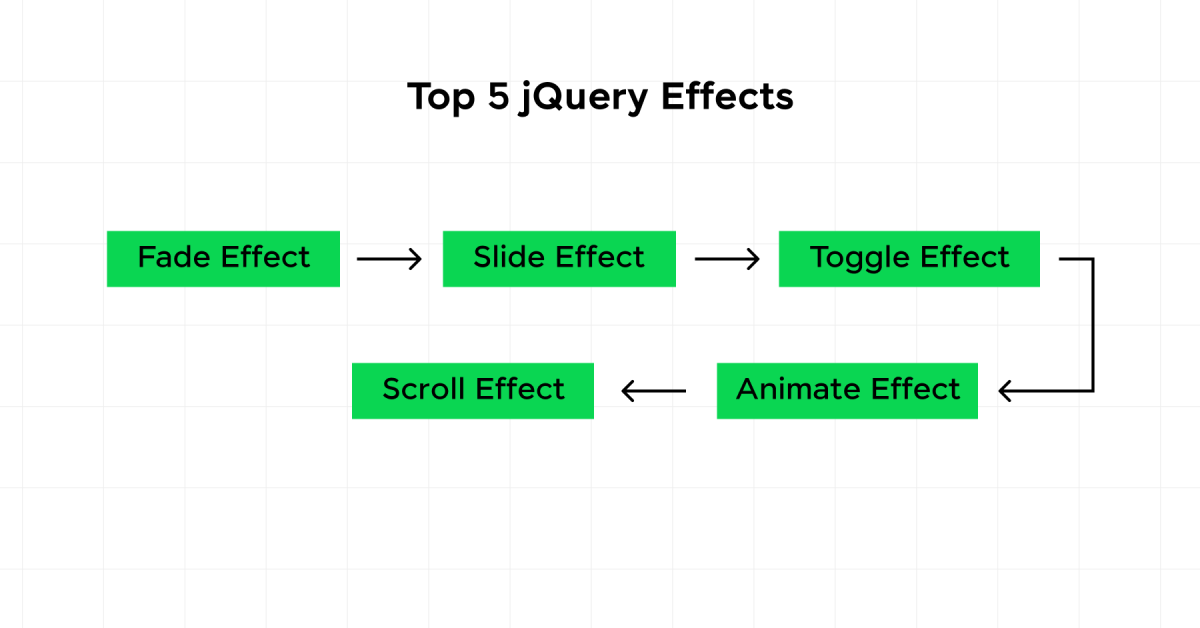
- Top 5 jQuery Effects to Amp Up Your Web Development
- Fade Effect
- Slide Effect
- Toggle Effect
- Animate Effect
- Scroll Effect
- How to Implement jQuery Effects?
- Adding jQuery Library
- Writing jQuery Code for Effects
- Practical Uses of jQuery Effects
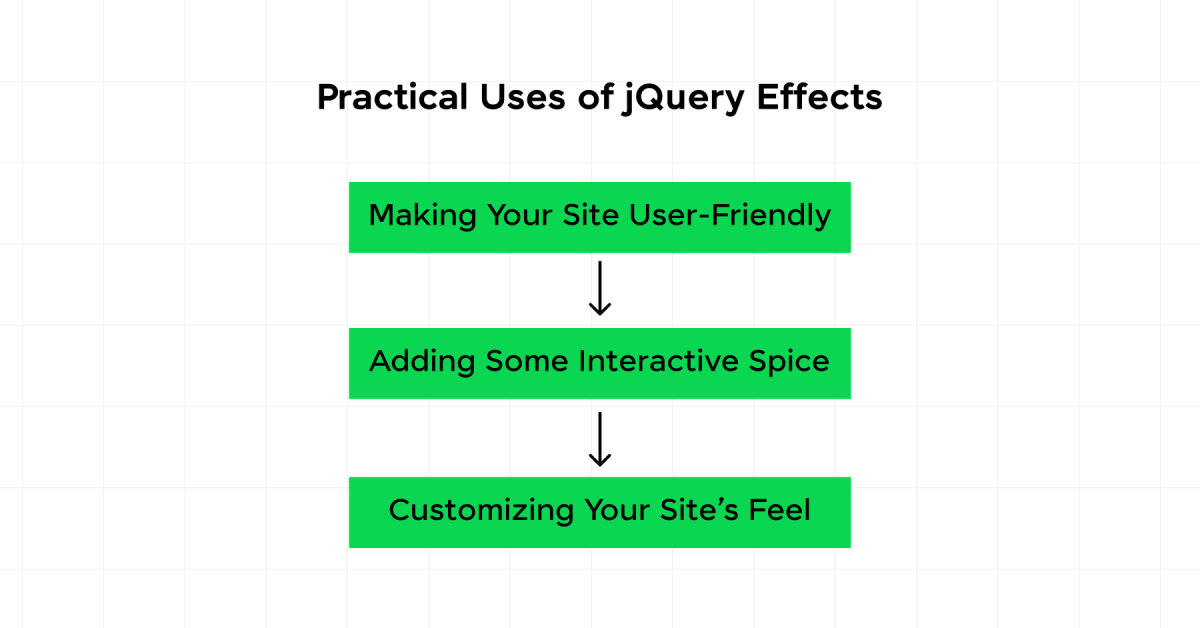
- Making Your Site User-Friendly
- Adding Some Interactive Spice
- Customizing Your Site’s Feel
- Best Practices for jQuery Effects:
- Wrap Up
- FAQs
- What are jQuery effects?
- How to give a transition effect in jQuery?
- Does jQuery support animation?
- Why is jQuery popular?
What are jQuery Effects?
jQuery effects are like magic tricks for your website. They let you add cool animations to your web elements without breaking a sweat. Want to make something fade in or slide out? jQuery’s got you covered. These effects can hide, show, slide, fade, or animate HTML elements, making your site more interactive and fun to use. And the best part? You don’t need to be a coding wizard to pull it off.
Let’s understand each effect in brief with the help of a table:
| Effect Type | What It Does |
|---|---|
| Fade Effect | Slowly changes the opacity of an element |
| Slide Effect | Moves an element up or down |
| Toggle Effect | Switches the visibility of an element on and off |
| Animate Effect | Custom animations for CSS properties |
| Scroll Effect | Animates the scrolling of the web page |
Before diving into the next section, ensure you’re solid on full-stack development essentials like front-end frameworks, back-end technologies, and database management. If you are looking for a detailed full-stack development career program, you can join HCL GUVI’s Full Stack Development Course with Placement Assistance. You will be able to master the MERN stack (MongoDB, Express.js, React, Node.js) and build real-life projects. Additionally, if you want to explore jQuery through a self-paced course, try HCL GUVI’s jQuery course.
Also, if you want to see jQuery Events in action? Check out our article on jQuery events with examples.
Why Use jQuery Effects?
Using jQuery effects can make your website pop. First off, they make your site more interactive and visually appealing. Smooth animations can draw attention to important stuff, making it easier for users to find what they need.
Second, jQuery effects are super easy to use. Even if you’re new to coding, you can get the hang of it. The jQuery library has simple methods to apply these effects, so you won’t need to write tons of code. This means you can save time and still make your site look professional.
Lastly, jQuery effects are very flexible. You can tweak them to fit your design perfectly. Whether you want subtle transitions or eye-catching animations, jQuery lets you do it all.
Curious about the most popular jQuery Selectors and how to use them? Check out our detailed guide.
By getting the hang of jQuery effects, you’re on your way to making your websites more dynamic and engaging. Ready to dive into the top 5 jQuery effects and learn how to use them? Keep reading!
Top 5 jQuery Effects to Amp Up Your Web Development
Want to make your web projects pop? jQuery effects can add that extra flair and interactivity. Here are the top 5 jQuery effects you can easily plug into your web development.

1. Fade Effect
The Fade Effect lets you smoothly transition elements in and out of view. Perfect for making things appear or disappear without a jarring jump.
The fade effect is the gradual increase and decrease in the opacity of the selected portion. In other words, it is termed as the increase and decrease in opacity with respect to time. It can be implemented using methods like .fadeIn(), .fadeOut(), .fadeToggle(), and .fadeTo().
The following example can be used to implement the fade effect:
$(document).ready(function(){
  $("#fadein").click(function(){
    $("#element").fadeIn();
  });
  $("#fadeout").click(function(){
    $("#element").fadeOut();
  });
});
2. Slide Effect
The Slide Effect is your go-to for sliding elements in and out. It adds a dynamic touch that makes your pages feel more alive.
The slide effect in jQuery enables elements to slide up or down, showing or hiding them with a sliding motion. It can be implemented using methods like .slideDown(), .slideUp(), and .slideToggle().
The following example can be used to implement the slide effect:
$(document).ready(function(){
  $("#slideup").click(function(){
    $("#element").slideUp();
  });
  $("#slidedown").click(function(){
    $("#element").slideDown();
  });
});
3. Toggle Effect
The Toggle Effect flips elements between visible and hidden states. Great for dropdown menus and other interactive bits.
The toggle effect in jQuery allows elements to switch between visible and hidden states. This can be implemented using methods like .toggle(), .fadeToggle(), and .slideToggle().
The following example can be used to implement the toggle effect:
$(document).ready(function(){
  $("#toggle").click(function(){
    $("#element").toggle();
  });
});
4. Animate Effect
The Animate Effect gives you the power to tweak CSS properties like width, height, opacity, and color. Create custom animations that make your site stand out.
The animate effect in jQuery allows for the creation of custom animations by changing the CSS properties of elements over a specified duration. This can be implemented using the .animate() method.
The following example can be used to implement the animate effect:
$(document).ready(function(){
  $("#animate").click(function(){
    $("#element").animate({
      left: '250px',
      opacity: '0.5',
      height: '150px',
      width: '150px'
    });
  });
});
5. Scroll Effect
The Scroll Effect animates the scrolling of the browser window or an element. Smooth scrolling to specific sections can make navigation a breeze.
The scroll effect in jQuery refers to methods that enable smooth scrolling to a specified position within a document. This can be achieved using methods like .scrollTop(), .scrollLeft(), and by animating the scroll position of elements.
The following example can be used to implement the scroll effect:
$(document).ready(function(){
  $("#scroll").click(function(){
    $("html, body").animate({
      scrollTop: $("#target").offset().top
    }, 1000);
  });
});
Adding these top 5 jQuery effects can make your web projects more interactive and user-friendly. For tips and tricks on jQuery plugins, check out our articles on jQuery Plugins.
How to Implement jQuery Effects?
Want to jazz up your website with some cool jQuery effects? You’ve come to the right place. Let’s break it down step-by-step, so you can get those effects up and running in no time.
1. Adding jQuery Library
First things first, you need to get the jQuery library into your project. You can do this in two ways: using a CDN (Content Delivery Network) or by downloading the library and hosting it yourself.
a) Using a CDN
The easiest way is to add the jQuery library via a CDN. Just pop this script tag into your HTML file, either in the <head> or at the end of the <body> section:
<script src="https://ajax.googleapis.com/ajax/libs/jquery/3.5.1/jquery.min.js"></script>
b) Hosting Locally
Prefer to keep things local? No problem. Download the jQuery library from the official jQuery website, save it in your project directory, and include it in your HTML file like this:
<script src="path/to/your/jquery.min.js"></script>You should also learn about jQuery DOM Manipulation and its techniques to work on.
2. Writing jQuery Code for Effects
With the jQuery library in place, you can start coding some effects. Here are the top 5 jQuery effects you can use to make your site more interactive.
a) Fade Effect
Want to make elements fade in and out? Use fadeIn(), fadeOut(), fadeToggle(), or fadeTo().
<script>
$(document).ready(function(){
  $("#fadeButton").click(function(){
    $("#fadeElement").fadeToggle();
  });
});
</script>
b) Slide Effect
Sliding elements up and down is a breeze with slideUp(), slideDown(), and slideToggle().
<script>
$(document).ready(function(){
  $("#slideButton").click(function(){
    $("#slideElement").slideToggle();
  });
});
</script>
c) Toggle Effect
Show or hide elements with a simple toggle.
<script>
$(document).ready(function(){
  $("#toggleButton").click(function(){
    $("#toggleElement").toggle();
  });
});
</script>
d) Animate Effect
Create custom animations by changing CSS properties with animate().
<script>
$(document).ready(function(){
  $("#animateButton").click(function(){
    $("#animateElement").animate({
      left: '250px',
      height: '150px',
      width: '150px'
    });
  });
});
</script>
e) Scroll Effect
Trigger animations when the user scrolls with scroll().
<script>
$(document).ready(function(){
  $(window).scroll(function(){
    $("#scrollElement").fadeIn();
  });
});
</script>
For more detailed examples and a comprehensive list of AJAX with jQuery, check out our article on AJAX with jQuery, for Dynamic Web Development.
By following these steps, you can add some serious flair to your web projects. Keep experimenting with different effects to make your site as dynamic and engaging as possible.
Practical Uses of jQuery Effects
1. Making Your Site User-Friendly
jQuery effects can really jazz up your website, making it more fun and easier to use. Think about using effects like fade, slide, and toggle. They can make your site feel smoother and less jarring, which means fewer confused visitors. For example, the fade effect can gently bring in new content, making your site feel more welcoming.
| Effect | How It Helps |
|---|---|
| Fade | Smoothly introduces new content |
| Slide | Makes transitions seamless |
| Toggle | Controls content visibility easily |
2. Adding Some Interactive Spice
Want to make your site more interactive? jQuery effects are your best friend. They’re perfect for things like drop-down menus, image galleries, and accordions. The toggle effect is great for letting users open and close sections of content without any hassle. And the animate effect lets you add custom animations, making interactions more lively.
| Feature | jQuery Effect |
|---|---|
| Drop-down Menu | Toggle |
| Image Gallery | Slide |
| Accordion | Toggle & Animate |
3. Customizing Your Site’s Feel
jQuery effects let you tweak your site’s dynamics to fit your needs. The scroll effect can create parallax scrolling, adding depth and keeping visitors hooked. Plus, the animate effect lets you move elements just the way you want, highlighting important parts of your page.
| Website Element | Customization Trick |
|---|---|
| Parallax Scrolling | Scroll Effect |
| Highlighting Key Areas | Animate Effect |
| Smooth Element Movement | Animate Effect |
By using these top jQuery effects, you can make your web projects more user-friendly, interactive, and dynamic. You should also learn how to optimize web development projects using jQuery for Responsive Design.
Best Practices for jQuery Effects:
- Minimize Use of Animations: Overusing animations can overwhelm users and make your site feel slow.
- Keep It Simple: Simple effects often have a more significant impact than complex ones.
- Performance Considerations: Animations can be resource-intensive. Optimize by limiting the number of animated elements and using CSS transitions when possible.
- Fallbacks: Ensure your site remains usable even if animations are disabled or not supported.
Kickstart your Full Stack Development journey by enrolling in HCL GUVI’s certified Full Stack Development Course with Placement Assistance where you will master the MERN stack (MongoDB, Express.js, React, Node.js) and build interesting real-life projects. This program is crafted by our team of experts to help you upskill and assist you in placements. Alternatively, if you want to explore jQuery through a self-paced course, try HCL GUVI’s jQuery course.
Wrap Up
jQuery effects offer a versatile and straightforward way to enhance your web pages with animations and transitions. By mastering these techniques, you can create a more dynamic and engaging user experience. Remember to use animations judiciously, keeping performance and user experience in mind.
FAQs
What are jQuery effects?
jQuery effects add an X factor to your website interactivity. jQuery provides a trivially simple interface for doing various kinds of amazing effects like show, hide, fade-in, fade-out, slide-up, slide-down, toggle, etc. jQuery methods allow us to quickly apply commonly used effects with a minimum configuration.
How to give a transition effect in jQuery?
To give a transition effect in jQuery, you can use the .animate() function.
For example: $(“#element”).animate({ opacity: 0.5 }, 1000);
This code gradually changes the opacity of the element with the ID element to 0.5 over 1 second.
Does jQuery support animation?
By default, jQuery comes with queue functionality for animations. This means that if you write multiple animate() calls after each other, jQuery creates an “internal” queue with these method calls. Then it runs the animate calls ONE by ONE.
Why is jQuery popular?
It provides such a simple syntax and methods to carry out complex tasks, JQuery substantially simplifies JavaScript coding. JQuery offers a unified, consistent API that operates across other browsers, eliminating the need for browser-specific code.
Success Stories

About the Author
Isha Sharma
I’m a versatile technical content writer with over 3.5 years of experience in technical writing and 1 year of experience in web development. My specialized domains are web development, AWS, cloud computing, etc. I have written over 250+ SEO-optimized technical articles.
View all posts by Isha Sharma
Connect with me @











Did you enjoy this article?