


Full Stack Development Articles
Claude for Architecture and Engineering Documentation
Freelancing as a Python Developer: Getting Your First Client


Get In Touch For Details! Request More Information
Complete HTML Tags List with Examples: Semantic + Non-semantic (2026)
Jul 27, 2026 11 Min Read 31152 Views
(Last Updated)
Creating a website on our own must have been on everyone’s bucket list since the dawn of the internet. This is because of the widespread usage of websites across domains and knowing how to create one, not only crosses off your bucket list but also helps you gain extra money along the way by doing freelance website creation.
To create a website, one important as well as the fundamental thing that you need to learn are HTML tags. They are the foundation of website building and if you don’t know anything or know less about it, worry not, we’ve got you covered.
This article covers all the things related to HTML tags starting with its definition, its importance, some commonly used HTML tags, and the example usage of it. So, read till the end to equip yourself with the basic knowledge required for website creation.
So, let us get started.
Table of contents
- What are HTML Tags?
- HTML Tags List: Comparison Table
- Most Important HTML5 Semantic Tags - Why They Matter for SEO
- Examples of the HTML Tags
- Deprecated HTML Tags to Avoid in 2026
- Why HTML Tags are Important?
- HTML Tags Interview Questions for Web Dev Freshers
- Conclusion
- FAQs
- What is the purpose of HTML attributes?
- What is semantic HTML?
- How do you add comments in HTML?
- How do you create a line break in HTML?
What are HTML Tags?

Let us imagine a scenario where you’re the architect of a new house. In your blueprint, you need to specify where the living room is, where the bedroom is, and how big the windows should be so that it is clear and concise for everyone working on it.
For that, you use labels, markings, and drawings to communicate your plan effectively. Similar to that, in web development, HTML tags are like labels and drawings for creating a website.
HTML stands for “Hypertext Markup Language.” It’s the language developers use to build web pages. HTML tags are the key tools in this language. They’re like instructions or labels that you put around different parts of your web content to tell web browsers how to display them.
These tags consist of opening and closing parts enclosed in angle brackets (“<” and “>”). For example, <p> is an opening tag, and </p> is a closing tag, which together defines a paragraph.
Read: Best Books to Learn Full-Stack Development
Before we move to the next section, if you want to know more about HTML tags, consider enrolling for a professionally certified online full-stack development course by a recognized institution that can also offer you an industry-grade certificate that boosts your resume.
HTML Tags List: Comparison Table
Use this table as a quick reference before diving into the code examples below. “Type” marks whether a tag is semantic (conveys meaning) or non-semantic (purely structural/presentational).
In this section, you will see some commonly used HTML tags that are out there that can help you code easily. If you are starting as a Full Stack Developer, you must enroll yourself in a professionally certified online Full Stack Development Course offered by a professional organization to understand everything about this.

| Tag | Type | Purpose | Example | Block/Inline |
|---|---|---|---|---|
| <html> | Non-semantic | Root element of the page | <html>…</html> | Block |
| <head> | Non-semantic | Holds metadata and resource links | <head>…</head> | Block |
| <meta> | Non-semantic | Defines page metadata | <meta charset=”UTF-8″> | N/A (void) |
| <link> | Non-semantic | Links external resources (CSS, icons) | <link rel=”stylesheet” href=”style.css”> | N/A (void) |
| <script> | Non-semantic | Embeds or links JavaScript | <script>…</script> | Block |
| <style> | Non-semantic | Embeds CSS rules | <style>…</style> | Block |
| <body> | Non-semantic | Holds all visible page content | <body>…</body> | Block |
| <header> | Semantic | Introductory content or nav for a page/section | <header>…</header> | Block |
| <nav> | Semantic | Groups primary navigation links | <nav>…</nav> | Block |
| <main> | Semantic | Marks the page’s dominant, unique content | <main>…</main> | Block |
| <article> | Semantic | Self-contained, reusable content (a post, a card) | <article>…</article> | Block |
| <section> | Semantic | Thematic grouping within a page | <section>…</section> | Block |
| <aside> | Semantic | Tangential content — sidebars, pull quotes | <aside>…</aside> | Block |
| <footer> | Semantic | Closing content for a page/section | <footer>…</footer> | Block |
| <figure>/<figcaption> | Semantic | Self-contained media with a caption | <figure><img …><figcaption>…</figcaption></figure> | Block |
| <mark> | Semantic | Highlights relevant text | <mark>highlighted</mark> | Inline |
| <time> | Semantic | Marks a machine-readable date/time | <time datetime=”2026-07-25″>Jul 25</time> | Inline |
| <details>/<summary> | Semantic | Native collapsible disclosure widget | <details><summary>More</summary>…</details> | Block |
| <h1>–<h6> | Semantic | Defines heading levels 1–6 | <h1>Main Heading</h1> | Block |
| <p> | Semantic | Defines a paragraph | <p>Text.</p> | Block |
| <a> | Semantic | Creates a hyperlink | <a href=”url”>Visit</a> | Inline |
| <img> | Non-semantic | Embeds an image | <img src=”img.jpg” alt=”desc”> | Inline (void) |
| <ul>/<ol>/<li> | Semantic | Unordered/ordered lists and list items | <ul><li>Item</li></ul> | Block |
| <table>/<tr>/<th>/<td> | Semantic | Tabular data | <table><tr><th>H</th></tr></table> | Block |
| <div> | Non-semantic | Generic block-level container | <div>…</div> | Block |
| <span> | Non-semantic | Generic inline container | <span>…</span> | Inline |
| <form>/<input>/<button> | Non-semantic | Collects and submits user input | <input type=”text” name=”x”> | Block/Inline |
| <label>/<textarea>/<select> | Non-semantic | Form labels, multiline input, dropdowns | <label for=”x”>Name</label> | Inline/Block |
| <iframe> | Non-semantic | Embeds another HTML page inline | <iframe src=”url”></iframe> | Inline |
| <audio>/<video> | Non-semantic | Embeds audio/video content | <video controls>…</video> | Block |
Most Important HTML5 Semantic Tags – Why They Matter for SEO
Semantic tags describe what content is, not just how it looks — and that distinction is exactly what search engines and AI crawlers use to understand your page. A <div> tells a browser nothing about the content inside it; a <nav> or <article> tells both the browser and Google’s crawler precisely what role that block plays on the page.
- <header>: wraps introductory content or a page/section’s navigation — helps crawlers quickly locate branding and nav without parsing every <div>.
- <nav>: explicitly marks primary navigation links, which improves how sitelinks and breadcrumb-style results are generated in search.
- <main>: flags the one block of truly unique, page-specific content — search engines increasingly use this to separate boilerplate from the content worth ranking.
- <article>: marks self-contained, independently distributable content (a blog post, a comment, a product card) — directly useful for AI summarizers pulling a single “chunk” to answer a query.
- <section>: groups a thematic chunk of content under its own heading, reinforcing your H2/H3 hierarchy for both readers and crawlers.
- <aside>: tells search engines a block is supplementary, so it isn’t mistaken for the main content when relevance is judged.
- <figure>/<figcaption>: pairs an image or diagram with a real, crawlable caption — stronger image-SEO signal than an <img> floating in a <div>.
Net result: pages built with semantic HTML5 tags are easier for Google, screen readers, and AI answer engines to parse correctly — which is why “semantic HTML” has become its own ranking-adjacent signal, not just a best practice.
Explore: Top 10 Tools Every Full-Stack Developer Should Master
Examples of the HTML Tags
Now, let us see how those HTML tags are used in the actual code.
1. <html>: Defines the root element of an HTML page.
<!DOCTYPE html>
<html>
<body>

<h1>Hello World</h1>
<p>My First Paragraph.</p>

</body>
</html>
2. <head>: Contains all of the metadata and links to resources.
<!DOCTYPE html>
<html>

<head>
   <title>Page Title</title>
   <link rel="stylesheet" type="text/css" href="styles.css">
</head>

<body>
<h1>Hello World</h1>
</body>
</html>
3. <meta>: Provides metadata about the document.
<!DOCTYPE html>
<html>

<head>
  <meta charset="UTF-8">
  <meta name="description" content="Free Web tutorials">
  <meta name="keywords" content="HTML,CSS,XML,JavaScript">
  <meta name="author" content="John Doe">
  <meta name="viewport" content="width=device-width, initial-scale=1.0">
</head>

<body>

<h1>All meta information is provided here...</h1>

</body>
</html>
4. <link>: Links to external resources like stylesheets.
<!DOCTYPE html>
<html>

<head>
  <link rel="stylesheet" href="styles.css">
</head>

<body>

<h1>Hello World!</h1>


<p>Styled Text!</p>

</body>
</html>
5. <script>: Embeds JavaScript code or links to an external script.
<!DOCTYPE html>
<html>
<body>

<h1>Javascript Example</h1>

<p id="demo"></p>

<script>
document.getElementById("demo").innerHTML = "THIS IS JAVASCRIPT";
</script>

</body>
</html>
6. <style>: Defines CSS styles within the HTML document.
<!DOCTYPE html>
<html>
<head>

<style>
h1 {color:red;}
p {color:blue;}
</style>

</head>
<body>

<h1>Hellow World</h1>
<p>This is the way to use 'style' tag.</p>

</body>
</html>
7. <body>: Contains the visible content of the HTML document.
<!DOCTYPE html>
<html>
<body>
   <h1>Hello, World!</h1>
   <p>This is a paragraph.</p>
</body>
</html>
8. <h1>, <h2>, …: Define headings of various levels.
<!DOCTYPE html>
<html>
<body>

   <h1>Main Heading</h1>
   <h2>Subheading 1</h2>
   <h3>Subheading 2</h2>
   <h4>Subheading 3</h2>

</body>
</html>
9. <p>: Defines a paragraph of text.
<!DOCTYPE html>
<html>
<body>

   <h1>Hello, World!</h1>
   <p>This is a paragraph of text.</p>

</body>
</html>
10. <a>: Embeds hyperlinks to your HTML code.
<!DOCTYPE html>
<html>
<body>

<h1>Hyperlink Tag</h1>

<a href="https://www.guvi.in/">Visit HCL GUVI Now!</a>

</body>
</html>
11. <img>: Lets you embed images.
<!DOCTYPE html>
<html>
<body>

<h1>Image Tag</h1>

<img src="img_mountain.jpg" alt="Mountain during sunset" width="500" height="600">

</body>
</html>
12. <ul>: Lets you define an unordered list.
<!DOCTYPE html>
<html>
<body>

<h1> Unordered List UL Tag</h1>

<ul>
  <li>Cake</li>
  <li>Biscuit</li>
  <li>Pastries</li>
</ul>

</body>
</html>
13. <ol>: Lets you define an ordered list.
<!DOCTYPE html>
<html>
<body>

<h1>Ordered List OL Tag</h1>

<ol>
  <li>Cake</li>
  <li>Biscuit</li>
  <li>Pastries</li>
</ol>

<ol start="26">
  <li>Apple</li>
  <li>Banana</li>
  <li>Carrot</li>
</ol>

</body>
</html>
14. <li>: List items within an ordered or unordered list.
<ul>
   <li>Item 1</li>
   <li>Item 2</li>
</ul>
15. <table>: Creates a table.
<!DOCTYPE html>
<html>
<head>

<style>
table, th, td {
  border: 1px solid black;
}
</style>
</head>
<body>

<h1>Table Tag</h1>

<table>
  <tr>
    <th>Year</th>
    <th>Turnover</th>
  </tr>
  <tr>
    <td>2021</td>
    <td>INR 15,00,000</td>
  </tr>
  <tr>
    <td>2022</td>
    <td>INR 26,00,000</td>
  </tr>
</table>

</body>
</html>
16. <tr>: Represents a table row.
<tr>
    <td>2022</td>
    <td>INR 26,00,000</td>
</tr>
17. <th>: Defines a table header cell.
<th>Year</th>
<th>Turnover</th>
Read More: 5 Career Opportunities for Full Stack Development
18. <td>: Represents the data in a table cell.
<td>2021</td>
<td>INR 15,00,000</td>
19. <div>: A generic container for grouping elements and applying styles.
<!DOCTYPE html>
<html>
<head>
<style>
.divContainer {
  border: 5px solid black;
  background-color: lightblue;
  text-align: center;
}
</style>
</head>
<body>

<h1>Div Tag</h1>

<div class="divContainer">
  <h2>This is how to use a Div Class</h2>
  <p>Sample text in Div container</p>
</div>

<p>This is sample text outside the div container.</p>

</body>
</html>
20. <span>: A generic inline container for applying styles or scripting to a part of text.

<!DOCTYPE html>
<html>
<body>

<h1>Span Tag</h1>

<p>My brother has a <span style="color:red;font-weight:bold">red</span> pen and my sister has a <span style="color:blue;font-weight:bold">blue</span> pen.</p>

</body>
</html>
21. <form>: Creates a form for user input.
<form action="/submit" method="post">
   <!-- Form elements go here -->
</form>
22. <input>: Creates a form for user input.
<!DOCTYPE html>
<html>
<body>

<h1> Input Tag</h1>

<form action="/action_page.php">
  <label for="fname">First name:</label>
  <input type="text" id="fname" name="fname"><br><br>
  <label for="lname">Last name:</label>
  <input type="text" id="lname" name="lname"><br><br>
  <input type="submit" value="Submit">
</form>


</body>
</html>
23. <button>: A clickable button element.
<!DOCTYPE html>
<html>
<body>

<h1>Button Tag</h1>

<button type="button" onclick="alert('Hello world!')">Click This Button!</button>

</body>
</html>
24. <label>: Defines a label for an <input> element.
<label for="fname">First name:</label>25. <textarea>: Defines a multiline text input control.
<textarea rows="4" cols="50">Enter text here...</textarea>26. <select>: Creates a dropdown list.
<select>
   <option value="option1">Option 1</option>
   <option value="option2">Option 2</option>
</select>
27. <option>: Represents an option in a <select> element.
<option value="apple">Apple</option>28. <iframe>: Embeds an inline frame for external content.
<iframe src="https://www.example.com"></iframe>29. <audio>: Embeds the audio content.
<audio controls><source src="audio.mp3" type="audio/mpeg"></audio>30. <video>: Embeds the video content.
<video controls><source src="video.mp4" type="video/mp4"></video>Let’s check how all the above-mentioned HTML tags are used in the actual code:
<!DOCTYPE html>
<html lang="en">

<head>
    <meta charset="UTF-8">
    <meta name="viewport" content="width=device-width, initial-scale=1.0">
    <title>HTML Tags Example</title>
    <link rel="stylesheet" href="styles.css"> <!-- Link to an external stylesheet -->
    <style>
        /* Internal CSS styles */
        body {
            font-family: Arial, sans-serif;
        }

        h1 {
            color: blue;
        }

        p {
            color: green;
        }

        .container {
            border: 1px solid #ccc;
            padding: 10px;
        }
    </style>
</head>

<body>
    <h1>HTML Tags Example</h1>
    <h2>This is how you should use HTML Tags</h2>
    <p>The paragraph tag looks like this</p>
    <a href="https://www.guvi.in/">Visit Example</a>
    <img src="https://www.guvi.in/web-build/images/guvi-logo.e8ad68fbd8dc0a5fc2f7c4ffd580c54d.png" alt="HCL GUVI Logo"> <!-- Image tag with placeholder source -->

    <ul>
        <li>Cake</li>
        <li>Biscuit</li>
    </ul>

    <ol>
        <li>Apple</li>
        <li>Banana</li>
    </ol>

    <table border="1">
        <tr>
            <th>Year</th>
            <th>Turnover</th>
        </tr>
        <tr>
            <td>2021</td>
            <td>INR 15,00,000</td>
        </tr>
    </table><br>
    <span>This is a span element.</span><br>
   <br> <form action="/submit" method="post">
        <label for="username">Username:</label>
        <input type="text" id="username" name="username" placeholder="Enter your username">
        <br>
        <label for="password">Password:</label>
        <input type="password" id="password" name="password" placeholder="Enter your password">
          <br><h4> Textbox</h4>
         <textarea id="message" name="message" rows="4" cols="50" placeholder="Enter your message"></textarea>
            <br> <h4> Dropdown</h4>
       <select name="cars" id="cars">
            <option value="volvo">Volvo</option>
            <option value="saab">Saab</option>
            <option value="fiat">Fiat</option>
            <option value="audi">Audi</option>
        </select>
        <br><br>
        <input type="submit" value="Submit">
        <button type="button" onclick="alert('Button clicked!')">Click Me</button>
    </form><br>

</body>

</html>
Output:
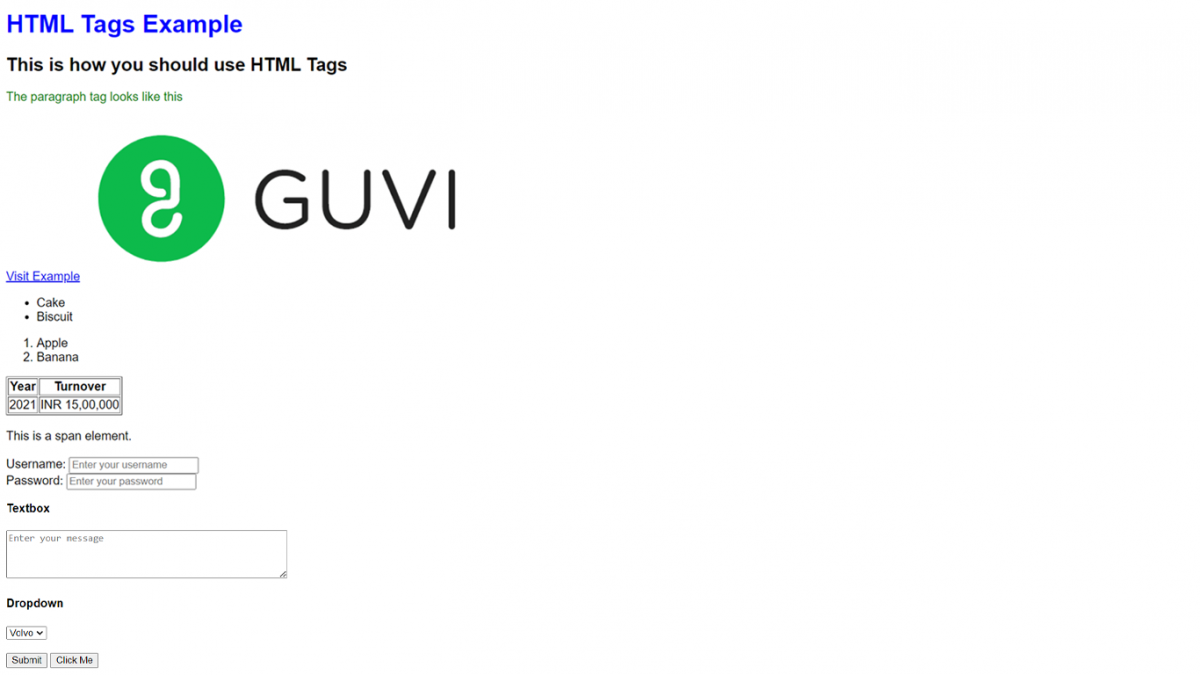
By using this, you can seamlessly structure your code and add elements that you need to your website.
Know More: The Future & Scope of Full-Stack Developers in India
Deprecated HTML Tags to Avoid in 2026
These tags still render in most browsers for backward compatibility, but they’re obsolete — replace every one of them with CSS or a semantic equivalent.
| Deprecated Tag | Modern Replacement |
|---|---|
| <font> | Use CSS font-family/font-size instead |
| <center> | Use CSS text-align: center or margin: auto |
| <marquee> | Use CSS animations |
| <blink> | No modern replacement needed — never use blinking text |
| <big> / <small>* | Use CSS font-size (note: <small> is still valid for “fine print” semantics) |
| <strike> | Use <s> or <del> depending on intent |
| <applet> | Use <embed> or <object> |
| <frame> / <frameset> | Use <iframe> or CSS layout (grid/flexbox) |
| <acronym> | Use <abbr> |
| <basefont> | Use CSS on the body/root element |
Why HTML Tags are Important?

It is time for you to know why HTML tags are essential when coding a website. The main idea of HTML tags is that they serve as the fundamental instructions for both web browsers and developers. Let’s understand why they are so crucial:
1. Structuring Content: HTML tags act as organizers, helping arrange content into meaningful sections. It’s like using headings, paragraphs, lists, and tables to make your web page readable and well-organized. This helps in structuring your website as per your needs and also enables the users to interact with it more easily.
2. Content Presentation: These HTML tags determine how your content looks on the web page. They define the formatting, such as making text bold, creating links, displaying images, or arranging items in a list. Think of them as style guides for your website’s content.
3. Accessibility: HTML tags ensure that your website is inclusive and accessible to everyone, including those using screen readers and assistive technologies. They help you to provide structure and context, making it easier for all users to navigate and understand your content.
4. Search Engine Optimization (SEO): Your website needs to get listed on search engines like Google and it solely relies on HTML tags to understand your website’s content and relevance. Properly structured tags can help improve your site’s visibility in search results, making it easier for people to find you online.
Also Read: Top Full-Stack Developer Skills
5. Cross-Browser Compatibility: HTML tags help your website look consistent across various web browsers and devices. They ensure that your content appears as intended, whether it’s viewed on a desktop computer or a mobile phone.
6. Navigation: HTML tags, especially <a> (anchor) tags, serve as navigation tools. They create links that guide users to different web pages or sections within your site, enhancing the user experience.
7. Media Integration: Tags like <img>, <audio>, and <video> let you seamlessly incorporate images, audio, and video content into your web pages, making your site more engaging and informative.
8. Data Presentation: HTML tags such as <table> are essential for presenting data in a structured and organized manner. They help you display information like charts and spreadsheets.
These are the reasons why you should learn HTML tags in order to make a standard website that satisfies user intent.
HTML Tags Interview Questions for Web Dev Freshers
- 1. What is the difference between an HTML element and an HTML tag? A tag is the markup itself (<p>); an element is the tag plus its content and closing tag (<p>Text</p>).
- 2. What are semantic tags? Give three examples. Tags that describe meaning, not just appearance — e.g. <article>, <nav>, <header>.
- 3. What is the difference between <div> and <section>? <div> is a generic, meaning-free container; <section> groups a distinct thematic block of content, usually with its own heading.
- 4. Which HTML tags are self-closing (void elements)? Tags like <img>, <br>, <input>, <meta>, and <link> that have no closing tag or content.
- 5. What is the difference between block and inline elements? Block elements (e.g. <p>, <div>) start on a new line and take full width; inline elements (e.g. <span>, <a>) sit within the flow of text.
- 6. What is the purpose of the <head> tag? It holds metadata, the page title, and links to CSS/JS — none of it is rendered directly on the page.
- 7. What’s the difference between <b> and <strong>? <b> is purely visual bolding; <strong> conveys semantic importance, which assistive tech and search engines pick up on.
- 8. Why should you avoid deprecated tags like <font> and <center>? They mix content with presentation, aren’t part of the HTML5 spec, and are best replaced with CSS.
- 9. What is the DOCTYPE declaration and why is it required? <!DOCTYPE html> tells the browser to render the page in standards mode as HTML5, avoiding quirks-mode rendering bugs.
- 10. How does the <alt> attribute on <img> help SEO and accessibility? It gives screen readers a text description and gives search engines context for image indexing when the image itself can’t be “read.”
Explore More: Web Components: A Deep Dive into Reusable and Custom Elements
If you want to learn more about HTML Tags and their implementation, then you must sign up for the Certified Full Stack Development Course, offered by HCL GUVI, which gives you in-depth knowledge of the practical implementation of HTML Tags through various real-life FSD projects.
Conclusion
In conclusion, HTML tags are the basic foundation of full-stack development. It provides the structure, appearance, and functionality of your website, ensuring it’s accessible, user-friendly, and search engine-friendly.
Understanding and using HTML tags effectively is a fundamental skill for you as a full-stack developer, that enables you to create compelling and well-organized websites for a diverse audience.
Without understanding HTML tags, it would be very difficult for you to pursue this full-stack journey so make sure to learn them before coding a website.
Also Read: Best Ways to Learn Full Stack Development
FAQs
1. What is the purpose of HTML attributes?
HTML attributes provide additional information about an HTML element. They are used to modify the behavior or appearance of elements. For example, the href attribute in a tag specifies the hyperlink’s destination.
2. What is semantic HTML?
Semantic HTML refers to using HTML tags that convey the meaning or semantics of the content they enclose. For instance, using <header>, <nav>, and <footer> tags help browsers and search engines understand the structure and purpose of content.
3. How do you add comments in HTML?
Comments in HTML are added using the <!-- and --> tags. Anything between these tags is considered a comment and is not displayed on the web page.
4. How do you create a line break in HTML?
To create a line break in HTML, you can use the tag. It produces a simple line break, allowing you to start a new line within text or content.
Success Stories

About the Author
Vishalini Devarajan
An Aerospace Engineer turned content writer, I focus on making complex concepts easy to understand through well-structured, reader-friendly blogs. Whether it’s a technical topic or a non-technical one, I love creating content that is clear, engaging, and impactful.
View all posts by Vishalini Devarajan
Connect with me @

































Did you enjoy this article?