


UI/UX Designing Articles
What is a Design System? The Ultimate Guide to Building Consistent UIs
What is UX Writing? A Complete Guide to Mastering Microcopy and Content Design
What is a UX Audit? A Complete & Best Guide to User Experience Evaluation
How HCL GUVI Zen Class Helps You Build a Job-Ready UI/UX Portfolio


Get In Touch For Details! Request More Information
If you love designing or just starting out, you’ve probably heard of Figma. It’s this really amazing tool that lots of designers use to make awesome designs. And guess what? You can use it on your Windows computer too!
This blog is your friendly, complete guide to help you Install Figma On Windows from start to finish. We’ll show you how to create an account, download the app, and get it all set up, step by step, with the exact Windows menus and folder paths you’ll click through along the way.
Table of contents
- Quick Answer
- What Is Figma?
- Key Features of Figma
- How To Install Figma On Windows
- Step 1: Create A Figma Account
- Step 2: Download Figma Desktop App for Windows
- Step 3: Figma Installation
- Figma Desktop App vs Figma Browser: Which Should You Use?
- Why Use the Figma Desktop App on Windows?
- Why Use Figma in a Browser?
- Which One Should You Choose?
- System Requirements for Figma on Windows 10 vs Windows 11
- Figma Installation Errors on Windows: Common Fixes
- Error 1: “Windows Protected Your PC”
- Error 2: Figma Installer Does Not Complete
- Error 3: “This App Can’t Run on Your PC”
- Error 4: Installation Is Blocked on a Work Computer
- Error 5: Firewall, Proxy, or Security Software Blocks Figma
- After Installing Figma: First 3 Things to Set Up
- Sign In With the Correct Figma Account
- Update the Figma Desktop App
- Check Local Font Access
- Figma Not Opening on Windows: Troubleshooting Guide
- Step 1: Force Quit Figma and Reopen It
- Step 2: Use Reset Figma and Restart
- Step 3: Clear the Figma Cache Manually
- Step 4: Update Figma, Windows, and Graphics Drivers
- Step 5: Check Your Internet and Network Restrictions
- Step 6: Reinstall Figma
- Conclusion
- FAQs
- What is Figma?
- Is Figma free to use?
- Can I use Figma offline?
- Is Figma only for Windows?
- How does Figma differ from other design tools like Adobe XD or Sketch?
- How secure is Figma with my designs?
- Does Figma support prototyping and animation?
Quick Answer
You can use Figma on Windows through either the desktop app or a supported browser. The desktop app is better for regular use and local fonts, while the browser is ideal for quick access without installation.
- Desktop App: Best for frequent Figma users and dedicated design work.
- Browser Version: Best for quick access and switching between devices.
- Local Fonts: Desktop includes built-in font access, while browser use may require Figma Font Installer.
- Offline Use: Both support limited offline continuity for files already open.
- Core Features: Both provide largely the same Figma design functionality.
What Is Figma?
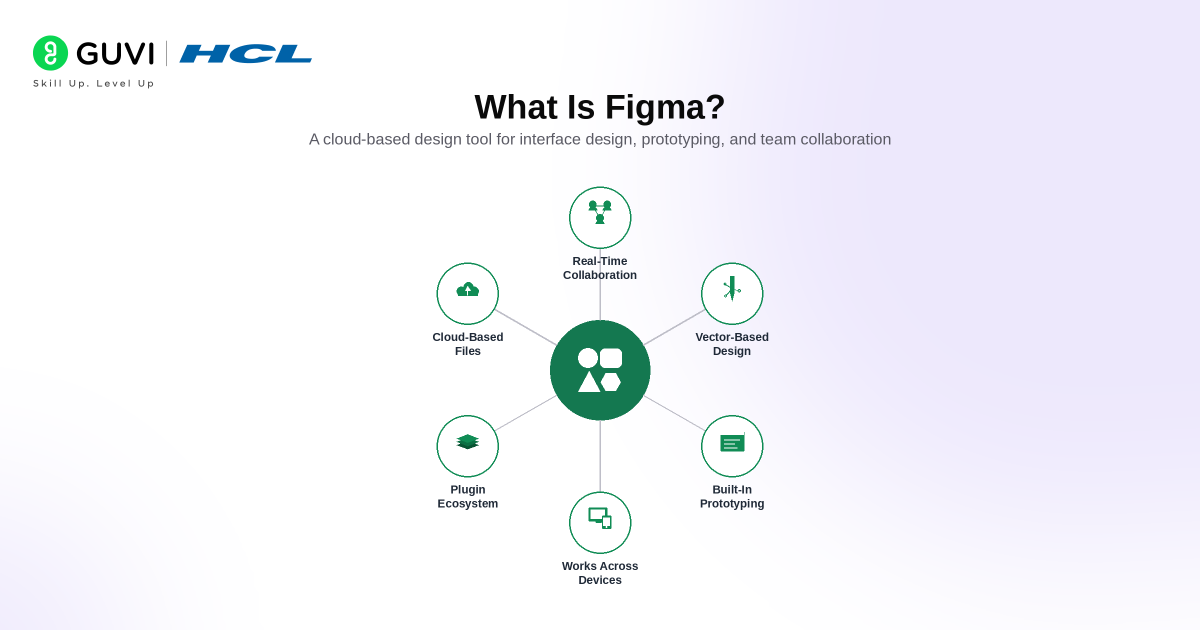
Figma is a collaborative design platform used to create, test, and share digital product designs such as websites, mobile apps, dashboards, and interfaces. It works in the browser and through a desktop app for Windows and macOS.
Key Features of Figma
- Interface Design: Create layouts, screens, components, icons, and complete user interfaces in one workspace.
- Real-Time Collaboration: Multiple team members can work in the same design file and give feedback simultaneously.
- Interactive Prototyping: Connect screens, add interactions, and test user flows without building the product first.
- Reusable Components: Build reusable UI elements and design systems to maintain consistency across projects.
- Dev Mode: Developers can inspect design specifications, review components, compare changes, and access implementation details.
- Cross-Platform Access: Use Figma through a supported browser or the desktop application.
- Design Handoff: Designers and developers can review the same files, annotations, measurements, and development-ready assets.
How To Install Figma On Windows
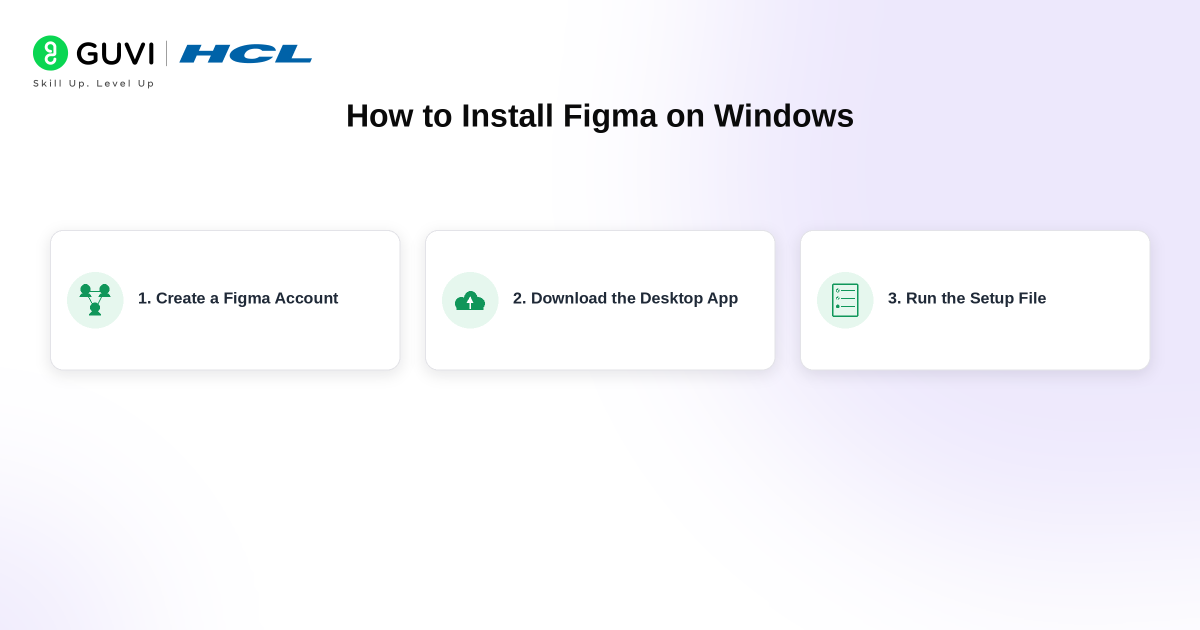
Getting Figma up and running on your Windows computer is a simple process. Figma’s flexibility across different platforms like Windows, Linux, Mac, and Android makes it accessible to a wide range of users. Here’s a simple guide to help you Install Figma On Windows:
Step 1: Create A Figma Account
Before you can Install Figma On Windows, you need to create an account. Here’s how:
- Go to Figma’s Website: Open your web browser (Chrome, Edge, or Firefox) and visit the Figma website.
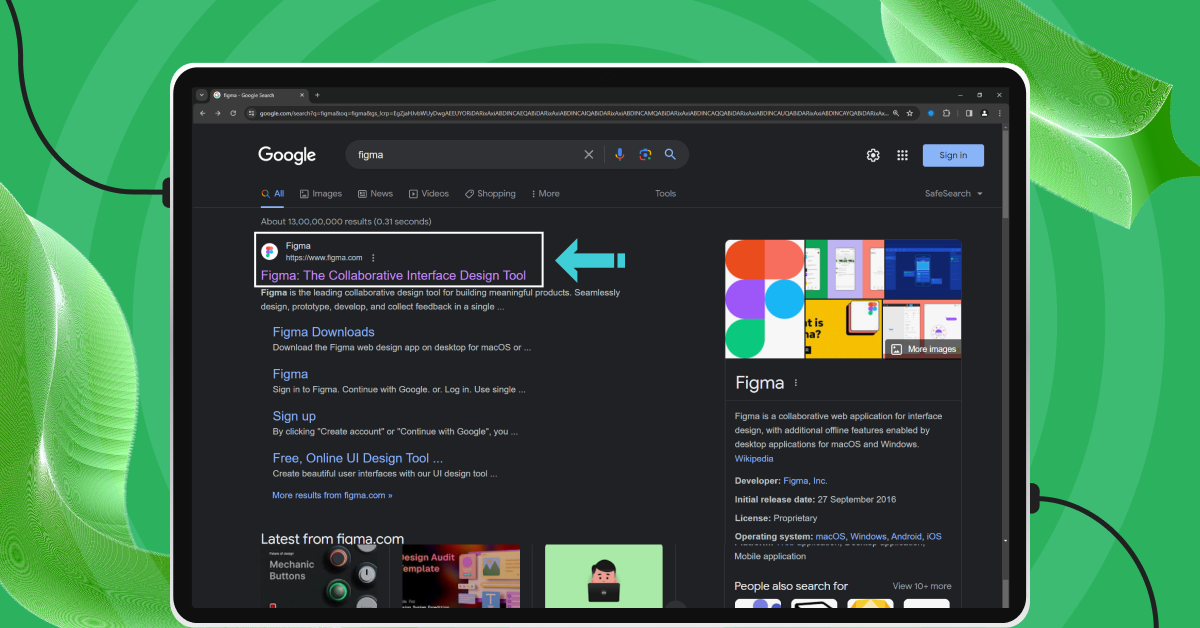
- Find the Sign-Up Button: Look for the sign-up button, located at the top right corner of the page.
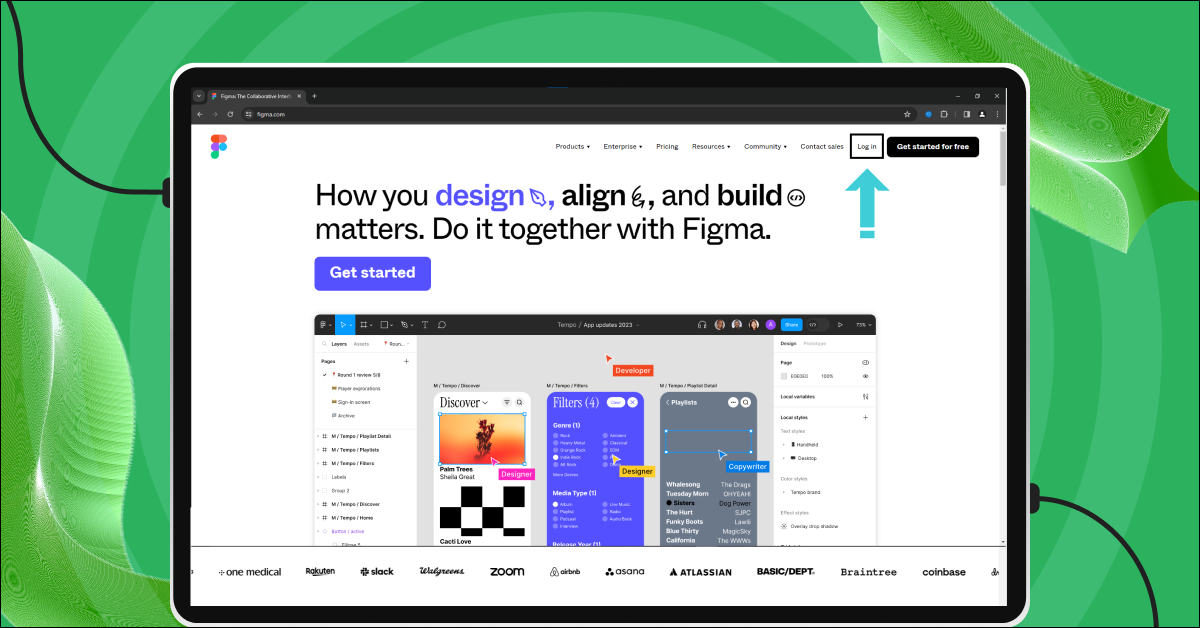
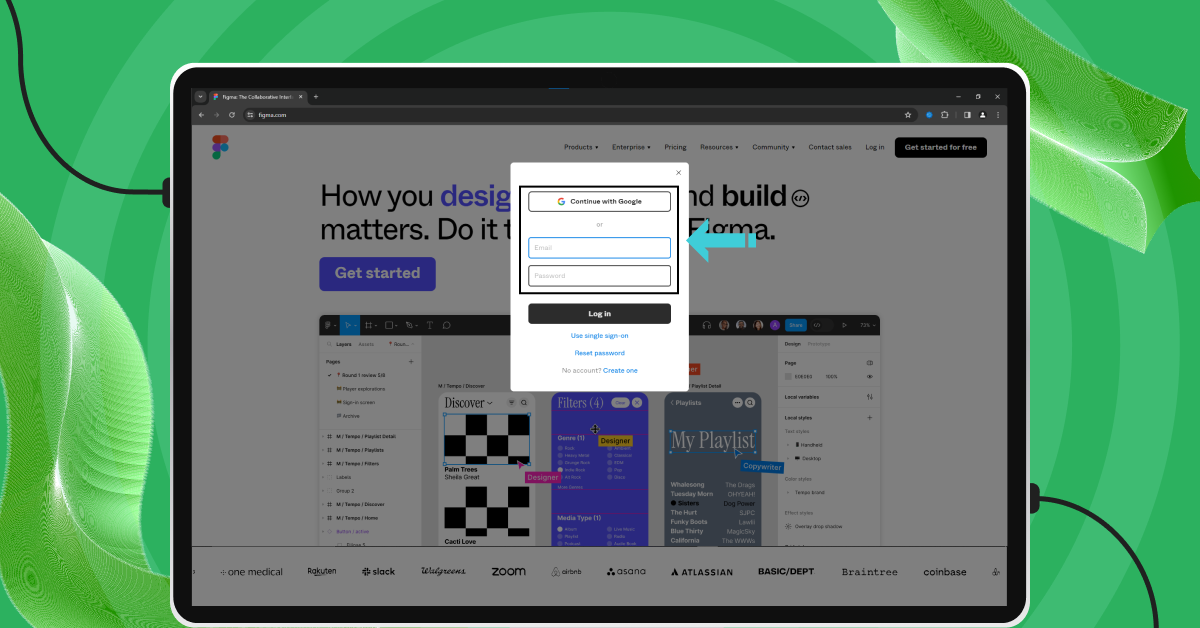
- Choose How to Sign Up:
- Using Google Account: For a quick setup, use your existing Google account. This way, you won’t need to enter any additional information or set a new password.
- Using Email Address: Prefer a separate account? Just use your email address and set a new password.
Also Read: How To Switch Career In UI/UX Design? Easy or Hard?
As we proceed to the next phase, make sure you understand the fundamentals of UI/UX, which include heuristic analysis, journey maps, testing, etc. If you want to explore more, join HCL GUVI’s UI/UX Course with Placement Assistance. You’ll also learn tools like Adobe XD, Illustrator, Photoshop, and Figma, building real-time projects for hands-on experience. Also, if you want to explore Figma through a Self-paced course, try HCL GUVI’s Figma certification course.
Step 2: Download Figma Desktop App for Windows
Now that you have a Figma account, it’s time to actually Install Figma On Windows, starting with the download:
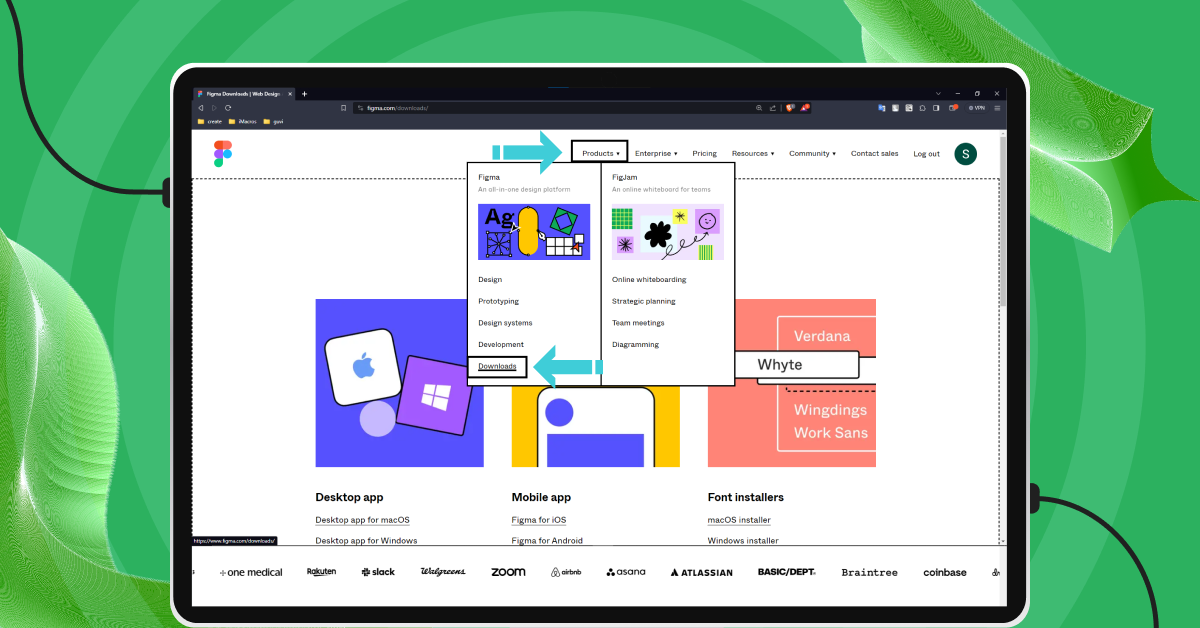
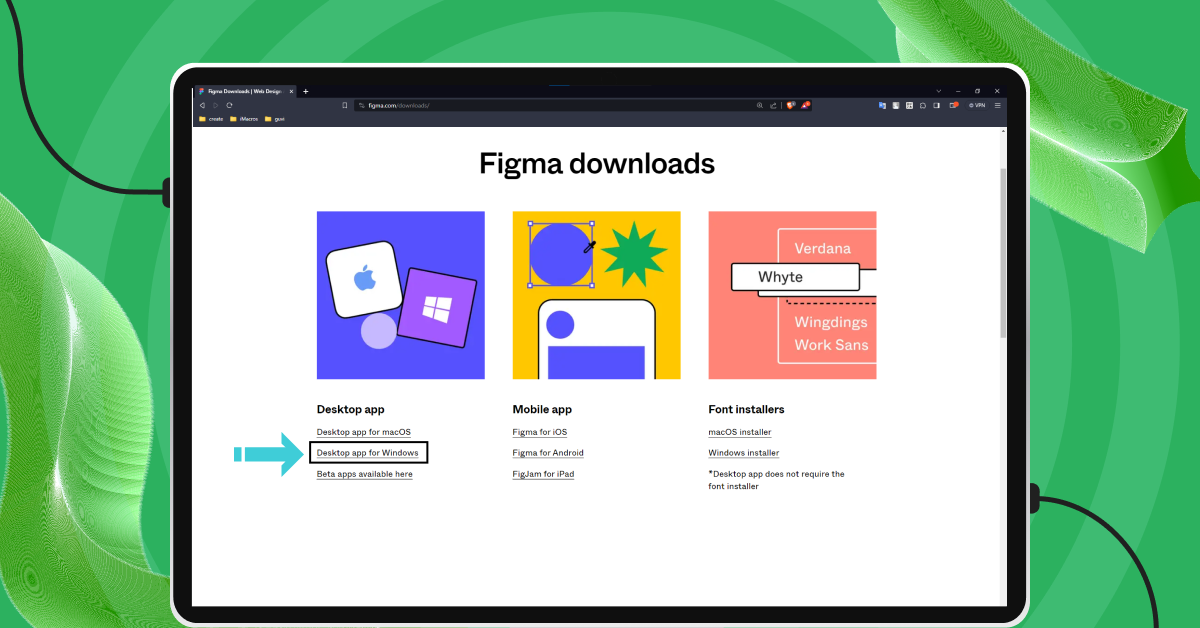
- Navigate to Downloads: On Figma’s website, find the downloads section under the products category. Direct link: figma.com/downloads.
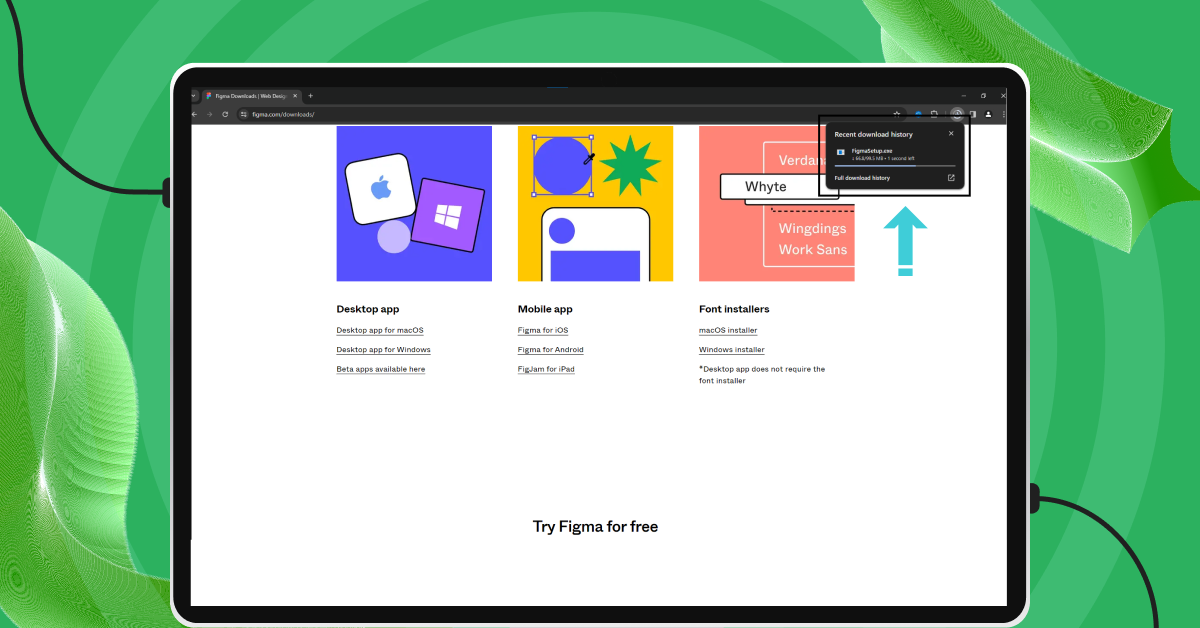
- Choose the Right Version: Look for the “Desktop App for Windows” option and click on it (not the Mac or Linux version).
- Start the Download: The download should start automatically, and it’s completely free. By default, Windows saves the file to This PC > Downloads, or wherever your browser’s default download location is set.
Step 3: Figma Installation
Once you’ve downloaded the app, the final step to Install Figma On Windows is a breeze:
- Open the Downloaded Setup File: Open File Explorer (Windows key + E), go to your Downloads folder, and double-click the file named something like
Figma-Setup-x.xxx.x.exe. - Installation Window: The installation window will pop up. Here, you can choose your preferences or just go with the default settings. If Windows shows a “Windows protected your PC” SmartScreen prompt, click More info, then Run anyway (this is expected for new installers and is covered in the errors section below).
- Complete the Installation: Follow the on-screen instructions to complete the installation. No need for additional applications or extensions.
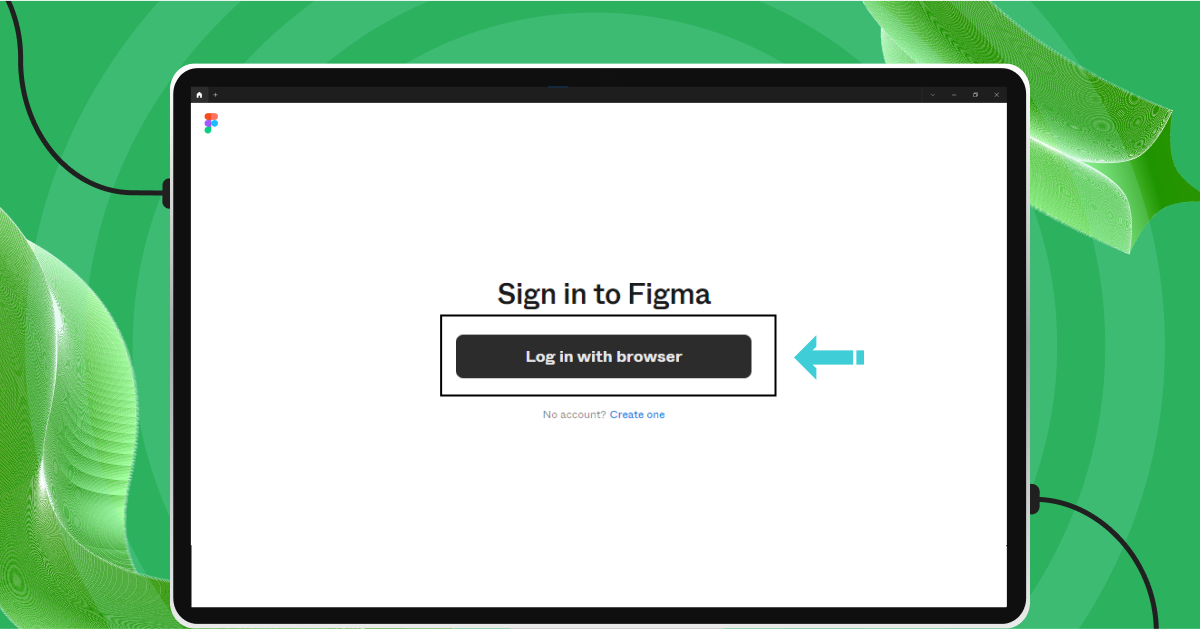
- Launch Figma: After installation, Figma usually opens automatically. If not, open the Start menu, type “Figma”, and click the app icon. Log in with your account to start designing.
Verifying the install: To confirm Figma installed correctly, open Settings > Apps > Installed apps (on Windows 11) or Settings > Apps > Apps & features (on Windows 10) and search for “Figma” in the list. If it appears there, the installation completed successfully.
And that’s it! You’ve successfully managed to Install Figma On Windows and are now ready to explore it on your device.
Also Read: UI/UX Designer Job Description and Roles & Responsibilities
This is exactly why so many teams choose to Install Figma On Windows rather than rely on a single platform. Figma’s comprehensive suite of features makes it an ideal choice for individuals and teams looking to enhance their design workflow.
Its emphasis on collaboration, combined with powerful design and prototyping tools, makes it a go-to solution for modern design challenges.
Now that we’ve looked at what Figma can do, let’s compare two different ways to use it: the Figma app for Windows and using Figma on the internet. We’ll talk about the good and bad points of each one, so you can decide which way is best for you.
Also Read: Learn How To Convert XD Files to Figma: A Proven 2-Method Guide
Figma Desktop App vs Figma Browser: Which Should You Use?
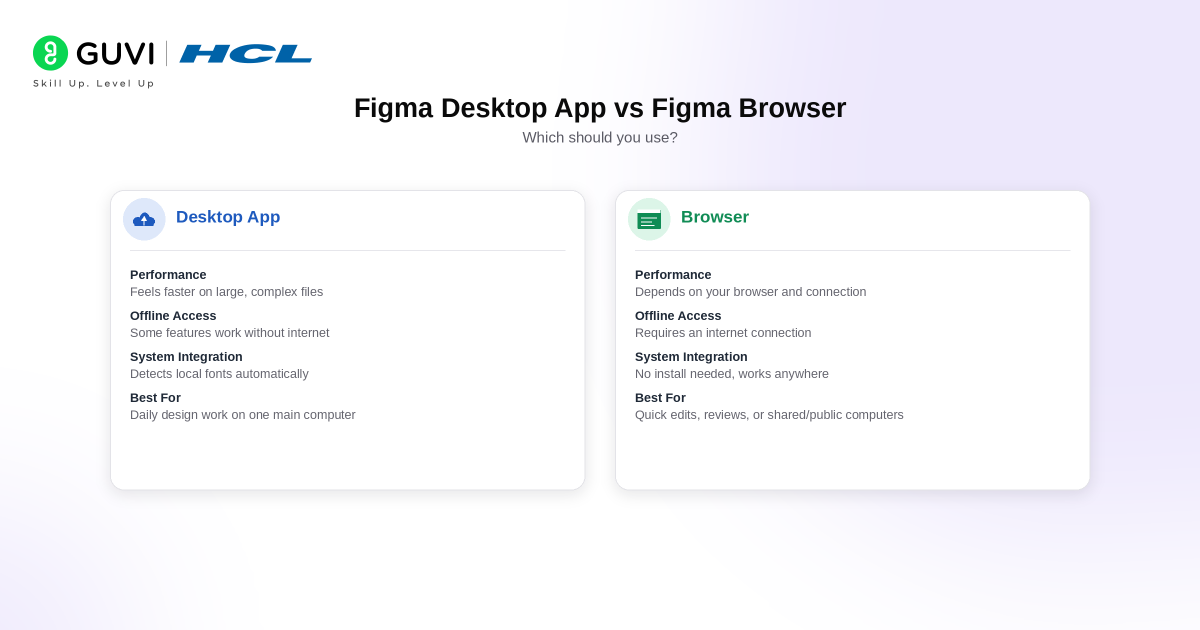
You do not have to install Figma on Windows to start designing. Figma works both through its Windows desktop app and supported web browsers. The core design features are largely the same, but a few workflow differences can make one option more convenient than the other.
| Factor | Figma Desktop App | Figma Browser |
|---|---|---|
| Installation | Requires the Windows desktop app | No Figma app installation required |
| Core Design Features | Same core Figma features as the browser | Same core Figma features as the desktop app |
| Local Fonts | Works with fonts installed on your computer without a separate font installer | Requires Figma Font Installer to access additional local fonts |
| Updates | Desktop app should be kept updated | Browser version does not require a separate Figma app update |
| Offline Work | Can preserve changes made while temporarily offline in already-open files | Can also store offline changes in already-open files |
| Plugin and Widget Development | Supports developing plugins and widgets | Desktop app is the recommended option for this workflow |
| Best For | Regular Figma users, local-font workflows, and dedicated design work | Quick access, shared computers, and users switching between devices |
Why Use the Figma Desktop App on Windows?
The desktop app is a better fit if Figma is part of your regular workflow.
- Built-In Local Font Support: The desktop app includes FigmaAgent, so fonts installed on Windows can be used without installing the separate Figma Font Installer.
- Dedicated Workspace: Figma runs in its own application instead of competing with other websites across multiple browser tabs.
- Direct File Opening: Figma links can be opened directly in the desktop application.
- Plugin and Widget Development: Figma specifically supports developing plugins and widgets through the desktop app.
- Limited Offline Continuity: If a file is already open when the connection drops, Figma can preserve pending changes and sync them after connectivity returns. This is not the same as a full offline mode.
Why Use Figma in a Browser?
The browser version is useful when you want quick access without installing the complete desktop application.
- No Desktop App Required: Sign in through a supported browser and open your Figma files directly.
- Easy Access Across Computers: This is useful when switching between devices or working on a computer where installing applications is restricted.
- Same Core Figma Functionality: Figma states that the desktop app provides the same features and functionality as the browser, so browser users are not getting a stripped-down version.
- Local Fonts Are Still Available: Browser users can access fonts installed on Windows after installing Figma Font Installer and granting the required browser permissions.
- Supported Windows Browsers: Figma supports browsers including Chrome, Microsoft Edge, and Firefox, provided the browser and WebGL requirements are met.
Which One Should You Choose?
- Install the Figma desktop app on Windows if you use Figma regularly, rely heavily on local fonts, develop plugins or widgets, or prefer a dedicated application.
- Use Figma in the browser if you need quick access, regularly switch computers, cannot install software on your device, or only use Figma occasionally.
- Neither option provides a complete offline version of Figma. If your connection drops while an eligible file is already open, Figma can temporarily preserve changes and sync them when you reconnect.
Kickstart your UI/UX journey by enrolling in HCL GUVI’s UI/UX Course, where you’ll master AdobeXd, Illustrator, and Figma, building real-life UI/UX projects. Alternatively, for a self-paced option, try HCL GUVI’s Figma’s certification course.
Explore this | How to Download an Image from Figma? A 5-Step Guide to Help You Out
System Requirements for Figma on Windows 10 vs Windows 11
Before you install Figma on Windows, check whether your PC meets Figma’s current desktop and graphics requirements. Figma supports both Windows 10 and Windows 11, but the desktop app requires a 64-bit environment.
| Requirement | Windows 10 | Windows 11 |
|---|---|---|
| Desktop App Support | Supported on 64-bit Windows 10 | Supported on 64-bit Windows 11 |
| Processor Architecture | 64-bit required | 64-bit required |
| Windows Arm | Separate Windows Arm installer available where applicable | Separate Windows Arm installer available where applicable |
| RAM | No official minimum published by Figma | No official minimum published by Figma |
| Storage | No official minimum published by Figma | No official minimum published by Figma |
| Graphics | WebGL-compatible graphics required for Figma rendering | WebGL-compatible graphics required for Figma rendering |
| Chrome | Version 120 or later | Version 120 or later |
| Microsoft Edge | Version 121 or later | Version 121 or later |
| Firefox | Firefox 128 ESR or later | Firefox 128 ESR or later |
Figma uses WebGL for rendering and states that its graphics requirements are generally low. However, outdated Windows graphics drivers can affect performance, and Intel HD Graphics 3000 is listed as having known rendering issues.

The practical difference between Windows 10 and Windows 11 is small for Figma itself. If both systems are updated, running 64-bit Windows, and have supported graphics and browser versions, the desktop app should work on either.
Figma Installation Errors on Windows: Common Fixes
Most problems when you install Figma on Windows come from an unsupported Windows version, the wrong installer, corrupted app data, or restrictions on managed devices.
Error 1: “Windows Protected Your PC”
Windows SmartScreen may display a warning when Windows wants additional verification before launching an installer.
Before continuing:
- Confirm that you downloaded Figma from the official Figma download page.
- Check that the installer name and publisher information look correct.
- Do not bypass the warning for an installer downloaded from an unknown website.
- On a company-managed computer, contact your IT administrator if Windows blocks installation.
Avoid disabling Windows security features simply to install the application.
Error 2: Figma Installer Does Not Complete
If installation freezes or fails:
- Close the installer completely.
- Restart Windows.
- Download a fresh installer from Figma’s official download page.
- Confirm that you selected the correct Windows installer.
- Try the installation again.
If the computer is managed by an organization, software installation policies may prevent the app from installing normally.
Error 3: “This App Can’t Run on Your PC”
Figma’s desktop app requires Windows 10 or later in a 64-bit environment. Figma also provides a separate Windows Arm download.
Check:
- Whether your Windows installation is 64-bit.
- Whether your PC uses an Intel/AMD or Arm processor.
- Whether you downloaded the correct Windows installer.
- Whether Windows is fully updated.
Do not use the macOS installer on Windows.
Error 4: Installation Is Blocked on a Work Computer
Company-managed laptops may restrict software installation or updates.
If this happens:
- Do not disable corporate security tools.
- Contact your IT administrator.
- Ask whether Figma is approved for installation.
- Enterprise administrators can deploy Figma using its Microsoft Enterprise installer where supported.
Error 5: Firewall, Proxy, or Security Software Blocks Figma
Corporate networks may restrict Figma traffic through proxies, firewalls, or security platforms.
Instead of disabling security software:
- Check whether other websites and cloud applications work normally.
- Try Figma in a supported browser.
- Ask IT to verify network or proxy restrictions.
- Confirm that Figma-related traffic is permitted under company policy.
Figma also supports proxy configuration for managed Windows installations.
After Installing Figma: First 3 Things to Set Up
Once you successfully install Figma on Windows, complete these three steps before starting serious design work.
1. Sign In With the Correct Figma Account
Open the desktop app and sign in with the account connected to your projects, team, school, or organization.
If you received a team invitation, use the same email address that received that invitation. This prevents confusion between personal Drafts and organization workspaces.
2. Update the Figma Desktop App
Open the Figma desktop menu and use Check for Updates to confirm that you are running the latest version.
Figma recommends keeping the desktop app updated, and support for older desktop versions is removed six months after release. Managed company devices may require an administrator to perform updates.
3. Check Local Font Access
The Figma desktop app includes the Figma Font Installer, also called FigmaAgent. You do not need to install the separate font helper when using the desktop app.
To use a local font:
- Install the
.TTFor.OTFfont in Windows. - Restart Figma if the font does not appear immediately.
- Open the font picker and confirm that the installed font is available.
If collaborators use a font style that is not installed on your PC, Figma may display a missing-font warning.
Figma Not Opening on Windows: Troubleshooting Guide
If Figma installs successfully but does not open, crashes during launch, or becomes unresponsive, work through these fixes in order.
Step 1: Force Quit Figma and Reopen It
Press Ctrl + Shift + Esc to open Task Manager.
Look for Figma-related processes, end them if necessary, then reopen the desktop app. Figma recommends force-quitting and restarting the desktop app as an initial troubleshooting step.
Step 2: Use Reset Figma and Restart
If you can still access the desktop app menu:
Figma menu > Help > Troubleshooting > Reset Figma and Restart
This clears the desktop app cache and restarts Figma, which can resolve desktop-specific performance and technical problems.
Step 3: Clear the Figma Cache Manually
If Figma is too unresponsive to use the built-in reset option:
- Close Figma completely.
- Open the Windows Start menu.
- Enter
%APPDATA%\Figma. - Delete the
DesktopandDesktopProfilefolders if present. - Delete the
font_cacheandsettingsfiles if present. - Launch Figma again.
These are the current Windows cache-clearing steps documented by Figma.
Step 4: Update Figma, Windows, and Graphics Drivers
Check for:
- Figma desktop app updates.
- Windows updates.
- Graphics driver updates from Windows Update or your GPU manufacturer.
Figma relies on GPU acceleration and WebGL, so outdated graphics drivers can contribute to rendering or performance problems.
Step 5: Check Your Internet and Network Restrictions
Figma requires a reliable internet connection for normal use. It supports some offline activity, but Figma does not provide a dedicated offline mode.
If Figma works on another network but not your office network, a firewall, proxy, or security policy may be involved. On managed devices, ask your IT team to investigate rather than disabling security controls.
Step 6: Reinstall Figma
If the previous steps fail:
- Open Settings > Apps > Installed apps.
- Locate Figma.
- Uninstall the application.
- Restart Windows.
- Download the latest Windows installer from Figma.
- Install the desktop app again.
A clean reinstall is useful when the application itself is damaged or an earlier update did not complete correctly.
Conclusion
Installing Figma on Windows is straightforward when your system meets the basic requirements. The desktop app supports 64-bit Windows 10 and Windows 11, provides built-in access to locally installed fonts, and offers the same core design functionality as Figma in the browser.
For the smoothest experience, keep Figma, Windows, and your graphics drivers updated. If the desktop app stops opening, start with a restart, use Reset Figma and Restart, clear the local cache if necessary, and reinstall only as a final step.
You can also use Figma through a supported browser when you do not want to install the desktop app. The desktop version is particularly useful when you regularly work with local fonts, open Figma links directly in the app, or prefer a dedicated Windows application.
Ready to become a UI/UX designer? Join the comprehensive UI/UX Design Course at HCL GUVI! This Career Program is tailored for those eager to improve their design skills and create impactful user experiences. Enroll now and start your journey to becoming a design pro. Don’t miss out – your future in design awaits!
FAQs
What is Figma?
Figma is a digital design and prototyping tool. It’s used for creating user interfaces for websites, mobile apps, and more. It’s known for its collaboration features, allowing multiple people to work on a design at the same time.
Is Figma free to use?
Yes, Figma has a free version which is quite powerful and suitable for individual users or small teams. There are also paid versions with additional features for larger teams or businesses.
Can I use Figma offline?
The Figma desktop app provides limited offline functionality. You can view and edit files you have already opened or created while online, but you need an internet connection for full functionality.
Is Figma only for Windows?
No, Figma is available on multiple platforms. It has desktop apps for Windows and Mac, a Linux version, and an online version that can be used in web browsers. There’s also a mobile app for viewing and commenting on designs.
How does Figma differ from other design tools like Adobe XD or Sketch?
The biggest difference is Figma’s focus on collaboration. It allows multiple users to work on the same file simultaneously. It’s also browser-based, which makes it more accessible across different platforms.
How secure is Figma with my designs?
Figma takes security seriously. It uses encryption to protect your data and offers features like two-factor authentication for added security.
Does Figma support prototyping and animation?
Yes, Figma has built-in prototyping features that let you create interactive prototypes without needing to code. It also supports basic animations.
Success Stories

About the Author
Vaishali
I'm a seasoned writer with four years of experience across technical, non-technical, and just about every genre or niche you can imagine. Adaptable and curious, I enjoy exploring new topics and making information engaging and easy to understand. Fueled by a steady stream of tea, I approach each project with creativity, reliability, and genuine enthusiasm for storytelling.
View all posts by Vaishali
Connect with me @














Did you enjoy this article?