


Artificial Intelligence and Machine Learning Articles
How to Evaluate LLM Outputs in Production Deployments
AI/ML Skills Gap 2026: Why Companies Can't Find Job-Ready Talent
20 AI/ML Interview Questions Recruiters Can Use Without a Tech Background - Best Guide
How Industry-Backed AI/ML Bootcamps Are Changing the AI/ML Hiring Pipeline - Best Guide 2026


Get In Touch For Details! Request More Information
Google Stitch AI: The Complete Beginner’s Guide
Jul 06, 2026 6 Min Read 3095 Views
(Last Updated)
Designing a user interface has always had a steep entry barrier. Traditional tools like Figma, Adobe XD, and Sketch are powerful but demand hours to master. Even pros spend time placing components, picking typography, managing layers, and writing dev specs.
For developers needing quick UIs or PMs visualizing ideas, these tools prioritize polish over speed. The gap from idea to real interface felt frustratingly wide.
Google Stitch closes that gap seamlessly. Born from a designer-engineer collaboration, it optimizes both workflows using Gemini 2.5 Pro’s multimodal power. Launched at Google I/O 2025 on May 20 as a Labs experiment, it evolved fast.
Google acquired Galileo AI early that year, rebranded it Stitch, and integrated Gemini tech. By the March 2026 update, ten months of feedback had turned it into a workspace rivaling Figma for speed-focused use cases.
In this article, we will walk through exactly what Google Stitch AI is, how it works, what its two modes do, what inputs it accepts, how to export your designs, what changed in the major March 2026 update, how it compares to Figma, and what its current limitations are.
Table of contents
- Quick TL;DR
- OVERVIEW OF GOOGLE STITCH
- How Google Stitch Works Under the Hood
- Multimodal AI foundation
- Core purpose as a no-code tool
- Input types it accepts
- Structured output generation
- The March 2026 Update: Multi-Screen and Infinite Canvas
- December 2025: Gemini 3 + prototype flows
- Complete AI-native workflow
- How to Export Your Designs
- What Stitch Is Actually Good For
- Fast from idea to draft
- Useful for early exploration
- Good for non-designers
- Great for mockups and prototyping
- Best for direction, not final polish
- Limitations to Know Before You Start
- Final Thoughts
- FAQ
- What is Google Stitch AI, and who is it for?
- Is Google Stitch free, and how do I access it?
- Standard Mode vs Experimental Mode: Which should I use?
- Can Stitch really replace Figma or Sketch?
- How good is the HTML/CSS code Stitch generates?
Quick TL;DR
- Google Stitch is a free, browser‑based AI design tool from Google Labs that turns text prompts or images into web and mobile UIs using Gemini.
- It’s great for non‑designers, PMs, and developers who need fast mockups, prototypes, or starter code without deep design skills.
- Stitch has two modes: Standard (Gemini 2.5 Flash) for quick layouts and Figma export and Experimental (Gemini 2.5 Pro) for higher-quality designs with image input and code export only.
- The March 2026 update turned it into a multi‑screen prototyping workspace with an AI‑native canvas, interactive flows, and coherent design systems across connected screens.
- Exports go to Figma (editable layers), HTML/CSS (dev‑ready scaffold), or Google AI Studio / Antigravity to build full applications, all from a single prompt.
What Is Google Stitch AI?
Google Stitch AI is a free, browser-based AI design tool from Google Labs that generates complete web and mobile user interfaces from text prompts or image inputs. Powered by Gemini, it allows users to create UI designs without requiring design skills or any software installation.
OVERVIEW OF GOOGLE STITCH
Google Stitch is a free, browser-based AI design tool that generates web and mobile UI from natural language prompts, powered by Gemini. It’s best for rapid prototyping, early-stage product exploration, and non-designers who need to produce interfaces quickly.
You describe what you want, Stitch builds it, and you export it to Figma or as HTML and CSS code, all in minutes and at no cost.
How Google Stitch Works Under the Hood
Here’s your text restructured into clear, numbered steps that explain how Stitch works, making it easier to follow the process from prompt to output. I kept it concise while preserving all key details.
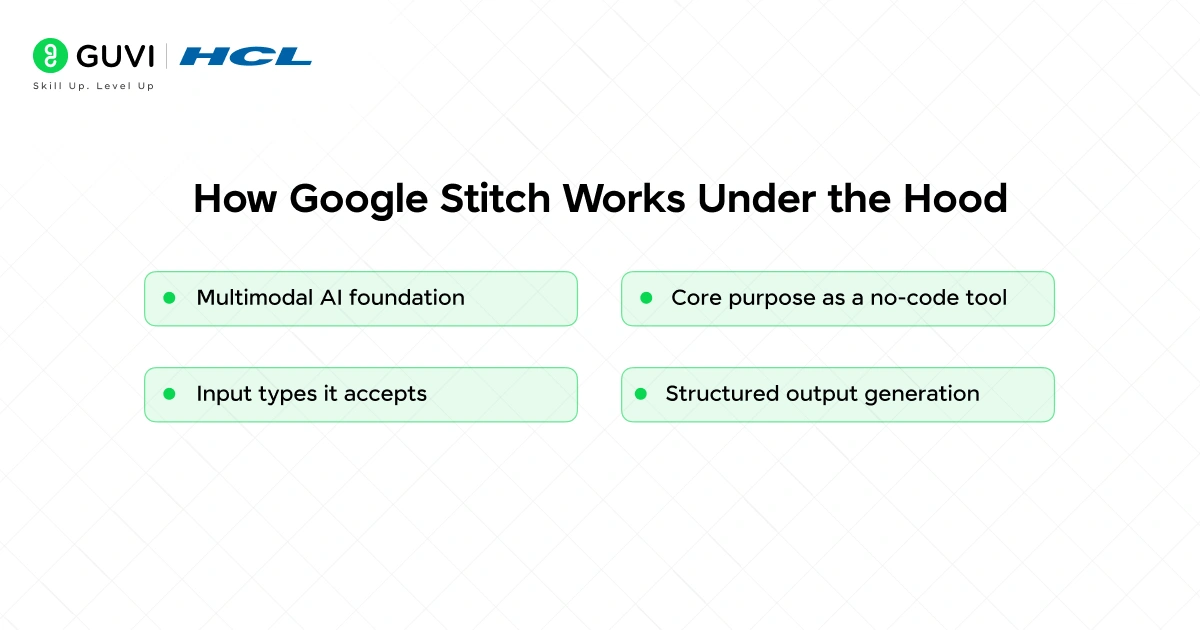
1. Multimodal AI foundation
Understanding what Stitch does starts with its multimodal AI core, processing text and visuals together. Built on Gemini 2.5 Pro, it turns natural language prompts, images, or sketches into interactive UI mockups and front-end code.
2. Core purpose as a no-code tool
Stitch bridges designers and developers by converting prompts like “create a minimalist finance dashboard with teal accents” into functional layouts. Outputs include Figma-ready designs, HTML/CSS code, or starter components for modern frameworks.
3. Input types it accepts
Stitch handles three inputs: text prompts for desired functionality, uploaded images/screenshots for reference, and annotated screenshots with modification notes. This pipeline understands abstract requirements and specific visuals.
4. Structured output generation
Results aren’t flat images; they’re proper HTML/CSS with component hierarchy, typography, spacing, and colors. Pasting into Figma yields editable layers with Auto Layout, not just screenshots.
The Two Modes: Standard vs. Experimental
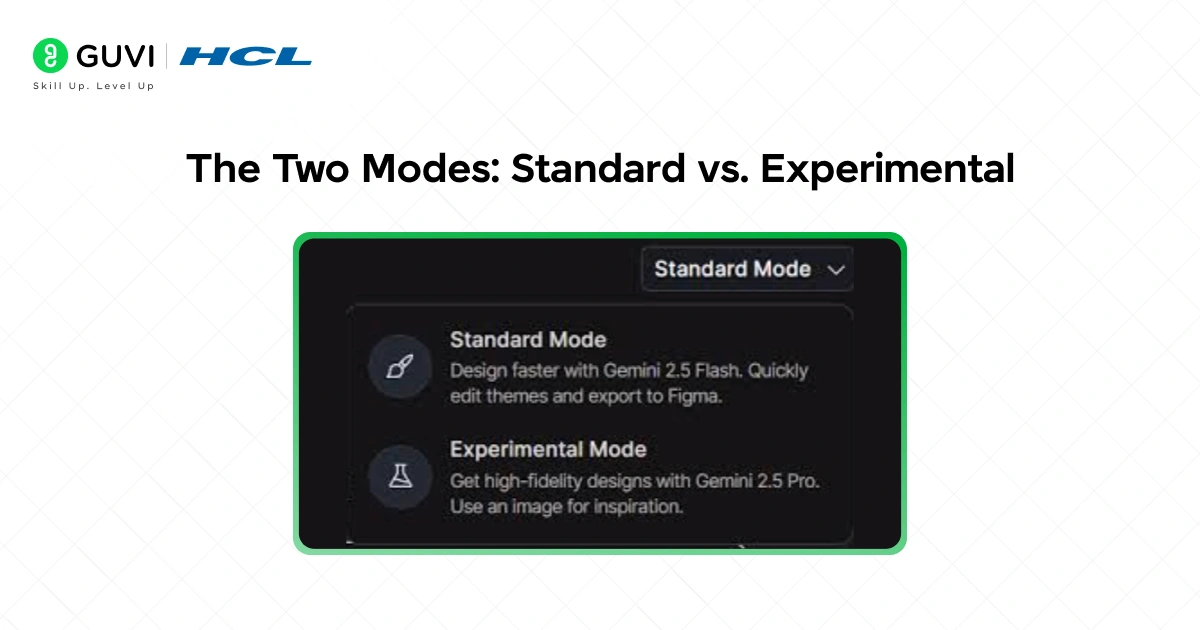
Stitch provides two distinct operating modes, each powered by a different underlying Gemini model and optimized for different use cases. Knowing which to use saves you time and frustration.
- Standard Mode
This uses Gemini 2.5 Flash to generate layouts quickly, edit themes, and export to Figma. Experimental Mode switches to Gemini 2.5 Pro for higher-fidelity results and can take images as visual input.
Standard Mode is the right starting point for most tasks; it is fast, it supports Figma export, and it handles text-based prompts well. When you need a quick prototype or want to iterate rapidly through layout options, Standard Mode gets you there fastest.
- Experimental Mode
This trades speed for quality and accepts image inputs. If you have a reference screenshot, a hand-drawn wireframe, or an existing UI you want to transform, Experimental Mode is the path.
Experimental Mode uses Gemini 2.5 Pro for deeper reasoning and higher-quality designs and supports image inputs and HTML and CSS export but not direct Figma export. The important trade-off to know: if Figma export is essential to your workflow, you will need to work in standard mode.
Experimental Mode only exports HTML and CSS. This limitation makes it less useful if your process involves a handoff to a designer for refinement, but if you are going directly from design to code, Experimental Mode gives you better results.
The March 2026 Update: Multi-Screen and Infinite Canvas
The most significant evolution hit on March 19, 2026 a major update transforming Stitch from a single-screen generator to a full multi-screen prototyping workspace. It introduced multi-screen generation, AI-native infinite canvas, and interactive prototyping that directly challenge Figma, Adobe, and AI-first design startups.
December 2025: Gemini 3 + prototype flows
Since December 2025, Stitch connects screens into interactive prototypes with transitions and automatically generates logical next screens. Gemini 3 integration improved interface quality with better contextual understanding, polished layouts, and enhanced accessibility, setting the stage for the March canvas redesign.
Complete AI-native workflow
Users now describe entire app flows in natural language, generating up to five interconnected screens with consistent typography, colors, and components. Every design exports HTML/CSS to Figma, Google AI Studio, or Antigravity for full development, wrapping AI capabilities in a workspace built for AI interaction rather than traditional design tools
How to Export Your Designs
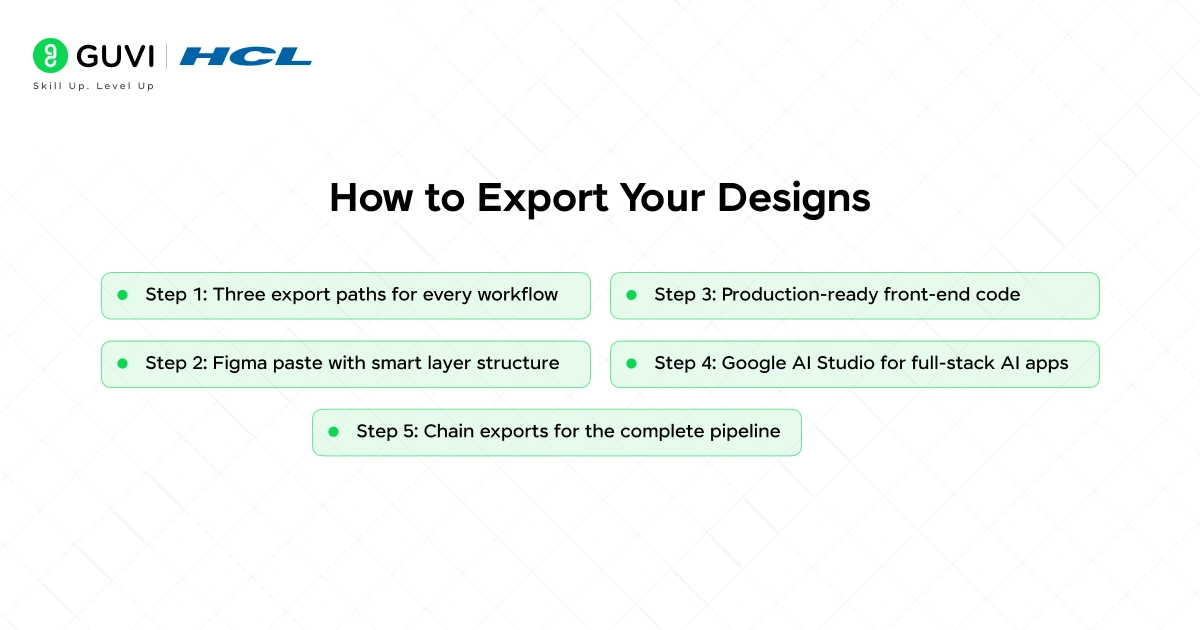
Step 1: Three export paths for every workflow
Stitch provides three powerful export paths tailored to different needs: Figma paste for design teams, front-end code for developers, and Google AI Studio integration for AI app builders. The key is matching the right export to your workflow.
Designers choose Figma for collaboration, solo developers grab HTML/CSS for instant deployment, and Google ecosystem users flow directly into AI Studio for full-stack applications.
This targeted approach eliminates context switching and maximizes each tool’s strengths in your pipeline.
Step 2: Figma paste with smart layer structure
The Figma export creates fully editable designs with Auto Layout, semantic layer names, and logical component grouping far beyond basic screenshots.
Generate your design, hit “Copy to Figma,” paste directly into your canvas, and watch layers auto-arrange with editable text and properly structured components.
Product managers love this for stakeholder reviews, while design teams use it as a refined starting point that integrates seamlessly with existing design systems, saving hours of manual setup.
Step 3: Production-ready front-end code
Export clean, responsive HTML/CSS with semantic markup, CSS Grid/Flexbox layouts, and modular components ready for production.
You’ll get a complete folder structure, including index.html, styles.css with custom properties, reusable component modules, and exported assets.
This is perfect for side projects, client demos, or React/Vue starting points. Developers can npm run dev and customize immediately, collapsing the design-to-code handoff from days to minutes.
Step 4: Google AI Studio for full-stack AI apps
The AI Studio integration transforms static UI into dynamic AI-powered applications within Google’s ecosystem.
Export your Stitch design, import it to AI Studio, then add Gemini backend logic, API connections, and real-time data processing. It’s ideal for chat interfaces, AI dashboards, and multimodal apps, keeping you in one stack from “finance dashboard mockup” to “live app with stock analysis” without tool fragmentation.

Step 5: Chain exports for the complete pipeline
Power users combine all three exports strategically: start with Figma paste for team review, export code for development handoff, and then push to AI Studio for backend logic.
This creates a complete design-to-production pipeline that replaces weeks of coordination with minutes of exports, giving solo founders and small teams enterprise-level workflow efficiency.
Google Stitch originated from Google’s 2025 acquisition of Galileo AI, later enhanced with Gemini models to evolve from a single-prompt generator into a full multi-screen AI design workspace.
The March 19, 2026 update introduced features like infinite canvas, interactive prototypes, and app-flow generation, making it one of the first AI-native tools capable of exporting both Figma layers and production-ready HTML/CSS for free.
What began as an I/O demo now enables founders, designers, and PMs to prototype complete applications in minutes, dramatically reducing the gap between idea and interface.
What Stitch Is Actually Good For
The most accurate way to understand Stitch is to be specific about which parts of the design process it handles well and which it does not.
1. Fast from idea to draft
Stitch is faster for getting from nothing to something. If you have a concept but no visual representation, Stitch can generate a starting point in seconds.
2. Useful for early exploration
This is especially helpful during discovery phases, when you want to test ideas before investing too much time in them. It can quickly generate multiple layout directions and help a team align around a visual concept before detailed design work begins.
3. Good for non-designers
If you can write code but do not have a design background, Stitch gives you a structured, styled interface to start from. The output may not match what an experienced designer would create, but it is much better than starting with a blank HTML file.
4. Great for mockups and prototyping
Stitch is valuable for product managers creating mockups for stakeholder reviews, developers prototyping side projects, and startup founders validating ideas before hiring a designer. It reduces both the time and the skill needed to turn an idea into a visual representation.
5. Best for direction, not final polish
In short, Stitch is strongest when you need speed, exploration, and a usable first draft. It is less suited for highly polished, final-level design work.
Limitations to Know Before You Start
- Stitch is not a Figma replacement for teams with established design systems, complex collaboration needs, or interactive prototyping requirements.
- The most significant current limitation is that Collaboration Stitch is primarily a single-user tool, and it does not have the real-time multiplayer canvas that makes Figma central to design team workflows.
- If you work on a team where multiple designers need to edit the same file simultaneously, Stitch is not yet equipped for that use case.
- The code quality is also worth calibrating expectations around. The code Stitch exports is a functional starting point.
- Developers will generally need to refactor it, align it with their component library, and adapt it to their actual codebase. It is a scaffold to build from, not finished production code.
- Treat the HTML and CSS output as a well-structured starting point rather than production-ready code.
- The structure is sound, and the styling is coherent, but it will need adaptation to match your specific tech stack and component conventions before it is ready to ship.
- These differences are common due to the current limitations of AI-generated UI design. But they are also easily fixable through prompt tweaking or refining the layout in Figma after exporting.
- The iterative refinement loop generates, evaluates, and refines the prompt and regenerates it; it is a normal part of working with Stitch, not a sign that something is wrong.
- Learning to write precise, specific prompts with style, layout, and interaction details spelled out clearly is the skill that most improves first-attempt output quality.
If you’re serious about mastering Google Stitch AI text-to-UI generation with Gemini 2.5, Figma exports, conversational refinement, and production-ready HTML/CSS code, don’t miss the chance to enroll in HCL GUVI’s Intel & IITM Pravartak Certified Artificial Intelligence & Machine Learning Course, co-designed by Intel.
Final Thoughts
Google Stitch is free, requires only a Google account, and runs entirely in the browser with no installation required. Whether you are a designer exploring new workflows, a developer who hates mocking up screens, or a founder trying to visualize a product idea before writing a single line of code, Stitch has something for you.
Access it at stitch.withgoogle.com, start with a specific and detailed text prompt describing your UI, review the generated output, and refine through chat or prompt iteration until it matches your vision. Export to Figma if you need to continue refining with design tools, or export as HTML and CSS if you are ready to move into development.
The gap between idea and interface has never been smaller, and for anyone who needs to move fast from concept to something real, Stitch is currently the fastest free path available.
FAQ
1. What is Google Stitch AI, and who is it for?
Stitch is an AI‑powered, no‑code UI design tool that generates web and mobile interfaces from natural language prompts or reference images. It’s ideal for product managers, developers, solo founders, and early‑stage teams who want to visualize ideas quickly without a design background.
2. Is Google Stitch free, and how do I access it?
Yes, Stitch is currently a free Google Labs experiment that runs entirely in the browser. You just need a Google account and can start at stitch.withgoogle.com with no installation.
3. Standard Mode vs Experimental Mode: Which should I use?
Use Standard Mode if you want speed, easy iteration, and Figma export for design teams. Use Experimental Mode if you’re prioritizing higher‑fidelity designs and have image inputs (screenshots, sketches), but are okay exporting only HTML/CSS.
4. Can Stitch really replace Figma or Sketch?
Stitch is best as a fast‑prototyping and idea‑exploration tool, not a full replacement for Figma or Sketch, especially for teams with complex design systems, intensive collaboration, or advanced interactions. It shines in closing the “idea to UI” gap quickly, but polished, collaborative design still benefits from established tools.
5. How good is the HTML/CSS code Stitch generates?
Stitch produces functional, well‑structured HTML/CSS that’s a solid starting point, but you’ll usually need to refactor it, align it with your component library, and adapt it to your tech stack before shipping. Think of it as a scaffold, not production‑ready code.
Success Stories

About the Author
Vishalini Devarajan
An Aerospace Engineer turned content writer, I focus on making complex concepts easy to understand through well-structured, reader-friendly blogs. Whether it’s a technical topic or a non-technical one, I love creating content that is clear, engaging, and impactful.
View all posts by Vishalini Devarajan
Connect with me @






Did you enjoy this article?