


Artificial Intelligence and Machine Learning Articles
AI/ML Skills Gap 2026: Why Companies Can't Find Job-Ready Talent
20 AI/ML Interview Questions Recruiters Can Use Without a Tech Background - Best Guide
How Industry-Backed AI/ML Bootcamps Are Changing the AI/ML Hiring Pipeline - Best Guide 2026
From IT Support to AI Engineer: A Realistic Career Switch Guide 2026


Get In Touch For Details! Request More Information
Introducing Cursor 2.0 Composer: AI Coding Future
Jun 24, 2026 6 Min Read 1062 Views
(Last Updated)
You are in the middle of building something. You need to change how a feature works across ten different files. You have to remember what every function does, where every variable lives, and how every piece connects to everything else.
Traditional code editors make this feel like archaeology. You dig through files, cross-reference manually, and hope you did not miss anything important.
Cursor 2.0 and Composer change this completely. Instead of a tool that helps you type code, you now have a tool that understands what you are building, thinks alongside you, and handles entire workflows from a single instruction.
This guide explains what Cursor 2.0 Composer are, what is new, how they work together, and exactly how to use them to build software faster than you thought possible.
Quick TL;DR Summary
- This guide explains what Cursor 2.0 is and what the new Composer feature brings to AI-powered software development.
- You will learn how Cursor 2.0 improves on the original and why the changes matter for everyday coding workflows.
- The guide covers Composer in detail, including what it does, how it thinks, and how to use it effectively.
- Step-by-step instructions show you exactly how to get started and get the most out of both features immediately.
- You will understand why Cursor 2.0 and Composer together represent a genuine shift in how developers interact with their codebases.
Table of contents
- What Are Cursor 2.0 and Composer?
- Why the Old Way of Writing Code Does Not Work Anymore
- How Cursor 2.0 Composer Solve These Problems
- Step 1: Full codebase awareness
- Step 2: Multi-file editing from one instruction
- Step 3: A planning step before any changes
- Step 4: Iterative conversation with your codebase
- Step 5: Seamless integration with the editor
- What Cursor 2.0 and Composer Unlock for Real Development
- How to Use Cursor 2.0 and Composer: Step-by-Step Process
- Step 1: Install Cursor 2.0
- Step 2: Open Composer
- Step 3: Describe What You Want to Build
- Step 4: Review the Plan Before Anything Changes
- Step 5: Apply and Review the Changes
- Step 6: Iterate Through Conversation
- Step 7: Use Cmd+K for Inline Edits
- Common Mistakes Developers Make
- Getting Maximum Value From Cursor 2.0 and Composer
- The Technology Behind Cursor 2.0 and Composer
- Conclusion
- FAQs
- Do I need to give up VS Code to use Cursor 2.0?
- How is Composer different from GitHub Copilot?
- Is my code sent to external servers?
- Can Composer handle large codebases with hundreds of files?
- What programming languages does Cursor 2.0 support?
What Are Cursor 2.0 and Composer?
Cursor 2.0 is the latest version of the AI-first code editor built on top of VS Code, and Composer is its most powerful new feature—a multi-file AI agent that understands your entire codebase and can plan, write, and edit code across multiple files simultaneously from a single natural language instruction.
Why the Old Way of Writing Code Does Not Work Anymore
- One file at a time is too slow
Most AI coding tools work on whatever file you have open. Change something that affects ten other files and you are on your own for the rest. Real software does not live in one file. Your tools should not either.
- Context gets lost constantly
Traditional editors and even first-generation AI tools forget what you were doing the moment you switch files. Every new interaction starts from zero. You spend more time re-explaining your codebase than actually building.
- Autocomplete is not enough
Line-by-line suggestions are useful for small tasks. But when you need to build a new feature, refactor a module, or fix a bug that touches your entire backend, autocomplete does not come close to solving the problem.
- The gap between instruction and execution is too wide
You know what you want to build. Turning that into working code across multiple files, with correct logic, proper imports, and consistent naming, requires a huge amount of mechanical work that has nothing to do with the actual problem you are solving.
- Switching between thinking and typing breaks flow
Every time you stop to look something up, check a function signature, or hunt for where a variable is defined, you lose the mental thread of what you were building. Good tools should keep you in flow, not pull you out of it.
Read More: How To Use Cursor AI: A Complete Guide With a Practical Example
How Cursor 2.0 Composer Solve These Problems
Step 1: Full codebase awareness
Cursor 2.0 indexes your entire project and keeps that understanding current as you work. Composer draws on this complete picture when planning and writing code. It knows how your files connect, what your functions do, and how changes in one place affect everything else.
Step 2: Multi-file editing from one instruction
Composer takes a single natural language instruction and turns it into coordinated edits across as many files as needed. Tell it to add authentication to your app and it touches every file that needs changing, not just the one you have open.
Step 3: A planning step before any changes
Before Composer writes a single line of code, it shows you a plan. You see exactly what it intends to do, which files it will touch, and what changes it will make. You approve, adjust, or redirect before anything happens.
Step 4: Iterative conversation with your codebase
Composer is not a one-shot tool. You can go back and forth, refine the output, ask follow-up questions, and build incrementally through conversation. It remembers the full context of your session as you work.
Step 5: Seamless integration with the editor
Everything Composer produces appears directly in your editor with standard diff views. You see exactly what changed, accept or reject individual edits, and stay in full control of your codebase at every step.
Cursor 2.0 is built directly on top of VS Code, so all your existing extensions, shortcuts, and workflows continue to work exactly as before.
This means you gain AI-powered capabilities without losing the familiar development environment you already rely on.
What Cursor 2.0 and Composer Unlock for Real Development
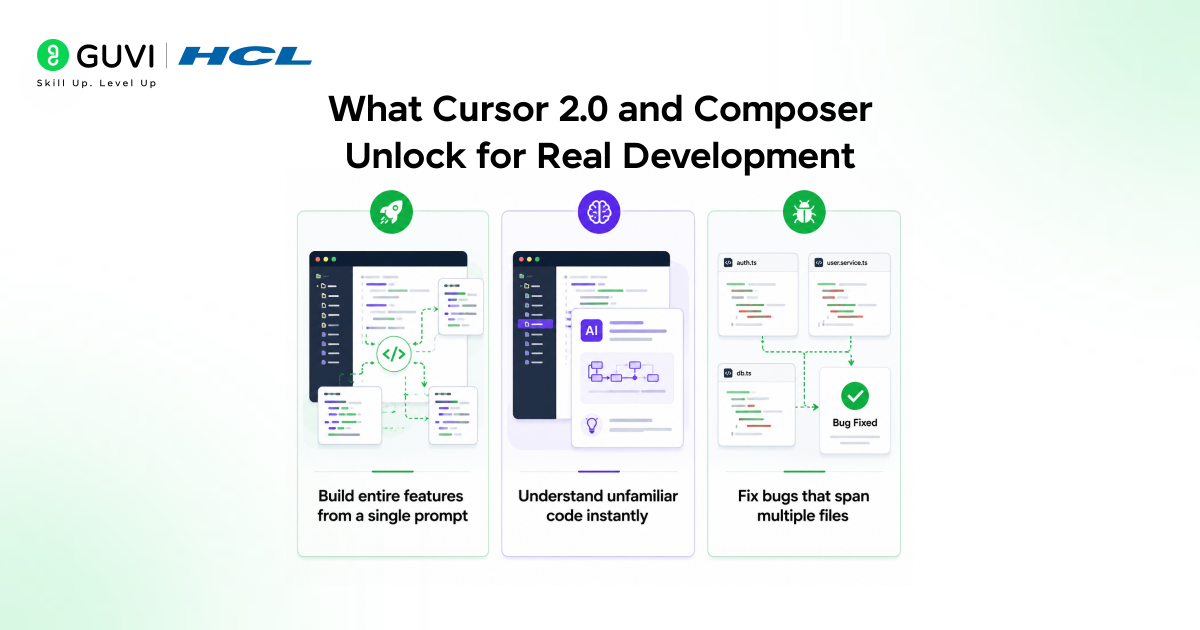
- Build entire features from a single prompt
Describe what you want to add to your application. Composer plans the implementation, writes the code, creates new files where needed, and updates existing ones. A feature that took hours of mechanical work now takes minutes of conversation.
- Refactor with confidence across the whole project
Tell Composer to change how something works and it handles every file affected by that change. Rename a function, restructure a module, or change a data model and Composer updates every reference correctly without you hunting through the codebase manually.
- Understand unfamiliar code instantly
Jump into a codebase you have never seen before and ask Cursor 2.0 questions about it. How does this module work? What calls this function? Where does this data come from? You get answers drawn from the actual code, not generic documentation.
- Fix bugs that span multiple files
Some bugs live in the gap between files, where one function assumes something that another function does not guarantee. Cursor 2.0 sees these connections. Composer can trace the problem, identify the root cause, and fix it across every file involved.
How to Use Cursor 2.0 and Composer: Step-by-Step Process
Here is exactly how to set up and use Cursor 2.0 and Composer from day one.
Step 1: Install Cursor 2.0
Get set up in under five minutes
Download Cursor from cursor.sh and install it on your machine. If you are already a VS Code user, import your settings, extensions, and keybindings during setup. Everything carries over. Open your existing project folder and Cursor begins indexing your codebase automatically in the background.
Step 2: Open Composer
Access your AI coding partner
Press Cmd+I on Mac or Ctrl+I on Windows to open the Composer panel. It appears as a sidebar alongside your code. This is where you will describe what you want to build, ask questions, and review proposed changes before they are applied to your project.
Step 3: Describe What You Want to Build
Talk to your codebase naturally
Type a clear description of the task you want to accomplish. Be specific about what you want and what constraints matter. The more context you give, the better Composer’s output will be. You can reference specific files, functions, or requirements directly in your message.
Step 4: Review the Plan Before Anything Changes
Understand before you commit
Composer shows you its plan before making any edits. Read through it carefully. Check which files it intends to touch and what changes it will make to each one. If anything looks wrong or misaligned with what you wanted, redirect Composer here before it writes any code.
Step 5: Apply and Review the Changes
See exactly what changed
Once you approve the plan, Composer applies the changes and shows them as diffs in your editor. Green lines are additions. Red lines are removals. Go through the changes file by file. Accept individual edits or reject ones that do not look right. You stay in control throughout.

Step 6: Iterate Through Conversation
Refine until it is exactly right
If the output is close but not quite right, do not start over. Continue the conversation. Tell Composer what needs adjusting and it refines its changes within the same session context. This iterative loop is often faster than trying to write the perfect prompt on the first try.
Step 7: Use Cmd+K for Inline Edits
Quick changes without opening Composer
For smaller, targeted edits to a single block of code, press Cmd+K on Mac or Ctrl+K on Windows. Describe the change you want and Cursor applies it inline. Use this for quick fixes, small refactors, and single-function changes where the full Composer workflow would be more than you need.
Common Mistakes Developers Make
- Writing vague prompts and expecting Composer to guess what they meant
- Skipping the plan review step and applying changes without reading them first
- Using Composer for tiny one-line edits where Cmd+K is faster and simpler
- Treating Composer as a one-shot tool instead of having an iterative conversation
- Accepting all changes without reviewing diffs and introducing bugs they did not catch
- Not giving Composer enough context about constraints, existing patterns, or what to avoid
Getting Maximum Value From Cursor 2.0 and Composer
- Be specific in your prompts
Vague instructions produce vague code. Tell Composer exactly what you want, which files are relevant, what patterns to follow, and what to avoid. The specificity of your input directly determines the quality of the output.
- Use the codebase as context
Reference specific functions, files, and patterns in your prompts. Instead of saying “add error handling,” say “add error handling to the fetchUser function in api/users.ts following the same pattern used in api/posts.ts.” Composer will follow your existing conventions.
- Read the plan every single time
The plan step exists for a reason. Composer can misunderstand an instruction. Reading the plan before applying changes takes thirty seconds and can save you from reviewing a large incorrect diff or introducing bugs you did not intend.
- Iterate rather than restart
When the first output is not perfect, continue the conversation instead of starting a new one. Composer remembers the context of your session. Iterating from a close answer is almost always faster than starting fresh with a better prompt.
- Combine Composer with Cmd+K
Use Composer for multi-file tasks and feature-level work. Use Cmd+K for quick targeted edits to a single function or block. Knowing which tool fits which task makes your workflow significantly faster.
Did You Know? Developers using Cursor 2.0 with Composer report spending significantly less time on mechanical coding tasks and more time on system design and problem-solving. The shift is not just in speed. It is where your attention goes while you are building.
The Technology Behind Cursor 2.0 and Composer
- Advanced codebase indexing
Cursor 2.0 builds and maintains a semantic index of your entire project. This is not a simple text search. The system understands relationships between files, functions, types, and modules, giving Composer accurate context to work from.
- Frontier model integration
Composer is powered by leading frontier AI models with large context windows capable of holding your entire codebase in working memory during a session. This is what makes genuine multi-file reasoning possible rather than isolated file-by-file suggestions.
- Diff-based change application
Rather than rewriting files wholesale, Composer generates precise diffs that target only what needs to change. This keeps your codebase stable, makes changes easy to review, and reduces the risk of unintended side effects from broad rewrites.
- Privacy-conscious architecture
Cursor 2.0 offers privacy modes that control how your code is handled. You can use the tool with confidence that your proprietary codebase is not being used to train models or exposed beyond the context of your own session.
- VS Code extension compatibility
Because Cursor 2.0 is built on VS Code’s foundation, your existing extensions continue to work. Linters, formatters, debuggers, and language servers all function exactly as they did before, giving Composer access to the same rich development environment you already rely on.
To learn more about Introducing Cursor 2.0 and Composer: The Future of AI-Powered Coding, do not miss the chance to enroll in HCL GUVI’s Intel & IITM Pravartak Certified Artificial Intelligence & Machine Learning course. Endorsed with Intel certification, this course adds a globally recognized credential to your resume, a powerful edge that sets you apart in the competitive AI job market.
Conclusion
Cursor 2.0 and Composer are not incremental improvements to an existing workflow. They represent a different way of thinking about what a code editor is supposed to do.
The editor is no longer just a place to type. It is a place to think out loud about what you want to build, hand off the mechanical execution, and focus your attention on the parts of software development that actually require human judgment.
Multi-file editing, full codebase awareness, iterative conversation, and precise diff-based changes all combine into something that genuinely feels different to use. Not faster in a small way. Different in a fundamental way.
If you have been waiting for AI coding tools to move beyond autocomplete, Cursor 2.0 and Composer are the answer you were waiting for.
FAQs
1. Do I need to give up VS Code to use Cursor 2.0?
No. Cursor 2.0 is built directly on VS Code. Your settings, extensions, themes, and keybindings all carry over. You keep everything you are used to and gain the AI capabilities on top.
2. How is Composer different from GitHub Copilot?
Copilot primarily provides inline code suggestions as you type. Composer plans and executes multi-file changes from natural language instructions, understands your full codebase, and works through an iterative conversation rather than line-by-line completion.
3. Is my code sent to external servers?
Cursor 2.0 offers privacy mode options that give you control over how your code is handled. Review the privacy settings during setup to choose the level of data handling that fits your situation and your organization’s requirements.
4. Can Composer handle large codebases with hundreds of files?
Yes. Cursor 2.0 is designed to index and understand large projects. The semantic indexing system handles scale well, and Composer draws on this full index when planning and executing changes regardless of project size.
5. What programming languages does Cursor 2.0 support?
Cursor 2.0 supports all languages that VS Code supports, which covers virtually every major programming language in active use. Composer’s multi-file editing and codebase understanding work across languages within the same project.
Success Stories

About the Author
Vishalini Devarajan
An Aerospace Engineer turned content writer, I focus on making complex concepts easy to understand through well-structured, reader-friendly blogs. Whether it’s a technical topic or a non-technical one, I love creating content that is clear, engaging, and impactful.
View all posts by Vishalini Devarajan
Connect with me @







Did you enjoy this article?