


Python Articles
Go vs Python for Forward Deployed Engineering Workloads
Python for Forward Deployed Engineers: What You Actually Need to Know
Freelancing as a Python Developer: Getting Your First Client


Get In Touch For Details! Request More Information
How to Check if Python is Installed: Windows, Mac & Linux (2026 Guide)
Jul 21, 2026 8 Min Read 6305 Views
(Last Updated)
Have you ever tried running a Python script only to see an error saying “Python is not recognized”? This is exactly why learning to Check if Python Is Installed matters before writing a single line of code. Before installing anything, the first step is to Check if Python Is Installed on your system.
In this guide, you’ll learn how to Check if Python Is Installed on Windows, macOS, and Linux, how to verify the version, how to check for specific libraries, and what to do if Python is not detected.
Table of contents
- TL;DR Summary
- How to Check if Python Is Installed?
- On Windows
- On macOS
- On Linux
- Check Python Version in Windows CMD, PowerShell, Mac Terminal, and Linux Terminal
- Check Python Installation Path on macOS
- Common Errors When Checking Python Installation
- Python Not Found Error — How to Fix on Each OS
- Check if a Specific Python Library Is Installed
- Verify Python Works After Install — Quick Test Script
- Best Practices While Checking Python Installation
- Always Verify Both python and python3
- Confirm the Installation Path
- Check Detailed Version Information
- Verify pip Alongside Python
- Restart Terminal After Installation
- 💡 Did You Know?
- Conclusion
- FAQs
- How do I know if Python is installed correctly on my system?
- Why does my system say “Python is not recognized” even after installation?
- How can I check if pip is linked to the correct Python version?
TL;DR Summary
- To quickly Check if Python Is Installed, open Command Prompt or PowerShell (Windows) or Terminal (Linux/macOS) and run python –version or python3 –version.
- Verify its location using where python (Windows) or which python3 (Linux/macOS).
- Confirm package management works by checking pip –version or pip3 –version.
- If you get a “not recognized” or “command not found” error while trying to Check if Python Is Installed, the fix is almost always adding Python to your system PATH or reinstalling with that option checked.
- Beyond the basic Check if Python Is Installed step, a one-line test script (print(“Hello, Python!”)) is the fastest way to confirm your installation actually works, not just that a version number appears.
How to Check if Python Is Installed?
1. On Windows
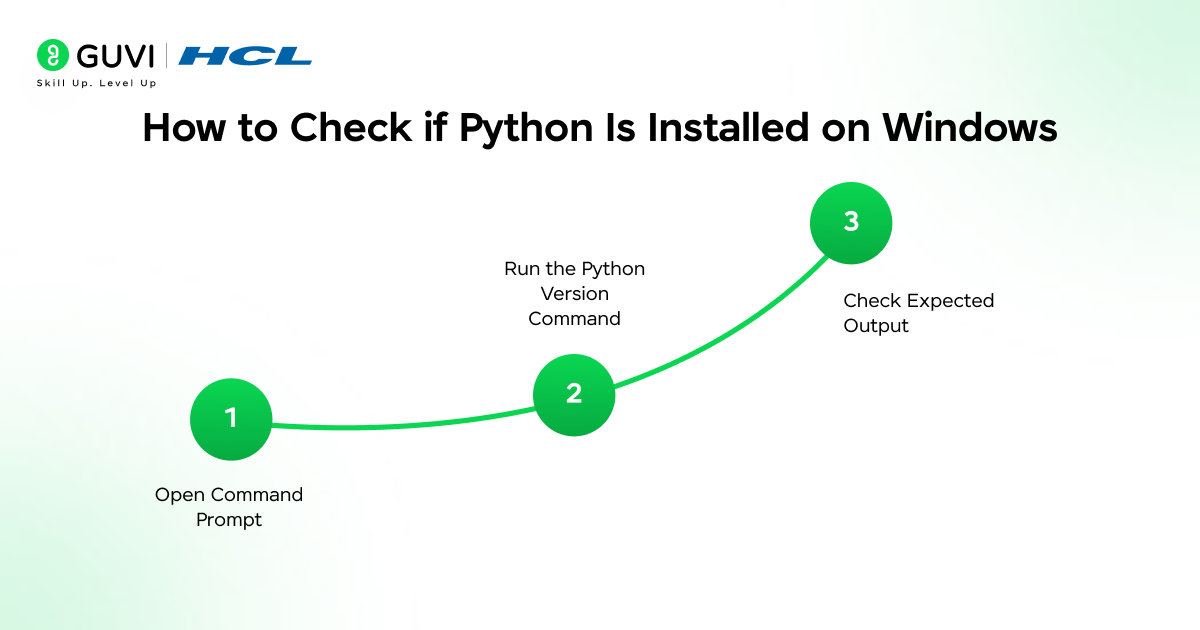
Here’s how to Check if Python Is Installed on Windows specifically. Before installing Python, it is important to verify whether it is already available on your Windows system.
Windows does not always come with Python preinstalled, but many users may already have it installed through development tools, Microsoft Store, or previous setups.
Step 1: Open Command Prompt
To check Python from the system level, you need to use Command Prompt.
- Press Win + R on your keyboard to open the Run dialog box.
- Type cmd.
- Press Enter.
Alternatively, you can click the Start menu, search for “Command Prompt”, and click to open it.
Step 2: Run the Python Version Command
In the Command Prompt window, type the following command and press Enter:
python --versionYou can also use the short form:
python -VBoth commands check whether Python is installed and display the installed version.
Step 3: Check Expected Output
If Python Is Installed, you will see output similar to:
Python 3.11.6This confirms Python is installed, correctly added to the system PATH, and the displayed version is the active default interpreter.
If Python Is Not Installed (or Not Added to PATH), you may see an error such as:
'python' is not recognized as an internal or external command,
operable program or batch file.
This means Python is either not installed, or it is installed but not added to the system PATH environment variable.
Want to reinforce your Python setup knowledge with clear, structured notes and handy examples? Download HCL GUVI’s Python eBook to master key concepts like installation checks, fundamentals, and practical coding tips in one place.
2. On macOS
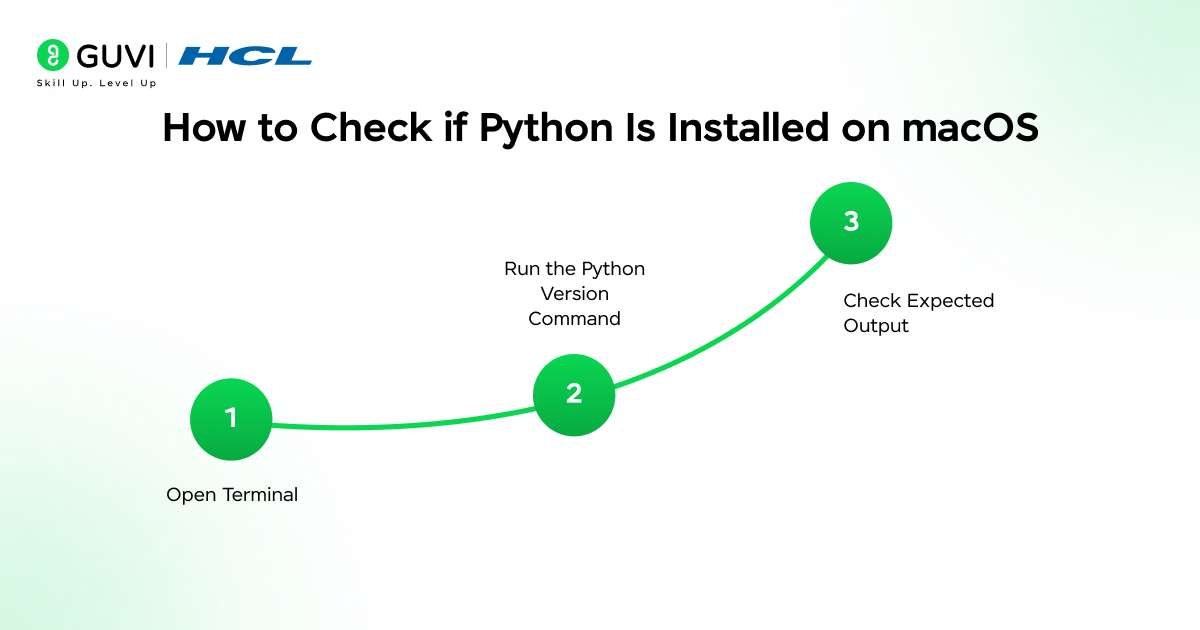
The steps to Check if Python Is Installed on macOS differ slightly from Windows. Unlike Windows, macOS may include a system-level Python installation, but modern development typically relies on Python 3. It is important to verify whether Python 3 is installed and accessible through the Terminal.
Step 1: Open Terminal
Press Command + Space to open Spotlight Search, type Terminal, and press Enter. Alternatively, go to Applications → Utilities → Terminal.
Step 2: Run the Python Version Command
In the Terminal window, type:
python3 --versionPress Enter.
Step 3: Check Expected Output
If Python Is Installed, you will see output similar to:
Python 3.10.12This confirms Python 3 is installed, the system recognizes the interpreter, and it is correctly configured in your PATH.
If Python Is Not Installed, you may see a message such as:
command not found: python3On newer macOS versions, you might see a prompt asking to install developer tools. This means Python is not currently installed or not accessible from the command line.
Why Use python3 Instead of python on macOS?
On macOS, python may refer to an older system-managed version (or may not exist at all), while python3 is the standard command for modern Python installations. Using python3 ensures you are working with Python 3, which is actively supported.
3. On Linux
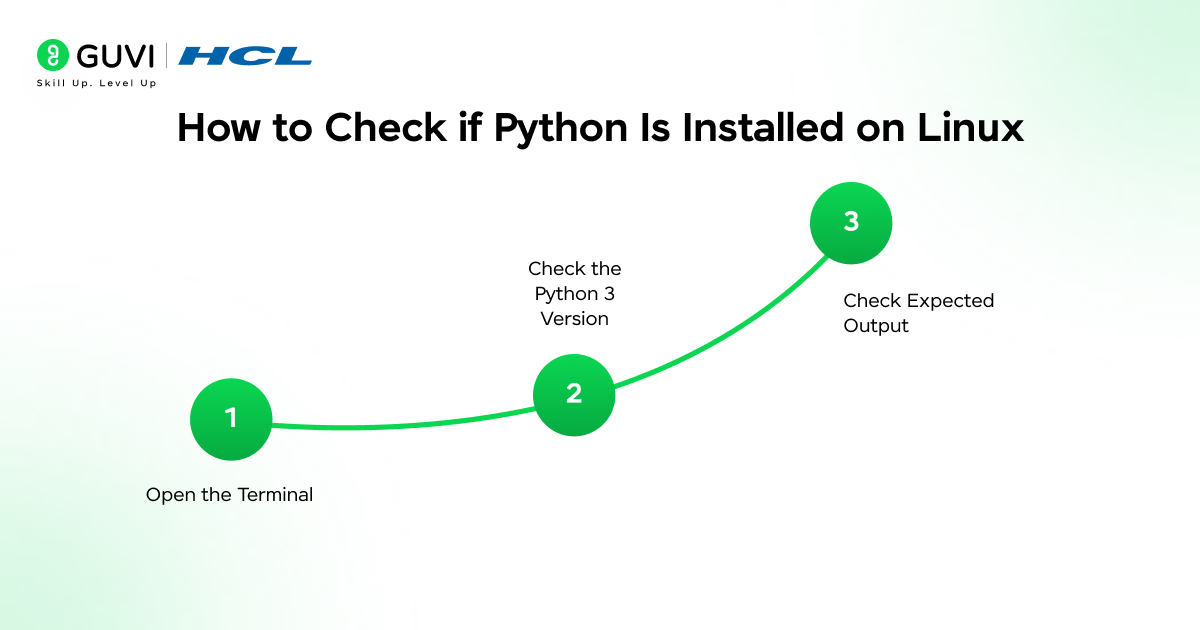
To Check if Python Is Installed on Linux, the process is similar but the package manager differs. Most modern Linux distributions come with Python preinstalled because many system utilities depend on it, which is why this step on Linux is often just a formality. However, the default version and command name may vary depending on the distribution.
Step 1: Open the Terminal
On most Linux distributions, you can open the Terminal using Ctrl + Alt + T, or search for Terminal in the applications menu.
Step 2: Check the Python 3 Version
In the Terminal, type:
python3 --versionPress Enter.
Step 3: Check Expected Output
If Python Is Installed, you will see output similar to:
Python 3.10.12This confirms Python 3 is installed, the interpreter is accessible via your system PATH, and the displayed version is the active default Python 3 installation.
If Python Is Not Installed, you may see an error such as:
command not found: python3This means Python 3 is either not installed, or not properly configured in the PATH, the two most common outcomes when you Check if Python Is Installed on Linux.
Still getting started with Python setup and basics? Explore HCL GUVI’s Python Hub for beginner-friendly guides, practical examples, and step-by-step explanations to strengthen core Python fundamentals.
Check Python Version in Windows CMD, PowerShell, Mac Terminal, and Linux Terminal
Since Windows now offers two different command-line tools, and this is one of the most common places people get their Check if Python Is Installed attempt wrong, here’s the exact command for each environment side by side:
| Environment | Version Command | Location Command | Pip Check |
|---|---|---|---|
| Windows CMD | python –version | where python | pip –version |
| Windows PowerShell | python –version | Get-Command python | pip –version |
| Mac Terminal | python3 –version | which python3 | pip3 –version |
| Linux Terminal | python3 –version | which python3 | pip3 –version |
In Windows PowerShell specifically:
python --versionIf PowerShell doesn’t recognize the command, try:
py --versionThe py launcher is installed alongside Python on Windows and is often more reliable than python directly, since it doesn’t depend on PATH configuration in the same way.
In Windows CMD:
python --version
where python
In Mac Terminal:
python3 --version
which python3
In Linux Terminal:
python3 --version
which python3
If your distribution maps python to Python 2 (or nothing at all), python3 is the command you should rely on consistently, as covered in the Linux section above.
Running the same Check if Python Is Installed test across all four environments (CMD, PowerShell, Mac Terminal, Linux Terminal) is a good habit when you’re troubleshooting, since PATH issues sometimes affect one environment but not another on the same machine.
Check Python Installation Path on macOS
This is another way to Check if Python Is Installed correctly and find exactly where. To see where Python is installed, run:
which python3If installed correctly, you will see a path similar to:
/usr/local/bin/python3

or

/opt/homebrew/bin/python3
This confirms the installation directory, which Python binary is being executed, and whether it was installed via system tools or a package manager.
Check Detailed Python Version Information
You can also start the Python interpreter:
python3If installed, you will enter the interactive Python shell. You should see something like:
Python 3.x.x (default, ...)
>>>
To exit the shell, type:
exit()Verify pip Installation on macOS
To confirm that the Python package manager is installed:
pip3 --versionIf pip is installed, it will display the version number and installation path. If not installed, you may need to reinstall Python or install pip separately.
Final Verification on macOS
This final checklist confirms you’ve properly managed to Check if Python Is Installed on your Mac. After confirming the version and installation path: Python is installed if python3 –version returns a version number, it is properly configured if which python3 returns a valid directory, and your environment is ready if pip3 –version works successfully.
Common Errors When Checking Python Installation
1. “Python is not recognized as an internal or external command”
This is the error most people see first when they try to Check if Python Is Installed and it isn’t. This error appears mainly on Windows when the system cannot locate the Python executable.
It usually means Python is not installed or the installation directory is not added to the PATH environment variable. Reinstalling with the “Add Python to PATH” option enabled typically resolves this issue.
2. “command not found: python” or “command not found: python3”
This is the macOS/Linux equivalent of the Windows error above, and another common result when you Check if Python Is Installed. It indicates that Python is either not installed or the command being used does not match the installed version.
Many modern systems require python3 instead of python. Running python3 –version often resolves the confusion.
3. pip is not recognized
This error shows up specifically when you Check if Python Is Installed but haven’t verified pip separately. If running pip –version returns an error, pip may not be installed or not configured in PATH.
In some cases, Python is installed correctly but pip was skipped during installation. Using python -m pip –version can confirm whether pip exists but is not globally accessible.
4. Multiple Python Versions Conflict
This is one of the trickier scenarios to untangle when you Check if Python Is Installed. Some systems have multiple Python versions installed, which can cause version mismatches. For example, python may point to one version while pip installs packages for another. Running where python (Windows) or which python3 (macOS/Linux) helps identify which interpreter is active.
5. Python Opens Microsoft Store Instead of Running
This is a uniquely confusing result when you Check if Python Is Installed on Windows. On newer Windows versions, typing python may redirect to the Microsoft Store if Python is not properly installed. This means no executable is mapped in PATH. Installing Python from the official installer and enabling PATH integration fixes this behavior.
6. Incorrect Python Architecture (32-bit vs 64-bit)
Sometimes Python is installed, but the wrong architecture version is active. This can create compatibility issues with certain libraries. This deeper check goes beyond the basic Check if Python Is Installed step. Checking detailed version information using import sys; print(sys.version) helps confirm whether the build is 32-bit or 64-bit.
7. Permission Denied Errors
Permission errors are a separate issue entirely from whether you can Check if Python Is Installed successfully. On Linux or macOS, permission-related errors may occur when accessing Python or installing packages.
To practice Python effectively without running into these issues, use virtual environments. Creating one with python3 -m venv env and activating it before installing packages prevents permission errors and keeps dependencies organized.

Want to move from simply checking your Python setup to writing real Python code with confidence? Enroll in HCL GUVI’s Python Programming Course and learn with 100% online, self-paced modules with full lifetime access.
Python Not Found Error — How to Fix on Each OS
The “not found” error is the single most common reason people search for how to Check if Python Is Installed in the first place, and the fix differs slightly by operating system.
This section walks through exactly how to fix the problem once you Check if Python Is Installed and get a negative result.
Fix on Windows:
- Reinstall Python from python.org, and make sure to check “Add Python to PATH” on the very first installer screen.
- This is the most common reason a fresh attempt to Check if Python Is Installed still fails on Windows: if Python is already installed but not on PATH, open System Properties → Environment Variables, find the Path variable, and add your Python install folder (usually C:\Users\<YourName>\AppData\Local\Programs\Python\Python3x\) plus its Scripts subfolder.
- Close and reopen Command Prompt or PowerShell after making changes; PATH updates don’t apply to already-open windows.
- Re-run python –version to confirm the fix worked.
Fix on macOS:
- This is the cleanest way to Check if Python Is Installed and fix it in one step on a Mac: install Python via Homebrew with brew install python3, which handles PATH configuration automatically for most setups.
- If you installed Python from python.org instead, check that /usr/local/bin or /opt/homebrew/bin is included in your PATH by running echo $PATH.
- Restart Terminal after installation.
- Re-run python3 –version to confirm the fix worked.
Fix on Linux:
- On Linux, this single command usually resolves the issue entirely once you Check if Python Is Installed and find it missing: sudo apt install python3 (Debian/Ubuntu) or sudo dnf install python3 (Fedora).
- If the command still isn’t found after installing and you Check if Python Is Installed again, check that /usr/bin is in your PATH with echo $PATH.
- Some distributions separate python3 and pip3 into different packages, run sudo apt install python3-pip if pip specifically is missing.
- Re-run python3 –version to confirm the fix worked.
Across all three operating systems, the underlying problem behind a failed attempt to Check if Python Is Installed is almost always the same: Python exists on disk, but the shell doesn’t know where to look for it. Fixing PATH, not reinstalling Python itself, solves the overwhelming majority of these cases.
Check if a Specific Python Library Is Installed
Confirming that Python itself works is only half the picture, and library-level checks are just as important as the basic Check if Python Is Installed step. Once you Check if Python Is Installed, you’ll often need to confirm a specific library (like NumPy or Pandas) is available too, especially before running someone else’s script.
Method 1: Using pip show
pip show numpyThis is how you Check if Python Is Installed alongside a specific library, not just the interpreter itself. If installed, this prints the library’s version, location, and dependencies. If not installed, pip returns an error saying the package isn’t found.
Method 2: Using pip list
pip listThis prints every installed package in the current environment, useful when you Check if Python Is Installed and want a full inventory. Combine it with a search to check for one specific library:
pip list | grep numpy(On Windows CMD, use pip list | findstr numpy instead of grep.)
Method 3: Importing it directly in Python
python -c "import numpy; print(numpy.__version__)"This is the most direct way to Check if Python Is Installed alongside a specific import. If the library is installed, this prints its version number directly. If it isn’t, Python raises a ModuleNotFoundError, which is often the clearest signal of all, since it tells you exactly which import failed.
If a library shows as missing after you Check if Python Is Installed at the interpreter level, install it with pip install <library-name> (or pip3 install <library-name> on macOS/Linux), then re-run one of the checks above to confirm it worked.
Verify Python Works After Install — Quick Test Script
Learning to Check if Python Is Installed with just a version number only tells half the story. A version number confirms Python is installed, but it doesn’t confirm Python can actually run code the way you expect. This quick test closes that gap.
Even after you Check if Python Is Installed successfully, it’s worth running this test before trusting the setup for real work.
Step 1: Create a test file
Save the following as test_python.py:
print("Hello, Python!")
import sys
print("Python version:", sys.version)

# A tiny calculation to confirm the interpreter actually executes logic
total = sum(range(1, 6))
print("Sum of 1 to 5:", total)
Step 2: Run it
python test_python.pyor, on macOS/Linux if python isn’t mapped:
python3 test_python.pyStep 3: Check the output
This output confirms you didn’t just Check if Python Is Installed, you confirmed it actually runs code. You should see:
Hello, Python!
Python version: 3.x.x (...)
Sum of 1 to 5: 15
If this runs without errors, your Python installation isn’t just present, it’s actually functional: the interpreter runs, standard library imports work, and basic logic executes correctly. This is a more reliable check than python –version alone, since a broken or partial installation can sometimes still report a version number without being able to run real code.
Want to move from simply checking your Python setup to writing real Python code with confidence? Enroll in HCL GUVI’s Python Programming Course and learn with 100% online, self-paced modules, get full lifetime access, clear doubts through a dedicated forum, and practise coding on 4 gamified platforms designed to build real-world skills.
Best Practices While Checking Python Installation
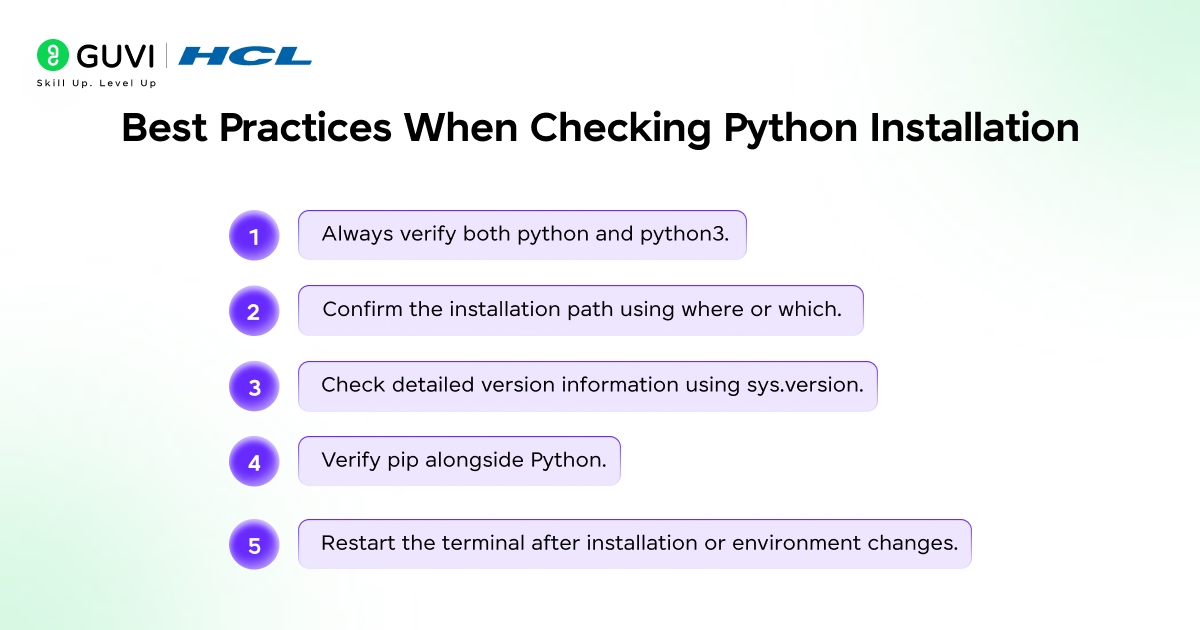
1. Always Verify Both python and python3
Different operating systems use different command mappings. Windows commonly uses python, while macOS and Linux often use python3. Checking both ensures you identify the correct active interpreter and avoid version confusion.
2. Confirm the Installation Path
After verifying the version, check where Python environment is installed using where python (Windows) or which python3(macOS/Linux). This helps confirm which executable is being used, especially if multiple versions are installed.
3. Check Detailed Version Information
Do not rely only on python –version. Use the Python shell and run import sys; print(sys.version) to confirm full build details, architecture (32-bit or 64-bit), and compiler information. This is particularly important for development and production consistency.
4. Verify pip Alongside Python
Python alone is not enough for development. Always check pip –version or python -m pip –version to ensure the package manager is installed and linked to the correct Python interpreter.
5. Restart Terminal After Installation
After installing or modifying environment variables, always close and reopen Command Prompt or Terminal. Environment variable changes do not apply to already open sessions.
💡 Did You Know?
- The py launcher on Windows (py –version) was introduced through PEP 397 to solve Python version conflicts, allowing developers to run commands like py -3.11 or py -3.9 to select a specific version without modifying PATH.
- Apple removed the pre-installed Python 2 from macOS starting with Catalina in 2019, which is why modern Mac users need to install Python 3 separately instead of relying on the system default.
- Python 2 officially reached end-of-life on January 1, 2020, which is why modern Python installation guides and checks use python3 instead of the ambiguous python command.
Conclusion
Checking whether Python is installed on Windows, macOS, or Linux is a simple but essential first step before starting any development work. By verifying the Python version, confirming the installation path, and ensuring pip is properly configured, you eliminate common setup issues that can disrupt your workflow. Whether you are troubleshooting a PATH error, managing multiple Python versions, or preparing your environment for package installation, these steps give you full visibility into your system configuration. Once Python and pip are correctly detected, your computer is fully ready for scripting, automation, software development, and modern programming tasks.
FAQs
1. How do I know if Python is installed correctly on my system?
Open Command Prompt (Windows) or Terminal (macOS/Linux) and run python –version or python3 –version. If a version number appears, Python is installed. To confirm proper configuration, also run where python (Windows) or which python3 (macOS/Linux) to verify the installation path.
2. Why does my system say “Python is not recognized” even after installation?
This usually means Python is not added to the PATH environment variable. Reinstall Python and make sure to select “Add Python to PATH” during installation, or manually update the PATH settings. After changes, restart the terminal and test again.
3. How can I check if pip is linked to the correct Python version?
Run pip –version or python -m pip –version. The output shows both the pip version and the Python version it is associated with. This ensures your package manager is correctly connected to the active Python interpreter.
Success Stories

About the Author
Jebasta
I translate the language of data into stories that anyone can understand. As a writer with a data science background, I simplify analytics, AI, and decision-making so beginners and enthusiasts can confidently explore the world of data.
View all posts by Jebasta
Connect with me @











Did you enjoy this article?