


Python Articles
Excel SQL Python for BPO Professionals Best Guide to Move Into Data Science
Go vs Python for Forward Deployed Engineering Workloads
Python for Forward Deployed Engineers: What You Actually Need to Know
Freelancing as a Python Developer: Getting Your First Client


Get In Touch For Details! Request More Information
What is Streamlit? A Complete Guide for Building Data Apps
Sep 03, 2026 3 Min Read 1682 Views
(Last Updated)
Turning a Python script into a usable web app usually requires frontend code, deployment setup, and extra engineering effort. That gap often slows down even the most valuable data ideas before they reach users.
Streamlit changes this by letting you build interactive data apps directly in Python, with UI, logic, and visualization in one place. It simplifies development while keeping full control over your workflows.
Read the full blog to learn how to build and run Streamlit apps step-by-step.
Quick Answer: Streamlit is an open-source Python framework that allows developers and data scientists to build interactive data applications quickly using simple scripts. With Streamlit, you can turn data analysis, machine learning models, and visualizations into shareable web apps without frontend development. It integrates seamlessly with libraries like Pandas, NumPy, and Matplotlib, making it ideal for rapid prototyping and deployment.
Table of contents
- What is Streamlit?
- Core Principles and Features of Streamlit
- How to Install Streamlit
- Step 1: Install Python
- Step 2: Create a Virtual Environment (Recommended)
- Step 3: Install Streamlit
- Step 4: Verify Installation
- Step 5: Run Your First Streamlit App
- How to Build and Run a Streamlit App
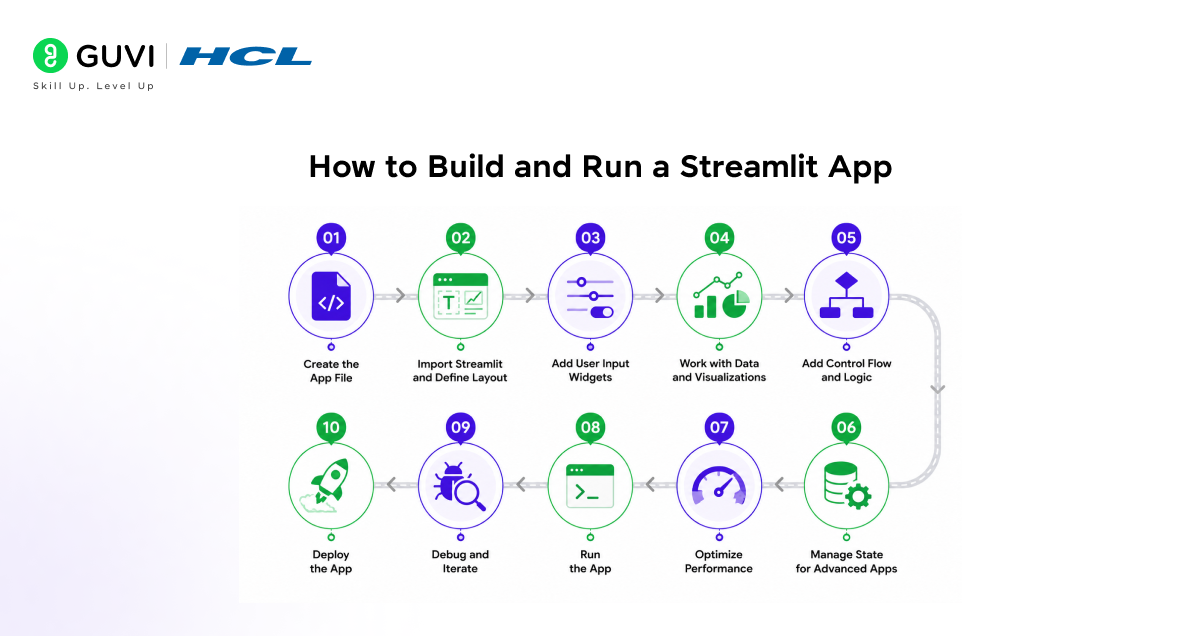
- Step 1: Create the App File
- Step 2: Import Streamlit and Define Layout
- Step 3: Add User Input Widgets
- Step 4: Work with Data and Visualizations
- Step 5: Add Control Flow and Logic
- Step 6: Manage State for Advanced Apps
- Step 7: Optimize Performance
- Step 8: Run the App
- Step 9: Debug and Iterate
- Step 10: Deploy the App
- Conclusion
- FAQs
- Is Streamlit free?
- Do I need frontend skills to use Streamlit?
- Can Streamlit be used for machine learning apps?
- Is Streamlit suitable for production applications?
- How does Streamlit handle user interaction?
- Can I deploy Streamlit apps online?
What is Streamlit?
Streamlit is an open-source Python framework designed for building interactive data applications directly from scripts. It converts Python code into web-based interfaces using a reactive execution model, where the UI updates automatically with user input. By integrating seamlessly with libraries like Pandas, Streamlit allows developers to deploy data visualizations, machine learning models, and analytical workflows without managing frontend infrastructure or complex deployment pipelines.
Core Principles and Features of Streamlit
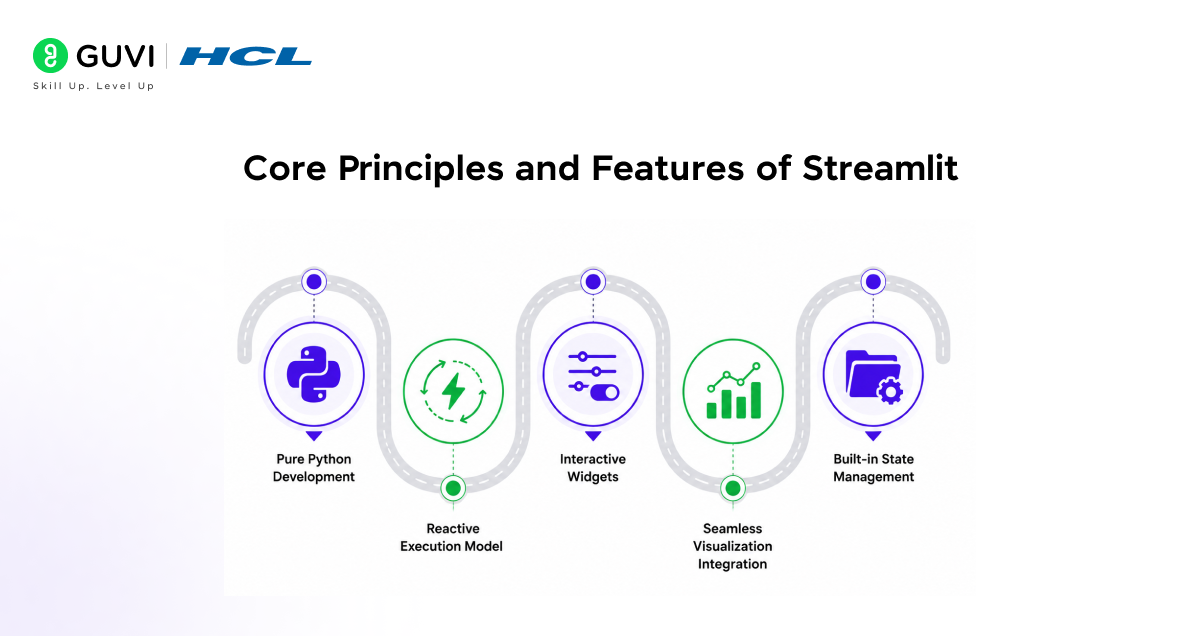
- Pure Python Development: The entire UI is built using standard Python syntax, while Streamlit manages the web server, rendering, and interface layer behind the scenes.
- Reactive Execution Model: The script reruns from top to bottom on every user interaction, keeping the interface tightly aligned with the underlying logic and data state.
- Interactive Widgets: Functions like st.slider(), st.button(), and st.selectbox() create input components that directly feed user responses into Python variables.
- Seamless Visualization Integration: Works natively with libraries such as Pandas, Matplotlib, Plotly, and Altair to render charts, tables, and data views.
- Built-in State Management: Session state allows applications to retain values across interactions, supporting multi-step workflows and more complex user-driven logic.
Build and deploy data apps with strong Python fundamentals. Download HCL GUVI’s Python eBook to learn core programming concepts, real-world use cases, and practical workflows for building scalable applications.
How to Install Streamlit
Installing Streamlit is straightforward and takes just a few steps. It works seamlessly with Python environments and common package managers.
Step 1: Install Python
Ensure Python is installed on your system. Streamlit works best with Python 3.8 or higher.
- Download from Python official site
- Verify installation:
python --versionStep 2: Create a Virtual Environment (Recommended)
Using a virtual environment keeps dependencies isolated.
- Create environment:
python -m venv env- Activate environment:
source env/bin/activate   # macOS/Linux

env\Scripts\activate      # Windows
Step 3: Install Streamlit
Install Streamlit using pip:
pip install streamlitStep 4: Verify Installation
Check if Streamlit is installed correctly:
streamlit --versionStep 5: Run Your First Streamlit App
Create a simple Python file, for example app.py, and add:
import streamlit as st

st.title("Hello, Streamlit!")

Run the app:

streamlit run app.py
Your app will open automatically in your browser.
Quick Tip: Streamlit works well with libraries like Pandas and Matplotlib, making it easy to build data apps right after installation.
Build powerful data apps and AI solutions beyond basic tools like Streamlit. Join HCL GUVI’s Artificial Intelligence and Machine Learning Course to learn through live online classes by industry experts and Intel engineers, master Python, ML, MLOps, Generative AI, and Agentic AI, and gain hands-on experience with 20+ industry-grade projects, 1:1 doubt sessions, and placement support with 1000+ hiring partners.
How to Build and Run a Streamlit App
Step 1: Create the App File
Create a Python file, typically app.py, which will contain your entire application.
- Single script architecture: UI and backend logic in one place
- No separate frontend layer: Eliminates HTML, CSS, JavaScript dependency
Step 2: Import Streamlit and Define Layout
Start by importing Streamlit and structuring your app:
import streamlit as st

st.set_page_config(page_title="My App", layout="wide")

st.title("My First Data App")

st.header("Overview")

st.write("This is a simple Streamlit application")- set_page_config: Controls layout and page settings
- Structured layout: Titles, headers, and sections improve readability

Step 3: Add User Input Widgets
Streamlit provides built-in widgets for interaction:
name = st.text_input("Enter your name")

age = st.slider("Select your age", 0, 100)

choice = st.selectbox("Choose an option", ["A", "B", "C"])

st.write(f"Hello {name}, age {age}, selected {choice}")- Widgets supported: text input, sliders, dropdowns, buttons, file upload
- Reactive updates: App reruns automatically on input change
Step 4: Work with Data and Visualizations
Integrate data processing using libraries like Pandas:
import pandas as pd

data = pd.DataFrame({

    "x": [1, 2, 3, 4],

    "y": [10, 20, 30, 40]

})

st.dataframe(data)

st.line_chart(data)- Built-in charts: line, bar, area
- Custom plots: Works with Matplotlib, Plotly
- Real-time updates: Visuals update with user input
Step 5: Add Control Flow and Logic
Streamlit supports conditional rendering:
if st.button("Show Message"):

st.success("Button clicked")- Event-driven UI: Based on user actions
- Dynamic rendering: Show or hide components
Step 6: Manage State for Advanced Apps
For multi-step apps or persistent data:
if "count" not in st.session_state:

    st.session_state.count = 0

if st.button("Increment"):

    st.session_state.count += 1

st.write(st.session_state.count)- Session state: Maintains values across reruns
- Useful for: Forms, workflows, multi-page logic
Step 7: Optimize Performance
Use caching to improve efficiency:
@st.cache_data

def load_data():

    return pd.read_csv("data.csv")

data = load_data()- Cache data: Avoid repeated computation
- Faster performance: Especially for large datasets
Step 8: Run the App
Execute the app using:
@st.cache_data

def load_data():

    return pd.read_csv("data.csv")

data = load_data()
Step 9: Debug and Iterate
- Hot reload: Changes reflect instantly
- Error display: Shown directly in the User Interface
- Fast iteration cycle: Ideal for experimentation
Step 10: Deploy the App
Deploy using platforms like Streamlit Community Cloud or other cloud services.
- Simple deployment: Push code to GitHub and deploy
- Shareable apps: Accessible via URL
- Supports scaling: With cloud infrastructure
Conclusion
Streamlit simplifies how data applications are built by combining UI and backend logic into a single Python workflow. It allows developers to move from analysis to interactive apps without frontend overhead. With features like reactive execution, built-in widgets, and seamless integration with libraries such as Pandas, it provides a practical path for building scalable data tools, prototypes, and machine learning interfaces with speed and clarity.
FAQs
Is Streamlit free?
Yes, Streamlit is completely free and open-source to use. However, costs may arise if you deploy on paid cloud infrastructure (AWS, GCP, etc.) or you use enterprise solutions like Streamlit in Snowflake
Do I need frontend skills to use Streamlit?
No, Streamlit apps are built entirely in Python, so HTML, CSS, or JavaScript is not required.
Can Streamlit be used for machine learning apps?
Yes, it is commonly used to deploy ML models, visualize predictions, and build interactive demos.
Is Streamlit suitable for production applications?
It works well for internal tools and prototypes, but large-scale production apps may need additional backend architecture.
How does Streamlit handle user interaction?
It uses a reactive model where the script reruns automatically whenever a user interacts with a widget.
Can I deploy Streamlit apps online?
Yes, you can deploy using Streamlit Community Cloud or other cloud platforms and share apps via a URL.
Success Stories

About the Author
Vaishali
I'm a seasoned writer with four years of experience across technical, non-technical, and just about every genre or niche you can imagine. Adaptable and curious, I enjoy exploring new topics and making information engaging and easy to understand. Fueled by a steady stream of tea, I approach each project with creativity, reliability, and genuine enthusiasm for storytelling.
View all posts by Vaishali
Connect with me @














Did you enjoy this article?