


Web Development Articles
How to Use Firebase Firestore for Real-Time Data in Web Apps
Web Designing Roadmap 2026: Best Guide to Become a Successful Web Designer


Get In Touch For Details! Request More Information
VS Code Live Server Not Working? 10 Fixes That Actually Work (2026)
Jul 26, 2026 5 Min Read 25867 Views
(Last Updated)
Live Server in VS Code is one of the most loved extensions in Visual Studio Code for web developers. It provides real-time updates in the browser whenever you make changes to your HTML, CSS, or JavaScript files. But what if it suddenly stops working?
If you’re facing issues with Live Server not working in VS Code, you’re not alone. Let’s go through a step-by-step guide to fix it and get you back on track.

Table of contents
- Common Issues with Live Server in VS Code
- Top 10 Ways to Fix Live Server in VS Code
- Verify the Extension Is Installed and Active
- Restart VS Code Completely
- Open the Project as a Folder, Not a Single File
- Fix Browser Launch Configuration
- Confirm You're Targeting a Valid HTML Entry Point
- Isolate Conflicting Extensions
- Check Firewall / Antivirus / Port Binding
- Update VS Code and the Extension
- Resolve Port Conflicts
- Clean Reinstall
- Terminal Troubleshooting
- Check Whether Port 5500 Is Already in Use
- Check the Current Project Folder
- Review Permission Errors
- Check the Output Panel
- Live Server Not Showing Changes in Browser
- Live Server Port 5500 Already in Use- How to Fix
- Change the Live Server Port
- Stop the Process Using Port 5500 on Windows
- Stop the Process Using Port 5500 on Mac
- Live Server Not Working on Mac vs Windows — Different Fixes
- Fixes for Windows
- Fixes for Mac
- Conclusion
- FAQs
- Why is “Open with Live Server” not showing in VS Code?
- Why is Live Server not opening the browser?
- Why is Live Server not refreshing after I save changes?
- How do I fix port 5500 already in use?
- Why does Live Server work on Windows but not Mac?
- Why does Go Live appear but do nothing?
Common Issues with Live Server in VS Code
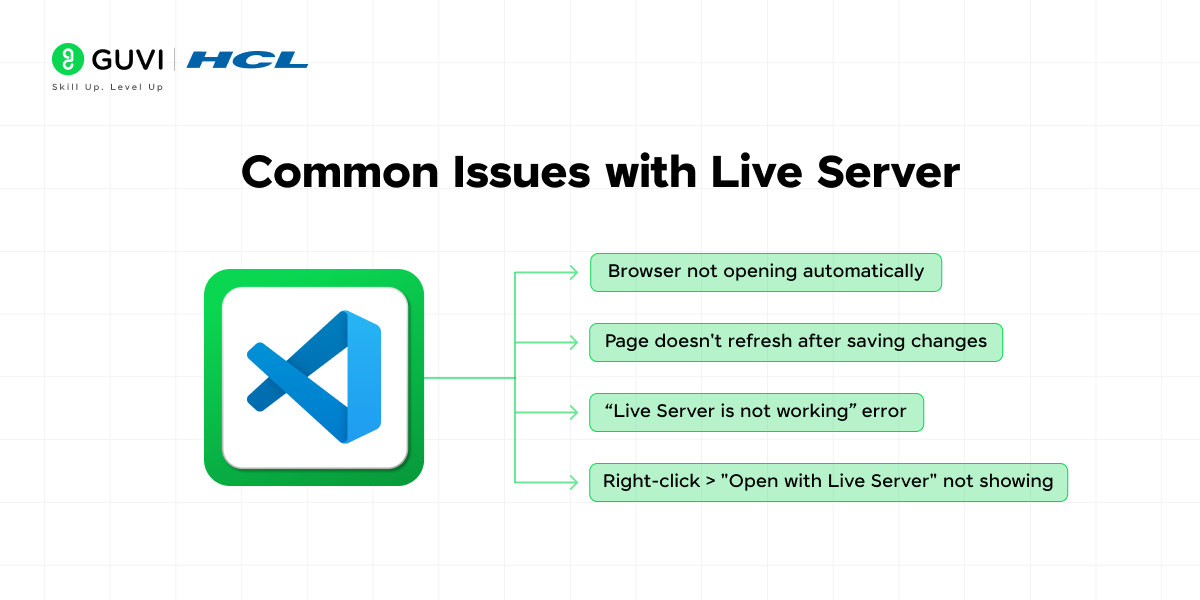
1. Browser Does Not Open Automatically After Clicking “Go Live”
- Clicking the “Go Live” button in the VS Code status bar does not launch the default browser
- No new tab or window opens, even though the Live Server status bar item shows the server as active
- The server may actually be running in the background, but there’s no visual confirmation via a browser window
2. Saved Changes Do Not Reflect in the Browser
- Edits to HTML, CSS, or JavaScript files are saved successfully but not reflected on the live page
- Manual refresh (F5 / Ctrl+R) is required to see updates, defeating the purpose of live reload
- Auto-refresh may work inconsistently — updating for some file types (e.g. HTML) but not others (e.g. CSS/JS)
3. Live Server Throws an Error or Fails to Launch
- Clicking “Go Live” produces an error notification instead of starting the server
- The server starts but crashes or stops shortly after launching
- Status bar may get stuck on “Starting…” without ever showing “Port: 5500” (or similar)
4. “Open with Live Server” Missing from Right-Click Menu
- Right-clicking an HTML file in the Explorer or editor doesn’t show the “Open with Live Server” option
- Context menu shows only default VS Code options, as if the extension isn’t recognized
- May occur even when the extension appears installed and enabled
Top 10 Ways to Fix Live Server in VS Code
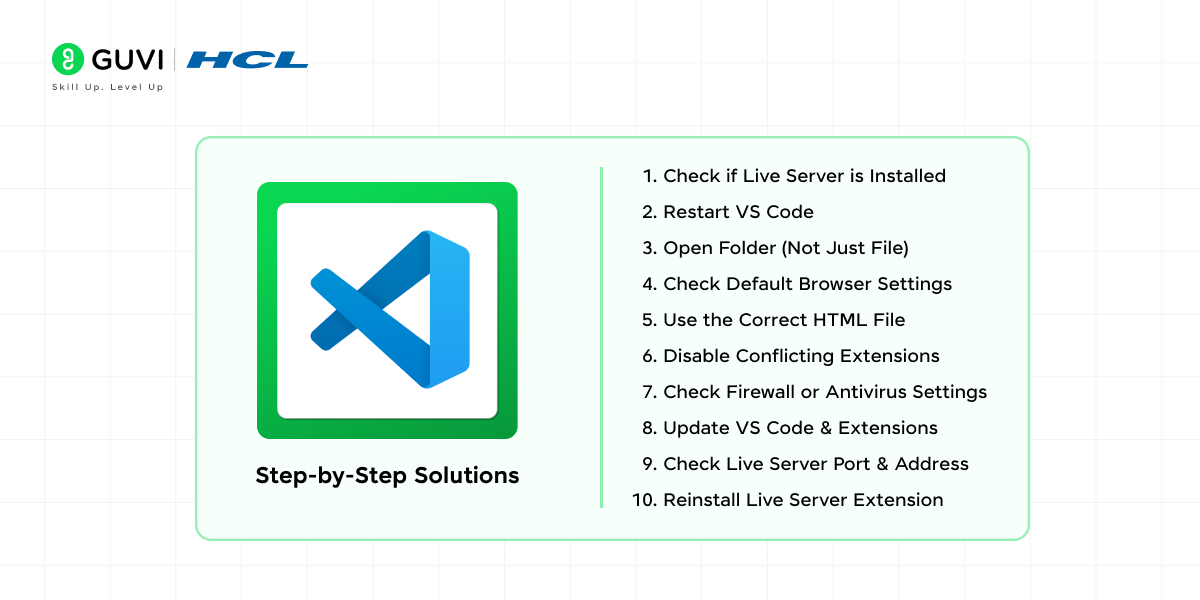
1. Verify the Extension Is Installed and Active
- Open the Extensions tab (
Ctrl + Shift + X) and search for Live Server by Ritwick Dey - Confirm the extension is enabled (not just installed) — check for a “Disable” vs “Enable” toggle on the extension card
- If installed but misbehaving, click the gear icon → Restart Extension Host instead of just reloading the window — this fully re-initializes the extension’s Node process and clears any orphaned server instance
- Check the Output panel (
View > Output, then select “Live Server” from the dropdown) for initialization errors
Also Read: Build Your own Chrome Extension in less than 5 minutes

2. Restart VS Code Completely
- Close every VS Code window/instance — a lingering process can keep a port bound even after the UI closes
- On Windows, verify via Task Manager that no stray
Code.exeprocesses remain - Reopen the project — this resets the extension host and releases any hung
localhostlistener from a previous crashed session
3. Open the Project as a Folder, Not a Single File
- Live Server resolves relative paths (
<link>,<script src>, image paths) against the workspace root — without a folder open, it has no root to serve from - Go to File > Open Folder and select the project directory containing your
.htmlfiles - Opening a single file puts VS Code in a limited single-file mode where the Live Server context-menu command isn’t reliably registered
Discover: Essential jQuery Plugins For Web Developers
4. Fix Browser Launch Configuration
- Live Server shells out to the OS to launch a browser by name/path; an invalid reference fails silently with no error dialog
- Open Settings (JSON) via
Ctrl + Shift + P→ Preferences: Open Settings (JSON) and set:
"liveServer.settings.CustomBrowser": "chrome",
"liveServer.settings.AdvanceCustomBrowserCmdLine": ""
- Valid values:
"chrome","firefox","edge","safari"(macOS), ornullto fall back to the OS default - On Windows, if Chrome was installed via Microsoft Store, the extension may fail to locate its executable path — try switching to
"edge"as a test
5. Confirm You’re Targeting a Valid HTML Entry Point
- The context-menu command only registers for files with
.html/.htmextensions recognized by VS Code’s language mode (check the bottom-right status bar shows “HTML”) - Right-click
index.html→ Open with Live Server - If the file shows a different language mode (e.g., “Plain Text”), manually set it via the status bar language picker first
Free reference while you build: HTML5 Tutorial
6. Isolate Conflicting Extensions
- Extensions that hook the file-watcher (auto-save tools, other dev-server extensions like Browser Preview) can consume the same
chokidarfile-watch events or bind the same port - Run VS Code in a clean state to confirm:
code --disable-extensionsfrom the terminal, then manually re-enable Live Server only - If it works clean, re-enable other extensions one at a time to isolate the conflict
7. Check Firewall / Antivirus / Port Binding
- Local security software can block Node’s
http.createServer()from binding tolocalhost, or block WebSocket connections used for the auto-reload signal - Test by temporarily disabling the firewall/antivirus and retrying
- If that fixes it, add a permanent allow-rule for
Code.exe(Windows) or the VS Code binary (macOS/Linux) - Also check if
localhost/127.0.0.1is blocked in your hosts file or proxy settings
8. Update VS Code and the Extension
- API mismatches between an outdated Live Server build and a newer VS Code Extension Host version are a common cause of silent failures
- Update VS Code: Help > Check for Updates
- Update the extension via the update icon in the Extensions tab, or force it: Extensions tab → ⋯ → Check for Extension Updates
Explore: Top 9 Web Development Tools
9. Resolve Port Conflicts
- Default port
5500frequently collides with other local dev servers (React, Vite, other Live Server instances) - Check what’s occupying the port:
- Windows:
netstat -ano | findstr :5500 - macOS/Linux:
lsof -i :5500
- Windows:
- Fix by either killing the conflicting process or letting Live Server auto-assign a free port:
"liveServer.settings.port": 0
- Also check
"liveServer.settings.host"if you need to bind to something other than127.0.0.1(e.g., testing on a local network device)
10. Clean Reinstall
- A corrupted extension install (partial download, interrupted update) can leave broken files in the extensions directory
- Uninstall via the Extensions tab, then manually verify the folder is gone:
- Windows:
%USERPROFILE%\.vscode\extensions\ritwickdey.liveserver-* - macOS/Linux:
~/.vscode/extensions/ritwickdey.liveserver-*
- Windows:
- Delete any leftover folder manually if present, reload VS Code, then reinstall from the Marketplace
Terminal Troubleshooting
Open the integrated terminal through Terminal > New Terminal or press Ctrl + `. Start Live Server and look for errors related to occupied ports, blocked permissions, incorrect paths, or failed extension processes.
Common terminal checks include:
Check Whether Port 5500 Is Already in Use
Windows:
netstat -ano | findstr :5500Mac or Linux:
lsof -i :5500A returned process means another application is using the port. Stop that process or change the Live Server port in Preferences: Open User Settings (JSON):
"liveServer.settings.port": 5501Check the Current Project Folder
Use the following command to confirm that the terminal is running inside the correct project directory:
pwdWindows Command Prompt users can run:
cdThe displayed path should match the folder containing the HTML file.
Review Permission Errors
Messages such as “Access denied,” “Permission denied,” or “EACCES” indicate that VS Code cannot access the project folder or selected port. Move the project to a regular user folder, check folder permissions, and allow VS Code through the firewall.
Check the Output Panel
Some Live Server errors appear in the Output panel instead of the terminal:
- Go to View > Output.
- Open the channel dropdown.
- Select Live Server.
- Review the logs for port, browser, file path, or extension errors.
The exact error message usually identifies whether the issue comes from the port, browser configuration, project location, or extension installation.
If you want to learn more about HTML, Live servers, VScode, and how it enables developers to work seamlessly, consider enrolling in HCL GUVI’s IIT-M Pravartak-certified Full Stack Development Course that not only teaches you the basics but also makes you an experienced developer through hands-on projects guided by an actual mentor.
Terminal errors in VS Code often point to port conflicts or file path issues, concepts that become intuitive as you build more projects. HCL GUVI’s free handbooks cover the web layer you’re working with: HTML5 Tutorial | CSS Tutorial | JavaScript Tutorial
Live Server Not Showing Changes in Browser
Live Server may open the page correctly but fail to display recently saved changes.
- Save the file using File > Save or Ctrl + S.
- Open File > Auto Save to enable automatic saving.
- Press Ctrl + Shift + P or Command + Shift + P.
- Select Preferences: Open User Settings (JSON).
- Add the following setting:
"liveServer.settings.fullReload": true- Save the settings file.
- Stop Live Server by clicking the port number in the status bar.
- Click Go Live again.
- Clear the browser cache or open the page in an incognito window.
Also check that the browser is displaying the correct HTML file and project folder.
Live Server Port 5500 Already in Use- How to Fix
Another application may already be using port 5500, preventing Live Server from starting.
Change the Live Server Port
- Press Ctrl + Shift + P on Windows or Command + Shift + P on Mac.
- Select Preferences: Open User Settings (JSON).
- Add:
"liveServer.settings.port": 0Setting the value to 0 allows Live Server to select an available port automatically.
You can also choose another port:
"liveServer.settings.port": 5501Stop the Process Using Port 5500 on Windows
- Go to Terminal > New Terminal.
- Run:
netstat -ano | findstr :5500- Note the process ID shown in the final column.
- Stop the process:
taskkill /PID <PID> /F- Restart Live Server.
Stop the Process Using Port 5500 on Mac
- Go to Terminal > New Terminal.
- Run:
lsof -i :5500- Note the process ID.
- Stop the process:
kill -9 <PID>- Start Live Server again.
Live Server Not Working on Mac vs Windows — Different Fixes
Fixes for Windows
- Open Windows Security.
- Go to Firewall & network protection.
- Select Allow an app through firewall.
- Click Change settings.
- Allow Visual Studio Code on private networks.
- Restart VS Code.
Also check whether antivirus software is blocking Code.exe or port 5500.
Fixes for Mac
- Open Apple Menu > System Settings.
- Go to Network > Firewall.
- Open Options.
- Allow incoming connections for Visual Studio Code.
- Restart VS Code.
Check project permissions if the files are stored in protected folders such as Desktop, Documents, or Downloads:
- Open Apple Menu > System Settings.
- Go to Privacy & Security > Files and Folders.
- Find Visual Studio Code.
- Allow access to the required folder.
Conclusion
Live Server is a powerful tool, but like any extension, it can run into hiccups. The good news is, most problems are easy to solve once you know where to look. By following the fixes in this guide, you’ll have a reliable development setup back in no time. And if one solution doesn’t work, don’t give up. Stack the steps, stay patient, and your Live Server will be up and running smoothly again.
FAQs
Why is “Open with Live Server” not showing in VS Code?
The Live Server extension may be disabled, incorrectly installed, or unable to detect the project folder. Open the complete folder through File > Open Folder, enable the extension, and reload VS Code.
Why is Live Server not opening the browser?
The default browser setting may be incorrect, or the firewall may be blocking VS Code. Configure the custom browser in VS Code settings and allow Visual Studio Code through the firewall.
Why is Live Server not refreshing after I save changes?
Auto Save may be disabled, browser caching may be displaying an older version, or full reload may not be enabled. Save the file, clear the browser cache, and enable the fullReload setting.
How do I fix port 5500 already in use?
Change the Live Server port to 0 or another number in the VS Code settings. You can also identify and stop the process currently using port 5500.
Why does Live Server work on Windows but not Mac?
Mac folder permissions or firewall settings may prevent VS Code from accessing files or accepting local connections. Allow VS Code under Privacy & Security and Network > Firewall.
Why does Go Live appear but do nothing?
A conflicting extension, occupied port, incorrect file type, or corrupted Live Server installation may cause this issue. Disable conflicting extensions, change the port, and reinstall Live Server.
Success Stories

About the Author
Vaishali
I'm a seasoned writer with four years of experience across technical, non-technical, and just about every genre or niche you can imagine. Adaptable and curious, I enjoy exploring new topics and making information engaging and easy to understand. Fueled by a steady stream of tea, I approach each project with creativity, reliability, and genuine enthusiasm for storytelling.
View all posts by Vaishali
Connect with me @


















Did you enjoy this article?