


UI/UX Designing Articles
What is a Design System? The Ultimate Guide to Building Consistent UIs
What is UX Writing? A Complete Guide to Mastering Microcopy and Content Design
What is a UX Audit? A Complete & Best Guide to User Experience Evaluation
How HCL GUVI Zen Class Helps You Build a Job-Ready UI/UX Portfolio


Get In Touch For Details! Request More Information

How to Install Adobe XD on Windows? A Step-by-Step Guide
Sep 17, 2026 5 Min Read 26907 Views
(Last Updated)
Trying to install Adobe XD on Windows and wondering why it’s not showing up where you expect it in Creative Cloud? You’re not imagining things, and understanding why matters just as much as the installation steps themselves.
Adobe XD is installed through the Adobe Creative Cloud desktop application on Windows, though its availability depends on your subscription plan since Adobe stopped selling it as a standalone app to new users in 2023.
Adobe XD was once at the forefront of UI/UX design, and while Figma has since taken the lead, it remains a genuinely usable tool for existing Creative Cloud subscribers.
This guide walks you through installing Adobe XD on Windows, what to do if it’s not visible in your apps list, and whether it’s still worth setting up in 2026.
Table of contents
- TL;DR Summary
- What is Adobe XD?
- Is Adobe XD Still Available and Worth Installing in 2026?
- How to Install Adobe XD on Windows?
- System Requirements
- Adobe Creative Cloud Account
- Download Adobe Creative Cloud
- Install Adobe Creative Cloud
- Sign in to Creative Cloud
- Install Adobe XD
- Wait for Installation to Complete
- Launch Adobe XD
- Troubleshooting Common Issues When You Install Adobe XD on Windows
- Conclusion
- FAQ
- Is Adobe XD free to use?
- Can I prototype mobile apps with Adobe XD?
- Can I import assets from other Adobe applications into Adobe XD?
- Is Adobe XD suitable for beginners?
TL;DR Summary
- What it is: Adobe’s UI/UX design and prototyping tool, installed through the Creative Cloud desktop app
- Current status: Adobe XD has been in maintenance mode since 2023, no new features, only essential bug and security fixes
- Access changed: it’s no longer sold as a standalone app; you generally need an All Apps Creative Cloud subscription to see and install it
- If you can’t find it: many users report Adobe XD is hidden from their Creative Cloud apps list entirely, this is a known, reported issue, not something you’re doing wrong
- Should you still install it: reasonable for existing projects or short-term use, but new projects are increasingly better started directly in Figma
What is Adobe XD?

Before you get to know about the process of installing Adobe XD on Windows, it is better if you first learn about the software in order to understand the installation process better.
Adobe XD is a design tool developed by Adobe Systems, which is one of the famous design tools for UI/UX designers. It is primarily used for designing and prototyping user interfaces for web and mobile applications.
Adobe XD stands out for its simplicity and efficiency in creating user experience (UX) and user interface (UI) designs. Here’s a simple explanation along with its key features:
1. User Interface Design: Adobe XD enables designers to create clean and functional UI layouts for websites and mobile apps. It offers tools for designing individual screens or pages.
2. Prototyping: One of the standout features of Adobe XD is its prototyping capabilities. Designers can link different pages or screens together to simulate the flow of an app or website, allowing for the creation of interactive prototypes that mimic the final product.
3. Collaboration: Adobe XD supports collaborative workflows, allowing multiple designers to work on the same project simultaneously. It also allows for easy sharing of designs and prototypes with team members or clients for feedback.
4. Responsive Design: The tool has features that enable designers to create responsive designs that adapt to different screen sizes, an essential aspect of modern web and app design.
5. Integration: Adobe XD integrates well with other Adobe products like Photoshop and Illustrator, allowing designers to import and use assets created in these programs seamlessly.
6. Repeat Grid: This feature allows designers to quickly duplicate elements like lists or photo galleries and apply changes universally, saving a lot of time.
7. Voice Prototyping: Adobe XD also supports voice interactions, enabling designers to prototype voice-activated apps or add voice commands to their designs.
8. Plugins and App Integrations: There are numerous plugins and integrations available that extend the functionality of Adobe XD, such as adding more icons, design systems, and other tools.
Adobe XD is a comprehensive tool that combines design, prototyping, and collaboration features, making it a popular choice for UI/UX designers working on web and mobile application projects.
If you want to know more about tools like this, you have to enroll in an online certified UI/UX designing course by a professional organization as that can help you understand all the aspects of UI/UX in a much more detailed way, and that certificate can also help boost your resume.
Read: Top 7 Ways To Use AI in UX Design
Is Adobe XD Still Available and Worth Installing in 2026?
Before you install Adobe XD on Windows, it’s worth understanding exactly where the software stands right now, since this affects how straightforward the process below will actually be for you.
Adobe XD has been in maintenance mode since 2023. Adobe confirmed it would stop major feature development, offering only essential bug fixes and security updates going forward. No official end-of-life date has been announced, but Adobe has also made no commitment to XD’s long-term future.
It’s no longer sold as a standalone app. New users can’t purchase Adobe XD on its own. It’s generally only accessible through an All Apps Creative Cloud subscription, not the single-app plans Adobe offers for tools like Photoshop or Illustrator individually.
Some users report it’s hidden from their apps list entirely. This is a real, documented issue on Adobe’s own community forums, not a rare edge case.
If you have an All Apps subscription and still don’t see XD listed, don’t assume you’re doing something wrong when trying to install Adobe XD on Windows, this is a known pattern, and the workaround steps below address it directly.
Should you still install Adobe XD on Windows? If you’re maintaining or finishing existing XD projects, yes, it still works reliably for that.
If you’re starting something new, it’s worth seriously weighing Figma instead, since that’s where most of the design tooling ecosystem has moved.
HCL GUVI’s more detailed breakdown, Adobe XD Guide 2026: Features, Pricing, Alternatives & Is It Still Worth It?, covers this decision in depth if you want to think it through further before installing.

How to Install Adobe XD on Windows?
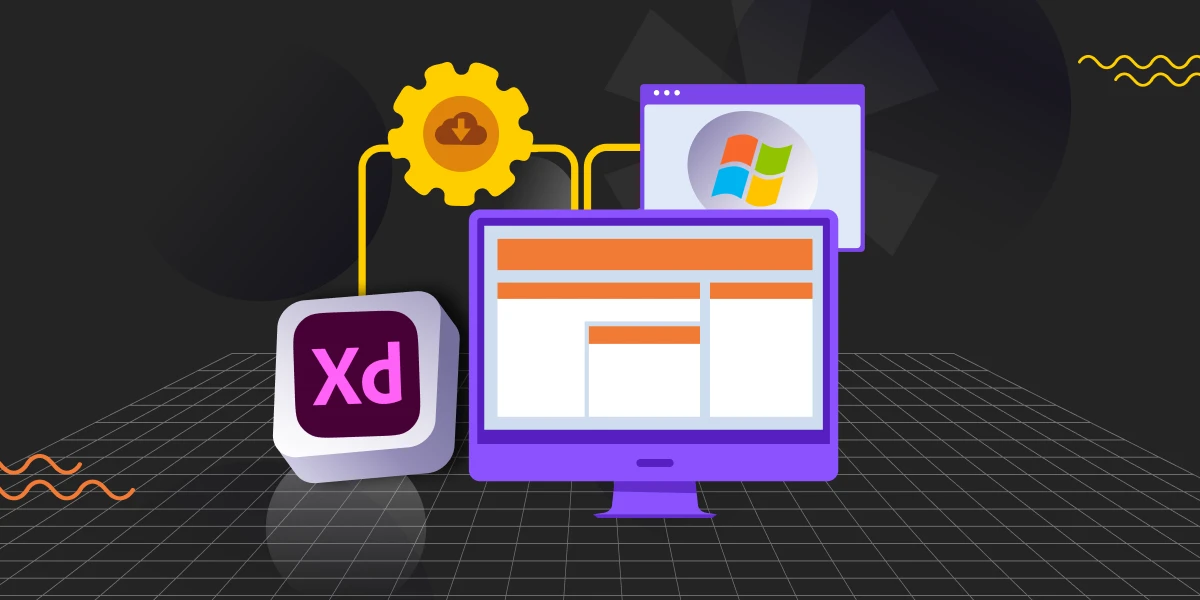
Now that you understand the whole aspect of Adobe XD, let us now understand how to install Adobe XD on Windows.
1. System Requirements
Before learning to install Adobe XD on Windows, ensure that your computer meets the minimum system requirements for Adobe XD. Adobe XD requires Windows 10 (64-bit) or later, and certain system specifications for optimal performance.
Since designing takes a lot of time, you may have to work on the software continuously for 5 or 6 hours so make sure you have the proper specifications beforehand so that your system doesn’t have a problem running it.
2. Adobe Creative Cloud Account
To install Adobe XD on Windows, you’ll first need an Adobe account if you don’t already have one. Go to the Adobe Creative Cloud website and sign up. Given XD’s current standalone-purchase restrictions, an All Apps plan is the safest way to ensure you actually get access to it.
3. Download Adobe Creative Cloud
In order for you to install Adobe XD on Windows, you first need to download and install Adobe Creative Cloud. So, the first step is to download the Creative Cloud application. Go to the Adobe Creative Cloud website and click on the “Download” button for the Creative Cloud app.
4. Install Adobe Creative Cloud
Once the Creative Cloud installer is downloaded, open the file and follow the on-screen instructions to install it on your Windows computer. This enables you to install Adobe XD on Windows.
5. Sign in to Creative Cloud
After installing, open the Creative Cloud application and sign in with your Adobe account credentials that you used to sign up previously.
6. Install Adobe XD
In the Creative Cloud application, you’ll see a range of Adobe applications such as Photoshop, Illustrator, Lightroom, After Effects, and more. Look for Adobe XD and click the “Install” button next to it. The application will start downloading and installing.
7. Wait for Installation to Complete
The installation process may take some time, depending on your internet connection. Once installed, Adobe XD will be available to launch from the Creative Cloud app.
8. Launch Adobe XD
That is how you should install Adobe XD on Windows. After installation, you can open Adobe XD directly from the Creative Cloud app or through a shortcut on your desktop or start menu.
This is the step-by-step process to install Adobe XD on Windows.
Also Read: Installing Adobe XD on Mac: A Comprehensive Guide
Kickstart your UI/UX journey by enrolling in HCL GUVI’s UI/UX Course, where you will master technologies like AdobeXd, Illustrator, and Figma, and build interesting real-life UI/UX projects.
Troubleshooting Common Issues When You Install Adobe XD on Windows
- Adobe XD isn’t listed in your Creative Cloud apps at all. Confirm your subscription tier includes All Apps access, and try the direct search bar within Creative Cloud instead of browsing.
- Installation stalls or fails partway through. Restart the Creative Cloud desktop app, check your internet connection, and ensure you have sufficient free disk space before retrying.
- Adobe XD launches but feels sluggish. This is a known limitation on complex files, XD’s performance has genuinely degraded with heavy component nesting or very large projects since active development stopped.
- You’re unsure whether it’s even worth trying to install Adobe XD on Windows right now. If you’re starting a brand-new project rather than maintaining an existing one, it’s worth comparing your options before investing setup time, Adobe XD Guide 2026 covers current alternatives in detail.
Conclusion
In conclusion, the process of installing Adobe XD on Windows is a simple and straightforward task that can be done with just a few steps.
By following the guidelines that we provided in this article, you can seamlessly download and install Adobe XD on Windows through the Adobe Creative Cloud platform, and you will gain access to one of the most powerful UI/UX design tools in the market.
Remember, with Adobe XD at your fingertips, you can bring your creative visions to life with efficiency and ease.
Also Explore: Learn How To Convert XD Files to Figma: A Proven 2-Method Guide
FAQ
1. Is Adobe XD free to use?
Adobe XD offers a free version with limited features, which is great for individual users or beginners. For full access to all features, a paid subscription is available.
2. Can I prototype mobile apps with Adobe XD?
Yes, Adobe XD allows you to design and prototype for mobile apps, with options for viewing and testing on actual mobile devices.
3. Can I import assets from other Adobe applications into Adobe XD?
Yes, Adobe XD integrates seamlessly with other Adobe applications like Photoshop and Illustrator, allowing you to import assets.
4. Is Adobe XD suitable for beginners?
Yes, Adobe XD is user-friendly and suitable for beginners, with various online resources available for learning.
Success Stories

About the Author
Jebasta
I translate the language of data into stories that anyone can understand. As a writer with a data science background, I simplify analytics, AI, and decision-making so beginners and enthusiasts can confidently explore the world of data.
View all posts by Jebasta
Connect with me @















Did you enjoy this article?