


Artificial Intelligence and Machine Learning Articles
Finance Manager to Data Analytics: Career Growth, Salary and Seniority
How to Evaluate LLM Outputs in Production Deployments
AI/ML Skills Gap 2026: Why Companies Can't Find Job-Ready Talent
20 AI/ML Interview Questions Recruiters Can Use Without a Tech Background - Best Guide


Get In Touch For Details! Request More Information
Cursor’s Design Mode: An Informative Breakdown
Sep 25, 2026 6 Min Read 2672 Views
(Last Updated)
Imagine you’re building a UI, and everything’s going along swimmingly, until you need to make some minor adjustments, maybe some spacing, moving a button, aligning some things. Before you know it, you’re jumping around between files, making edits, refreshing, making more edits, refreshing again, and so on.
Cursor’s Design Mode is an official visual editing feature, launched with Cursor 3.0, that lets you modify a running UI directly inside your code editor and have those changes converted into real code by an AI agent. This isn’t a skill issue, it’s a workflow issue, and Design Mode exists specifically to close that gap.
In this article, we’ll cover how Design Mode actually works, its real product history, what features it has, and how it helps developers and designers collaborate more effectively.
Table of contents
- TL;DR Summary
- What is Cursor?
- Cursor Design Mode: A Quick Version Timeline
- How It Works in Real Life
- Scenario 1
- Scenario 2
- The Problem It's Actually Solving
- What Design Mode Actually Includes
- Top 4 Cursor Design Mode Features Explained
- How Cursor Design Mode Works Step by Step
- Two loops you need to understand
- Cursor Design Mode vs Onlook: Which Should Designers Use?
- Pros and Cons of Cursor Design Mode
- Common Mistakes When Using Design Mode
- How to Work Smarter with Design Mode
- Final thoughts
- FAQs
- How is Cursor Design Mode different from tools like Figma or Adobe XD?
- Does using Cursor Design Mode cost money or use AI credits?
- Can Cursor Design Mode be used for building projects from scratch?
- Is Cursor Design Mode suitable for professional or production-level projects?
- How do I make sure the AI applies changes correctly without breaking my code?
TL;DR Summary
- What it is: Cursor’s official visual editor, letting you make UI changes on a live app and apply them as real code
- Official since: April 2, 2026, launched with Cursor 3.0’s Agents Window, it wasn’t just community slang for long
- Core loop: two distinct steps, a free “visual loop” for experimenting, and a credit-costing “code loop” when you hit Apply
- What changed recently: multi-select was added in Cursor 3.7 (June 2026), addressing an early limitation
- Who it’s for: best for refining existing UI, not for building screens from scratch
Want to build the AI and development skills behind tools like this? HCL GUVI’s Artificial Intelligence and Machine Learning Course covers the fundamentals with hands-on, industry-grade projects.
What is Cursor?
Cursor is a code editor that runs on top of VS Code, and if you are already familiar with VS Code, you’re already halfway familiar with Cursor. The major difference is that, unlike VS Code, Cursor ships with a deeply integrated AI that can read, edit, and even build features based on your code.
It also popularized the concept of “vibe coding,” a natural extension of generative AI where you simply tell the AI what you want, and it does the rest.
This term was popularized by Andrej Karpathy, part of a broader shift toward artificial intelligence tools that write code alongside developers.
Cursor has been growing at a genuinely fast pace, reportedly reaching around 10 million active developers by early 2026, up from roughly 4 million just months earlier. That scale of adoption is exactly why every product move Cursor makes gets watched so closely.
Cursor Design Mode: A Quick Version Timeline
Before diving into how it works, it’s worth clearing up the actual history, since a lot of content online (including earlier versions of this article) mixes up two genuinely different milestones.
| Date | What Shipped | What It Was Called |
|---|---|---|
| December 2025 | The browser-based Visual Editor arrived with Cursor 2.2 | Not officially “Design Mode,” just “Visual Editor” |
| April 2, 2026 | Design Mode launched inside Cursor 3.0’s new Agents Window | Officially branded “Design Mode” for the first time |
| June 5, 2026 | Cursor 3.7 added point, draw, and talk, plus multi-select | Still called Design Mode, with new capabilities |
The practical takeaway: “Design Mode” isn’t a community nickname anymore, it’s Cursor’s actual product name, and it’s meaningfully more capable than the December 2025 Visual Editor it grew out of.
How It Works in Real Life
Scenario 1
Let’s say you’re a freelance developer and your client wants last-minute changes to their landing page: tighter spacing, a different button color, and a shifted headline. Normally, that’s 30 minutes of hunting through CSS files. With Design Mode, you click, adjust, and apply in under five minutes.
Scenario 2
Or imagine you’re a startup founder with no coding background. Instead of waiting on a developer to move a banner or resize a card, you simply click on it and type “make this smaller and center it.” Done. Real code, real change, no back and forth.
The Problem It’s Actually Solving
If you’ve worked on the visual side of a web project, you know how frustrating small UI changes can be. You open the browser, inspect elements, search for the right class, tweak styles, and then go back to your code to update it manually.
All this effort just to adjust something simple like spacing or alignment. When you have multiple design changes, it quickly becomes tiring and time-consuming.
Design Mode simplifies this process. You make changes directly on the live UI, and the AI automatically finds the right place in your code and updates it for you.
Read More: How To Use Cursor AI: A Complete Guide With a Practical Example
What Design Mode Actually Includes
Design Mode is a combination of features working together inside Cursor’s Agents Window to simplify UI editing:
- Visual inspector and sidebar: similar to Chrome DevTools, but built inside Cursor. You can click any element and view or adjust its styles and layout instantly.
- AI Apply step: once your changes look right, you hit Apply. The agent analyzes your edits and updates the actual code in your project.
- Point, draw, and talk (added in Cursor 3.7): beyond clicking and typing, you can now sketch a rough change or describe it by voice, and multi-select lets you apply the same change to several elements at once.
All of this runs inside Cursor’s built-in browser, a full browser environment integrated directly into the editor.
Top 4 Cursor Design Mode Features Explained
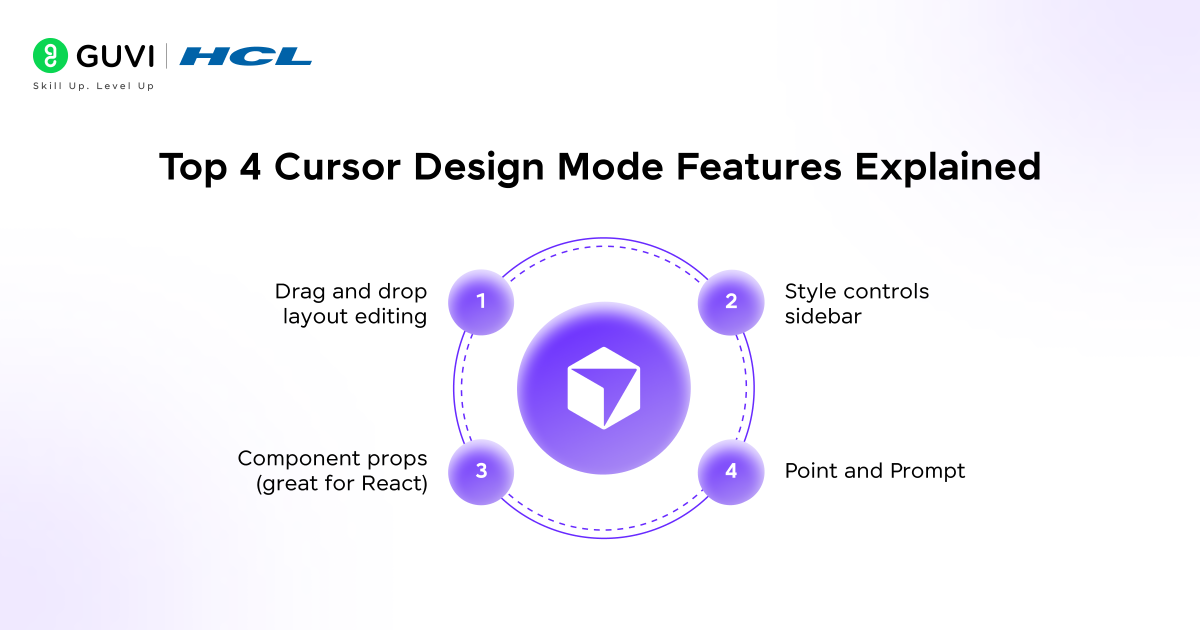
1. Drag and drop layout editing
You can directly manipulate elements on your page. If you want to switch your buttons or rearrange your sections, just drag them.
2. Style controls sidebar
Pick different colors, spacing, fonts, and layouts through Cursor’s sidebar, and see your changes applied instantly to the page.
3. Component props (great for React)
If you’re working in React, you can toggle props like “disabled” or “loading” right from the sidebar. It’s an easy way to test different component states.
4. Point and Prompt
Select an element and tell Cursor what you want, things like “make this bigger” or “make this color green.” The agent interprets the request and changes your code accordingly, and you can give multiple instructions at once.
Cursor was adopted by over 1 million developers within just a few months of launch, making it one of the fastest-growing code editors in history.
How Cursor Design Mode Works Step by Step
Let’s walk through what actually happens from opening Cursor to committing your design changes.
Step 1: Start your app locally. Open your project in Cursor and run your dev server, usually something like npm run dev. Cursor’s built-in browser points to your localhost automatically.
Step 2: Open the visual editor sidebar. A panel opens alongside your running app. You’ll see your live web page and the editing tools side by side.
Step 3: Make your visual changes. Drag things around, tweak colors and spacing using the controls, or type instructions for what you want changed. Every change is instantly visible in the browser. Nothing has touched your actual code yet, it’s all temporary and browser-only. Refreshing the page resets everything.
Step 4: Hit “Apply.” This is the important step. Clicking Apply triggers the AI agent, which analyzes the visual changes you made, searches your file system for the corresponding components and CSS, and writes the code edits. Your local dev server hot reloads and shows the result in real code.
Step 5: Review carefully. Don’t skip this. Check the changes the AI made. Did it break any other state of the component? Does the layout still hold up on mobile? The visual result might look right, but the underlying code might have been written in a slightly unexpected way.
Step 6: Commit the code. Once you’re satisfied, commit it like any other code change and run it through your normal review process. It’s just code at this point.
The most common mistake new users make is forgetting that visual changes aren’t saved until they click Apply. Refreshing before applying wipes everything. Treat the visual editor like a sketch pad, finalize your ideas, then apply them all at once.
Two loops you need to understand
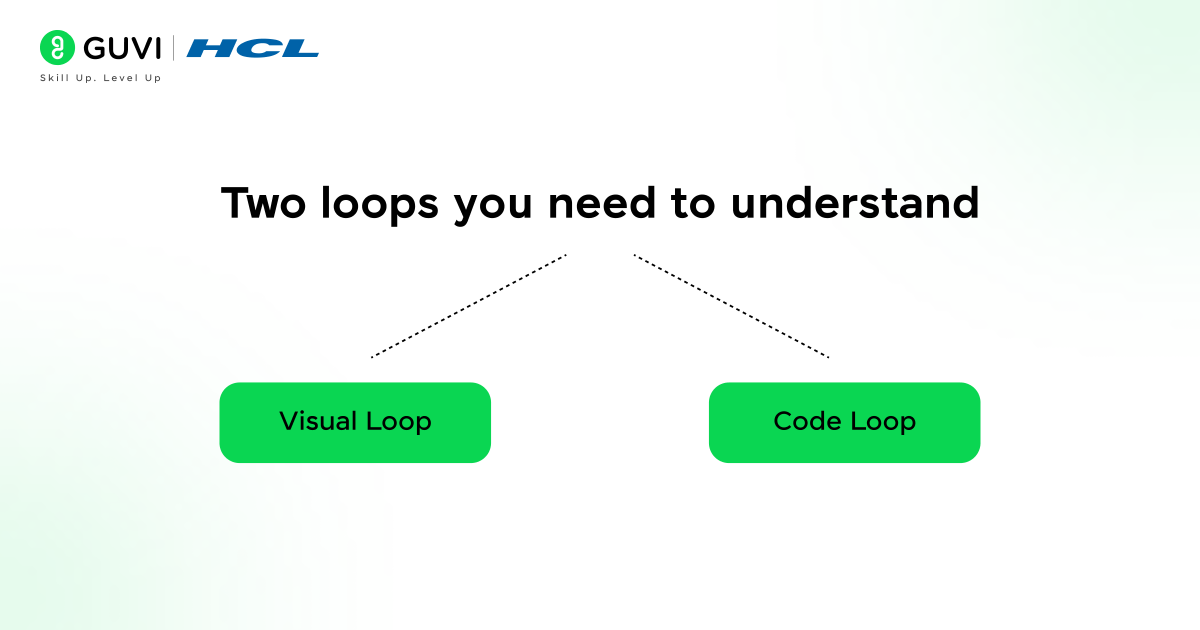
One of the clearest ways to think about how Design Mode actually works is as two separate loops running together.
The visual loop: you adjust styles and see updates instantly in the browser. This is fast, free, and doesn’t touch any code, great for exploring ideas without any cost.

The code loop: when you hit Apply, the AI edits your repo, and hot reload shows the result in your app. This is where real changes happen, and where AI credits are spent.
Understanding these two loops separately helps you use the tool smarter. Use the visual loop to freely drag things, experiment, and play around. Only trigger the code loop when you’re actually happy with the result, so you’re not burning AI credits on exploratory tweaks you’ll end up undoing anyway.
Cursor Design Mode vs Onlook: Which Should Designers Use?
If you’re coming at this from a design background rather than a development one, it’s worth knowing there’s a dedicated alternative built specifically for designers.
| Factor | Cursor Design Mode | Onlook |
|---|---|---|
| Built primarily for | Developers refining existing UI | Designers, explicitly branded “Cursor for Designers” |
| Best at | Precise, code-aware edits on a live app | Design-first workflows with less coding assumed |
| Requires a dev server | Yes | Depends on setup, more design-tool-like in feel |
| Where it fits | Iterating on code that already exists | Bridging the gap for designers who don’t want to touch code directly |
The practical guidance: if you’re a developer comfortable reading a code diff, Design Mode inside Cursor is the more integrated, more powerful option. If you’re a designer who wants a gentler, more design-tool-like experience without needing to review generated code line by line, Onlook is worth trying first.
Studies show developers lose up to 2 hours a day switching between tools . Cursor’s Design Mode is built specifically to eliminate that context-switching tax.
Pros and Cons of Cursor Design Mode
There are quite a few things Cursor Design Mode gets right, especially when it comes to speed and ease of use.
- Eliminates tool-switching mid-workflow
- Live preview is instant and satisfying
- React component props inspection is very useful
- Point and Prompt is genuinely impressive in practice
- Multi-select, added in Cursor 3.7, lets you apply changes across several elements at once
- No deep coding knowledge required for many common tweaks
- Changes turn into real, reviewable code instead of temporary visual edits
It’s powerful, but there are still a few limitations and things to be careful about.
- AI can sometimes break other states of a component without noticing
- Every Apply action uses AI credits, so costs can add up
- Works best with React and is more limited with other frameworks
- Features have changed quickly between versions, so documentation and third-party articles can go stale fast
- Sometimes outputs raw values instead of using your design system
- Requires a local dev server, so it won’t work on static pages
- It edits what already exists rather than generating new screens from scratch
Common Mistakes When Using Design Mode
- Treating Design Mode as a from-scratch design tool. It’s an iteration tool, not a generation tool. Use it to refine a UI you’ve already built, not to explore layout concepts from a blank page.
- Applying too many changes at once. Bundling five unrelated edits into one Apply makes it much harder to review what actually changed, and harder to isolate a problem if something breaks.
- Skipping the review step because it “looked right” visually. A change that renders correctly can still be implemented in a messy way underneath, an inline style where a class should’ve been used, for instance.
- Not checking mobile and tablet after applying. The visual editor shows your app at one browser size at a time, so a change that looks perfect on desktop can quietly break on smaller screens.
- Forgetting Apply is required to save anything. A refresh before clicking Apply discards every visual change you made.
How to Work Smarter with Design Mode
- Start simple. Don’t test Design Mode on your most complex, heavily nested component on day one. Start with a basic page and a simple layout to get a feel for how the visual-to-code translation works before trusting it on anything critical.
- Use manual controls for precision. For an exact hex code or a precise pixel margin, use the sidebar sliders and pickers directly, they’re free, instant, and more predictable. Reserve Point and Prompt for changes that need AI judgment, like “make the spacing consistent with the rest of the page.”
- Always review the code after Apply. It’s easy to get complacent because things look right on screen, but the AI can implement a change unexpectedly, like adding an inline style instead of updating your CSS class, or missing a mobile breakpoint.
- React users: name your props consistently. Giving component props a consistent prefix or naming convention helps the visual editor detect and display them more reliably in the sidebar.
- Test across screen sizes before committing. After applying changes, manually check that your layout still holds up on mobile and tablet, the AI doesn’t always check this for you.
If you’re serious about understanding how to use Cursor’s Design Mode and AI-assisted development more broadly, HCL GUVI’s Intel & IITM Pravartak Certified Artificial Intelligence and Machine Learning Course is worth a look.
This live online programme is taught directly by Intel engineers and industry experts, with 1:1 doubt sessions, 20+ industry-grade projects including a capstone, and placement assistance through 1000+ hiring partners.
React powers over 40% of all web applications worldwide, which is exactly why Cursor’s Design Mode was optimized for React-first workflows from the ground up.
Final thoughts
As AI continues to reshape how developers build and design, tools like Cursor’s Design Mode represent where modern UI development is heading. The ability to visually edit a live application and have production-ready code generated instantly is no longer a concept, it’s a workflow available today.
For developers looking to stay competitive, mastering AI-powered editors like Cursor is becoming less of an advantage and more of an expectation. Whether you’re a developer streamlining your workflow or a designer bridging into code, getting comfortable with Design Mode now puts you ahead of the curve.
FAQs
How is Cursor Design Mode different from tools like Figma or Adobe XD?
Unlike Figma, Design Mode edits your actual live code rather than creating mockups. It’s better suited for refining existing UI than full design workflows.
Does using Cursor Design Mode cost money or use AI credits?
Visual changes are free to explore, but hitting Apply uses AI credits. Depending on your Cursor plan, credits may be limited or require an upgrade.
Can Cursor Design Mode be used for building projects from scratch?
It’s possible but not ideal. Design Mode works best when iterating on an existing codebase. Building from scratch may lead to inconsistent AI outputs and styling issues.
Is Cursor Design Mode suitable for professional or production-level projects?
Yes, but always review the AI-generated code before committing. It produces real, editable code, so treat it like any other code change in your workflow.
How do I make sure the AI applies changes correctly without breaking my code?
Always review the code diff after clicking Apply and test across different screen sizes. Avoid applying too many changes at once to keep the AI’s edits predictable and manageable.
Success Stories

About the Author
Jebasta
I translate the language of data into stories that anyone can understand. As a writer with a data science background, I simplify analytics, AI, and decision-making so beginners and enthusiasts can confidently explore the world of data.
View all posts by Jebasta
Connect with me @


















Did you enjoy this article?