


Artificial Intelligence and Machine Learning Articles
Finance Manager to Data Analytics: Career Growth, Salary and Seniority
How to Evaluate LLM Outputs in Production Deployments
AI/ML Skills Gap 2026: Why Companies Can't Find Job-Ready Talent
20 AI/ML Interview Questions Recruiters Can Use Without a Tech Background - Best Guide


Get In Touch For Details! Request More Information
Databricks for Data Analysis: A Complete Beginner’s Guide
Oct 16, 2026 6 Min Read 2077 Views
(Last Updated)
Databricks is a unified data analytics platform built on Apache Spark. It lets you store, process, and analyze large amounts of data without worrying about servers or infrastructure.
Created in 2013 by the original Spark team, Databricks is now one of the most used platforms for data analysis across enterprise and startup environments.
Think of it as a shared workspace where data engineers, analysts, and scientists can all work together using SQL, Python, R, or Scala on the same platform, with the same data.
Quick TL;DR
- Databricks is a cloud data platform built on Apache Spark that lets you analyze large datasets without managing servers.
- You can run SQL queries, Python notebooks, and ML pipelines all in one place.
- Databricks data analysis with Claude means using AI to write queries, fix errors, and explain results faster.
- It connects to AWS, Azure, and Google Cloud. Plug it into your existing data stack.
- Beginners can start for free with the Community Edition and scale up when needed.
Table of contents
- Why Use Databricks for Data Analysis?
- Key Reasons Teams Choose Databricks
- Setting Up Databricks: What You Need
- Before You Begin
- Creating Your First Cluster
- Step-by-Step: Running Your First Data Analysis
- Step 1: Create a Notebook
- Step 2: Load Your Data
- Step 3: Run a SQL Query
- Step 4: Visualize the Results
- Hands-On Data Analysis with Databricks
- Step 1: Create a Databricks Notebook
- Step 2: Load the Dataset
- Step 3: Understand the Data
- Step 4: Clean the Data
- Step 5: Find Total Sales
- Step 6: Analyze Sales by Category
- Step 7: Analyze Regional Performance
- Step 8: Analyze Monthly Trends
- Step 9: Use SQL for Analysis
- Step 10: Turn the Analysis into Insights
- What You Learn From This Project
- Claude for Databricks Data Analysis
- What Claude Can Help You Do
- A Practical Example
- Career Opportunities with Databricks
- Skills to Learn Alongside Databricks
- Build a Portfolio, Not Just a Certificate
- Best Practices for Databricks Data Analysis
- For Beginners
- For Teams
- Conclusion
- Frequently Asked Questions
- Q1. What is Databricks used for in data analysis?
- Q2. Is Databricks good for beginners?
- Q3. How does Claude help with Databricks data analysis?
- Q4. How is Databricks different from Snowflake?
- Q5. What programming languages does Databricks support?
Why Use Databricks for Data Analysis?
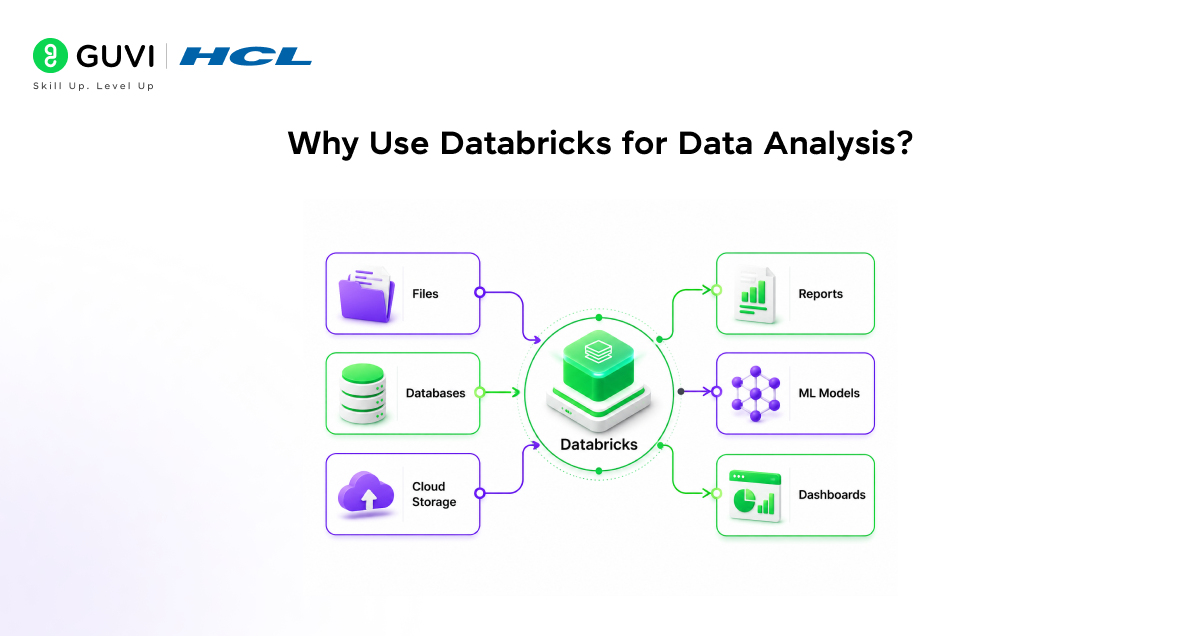
There are plenty of data tools out there. So why do teams keep choosing Databricks? The short answer: it handles scale without extra work on your part.
Whether you are working with a few thousand rows or billions of records, Databricks distributes the work across machines automatically. You write the query. It handles the rest.
Key Reasons Teams Choose Databricks
- Handles massive datasets built on Spark, and it scales across cloud clusters automatically.
- Supports multiple languages: SQL, Python, R, and Scala all work natively.
- Collaborative notebooks allow multiple users to work in the same notebook at the same time.
- Delta Lake integration reliable, versioned data storage built in.
- Built-in ML support, MLflow is integrated for tracking experiments and deploying models.
Over 10,000 organizations worldwide use Databricks for data analysis and AI workloads, including Shell, Comcast, and Regeneron. The platform processes more than one exabyte of data every month across its cloud deployments.
Setting Up Databricks: What You Need
Getting started is simpler than most people expect. You do not need to install anything locally. Databricks runs entirely in the browser.
Before You Begin
- A Databricks account sign up at databricks.com (Community Edition is free).
- A cloud account if you want to go beyond the free tier, AWS, Azure, or GCP.
- Basic knowledge of SQL or Python, you do not need to be an expert.
If you want to learn more about using tools like Databricks for Data Analysis and automating your procedural knowledge, do not miss the chance to enroll in HCL GUVI’s Intel & IITM Pravartak Certified Data Science courses. Endorsed with Intel certification, this course adds a globally recognized credential to your resume, a powerful edge that sets you apart in the competitive AI job market.
Creating Your First Cluster
1. Log in to your Databricks workspace.
2. Click Compute in the left sidebar, then click Create Cluster.
3. Choose a cluster name, runtime version, and node type.
4. Click Create Cluster and wait two to three minutes for it to start.
5. Once it shows Running, attach a notebook, and you are ready.
Your cluster is a group of cloud machines working together. You do not manage them; Databricks does.
Step-by-Step: Running Your First Data Analysis
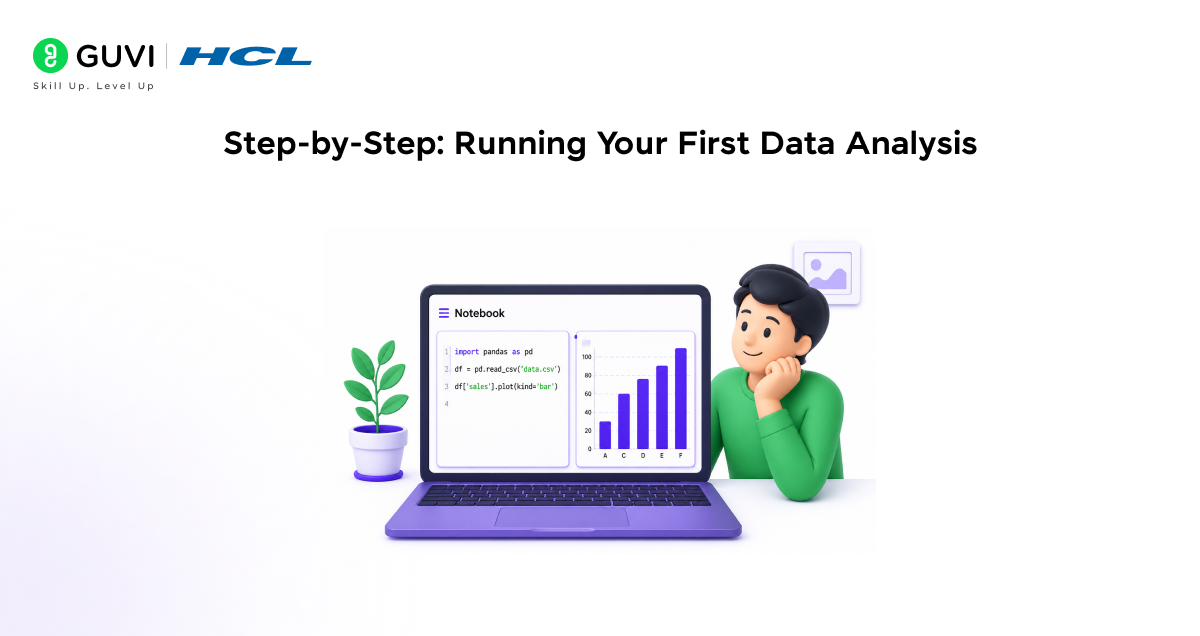
Here is a practical walkthrough of running a basic data analysis in Databricks. We will load a dataset, run a query, and view the results.
Step 1: Create a Notebook
1. In the left sidebar, click Workspace > Create > Notebook.
2. Name your notebook and choose Python or SQL as the default language.
3. Attach it to the cluster you just created.
Step 2: Load Your Data
You can load data from cloud storage (S3, ADLS, GCS) or upload a CSV directly. Here is the quickest way to get started with a built-in sample dataset:
df = spark.read.csv(“/databricks-datasets/samples/population-vs-price/data_geo.csv”, header=True)
Step 3: Run a SQL Query
Use the spark.sql() method or switch to a SQL cell. A simple query looks like this:
spark.sql(“SELECT state, AVG(median_home_price) AS avg_price FROM housing GROUP BY state ORDER BY avg_price DESC”).show()
Step 4: Visualize the Results
- Click the + icon below any output cell and choose a chart type.
- Databricks supports bar charts, line charts, scatter plots, and maps natively.
- You can also use Matplotlib or Plotly inside a notebook cell.
Hands-On Data Analysis with Databricks
The best way to understand Databricks for data analysis is to work through a small dataset. In this example, we will analyze a retail sales dataset to find sales trends, identify the best-performing products, and understand customer behavior.
Databricks notebooks let you combine Python, PySpark, SQL, and visualizations in the same workspace, making them useful for exploratory data analysis and larger datasets.
Step 1: Create a Databricks Notebook
Create a new notebook in your Databricks workspace and select Python as the default language.
You can either upload your own CSV dataset or use a sample dataset available in Databricks.
For this walkthrough, assume the dataset contains these columns:
order_idorder_dateproductcategoryquantitysalesregion
Step 2: Load the Dataset
Once the CSV file is available in your Databricks environment, load it into a Spark DataFrame.
df = spark.read.csv(
    "/path/to/sales.csv",
    header=True,
    inferSchema=True
)

display(df)
The display() function helps you quickly inspect the data and view it in a tabular format.
Step 3: Understand the Data
Before analyzing the data, check its structure and identify potential data-quality issues.
df.printSchema()
df.describe().show()
You can also check the number of records:
print("Total records:", df.count())At this stage, look for:
- Missing values
- Incorrect data types
- Duplicate records
- Unusual sales values
- Incorrect dates
Step 4: Clean the Data
Remove duplicate orders and rows where important values are missing.
df = df.dropDuplicates(["order_id"])

df = df.dropna(
    subset=["order_date", "product", "quantity", "sales"]
)
Convert the order date into a proper date format if necessary:
from pyspark.sql.functions import to_date

df = df.withColumn(
    "order_date",
    to_date("order_date")
)
Cleaning the data before analysis helps prevent inaccurate results.
Step 5: Find Total Sales
Now calculate the total sales generated by the business.
from pyspark.sql.functions import sum

total_sales = df.select(
    sum("sales").alias("total_sales")
)

display(total_sales)
This gives you a basic business metric that can be used as a starting point for further analysis.
Step 6: Analyze Sales by Category
You can use PySpark to identify which product categories generate the most revenue.
from pyspark.sql.functions import sum

category_sales = (
    df.groupBy("category")
      .agg(sum("sales").alias("total_sales"))
      .orderBy("total_sales", ascending=False)
)

display(category_sales)
The resulting table can help you identify the strongest and weakest product categories.
Step 7: Analyze Regional Performance
You can also compare sales across different regions.
region_sales = (
    df.groupBy("region")
      .agg(sum("sales").alias("total_sales"))
      .orderBy("total_sales", ascending=False)
)

display(region_sales)
This can answer questions such as:
- Which region generates the most revenue?
- Which regions need improvement?
- Are sales concentrated in a particular location?
Step 8: Analyze Monthly Trends
To understand how sales change over time, extract the month from the order date.
from pyspark.sql.functions import month, year

monthly_sales = (
    df.withColumn("year", year("order_date"))
      .withColumn("month", month("order_date"))
      .groupBy("year", "month")
      .agg(sum("sales").alias("total_sales"))
      .orderBy("year", "month")
)

display(monthly_sales)
You can then create a line chart from the result using Databricks’ built-in visualization features. Databricks supports creating charts directly from notebook and SQL query results.
Step 9: Use SQL for Analysis
Databricks also allows analysts to work with SQL. For example:
SELECT
    category,
    SUM(sales) AS total_sales
FROM sales_data
GROUP BY category
ORDER BY total_sales DESC;
This is particularly useful for data analysts who are already comfortable with SQL.
Databricks SQL provides a SQL editor, dashboards, alerts, jobs, and other tools for querying and analyzing data.
Step 10: Turn the Analysis into Insights
The final step is not just creating charts. You should explain what the results mean.

For example:
- Electronics generated the highest sales among all categories.
- The South region contributed the lowest revenue.
- Sales increased during the final quarter.
- A small number of products contributed a large share of total revenue.
This is where data analysis becomes useful for business decision-making.
What You Learn From This Project
By completing this walkthrough, you practice a complete analysis workflow:
Load Data → Explore → Clean → Transform → Analyze → Visualize → Generate Insights
The same workflow can be extended to larger datasets using Spark and PySpark, which are designed to handle distributed data processing.
Claude for Databricks Data Analysis
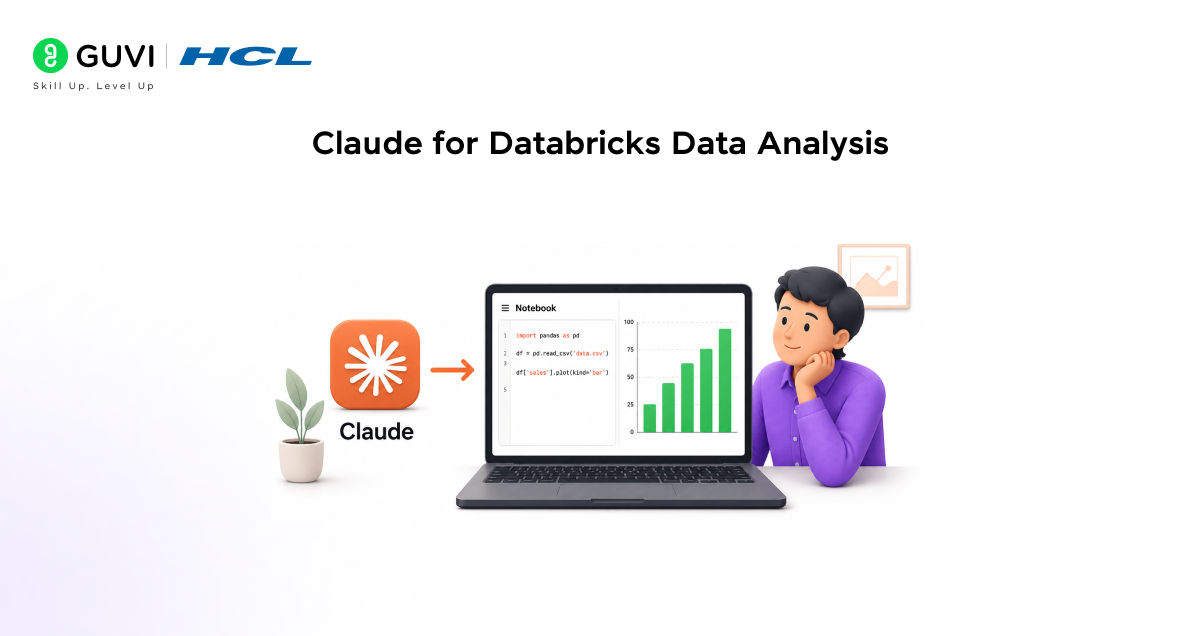
This is where Databricks data analysis with Claude gets genuinely useful. Claude is an AI assistant that can help you write queries, explain errors, clean data, and summarise results, all in plain English.
You do not need a separate tool window. Teams are integrating Claude directly into their data workflows alongside Databricks notebooks using the Anthropic API or Claude.ai.
What Claude Can Help You Do
• Write Spark SQL queries from a plain-English description of what you need.
• Explain error messages, paste a stack trace, and get a plain-language fix.
• Generate data cleaning code to describe your messy data. Claude writes the transformation.
• Summarise query results, paste your output, and ask Claude what it means.
• Draft notebook documentation for your pipelines and analysis steps.
A Practical Example
You type into Claude: “Write a PySpark query that shows total revenue by product category for the last 90 days, sorted highest to lowest.”
Claude returns a working query with correct syntax, proper date filtering, and a GROUP BY clause ready to paste directly into your notebook: no trial and error.
That is why Databricks data analysis with Claude is becoming a standard part of modern data workflows. It removes the friction between what you want to know and what you can actually query.
A 2024 Databricks survey found that teams using AI assistants alongside their data platforms reduced time spent on writing and debugging queries by up to 40%. Tools like Claude are especially effective for generating and refining complex SQL queries.
Career Opportunities with Databricks
Learning Databricks can be useful if you want to work with large datasets or move from traditional data analysis toward data engineering and data science.
Databricks skills are particularly relevant to roles such as:
| Role | How Databricks Helps |
|---|---|
| Data Analyst | Analyze large datasets using SQL, Python, and Databricks SQL |
| Data Engineer | Build data pipelines and transform data using Spark and PySpark |
| Data Scientist | Prepare large datasets and perform exploratory analysis for machine learning |
| BI Analyst | Query data and create dashboards and business insights |
| Analytics Engineer | Build reliable analytical datasets and reusable data models |
Skills to Learn Alongside Databricks
Databricks should not be treated as a standalone skill. To become job-ready, combine it with:
- SQL for querying and analyzing data
- Python for data manipulation and automation
- PySpark for distributed data processing
- Data visualization using Power BI or Tableau
- Cloud platforms such as Azure, AWS, or Google Cloud
- Data warehousing and lakehouse concepts
- ETL/ELT and data pipeline development
- Git and basic software development practices
For beginners, a practical learning path is:
SQL → Python → Pandas → Data Analysis → Spark/PySpark → Databricks → Cloud → Data Engineering
If you are already comfortable with Python and SQL, learning Databricks can be a good next step toward working with larger datasets and modern cloud-based data platforms.
Build a Portfolio, Not Just a Certificate
When applying for data roles, don’t stop at completing Databricks tutorials. Build two or three projects that demonstrate how you use the platform to solve actual data problems.
For example, you could build:
- Retail Sales Analytics – analyze sales trends and customer behavior.
- Customer Churn Analysis – process customer data and identify churn patterns.
- Real-Time Data Pipeline – ingest and analyze streaming data using Spark.
- End-to-End Lakehouse Project – ingest, clean, transform, and visualize data using a modern lakehouse architecture.
Document your project architecture, code, transformations, insights, and business recommendations in your portfolio or GitHub repository. This gives recruiters evidence of what you can actually build rather than just a list of tools you have learned.
Best Practices for Databricks Data Analysis
A few habits will save you a lot of time and money as your usage grows.
For Beginners
- Start with the Community Edition; it is free and enough to get comfortable.
- Terminate clusters when not in use; running clusters costs money even with no one working.
- Use the Delta Lake format for all your tables, as it adds reliability and time travel queries.
- Comment on your notebooks, the future you will thank the present you.
For Teams
• Use Unity Catalogue for access control and data governance across workspaces.
• Version notebooks with Git integration. Databricks has built-in GitHub and GitLab support.
• Set cluster auto-termination to 30 to 60 minutes of inactivity as a safe default.
• Use Claude for query review before running expensive jobs on large clusters.
Forgetting to terminate idle clusters is one of the most common causes of unexpected cloud costs in Databricks. Setting an auto-termination policy takes seconds, costs nothing, and can save hundreds of dollars each month.
Conclusion
Databricks is a serious platform for serious data work. It handles scale, supports multiple languages, and fits naturally into the modern data stack.
For beginners, the Community Edition is a low-risk starting point. For teams, Delta Lake, collaborative notebooks, and MLflow make it one of the most capable platforms available.
Adding Claude to your Databricks data analysis workflow cuts the time you spend writing, fixing, and explaining queries. Together, they cover the full loop raw data to clear insight faster than either tool does alone.
Frequently Asked Questions
Q1. What is Databricks used for in data analysis?
Databricks is used to process, query, and analyze large datasets using SQL, Python, R, or Scala. It is built on Apache Spark and handles scale automatically, making it popular for routine reporting and complex machine learning pipelines.
Q2. Is Databricks good for beginners?
Yes. The Community Edition is free and gives beginners access to notebooks, a Spark cluster, and sample datasets. You can start learning with basic SQL or Python without any prior experience managing cloud infrastructure.
Q3. How does Claude help with Databricks data analysis?
Claude can write Spark SQL and PySpark queries from plain-English descriptions, explain error messages, generate data cleaning code, and summarise query results. Teams use Claude alongside Databricks notebooks to spend less time writing and debugging code.
Q4. How is Databricks different from Snowflake?
Databricks is stronger for data engineering and machine learning, and supports multiple languages. Snowflake focuses on SQL-based analytics and is simpler for pure reporting. If your team needs both data analysis and ML in one place, Databricks is the better fit.
Q5. What programming languages does Databricks support?
Databricks natively supports SQL, Python, R, and Scala. A single notebook can mix languages across different cells, which makes collaboration easier across teams with different backgrounds.
Success Stories

About the Author
Vishalini Devarajan
An Aerospace Engineer turned content writer, I focus on making complex concepts easy to understand through well-structured, reader-friendly blogs. Whether it’s a technical topic or a non-technical one, I love creating content that is clear, engaging, and impactful.
View all posts by Vishalini Devarajan
Connect with me @













Did you enjoy this article?