


Artificial Intelligence and Machine Learning Articles
Finance Manager to Data Analytics: Career Growth, Salary and Seniority
How to Evaluate LLM Outputs in Production Deployments
AI/ML Skills Gap 2026: Why Companies Can't Find Job-Ready Talent
20 AI/ML Interview Questions Recruiters Can Use Without a Tech Background - Best Guide


Get In Touch For Details! Request More Information

How To Use Cursor AI: A Complete Guide With a Practical Example
Jun 16, 2026 3 Min Read 1918 Views
(Last Updated)
What if your code editor could not only understand your code but also help you write, debug, and improve it in real time? Cursor AI brings this shift by embedding intelligence directly into the development environment. Instead of switching between tools, searching for solutions, or manually handling repetitive tasks, developers can interact with their codebase using natural language and receive context-aware outputs instantly. This changes how software is built by reducing friction between thinking and execution, enabling faster iteration, clearer understanding of complex systems, and more efficient problem solving.
Read this guide to learn how to use Cursor AI effectively and improve your development workflow:
Quick Answer:
Use Cursor AI by installing the editor, connecting a supported model, and interacting with your codebase through chat and inline commands. It retrieves relevant context dynamically to generate, edit, and debug code across files. For best results, use precise prompts, validate outputs, and iterate step by step to maintain accuracy, performance, and code quality.
Table of contents
- What is Cursor AI?
- Key Features of Cursor AI
- How To Install Cursor AI
- Step 1: Download Cursor AI
- Step 2: Install and Setup
- Step 3: Connect AI Model
- How To Use Cursor AI (Step-by-Step Guide)
- Step 1: Open Your Project
- Step 2: Use AI Chat Inside Editor
- Step 3: Edit Code with Commands (Inline Editing)
- Step 4: Understand Codebase (Context-Aware Navigation)
- Step 5: Debug and Fix Issues
- Practical Example: Refactoring and Debugging a Node.js API with Cursor AI
- Problem
- Step 1: Identify the Issue
- Step 2: Optimize the Function
- Step 3: Debug Runtime Error
- Step 4: Improve Code Quality
- Final Outcome
- Cursor AI Pro Tips: Do vs Don’t
- Conclusion
- FAQs
- Is Cursor AI free to use?
- Can beginners use Cursor AI?
- Which languages does Cursor AI support?
What is Cursor AI?
Cursor AI is an AI-native code editor built on top of the VS Code architecture that integrates large language models directly into the development workflow. Unlike traditional IDEs where AI exists as a separate plugin, Cursor operates with deep codebase awareness, enabling it to read, index, and reason across entire repositories.
Key Features of Cursor AI
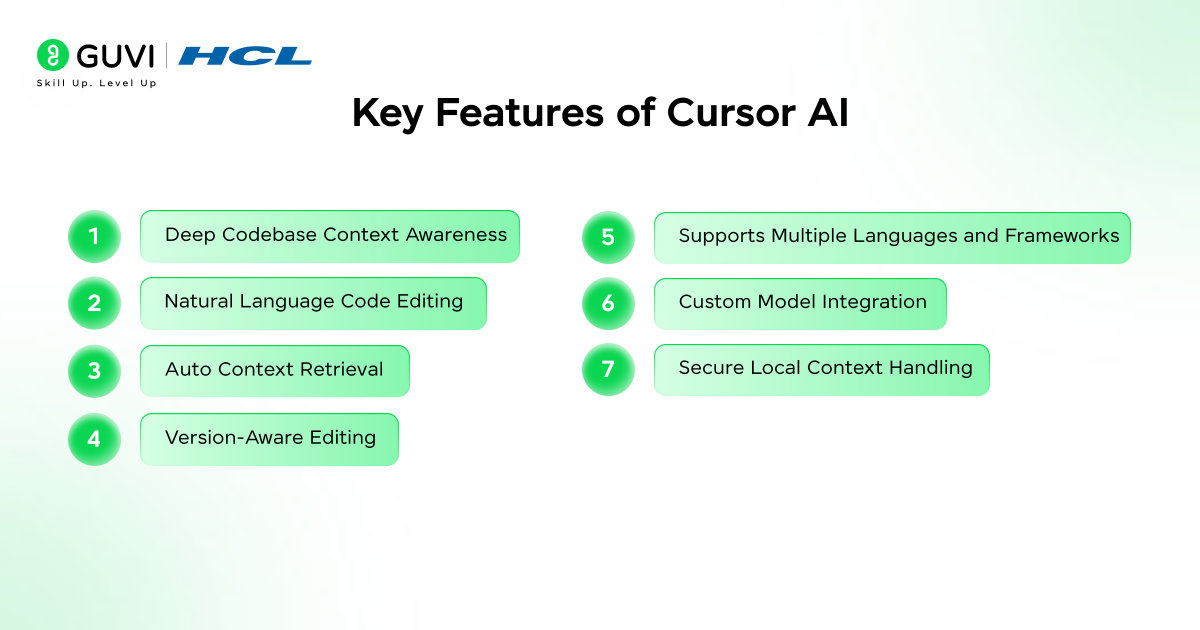
- Deep Codebase Context Awareness: Understands entire repositories, not just single files, enabling context-aware suggestions and edits.
- Natural Language Code Editing: Modify, refactor, or generate code using plain English prompts directly inside the editor.
- Auto Context Retrieval: Automatically pulls relevant files and code snippets for better response accuracy.
- Version-Aware Editing: Works alongside Git workflows, enabling safe iteration and comparison of changes.
- Supports Multiple Languages and Frameworks: Works across Python, JavaScript, TypeScript, Java, and modern frameworks.
- Custom Model Integration: Allows usage of different AI models via API keys for flexibility and control.
- Secure Local Context Handling: Provides controlled interaction with local codebases for privacy-aware development.
How To Install Cursor AI
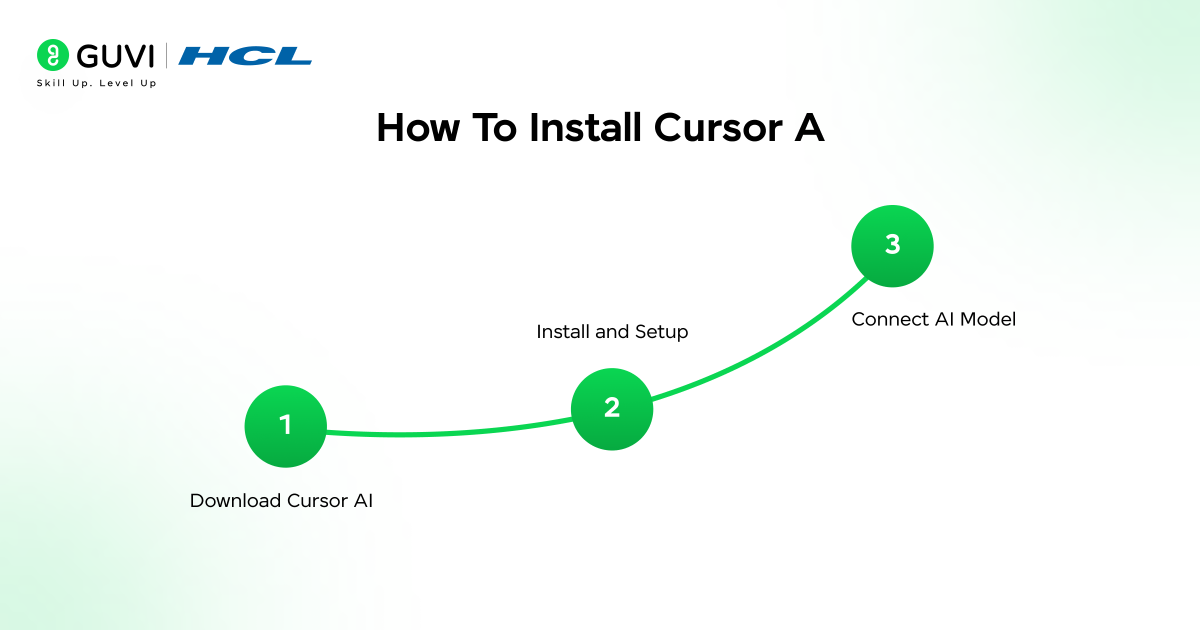
Step 1: Download Cursor AI
- Visit the official Cursor website and download the installer for your operating system (Windows, macOS, or Linux)
- Cursor is built on a VS Code fork, allowing compatibility with extensions, themes, and keybindings
- Download the latest stable version to ensure compatibility with Artificial Intelligence features
Step 2: Install and Setup
- Install Cursor like a standard IDE and launch the editor
- Optionally import:
- VS Code extensions
- Themes and keybindings
- User settings (settings.json)
- Configure workspace preferences such as:
- Terminal and runtime environment
- Git integration
- File handling for large repositories
Step 3: Connect AI Model
- Cursor provides built-in AI models and supports OpenAI-compatible API keys
- Configure model access and preferences, including:
- Response style and verbosity
- Code generation behavior
- Context usage limits
- Cursor does not rely on a full manual indexing step. Instead, it retrieves relevant files and code snippets dynamically using semantic search to build context during interactions
How To Use Cursor AI (Step-by-Step Guide)
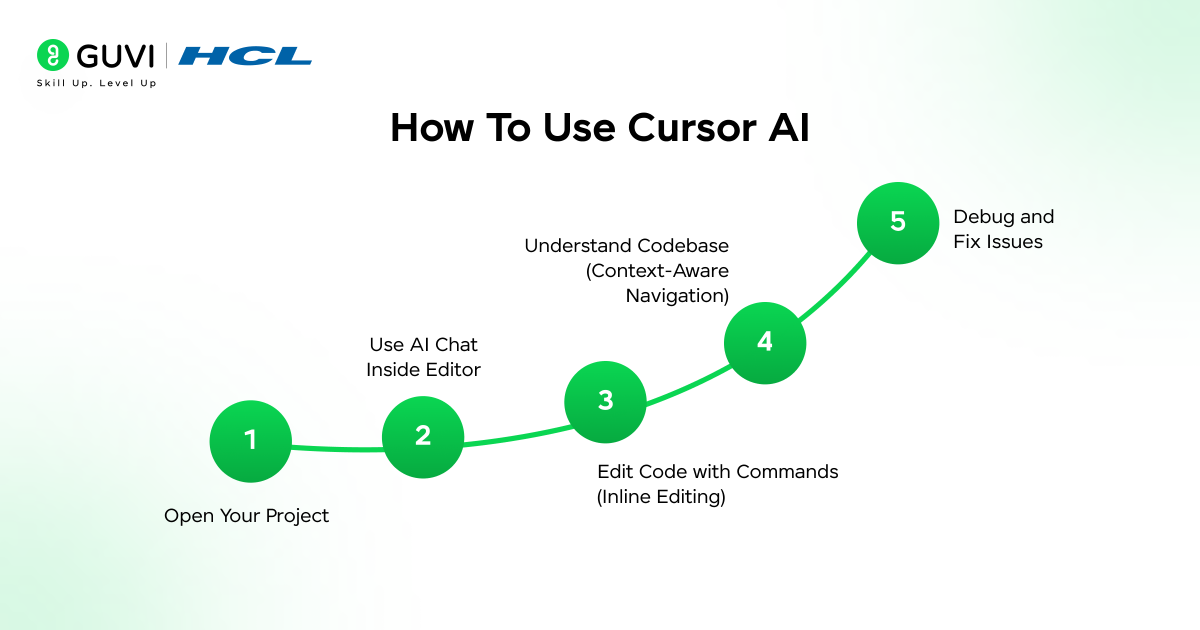
Step 1: Open Your Project
- Open an existing repository or create a new project
- Cursor builds contextual awareness by retrieving relevant parts of the codebase dynamically rather than relying on full static indexing
- This enables more relevant, context-aware suggestions across files and modules
Step 2: Use AI Chat Inside Editor
- Use the integrated AI chat to interact with your codebase
- Ask questions such as:
- “Explain this module”
- “Where is this function used?”
- Cursor retrieves relevant context and provides responses based on selected and related files, offering partial but highly relevant codebase understanding
Step 3: Edit Code with Commands (Inline Editing)
- Select code and trigger inline editing (Cmd/Ctrl + K)
- Provide precise instructions to modify code
- Example prompts:
- “Optimize this function for time complexity”
- “Convert this to async/await pattern”
- “Add input validation and error handling”
- Cursor applies edits while attempting to preserve surrounding logic, structure, and dependencies

Step 4: Understand Codebase (Context-Aware Navigation)
- Use AI to analyze relationships across files and components
- Ask:
- “Explain this file”
- “How does this API work end-to-end?”
- “What are the dependencies of this service?”
- Cursor uses dynamic context retrieval to provide system-level insights, though understanding is limited to the most relevant retrieved context rather than the entire codebase at once
Step 5: Debug and Fix Issues
- Paste errors, logs, or stack traces into the chat
- Cursor analyzes patterns and relevant code paths to identify likely issues
- Generates:
- Fix suggestions
- Refactored code snippets
- Root cause explanations
- Can also suggest improvements related to performance, edge cases, and reliability
Move from using AI coding assistants to building real-world applications with structured expertise. Join HCL GUVI’s Artificial Intelligence and Machine Learning Course to master Python, ML, MLOps, Generative AI, and Agentic AI through hands-on projects, 1:1 doubt sessions with top SMEs, and placement support with 1000+ hiring partners.
Practical Example: Refactoring and Debugging a Node.js API with Cursor AI
Problem
You have an existing Node.js Express API where an endpoint is slow and occasionally throws errors due to missing input validation.
Step 1: Identify the Issue
Select the API route and ask:
- “Explain what this function does and identify possible performance or validation issues”
Cursor Output:
- Highlights lack of input validation
- Identifies synchronous operations blocking performance
- Points out missing error handling
Step 2: Optimize the Function
Select the same code and use inline edit (Cmd/Ctrl + K):
- “Refactor this function to improve performance and add proper validation”
Cursor Output:
- Adds input validation middleware
- Converts blocking logic to async/await
- Improves structure and readability
Step 3: Debug Runtime Error
Paste error log:
- “TypeError: Cannot read property ‘id’ of undefined”
Ask:
- “Find the root cause and fix this error”
Cursor Output:
- Identifies undefined request body
- Suggests null checks and validation
- Updates code with safe access patterns
Step 4: Improve Code Quality
Ask:
- “Add proper error handling and return standardized API responses”
Cursor Output:
- Adds try-catch blocks
- Implements consistent response format
- Improves reliability
Final Outcome
- Optimized API endpoint
- Reduced runtime errors
- Cleaner, production-ready code
- Faster debugging and iteration cycle
Cursor AI Pro Tips: Do vs Don’t
| Do | Don’t |
| Use specific prompts with file/function context | Use vague prompts |
| Select code before editing | Edit without selection |
| Break tasks into steps | Do everything in one prompt |
| Add clear constraints | Leave prompts open-ended |
| Review multi-file changes | Assume all changes are correct |
| Paste full error logs | Share partial errors |
| Keep prompts focused | Add unnecessary context |
| Refactor step-by-step | Make large unchecked changes |
| Validate generated code | Accept code blindly |
| Use Git for tracking | Skip version control |
| Ask for explanations | Apply without understanding |
| Optimize after working code | Optimize too early |
Conclusion
Cursor AI changes how development is executed by bringing intelligence directly into the coding workflow. From writing and refactoring to debugging and understanding complex systems, it reduces the gap between intent and execution. However, its effectiveness depends on how precisely it is used. By combining structured prompts, validation, and iterative development, developers can use Cursor AI to build faster, maintain quality, and handle real-world engineering challenges more efficiently.
FAQs
1. Is Cursor AI free to use?
Cursor AI offers both free and paid plans, depending on usage and model access.
2. Can beginners use Cursor AI?
Yes, it helps beginners learn faster by explaining and generating code.
3. Which languages does Cursor AI support?
It supports most major programming languages including Python, JavaScript, Java, and more.
Success Stories

About the Author
Vaishali
I'm a seasoned writer with four years of experience across technical, non-technical, and just about every genre or niche you can imagine. Adaptable and curious, I enjoy exploring new topics and making information engaging and easy to understand. Fueled by a steady stream of tea, I approach each project with creativity, reliability, and genuine enthusiasm for storytelling.
View all posts by Vaishali
Connect with me @










Did you enjoy this article?