


Product Management Articles
How to Write a Product Requirements Document That Teams Actually Use
APIs for Product Managers: A Non-Technical Guide to API Basics, REST APIs, and Integrations
What Is Net Promoter Score? A Beginner’s Guide to NPS
Top Product Analytics Tools Compared: Amplitude vs Mixpanel vs Google Analytics

Get In Touch For Details! Request More Information
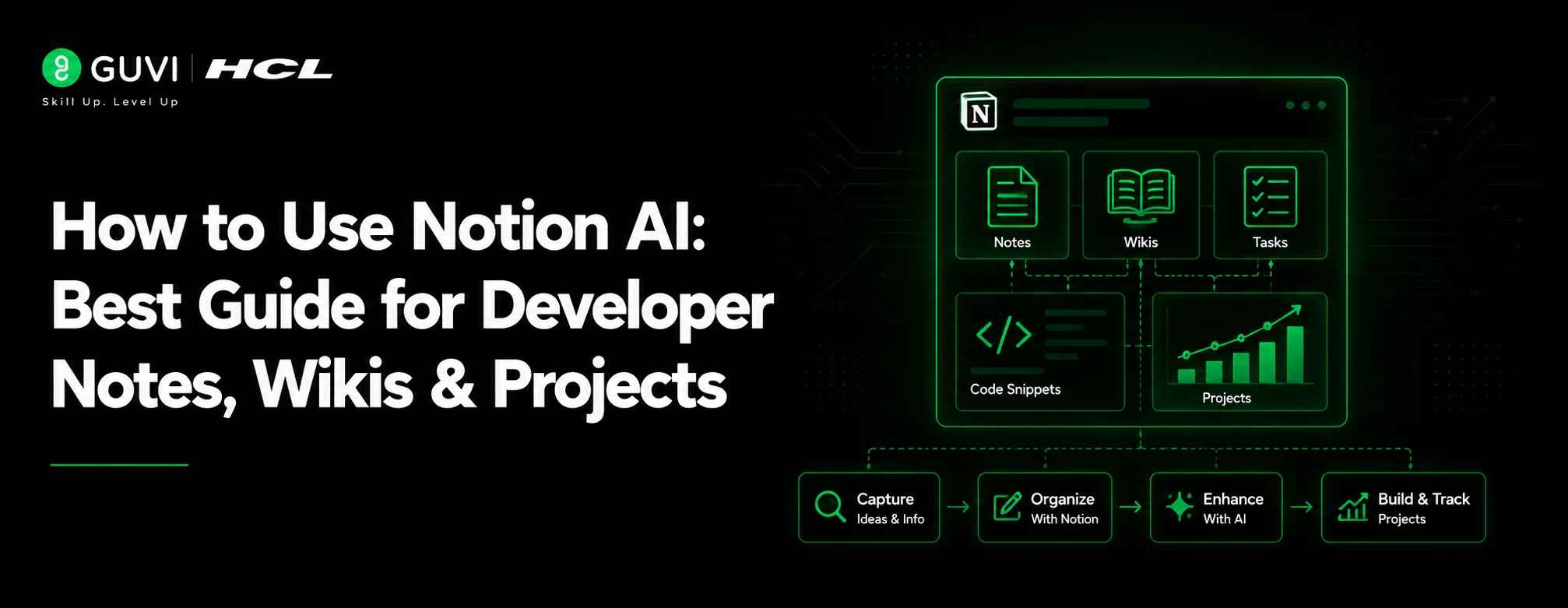
How to Use Notion AI: Best Guide for Developer Notes, Wikis & Projects
Jul 09, 2026 8 Min Read 373 Views
(Last Updated)
Table of contents
- TL;DR Summary
- What is Notion AI for Developers?
- Why Should Developers Use Notion AI?
- What Do You Need Before Using Notion AI?
- How Does Notion AI Help Developers Work Faster?
- How to Use Notion AI for Developer Notes
- Step 1: Create a Notes Database
- Step 2: Capture Raw Notes Quickly
- Step 3: Ask Notion AI to Summarize Notes
- Step 4: Convert Notes into Action Items
- How to Use Notion AI for Technical Wikis
- Step 1: Create a Developer Wiki Structure
- Step 2: Use Notion AI to Draft Documentation
- Step 3: Improve Existing Technical Pages
- Step 4: Create Technical Decision Records
- How to Use Notion AI for Project Tracking
- Step 1: Create a Developer Project Tracker
- Step 2: Ask Notion AI for Project Updates
- Step 3: Connect Notes, Wikis, and Tasks
- Best Notion AI Prompts for Developers
- Prompts for Developer Notes
- Prompts for Technical Wikis
- Prompts for Project Tracking
- Prompts for Code Review Notes
- Notion AI vs Manual Developer Workflow
- Real-World Example: Using Notion AI in a Product Team
- Common Mistakes to Avoid While Using Notion AI
- Using Notion AI Without Organizing Your Workspace
- Treating AI Output as Final Documentation
- Mixing Personal Notes and Team Documentation
- Not Linking Notes to Tasks
- Adding Sensitive Code or Credentials
- Best Practices for Developers Using Notion AI
- Build Product Management Skills With HCL GUVI
- Conclusion
- FAQS
- What is Notion AI used for by developers?
- Can Notion AI write technical documentation?
- Is Notion AI useful for project tracking?
- Can developers use Notion AI for meeting notes?
- Can Notion AI replace Jira or GitHub?
- Is Notion AI good for beginner developers?
- What are the best Notion AI prompts for developers?
- Can Notion AI create a developer wiki?
- Is it safe to add code or credentials into Notion AI?
- How should a developer start using Notion AI?
TL;DR Summary
Notion AI for developers helps you organize notes, create technical wikis, summarize meetings, track project progress, and turn scattered information into clear action items. Developers can use it for sprint notes, bug logs, API documentation, release planning, project trackers, and knowledge bases. Instead of writing everything manually, you can ask Notion AI to summarize, rewrite, extract tasks, create documentation outlines, or find answers from existing workspace content. It is most useful when your notes, project pages, tasks, and technical decisions are already structured inside Notion.
Notion AI for developers is useful when your notes, technical documents, wikis, and project updates are scattered across too many places.
Developers often switch between code editors, GitHub, Slack, Jira, meeting notes, documentation, and sprint boards.
Notion AI helps by summarizing information, creating action items, drafting technical notes, improving documentation, and making project tracking easier.
This guide explains how developers can use Notion AI for notes, wikis, and project tracking with simple examples and practical workflows.
What is Notion AI for Developers?
Notion AI for developers means using Notion’s AI features inside your workspace to manage engineering information more efficiently.
It can help you write, summarize, rewrite, organize, and extract information from pages.
For a developer, this can include:
- Sprint notes
- Daily standup updates
- Bug investigation notes
- API documentation
- Feature requirement notes
- Release checklists
- Technical decision records
- Team wiki pages
- Project trackers
Instead of treating Notion as only a note-taking app, developers can use it as a connected workspace for documentation, project planning, and team knowledge.
Developers can use Notion AI features to summarize pages, find information, manage meeting notes, and work faster inside their Notion workspace.
Why Should Developers Use Notion AI?
Developers should use Notion AI because a large part of software work is not only coding.
Developers also need to document decisions, track bugs, write feature notes, summarize meetings, prepare sprint updates, and share knowledge with the team.
Developers can also use tools like GitHub Copilot along with Notion AI to improve coding productivity and documentation workflows.
Notion AI can help reduce this manual work.
It can turn rough notes into structured summaries, convert meeting notes into action items, and help maintain clear documentation.
This is useful for:
- Software developers
- Web developers
- Full-stack developers
- Backend developers
- Frontend developers
- DevOps learners
- QA engineers
- Product engineering teams
- Student project teams
For example, after a sprint planning meeting, you can ask Notion AI to extract user stories, blockers, deadlines, and task owners from your notes.
What Do You Need Before Using Notion AI?
Before using Notion AI, you need a few basic things ready.
- A Notion workspace
- Access to Notion AI features
- A page or database for notes
- A project tracker database
- A basic wiki structure
- Clear naming rules for pages and tasks
- Team permission settings, if you work with others
You do not need coding knowledge to use Notion AI.
But as a developer, you should organize your workspace properly so AI can give better answers.
A messy workspace creates messy AI output.
A clean workspace helps Notion AI understand your context better.
How Does Notion AI Help Developers Work Faster?
Notion AI helps developers work faster by reducing repetitive writing and organizing work.
It is not a replacement for coding skills, debugging ability, or technical judgment.
Think of it as an assistant for your engineering knowledge
It can help you:
- Summarize long meeting notes
- Create action items from discussions
- Rewrite rough technical notes clearly
- Draft documentation outlines
- Convert messy notes into tables
- Extract risks and blockers
- Generate project status updates
- Create release notes from completed tasks
- Search workspace content for answers
For example, if your team has a long page about a feature discussion, you can ask Notion AI:
“Summarize the key technical decisions, blockers, owners, and next steps from this page.”
This saves time before sprint reviews or stakeholder updates.
If you want to explore more ways to build smarter workflows with Notion, this guide will help you understand how Notion can work with modern AI-powered tools.

How to Use Notion AI for Developer Notes
Developer notes are often rough.
You may write quick points during debugging, meetings, code reviews, or feature discussions.
Notion AI can convert those rough notes into clean summaries.
Step 1: Create a Notes Database
Start with a simple developer notes database.
Add properties like
| Property | Example |
| Note Type | Standup, Debugging, Meeting, Code Review |
| Project | Payment Gateway, Login Module |
| Date | 20 June 2026 |
| Owner | Developer name |
| Status | Draft, Reviewed, Archived |
| Related Task | Sprint task or ticket |
This structure helps you find notes later.
It also gives Notion AI more context when you ask questions.
Step 2: Capture Raw Notes Quickly
Do not worry about perfect writing during meetings or debugging.
Write rough notes first.
Example:
“Login API failing for some users. Error after token refresh. Need to check expiry logic. Priya to review backend logs. Frontend team to confirm refresh call.”
Then ask Notion AI:
“Turn these rough notes into a clear engineering update with issue, possible cause, owner, and next step.”
Step 3: Ask Notion AI to Summarize Notes
After a meeting or debugging session, ask Notion AI to summarize the page.
Useful prompts:
- “Summarize this page in 5 bullet points.”
- “Extract action items from these notes.”
- “List all blockers mentioned in this page.”
- “Convert these notes into a clean standup update.”
- “Create a short update for the project manager.”
This is useful when you need to send updates to your team without rewriting everything manually.
Step 4: Convert Notes into Action Items
Developers often lose action items inside long notes.
Use Notion AI to extract them clearly.
Prompt:
“Find all action items in this page and format them as a checklist with owner, deadline, and priority.”
Output example:
- Check token expiry logic — Owner: Backend developer — Priority: High
- Confirm frontend refresh call — Owner: Frontend developer — Priority: Medium
- Review API logs — Owner: DevOps engineer — Priority: High
This makes your notes more useful for execution.
For sprint planning, standups, and retrospectives, AI Meeting Notes can help capture meeting discussions and organize them inside Notion.
Notion says its AI Meeting Notes captures, transcribes, and summarizes meeting notes directly inside the workspace where teams already work.
Notion AI was first launched in private alpha in November 2022, before becoming generally available in February 2023. Notion said it spent about 10 weeks gathering user feedback before the wider release, which shows how quickly AI writing and workspace tools moved from experiment to everyday productivity features.
How to Use Notion AI for Technical Wikis
A technical wiki is a central place where your team stores important engineering knowledge.
For developers, this can include architecture notes, setup guides, API references, coding standards, deployment steps, and troubleshooting guides.
Notion AI can help you create and maintain this wiki faster.
Step 1: Create a Developer Wiki Structure
Start with simple wiki categories.
Example:
| Wiki Section | What to Include |
| Project Overview | Product purpose, modules, owners |
| Setup Guide | Local setup, tools, dependencies |
| API Docs | Endpoints, request, response, errors |
| Architecture Notes | System design, services, database flow |
| Coding Standards | Naming rules, branch rules, review checklist |
| Deployment Notes | Build steps, environment variables |
| Troubleshooting | Common errors and fixes |
This structure makes the wiki easier to browse.
It also helps new developers onboard faster.
Step 2: Use Notion AI to Draft Documentation
You can give Notion AI rough points and ask it to create a proper document.
Example prompt:
“Create a developer setup guide from these notes. Include prerequisites, installation steps, environment variables, common errors, and verification steps.”
This is useful when your team has setup instructions scattered across Slack messages, old documents, and personal notes.
Step 3: Improve Existing Technical Pages
If a documentation page is too long or unclear, ask Notion AI to improve it.
Useful prompts:
- “Rewrite this API documentation in a clearer format.”
- “Create a summary at the top of this technical page.”
- “Turn this long explanation into a step-by-step setup guide.”
- “Find missing sections in this documentation.”
- “Make this troubleshooting guide easier for a new developer.”
This helps keep your wiki beginner-friendly and team-friendly.
Step 4: Create Technical Decision Records
Technical Decision Records, or TDRs, help teams remember why a decision was made.
For example, your team may choose PostgreSQL over MongoDB or REST over GraphQL.
Use this template:
| Section | What to Write |
| Decision | What was decided |
| Context | Why the decision was needed |
| Options Considered | Alternatives discussed |
| Reason | Why this option was selected |
| Impact | What changes after this decision |
| Owner | Who is responsible |
Prompt:
“Convert these notes into a technical decision record with context, options, final decision, reason, and impact.”
This helps your future team understand the logic behind past decisions.
For Java backend teams, a wiki can also include documentation around Java APIs, endpoints, request formats, and error responses.
Notion AI can help developers summarize, improve, and draft documents, which makes it useful for technical wikis, setup guides, and project notes.
In March 2026, Notion added workspace-wide consent controls for AI Meeting Notes, allowing workspace owners to enforce an audio consent message before transcription starts. This is important for developer teams using AI in standups, sprint planning, or retrospectives.
How to Use Notion AI for Project Tracking
Developers can use Notion AI with project trackers to manage tasks, bugs, sprint work, and release updates.
Notion databases are useful because you can view the same project data in different ways.
You can create:
- Kanban board
- Table view
- Timeline view
- Calendar view
- Sprint view
- Bug tracker
- Release tracker
If your team works in sprints, understanding Agile product management can help you connect Notion project trackers with product goals, timelines, and team ownership.
Step 1: Create a Developer Project Tracker
Start with a simple project tracking database.
Use these properties:
| Property | Example |
| Task Name | Fix login token refresh issue |
| Type | Bug, Feature, Chore, Documentation |
| Status | Not Started, In Progress, Review, Done |
| Priority | High, Medium, Low |
| Owner | Developer name |
| Sprint | Sprint 12 |
| Due Date | 25 June 2026 |
| Related Docs | API doc, meeting note, bug report |
| Blocker | Yes or No |
This gives your team one place to track work.
Step 2: Ask Notion AI for Project Updates
Once your tracker has enough information, ask Notion AI to summarize progress.
Useful prompts:
- “Summarize the status of Sprint 12.”
- “List all high-priority blockers.”
- “Create a weekly project update from this tracker.”
- “Find tasks that are delayed or missing owners.”
- “Summarize completed work for release notes.”
This is useful for standups, sprint reviews, and manager updates.
Step 3: Connect Notes, Wikis, and Tasks
The real value of Notion comes when your notes, wikis, and project tracker are connected.
For example:
- A bug task links to a debugging note
- A feature task links to a requirement page
- A release task links to a deployment checklist
- A sprint page links to meeting notes
- A wiki page links to related API docs
This connected setup gives Notion AI more context.
When your workspace is connected, AI can help you answer questions like:
“What are the blockers for the payment gateway release?”
“What decisions were made about the login module?”
“What tasks are pending before the next deployment?”
Best Notion AI Prompts for Developers
Good prompts give better results.
Here are practical prompts developers can use.
Prompts for Developer Notes
- “Summarize these debugging notes into issue, cause, fix, and next steps.”
- “Create a standup update from this page.”
- “Extract all action items and owners from these meeting notes.”
- “Turn these rough notes into a clean engineering summary.”
- “List all open questions from this discussion.”
Prompts for Technical Wikis
- “Create a setup guide from these rough instructions.”
- “Rewrite this API documentation for a junior developer.”
- “Create a troubleshooting guide from these error notes.”
- “Create a technical decision record from this discussion.”
- “Find missing information in this documentation page.”
Prompts for Project Tracking
- “Summarize this sprint tracker in 5 bullet points.”
- “List delayed tasks and their owners.”
- “Create a release note from completed tasks.”
- “Identify blockers from this project tracker.”
- “Write a project update for stakeholders.”
Prompts for Code Review Notes
- “Summarize the main review comments from this page.”
- “Create a checklist from these code review points.”
- “Group these review comments by frontend, backend, and testing.”
- “Turn these comments into action items.”
- “Write a short follow-up message for the developer.”
Notion AI vs Manual Developer Workflow
| Developer Task | Manual Workflow | With Notion AI |
| Meeting notes | Write and clean notes manually | Summarize notes and extract action items |
| Wiki documentation | Draft from scratch | Generate outlines and improve rough notes |
| Sprint update | Check tasks one by one | Ask AI to summarize tracker status |
| Bug tracking | Search multiple pages manually | Ask for blockers, owners, and pending issues |
| Release notes | Compile completed work manually | Generate draft release notes from tasks |
| Onboarding | Explain setup repeatedly | Use AI-improved setup and wiki pages |
Real-World Example: Using Notion AI in a Product Team
Imagine a small SaaS product team in Bengaluru building a customer support dashboard.
The team has:
- Two frontend developers
- Two backend developers
- One QA engineer
- One product manager
- One UI designer
Before using Notion AI, their work is scattered across Slack messages, Google Docs, GitHub issues, and meeting notes.
After setting up Notion, they create:
- A project tracker for dashboard tasks
- A bug tracker for QA issues
- A technical wiki for API and setup docs
- A sprint notes database
- A release checklist page
If your team wants more customized notifications, you can also learn how to make a Slack bot for developer updates and alerts.
During sprint planning, the product manager writes rough notes in Notion.
The team uses Notion AI to extract user stories, blockers, owners, and deadlines.
During standups, AI Meeting Notes summarize discussions and create action items.
Before release, the team asks Notion AI to create release notes from completed tasks.
This does not replace GitHub or coding tools.
It simply gives the team a cleaner workspace for documentation, decisions, and project visibility.
While Notion AI can manage notes and documentation, developers should still use GitHub repositories to manage source code, commits, branches, and collaboration.
Common Mistakes to Avoid While Using Notion AI
1. Using Notion AI Without Organizing Your Workspace
Many beginners expect Notion AI to give perfect answers from messy pages. If your workspace is unstructured, the output may also be unclear.
Fix it by using clear page names, databases, tags, and linked project pages.
2. Treating AI Output as Final Documentation
Notion AI can draft and improve content, but developers should still review technical accuracy. AI may miss context, edge cases, or project-specific rules.
Fix it by reviewing every technical page before sharing it with the team.
3. Mixing Personal Notes and Team Documentation
If personal notes and official documentation are mixed, team members may get confused. AI may also pull from unclear or outdated pages.
Fix it by separating private notes, team docs, project pages, and final wiki pages.
4. Not Linking Notes to Tasks
Notes are less useful when they are not connected to tasks or projects. Important decisions may get lost inside meeting pages.
Fix it by linking meeting notes, bug notes, and technical decisions to the relevant project tracker items.
5. Adding Sensitive Code or Credentials
Never paste passwords, API keys, tokens, private customer data, or confidential code into AI prompts. Developers must follow company security rules while using AI tools.
Fix it by removing sensitive data before using AI features.
Best Practices for Developers Using Notion AI
Start with a simple workspace.
Create one notes database, one project tracker, and one wiki section before adding advanced views.
Use consistent names for projects, sprints, bugs, and documentation pages.
For example:
- Sprint 12 – Standup Notes
- Login Module – API Documentation
- Payment Gateway – Bug Tracker
- Release 1.4 – Deployment Checklist
Keep prompts specific.
Instead of asking, “Summarize this,” ask:
“Summarize this sprint planning page into goals, blockers, task owners, deadlines, and open questions.”
Review AI output before using it.
Notion AI can save time, but final responsibility stays with the developer or team.
To understand how developer productivity is changing, you can also explore this guide on AI agents, MCPs, and GitHub Copilot.
If you want to go deeper into how AI tools connect with external systems, this guide on Model Context Protocol vs APIs is a useful next read.
If you are planning a career in development, understanding web developer roles and responsibilities can help you see why documentation, project tracking, and collaboration matter.
Build Product Management Skills With HCL GUVI
Notion AI can help developers and product teams organize notes, create wikis, summarize meetings, track project progress, and turn scattered updates into clear action items. But to manage real products effectively, you also need strong foundations in user stories, sprint planning, roadmaps, stakeholder communication, documentation, and product execution.
Explore HCL GUVI’s Product Management Program to build practical product skills through structured learning, real-world workflows, and career-focused training.
Conclusion
Notion AI for developers is useful for turning scattered notes, technical decisions, wiki pages, and project updates into organized information. It can help you summarize meetings, create action items, improve documentation, track sprint progress, and prepare project updates faster. However, it works best when your workspace is structured and your technical content is reviewed by humans. Start with one developer notes database, one wiki, and one project tracker. Once your foundation is clear, Notion AI can become a practical assistant for documentation, collaboration, and engineering productivity.
FAQS
1. What is Notion AI used for by developers?
Notion AI is used by developers to summarize notes, create documentation, extract action items, manage wikis, and track project updates. It helps organize engineering information inside Notion.
2. Can Notion AI write technical documentation?
Yes, Notion AI can help draft and improve technical documentation. Developers should still review the content for accuracy before sharing it with the team.
3. Is Notion AI useful for project tracking?
Yes, Notion AI is useful for summarizing project trackers, identifying blockers, creating status updates, and drafting release notes. It works best when your tasks and projects are organized in Notion databases.
4. Can developers use Notion AI for meeting notes?
Yes, developers can use Notion AI for standup notes, sprint planning, retrospectives, and project review meetings. It can summarize discussions and extract action items.
5. Can Notion AI replace Jira or GitHub?
No, Notion AI does not fully replace Jira or GitHub for software development workflows. It is better used for notes, documentation, project visibility, and team knowledge management.
6. Is Notion AI good for beginner developers?
Yes, Notion AI is useful for beginner developers because it helps them organize learning notes, project documentation, debugging notes, and task trackers in one place.
7. What are the best Notion AI prompts for developers?
Good prompts include “Summarize these debugging notes,” “Create a setup guide,” “Extract action items,” “Find blockers,” and “Create release notes from completed tasks.”
8. Can Notion AI create a developer wiki?
Yes, Notion AI can help create wiki outlines, improve existing pages, summarize technical notes, and structure setup guides. Developers should organize the wiki into clear sections.
9. Is it safe to add code or credentials into Notion AI?
Developers should not add passwords, API keys, access tokens, private customer data, or confidential code into AI prompts. Always follow your company’s security policy.
10. How should a developer start using Notion AI?
Start with one notes database, one technical wiki, and one project tracker. Then use Notion AI to summarize notes, extract tasks, improve documentation, and prepare project updates.
Success Stories

About the Author
Reemsha Khan
Always been a storyteller at heart. Now, I turn complex topics into simple, easy-to-understand stories through content. Hope you find it helpful.
View all posts by Reemsha Khan
Connect with me @










Did you enjoy this article?