


Artificial Intelligence and Machine Learning Articles
Finance Manager to Data Analytics: Career Growth, Salary and Seniority
How to Evaluate LLM Outputs in Production Deployments
AI/ML Skills Gap 2026: Why Companies Can't Find Job-Ready Talent
20 AI/ML Interview Questions Recruiters Can Use Without a Tech Background - Best Guide


Get In Touch For Details! Request More Information
Build Smarter Workflows with Notion and v0 (2026 Guide)
Jun 24, 2026 7 Min Read 1311 Views
(Last Updated)
You have a product requirements document in Notion. Your team has been adding notes, feature requests, and customer feedback to it for weeks. Now you need a working prototype to show stakeholders by Friday. The old way: a developer reads the doc, spends two days manually translating it into a React app, and everyone crosses their fingers that nothing was misread. The new way: connect Notion to v0, point it at your PRD, and watch a functional prototype generate itself in minutes.
That is what the Notion and v0 integration makes possible. This guide explains what both tools do, how their connection works, what you can actually build with them, and how to get started today.
Quick Answer
v0 is Vercel’s AI tool that turns plain English prompts into working React applications. Notion is the all-in-one workspace where your team stores documents, databases, and project data. As of December 2025, v0 connects to Notion via MCP (Model Context Protocol), meaning v0 can read your Notion databases and pages, build apps and dashboards from them, and write generated content back into your workspace.
Table of contents
- What is Notion?
- What is v0?
- What is MCP and Why Does It Matter?
- What You Can Build with Notion and v0
- Dashboards from Notion Databases
- Product Prototypes from PRDs
- Content Workflows from Notion Briefs
- Project and Operations Summaries
- Presentation Slides from Notion Outlines
- How to Set Up the Notion and v0 Integration
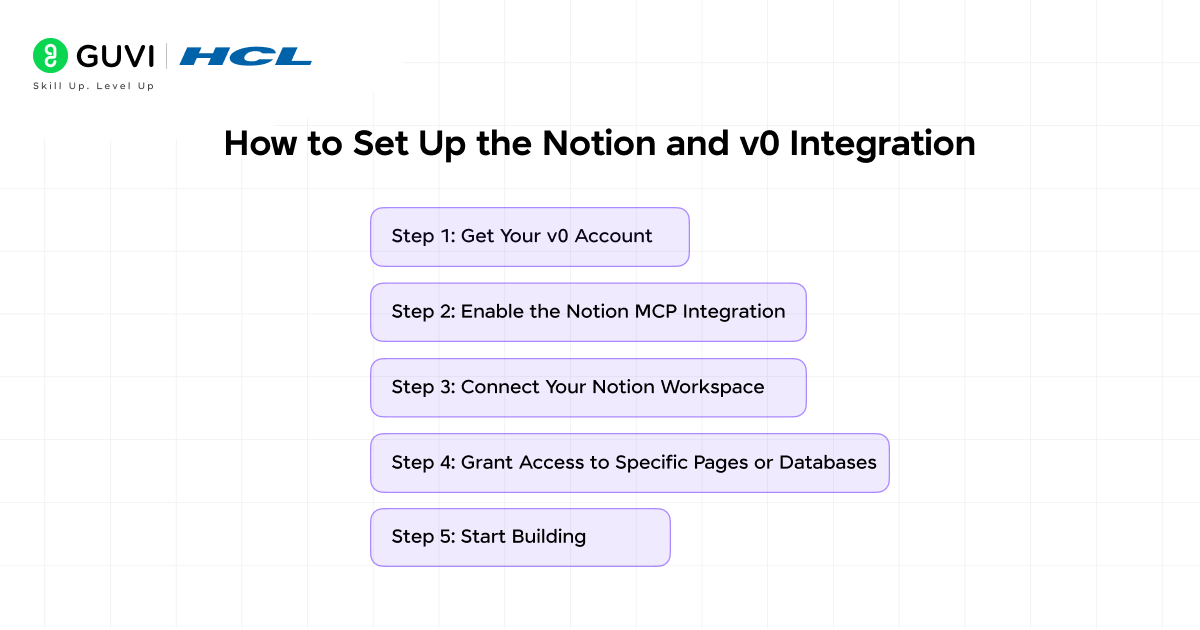
- Step 1: Get Your v0 Account
- Step 2: Enable the Notion MCP Integration
- Step 3: Connect Your Notion Workspace
- Step 4: Grant Access to Specific Pages or Databases
- Step 5: Start Building
- Quick-Start Prompt Ideas
- Tips for Getting the Best Results
- Notion and v0 vs Building from Scratch: A Realistic Comparison
- 💡 Did You Know?
- Conclusion
- FAQs
- Do I need coding experience to use Notion and v0 together?
- Is the Notion and v0 integration free?
- Can v0 access my entire Notion workspace?
- What happens when v0 writes back to Notion?
- What is MCP and do I need to understand it to use this integration?
What is Notion?
Notion is a collaborative workspace platform where teams store documents, manage projects, build databases, and organise knowledge in one place. Instead of switching between a Google Doc for writing, a spreadsheet for tracking, and a wiki for reference material, Notion brings all of it into one flexible system.
Teams use Notion for product requirement documents (PRDs), content calendars, project trackers, meeting notes, customer feedback databases, HR wikis, and much more. By 2026, Notion has over 100 million users worldwide, ranging from solo students to enterprise teams at companies like Figma, Linear, and Ramp.
What makes Notion powerful:
- Pages and databases: Write long-form docs and structured data tables side by side
- Views: See the same database as a table, kanban board, calendar, gallery, or timeline
- Relations and rollups: Link databases to each other and compute summary values across them
- Notion AI: Built-in AI that can summarise, draft, and now run autonomous agents (Business plan, $20/user/month)
- Integrations: Connects with Slack, GitHub, Google Drive, Jira, Figma, and as of December 2025, v0
Notion pricing at a glance:
| Plan | Price | Best For | AI Included? |
| Free | $0 | Individuals, personal projects | Limited trial only |
| Plus | $10/user/month (annual) | Small teams, basic collaboration | Limited trial only |
| Business | $20/user/month (annual) | Growing teams, full AI access | Yes, fully included |
| Enterprise | Custom | Large organisations, compliance needs | Yes, fully included |
Note: Full Notion AI access (including AI Agents) requires the Business plan or above.
What is v0?
v0 is Vercel’s AI-powered development tool. You describe what you want to build in plain English and v0 generates production-ready React code using Next.js, Tailwind CSS, and the shadcn/ui component library. It lives at v0.app and works entirely in the browser with no installation required.
Think of v0 as the fastest way to get from an idea to a working UI. A designer can describe a dashboard layout. A product manager can describe a form. A developer can describe a multi-page application. v0 builds it and shows you the live result alongside the code.
v0 launched in beta in October 2023 and rebranded from v0.dev to v0.app in late 2025. By March 2026, it has over 6 million developers on the platform. The February 2026 update added Git integration, a VS Code-style code editor, database connectivity, and agentic workflows, making it a full development environment rather than just a component generator.
What v0 can build:
- UI components: Buttons, forms, navigation bars, pricing cards, anything you describe
- Full page layouts: Landing pages, dashboards, settings pages, multi-step flows
- Multi-page applications: Complete Next.js apps with routing, shared layouts, and navigation
- Dashboards: Data visualizations, metrics, charts and tables built from your actual data
- Internal tools: Admin panels, trackers, and reporting tools built to your exact spec
v0 pricing at a glance:
| Plan | Price | Credits Included | Best For |
| Free | $0/month | $5/month in credits | Exploring, small experiments |
| Premium | $20/month (~Rs. 1,680) | $20/month in credits | Individual developers, serious projects |
| Team | $30/user/month (~Rs. 2,520) | Shared credit pool | Small dev and design teams |
| Enterprise | Custom | Custom | Large organisations, compliance |
Note: v0 uses token-based pricing. Credits are consumed per generation, with complex prompts using more tokens.
Thought to ponder: Developers describe the gap between a PRD and a working prototype as one of the most frustrating parts of software development. Important context lives in documents but has to be manually re-read and interpreted before anything gets built. What would your team’s velocity look like if that translation step happened automatically?
That is exactly the gap the Notion and v0 integration closes. Your context stays in Notion where it belongs. v0 reads it and builds from it directly. The translation step disappears.
What is MCP and Why Does It Matter?
MCP stands for Model Context Protocol. It is a standard way for AI tools to connect to external services, databases, and APIs so they can work with real data from those systems.
Before MCP, when you used v0, you described everything in the chat. You wrote out your requirements, pasted in your data, and re-explained context every time. With MCP, v0 can connect directly to a service like Notion and pull that context automatically. It reads your actual databases and documents. What you build is grounded in the real information your team maintains.
The Notion and v0 MCP integration, announced December 15, 2025, does two things:
- Read access: v0 reads your Notion databases, pages, and documents to use as context for generation
- Write access: v0 can write generated content back into your Notion workspace, adding summaries, updating pages, and saving insights directly to the right place
You do not have to copy-paste anything between tools. The connection is live and direct.
Do check out HCL GUVI’s Artificial Intelligence and Machine Learning Course if you want to build advanced tech skills alongside workflow automation concepts. This industry-focused course offers live mentor-led sessions, hands-on projects, and real-world training in AI, machine learning, deep learning, NLP, and deployment, helping learners gain practical experience and become job-ready in high-demand AI roles.
What You Can Build with Notion and v0
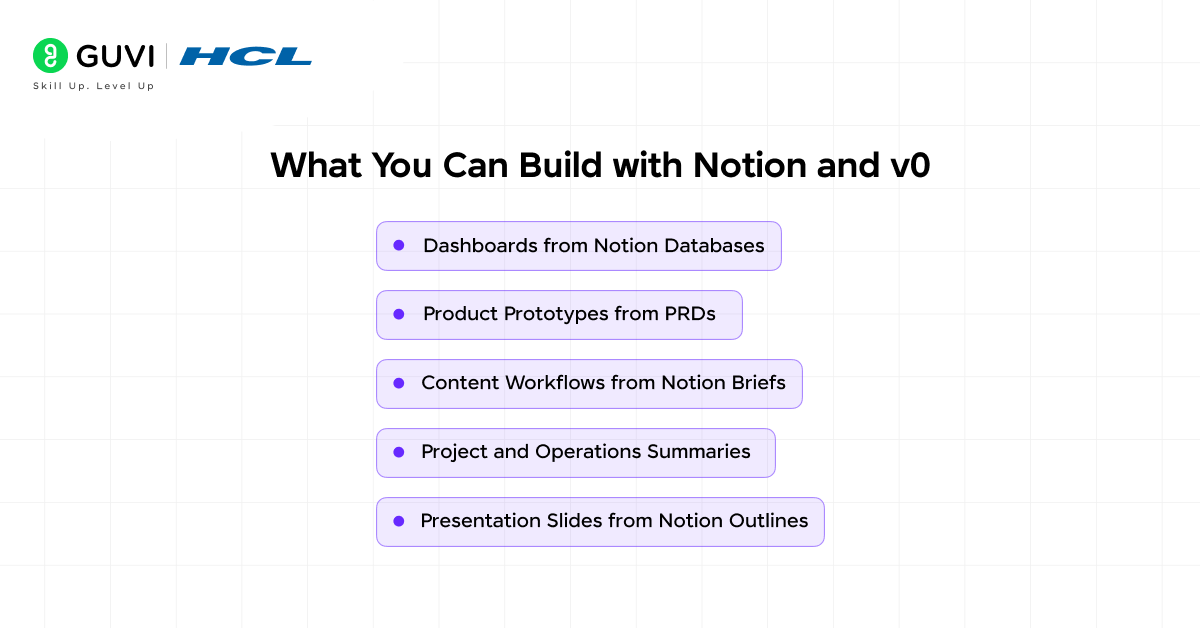
The Vercel team shared specific examples from their own internal use when announcing this integration. Here is a full breakdown of what teams are building.
1. Dashboards from Notion Databases
If your team tracks events, sales, content, or any other data in a Notion database, you can now build a real dashboard from it without writing a single SQL query.
The v0 team’s own example: they managed their event tracking across a Notion database, separate spreadsheets, and a submissions form. After connecting Notion and v0, they described the dashboard they needed in one prompt:
“Build a tracking dashboard for our v0 IRL events using our Notion events database. Give me metrics for events completed monthly, yearly, and weekly, attendees engaged, and forward-looking events scheduled. Build an intuitive dashboard I can send to my team every Friday.”
v0 read directly from the Notion database and generated a working dashboard. They then used write access to have v0 save the weekly summary and key metrics directly back into the Notion events page. What was a fragmented, multi-tool process became one repeatable workflow in a few prompts.
2. Product Prototypes from PRDs
If your product requirement documents live in Notion, v0 can read them and generate a working prototype. A product manager can write a PRD in Notion describing a new feature, then prompt v0 to build it. The prototype reflects the exact spec because it was built from the actual document, not a developer’s memory of it.
Write access means v0 can also push implementation notes and design refinements back into the PRD after the prototype is generated, keeping the document and the build in sync.
3. Content Workflows from Notion Briefs
Content teams that store briefs, outlines, and calendars in Notion can use v0 to turn that structure into working content templates, publishing interfaces, or scheduling dashboards. Instead of manually cross-referencing a content calendar while building a CMS view, v0 reads the calendar database and builds the interface around it.
4. Project and Operations Summaries
Teams with project trackers in Notion can use v0 to build summary views and reporting tools. Point v0 at a project database and ask it to build a weekly status report template. v0 generates the UI and, with write access, can save the generated summary back into the relevant Notion project page.
5. Presentation Slides from Notion Outlines
Outlines, strategy documents, and meeting notes stored in Notion can be turned into presentation-ready slide decks. Describe the format you need, point v0 at the relevant Notion page, and the content becomes a structured visual output.
Riddle: A startup has its entire product strategy, three months of customer interviews, and a feature prioritisation matrix all in Notion. Their investor demo is in 48 hours and they need a live product prototype. How long would the old approach take versus the Notion and v0 integration?
Answer: The old approach means a developer manually reading through all the Notion content, interpreting the priorities, and writing the prototype from scratch. With the integration, v0 reads the databases directly, the product manager describes what they want to show, and the prototype is generated and deployable in hours. The context already exists. The integration just connects it to the build.

How to Set Up the Notion and v0 Integration
Step 1: Get Your v0 Account
Go to v0.app and sign in with your Vercel account. If you do not have one, create a free account. No credit card is required to start.
Step 2: Enable the Notion MCP Integration
Inside v0, navigate to your project settings and look for the MCP integrations section. Select Notion from the available integrations.
Step 3: Connect Your Notion Workspace
v0 will redirect you to Notion’s OAuth flow. Sign in with your Notion account and grant v0 permission to access your workspace. You choose which pages and databases to share. You do not have to expose your entire workspace.
Step 4: Grant Access to Specific Pages or Databases
Notion’s permission model is explicit. v0 only sees the pages and databases you specifically share with it during the OAuth setup. If you have a sensitive HR database you do not want included, simply do not add it during the connection step.
Step 5: Start Building
Open a new chat in v0 and reference your Notion data directly in the prompt. Something like:
“Using my Notion content calendar database, build a dashboard that shows scheduled vs published posts grouped by month, with filters for author and content type.”
v0 reads your Notion database and generates a working React dashboard built around your actual data structure.
Quick-Start Prompt Ideas
Not sure what to build first? Here are concrete prompts that work well with the Notion and v0 integration.
| What to Build | Example Prompt |
| Event tracker dashboard | “Using my Notion events database, build a dashboard with total events, attendees, and upcoming events this month.” |
| Content calendar view | “Build a calendar view of my Notion content database with colour-coded status and author filters.” |
| Project status report | “Using my Notion project tracker, generate a weekly status summary UI with progress bars per project.” |
| Customer feedback wall | “Build a visual board from my Notion customer feedback database, grouped by theme.” |
| PRD prototype | “Read my Notion PRD for [feature name] and build a clickable prototype of the main user flow.” |
| Team wiki dashboard | “Using my Notion team wiki, build a homepage with recent updates, quick links, and onboarding checklist.” |
Do enroll in GUVI’s free AI & ML Email Course if you want a quick and structured introduction to artificial intelligence concepts. This 5-day email course delivers easy-to-understand lessons on AI and machine learning basics, real-world applications, career paths, and essential tools, making it a great starting point for beginners who want to explore AI without committing to a full program.
Tips for Getting the Best Results
- Be specific about what you want from your data: Instead of “build something from my database,” describe the exact metrics, groupings, and layout you need. v0 builds better output when the prompt is clear about structure.
- Share only what is relevant: When connecting Notion to v0 during OAuth, share only the databases and pages relevant to your current project. This keeps context clean and prevents v0 from being overwhelmed by irrelevant data.
- Use write access thoughtfully: v0 can write back into Notion, which is powerful but also irreversible. Start with read-only use cases until you are confident in the output quality. Then add write access for summaries and notes where the stakes are lower.
- Iterate in prompts, not from scratch: Once v0 generates an initial result from Notion data, refine it with follow-up prompts. “Make the chart show weekly instead of monthly” is faster than starting a new generation.
- Check the Notion data first: If your Notion database has inconsistent data, empty fields, or unclear naming, v0 will reflect that in what it builds. Clean, well-structured Notion databases produce far better v0 output.
- Use the v0 starter template: Vercel published a community events dashboard starter template built from a Notion database. It is the fastest way to see the integration in action before building your own.
Notion and v0 vs Building from Scratch: A Realistic Comparison
| Approach | Time to First Working UI | Requires Notion Re-Reading? | Writes Back to Notion? |
| Developer builds from PRD manually | Hours to days | Yes, manually | No |
| Using v0 without Notion integration | Minutes, but context is re-typed | Yes, manually | No |
| Using v0 with Notion MCP integration | Minutes, context pulled automatically | No | Yes (with write access) |
The integration removes the manual translation layer that sits between your documented context and your built product. That is the core value.
💡 Did You Know?
- The Notion and v0 integration was announced on December 15, 2025, the same day Vercel published the official blog post on vercel.com. The integration was built using the Model Context Protocol (MCP), the same standard that Google Antigravity and other AI development tools use to connect agents to external services.
- v0 has over 6 million developers on the platform as of March 2026. The platform rebranded from v0.dev to v0.app in late 2025 and added full agentic workflows, Git integration, and database connectivity in the February 2026 update.
- The v0 team at Vercel uses this integration to run their own event tracking. Their events dashboard, built from a Notion database using a single prompt, replaced a fragmented setup involving separate spreadsheets, a submissions form, and a Notion database that had no visual reporting layer.
Conclusion
Most teams are not short on context. They have PRDs, databases, feedback, strategy documents, and project trackers. All of it already lives in Notion. The problem has always been that context stays in documents while building happens elsewhere, and the two never fully connect.
The Notion and v0 integration closes that gap. Your team’s knowledge becomes the foundation for what gets built. v0 reads it, builds from it, and can write insights back into it. The workflow stays in one place instead of three.
If you are a product manager with a PRD in Notion, a content lead with a calendar database, or a founder with customer feedback piling up in a workspace, this integration gives you a direct path from documented context to working software.
Start with a free v0 account at v0.app, connect your Notion workspace, and try one prompt today.
FAQs
1. Do I need coding experience to use Notion and v0 together?
No coding experience is needed to prompt v0 and see results. However, to deploy what v0 builds, connect it to a backend, or customize the generated React code, basic developer knowledge helps. Non-developers can use the integration to prototype and demonstrate ideas. Developers use it to ship production-ready components much faster.
2. Is the Notion and v0 integration free?
Both tools have free tiers. v0’s free plan includes $5 of monthly credits, which is enough to explore the integration and run a few generations. Notion’s free plan works for individuals. To get full Notion AI features (including Agents), you need the Business plan at $20/user/month. To access the MCP integration itself, you need a v0 account, which is free to create.
3. Can v0 access my entire Notion workspace?
Only what you specifically allow. When you connect Notion to v0 through the OAuth flow, you choose exactly which pages and databases to share. v0 sees only those. You maintain full control over what context is available.
4. What happens when v0 writes back to Notion?
With write access enabled, v0 can add content to Notion pages, such as weekly summaries, generated insights, implementation notes, and updated PRD sections. It does not overwrite existing content unless you ask it to. You review the generated output in v0 before any write action is confirmed.
5. What is MCP and do I need to understand it to use this integration?
MCP (Model Context Protocol) is the technical standard that lets v0 connect to Notion. You do not need to understand it to use the integration. You just enable it in v0’s settings, complete the Notion OAuth login, and it works. MCP is the plumbing. You interact with the result: v0 building things from your actual Notion data.
Success Stories

About the Author
Jebasta
I translate the language of data into stories that anyone can understand. As a writer with a data science background, I simplify analytics, AI, and decision-making so beginners and enthusiasts can confidently explore the world of data.
View all posts by Jebasta
Connect with me @












Did you enjoy this article?