


HTML Articles
Build a Markdown-to-HTML Converter CLI Tool in Python
Accessibility and HTML: Building Websites Everyone Can Use
HTMX vs. React: Do You Really Need a Heavy Framework for Your First Project?


Get In Touch For Details! Request More Information
Internal CSS in HTML: How to Use Style Tag with Examples (2026)
Jul 27, 2026 4 Min Read 12192 Views
(Last Updated)
In the vast world of web design and development, internal CSS stands as a pivotal method for styling web pages directly within HTML documents.
This approach, leveraging the power of Cascading Style Sheets (CSS), allows for precise, page-specific styling without the need for external files.
This article will guide you through the essentials of internal CSS, from its core definition and how it fits within the broader context of Cascading Style Sheets, to practical instructions on implementing it within your HTML.
Table of contents
- TL;DR Summary
- What is Internal CSS?
- Internal CSS vs External CSS vs Inline CSS: Which Is Best Practice?
- How to Add Internal CSS to Your HTML Page
- Internal CSS Examples: 5 Common Properties
- A Real-World Example
- Why Internal CSS Is Not Recommended for Production Websites
- Converting Internal CSS to External CSS: Step by Step
- Common Mistakes to Avoid
- Conclusion
- FAQs
- What is internal CSS used for?
- Is internal CSS good for production websites?
- Where should the style tag be placed in HTML?
- What is the difference between internal and inline CSS?
- Can I use internal and external CSS together on the same page?
- How do I convert internal CSS to external CSS?
- Does internal CSS affect page loading speed?
TL;DR Summary
- Internal CSS means writing your CSS rules inside a
<style>tag placed in the<head>section of an HTML file. - It applies only to that one page, unlike external CSS which can style an entire website.
- You’ll use it most for quick prototypes, single-page demos, and testing styles before moving them to a separate file.
- It’s not recommended for production sites because it increases page weight and can’t be cached or reused across pages.
- By the end of this guide, you’ll know how to write internal CSS, when to avoid it, and how to convert it into external CSS.
What is Internal CSS?
Internal CSS is a way to style an HTML page by writing CSS rules directly inside that same HTML file. You place these rules inside a <style> element, and that element goes in the <head> section, above the <body>.
You don’t need a separate .css file for this. Everything, your HTML structure and your styling, lives in one document. This makes internal CSS a convenient starting point when you’re learning how selectors, properties, and values work together.
There are three ways to add CSS to a webpage, and it helps to see them side by side before going further.
Internal CSS vs External CSS vs Inline CSS: Which Is Best Practice?
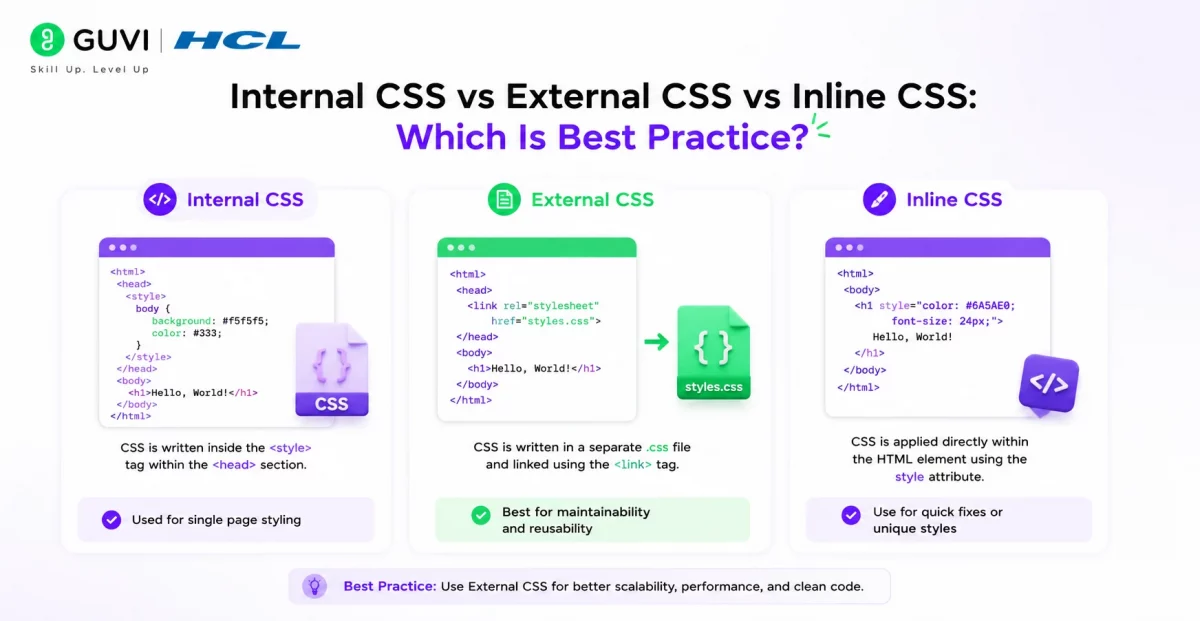
| CSS Type | Where Written | Scope | Priority | Best For |
|---|---|---|---|---|
| Inline | Inside the HTML tag using the style attribute | Single element only | Highest | Quick one-off fixes, email templates |
| Internal | Inside a <style> tag in the <head> | Whole page it’s written on | Medium | Single-page projects, testing, demos |
| External | Separate .css file linked with <link> | Any page linking to that file | Lowest (but most maintainable) | Production websites, multi-page sites |
Notice that inline CSS wins in specificity, but that’s not the same as being the right choice. For most real websites, external CSS is considered best practice because it separates your content from your design and lets browsers cache the file. Internal CSS sits in the middle. It’s more organized than inline styling but still tied to a single document.
According to GeeksforGeeks, over 90% of production websites use external CSS instead of internal or inline styling, mainly because it allows one stylesheet to control the look of an entire site.
ALSO READ: Top 11 CSS Frameworks for Front-End Developers: A Comprehensive Guide
How to Add Internal CSS to Your HTML Page
Adding internal CSS takes just three steps.
- Open the
<head>section of your HTML document. - Add a
<style>tag inside it. - Write your CSS rules using a selector, a property, and a value, separated by curly braces and semicolons.
Here’s the basic structure:
<head>
  <style>
    selector {
      property: value;
    }
  </style>
</head>
That’s it. Once the browser reads this, it applies the styles to every matching element on that page.
Internal CSS Examples: 5 Common Properties
You’ll get the most out of internal CSS by seeing it applied to properties you’ll use constantly. Here are five, all written inside one <style> block.
<!DOCTYPE html>
<html>
<head>
<style>
  body {
    background-color: #f4f4f4;
  }

  h1 {
    color: #2c3e50;
    font-size: 36px;
    text-align: center;
  }

  p {
    font-family: Arial, sans-serif;
    line-height: 1.6;
  }

  .highlight {
    background-color: yellow;
    padding: 10px;
  }

  .btn {
    border-radius: 6px;
    padding: 10px 20px;
  }
</style>
</head>
<body>
  <h1>Learning Internal CSS</h1>
  <p class="highlight">This paragraph uses a class selector.</p>
  <a href="#" class="btn">Click Me</a>
</body>
</html>
Here’s what each property is doing:
background-colorsets the page or element’s background.colorandfont-sizecontrol text appearance.text-alignpositions content horizontally.line-heightadjusts spacing between lines for readability.border-radiusandpaddingshape and space out elements like buttons.
You can mix element selectors (like h1, p) with class selectors (like .highlight) in the same <style> block. This flexibility is exactly why internal CSS feels so approachable when you’re starting out.
A Real-World Example
Say you’re building a single-page portfolio site for a coding bootcamp assignment. You don’t need a whole CSS architecture for one page. Writing your styles directly inside that HTML file with internal CSS lets you test colors, fonts, and layout quickly, without switching between files.
Why Internal CSS Is Not Recommended for Production Websites
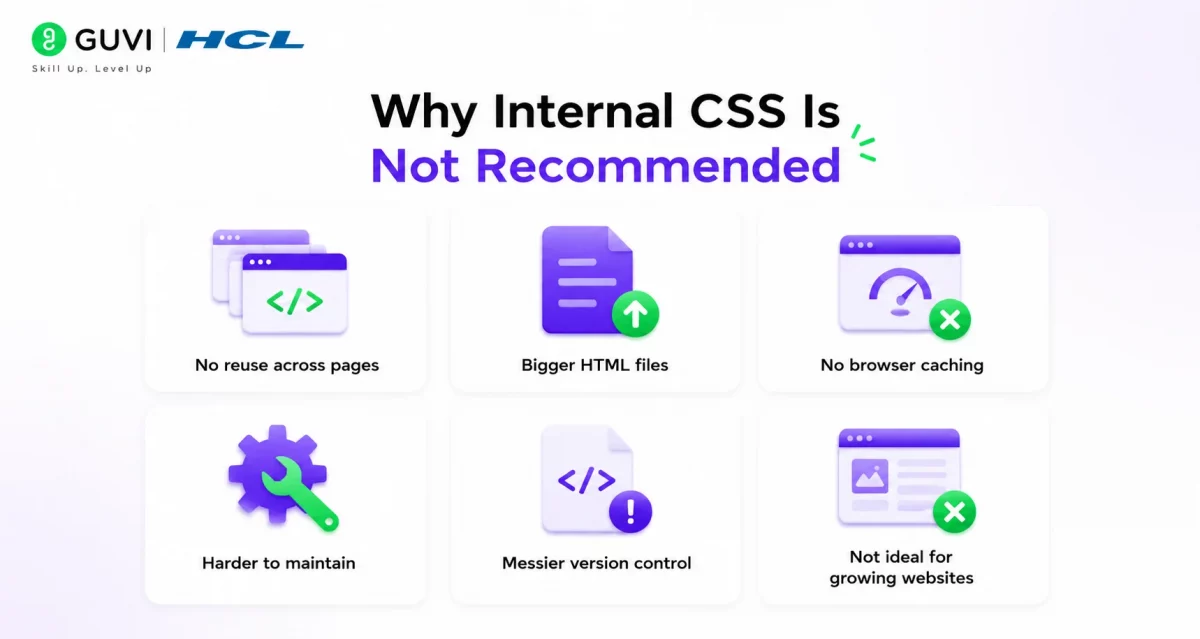
Internal CSS works well for learning and small demos, but it creates real problems once a website grows beyond one page.
- No reuse across pages. If your site has 10 pages and each needs the same header style, you’d have to copy the same
<style>block into every file. - Bigger HTML files. Every page loads its own CSS, which increases file size and slows down rendering, especially on mobile connections.
- No browser caching. External
.cssfiles get cached by the browser after the first visit. Internal CSS gets downloaded fresh with every page load since it’s part of the HTML itself. - Harder to maintain. Updating a color scheme means editing the style block on every single page instead of one shared file.
- Messier version control. Mixing structure and styling in one file makes it harder for teams to track design changes separately from content changes.
For a single landing page or a quick prototype, none of this matters much. For a real, growing website, it adds up fast.

Converting Internal CSS to External CSS: Step by Step
If your project has outgrown internal CSS, moving to external CSS is straightforward.
- Create a new file and save it with a
.cssextension, for examplestyles.css. - Cut the CSS rules from inside your
<style>tag, everything between the opening and closing tags, and paste them intostyles.css. - Remove the
<style>tag from your HTML’s<head>section since it’s no longer needed. - Link the external file by adding this line inside your
<head>:
<link rel="stylesheet" href="styles.css">- Test the page in your browser to confirm the styles still apply correctly.
- Repeat the link tag across any other HTML pages that should share the same design, instead of rewriting the CSS each time.
This one change turns a single-page style sheet into something reusable across your entire site.
Common Mistakes to Avoid
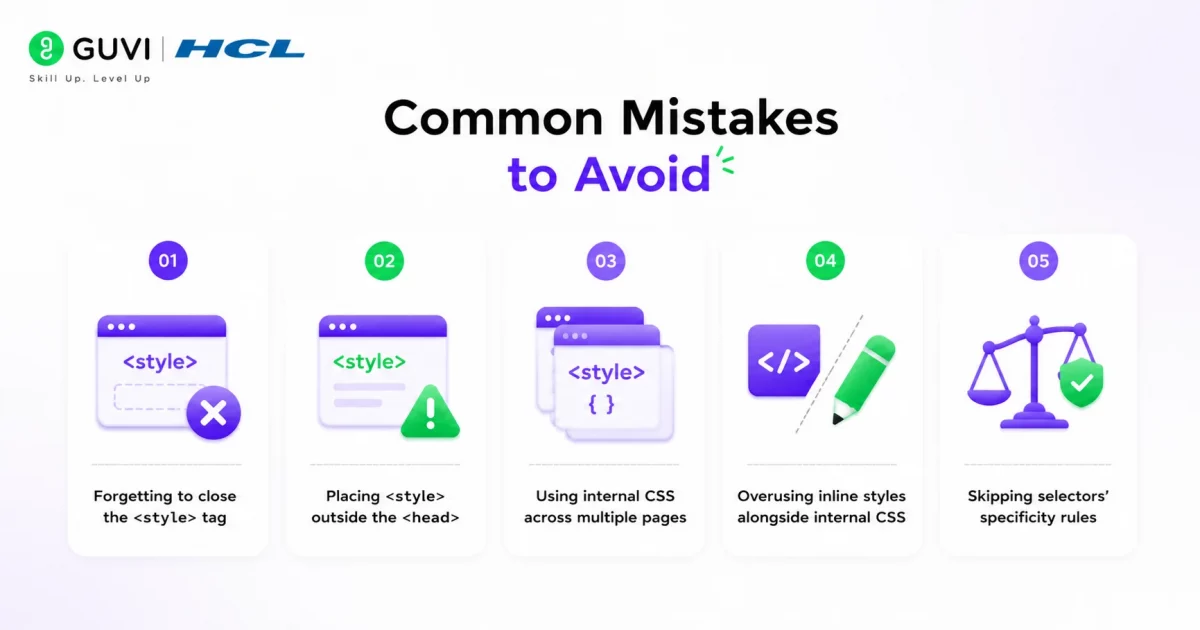
- Forgetting to close the
<style>tag. A missing closing tag can break how the rest of your page renders. - Placing
<style>outside the<head>. While some browsers tolerate this, it’s not valid HTML and can cause inconsistent styling. - Using internal CSS across multiple pages. If you find yourself copying the same style block into several files, that’s your signal to switch to external CSS.
- Overusing inline styles alongside internal CSS. Mixing too many styling methods on one page makes debugging specificity conflicts frustrating.
- Skipping selectors’ specificity rules. Internal CSS can unexpectedly override external stylesheets since it usually loads later in the document, which can confuse beginners troubleshooting why a style “isn’t working.”
Begin your career journey with HCL GUVI’s Java Full Stack Development Course, providing placement assistance. Master essential technologies including Java, Maven, Eclipse, HTML, CSS, MongoDB, and more while working on practical, real-world projects to enhance your expertise.
Conclusion
Internal CSS gives you a simple, self-contained way to style a single HTML page using the <style> tag in the <head> section. It’s a great tool for learning CSS fundamentals, testing designs, and building quick single-page projects.
Once your site grows past one page, external CSS becomes the more practical, scalable choice. Understanding both, and knowing when to switch, is a skill you’ll rely on throughout your web development journey. Start by practicing internal CSS on small projects, then move to external stylesheets as your work gets bigger.
FAQs
What is internal CSS used for?
Internal CSS is used to style a single HTML page by writing CSS rules inside a <style> tag in the document’s <head> section.
Is internal CSS good for production websites?
No. Internal CSS increases page size and can’t be cached or reused across pages, making external CSS the better choice for production sites.
Where should the style tag be placed in HTML?
The <style> tag should be placed inside the <head> section of the HTML document, before the closing </head> tag.
What is the difference between internal and inline CSS?
Internal CSS styles an entire page from one <style> block, while inline CSS styles a single element using the style attribute directly on that element.
Can I use internal and external CSS together on the same page?
Yes, but internal CSS usually overrides external CSS if it’s placed after the linked stylesheet, since it loads later in the document.
How do I convert internal CSS to external CSS?
Move the CSS rules from the <style> tag into a separate .css file, then link that file to your HTML using the <link rel="stylesheet"> tag.
Does internal CSS affect page loading speed?
Yes. Since internal CSS is downloaded fresh with every page load and can’t be cached like external files, it can slow down sites with multiple pages.
Success Stories

About the Author
Lukesh S
A professional content writer who has experience in freelancing and now working as a Technical Content Writer at HCL GUVI having sound knowledge in Blog Writing and Creative Writing!
View all posts by Lukesh S
Connect with me @












Did you enjoy this article?