


Database Articles
SQL Window Functions: Practical Examples Every Analyst Needs
Microservices vs Monolith: Making the Right Architectural Choice


Get In Touch For Details! Request More Information
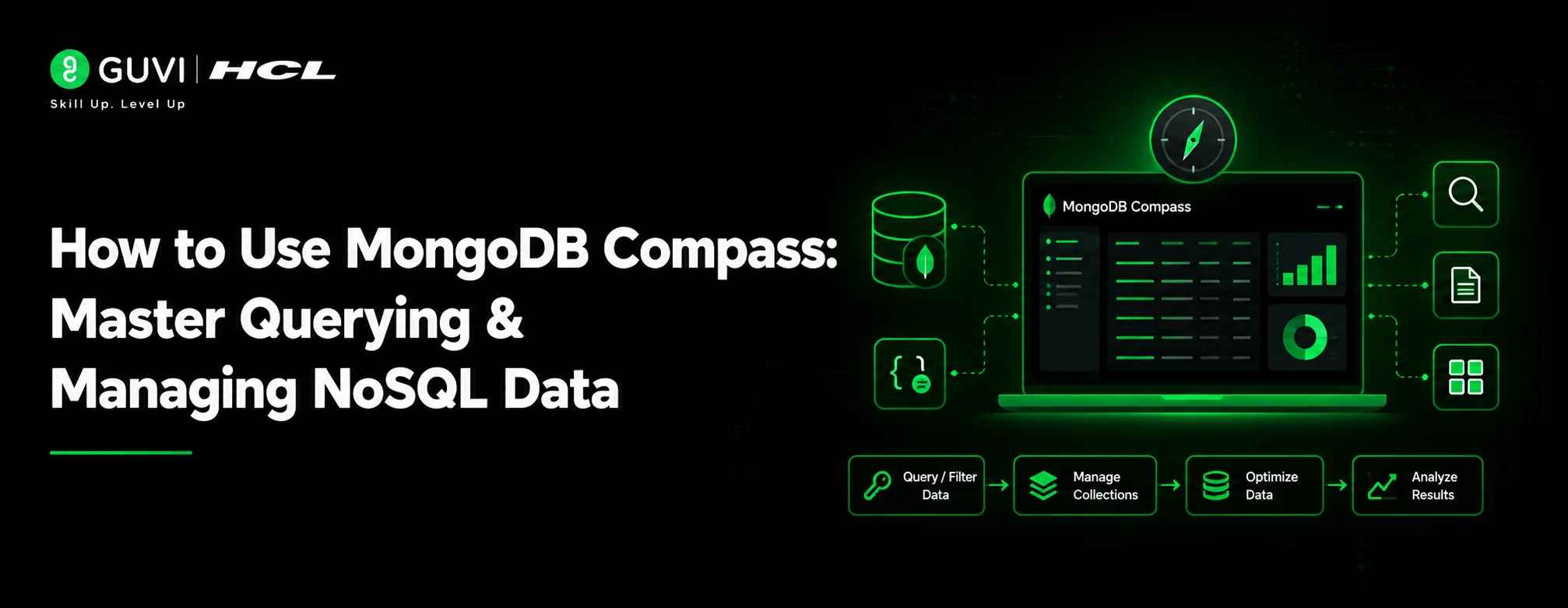
How to Use MongoDB Compass: Master Querying & Managing NoSQL Data
Jul 09, 2026 4 Min Read 385 Views
(Last Updated)
TL;DR
MongoDB Compass is a graphical user interface (GUI) tool that helps developers interact with MongoDB databases without relying only on the command line. It allows you to explore collections, write queries, analyze schemas, and manage documents visually.
- With MongoDB Compass, you can filter documents, create indexes, inspect database performance, and understand NoSQL data structures faster. It is especially useful for beginners learning MongoDB and professionals debugging production databases.
- The tool bridges the gap between raw database operations and visual understanding, making MongoDB workflows more efficient for developers, data analysts, and database administrators.
Table of contents
- What Is MongoDB Compass and How to Use MongoDB Compass
- Direct Answer Box
- Why Use MongoDB Compass for MongoDB Management?
- Benefits of Using MongoDB Compass
- How to Use MongoDB Compass: Install and Connect to a Database
- Benefits of Using MongoDB Compass
- How to Install and Connect MongoDB Compass
- Step 1: Download MongoDB Compass
- Step 2: Open MongoDB Compass
- Step 3: Connect to MongoDB
- Step 4: Explore Your Database
- Key Takeaways
- What to Do Next
- Conclusion
- Frequently Asked Questions
- What is MongoDB Compass and why is it used?
- Is MongoDB Compass free to use?
- Can I write MongoDB queries in Compass?
- What is the difference between MongoDB Compass and MongoDB Shell?
- Can MongoDB Compass visualize database schemas?
- How do I connect MongoDB Compass to MongoDB Atlas?
- Is MongoDB Compass suitable for beginners?
What Is MongoDB Compass and How to Use MongoDB Compass
Working with databases often starts simply: store information, retrieve it, and update it when needed. But as applications grow, managing thousands or millions of records becomes much harder.
This is where MongoDB Compass becomes useful.
Direct Answer Box
MongoDB Compass is a visual database management tool for MongoDB that allows users to query, analyze, and manage NoSQL data through an intuitive interface instead of only using commands. It helps developers explore collections, create queries, visualize schemas, and optimize database performance faster.
MongoDB Compass gives you a graphical way to interact with MongoDB databases. Instead of writing every operation through the MongoDB shell, you can view documents, edit records, build queries, and analyze your data visually.
In this guide, you will learn:
- What MongoDB Compass is and why developers use it
- How to connect MongoDB Compass with a database
- How to query and filter NoSQL documents
- How to visualize schemas and analyze data
- How to manage collections, indexes, and documents
Why Use MongoDB Compass for MongoDB Management?
MongoDB Compass is the official graphical user interface (GUI) application for MongoDB that helps users interact with databases visually. It allows you to browse documents, create queries, inspect database structures, and monitor performance without manually writing every database command.
MongoDB Compass works as a bridge between developers and MongoDB databases. It provides a visual layer on top of MongoDB operations, making complex NoSQL workflows easier to understand.
MongoDB is a NoSQL database, which means it stores data differently from traditional relational databases. Instead of rows and columns, MongoDB stores information as flexible documents similar to JSON objects.
For example:
{
“name”: “Anita”,
“role”: “Developer”,
“skills”: [“Python”, “MongoDB”]
}
MongoDB Compass lets you view these documents in a structured format.
Benefits of Using MongoDB Compass
- Visual document explorer: MongoDB Compass allows you to browse database records through an easy-to-read interface. This helps developers quickly understand how information is stored without manually scanning JSON output.
- Query builder: The query builder helps users create filters and search conditions visually. Beginners can build MongoDB queries while learning how operators like $match, $gt, and $in work.
- Schema visualization: Compass analyzes your documents and displays patterns inside your data. This helps identify common fields, missing values, and inconsistent structures.
- Performance insights: MongoDB Compass provides information about indexes and query performance. Developers can use these insights to improve slow database operations.
MongoDB Compass is widely used because it reduces the learning curve for MongoDB. Developers can experiment, debug, and understand data faster before moving into production workflows.
How to Use MongoDB Compass: Install and Connect to a Database
MongoDB Compass makes database management easier by providing visual tools for querying, editing, and analyzing NoSQL data. It helps developers understand database structures, test queries, and optimize collections without depending entirely on command-line tools.
Managing databases only through commands can become challenging, especially when working with large datasets. MongoDB Compass simplifies everyday database tasks.
Benefits of Using MongoDB Compass
- Faster data exploration: Compass allows you to open collections and immediately inspect stored documents. Instead of running multiple commands to understand your data, you can visually navigate through records and fields.
- Easier debugging: Developers can test queries directly inside Compass and verify results before adding them to application code. This reduces errors during development because you can see exactly what the database returns.
- Better schema understanding: Although MongoDB does not require a fixed schema, real-world applications still develop data patterns. Compass helps you identify those patterns and maintain cleaner data structures.
- Simplified database operations: Tasks like creating collections, editing documents, and adding indexes become visual workflows. This makes MongoDB more accessible for beginners.
💡 Pro Tip
Use MongoDB Compass during development to test queries before adding them to your backend application. It helps you confirm logic and avoid unnecessary debugging later.
How to Install and Connect MongoDB Compass
Installing MongoDB Compass involves downloading the application, opening it, and connecting it to a MongoDB database using a connection string. Once connected, users can access databases, collections, documents, and query tools from one dashboard.
Getting started with MongoDB Compass is straightforward.
Step 1: Download MongoDB Compass
Visit the official MongoDB website and download MongoDB Compass for your operating system.
It supports:
- Windows
- macOS
- Linux
Install the application like any regular desktop program.
Step 2: Open MongoDB Compass
After installation, launch MongoDB Compass.
You will see a connection screen asking for your MongoDB connection details.
Step 3: Connect to MongoDB
You can connect using:
- Local MongoDB server
- MongoDB Atlas cloud database
- Connection string
A typical connection string looks like:

mongodb://localhost:27017
For cloud databases, MongoDB Atlas provides a secure connection URL.
Step 4: Explore Your Database
After connecting, Compass displays:
- Databases
- Collections
- Documents
- Indexes
You can now start working with your MongoDB data visually.
Key Takeaways
- MongoDB Compass is a visual interface that helps developers query, explore, and manage MongoDB databases without relying only on the command line. It simplifies NoSQL database operations through an interactive dashboard.
- With MongoDB Compass, you can create queries, filter documents, analyze schemas, and understand how your data is structured. This makes it useful for both beginners and experienced developers.
- The aggregation pipeline in MongoDB Compass helps transform and analyze large datasets visually. It allows users to build complex data workflows step by step.
- MongoDB Compass improves productivity by making database debugging, document updates, and performance optimization easier. Developers can test database logic before implementing it in applications.
- While MongoDB Compass is powerful for development and analysis, production database changes should always be handled carefully with proper access controls and backups.
What to Do Next
If you want to become comfortable with MongoDB Compass, follow these steps:
- Create a practice MongoDB database:
Build a small database with sample collections like users, products, or orders and experiment with queries. - Practice aggregation pipelines:
Learn how to filter, group, and transform data using MongoDB Compass aggregation tools. - Connect Compass with an application:
Use MongoDB Compass alongside a backend project to understand how databases interact with real applications.
Conclusion
MongoDB Compass makes working with NoSQL databases simpler by combining database management, query building, and data visualization into one easy-to-use interface.
Whether you are learning MongoDB, debugging an application, or managing collections, Compass provides a clear way to understand your data and improve your workflow. Its visual tools help developers move faster while still learning the core concepts behind MongoDB operations.
By mastering MongoDB Compass, you build a stronger foundation in database management and become better prepared to work with modern data-driven applications.
Master Firebase Authentication, Firestore, Cloud Functions, Cloud Storage, and Hosting through hands-on projects. Learn to build secure, scalable, and real-time web and mobile applications with HCL GUVI’s Firebase Course .
Frequently Asked Questions
1. What is MongoDB Compass and why is it used?
MongoDB Compass is a graphical user interface (GUI) tool for MongoDB that helps users interact with databases visually. It is used to browse documents, create queries, analyze schemas, manage collections, and monitor database performance without writing every command manually.
For beginners, MongoDB Compass makes learning MongoDB easier by showing how NoSQL documents are organized.
2. Is MongoDB Compass free to use?
Yes, MongoDB Compass is available as a free tool provided by MongoDB. Developers can download and use it to connect with local MongoDB servers or cloud databases such as MongoDB Atlas.
Some advanced enterprise features may depend on the MongoDB environment or subscription plan being used.
3. Can I write MongoDB queries in Compass?
Yes, MongoDB Compass allows users to create and test MongoDB queries. You can filter documents, sort results, select specific fields, and build aggregation pipelines using the query interface.
For example, you can search documents based on conditions like user age, location, or account status without running commands through the shell.
4. What is the difference between MongoDB Compass and MongoDB Shell?
MongoDB Compass provides a visual interface for managing databases, while MongoDB Shell (mongosh) is a command-line tool where users write MongoDB commands directly.
Compass is better for exploring data, debugging, and learning database structures. The shell is often preferred by advanced users who need scripting, automation, or terminal-based workflows.
5. Can MongoDB Compass visualize database schemas?
Yes, MongoDB Compass includes a schema analysis feature that helps visualize patterns within your documents. It shows common fields, data types, and how frequently values appear.
This is especially useful because MongoDB uses flexible schemas, meaning documents in the same collection can have different structures.
6. How do I connect MongoDB Compass to MongoDB Atlas?
To connect MongoDB Compass with MongoDB Atlas, copy your Atlas connection string and paste it into Compass. After authentication, Compass connects to your cloud database and displays collections, documents, and database tools.
Make sure your IP address and database user permissions are configured correctly in Atlas before connecting.
7. Is MongoDB Compass suitable for beginners?
Yes, MongoDB Compass is beginner-friendly because it replaces many complex database commands with visual actions. New developers can explore collections, understand documents, and learn MongoDB operations more easily.
It is often used as a learning tool before moving into advanced command-line workflows.
Success Stories

About the Author
Salini Balasubramaniam
A curious, information-savvy writer loves to turn deep insights into authentic and engaging content that connects. With experience in writing for brands and driving audience engagement, I believe that words can make a powerful difference.
View all posts by Salini Balasubramaniam
Connect with me @









Did you enjoy this article?