


UI/UX Designing Articles
What is a Design System? The Ultimate Guide to Building Consistent UIs
What is UX Writing? A Complete Guide to Mastering Microcopy and Content Design
What is a UX Audit? A Complete & Best Guide to User Experience Evaluation
How HCL GUVI Zen Class Helps You Build a Job-Ready UI/UX Portfolio


Get In Touch For Details! Request More Information

Turn a Figma Landing Page into a Live Website
Jun 20, 2026 7 Min Read 2732 Views
(Last Updated)
If you have ever spent days perfecting a landing page design in Figma and then hit a wall figuring out how actually to get it live on the internet, you are not alone. That gap between a beautiful Figma file and a working website is one of the most frustrating points in any designer’s workflow.
The good news is that in today’s no-code world, turning a Figma landing page into a live website no longer requires a developer, weeks of handoff meetings, or hundreds of lines of code. You have multiple paths some take minutes, some take a few hours, and each suits a different level of technical confidence.
This guide walks you through every method available to convert a Figma landing page to a website from publishing directly inside Figma to using tools like Framer, Webflow, and Builder.io. Whether you are a designer, founder, or marketer, there is a clear path here for you. Let us get started!
Quick TL;DR Summary
1. This guide covers every method for turning a Figma landing page into a live website, from publishing directly with Figma Sites to using Framer, Webflow, and AI-powered code export tools.
2. Figma Sites lets you publish directly from Figma without switching tools ideal for quick landing pages, portfolios, and internal prototypes.
3. Framer is the most popular choice for converting a Figma design into a polished, production-ready marketing site with animations, SEO, and one-click hosting.
4. Builder.io’s Visual Copilot converts your Figma landing page to clean, responsive HTML code in seconds the best option if you want to hand off code to a developer.
5. The guide compares all five tools side by side with pricing, best-use cases, and honest strengths, so you can pick the right one for your project.
6. It also covers tips, common mistakes, and 8 FAQs that match real Google searches about converting Figma designs to working websites.
Table of contents
- What Does It Mean to Turn a Figma Landing Page into a Website?
- Prerequisites: What to Prepare in Figma Before You Start
- Method 1: Publish Directly with Figma Sites
- How to Publish with Figma Sites
- Method 2: Import into Framer and Publish
- How to Import from Figma to Framer
- Method 3: Convert to Code with Builder.io Visual Copilot
- How to Use Builder.io Visual Copilot
- Method 4: Build in Webflow Using Your Figma as Reference
- Tips and Best Practices
- Conclusion
- FAQs
- Can I turn a Figma design into a website for free?
- What is the easiest way to convert a Figma landing page to HTML?
- Do I need to know how to code to publish a Figma design as a website?
- Is Framer better than Figma Sites for publishing a landing page?
- How long does it take to turn a Figma design into a live website?
What Does It Mean to Turn a Figma Landing Page into a Website?
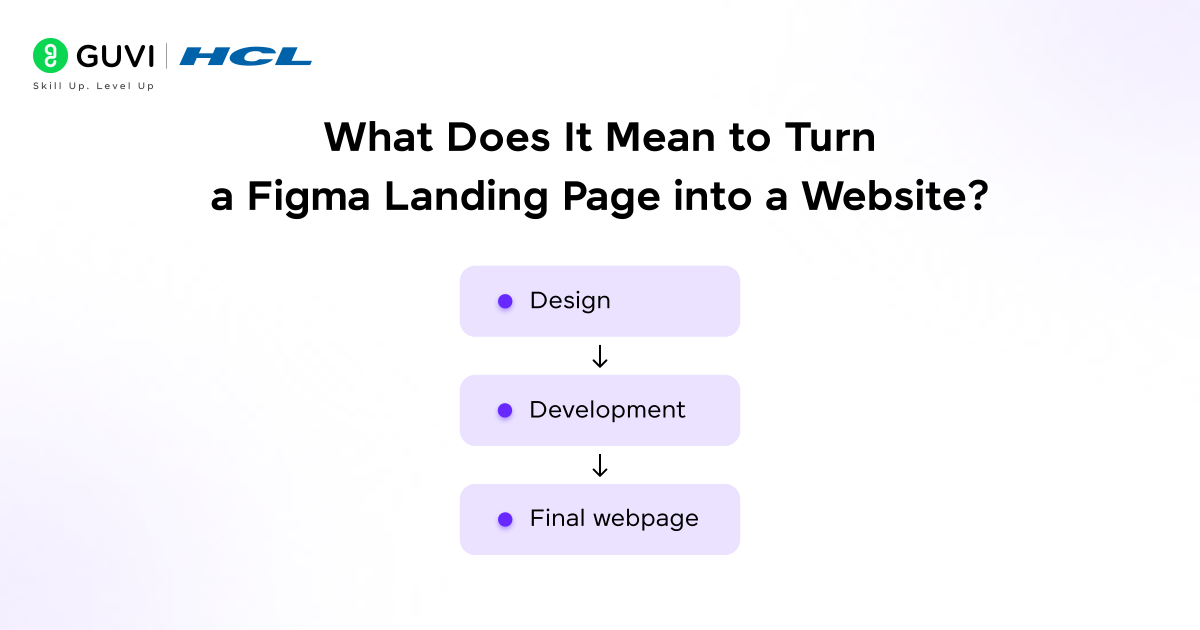
Figma is a design tool. It creates beautiful, pixel-perfect mockups but a Figma file by itself is not a website. It is a visual reference that needs to be converted into HTML, CSS, and JavaScript before any user can visit it in a browser.
Turning a Figma landing page into a website means taking that design and making it real interactive, responsive, and accessible at a live URL. This process used to require a developer who would read the Figma file and hand-code the entire page. Today, several tools make this possible for non-developers too.
The method you choose depends on your goal. If you want speed and no tools to switch between, Figma Sites works. If you want a polished, production-ready marketing site with advanced animation and CMS, Framer is the better path. If you need clean code for a developer, Builder.io is your answer.
- At Config 2025, Figma introduced Figma Sites — a built-in feature that allows designers to publish websites directly from Figma without relying on third-party tools.
- Before this launch, every Figma-to-website workflow required at least one additional platform for development or deployment.
- This single update fundamentally changed how designers approach the design-to-publish pipeline, reducing friction between design and production.
Prerequisites: What to Prepare in Figma Before You Start
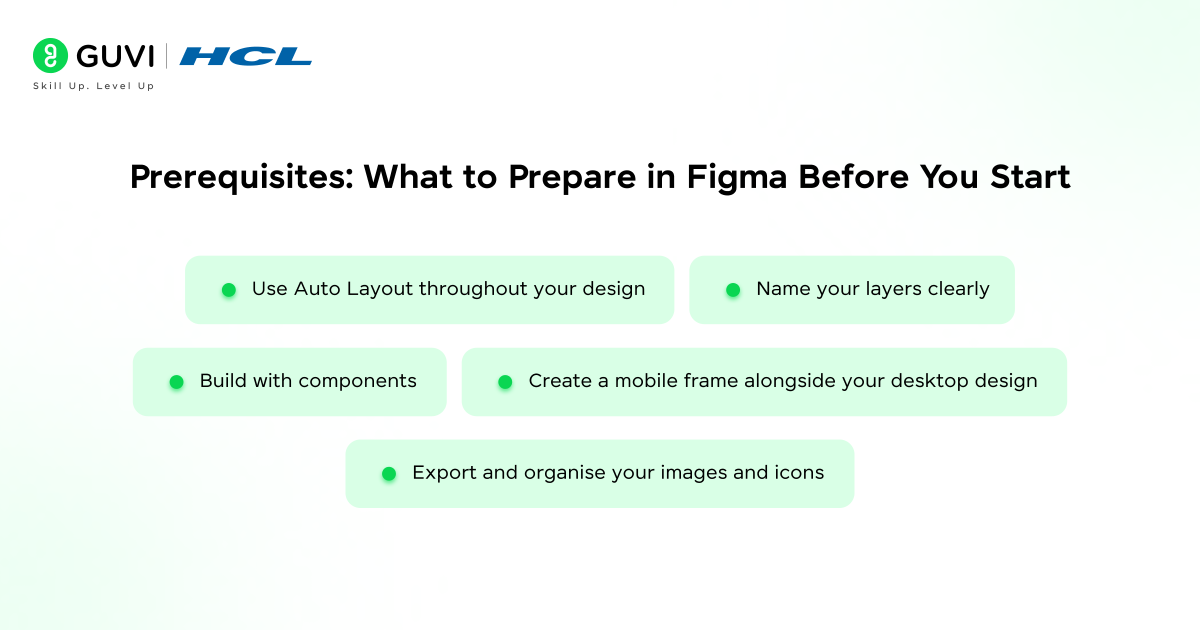
Before you export or publish your Figma landing page through any method, getting your file properly set up will save you hours of rework. Here is what every designer should check before starting the conversion process.
- Use Auto Layout throughout your design. Auto Layout is how Figma communicates responsive behaviour to tools like Framer and Figma Sites. Without it, your sections will not resize correctly on different screen sizes.
- Name your layers clearly. Generic names like ‘Frame 47’ make it very hard for conversion tools to understand your layout structure. Use descriptive names like ‘Hero Section’, ‘CTA Button’, or ‘Testimonial Card’.
- Build with components. Reusable components buttons, cards, navigation bars convert much more cleanly than one-off elements. Components maintain consistency and make the published site easier to maintain.
- Create a mobile frame alongside your desktop design. Over 65% of web traffic comes from mobile devices. Having a mobile version in Figma gives conversion tools the guidance they need to make your site truly responsive.
- Export and organise your images and icons. Export all images as PNG or WebP at 2x resolution. Make sure icons are SVG format where possible. Compressed, properly named assets lead to faster load times on the live site.
Think of this preparation step as the foundation. The better your Figma file is organised, the closer the final website will look to your original design regardless of which conversion method you choose.
Method 1: Publish Directly with Figma Sites
Figma Sites is Figma’s built-in publishing feature, launched at Config 2025. It allows you to take your existing Figma design and publish it as a live website without leaving the Figma interface. No third-party tools, no developer handoff, no export process.
For quick landing pages, portfolio sites, and internal prototypes, Figma Sites is the fastest path available. You build the design in Figma, switch to Sites mode, adjust responsiveness, and hit publish. The whole process can take under an hour for a well-prepared design.
How to Publish with Figma Sites
- Open your Figma file and navigate to the frame you want to publish.
- Click the new Sites tab at the top of the Figma interface.
- Use the responsive layout editor to set breakpoints for desktop, tablet, and mobile.
- Add any interactions, animations, or hover effects using the built-in tools.
- Click Publish. Your site goes live at a Figma-hosted URL instantly.
What works well:
• Zero tool-switching everything stays inside Figma
• Supports animations and interactions without code
• Free to start during the open beta period
Method 2: Import into Framer and Publish
Framer is the most popular choice for converting a Figma landing page to a live website. It offers a free official plugin that imports your Figma design directly into Framer, preserving layers, groups, and your overall structure. From there, you can add animations, adjust responsiveness, connect a CMS, and publish with one click.
Framer generates a React-based site rather than plain HTML. This means your landing page is fast, production-ready, and built with web standards. It also includes built-in hosting, SEO tools, server-side rendering, and custom domain support everything a real website needs from day one.
How to Import from Figma to Framer
- Install the official Framer plugin inside Figma from the Figma Community.
- Select the frames you want to export and run the plugin.
- Open Framer and paste the imported design onto the canvas.
- Adjust layout, add interactions, and configure responsive breakpoints.
- Connect a custom domain if you have one, then click Publish.
For clean imports, make sure your Figma file uses Auto Layout throughout. Framer reads Auto Layout settings and converts them directly into responsive web behaviour. Designs without Auto Layout will import as static, fixed-position elements that need significant manual adjustment.
Framer is used by more than 2 million designers and developers to build marketing sites, landing pages, and portfolios. Its Motion library (formerly known as Framer Motion) powers animations in many production-level React applications. When you publish in Framer, you are leveraging the same high-quality animation tooling trusted by professional front-end developers worldwide.
If you’re serious about building a career in design and want to create real-world user experiences, don’t miss the chance to enroll in HCL GUVI’s UI/UX Figma Designer Course. It covers design fundamentals, user research, wireframing, prototyping, and tools like Figma through live classes, hands-on projects, and mentor support, helping you design intuitive products and become industry-ready with strong portfolio and placement assistance.
Method 3: Convert to Code with Builder.io Visual Copilot
If your goal is to get clean, production-ready HTML and CSS from your Figma landing page rather than publishing through a no-code platform Builder.io‘s Visual Copilot is the tool to use. It is an AI-powered Figma plugin that converts your design into responsive HTML code in seconds.
The output is not the messy, un-editable spaghetti code that older Figma-to-HTML tools used to generate. Visual Copilot produces structured, readable HTML with associated CSS, preserving your fonts, spacing, colours, and layout with near pixel-perfect accuracy. You can then hand this code to a developer or drop it directly into your existing codebase.

How to Use Builder.io Visual Copilot
- Install the Visual Copilot plugin from the Figma Community.
- Select the landing page frame you want to export.
- Run the plugin it analyses your design and generates HTML and CSS.
- Review the output, make any adjustments in the code editor, and copy it.
- Paste into your project or use the CLI sync feature to import directly into your codebase.
This method is best when you are working in a team where a developer will take the code further adding back-end functionality, integrating with a CMS, or connecting forms to a database. It gives you the best starting point without the messy translation work that traditionally slowed everything down.
Method 4: Build in Webflow Using Your Figma as Reference
Webflow is not a direct import tool you cannot paste a Figma file and watch it become a Webflow site. Instead, Webflow is a visual web builder where you recreate your Figma landing page design using Webflow’s own drag-and-drop interface, using your Figma file as a reference
This takes more time upfront, but the result is significantly stronger for anything beyond a simple landing page. Webflow produces clean, semantic HTML and CSS. Its SEO tools are the most mature of any platform in this list. Its CMS supports complex content structures, and its code export feature means you are never locked in to Webflow’s hosting.
When to choose Webflow over Framer or Figma Sites:
• Your landing page will grow into a full multi-page website
• You need a powerful CMS to manage blog posts, case studies, or product pages
• SEO is a primary goal and you need full control over HTML tags and metadata
• You want to export clean code and host the site yourself
• You are building for a client who needs to update content without any design tools
Webflow powers over 720,000 websites and is the preferred platform for agencies building client sites. Its Automated SEO feature populates metadata from CMS collections at scale — meaning every blog post, product page, or case study gets proper SEO treatment automatically, without manual effort.
Tips and Best Practices
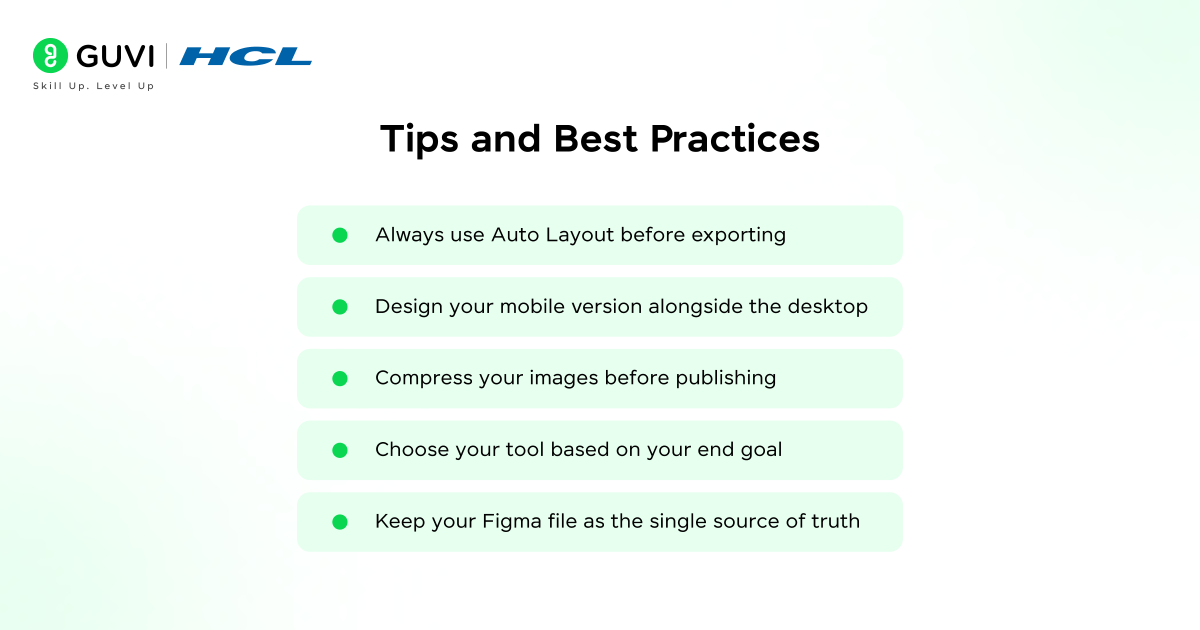
A few practical habits will make the entire Figma landing page to website process significantly smoother, regardless of which tool you choose.
• Always use Auto Layout before exporting. This is the single most important thing you can do in Figma. Every tool on this list Figma Sites, Framer, Builder.io converts Auto Layout into responsive web behaviour. Without it, your layout will break on smaller screens.
• Design your mobile version alongside the desktop. Do not leave mobile as an afterthought. Build both frames in Figma, side by side, and use them as reference when setting breakpoints in your chosen publishing tool.
• Compress your images before publishing. Large image files are the number one cause of slow-loading landing pages. Use a tool like Squoosh or TinyPNG to compress images before they go into your Figma file or your published site.
• Test on a real device before sharing the URL. Preview tools inside Figma and Framer look great on your monitor. Always open the live URL on a phone and on a tablet before sending it to a client or posting it publicly. Real device testing catches layout issues the preview tool misses.
• Choose your tool based on your end goal. The fastest method is not always the best method for your situation. If the landing page needs to grow into a full website with a blog, use Webflow from the start. Rebuilding later costs more time than getting the foundation right the first time.
• Keep your Figma file as the single source of truth. Even after publishing, keep making design changes in Figma first, then re-import or update. This keeps your design and live site in sync and makes future updates faster.
If you’re serious about building a career in design and want to create real-world user experiences, don’t miss the chance to enroll in HCL GUVI’s UI/UX Designer Course. It covers design fundamentals, user research, wireframing, prototyping, and tools like Figma through live classes, hands-on projects, and mentor support, helping you design intuitive products and become industry-ready with strong portfolio and placement assistance.
Conclusion
In conclusion, converting a Figma landing page to a website has never been more accessible. Whether you publish directly with Figma Sites, import into Framer, generate code with Builder.io, or build in Webflow, there is a clear path for every designer, founder, and marketer with no coding degree required.
The method you choose should match your goal. For quick launches, Figma Sites and Framer are hard to beat. For code quality and SEO, Webflow and Builder.io give you more control. In all cases, the quality of your Figma file Auto Layout, clear naming, and proper components is what determines how smooth the conversion will be.
Start with one method, follow this guide step by step, and get your first Figma landing page live. The best way to learn the workflow is actually to do it on a real project.
FAQs
1. Can I turn a Figma design into a website for free?
Yes. Figma Sites has a free tier during its open beta, Framer has a free plan that lets you publish to a Framer subdomain, and Builder.io has a free tier for basic exports. For a landing page without a custom domain, you can go from Figma file to live URL completely free using either Figma Sites or Framer.
2. What is the easiest way to convert a Figma landing page to HTML?
Builder.io’s Visual Copilot is the easiest way to convert a Figma landing page to HTML. Install the free plugin inside Figma, select your design frame, and the AI generates clean, responsive HTML and CSS in seconds. You can then copy the code directly or sync it to your codebase using the CLI.
3. Do I need to know how to code to publish a Figma design as a website?
No. Figma Sites, Framer, and Webflow are all no-code tools that let you publish a Figma landing page as a live website without writing any code. Framer is the most beginner-friendly for polished results. Figma Sites is the fastest if you are already in Figma’s ecosystem.
4. Is Framer better than Figma Sites for publishing a landing page?
For most landing pages, yes Framer is currently the stronger choice. It has more mature animations, better SEO tools, a proven CMS, and server-side rendering for faster load times. Figma Sites is improving rapidly but is still in beta with limited SEO control and a smaller template library.
5. How long does it take to turn a Figma design into a live website?
For a single landing page using Framer or Figma Sites, a well-prepared Figma file can go live in two to four hours. This includes importing the design, adjusting responsiveness, adding basic interactions, and publishing. A more complex multi-page site using Webflow typically takes one to three days depending on the level of detail and content required.
Success Stories

About the Author
Vishalini Devarajan
An Aerospace Engineer turned content writer, I focus on making complex concepts easy to understand through well-structured, reader-friendly blogs. Whether it’s a technical topic or a non-technical one, I love creating content that is clear, engaging, and impactful.
View all posts by Vishalini Devarajan
Connect with me @











Did you enjoy this article?