


Artificial Intelligence and Machine Learning Articles
Finance Manager to Data Analytics: Career Growth, Salary and Seniority
How to Evaluate LLM Outputs in Production Deployments
AI/ML Skills Gap 2026: Why Companies Can't Find Job-Ready Talent
20 AI/ML Interview Questions Recruiters Can Use Without a Tech Background - Best Guide


Get In Touch For Details! Request More Information
Claude Skills Made Simple: Create Your First Skill in Minutes
Jun 20, 2026 7 Min Read 1091 Views
(Last Updated)
If you have ever opened Claude, explained your whole workflow from scratch, gotten your answer, and then had to repeat the same explanation in the very next conversation, you already know the problem. Claude is powerful, but it starts fresh every single time.
Every new chat has no memory of who you are, what you do, or how you like things done. That gets old fast, especially when you are working on repeatable tasks like writing reports, reviewing documents, or building content in a specific format.
This is exactly the gap that Claude Skills was built to close. Launched in late 2025 and expanded through early 2026, Skills is a feature that lets you teach Claude your exact workflow once and then have it apply that knowledge automatically, whenever it is relevant, across every conversation. You do not have to explain anything again.
In this article, you will learn what Claude Skills actually are, how they differ from Projects and custom instructions, and most importantly, how to create your very own skill through a simple conversation — no coding required.
TL;DR
- Claude Skills let you teach Claude your exact workflow once and have it reuse that knowledge automatically across every conversation, without re‑explaining every time.
- Skills are built around a plain‑text file called SKILL.md plus optional reference materials (templates, brand assets, data files) and scripts for advanced automation.
- Skills fire dynamically when Claude recognizes the right task, unlike Custom Instructions, which are always on, or Projects, which are context stores for exploratory work.
- You can create a Skill entirely through a normal chat: enable Skills, turn on the built‑in Skill Creator, describe your task, answer Claude’s questions, and download the packaged skill as a zip.
- Start small with something you do repeatedly, like a meeting‑note template or email format, and refine the skill through testing and iteration.
Table of contents
- What Exactly Is a Claude Skill?
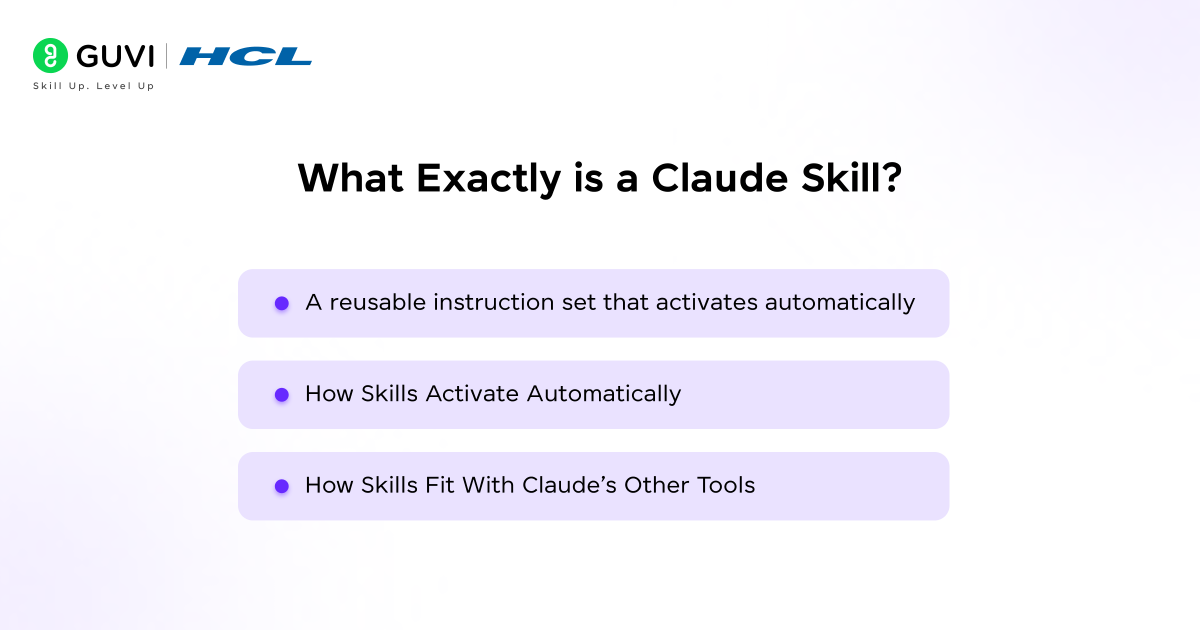
- A reusable instruction set that activates automatically
- How Skills Activate Automatically
- How Skills Fit With Claude’s Other Tools
- Why Should You Even Bother Creating a Skill?
- What Goes Inside a Skill?
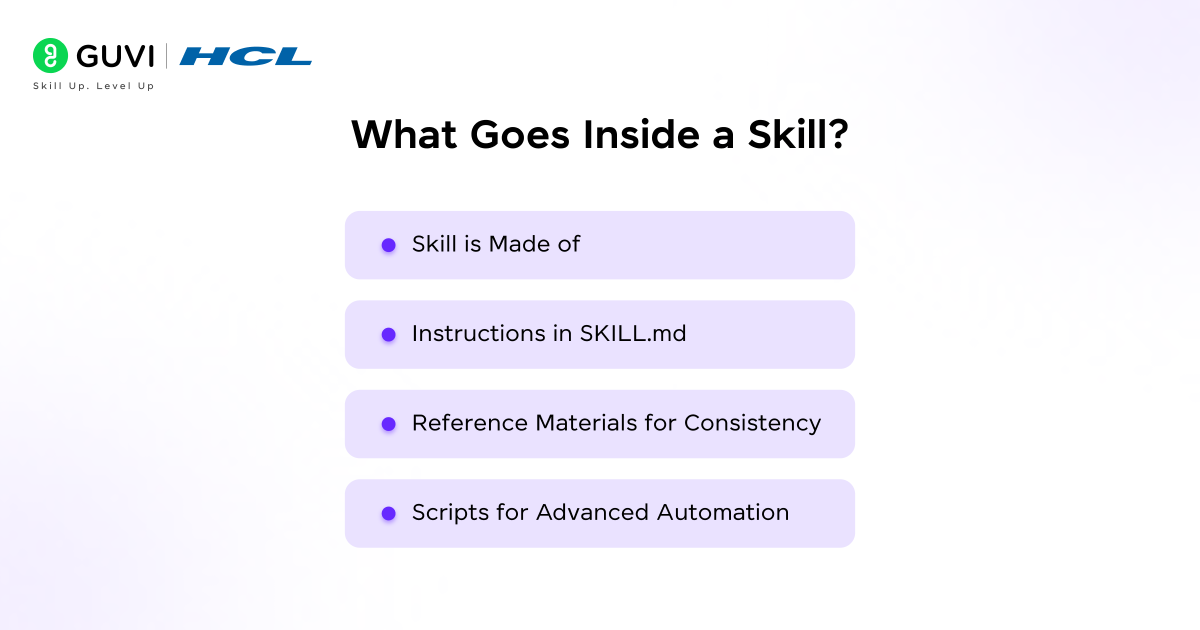
- Skill Is Made Of
- Instructions in SKILL.md
- Reference Materials for Consistency
- Scripts for Advanced Automation
- How to Create a Skill Through Conversation
- Tips for Building Better Skills
- What Kinds of Skills Can You Build?
- Final Thoughts
- FAQs
- Do I need to write code to create a Skill?
- What’s the difference between Skills and Custom Instructions?
- Can I use Skills on the free plan?
- How do I share a Skill with my team?
- What if a Skill doesn’t trigger or behaves incorrectly?
What Exactly Is a Claude Skill?
1. A reusable instruction set that activates automatically
- A Claude Skill is a reusable instruction set that activates automatically when the right situation appears. At its core, every skill is built around a file called SKILL.md, a plain‑text markdown file that holds the skill’s name, a short description, and the actual instructions Claude should follow.
- The core of every skill is a single file called SKILL.md, a markdown file with a small header containing the name and description, followed by the instructions you want. No code is required, and no special syntax is needed; it is just plain text that tells Claude how to do something in a way that matches your standards and preferences.
2. How Skills Activate Automatically
- What makes Skills different from simply pasting instructions into a chat is that Skills fire automatically. Claude recognizes the task from what you type and activates the right skill on its own. You do not invoke a skill; it invokes itself. So if you have a skill for writing LinkedIn posts.
- The moment you say something like “draft a LinkedIn post about this topic,” Claude picks up on that context and loads the skill without you doing anything extra. This behavior turns discrete, one‑off instruction blocks into a consistent, always‑ready pattern of behavior that follows you across conversations.
3. How Skills Fit With Claude’s Other Tools
- It is also worth understanding how Skills compare to the other tools Claude offers. Custom instructions are always on; they apply broadly to everything you say, whereas Skills activate dynamically only when the relevant task comes up. MCP connects to external tools
- And APIs, letting Claude interact with databases, GitHub, or Slack, while Skills stay focused on how to do something, not how to connect to it.
- Claude Projects are great for storing documents and having ongoing conversations around them, but Skills are not great for one‑off conversations or highly exploratory work. For knowledge gathering and Q&A, Projects are better. Skills shine when you have a repeatable workflow you want Claude to execute consistently every single time.
Claude can automatically generate a SKILL.md file, organize reference materials, and even write scripts — all through a simple conversation. Once created, a skill can be shared as a zip file, allowing entire teams to instantly adopt the same workflow and branding rules without retraining.
This transforms one-off prompts into reusable, team-wide automation that persists across every interaction for any user who installs it.
Why Should You Even Bother Creating a Skill?
This is a fair question, especially if you are just getting started with AI tools. The honest answer is that Skills save you an enormous amount of repeated effort.
1. The average Claude user spends 10 to 15 minutes per day just re-establishing context. That is over an hour a week wasted telling the AI things it should already know.
2. Think about the kinds of tasks that show up in your work repeatedly. Writing meeting summaries in a particular format. Reviewing documents against a checklist. Generating content in a specific brand voice. Without skills, you either paste a long prompt every single time, or you try to maintain a Google Doc full of system prompts you have to copy manually.
3. Neither of those is efficient. Skills fix this by teaching Claude your exact workflow once, and it applies that knowledge forever. Beyond personal efficiency, Skills are also portable. You can take the skill, package it as a zip file, and hand it to another Claude user.
4. Any other Claude user can drop it into their own instance and immediately have access to it. This makes them incredibly useful for teams. One person builds the skill, shares the file, and the whole team benefits.
What Goes Inside a Skill?
1. Skill Is Made Of
Before you start building, it helps to know what a skill is actually made of. Skills bundle three types of content together: instructions, reference materials, and scripts.
Each of these pieces plays a distinct role in shaping how Claude behaves when the skill is invoked. Taken together, they turn a simple markdown file into a powerful, reusable automation pattern that can be applied across many conversations and workflows.
2. Instructions in SKILL.md
The instructions live in the SKILL.md file itself. This is where you describe the process Claude should follow, the tone it should use, what good output looks like, and any constraints or rules it should respect. The description field inside this file is critical.
Claude uses it to determine when to invoke your skill. A vague description means your skill might never fire; a description that is too broad means it fires when you do not want it to. Being specific here is one of the most important things you can do.
3. Reference Materials for Consistency
Reference materials are the supporting files you attach alongside the SKILL.md. These can include brand assets like font files, logos, and color palettes, reference documents like policy guides and workflow procedures, templates like spreadsheets and presentation layouts, and data files like CSV lookup tables or pricing databases.
You do not have to include any of these a skill can work with just the SKILL.md instructions but when you want Claude to actually use your company’s template or match your brand’s color scheme, this is where those files live. They keep your outputs aligned with existing standards without manual intervention.
4. Scripts for Advanced Automation
Scripts are the third type of content, and these are for more advanced use cases. These are executable code files that Claude can run to handle complex operations more reliably than instructions alone. When you describe tasks that need scripts, Claude recognizes them and creates the code automatically. You do not need to write a single line of code yourself.
This lets Skills go beyond static templates and simple guidelines into real, programmatic workflows that can parse data, validate inputs, interact with tools, or perform complex transformations behind the scenes.
How to Create a Skill Through Conversation
This is the easiest path to building a skill, and it requires no technical background whatsoever. The entire process happens through a normal chat with Claude.
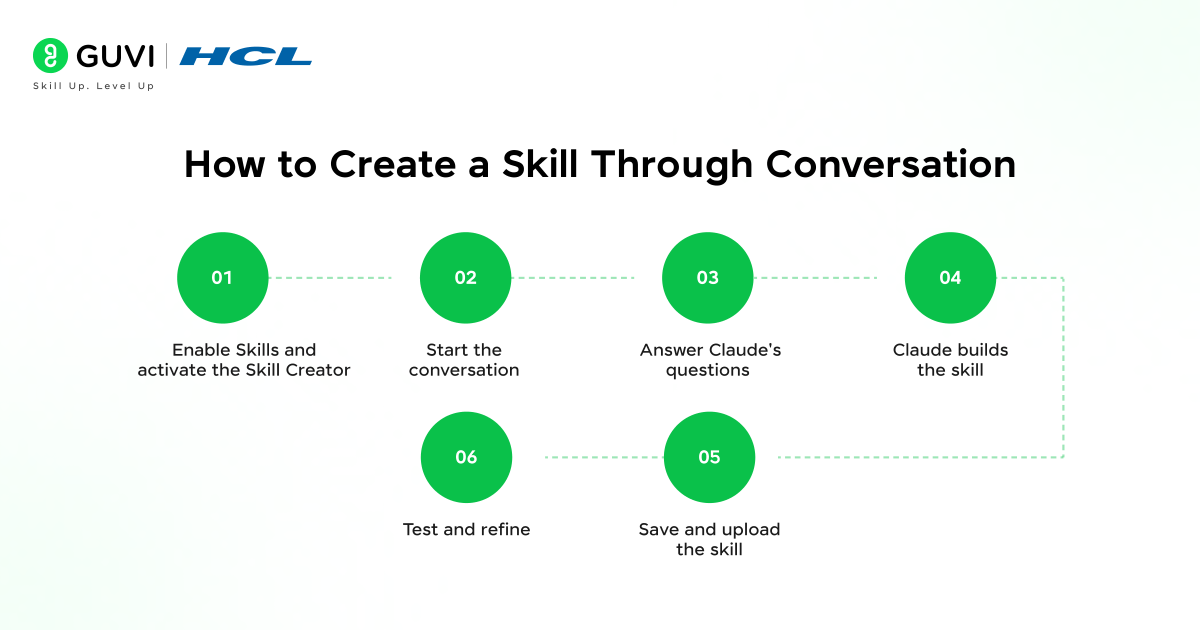
Step 1: Enable Skills and activate the Skill Creator
- Before you can build or use any skill, you need to turn the feature on. Click your profile icon in the bottom left, go to Settings, then Capabilities, and toggle on both Code Execution and File Creation, and Skills.
- Then switch to the Example Skills tab and activate the skill-creator. The skill-creator is a built-in skill from Anthropic that guides Claude through the process of building new skills. It is the tool that makes creating skills through conversation possible.
Step 2: Start the conversation

- Open a new chat and describe what you want your skill to do. You can be fairly casual about this. Say something like “I want to create a skill for quarterly business reviews” or “I need a skill that knows how to analyze customer feedback.
- ” If you have any materials that show your approach templates you use regularly, examples of work you are proud of, brand guidelines you follow, upload them now. The more context you give, the better Claude can build the skill to match how you actually work.
Step 3: Answer Claude’s questions
- Once you kick off the conversation, Claude will ask you a series of clarifying questions. You will get questions about concrete usage, like “Can you give examples of when you’d use this skill?” or about your process, like “What makes output good for this type of work?” Take your time with these answers.
- The quality of the skill you get back is directly tied to the quality of the information you provide here. Think of it less like filling out a form and more like explaining your job to a new colleague.
Step 4: Claude builds the skill
- Once Claude has enough information, it gets to work. In Claude’s thinking, you will see it read the skill-creator skill to follow best practices in creating a properly structured skill.
- Claude will create a SKILL.MD file, organize any materials you have provided, and generate code for operations you have described that need to happen consistently.
- Claude then packages everything into a skill file. You can watch this happen in real time by following along in the thought trace it is genuinely interesting to see the skill take shape as Claude writes it out.
Step 5: Save and upload the skill
- When Claude finishes, it packages the skill into a downloadable zip file. Once Claude finishes writing a skill, you can install it by clicking the Copy to your skills button, available at the end of the chat thread.
- In Settings, under Capabilities and then Skills, you can view your library of skills and turn them on or off as needed.
Step 6: Test and refine
- This step is where a lot of people stop too early. Your skill is not done just because Claude built it; it needs to be tested. Try using your skill by describing a task the skill should address. See if Claude recognizes the situation, you will see “Using [skill name]” in Claude’s thinking, and whether it produces the expected outcome.
- If something is off, ask Claude to update the skill with your desired changes. Repeat this process until your skill works effectively.
- A useful debugging trick is to test your skill with several different phrasings of the same request. If it triggers each time, that is a good sign. Also, try a couple of unrelated requests to make sure the skill stays quiet when it is not supposed to activate.
Tips for Building Better Skills
- One thing that catches people off guard is how much the description in your SKILL.md matters. If you write a bad description, your skill never fires. The description is too vague, and the skill just does not activate.
- You will wonder if it is broken. It is not. Write a description that is specific about both when the skill should be used and when it should not. Adding a line like “Do NOT use for blog articles, newsletters, or emails” alongside a positive trigger description dramatically improves how reliably the skill activates.
- It also helps to keep individual skills focused. Rather than building one massive skill that tries to do everything, build multiple smaller skills for different tasks and let them work together.
- While skills cannot explicitly reference other skills, Claude can use multiple skills together automatically. This composability is one of the most powerful parts of the Skills feature.
- On the technical side, it is good practice to keep your SKILL.md under 500 lines and move detailed reference material to separate files. This keeps things clean and makes your skill easier to update later.
What Kinds of Skills Can You Build?
- The range of what you can build is genuinely wide. Skills can capture how your organization works, enable specialized expertise you do not personally have, or work together to handle complex workflows.
- Some practical examples include a CRM automation skill that creates contacts and maintains data standards, a legal contract review skill that evaluates agreements against standard terms, a sprint planning skill that calculates team velocity and generates planning documents, or an SEO content skill that structures writing for search intent while maintaining brand voice.
- For someone just starting out, a good first skill to build is something you already do repeatedly in your current work or studies. If you write emails in a particular format, build a skill for that. If you always follow the same structure when taking meeting notes, build a skill for that. Starting small helps you learn the process before you tackle more complex workflows.
If you want to go beyond prompts and build reusable AI workflows like Claude Skills, explore HCL GUVI’s IIT Pravartak AI and ML Course at HCL GUVI. Learn how to design intelligent agents, integrate LLM features, and create production‑ready AI tools that save you hours every week.
Final Thoughts
Claude Skills is one of those features that genuinely changes how you use AI once you get it set up. The barrier to entry is low; you just have a conversation, and the payoff is real. You stop repeating yourself, your outputs become more consistent, and you can share what you build with anyone else who uses Claude.
The best way to understand Skills is simply to build one. Pick a task you do regularly, open Claude, enable the skill-creator, and walk through the process described above. Within an hour, you could have a working skill that saves you time every single week going forward. The technology is already there all you have to do is teach it how you work.
FAQs
1. Do I need to write code to create a Skill?
No. You can build a full Skill with only plain text in SKILL.md and optional files; Claude writes any required scripts automatically if you describe a task that needs code.
2. What’s the difference between Skills and Custom Instructions?
Custom Instructions apply broadly to everything you say, while Skills activate only when Claude detects a matching task and follow a structured workflow defined in the skill.
3. Can I use Skills on the free plan?
Yes. Skills work on all Claude plans, including free, Pro, Max, Team, and Enterprise; more advanced workflows may just demand higher usage limits or stronger models.
4. How do I share a Skill with my team?
Export the Skill as a zip file, then each teammate imports it into their Skills library in Claude Settings; they can then turn it on and use it exactly like you built it.
5. What if a Skill doesn’t trigger or behaves incorrectly?
Most often, the issue is the SKILL.md description: make it more specific about when to fire and when not to, and test with multiple phrasings. Iterate by asking Claude to update the skill after a few real‑use runs.
Success Stories

About the Author
Vishalini Devarajan
An Aerospace Engineer turned content writer, I focus on making complex concepts easy to understand through well-structured, reader-friendly blogs. Whether it’s a technical topic or a non-technical one, I love creating content that is clear, engaging, and impactful.
View all posts by Vishalini Devarajan
Connect with me @









Did you enjoy this article?