


Python Articles
Excel SQL Python for BPO Professionals Best Guide to Move Into Data Science
Go vs Python for Forward Deployed Engineering Workloads
Python for Forward Deployed Engineers: What You Actually Need to Know
Freelancing as a Python Developer: Getting Your First Client


Get In Touch For Details! Request More Information
How To Install Jupyter Notebook on Windows and Mac
Jul 02, 2026 3 Min Read 1401 Views
(Last Updated)
To install Jupyter Notebook on Mac and Windows is easier than you might think, and you don’t need any advanced skills to get started. If you are just starting with Python or want a simple tool to run your code, this guide will help you set everything up quickly without confusion.
In this blog, you will learn the exact steps to install Jupyter Notebook on both Mac and Windows. Everything is explained in a simple way so you can follow along without wasting time and start using Jupyter Notebook smoothly.
Table of contents
- Quick TL;DR Summary
- Steps to Install Jupyter Notebook on Windows
- Step 1: Open the browser and search for Anaconda
- Step 2: Go to the Download Section
- Step 3: Sign Up on Anaconda
- Step 4: Download Anaconda Installer
- Step 5: Start Installation
- Step 6: Follow Installation Steps
- Step 7: Finish Installation
- Step 8: Open Anaconda Prompt
- Step 9: Launch Jupyter Notebook
- Step 10: Create Your First Notebook
- Step 11: Rename Notebook
- Step 12: Run Your First Python Program
- Steps to Install Jupyter Notebook on Mac
- Step 1: Download Python
- Step 2: Install Python on Mac
- Step 3: Verify Python Installation
- Step 4: Install Jupyter Notebook
- Step 5: Launch Jupyter Notebook
- Step 6: Create Your First Notebook
- Step 7: Run Your First Program
- Conclusion
- FAQs
- Do I need to install Python before installing Jupyter Notebook?
- Can I install Jupyter Notebook without Anaconda?
- oHow do I open Jupyter Notebook after installation?
- Is Jupyter Notebook free to use?
- Why is Jupyter Notebook opening in a browser?
- What file format does Jupyter Notebook use?
Quick TL;DR Summary
- With this blog, you can install Jupyter Notebook on Mac and Windows step by step, without wasting time.
- By following this guide, you’ll clearly learn how to set up Python and launch your first notebook.
- Using this blog, getting started with Jupyter Notebook for coding and practice becomes simple and quick.
Steps to Install Jupyter Notebook on Windows
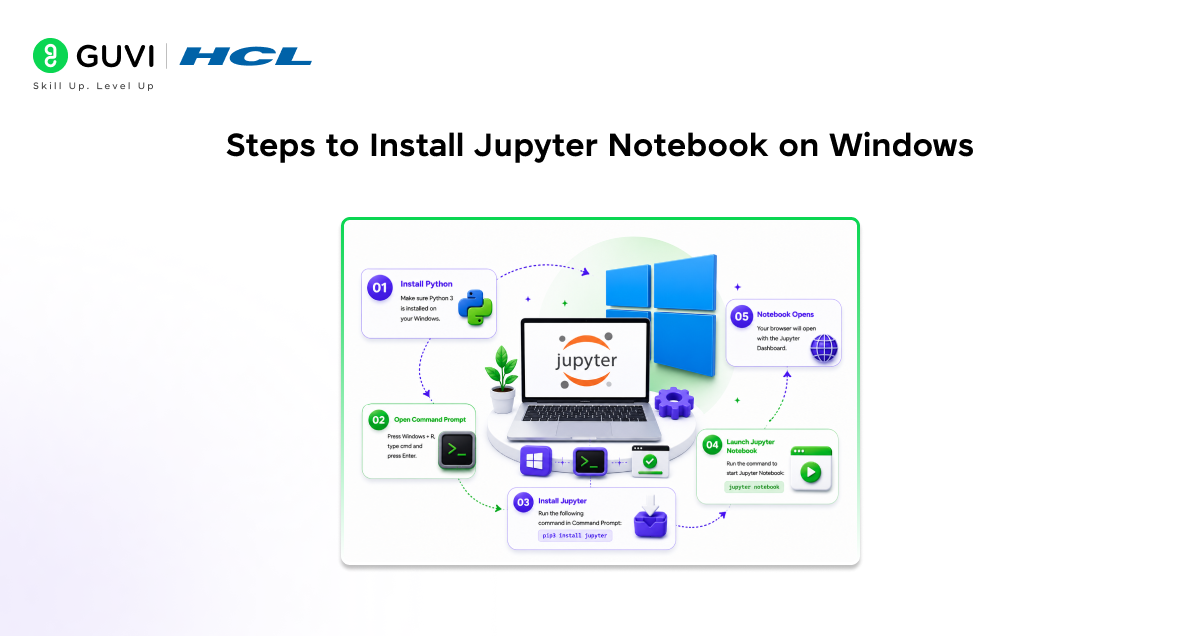
Here are the steps needed to install Jupyter Notebook on your Windows system:
Step 1: Open the browser and search for Anaconda
- Open any web browser on your Windows 11 system
- Go to Google
- Type Anaconda and press Enter
- Click on the official website: anaconda.com
Project Jupyter was started by Fernando Pérez, who also originally created IPython (an interactive Python computing environment).
Step 2: Go to the Download Section
- Once the website opens, you will see the homepage
- Click on Free Download
- Now, click on Get Started to proceed
Step 3: Sign Up on Anaconda
- To download Anaconda, you need to create an account
- You can sign up using:
- Google Account
- Microsoft Account
- GitHub
- For quick access, click on Google
- Select your Google ID
- Click Continue
Step 4: Download Anaconda Installer
- After signing in, the download page will appear
- You will see options for:
- Windows
- Mac
- Linux
- Click on Windows
- The .exe file will start downloading
- Wait for the download to complete
Step 5: Start Installation
- Go to the downloaded file
- Right-click on the .exe file
- Click Open to start installation
Step 6: Follow Installation Steps
- Click Next
- Accept the license agreement by clicking I Agree
- Select installation type:
- Choose All Users
- Click Next
- Choose installation location (default is fine)
- It will take around 6 GB of space
- Click Next
- Select Register Anaconda 3
- Click Install
- Wait for the installation to complete
Step 7: Finish Installation
- Once installation is done:
- Click Next
- Click Next again
- You will see options to launch Anaconda Navigator
- Uncheck them if not needed
- Click Finish
Step 8: Open Anaconda Prompt
- Go to Start Menu
- Type Anaconda
- You will see:
- Anaconda Prompt (CLI – Command Line Interface)
- Anaconda Navigator (UI – Graphical Interface)
- Click on Anaconda Prompt
Step 9: Launch Jupyter Notebook
- In Anaconda Prompt, type:
- jupyter notebook
- Press Enter
- Jupyter Notebook will open in your browser
Step 10: Create Your First Notebook
- Click on New
- Select Python 3
- A new notebook will open named Untitled.ipynb
- .ipynb is the file extension for Jupyter notebooks
Step 11: Rename Notebook
- Click on Untitled
- Enter a new name (for example: Demo.ipynb)
- Click Rename
Step 12: Run Your First Python Program
- In the notebook cell, type a simple print statement using the print() method
- Example: print (“Abhishek”)
- Place the cursor on the Play button
- Click Run
- Your output will be displayed below
Check out our free Python resource, which comprehensively covers essential topics and offers practical insights to enhance your learning: Python eBook

Steps to Install Jupyter Notebook on Mac
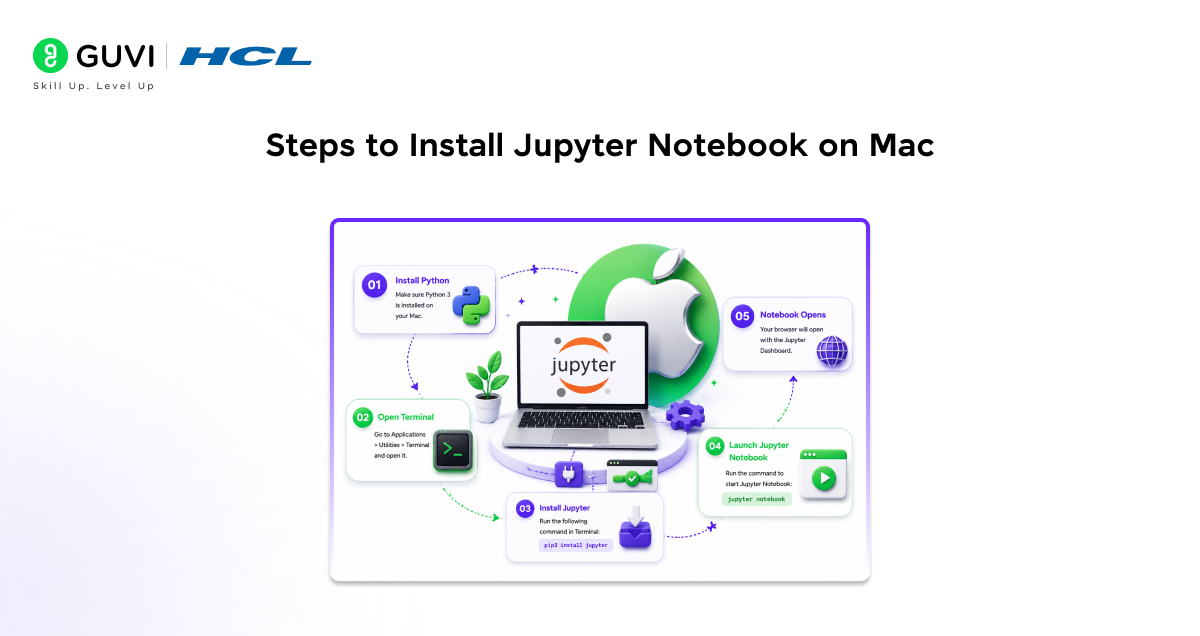
Here are the steps needed to install Jupyter Notebook on your Mac:
Step 1: Download Python
- Open Chrome or any browser
- Search Download Python
- Open the official Python website
- Download the latest version for Mac
Step 2: Install Python on Mac
- Open the downloaded Python file
- Click Continue
- Click Continue again
- Read the license agreement
- Click Continue → then Agree
- Click Install
- Enter your Mac login password
- Wait for the installation to complete
Step 3: Verify Python Installation
- Open Terminal
- Type: python3 –version
- Press Enter
- You will see the installed Python version
Step 4: Install Jupyter Notebook
- In Terminal, type: pip3 install notebook
- Press Enter
- It will start downloading Jupyter Notebook
- If you see any errors:
- Don’t worry
- It may happen if Jupyter is already installed
Step 5: Launch Jupyter Notebook
- In Terminal, type: jupyter notebook
- Press Enter
- Jupyter Notebook will open in your browser
Step 6: Create Your First Notebook
- Click on New
- Select Python 3
- A new notebook will open
Step 7: Run Your First Program
- Type a simple code like: print (“hello world”)
- Click Run
- Output will be displayed below
- This confirms everything is working perfectly
Step into the world of AI with HCL GUVI’s Intel & IITM Pravartak Certified AI/ML Course—gain hands-on experience, build real-world projects, and develop skills that actually matter in today’s tech space. This is your chance to level up with practical learning and stay ahead in a fast-moving industry. Join now and start creating a future that works for you!
Conclusion
Now you have successfully completed the steps to Install Jupyter Notebook on both Mac and Windows, and it is ready to use. You can start writing and running Python code, create notebooks, and test your programs easily. There is no need for any extra setup now, just open Jupyter Notebook whenever you need and continue your work. This setup will help you practice, learn, and work with Python in a simple and organised way.
FAQs
Do I need to install Python before installing Jupyter Notebook?
Yes, Python must be installed first because Jupyter Notebook runs on Python.
Can I install Jupyter Notebook without Anaconda?
Yes, you can install Jupyter Notebook using pip, but Anaconda makes the process easier for beginners.
oHow do I open Jupyter Notebook after installation?
You can open it using Anaconda Prompt (Windows) or Terminal (Mac) by typing jupyter notebook.
Is Jupyter Notebook free to use?
Yes, Jupyter Notebook is completely free and open-source.
Why is Jupyter Notebook opening in a browser?
It is a web-based tool that runs locally on your system through the browser.
What file format does Jupyter Notebook use?
It uses the .ipynb file format to save notebooks.
Success Stories
















Did you enjoy this article?