


Product Management Articles
How to Write a Product Requirements Document That Teams Actually Use
APIs for Product Managers: A Non-Technical Guide to API Basics, REST APIs, and Integrations
What Is Net Promoter Score? A Beginner’s Guide to NPS
Top Product Analytics Tools Compared: Amplitude vs Mixpanel vs Google Analytics


Get In Touch For Details! Request More Information
How to Use Airtable: Best Guide for Project Management
Jul 09, 2026 8 Min Read 265 Views
(Last Updated)
Table of contents
- TL;DR Summary
- What is Airtable?
- Why is Airtable Called a Database-Powered Project Management Tool?
- Why Should Teams Use Airtable for Project Management?
- What Do You Need Before Using Airtable?
- Key Airtable Terms Beginners Should Know
- Airtable vs Spreadsheet vs Traditional Project Management Tool
- Step 1: Create an Airtable Base for Your Project
- Step 2: Create Tables for Project Data
- Step 3: Add Fields to Organize Project Information
- Step 4: Use Linked Records to Connect Data
- Step 5: Create Views for Different Team Needs
- Step 6: Use Forms to Collect Project Requests
- Step 6: Use Forms to Collect Project Requests
- Step 7: Add Automations for Repetitive Updates
- Step 8: Build Interfaces or Dashboards for Tracking
- What’s New in Airtable Project Management in 2026?
- Practical Airtable Project Tracker Example
- Real-World Example: Managing a Marketing Campaign in Airtable
- Common Mistakes to Avoid While Using Airtable
- Using Airtable Like a Normal Spreadsheet
- Creating Too Many Bases
- Not Using Linked Records
- Choosing the Wrong Field Types
- Automating Before the Workflow is Clear
- Best Practices for Using Airtable as a Project Management Tool
- Use Clear Status Names
- Use Views for Different Roles
- Keep Dashboards Simple
- Review Your Base Regularly
- Build Project Management Skills With HCL GUVI
- Conclusion
- FAQS
- What is Airtable used for in project management?
- Is Airtable a database or a project management tool?
- How do I use Airtable for project tracking?
- Is Airtable better than Excel for project management?
- Can Airtable replace Trello or Asana?
- What is a base in Airtable?
- What are linked records in Airtable?
- Can Airtable automate project updates?
- Is Airtable good for beginners?
- What should beginners avoid in Airtable?
TL;DR Summary
To learn how to use Airtable as a database-powered project management tool, start by creating a base, adding tables for projects, tasks, team members, clients, and updates, then connect them using linked records. Airtable helps teams manage project data through views like grid, kanban, calendar, timeline, list, and gantt. Unlike a normal spreadsheet, Airtable lets you organize related information, track ownership, automate updates, collect forms, and build dashboards. It is useful for students, startups, marketers, product teams, agencies, and operations teams that need flexible project tracking.
How to use Airtable is a common question for teams that want something more flexible than a spreadsheet but simpler than a complex database.
Airtable helps you manage projects by storing tasks, owners, deadlines, files, budgets, and updates in connected tables.
This makes it useful for project tracking, team collaboration, campaign planning, product work, and operations management.
In this guide, you will learn how Airtable works as a database-powered project management tool with simple steps and examples.
What is Airtable?
Airtable is a no-code platform that combines the familiarity of a spreadsheet with the structure of a database.
You can use it to store, organize, connect, filter, and view project information in different ways.
For example, a normal spreadsheet may show project tasks in rows and columns.
Airtable can do that too, but it can also connect those tasks to team members, clients, deadlines, files, budgets, and project dashboards.
This makes Airtable useful for teams that want both flexibility and structure.
Since Airtable works with structured tables and records, understanding the basics of database management can help you organize project information more clearly.
Why is Airtable Called a Database-Powered Project Management Tool?
Airtable is called database-powered because it does not just store flat rows of information.
It lets you connect related data across tables.
For example, you can create separate tables for:
- Projects
- Tasks
- Team members
- Clients
- Campaigns
- Assets
- Budgets
- Updates
Then you can connect them.
A task can be linked to a project.
A project can be linked to a client.
A team member can be linked to multiple tasks.
This connected structure is what makes Airtable more powerful than a basic spreadsheet.
If you want to build a clean Airtable base, basic database design principles can help you decide what should become a table, field, or linked record.
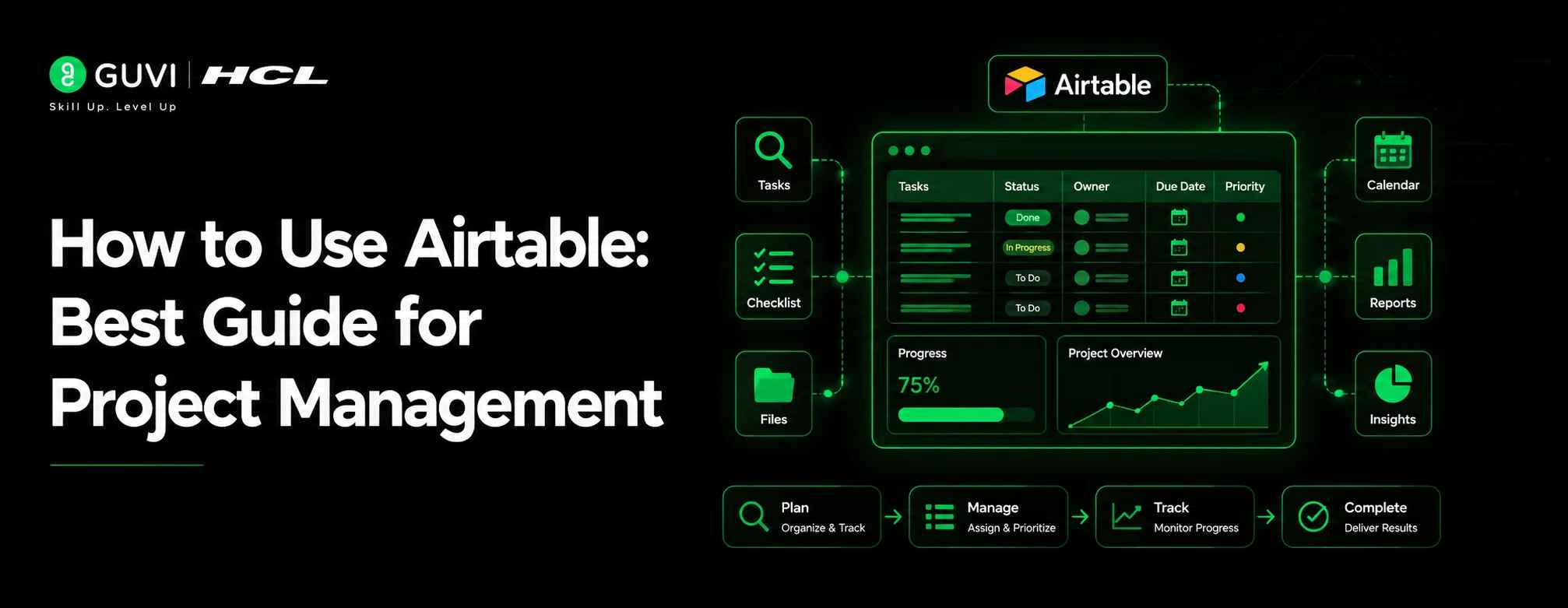
Airtable Database-Powered Project Management Workflow
Why Should Teams Use Airtable for Project Management?
Teams should use Airtable for project management when they need flexible tracking, custom views, and connected data.
Airtable is useful when your work does not fit neatly into a basic task list.
For example, a marketing team may need to track campaigns, content pieces, designers, writers, deadlines, budgets, approvals, and final assets.
A software team may need to track product features, bugs, owners, sprints, release dates, and documentation.
Airtable helps teams manage:
- Project status
- Task ownership
- Deadlines
- Files and attachments
- Client information
- Budget tracking
- Approval workflows
- Reports and dashboards
- Team workload
- Project requests
This makes it useful for students, startups, agencies, product teams, marketing teams, and operations teams.
Airtable’s official project management page highlights AI workflows, team collaboration, risk reduction, project budgets, and hours tracking for managing project work in one place
What Do You Need Before Using Airtable?
Before using Airtable, you should understand what you want to manage.
Do not start by creating random columns.
First, write down the project workflow.
Ask yourself:
- What projects do we need to track?
- What tasks are involved?
- Who owns each task?
- What deadlines matter?
- What status stages do we need?
- What files or links should be stored?
- What views will different team members need?
- What updates should be automated?
- What reports or dashboards are required?
For example, if you are building a college event tracker, you may need tables for events, tasks, volunteers, sponsors, budgets, and approvals.
Once the workflow is clear, building the Airtable base becomes much easier.
Key Airtable Terms Beginners Should Know
Before building your project tracker, understand these basic Airtable terms:
Workspace: The main area where your team’s Airtable bases are stored.
Base: A database for one project, workflow, or team process.
Table: A section inside a base that stores one type of data, such as tasks, projects, clients, or team members.
Record: One item inside a table. For example, one task or one project.
Field: A column that stores specific information, such as status, owner, due date, or priority.
View: A different way to see the same data, such as kanban, calendar, timeline, grid, or gantt view.
Linked Record: A connection between two tables. For example, a task can be linked to a project.
Interface: A visual dashboard or app-like page that helps teams view project updates clearly.
Automation: A rule that performs an action automatically, such as sending a reminder when a task is overdue.
Once you understand these terms, Airtable becomes much easier to use for project tracking.
Although Airtable is beginner-friendly, learning how database management systems work can help you understand why tables, records, and relationships matter.
Airtable vs Spreadsheet vs Traditional Project Management Tool
It between a spreadsheet and a project management tool.
It gives you the flexibility of a spreadsheet and the structure of a database.
| Feature | Spreadsheet | Traditional Project Tool | Airtable |
| Data structure | Mostly rows and columns | Task-based | Tables, records, fields, linked data |
| Customization | Medium | Depends on tool | High |
| Views | Limited | Usually task views | Grid, kanban, calendar, list, timeline, gantt |
| Linked data | Difficult | Limited | Strong with linked records |
| Forms | Usually external | Sometimes available | Built-in form views |
| Dashboards | Manual or limited | Available | Interfaces and dashboards |
| Best for | Simple tracking | Task execution | Data-powered project workflows |
Use Airtable when your project needs both task tracking and connected data.
Step 1: Create an Airtable Base for Your Project
Start by creating a base.
A base is where your project data and workflows live.
For example:
- Product Launch Tracker
- Student Placement Project
- Marketing Campaign Tracker
- Client Delivery Tracker
- Software Feature Roadmap
- Event Management Base
Keep one base for one major workflow.
Do not create a separate base for every small task.
For example, if you are managing a marketing team, one “Marketing Projects” base can contain campaigns, tasks, team members, approvals, assets, and reports.
Airtable’s official guide on how to create your database in Airtable explains the basic flow of creating a base, adding tables, adding records, organizing fields, creating views, and connecting data with linked records.
Step 2: Create Tables for Project Data
After creating a base, create tables for different types of data.
A simple project management base can include:
| Table | What It Stores |
| Projects | Main projects or campaigns |
| Tasks | Individual tasks |
| Team Members | Owners and contributors |
| Clients or Stakeholders | People or teams involved |
| Files or Assets | Creative files, links, documents |
| Updates | Weekly reports or status notes |
This is where it becomes database-powered.
Instead of storing everything in one large sheet, you separate information into clean tables and connect them.
For technical learners, understanding database design in system design can make it easier to structure Airtable tables for complex workflows.
Step 3: Add Fields to Organize Project Information
Fields are columns that store specific details.
For a Tasks table, useful fields include:
- Task Name
- Project
- Owner
- Status
- Priority
- Due Date
- Start Date
- File Attachment
- Notes
- Approval Status
- Estimated Effort
- Actual Completion Date
For a Projects table, useful fields include:
- Project Name
- Project Owner
- Client
- Start Date
- End Date
- Budget
- Current Status
- Linked Tasks
- Progress
- Risk Level
Use field types properly.
For example, use date fields for deadlines, single select fields for status, attachment fields for files, and linked records for connected data.
Step 4: Use Linked Records to Connect Data
Linked records are one of Airtable’s most powerful features.
They let you connect records from one table to another.
For example:
- A task can be linked to one project
- A project can be linked to one client
- A team member can be linked to many tasks
- An asset can be linked to a campaign
- A weekly update can be linked to a project
This helps you avoid duplicate data.
Instead of writing the project name again and again, you link the task to the project.
Then Airtable can show related information using lookup and rollup fields.
For example, you can see all tasks linked to one project or count how many tasks are still pending.
Step 5: Create Views for Different Team Needs
Views let you see the same data in different ways.
It supports multiple view types, and each view can help a different team member.
Useful project management views include:
| View | Best Use |
| Grid View | Full project data table |
| Kanban View | Tasks grouped by status |
| Calendar View | Deadlines and schedules |
| Timeline View | Project phases over time |
| Gantt View | Dependencies and project planning |
| Form View | Collecting new requests |
| List View | Simple task reading |
| Gallery View | Visual asset tracking |
For example, a project manager may prefer a Gantt or timeline view.
A designer may prefer a kanban view.
A client may only need a filtered view showing approved deliverables.
This flexibility is one of the biggest reasons teams use Airtable for project tracking.
According to Airtable’s official documentation, Airtable views help you organize the same table data in different formats such as grid, form, calendar, gallery, kanban, timeline, list, and gantt.
Step 6: Use Forms to Collect Project Requests
Airtable forms are useful when you want others to submit information without editing the base directly.
You can create forms for:
- New project requests
- Bug reports
- Content requests
- Design requests
- Client feedback
- Event registrations
- Asset submissions
- Approval requests
For example, a marketing team can create a “Content Request Form.”
When someone submits the form, Airtable automatically adds the request as a new record in the Tasks table.
This saves time and avoids messy email or chat-based requests.
For example, a project manager may prefer a Gantt or timeline view.
A designer may prefer a kanban view.
A client may only need a filtered view showing approved deliverables.
This flexibility is one of the biggest reasons teams use Airtable for project tracking.
According to Airtable’s official documentation, Airtable views help you organize the same table data in different formats such as grid, form, calendar, gallery, kanban, timeline, list, and gantt.
Step 6: Use Forms to Collect Project Requests
Airtable forms are useful when you want others to submit information without editing the base directly.
You can create forms for:
- New project requests
- Bug reports
- Content requests
- Design requests
- Client feedback
- Event registrations
- Asset submissions
- Approval requests
For example, a marketing team can create a “Content Request Form.”
When someone submits the form, Airtable automatically adds the request as a new record in the Tasks table.
This saves time and avoids messy email or chat-based requests.
Step 7: Add Automations for Repetitive Updates
Airtable automations help reduce manual work.
You can create simple rules such as:
- When task status changes to “Done,” notify the project owner
- When a due date is near, send a reminder
- When a form is submitted, assign a team member
- When approval status changes, update the project stage
- When a new client is added, create standard onboarding tasks
Start with one or two automations.

Do not automate everything at once.
A good first automation is:
“When task status becomes ‘Ready for Review,’ send an email or Slack notification to the reviewer.”
This keeps the workflow simple and useful.
Teams that want to reduce repeated manual updates can also explore AI tools for automation to improve everyday workflow efficiency.
Step 8: Build Interfaces or Dashboards for Tracking
Airtable Interfaces help you turn project data into clean dashboards.
Instead of showing your team a large table, you can create a visual page with key information.
A project dashboard can show:
- Active projects
- Tasks by status
- Overdue tasks
- Workload by owner
- Upcoming deadlines
- Budget usage
- Approval pending
- Project risk level
For example, a team lead can open one dashboard and quickly understand what is delayed, who is overloaded, and which project needs attention.
This makes Airtable useful for both project execution and reporting.
What’s New in Airtable Project Management in 2026?
In 2026, Airtable is more than a spreadsheet-style project tracker.
It is moving toward AI-powered workflows, dashboards, automation, and app-building.
For project teams, this matters because project management is not only about tracking tasks.
Teams also need summaries, updates, prioritization, approvals, risk visibility, and reporting.
Useful Airtable capabilities for 2026 project teams include:
- AI-powered project updates
- AI fields for summarizing records
- Automations for repeated workflows
- Interfaces for dashboards and custom apps
- Linked records for connected project data
- Gantt, timeline, kanban, calendar, and list views
- Forms for collecting project requests
- Integrations with other work tools
These features make this app useful for teams that want both project management and structured data in one place.
As more teams explore AI tools for project management, Airtable’s AI features can help with summaries, prioritization, updates, and workflow visibility.
The growing role of AI in project management is also changing how teams summarize updates, track risks, and make project decisions faster.
A 2026 systematic review on generative AI in IT project management found that AI use in project management is still in an exploratory stage, with future opportunities around role-based AI agents, process-specific AI agents, and human-guided project orchestration. This makes Airtable’s AI-powered project workflows relevant for teams that want smarter summaries, risk visibility, and automated project updates inside one workspace.
Practical Airtable Project Tracker Example
Let us say your team is managing a “Website Redesign Project.”
You can create an Airtable base like this:
Base: Website Redesign Tracker
Tables:
- Projects
- Tasks
- Team Members
- Pages
- Assets
- Approvals
- Updates
Example task record:
Task Name: Redesign homepage hero section
Project: Website Redesign
Owner: UI Designer
Status: In Progress
Priority: High
Due Date: 30 June 2026
Related Page: Homepage
Approval Status: Pending
Notes: Need new banner copy and image
This setup helps the team track design, content, development, approvals, and deadlines in one connected system.
Real-World Example: Managing a Marketing Campaign in Airtable
Imagine a digital marketing agency in Bengaluru is managing a product launch campaign for a SaaS client.
The campaign includes:
- Landing page
- Blog posts
- Email campaign
- Paid ads
- Social media creatives
- Webinar promotion
- Lead tracking
- Reporting dashboard
The team creates one Airtable base called “SaaS Product Launch Campaign.”
Inside the base, they create tables for Campaigns, Tasks, Team Members, Assets, Clients, Approvals, and Reports.
The content writer uses a filtered view for blog tasks.
The designer uses a kanban view for creative assets.
The project manager uses a timeline view for campaign deadlines.
The client gets an interface showing approved deliverables and pending reviews.
This setup helps the agency manage project data, task progress, approvals, and reporting without switching between too many files.
Airtable is built as a relational database, but it gives teams a spreadsheet-like way to organize and work with data. This makes structured project tracking easier for non-technical users who want the power of connected data without writing code.
Common Mistakes to Avoid While Using Airtable
1. Using Airtable Like a Normal Spreadsheet
Many beginners create one large table with every detail inside it.
This makes the base messy.
Fix it by separating data into tables like Projects, Tasks, Team Members, Clients, and Updates.
2. Creating Too Many Bases
Some users create a new base for every small project.
This makes data hard to connect.
Fix it by creating one base for one major workflow and using tables inside that base.
3. Not Using Linked Records
Without linked records, it becomes just another spreadsheet.
Fix it by linking related data such as tasks to projects, projects to clients, and tasks to owners.
4. Choosing the Wrong Field Types
Using text fields for dates, status, or owners can create confusion.
Fix it by using proper field types like date, single select, collaborator, attachment, checkbox, and linked record.
5. Automating Before the Workflow is Clear
Automation can create errors if your project process is not stable.
Fix it by building the workflow manually first, then automating repeated steps.
Best Practices for Using Airtable as a Project Management Tool
Start with a simple base structure.
Do not build a complicated system on day one.
Begin with three tables:
- Projects
- Tasks
- Team Members
Once the structure works, add tables for Clients, Assets, Updates, or Budgets.
Use Clear Status Names
Use simple task statuses.
Example:
Not Started → In Progress → Review → Approved → Done
Avoid too many status options.
Too many statuses confuse team members and slow down project tracking.
Use Views for Different Roles
Create different views for different people.
For example:
- Project manager view
- Team member view
- Client view
- Overdue task view
- High-priority task view
- Calendar view
- Approval view
This helps every person see only what matters to them.
Keep Dashboards Simple
A dashboard should answer important questions quickly.
For example:
- What is delayed?
- What is due this week?
- Who owns each task?
- What is waiting for approval?
- Which projects are at risk?
Avoid adding too many charts or widgets that do not help decision-making.
Review Your Base Regularly
Project workflows change over time.
Review your Airtable base every few weeks.
Remove unused fields, fix confusing views, update automations, and archive completed records.
This keeps your project management system clean and useful.
If you want to grow in project coordination or operations roles, learning technical skills for project managers can help you work better with data, tools, dashboards, and automation.
For beginners who want to get into project management without experience, tools like Airtable are useful for learning task tracking, workflow planning, and project reporting.
Build Project Management Skills With HCL GUVI
Airtable helps teams organize project data, track tasks, manage deadlines, connect records, automate updates, and build clear dashboards. But to manage real projects effectively, you also need strong foundations in project planning, task ownership, timelines, risk tracking, stakeholder communication, and workflow management.
Explore HCL GUVI’s Project Management Course to build practical project management skills through structured learning, real-world workflows, and career-focused training.
Conclusion
Learning how to use Airtable as a database-powered project management tool helps you move beyond simple task lists and spreadsheets. Airtable lets you create connected tables, organize tasks, track owners, manage deadlines, collect requests, automate updates, and build dashboards. Start with a simple base, use linked records carefully, and create views for different team needs. For students, freshers, startups, agencies, and working professionals, It is a practical tool for understanding how structured data can improve project management and team collaboration.
FAQS
1. What is Airtable used for in project management?
Airtable is used to manage projects, tasks, deadlines, owners, files, approvals, budgets, and reports in a structured database-style workspace. It helps teams track project data in multiple views.
2. Is Airtable a database or a project management tool?
Airtable is both. It works like a database because it uses tables, records, fields, and linked records, but it can also be used as a project management tool with views, forms, automations, and dashboards.
3. How do I use Airtable for project tracking?
Start by creating a base, then add tables for projects, tasks, team members, clients, and updates. Use linked records, status fields, due dates, views, forms, and dashboards to track work.
4. Is Airtable better than Excel for project management?
Airtable is better than Excel when you need connected data, multiple views, forms, automations, and project dashboards. Excel is better for simple calculations and basic spreadsheet work.
5. Can Airtable replace Trello or Asana?
Airtable can replace Trello or Asana for some teams that need flexible project tracking with database features. However, teams that only need simple task boards may still prefer Trello or Asana.
6. What is a base in Airtable?
A base is the main database where your project data and workflow live. It can contain multiple tables, such as Projects, Tasks, Team Members, Clients, and Updates.
7. What are linked records in Airtable?
Linked records connect data between tables. For example, a task can be linked to a project, and a project can be linked to a client.
8. Can Airtable automate project updates?
Yes, Airtable automations can send reminders, update records, notify team members, assign tasks, and trigger actions based on conditions.
9. Is Airtable good for beginners?
Yes, Airtable is beginner-friendly because it looks like a spreadsheet but has more powerful database features. Beginners can start with simple tables and slowly add linked records, views, and automations.
10. What should beginners avoid in Airtable?
Beginners should avoid creating one huge table, using too many bases, ignoring linked records, choosing wrong field types, and automating workflows before the process is clear.
Success Stories

About the Author
Reemsha Khan
Always been a storyteller at heart. Now, I turn complex topics into simple, easy-to-understand stories through content. Hope you find it helpful.
View all posts by Reemsha Khan
Connect with me @











Did you enjoy this article?