


Software Automation & Testing Articles
How to Use Claude for A/B Testing Content Variations
Load Testing Your Application with k6: A Practical Introduction
Cypress Component Testing Tutorial: Test Your UI in a Real Browser, Not a Fake One
Manual Tester Roles and Responsibilities: 12 Important Duties for Career Growth


Get In Touch For Details! Request More Information
Understanding the Basics of Robot Framework
Oct 01, 2026 10 Min Read 5992 Views
(Last Updated)
Modern software applications are expected to work flawlessly across browsers, devices, operating systems, APIs, and cloud environments. Manual testing alone is no longer enough to handle rapid release cycles, continuous updates, and large-scale regression testing. This is where Robot Framework has become one of the most widely used automation testing frameworks in modern software development.
Robot Framework simplifies test automation through its keyword-driven approach, readable syntax, reusable test cases, and seamless integration with tools like Selenium, Appium, Jenkins, and Playwright. Whether teams are automating web testing, API testing, mobile testing, or CI/CD pipelines, Robot Framework helps create scalable, maintainable, and efficient automation workflows.
Read this blog to understand the basics of Robot Framework, its architecture, features, working process, reporting system, and how it is used in real-world automation testing environments.
Table of contents
- Quick Answer
- What is Robot Framework?
- Key Features of Robot Framework
- How Robot Framework Works?
- Benefits of Using Robot Framework
- Usage of Robot Framework
- Robot Framework Architecture
- Installation of Robot Framework
- Understanding the Robot Script File
- Settings
- Variables
- Test Cases
- Keywords
- First Robot Script File
- Settings Section
- Variables Section
- Test Cases Section
- Keywords Section
- Execution Command
- Overall Flow of the Test Case:
- The Result Files
- Key Features of the report.html File:
- Benefits of Using the report.html File:
- log.html
- Key features and content of the log.html file:
- How Should You Structure a Robot Framework Project for Large Test Suites?
- Which Robot Framework Libraries Should You Use for Different Testing Needs?
- How Do You Manage Multiple Environments in Robot Framework?
- How Do You Debug Flaky Robot Framework Tests?
- Best Practices for Writing Maintainable Robot Framework Test Cases
- Robot Framework vs Selenium: Key Differences
- CI/CD Integration and DevOps Automation Using Robot Framework
- Conclusion
- FAQs
- Is Robot Framework good for beginners?
- Can Robot Framework be used for API testing?
- Does Robot Framework support Selenium?
- Which programming language is required for Robot Framework?
- Can Robot Framework be integrated with Jenkins?
Quick Answer
Robot Framework is an open-source, keyword-driven automation framework used for web, API, mobile, database, and CI/CD testing.
- Keyword-Driven: Builds readable, reusable test cases.
- Web Testing: Integrates with Selenium and Playwright.
- API Testing: Supports API validation through external libraries.
- Mobile Testing: Works with Appium for mobile automation.
- Reporting: Generates
report.html,log.html, andoutput.xml. - CI/CD Ready: Integrates with Jenkins, GitHub Actions, Docker, and parallel execution tools.
What is Robot Framework?
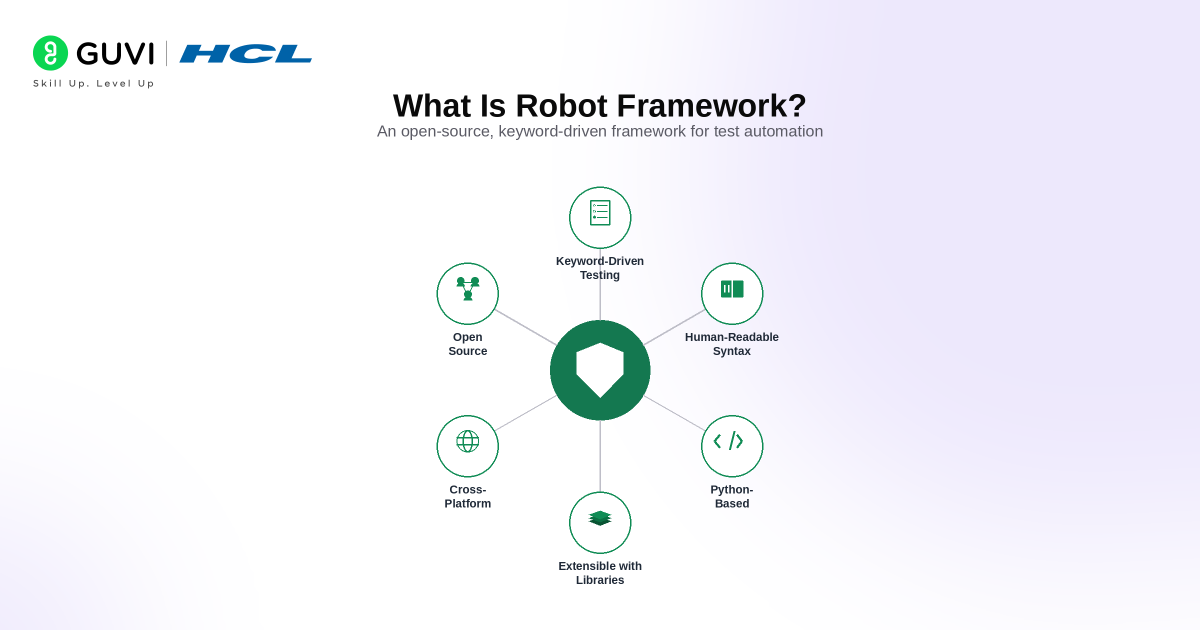
Robot Framework is a versatile open-source automation framework that has gained significant popularity in recent years. Its modular and extensible architecture, coupled with its ease of use, makes it an ideal choice for automating a wide range of tasks.
The Robot Framework is a keyword-driven automation framework designed to be easy to use, even for non-programmers. It uses a simple English-like syntax to define test cases and keywords, making it accessible to a broad range of users.
The framework’s modular architecture enables seamless integration with various tools and technologies, making it highly adaptable to diverse automation needs.
Key Features of Robot Framework
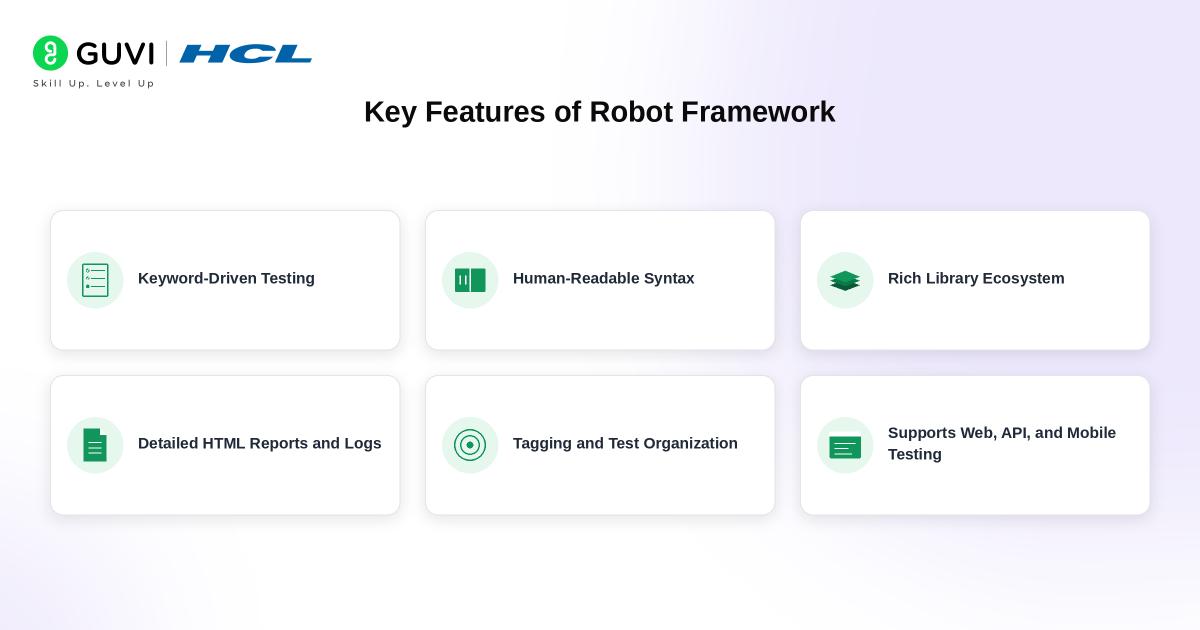
- Keyword-Driven Automation Testing : Robot Framework employs a keyword-driven approach where test cases are defined using reusable keywords. This promotes code reusability and maintainability.
- Data-Driven Testing: Robot Framework supports data-driven testing, enabling users to execute the same test case with different data sets right from an Excel file, CSV file, and Databases. This is particularly useful for testing applications with varying input values.
- Reporting: The framework generates detailed test reports and logs ,providing valuable insights into test execution.
- Integration with Other Tools: Robot Framework can be integrated with various tools and technologies, such as Selenium for web testing, Appium for mobile app testing, and Jenkins for continuous integration and of course with Microsoft Playwright automation testing framework. Now only that we can also use the Behavior Driven Development (BDD) Gherkin, which allows us to test complex tasks.
How Robot Framework Works?
- Test Data: Test cases and keywords are defined in test data files using a simple syntax. These files can be written in plain text or HTML format.
- Keyword Execution: When a test case is executed, the framework resolves the keywords used in the test case and executes them. Keywords can be built-in or custom.
- Variable Substitution: Robot Framework supports variable substitution, allowing users to parameterize test data and make tests more dynamic.
- Reporting: The framework generates test reports in various formats, including HTML, XML, and JSON. These reports provide detailed information about test execution, including pass/fail status, execution time, and error messages.
Benefits of Using Robot Framework
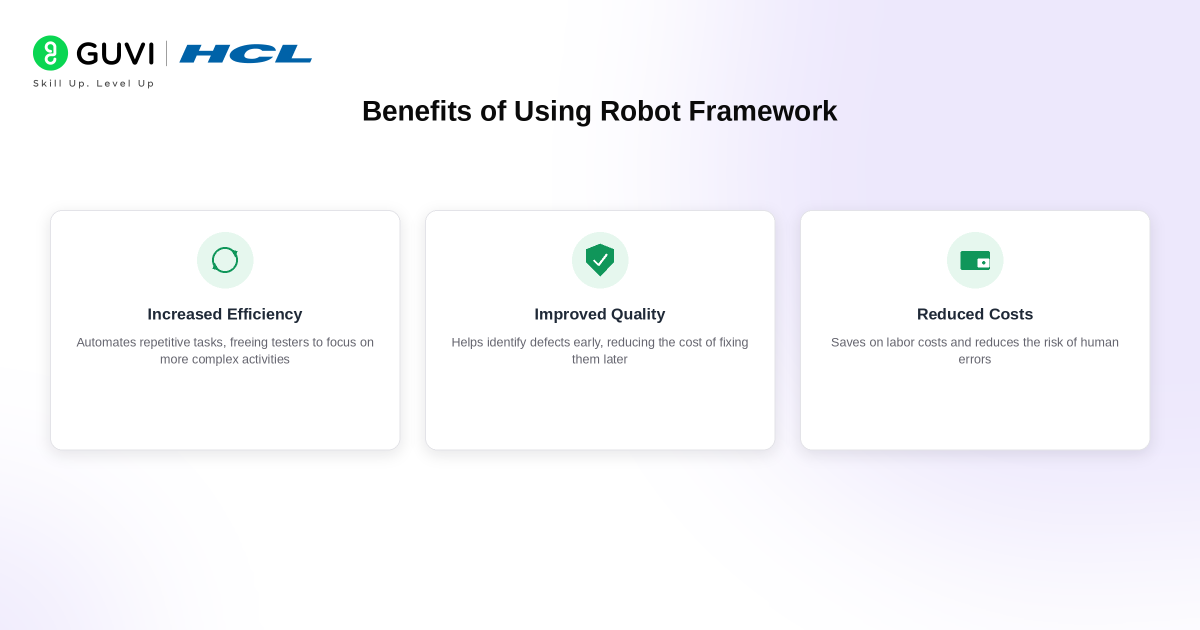
- Increased Efficiency: Robot Framework can significantly improve the efficiency of testing processes by automating repetitive tasks. This frees up time for testers to focus on more complex activities.
- Improved Quality: By automating testing, Robot Framework can help to improve the overall quality of software applications. It can help to identify defects early in the development process, reducing the cost of fixing them later.
- Reduced Costs: Automation can help to reduce the costs associated with testing. By automating repetitive tasks, organizations can save money on labor costs and reduce the risk of human errors.
- Improved Collaboration: Robot Framework can facilitate collaboration between testers, developers, and other stakeholders. By using a common language and framework, teams can work together more effectively.
Usage of Robot Framework
Robot Framework is used in a wide range of applications including:
- Web Application Testing: Robot Framework can be used to automate testing of web applications, including functional testing, regression testing, and performance testing.
- API Testing: The framework can be used to test APIs, ensuring that they are functioning correctly and returning the expected results.
- Mobile App Testing: Robot Framework can be used to automate testing of mobile apps, including functional testing, performance testing, and compatibility testing with the help of Appium mobile testing framework.
- Database Testing: The framework can be used to test databases like MySQL, Oracle, MariaDB, PostgreSQL ensuring that data is being stored, retrieved, and updated correctly using CRUD methodologies.
Robot Framework Architecture
The following image given below shows the architecture design and setup of High-Level Robot framework :-

The Robot Framework architecture is a modular and extensible platform for automating tasks. It consists of several key components:
1. Robot Framework Core:
- Parser: Reads test cases and keywords from various formats (e.g., HTML, TXT, ReST).
- Variable Resolver: Handles variables and data-driven testing.
- Keyword Executor: Executes keywords, which can be built-in or custom.
- Test Case Executor: Executes test cases, coordinating the execution of keywords.
- Result Writer: Generates test reports in various formats (e.g., HTML, XML).
2. Libraries:
- Built-in Libraries: Provide basic functionalities like variables, loops, conditionals, and file operations.
- External Libraries: Offer specific functionalities for interacting with different systems or technologies (e.g., Selenium for web testing, SSH for remote execution).
3. Test Data:
- Test cases and keywords are defined in test data files using a simple syntax.
- Variables can be used to parameterize test data.
4. Execution:
- The Robot Framework interpreter reads the test data files and executes the test cases.
- Keywords are executed, and results are recorded.
5. Reporting:
- The framework generates test reports in various formats, providing detailed information about test execution, including pass/fail status, execution time, and error messages.
Installation of Robot Framework
To install Robot Framework into your system, you need Python 3.5+ with the PIP command accessible from the command line or terminal. The command to install Robot Framework is as follows:-
pip install robotframework

pip install robotframework-seleniumlibrary

Kindly note that with the command pip install robotframework-seleniumlibrary, you can install the Robot Framework as well as the SeleniumLibrary, which is very essential for automation of web applications. So, even if you have used the pip install robotframework, you need to use pip install robotframework-seleniumlibrary, but if you have run the command pip install robotframework-seleniumlibrary, it is no longer necessary and you need to use the pip install robotframework.
Understanding the Robot Script File
Now, since we introduced ourselves with Robot framework and learnt about its high-level architecture now it is time to understand the basic script of Robot framework.
But, before writing the main test-script file, it will be imperative to understand the basics of a Robot test-script file first. Generally, a Robot test file looks like this

Let us now understand what are the things in details:-
Settings
The Settings section in a Robot Framework test suite defines the framework’s configuration. It includes:
- Documentation: Provides a brief description of the test suite.
- Suite Setup: A keyword that runs before the entire suite.
- Suite Teardown: A keyword that runs after the entire suite.
- Test Setup: A keyword that runs before each test case.
- Test Teardown: A keyword that runs after each test case.
- Default Tags: Tags that are applied to all test cases unless overridden.
Variables
Variables in Robot Framework are used to store data that can be reused throughout the test suite. They can be:
- Global Variables: Defined at the suite level and accessible to all test cases.
- Scalar Variables: Store a single value.
- List Variables: Store a list of values.
- Dictionary Variables: Store key-value pairs.
Test Cases
Test cases are the individual units of testing in Robot Framework. They consist of a series of keywords that describe the steps to be performed during the test. Each test case has:
- Name: A descriptive name for the test case.
- Documentation: A brief description of the test case.
- Tags: Keywords that categorize the test case for reporting and selection purposes.
- Keywords: The actions to be performed during the test.
Keywords
Keywords are the building blocks of Robot Framework. They represent reusable actions or operations that can be called from within test cases. Keywords can be:
- Built-in Keywords: Provided by the framework itself for common tasks like opening URLs, clicking elements, and verifying text.
- User-defined Keywords: Created by the user to encapsulate custom logic or frequently used sequences of actions.
First Robot Script File
We have created a Robot test-case file by the name “TestHCLGuvi.robot” and a basic test-case has been written inside it as below. The description of the file is as follows:-
*** Settings ***

Documentation    Automation Testing of HCL Guvi Homepage

Library    SeleniumLibrary

# Run the Script

# robot -d Results Tests\HCLGuviHomePage.robot

*** Variables ***

${url}  https://www.guvi.in

*** Test Cases ***

Testing the Homepage of HCLGUVI

   [Documentation]    Open the homepage of HCLGUVI using Chrome Browser

   [Tags]    HCLGUVI001   FirstTest   HCLGUVIHomePage

   set selenium timeout    5s

   log    Log the Robot Automation Testing

   open browser    ${url}     chrome

   sleep    2s

   close all browsers

***Keywords ***
This script is a test automation script for the HCL GUVI homepage written using the Robot Framework, which integrates Selenium for browser automation. Below is a detailed explanation of the various sections and commands in the script:
1. Settings Section
The *** Settings *** section defines the overall configuration of the test, including libraries, resources, and metadata required for execution.
- Documentation Automation Testing of HCL Guvi Homepage: This line adds a description to the test suite, explaining that it is intended for automation testing of HCL GUVI’s homepage.
- Library SeleniumLibrary: This imports the Selenium Library into the Robot Framework, allowing the script to perform browser-based automation tasks.
2. Variables Section
The *** Variables *** section declares global variables that can be used throughout the script.
- ${url} https://www.guvi.in: This variable stores the URL of the HCL GUVI homepage. Using variables makes the script more maintainable, as any changes to the URL only need to be updated here.
3. Test Cases Section
The *** Test Cases *** section defines the actual test scenarios. In this case, there is one test case:
Test Case: Testing the Homepage of HCL GUVI
- [Documentation]: Provides a brief description of the test case. It mentions that the test will open the HCL GUVI homepage using the Chrome browser.
- [Tags]: Tags like HCL GUVI001, FirstTest, and HCL GUVIHomePage are applied. These are useful for identifying, organizing, and grouping tests when running a large number of test cases.
Steps within the Test Case:
- set selenium timeout 5s: This sets the Selenium timeout to 5 seconds. This means that Selenium will wait up to 5 seconds for elements to be present before throwing a timeout error.
- log Log the Robot Automation Testing: This logs a custom message “Log the Robot Automation Testing” to the console or report, which is useful for debugging and reporting purposes.
- open browser ${url} chrome: This command opens a browser window (Chrome) and navigates to the URL stored in the ${url} variable, which is the HCL GUVI homepage.
- sleep 2s: This pauses the execution for 2 seconds, allowing the page to load completely before proceeding with the next step. Using sleep is sometimes helpful when pages take longer to load.
- close all browsers: This closes all open browser instances at the end of the test, ensuring that no browser windows are left running after the test finishes.
4. Keywords Section
- *** Keywords ***: This section is empty in the script. Typically, it is used to define custom keywords, which are reusable blocks of code that can be called across different test cases. In this case, no custom keywords are defined.
Execution Command
The script provides a comment line showing how to run the test from the command line:
# Run the Script
# robot -d Results Tests\HCL GuviHomePage.robot
- robot is the command to run Robot Framework tests.
- -d Results specifies that the results should be saved in the Results folder.
- Tests\HCLGuviHomePage.robot is the path to the test file.
Overall Flow of the Test Case:
- The script starts by setting a 5-second timeout for Selenium actions.
- It logs a message for debugging.
- It opens the HCL GUVI homepage in Chrome.
- The script waits for 2 seconds to ensure the page loads completely.
- Finally, it closes all browser windows.

The Result Files
When you run a Robot Test-Case file, three Test Report files get generated, they are as follows:-
- log.html
- output.xml
- report.html
Report.html

The report.html file in Robot Framework is a comprehensive HTML report that provides a detailed overview of the test execution results. It serves as a valuable resource for analyzing the success and failure of test cases, identifying potential issues, and tracking the overall progress of the testing process.
Key Features of the report.html File:
- Test Case Summary: A tabular representation of all test cases, including their status (passed, failed, skipped), name, duration, and any error messages.
- Test Suite Summary: A summary of each test suite, providing information about the number of test cases, passed, failed, skipped, and the overall test suite status.
- Statistics: A statistical analysis of the test execution, including the total number of test cases, test suites, passed, failed, skipped, and the overall pass rate.
- Keyword Statistics: A breakdown of keyword execution statistics, showing the number of times each keyword was executed, passed, failed, and skipped.
- Log Output: Detailed log information for each test case, including the execution steps, variable values, and any error messages.
- Screenshots: If configured, screenshots captured during test execution are included in the report, providing visual evidence of failures or unexpected behavior.
Benefits of Using the report.html File:
- Comprehensive Analysis: The report provides a detailed view of test execution results, making it easier to identify and address issues.
- Efficient Debugging: The log output and screenshots can help pinpoint the root cause of test failures.
- Progress Tracking: The report can be used to monitor the progress of the testing process and identify areas that require attention.
Output.xml

The output.xml file in Robot Framework is a comprehensive report that captures detailed information about the test execution. It provides a structured representation of the test cases, their status (pass, fail, or skipped), execution time, and any error messages or captured screenshots.
Key Elements of the output.xml File:
- Test Suite: Contains information about the overall test suite, including its name, start time, end time, and total test cases.
- Test Case: Each test case within the suite is represented, with details such as its name, status, execution time, criticality (whether it’s critical to pass), and any associated tags.
- Keyword: The keywords executed within each test case are listed, along with their arguments, return values, and execution time.
- Message: Any messages or errors encountered during test execution are recorded here, including their level (INFO, DEBUG, WARN, ERROR, or CRITICAL).
log.html


The log.html file in Robot Framework is a comprehensive report that provides a detailed overview of the test execution. It serves as a valuable resource for analyzing test results, identifying failures, and understanding the overall health of the test suite.
Key features and content of the log.html file:
- Test Case Summary: A list of all test cases executed, along with their status (passed, failed, skipped, etc.) and execution time.
- Keyword Execution Details: A breakdown of each keyword used in the test cases, including its parameters, return values, and execution time.
- Failure Details: Detailed information about failed test cases, including error messages, screenshots (if captured), and the specific keyword or step that caused the failure.
- Suite Statistics: Summary information about the entire test suite, such as the total number of test cases, passed/failed/skipped counts, and overall execution time.
- Tags: Information about the tags associated with test cases, which can be used for filtering and grouping tests.
- Variables: A list of variables used during the test execution, along with their values.
- Configuration: Details about the Robot Framework environment, such as the Python version, libraries used, and command-line arguments.
Build industry-ready automation testing skills with HCL GUVI’s Selenium Automation Testing Course. Learn through structured, hands-on training covering Selenium, test automation frameworks, web testing, and real-world QA workflows while gaining practical experience through live projects and industry-focused learning.
How Should You Structure a Robot Framework Project for Large Test Suites?
A scalable Robot Framework project should separate test cases, reusable keywords, variables, resources, libraries, and generated results instead of placing everything inside one .robot file.
A practical structure can include:
- tests/: Contains smoke, regression, API, or end-to-end test suites.
- resources/: Stores reusable keywords, locators, and shared configurations.
- variables/: Maintains environment-specific URLs, credentials references, and test data.
- libraries/: Contains custom Python libraries when built-in or external keywords are insufficient.
- data/: Stores CSV, JSON, YAML, or other external test datasets.
- results/: Keeps
report.html,log.html,output.xml, screenshots, and execution artifacts.
This separation improves maintainability because UI locators, business keywords, test data, and execution logic can change independently as the automation suite grows.
Which Robot Framework Libraries Should You Use for Different Testing Needs?
Robot Framework becomes more powerful through external libraries that connect the framework to specific applications and protocols.
| Testing Requirement | Common Robot Framework Library |
|---|---|
| Browser automation with Selenium | SeleniumLibrary |
| Modern browser automation | Browser Library |
| REST API testing | RequestsLibrary |
| Mobile application testing | AppiumLibrary |
| Database validation | DatabaseLibrary |
| SSH and remote system testing | SSHLibrary |
The library should match the system being tested rather than forcing every workflow through browser automation. For example, backend validation is usually more efficient through API or database-level testing than reproducing the same check through a user interface.
How Do You Manage Multiple Environments in Robot Framework?
Enterprise automation suites usually run against several environments such as development, QA, staging, and production-like systems. Hardcoding URLs, credentials, API endpoints, or database details inside test cases makes these suites difficult to maintain.
Robot Framework can separate environment configuration using:
- Variable Files: Store environment-specific values outside test cases.
- Command-Line Variables: Override values during execution using
--variable. - Environment Variables: Keep sensitive or deployment-specific configuration outside source files.
- Resource Files: Share reusable environment setup and teardown keywords.
- CI/CD Parameters: Pass target environment values dynamically from Jenkins, GitHub Actions, or another pipeline.
For example, the same regression suite can run against QA and staging by changing the base URL and credentials configuration without modifying the test logic itself.
How Do You Debug Flaky Robot Framework Tests?
A flaky Robot Framework test passes in one execution and fails in another without a genuine application defect. Common causes include timing issues, unstable locators, asynchronous UI behavior, shared test state, slow external APIs, and inconsistent test data.
A systematic debugging workflow should check:
- Logs First: Use
log.htmlto identify the exact keyword and failure point. - Screenshots: Capture the application state when UI tests fail.
- Wait Conditions: Replace fixed
Sleepstatements with condition-based waits. - Locator Stability: Prefer reliable IDs or stable attributes over brittle DOM paths.
- Test Isolation: Ensure one test does not depend on data created by another.
- Environment State: Check API availability, database state, browser versions, and network latency.
- Repeat Execution: Run the failing test independently to determine whether the problem is deterministic or intermittent.
Stable automation comes from synchronizing tests with actual application state rather than increasing arbitrary waiting time.
Best Practices for Writing Maintainable Robot Framework Test Cases
- Use Reusable Custom Keywords: Creating modular user-defined keywords reduces code duplication, improves readability, and simplifies large-scale automation maintenance across multiple test suites.
- Avoid Hardcoded Test Data: Store URLs, credentials, test inputs, and environment variables separately using variable files, YAML, JSON, or environment configurations for better scalability and security.
- Implement Explicit Waits Instead of Sleep Commands: Using dynamic waits such as Wait Until Element Is Visible improves test stability and reduces flaky automation failures caused by timing issues.
- Organize Tests Using Tags and Test Suites: Proper tagging helps teams run smoke tests, regression suites, API tests, or critical workflows selectively inside CI/CD pipelines like Jenkins or GitHub Actions.
- Integrate Logging and Screenshot Capture: Capturing logs, screenshots, and execution traces during failures improves debugging efficiency and accelerates root-cause analysis in automation testing environments.
Robot Framework vs Selenium: Key Differences
- Robot Framework is a Testing Framework While Selenium is a Browser Automation Tool: Robot Framework provides the overall testing structure, reporting, keyword-driven execution, and extensibility, whereas Selenium specifically automates browser interactions.
- Robot Framework Supports Multiple Testing Types: Unlike Selenium, Robot Framework can handle API testing, desktop testing, database testing, SSH automation, and mobile testing using external libraries.
- Keyword-Driven Syntax Makes Robot Framework Beginner Friendly: Robot Framework uses English-like syntax, making it easier for non-programmers and QA teams compared to Selenium’s code-centric automation approach.
- Selenium Requires Programming Knowledge: Selenium automation typically requires strong knowledge of Java, Python, C#, or JavaScript, while Robot Framework abstracts much of the coding complexity through reusable keywords.
- Robot Framework Generates Built-In Reports Automatically: Robot Framework provides detailed log.html, report.html, and output.xml reports by default without requiring additional reporting plugins or frameworks.
CI/CD Integration and DevOps Automation Using Robot Framework
- Integration with Jenkins and GitHub Actions: Robot Framework can automatically execute regression suites inside CI/CD pipelines whenever developers push new code changes to repositories.
- Support for Parallel Test Execution: Tools like Pabot allow Robot Framework to execute multiple test suites simultaneously, reducing execution time for enterprise-scale automation environments.
- Containerized Test Execution with Docker: Teams can run Robot Framework tests inside Docker containers for consistent test environments across development, staging, and production systems.
- Cloud-Based Cross-Browser Testing Support: Robot Framework integrates with BrowserStack, Sauce Labs, and Selenium Grid for scalable cross-browser and cross-device automation testing.
DevOps-Friendly Automation Workflow: Robot Framework supports automated testing in Agile and DevOps pipelines by enabling continuous testing, rapid feedback cycles, and faster software delivery.
Conclusion
Robot Framework has become a powerful solution for modern automation testing because of its simplicity, flexibility, and strong ecosystem support. Its keyword-driven structure, reusable components, detailed reporting, and integrations with Selenium, Appium, Playwright, Jenkins, and CI/CD tools make it suitable for both beginners and enterprise-level testing teams.
As organizations increasingly adopt Agile, DevOps, and continuous testing practices, automation frameworks like Robot Framework play a major role in improving software quality, reducing manual effort, and accelerating release cycles. Whether you are starting your journey in test automation or building scalable enterprise testing pipelines, learning Robot Framework can be a highly valuable skill in today’s software testing industry.
FAQs
Is Robot Framework good for beginners?
Yes, Robot Framework uses simple keyword-driven syntax, making it beginner-friendly even for non-programmers.
Can Robot Framework be used for API testing?
Yes, Robot Framework supports API testing using libraries like RequestsLibrary and REST libraries.
Does Robot Framework support Selenium?
Yes, Robot Framework integrates with SeleniumLibrary for automated web application testing.
Which programming language is required for Robot Framework?
Robot Framework is built on Python, but users can create tests with minimal programming knowledge.
Can Robot Framework be integrated with Jenkins?
Yes, Robot Framework supports CI/CD integration with Jenkins, GitHub Actions, and other DevOps tools.
Success Stories

About the Author
Vaishali
I'm a seasoned writer with four years of experience across technical, non-technical, and just about every genre or niche you can imagine. Adaptable and curious, I enjoy exploring new topics and making information engaging and easy to understand. Fueled by a steady stream of tea, I approach each project with creativity, reliability, and genuine enthusiasm for storytelling.
View all posts by Vaishali
Connect with me @














Did you enjoy this article?