


Full Stack Development Articles
Claude for Architecture and Engineering Documentation
Freelancing as a Python Developer: Getting Your First Client


Get In Touch For Details! Request More Information
Packer Machine Image Tutorial: Build Reproducible Images Like a Pro
Sep 19, 2026 5 Min Read 287 Views
(Last Updated)
Table of contents
- What is a Packer machine image tutorial?
- TL;DR
- What Is Packer and Why Does It Matter?
- How Packer Works: The Core Concepts
- What Is a Machine Image?
- The Packer Build Pipeline
- The Template File
- Installing Packer
- macOS (Homebrew)
- Linux (Ubuntu/Debian)
- Windows (Chocolatey)
- Verify Installation
- Writing Your First Packer Template (HCL2)
- Breaking Down the Template
- Running Your First Packer Build
- What Happens During a Build
- Using Provisioners to Configure Your Image
- Shell Provisioner
- Ansible Provisioner
- File Provisioner
- Chaining Provisioners
- Post-Processors: What Happens After the Build
- Manifest Post-Processor
- Compress Post-Processor
- Vagrant Post-Processor
- Building a Multi-Cloud Image in One Run
- Packer + Terraform: The Golden Workflow
- Common Errors and How to Fix Them
- FAQs
- Q: What is Packer used for?
- Q: Is Packer free to use?
- Q: What is the difference between Packer and Terraform?
- Q: Does Packer work with Docker?
- Q: How long does a Packer build take?
- Q: Can I run Packer in a CI/CD pipeline?
- Q: What's the difference between HCL2 and JSON templates in Packer?
What is a Packer machine image tutorial?
A Packer machine image tutorial walks you through using HashiCorp Packer an open-source tool to automate the creation of identical machine images across multiple platforms (AWS AMI, Docker, VMware, etc.) from a single configuration file. Instead of manually configuring servers, you define your image once and Packer builds it everywhere. The result: consistent, reproducible infrastructure at scale.
TL;DR
- Packer is HashiCorp’s open-source tool for automating machine image creation across cloud and on-prem platforms.
- You write one HCL2 (or JSON) template Packer builds your image on AWS, GCP, Azure, Docker, and more simultaneously.
- Machine images created with Packer are immutable: you bake your config in, not configure it at runtime.
- Packer integrates tightly with Terraform, Ansible, and your CI/CD pipeline.
- This tutorial covers installation, your first build, provisioners, post-processors, and real-world patterns.
What Is Packer and Why Does It Matter?
Picture this: your team spends three days debugging a production outage not because of bad code, but because the server your developer tested on had a slightly different version of nginx than what ran in production.
That’s the “configuration drift” problem. Packer exists to kill it.
Packer (by HashiCorp) is a free, open-source tool that automates machine image creation. You define your image in code, and Packer builds it whether you need an AWS AMI, a Docker container, a VMware OVA, or all three at once.
The key idea: bake, don’t fry. Instead of configuring servers after deployment (frying), you bake everything into the image upfront. The server that starts is already fully configured.
💡 Pro Tip: Packer doesn’t replace configuration management tools like Ansible or Chef — it works with them. You use Ansible inside Packer to provision the image during the build.
How Packer Works: The Core Concepts
Before you touch a terminal, you need to know three things:
What Is a Machine Image?
A machine image is a snapshot of a fully configured operating system. When you launch a new server, you start from this snapshot everything is already installed and configured.
On AWS, these are called AMIs (Amazon Machine Images). On Google Cloud, they’re called Custom Images. On VMware, they’re OVA/OVF files.
The Packer Build Pipeline
Every Packer build follows this order:
- Source — defines where to build (which cloud, which base image)
- Provisioner — defines what to install or configure inside the image
- Post-processor — defines what to do with the finished image (compress it, push to registry, etc.)
The Template File
Packer uses HCL2 (HashiCorp Configuration Language) as its default template format as of version 1.7+. JSON is still supported but HCL2 is the modern standard.
Installing Packer
Packer runs on Linux, macOS, and Windows. Here’s the fastest path for each:
macOS (Homebrew)
brew tap hashicorp/tap

brew install hashicorp/tap/packer
Linux (Ubuntu/Debian)
wget -O- https://apt.releases.hashicorp.com/gpg | sudo gpg --dearmor -o /usr/share/keyrings/hashicorp-archive-keyring.gpg

echo "deb [signed-by=/usr/share/keyrings/hashicorp-archive-keyring.gpg] https://apt.releases.hashicorp.com $(lsb_release -cs) main" | sudo tee /etc/apt/sources.list.d/hashicorp.list

sudo apt update && sudo apt install packer
Windows (Chocolatey)
choco install packerVerify Installation
packer version

You should see output like: Packer v1.11.x
Writing Your First Packer Template (HCL2)
Let’s build an AWS AMI with a custom nginx setup. Create a file called aws-nginx.pkr.hcl:
packer {

  required_plugins {

    amazon = {

      version = ">= 1.3.0"

      source  = "github.com/hashicorp/amazon"

    }

  }

}

variable "aws_region" {

  type    = string

  default = "us-east-1"

}

source "amazon-ebs" "ubuntu" {

  ami_name      = "packer-nginx-demo-{{timestamp}}"

  instance_type = "t3.micro"

  region        = var.aws_region

  source_ami_filter {

    filters = {

      name                = "ubuntu/images/hvm-ssd/ubuntu-jammy-22.04-amd64-server-*"

      root-device-type    = "ebs"

      virtualization-type = "hvm"

    }

    most_recent = true

    owners      = ["099720109477"] # Canonical's AWS account ID

  }

  ssh_username = "ubuntu"

}

build {

  name    = "nginx-ami"

  sources = ["source.amazon-ebs.ubuntu"]

  provisioner "shell" {

    inline = [

      "sudo apt-get update",

      "sudo apt-get install -y nginx",

      "sudo systemctl enable nginx"

    ]

  }

}
Breaking Down the Template
packer {} block — declares required plugins. Packer uses a plugin architecture; you pull in the AWS plugin here.
variable {} block — parameterizes your template. You can override variables at build time.
source {} block — defines what platform and base image to use. amazon-ebs means EBS-backed AMI.
build {} block — ties sources and provisioners together. This is where the actual work happens.
💡 Pro Tip: The {{timestamp}} in ami_name gives every build a unique name. Without it, Packer will fail if an AMI with that name already exists in your account.
Running Your First Packer Build
With your template ready, run:
# Initialize (downloads required plugins)

packer init aws-nginx.pkr.hcl

# Validate the template syntax

packer validate aws-nginx.pkr.hcl

# Run the build

packer build aws-nginx.pkr.hcl
What Happens During a Build
- Packer launches a temporary EC2 instance using your source_ami_filter
- It waits for SSH to become available
- It runs your provisioners (the shell commands in our case)
- It stops the instance and creates an AMI from it
- It terminates the temporary instance
- It outputs the new AMI ID
A successful build looks like:
==> Builds finished. The artifacts of successful builds are:

--> nginx-ami.amazon-ebs.ubuntu: AMIs were created:

us-east-1: ami-0abc123def456789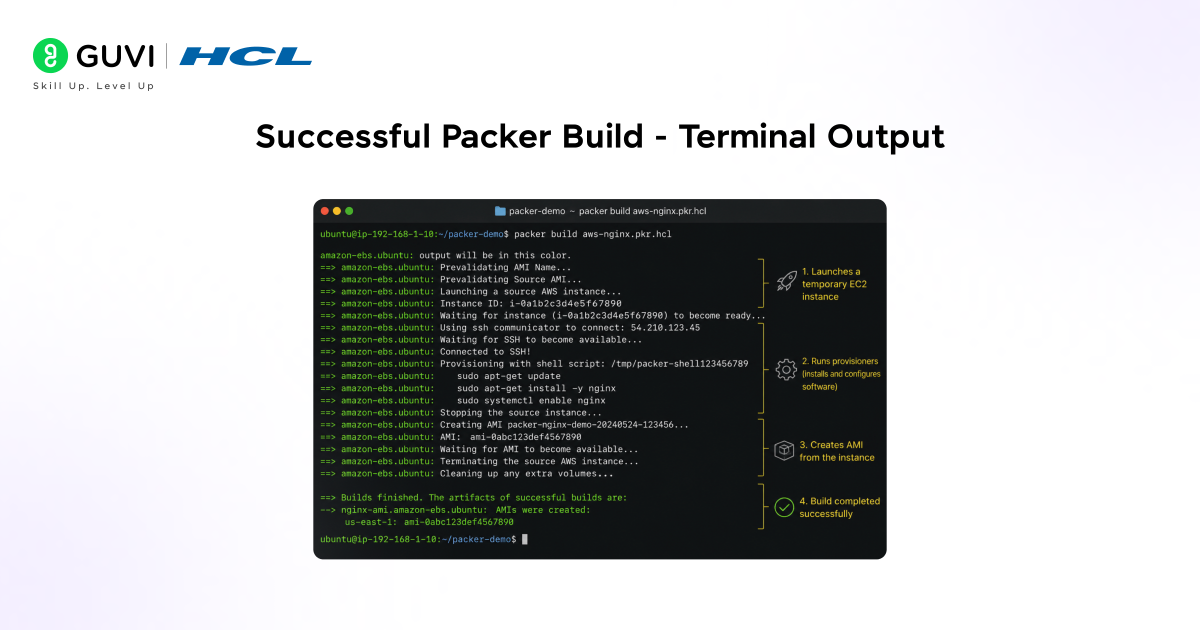
If you want a structured, mentor-supported path and learn all these new tools, then HCL GUVI’s IIT-M Pravartak Certified Full Stack Developer Course with AI Integration covers the entire journey, from HTML to deployment, with real projects, live sessions, and placement support. Over 10,000 students have used it to break into product-based companies.
Using Provisioners to Configure Your Image
Provisioners are where the real power lives. Packer supports multiple provisioner types:
Shell Provisioner
Runs inline commands or an external script:
provisioner "shell" {

  script = "scripts/install-app.sh"

}
Ansible Provisioner
If your team already uses Ansible playbooks, drop them straight in:
provisioner "ansible" {

  playbook_file = "playbooks/webserver.yml"

  extra_arguments = ["--extra-vars", "env=production"]

}
File Provisioner
Copies files into the image:
provisioner "file" {

  source      = "configs/nginx.conf"

  destination = "/tmp/nginx.conf"

}

provisioner "shell" {

  inline = ["sudo mv /tmp/nginx.conf /etc/nginx/nginx.conf"]

}
⚠️ Warning: The file provisioner can only write to directories the SSH user has permission to access. Use /tmp/ as a staging area, then move with sudo in a shell provisioner.
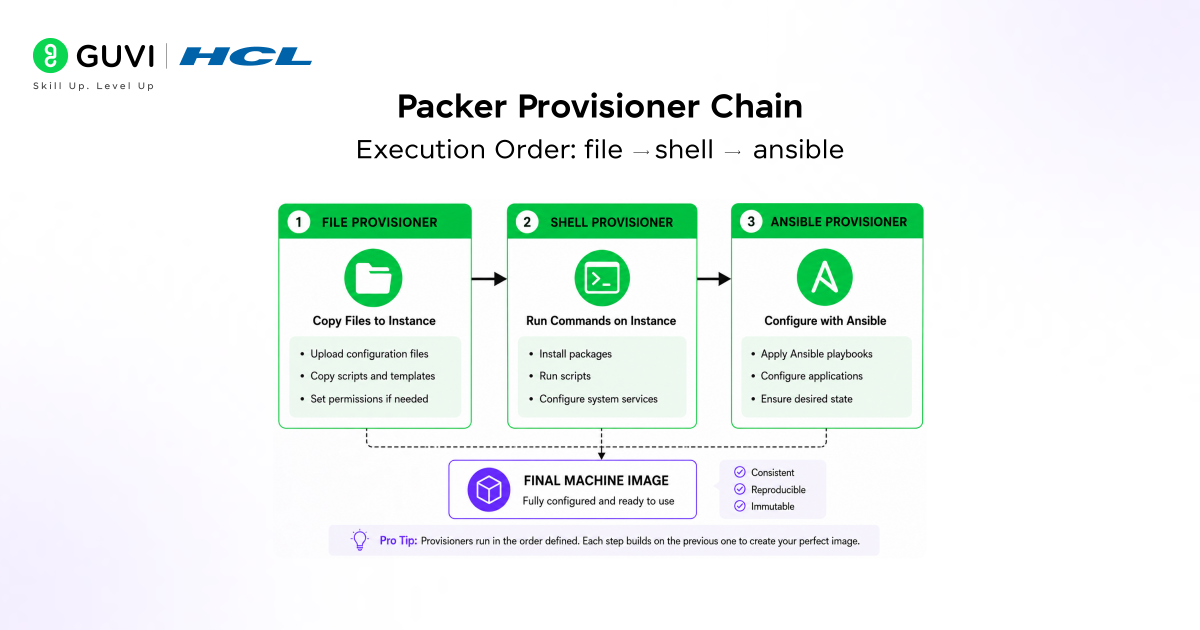
Chaining Provisioners
Provisioners run in the order you define them. This matters:
build {

  sources = ["source.amazon-ebs.ubuntu"]

  # 1. Copy config files

  provisioner "file" {

    source      = "configs/"

    destination = "/tmp/configs/"

  }

  # 2. Install dependencies

  provisioner "shell" {

    script = "scripts/install.sh"

  }

  # 3. Run Ansible for fine-grained config

  provisioner "ansible" {

    playbook_file = "playbooks/harden.yml"

  }

}
Post-Processors: What Happens After the Build
Post-processors run after the image is built. Common uses:
Manifest Post-Processor
Creates a JSON file listing all built artifacts — useful for CI/CD pipelines:
post-processor "manifest" {

  output     = "packer-manifest.json"

  strip_path = true

}
Compress Post-Processor
Compresses the output (useful for Vagrant boxes or local builds):
post-processor "compress" {

  output = "output/image.tar.gz"

}
Vagrant Post-Processor
Wraps a VMware or VirtualBox build into a Vagrant box:
post-processor "vagrant" {

  output = "builds/ubuntu-nginx.box"

}
Building a Multi-Cloud Image in One Run
This is where Packer truly separates itself from manual image creation. You can build for AWS, GCP, and Azure in a single packer build command:
source "amazon-ebs" "web" {

  # ... AWS config

}

source "googlecompute" "web" {

  project_id   = "my-gcp-project"

  source_image = "ubuntu-2204-jammy-v20250101"

  zone         = "us-central1-a"

  image_name   = "packer-nginx-{{timestamp}}"

  ssh_username = "ubuntu"

}

build {

  sources = [

    "source.amazon-ebs.web",

    "source.googlecompute.web"

  ]

  provisioner "shell" {

    script = "scripts/install-nginx.sh"

  }

}
Packer builds both in parallel. The same provisioner script runs in both environments.
Packer + Terraform: The Golden Workflow
If you’re using Terraform, Packer slots in naturally at the image-creation stage:
The workflow:
- Packer → builds and registers the AMI
- Terraform → deploys EC2 instances using that AMI ID
- Your app → starts instantly from a fully baked image
# In Terraform: reference the AMI Packer built
data "aws_ami" "app" {

  most_recent = true

  owners      = ["self"]

  filter {

    name   = "name"

    values = ["packer-nginx-demo-*"]

  }

}

resource "aws_instance" "web" {

  ami           = data.aws_ami.app.id

  instance_type = "t3.micro"

}
This pattern is called the Immutable Infrastructure model. Your servers never get updated — they get replaced with a newly baked image.
Common Errors and How to Fix Them
| Error | Likely Cause | Fix |
|---|---|---|
| timeout waiting for SSH | Security group blocks port 22 | Add inbound SSH rule in your AWS security group or use communicator = “winrm” for Windows |
| Error: No AMI was found | source_ami_filter returned nothing | Check the owners field and AMI name pattern for your region |
| Plugin not installed | Forgot packer init | Run packer init <template.pkr.hcl> before packer build |
| AccessDenied | Missing IAM permissions | Attach the AmazonEC2FullAccess policy or scope down with a custom Packer IAM policy |
| Build cancelled from interrupt | You hit Ctrl+C | The temp instance may still be running — check your EC2 console and terminate it manually |
FAQs
Q: What is Packer used for?
Packer is used to automate the creation of machine images — like AWS AMIs, Docker images, VMware OVAs — from a single configuration file. It ensures every environment gets the same, reproducible image.
Q: Is Packer free to use?
Yes. Packer is open-source and free under the Business Source License (BSL). You can use it without paying HashiCorp anything for most use cases.
Q: What is the difference between Packer and Terraform?
Packer builds machine images (the template your servers start from). Terraform provisions and manages the actual infrastructure (servers, networks, databases). They work together: Packer bakes the image, Terraform deploys it.
Q: Does Packer work with Docker?
Yes. Packer has a Docker builder that lets you build Docker images using the same template format and provisioners you use for VM images. This is useful when you want a unified image-building pipeline for both containers and VMs.
Q: How long does a Packer build take?
A basic AWS AMI build with a shell provisioner typically takes 5–10 minutes. Builds with heavy Ansible provisioning or large software installations can take 20–30 minutes. The launch time (spinning up the temp instance) accounts for most of the wait.
Q: Can I run Packer in a CI/CD pipeline?
Absolutely. Packer is designed for automation. You can run packer build in GitHub Actions, GitLab CI, Jenkins, or any CI system that can execute shell commands. Store your AWS credentials as environment variables or use IAM roles.
Q: What’s the difference between HCL2 and JSON templates in Packer?
Both formats work, but HCL2 (.pkr.hcl) is the recommended format since Packer 1.7. HCL2 supports variables, locals, functions, and for_each expressions — making it far more flexible than JSON for complex builds. JSON templates are still supported but won’t get new features.
Success Stories

About the Author
Vishalini Devarajan
An Aerospace Engineer turned content writer, I focus on making complex concepts easy to understand through well-structured, reader-friendly blogs. Whether it’s a technical topic or a non-technical one, I love creating content that is clear, engaging, and impactful.
View all posts by Vishalini Devarajan
Connect with me @

































Did you enjoy this article?