


Javascript Articles
GraphQL with Strawberry Tutorial: Build Your First Python API
gRPC Tutorial: A Beginner's Guide to Building Fast, Modern APIs
Temporal Workflow Engine Tutorial: Build Reliable Workflows
Tauri 2.0 Desktop App Tutorial: Build Your First App Without the Bloat


Get In Touch For Details! Request More Information

How to Convert String to Number in JavaScript
Jun 18, 2026 5 Min Read 506 Views
(Last Updated)
Imagine you have a user who types their age into a text box on your website. The text box returns the age as text like “25”, but you need it as a number to do math calculations. You cannot add or subtract text directly. You need to convert the string to a number first.
Converting strings to numbers in JavaScript is one of the most common tasks developers do. Users type numbers into forms, you get numbers from APIs as strings, and you read numbers from files as text. To use these values for calculations, comparisons, or operations, you must convert them to actual numbers.
If you are learning JavaScript, building web applications, or working with user input, understanding how to convert string to number in javascript is essential. JavaScript provides several built-in methods, each with different behavior and use cases.
This guide explains all the different ways to convert string to number in javascript, shows you when to use each method, and helps you understand the differences between them.
Table of contents
- Quick TL;DR Summary
- Why Convert String to Number?
- Method 1: parseInt() Function
- Method 2: parseFloat() Function
- Method 3: Number() Function
- Method 4: Unary Plus Operator (+)
- Understanding NaN (Not a Number)
- Conclusion
- FAQs
- What is the difference between parseInt() and Number()?
- Why does "10" + "20" give "1020" instead of 30?
- When should I use the unary plus operator?
- How do I handle decimal numbers from user input?
- What is the best way to validate numeric input?
Quick TL;DR Summary
- This guide explains multiple methods to convert string to number in javascript including parseInt(), parseFloat(), Number(), and unary plus operator, each with different behaviors and use cases.
- You will learn the differences between these conversion methods, including how they handle decimals, special values, and invalid inputs like non-numeric strings.
- The guide covers practical examples showing how to use each method to convert user input, API responses, and other string data into usable numbers for calculations.
- Step-by-step explanations show you why different methods exist, what each one does, and which method works best for your specific situation.
- You will understand edge cases like handling NaN (Not a Number), validating conversions, and best practices for safe conversion that prevents errors in your code.
In JavaScript, all values entered through form fields, prompts, and many API responses are typically received as strings, even when they contain numeric data. This is why string-to-number conversion is such a common operation in web development. Without conversion, expressions like "10" + "5" produce "105" through string concatenation instead of the numeric result 15. Functions such as Number(), parseInt(), and parseFloat() allow developers to transform text into numeric values so they can be used in calculations, validations, and data processing.
Why Convert String to Number?
- Strings and numbers are different in JavaScript
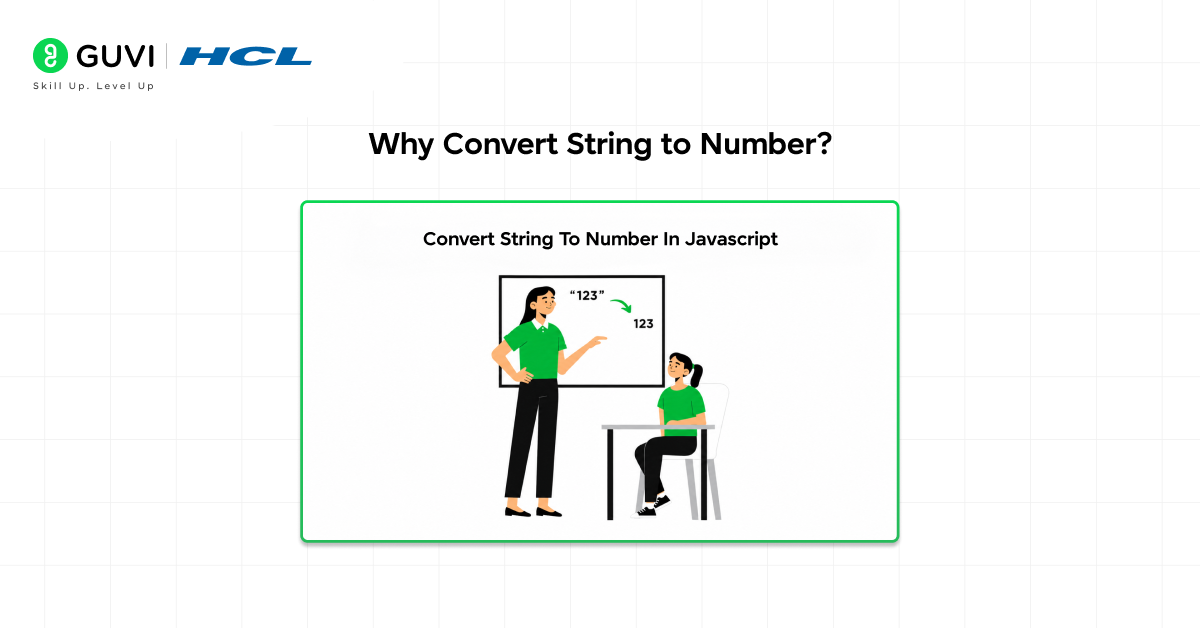
In JavaScript, “25” and 25 look similar but are completely different. “25” is text (a string). 25 is a number. You can concatenate strings but cannot do math with them. “25” + “30” gives “2530”, not 55.
- You need numbers for calculations
To perform math like addition, subtraction, multiplication, and division, you need actual numbers, not strings. If you try to calculate with strings, you get unexpected results.
- User input comes as strings
When users type into text boxes or input fields, the values come as strings. If you ask users to enter their age, birth year, or any numeric data, you receive it as text. You must convert it to a number to use it mathematically.
- APIs return numeric data as strings
Many APIs return numeric data as text in JSON responses. Even though the data represents numbers like prices, quantities, or timestamps, they come as strings. You convert them to numbers for processing.
- Comparisons work differently with strings
Comparing “10” > “9” returns false because JavaScript compares text alphabetically. But 10 > 9 returns true because it is a numeric comparison. For proper comparisons, convert strings to numbers first.
JavaScript is a dynamically typed language, which means a variable can hold different types of values at different points during execution. For example, a variable that initially stores a string can later be reassigned to a number without being redeclared. While this flexibility makes JavaScript highly adaptable, it can also lead to unexpected type-related bugs when values are implicitly converted. This is why experienced developers often perform explicit type conversions using functions such as Number() or String(), helping make code more predictable, easier to debug, and less prone to errors.
Method 1: parseInt() Function
- What parseInt() does
The parseInt() function converts a string to an integer (whole number). It reads characters from left to right until it hits a non-numeric character, then stops. It returns the number it found, ignoring any decimal part.
- Basic syntax
let stringValue = “42”;
let numberValue = parseInt(stringValue);
console.log(numberValue); // Output: 42
- Handling decimal numbers
parseInt() ignores the decimal part and returns only the integer portion.
let stringValue = “42.95”;
let numberValue = parseInt(stringValue);
console.log(numberValue); // Output: 42 (decimal part removed)
- Handling text after numbers
parseInt() stops at the first non-numeric character and returns the number found up to that point.
let stringValue = “42px”;
let numberValue = parseInt(stringValue);
console.log(numberValue); // Output: 42 (stops at “p”)
- Handling invalid strings
If the string starts with non-numeric characters, parseInt() returns NaN (Not a Number), which means the conversion failed.
let stringValue = “hello42”;
let numberValue = parseInt(stringValue);
console.log(numberValue); // Output: NaN
- Specifying the radix parameter
parseInt() accepts a second parameter called radix that specifies the base of the number (binary is 2, octal is 8, decimal is 10, hexadecimal is 16).
let binaryString = “1010”;
let numberValue = parseInt(binaryString, 2);
console.log(numberValue); // Output: 10 (binary 1010 = decimal 10)
let hexString = “2F”;
let numberValue2 = parseInt(hexString, 16);
console.log(numberValue2); // Output: 47 (hex 2F = decimal 47)
- When to use parseInt()
Use parseInt() when you want only the integer part of a number. It is useful for extracting numbers from strings that contain extra characters like CSS values (“42px”), percentages (“50%”), or currency with symbols.
Read More: Mastering JavaScript Type Magic
Method 2: parseFloat() Function
- What parseFloat() does
The parseFloat() function converts a string to a decimal number. It reads characters from left to right and includes one decimal point if found. It returns a floating-point number.
- Basic syntax
let stringValue = “3.14”;
let numberValue = parseFloat(stringValue);
console.log(numberValue); // Output: 3.14
- Keeping decimal places
Unlike parseInt(), parseFloat() preserves decimal values.
let stringValue = “42.95”;
let numberValue = parseFloat(stringValue);
console.log(numberValue); // Output: 42.95
- Handling text after numbers
Like parseInt(), parseFloat() stops at the first non-numeric character (except the decimal point).
let stringValue = “3.14meters”;
let numberValue = parseFloat(stringValue);
console.log(numberValue); // Output: 3.14 (stops at “m”)
- Handling multiple decimal points
parseFloat() only recognizes the first decimal point. Additional dots are treated as stopping points.
let stringValue = “3.14.159”;
let numberValue = parseFloat(stringValue);
console.log(numberValue); // Output: 3.14 (stops at second dot)
- When to use parseFloat()
Use parseFloat() when you need to preserve decimal values. This is useful for prices, measurements, percentages, and any data with fractional parts.
Method 3: Number() Function
- What Number() does
The Number() function converts a value to a number. Unlike parseInt() and parseFloat(), it is stricter. It returns NaN if the entire string cannot be converted to a number.
- Basic syntax
let stringValue = “42”;
let numberValue = Number(stringValue);
console.log(numberValue); // Output: 42

- Handling decimal numbers
Number() preserves decimal places.
let stringValue = “3.14”;
let numberValue = Number(stringValue);
console.log(numberValue); // Output: 3.14
- Stricter validation
Number() returns NaN if there are any non-numeric characters in the string, unlike parseInt() which stops reading at the first non-numeric character.
let stringValue1 = “42px”;
let result1 = Number(stringValue1);
console.log(result1); // Output: NaN (entire string not numeric)
let stringValue2 = “42”;
let result2 = Number(stringValue2);
console.log(result2); // Output: 42 (entire string is numeric)
- Handling whitespace
Number() ignores leading and trailing whitespace.
let stringValue = ” 42 “;
let numberValue = Number(stringValue);
console.log(numberValue); // Output: 42 (whitespace ignored)
- Converting boolean and null values
Number() can convert other types beyond strings.
console.log(Number(true)); // Output: 1
console.log(Number(false)); // Output: 0
console.log(Number(null)); // Output: 0
console.log(Number(“”)); // Output: 0
- When to use Number()
Use Number() when you want strict validation. It is useful when you need to verify that an entire value is numeric before using it. It is also the most versatile function for converting various types to numbers.
Method 4: Unary Plus Operator (+)
- What the plus operator does
The unary plus operator is a shorthand way to convert a string to a number. Place a plus sign before the string value, and JavaScript converts it to a number.
- Basic syntax
let stringValue = “42”;
let numberValue = +stringValue;
console.log(numberValue); // Output: 42
- Handling decimal numbers
The unary plus preserves decimal places.
let stringValue = “3.14”;
let numberValue = +stringValue;
console.log(numberValue); // Output: 3.14
- Behavior similar to Number()
The unary plus behaves like the Number() function. It returns NaN if the entire string is not numeric.
let stringValue = “42px”;
let numberValue = +stringValue;
console.log(numberValue); // Output: NaN
- Shorter syntax for simple conversions
The unary plus is the shortest way to convert strings to numbers.
let x = +”42″;
let y = +”3.14″;
let z = +”invalid”;
console.log(x, y, z); // Output: 42 3.14 NaN
- When to use the unary plus operator
Use the unary plus for quick, simple conversions in your code. It is concise and widely recognized by JavaScript developers. However, some argue it is less readable than Number(), so choose based on your coding style.
The unary plus operator (+) is one of JavaScript’s shortest ways to convert a value into a number. When placed before a value, JavaScript applies its built-in type coercion rules and attempts to convert the value to a numeric type, producing results similar to Number(). For example, +"42" evaluates to 42. While many developers prefer the more explicit Number("42") syntax because it improves readability, the unary plus operator remains a popular shorthand in concise code and performance-sensitive scenarios where its intent is already clear.
Understanding NaN (Not a Number)
- What is NaN?
NaN stands for “Not a Number”. It is a special value in JavaScript that indicates a failed numeric conversion or an invalid math operation. Despite its name, typeof NaN returns “number”.
- When NaN occurs
console.log(parseInt(“hello”)); // NaN
console.log(Number(“42px”)); // NaN
console.log(0 / 0); // NaN (invalid math)
- Checking for NaN
Use the isNaN() function to check if a value is NaN.
let result = Number(“invalid”);
if (isNaN(result)) {
console.log(“Conversion failed”);
} else {
console.log(“Number is:”, result);
}
- isNaN() vs Number.isNaN()
isNaN() converts values to numbers before checking. Number.isNaN() only returns true for actual NaN values.
console.log(isNaN(“hello”)); // true (converts then checks)
console.log(Number.isNaN(“hello”)); // false (checks without converting)
console.log(isNaN(NaN)); // true
console.log(Number.isNaN(NaN)); // true
Use Number.isNaN() for more reliable checks.
To learn more on converting string to number in JavaScript, enroll in this HCL GUVI’s Java Programming course designed for beginners and aspiring developers. With self-paced learning, expert guidance from Subject Matter Experts, and an industry-recognized NASSCOM-approved certification, this course helps you strengthen your Java programming fundamentals and build industry-ready coding skills.
Conclusion
Converting strings to numbers in JavaScript is a fundamental skill every developer needs. JavaScript provides multiple methods, each with different behavior and use cases.
parseInt() extracts integers from strings with extra characters. parseFloat() keeps decimal values. Number() provides strict validation. The unary plus operator offers concise syntax.
Choose the right method based on your data type and validation needs. Always check for NaN after conversion and validate user input before using converted values.
Understanding these methods helps you write more reliable code and avoid common type-related bugs. Whether you are processing user input, working with APIs, or performing calculations, knowing how to convert string to number in javascript is essential.
FAQs
1. What is the difference between parseInt() and Number()?
parseInt() stops reading at the first non-numeric character and ignores decimals. Number() requires the entire string to be numeric and preserves decimals. parseInt() is looser in validation, while Number() is stricter.
2. Why does “10” + “20” give “1020” instead of 30?
In JavaScript, the plus operator can mean addition (for numbers) or concatenation (for strings). When both operands are strings, JavaScript concatenates them. Convert strings to numbers first to get numeric addition.
3. When should I use the unary plus operator?
Use the unary plus for quick, simple conversions when you need concise syntax. It is equivalent to Number() but shorter. Some developers prefer Number() for readability.
4. How do I handle decimal numbers from user input?
Use parseFloat() or Number() depending on whether you want strict validation. parseFloat() is more forgiving, while Number() requires the entire input to be numeric. Both preserve decimal values.
5. What is the best way to validate numeric input?
Use Number.isNaN() after conversion to check if conversion succeeded. This is more reliable than isNaN() because it does not perform type coercion. Always validate before using converted values.
Success Stories

About the Author
Vishalini Devarajan
An Aerospace Engineer turned content writer, I focus on making complex concepts easy to understand through well-structured, reader-friendly blogs. Whether it’s a technical topic or a non-technical one, I love creating content that is clear, engaging, and impactful.
View all posts by Vishalini Devarajan
Connect with me @














Did you enjoy this article?