


Artificial Intelligence and Machine Learning Articles
Finance Manager to Data Analytics: Career Growth, Salary and Seniority
How to Evaluate LLM Outputs in Production Deployments
AI/ML Skills Gap 2026: Why Companies Can't Find Job-Ready Talent
20 AI/ML Interview Questions Recruiters Can Use Without a Tech Background - Best Guide


Get In Touch For Details! Request More Information

Import Figma and Other Design Tools into Agent with Replit Import
Jun 15, 2026 6 Min Read 1339 Views
(Last Updated)
A designer spent hours crafting the perfect interface in Figma. Every color, every spacing, every component was exactly right. Then came the hard part: explaining it all to the developer. Screenshots in Slack. Annotations in comments. Back-and-forth messages trying to match the design pixel-perfect.
What if you could just point an AI agent at your Figma design and have it build the actual working code? No translation errors. No guessing at spacing values. No manual copying of color codes. That is exactly what Replit Import does.
In this guide, we will explore what Replit Import is, how it bridges the gap between design and code, and how you can use it to turn visual designs into functional applications instantly.
Table of contents
- Quick TL;DR Summary
- The Design-to-Code Problem
- What Makes Replit Import Different?
- Supported Design Tools and Formats
- How Replit Import Actually Works
- Step 1: You Connect Your Design
- Step 2: Agent Analyzes the Design
- Step 3: Agent Generates Code
- Step 4: You Review and Refine
- Step 5: Agent Iterates
- How to Import Figma Designs into Replit Agent: Step-by-Step Guide
- Step 1: Prepare Your Figma Design
- Step 2: Get Your Figma Share Link
- Step 3: Open Replit and Start a New Project
- Step 4: Access Replit Agent
- Step 5: Provide the Figma Link to Agent
- Step 6: Add Context and Instructions
- Step 7: Wait for Agent Analysis
- Step 8: Review Generated Code
- Step 9: Compare and Provide Feedback
- Step 10: Request Adjustments
- Step 11: Iterate Until Satisfied
- Step 12: Add Custom Functionality
- Real-World Examples of Design Import in Action
- The Psychology Behind Direct Design Import
- What Happens After Import
- Conclusion
- FAQs
- Do I need a paid Figma account to use Replit Import?
- Can I import the same design multiple times as it evolves?
- What happens if my design uses custom fonts?
- Does import work with design systems and component libraries?
- How accurate is the generated code compared to the design?
Quick TL;DR Summary
- This guide explains how Replit Import transforms design files into working code with AI assistance.
- You will learn exactly how the import feature works with Figma and other design tools to generate production-ready code.
- The guide covers the specific benefits of using Replit Import, including faster development, fewer errors, and better design accuracy.
- Real-world examples show you how different teams use Replit Import to accelerate their workflow from design to deployment.
- Practical tips help you prepare your design files for the best import results and avoid common mistakes.
- You will also learn what design tools are supported, how to optimize your designs for import, and what happens after you bring designs into Replit Agent.
What Is Replit Import?
Replit Import is a feature that lets you bring designs from tools like Figma directly into Replit Agent. The AI agent then analyzes your design and generates the actual code needed to build it.
The Design-to-Code Problem
Every development team faces the same challenge. Designers work in visual tools. Developers work in code. Getting from design to working application requires translation, and translation always introduces errors.
Traditional workflow looks like this: Designer creates mockup, developer inspects it manually, developer writes CSS by eye, back-and-forth to fix spacing and colors, repeat until it matches. This process is slow, error-prone, and frustrating for everyone involved.
Replit Import changes that completely. You import the design file, the AI reads it directly, and code gets generated with accurate spacing, colors, and structure. Think of it as having a developer who can read design files natively and write pixel-perfect code instantly.
Read More: Turn a Figma Landing Page into a Live Website
What Makes Replit Import Different?

Other tools have tried to solve design-to-code conversion before. Most fall into one of two traps. They either generate messy, unusable code that you have to rewrite anyway, or they only work with their own proprietary design format that nobody actually uses.
Replit Import is different in three important ways.
- It Understands Real Design Tools
- It Generates Clean, Maintainable Code
- It Integrates With Development Workflow
Supported Design Tools and Formats
Understanding which design tools work with Replit Import helps you plan your workflow and prepare files correctly.
- Figma Integration
Figma is the primary design tool supported by Replit Import. When you import from Figma, Replit Agent can read:
- Layers and frames
- Components and instances
- Text styles and color styles
- Spacing and layout properties
- Auto-layout features (translated into responsive CSS)
- Other Supported Formats
Beyond Figma, Replit Import works with:
- SVG files for graphics and illustrations
- PNG and JPG images for layout analysis and recreation
- Design system specifications in JSON or similar formats
The exact support may vary as the feature evolves, but if a design file contains structured information about layout and styling, Replit Agent can work with it.
- What Gets Imported
When you import a design, these elements transfer into code:
- Visual layout and structure → HTML or React components
- Colors, fonts, and spacing → CSS or styling code
- Images and icons → Included as assets
- Interactive states → Hover effects and other interactions as functional code
How Replit Import Actually Works
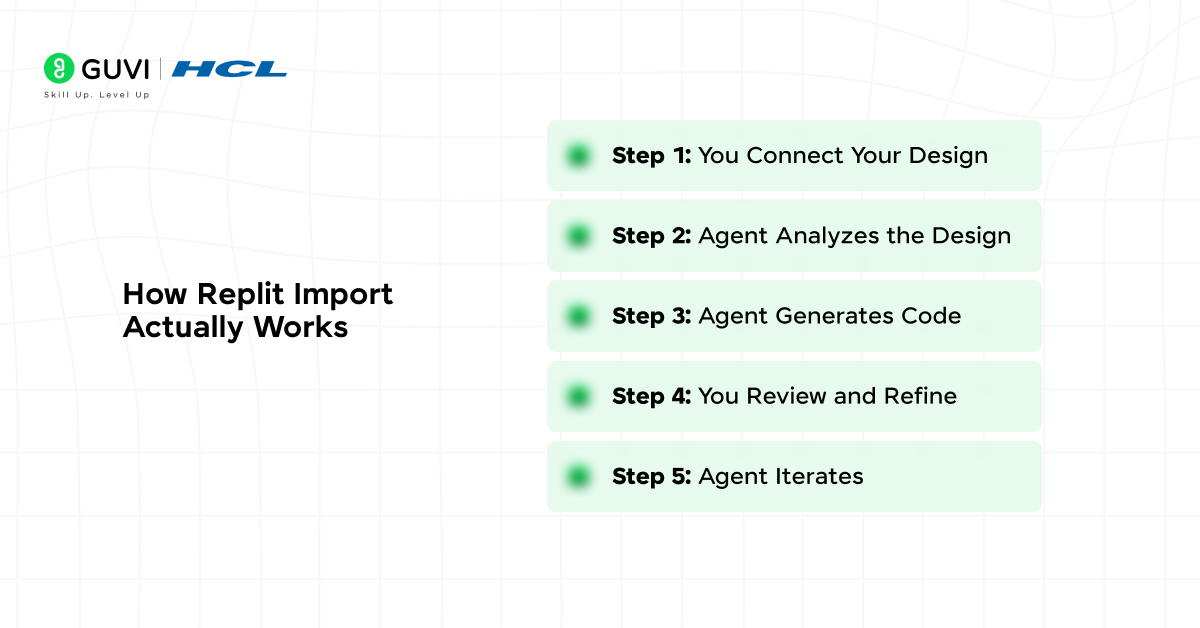
Here is a step-by-step breakdown of what happens when you use Replit Import to bring a design into Replit Agent.
Step 1: You Connect Your Design
You Share the Design File You provide Replit Agent access to your Figma file or upload your design file. For Figma, this typically means sharing a link to the design. For other formats, you upload the file directly.
Step 2: Agent Analyzes the Design
It Reads Structure and Style Replit Agent examines the design file in detail. It identifies components, measures spacing, extracts colors, reads text content, and understands the layout hierarchy. This analysis happens quickly because the agent is designed specifically for this task.
Step 3: Agent Generates Code
It Creates the Implementation Based on its analysis, the agent writes the actual code. HTML or React components for structure, CSS or Tailwind classes for styling, JavaScript for any interactive elements, and proper file organization for maintainability.
Step 4: You Review and Refine
You Provide Feedback The generated code appears in your Replit project. You can see it rendered, compare it to the original design, and provide feedback. This is where Replit’s effort-based pricing shines because discussing and refining does not cost extra.
Step 5: Agent Iterates
It Makes Improvements Based on your feedback, the agent adjusts the code. Maybe spacing needs tweaking. Maybe a component should use different HTML semantics. Maybe responsive behavior needs refinement. The agent makes these changes efficiently.
The computer vision capabilities that power design import were originally developed for analyzing medical images and satellite photography. Today, that same technology helps AI understand the visual hierarchy and component relationships in your interface designs.
How to Import Figma Designs into Replit Agent: Step-by-Step Guide
Follow these simple steps to import your Figma designs into Replit and turn them into working code.
Step 1: Prepare Your Figma Design
Get Your Design Ready
- Open your Figma file and ensure all layers are properly named
- Organize components into logical groups
- Make sure all elements you want to import are visible and unlocked
- Replace placeholder text with actual content where possible
Step 2: Get Your Figma Share Link
Share Your Design
- Click the “Share” button in the top-right corner of Figma
- Set permissions to “Anyone with the link can view”
- Click “Copy link” to copy the Figma file URL
- The link should look like: figma.com/file/…
Step 3: Open Replit and Start a New Project
Set Up Your Replit Project
- Go to Replit.com and sign in to your account
- Click “Create Repl” or open an existing project
- Choose your preferred template (HTML/CSS, React, Next.js, etc.)
- Name your project appropriately
Step 4: Access Replit Agent
Launch the AI Agent
- Look for the Agent icon in the Replit interface (usually in the left sidebar or top menu)
- Click to open Replit Agent
- The agent chat interface will appear
Step 5: Provide the Figma Link to Agent
Import Your Design
- In the Replit Agent chat, type a message like:
- “Import this Figma design: [paste your Figma link]”
- “Build this design from Figma: [paste link]”
- “Convert this Figma file to code: [paste link]”
- Press Enter to send the request

Step 6: Add Context and Instructions
Guide the Agent
- Specify what you want:
- “Create a React component from this design”
- “Build a responsive landing page using this Figma file”
- “Import the homepage design and use Tailwind CSS”
- Mention any specific requirements:
- Framework preferences (React, Vue, plain HTML)
- Styling approach (CSS, Tailwind, styled-components)
- Responsive behavior needed
Step 7: Wait for Agent Analysis
Agent Processes Your Design
- Replit Agent will analyze the Figma file
- It reads the structure, components, and styles
- This usually takes 10-30 seconds depending on design complexity
- You will see a progress indicator
Step 8: Review Generated Code
Check the Results
- Agent will generate the code files
- You will see HTML/React components created
- CSS or styling files will be generated
- Assets and images will be included
- The preview will show the rendered result
Step 9: Compare and Provide Feedback
Verify Accuracy
- Open the original Figma design in another tab
- Compare it side-by-side with the generated code preview
- Check spacing, colors, fonts, and layout
- Note any differences or issues
Step 10: Request Adjustments
Refine the Implementation
- Tell the agent about any needed changes:
- “The spacing between sections is too tight”
- “The button color should be darker”
- “Make this responsive for mobile screens”
- The agent will update the code based on your feedback
Step 11: Iterate Until Satisfied
Perfect Your Implementation
- Continue the conversation with the agent
- Ask questions about the generated code
- Request explanations for how things work
- Make incremental improvements
- Remember: Discussion is essentially free under effort-based pricing
Step 12: Add Custom Functionality
Build Beyond the Design
- Once the visual structure is correct, add features:
- Connect to APIs
- Add form validation
- Implement user interactions
- Connect to databases
- The agent can help with these too
Real-World Examples of Design Import in Action
Understanding how different teams use Replit Import helps you see where it fits in your own workflow.
- For Startup Teams
You have a designer who mocked up your landing page in Figma. Instead of spending hours translating it to code manually, you import it into Replit Agent. The agent generates a React component with proper styling. You spend your time on business logic instead of matching pixel values.
- For Dashboard Interfaces
You created a complex dashboard with charts, tables, and data visualizations. You import the design, and the agent generates the layout structure. You then connect it to real data sources, but the visual foundation is already complete and accurate.
Early attempts at design-to-code conversion in the 1990s generated HTML table layouts with nested tables up to six levels deep. Modern AI now produces clean, semantic HTML with proper CSS—a massive improvement that makes the code far more maintainable.
The Psychology Behind Direct Design Import
Design import changes how teams think about the relationship between design and development. Understanding this shift helps you work more effectively.
- It Removes Implementation Anxiety
- It Enables Design Iteration
- It Improves Designer-Developer Collaboration
- It Focuses Developer Time on Logic
What Happens After Import
Getting the initial code is just the beginning. Understanding what comes next helps you plan your development workflow.
- Code Review and Customization
The generated code provides a strong foundation, but you will likely want to customize it. Add functionality, connect to APIs, implement complex interactions, or adjust for edge cases. The import gives you a head start, not a finished product.
- Integration with Existing Projects
If you are adding new designs to an existing project, you will integrate the imported code with your current codebase. The agent can help with this, understanding both the new design code and your existing patterns.
- Iteration Based on User Feedback
Once deployed, user feedback may require design changes. With Replit Import, you can update the design file and re-import quickly. The agent can preserve your custom code while updating the visual implementation.
- Maintaining Design-Code Parity
As your product evolves, designs and code can drift apart. Regular imports from updated design files help maintain consistency. The agent can identify what changed and update only the affected parts.
If you want to learn more on Importing Figma and Other Design Tools into Agent with Replit Import, do not miss the chance to enroll in HCL GUVI’s Intel & IITM Pravartak Certified Artificial Intelligence & Machine Learning course. Endorsed with Intel certification, this course adds a globally recognized credential to your resume, a powerful edge that sets you apart in the competitive AI job market.
Conclusion
Replit Import bridges the gap between design and development in a way that feels almost magical but is entirely practical. You take designs created in tools designers love, and you get working code that developers can actually use.
This is not about replacing developers. It is about freeing them from tedious translation work so they can focus on building great functionality. It is not about making design less important. It is about making design implementation accurate and fast.
The future of development is not choosing between design quality and development speed. It is having both. Replit Import makes that future available today.
FAQs
1. Do I need a paid Figma account to use Replit Import?
Import works with public Figma links and shared files. The exact requirements depend on how you share the design. Free Figma accounts work for most use cases.
2. Can I import the same design multiple times as it evolves?
Yes, you can re-import updated designs. The challenge is preserving custom code you added after the first import. Document your customizations to make re-import smoother.
3. What happens if my design uses custom fonts?
The agent attempts to include custom fonts in the generated code. You may need to provide font files or CDN links. Web-safe fonts work most reliably.
4. Does import work with design systems and component libraries?
Yes, design systems translate particularly well. Reusable components in design become reusable components in code. This is one of the best use cases for import.
5. How accurate is the generated code compared to the design?
Accuracy is typically very high for spacing, colors, and layout. Complex interactions and animations may need additional development. Expect 80-90% accuracy for visual structure.
Success Stories

About the Author
Vishalini Devarajan
An Aerospace Engineer turned content writer, I focus on making complex concepts easy to understand through well-structured, reader-friendly blogs. Whether it’s a technical topic or a non-technical one, I love creating content that is clear, engaging, and impactful.
View all posts by Vishalini Devarajan
Connect with me @


















Did you enjoy this article?