


Artificial Intelligence and Machine Learning Articles
AI/ML Skills Gap 2026: Why Companies Can't Find Job-Ready Talent
20 AI/ML Interview Questions Recruiters Can Use Without a Tech Background - Best Guide
How Industry-Backed AI/ML Bootcamps Are Changing the AI/ML Hiring Pipeline - Best Guide 2026
From IT Support to AI Engineer: A Realistic Career Switch Guide 2026


Get In Touch For Details! Request More Information
Introducing Replit Plan Mode: A Safer Way to Vibe Code
Jun 15, 2026 5 Min Read 1471 Views
(Last Updated)
Replit Plan Mode is one of the most important additions to the Replit Agent workflow since the agent first launched. Announced in September 2025, it solves a problem every vibe coder eventually hits: the agent starts building before you’ve finished thinking. Plan Mode gives you a dedicated space to ideate, outline, and collaborate with AI on project architecture without a single line of code being written until you’re ready.
Replit Plan Mode vibe coding changes the fundamental sequence of how you work with an AI agent. In the traditional Build Mode, the moment you send a prompt, the agent starts making changes.
Replit Plan Mode vibe coding is also the clearest signal yet that Replit understands why agents fail. Most agent mistakes aren’t caused by bad models. They’re caused by unclear requirements and premature execution. When an agent starts building before the plan is solid, it fills in the gaps with assumptions.
Table of contents
- Quick TL;DR Summary
- The Problem Plan Mode Solves
- How Plan Mode Works
- What Plan Mode Can Do
- What Plan Mode Cannot Do
- When to Use Plan Mode
- Feature Planning
- Learning and Exploration
- Debugging Strategy
- Architectural Decisions
- How to Activate and Use Plan Mode
- Plan Mode + Visual Selector
- Best Practices for Plan Mode
- Conclusion
- FAQs
- What is Replit Plan Mode?
- What is the difference between Plan Mode and Build Mode?
- Can the agent see my code in Plan Mode?
- How do I switch from Plan Mode to Build Mode?
- When should I use Plan Mode instead of just prompting the agent?
Quick TL;DR Summary
● What it is: Replit Plan Mode is a dedicated thinking space inside Replit Agent where you can brainstorm, outline, and plan your app without the agent making any code changes.
● The problem it solves, Replit Plan Mode vibe coding, addresses the root cause of most agent mistakes: jumping into building before the requirements are clear.
● How it works In Plan Mode, the agent can inspect your repo, search documentation, and answer questions, but is prohibited from writing or editing code until you say so.
● When to use it: Feature planning, learning new technologies, debugging strategy, architecture decisions, and any situation where you want to think before you build.
● How to activate the Switch the agent toggle from Build Mode to Plan Mode. When you’re ready to build, click ‘Start Building’ to transition seamlessly.
What Is Replit Plan Mode?
Plan Mode is a dedicated collaboration mode inside Replit Agent that provides a safe space for ideation, task outlining, and strategic discussion—all without the agent initiating any changes to your codebase.
The Problem Plan Mode Solves
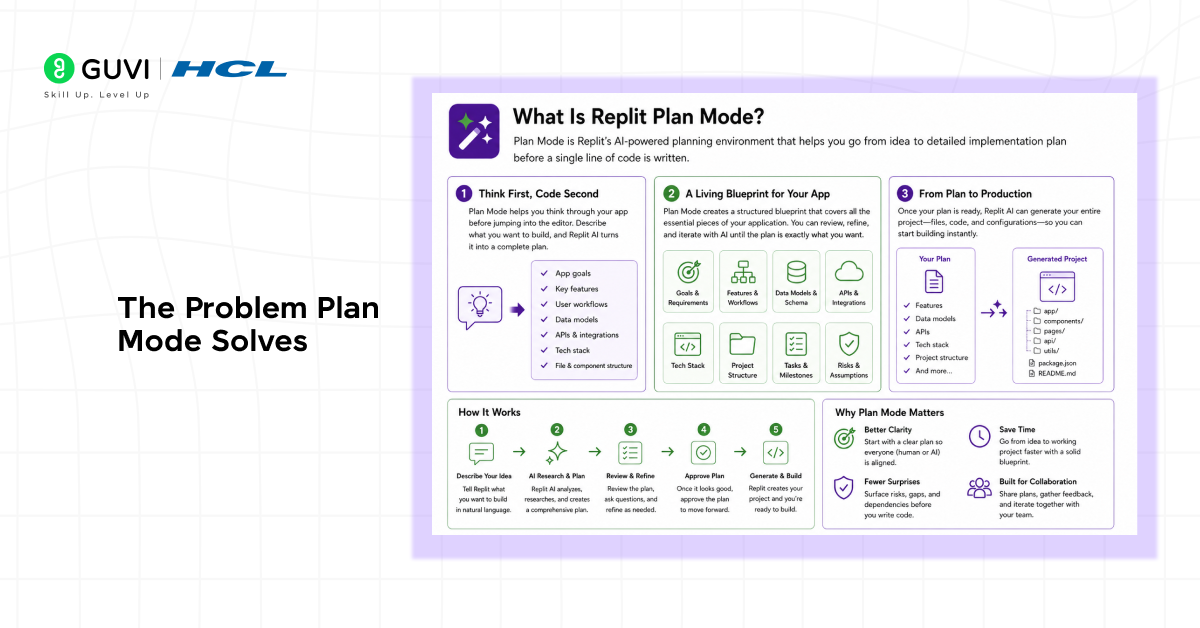
Vibe coding‘s biggest vulnerability has always been the gap between what you mean and what the agent builds. You describe an idea. The agent interprets it. The agent makes dozens of micro-decisions filling in the details you didn’t specify. By the time you see the result, the agent is already three steps ahead and the direction might be completely wrong.
This creates a frustrating loop: review, revert, re-prompt, rebuild. It costs time, wastes agent credits, and in the worst case produces changes that are hard to untangle from your existing codebase.
Plan Mode breaks this loop before it starts. Instead of prompting the agent to build, you prompt it to think with you. You explore the problem together. You see the plan before a single file is touched. Then, when the path is clear, you move to Build Mode.
Replit launched its AI Agent in September 2024 and scaled from $10M to $100M ARR in just 9 months, one of the fastest growth rates for a developer tool.
With the introduction of Plan Mode in September 2025, the platform evolved from a rapid prototyping tool into a more structured, production-ready development environment.
How Plan Mode Works
When you activate Plan Mode, the Replit Agent enters a restricted but fully analytical state. Here’s exactly what it can and cannot do:
What Plan Mode Can Do
• Inspect your full repository and understand its structure
• Search documentation and answer context-aware questions
• Break complex features into structured task lists
• Propose implementation plans for new features or changes
• Help you think through architecture, edge cases, and error handling
• Maintain access to higher-powered and longer-thinking AI models
What Plan Mode Cannot Do
• Write, edit, or delete any code in your project
• Run database migrations or make data changes
• Execute terminal commands or install packages
• Queue build tasks or trigger deployments
The key mechanic: when Plan Mode proposes a plan for a new feature, a ‘Start Building’ button appears. Clicking it transitions seamlessly to Build Mode and executes the plan. You stay in control of exactly when execution begins.
Note that you need to pause the agent to switch to Plan Mode, just as you would to send another message. This ensures the analytical session is focused and uninterrupted.
When to Use Plan Mode
Plan Mode isn’t just for beginners. Some of the highest-value use cases are for experienced developers tackling genuinely complex problems.
Feature Planning
Ideal when adding new functionality to an existing app. Use Plan Mode to:
• Break down a complex feature into implementable steps
• Plan database schema changes and API modifications before touching any code
• Design user interface flows and identify edge cases
• Understand how a new feature interacts with existing components
Learning and Exploration
Excellent when working with unfamiliar technologies or patterns. Use Plan Mode to:
• Understand different approaches to solving the same problem
• Learn about new frameworks, libraries, or design patterns
• Ask ‘what if’ questions about architecture without committing to anything
• Get guidance on development methodologies and best practices
Debugging Strategy
When you’re facing a complex bug, Plan Mode lets you think through the investigation before touching code. You can describe the symptoms, let the agent inspect the codebase, and develop a hypothesis, then switch to Build Mode to implement the fix.
Architectural Decisions
Before restructuring existing code or making broad architectural changes, use Plan Mode to map out the full scope of changes, identify dependencies, and surface risks before execution begins.
A 2024 GitHub study found that developers using AI coding tools completed tasks up to 55% faster.
The biggest gains came from those who used structured planning before prompting. Combining planning with AI execution is consistently faster than prompting first and fixing issues later.
How to Activate and Use Plan Mode
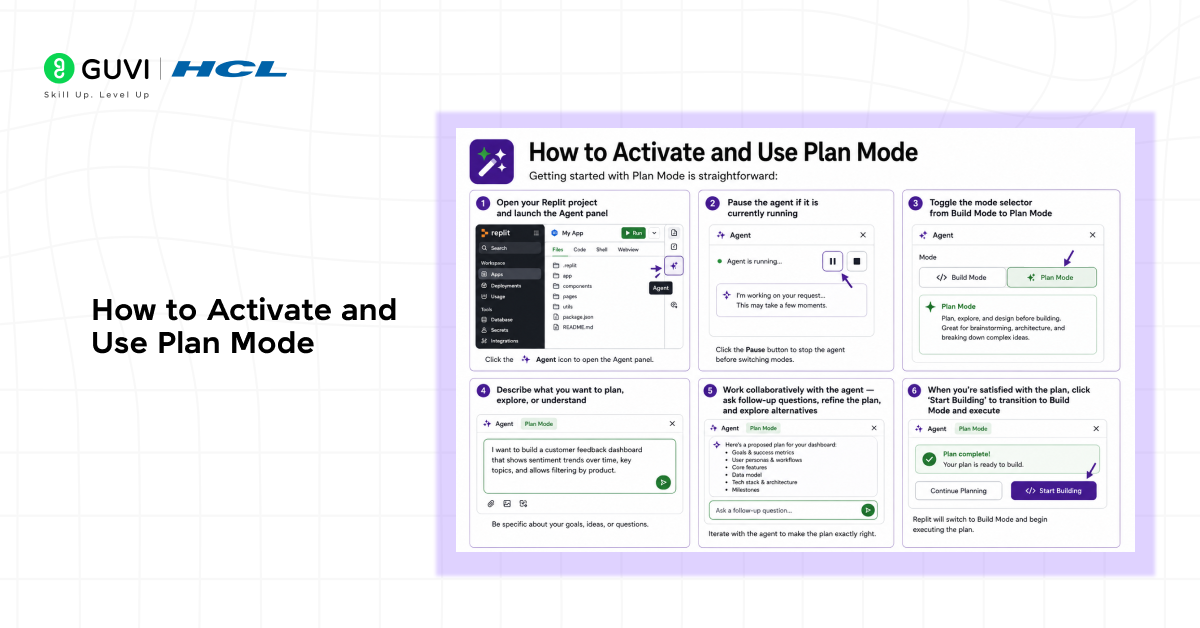
Getting started with Plan Mode is straightforward:
1. Open your Replit project and launch the Agent panel

2. Pause the agent if it is currently running
3. Toggle the mode selector from Build Mode to Plan Mode
4. Describe what you want to plan, explore, or understand
5. Work collaboratively with the agent ask follow-up questions, refine the plan, and explore alternatives
6. When you’re satisfied with the plan, click ‘Start Building’ to transition to Build Mode and execute
The agent retains full context from the Plan Mode session when it moves to Build Mode. Everything discussed, every task outlined, and every decision made in Plan Mode informs how the agent builds.
Plan Mode + Visual Selector
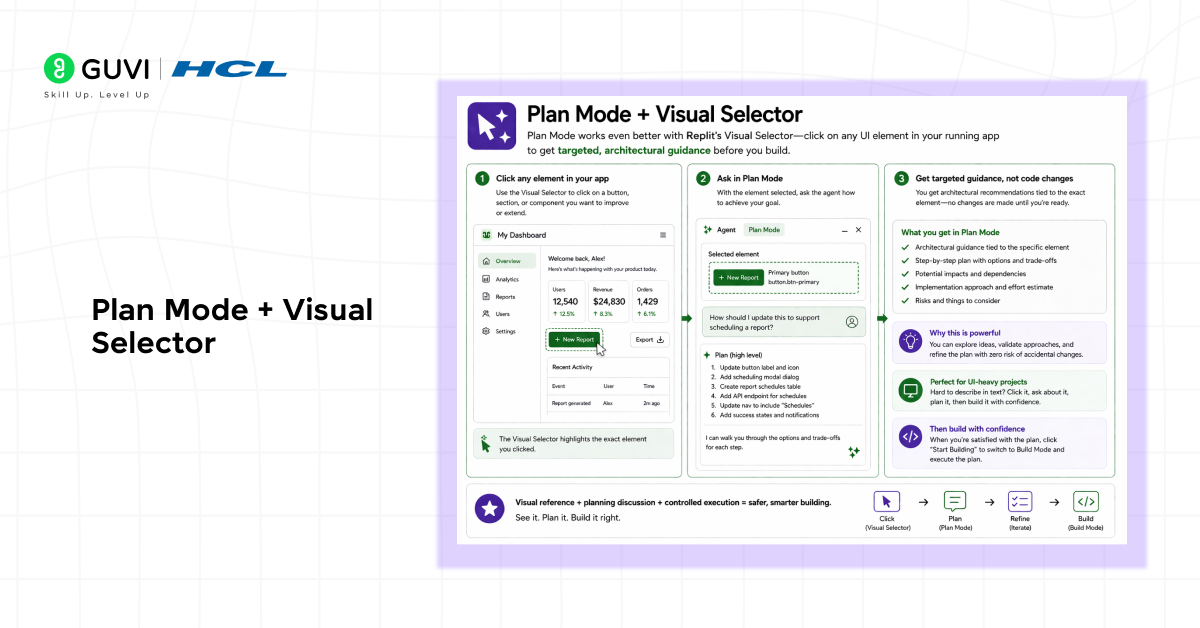
Plan Mode works especially well in combination with Replit’s Visual Selector, which lets you click directly on UI elements in your running app to target specific components.
When you combine Visual Selector with Plan Mode, you can point at a specific button, section, or component and ask the agent: “How should I update this to support X feature?” or “What would I need to change to add this to the navigation?” You get architectural guidance tied to the specific element in question with no risk of accidental changes while you think it through.
This combination is particularly powerful for UI-heavy projects where it can be difficult to describe what you want in text alone. Visual reference + planning discussion + controlled execution is a significantly safer workflow than describing and immediately building.
Best Practices for Plan Mode
Be specific about your constraints. Don’t just describe what you want to build — describe what you can’t break. Tell the agent which parts of the codebase are off-limits, which APIs must stay compatible, and what performance requirements apply.
Ask the agent to show its work. Prompt the agent to list every file it would need to change and explain why. This makes the plan auditable before execution begins.
Use Plan Mode for budget estimation. Ask the agent to estimate how many steps the implementation will take. This helps you understand the scope before spending agent credits on a build.
Iterate the plan before building. Plan Mode supports follow-up questions. Push back on the agent’s initial plan, ask for alternatives, and refine until the approach feels right. The cost of iteration in Plan Mode is zero the cost in Build Mode is time and credits.
Save the plan as documentation. Before clicking Start Building, copy the agent’s plan into a comment block or a notes file. This gives you a record of the intended design that helps with debugging and code reviews later.
Organizations adopting AI-assisted development with structured planning workflows can achieve up to 5.8× faster application development compared to traditional methods.
Teams that follow a plan-first approach consistently outperform those that rely on trial-and-error prompting, reducing rework and enabling faster, more reliable product delivery.
Conclusion
Replit Plan Mode is not just a feature, it’s a philosophy. It reflects a maturation in how AI coding platforms think about the human-agent relationship. The fastest path from idea to working app is not always to start building immediately. Sometimes, the fastest path is to plan first.
Replit Plan Mode vibe coding addresses the fundamental tension in agentic development: agents are powerful, but they move fast, and fast movement in the wrong direction is expensive. Plan Mode slows the agent down at exactly the right moment before any code is written and speeds everything else up as a result.
Whether you’re a non-technical founder building your first app or an experienced developer tackling a complex refactor, Plan Mode gives you a tool the vibe coding workflow has always needed: a space to think before you build.
FAQs
1. What is Replit Plan Mode?
Replit Plan Mode is a dedicated collaboration mode inside Replit Agent that allows you to brainstorm, plan, and strategize with the AI without the agent making any changes to your code or data. It is strictly read-only and analytical, designed to help you think through features before execution begins.
2. What is the difference between Plan Mode and Build Mode?
Build Mode is the default mode where the agent reads your codebase and immediately starts writing and editing code based on your prompts. Plan Mode is a thinking-first mode where the agent can inspect and analyze but cannot make any code changes. You switch to Build Mode when you’re ready to execute a plan.
3. Can the agent see my code in Plan Mode?
Yes. In Plan Mode, the agent has full access to inspect your repository, read your existing code, and search relevant documentation. The restriction is only on making changes it cannot write, edit, or delete any files.
4. How do I switch from Plan Mode to Build Mode?
When the agent proposes a plan for a feature, a ‘Start Building’ button appears. Clicking it transitions the agent to Build Mode and begins executing the plan with full context from the planning session. You can also manually toggle the mode selector in the Agent panel.
5. When should I use Plan Mode instead of just prompting the agent?
Use Plan Mode any time you’re not completely certain about what you want built, when the feature involves multiple files or database changes, when you’re working in unfamiliar code, or when a mistake would be difficult to undo. The general rule: if you’d sketch something on paper before coding it, use Plan Mode.
Success Stories

About the Author
Vishalini Devarajan
An Aerospace Engineer turned content writer, I focus on making complex concepts easy to understand through well-structured, reader-friendly blogs. Whether it’s a technical topic or a non-technical one, I love creating content that is clear, engaging, and impactful.
View all posts by Vishalini Devarajan
Connect with me @









Did you enjoy this article?