


Artificial Intelligence and Machine Learning Articles
AI/ML Skills Gap 2026: Why Companies Can't Find Job-Ready Talent
20 AI/ML Interview Questions Recruiters Can Use Without a Tech Background - Best Guide
How Industry-Backed AI/ML Bootcamps Are Changing the AI/ML Hiring Pipeline - Best Guide 2026
From IT Support to AI Engineer: A Realistic Career Switch Guide 2026


Get In Touch For Details! Request More Information

Create and Edit Files With Claude in 2026: A Time-Saving Guide for Students and Professionals
Aug 25, 2026 7 Min Read 2414 Views
(Last Updated)
Think about the last report you built from scratch: pulling data, pasting into spreadsheets, tinkering with formulas, reforming repeatedly, then squeezing it into a last‑minute presentation. None of it required your best thinking, just moving information from one box to another.
Claude can now create and edit Excel spreadsheets, documents, PowerPoint decks, and PDFs directly in Claude.ai and the desktop app. You describe what you need, upload your data, and get ready‑to‑use files, not just advice. The shift is clear: Claude moves from advisor to active collaborator, doing the work alongside you instead of just telling you how to do it.
In this article, we will cover exactly how Claude’s file creation works, what types of files it can produce, the most useful real-world workflows you can build with it, how to get better results, and what limitations to watch out for.
Quick Answer: In 2026, Claude can create, edit, convert, and analyze common work files directly from chat:
- Creates Excel (.xlsx), Word (.docx), PowerPoint (.pptx), and PDF files
- Supports working formulas, charts, data analysis, reports, presentations, and file conversions
- Available across Free, Pro, Max, Team, and Enterprise plans
- Works on Claude web, desktop, and mobile
- Supports files up to 30MB per upload or download
- Allows created files to be downloaded or saved directly to Google Drive
Table of contents
- What Is Claude's File Creation Feature?
- Claude Builds Real Files, Not Just Text
- Supported File Types and Use Cases
- How Code Execution Powers File Creation
- Why Real Files Matter More Than Text
- Claude File Creation and Editing: Key Comparison
- What Files Can Claude Create and Edit?
- Core File Formats Supported
- What Each Format Can Do
- Data Analysis Across Project Files
- The Real Power: Combining Claude's Intelligence with Your Files
- Practical Workflows That Save Real Time
- More Advanced Things Claude Can Do With Files
- How to Get the Best Results
- Complete Guide to Creating and Editing Files With Claude in India in 2026
- Who Can Access It and How to Enable It
- Who Can Use Code Execution and File Creation?
- How to Enable File Creation
- Saving and Sharing Files
- Limitations to Know Before You Start
- Final Thoughts
- FAQs
- Can Claude create and edit Excel files?
- Can Claude create Word documents?
- Can Claude create PowerPoint presentations?
- Can Claude create and edit PDF files?
- Is Claude's file creation feature available for free?
What Is Claude’s File Creation Feature?
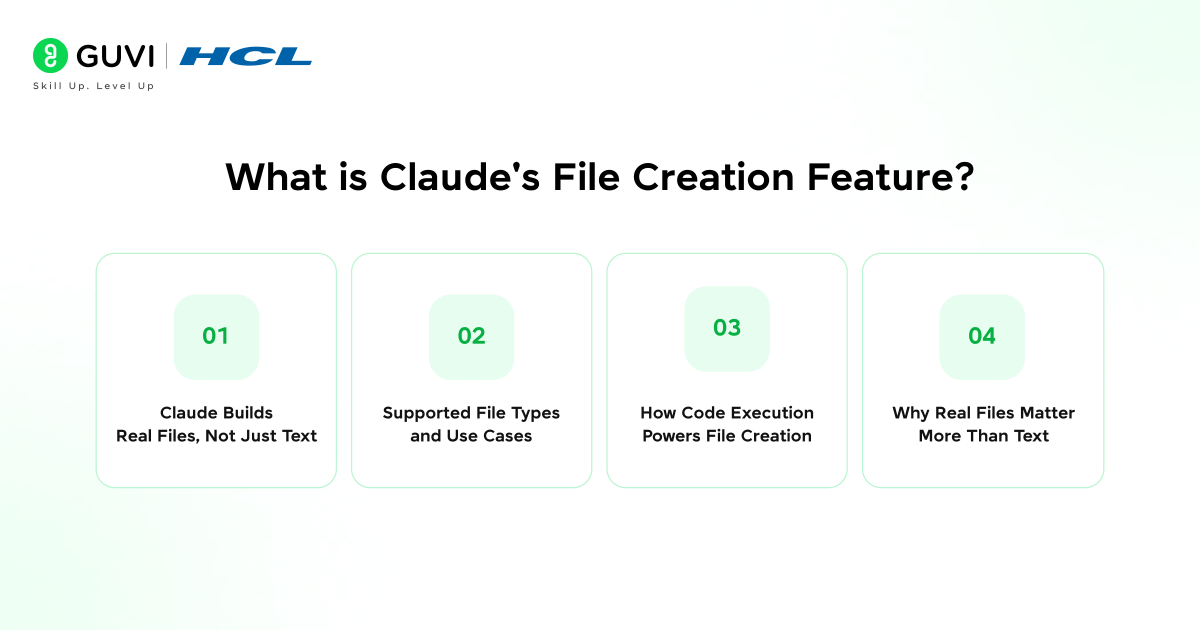
1. Claude Builds Real Files, Not Just Text
- Claude builds real, downloadable files from your natural language instructions, not just advice you have to carry out yourself. You can tell Claude what you want in plain language and get back finished documents you can immediately use.
- This turns a conversational AI into a practical productivity tool that produces tangible outputs. Instead of explaining how to build something, Claude now builds the thing itself.
2. Supported File Types and Use Cases
- Claude can execute code to create and work with files directly in your conversations. You can prompt Claude using natural language to generate Excel spreadsheets, PowerPoint presentations, Word documents, and PDF files that you can download and use immediately.
- These files are ready to open, with working formulas, proper layouts, or correct formatting depending on the type. This makes it easy to produce reports, analyses, and presentations straight from a chat.
3. How Code Execution Powers File Creation
- The underlying technology that makes this work is called code execution. When you ask Claude to create a file, it does not just generate text that looks like a spreadsheet. It actually writes and runs code in a private, sandboxed computing environment to produce the real file.
- We gave Claude access to a private computer environment where it can write code and run programs to produce the files and analyses you need. This transforms Claude from an advisor into an active collaborator.
4. Why Real Files Matter More Than Text
- That distinction matters more than it might seem at first. A text response gives you instructions you then have to execute yourself, step by step, outside the conversation.
- A real file gives you something you can open in Microsoft Office or Google Workspace, share with a colleague, or submit as a deliverable without any extra steps in between. This cuts out manual copying, reduces errors, and turns dialog into immediate output that fits into your existing workflows.
Claude File Creation and Editing: Key Comparison
Claude currently supports four core office file formats for direct creation and editing. It can also analyze data and transform information between formats.
| File Type | What Claude Can Create | What Claude Can Do With Existing Files | Best For |
|---|---|---|---|
| Excel (.xlsx) | Multi-sheet workbooks, formulas, charts, calculations, and financial models | Analyze data, modify spreadsheets, clean datasets, and build calculations | Budgets, forecasting, dashboards, and data analysis |
| Word (.docx) | Reports, memos, structured documents, and formatted drafts | Rewrite, reorganize, review, and edit document content | Reports, business documents, research, and documentation |
| PowerPoint (.pptx) | Complete presentation decks from prompts, notes, or source documents | Update slide content and transform documents or research into presentations | Business decks, classroom presentations, and reports |
| Formatted reports and final documents | Extract information, analyze tables, convert data, and fill PDF forms | Reports, forms, research, and data extraction |
Claude can also work across several formats in one workflow. For example, it can take one CSV dataset and create an Excel analysis, a PowerPoint presentation, and a PDF report using the same underlying information.
What Files Can Claude Create and Edit?
1. Core File Formats Supported
Claude’s file creation supports four core formats, each tailored to a distinct kind of work: Excel spreadsheets (.xlsx), PowerPoint presentations (.pptx), Word documents (.docx), and PDF files.
You can download any of these files or save them directly to Google Drive, making it easy to share and reuse them in your existing workflows. The maximum file size is 30MB per file for both uploads and downloads, which covers most typical professional documents. This ensures that outputs stay manageable while still supporting rich, data‑heavy files.
2. What Each Format Can Do
Each format has its own strengths. Excel spreadsheets can include working formulas, multi‑sheet workbooks, conditional formatting, scenario analyses, and charts, turning raw data into interactive models. PowerPoint presentations can be built from scratch from your notes or converted from existing documents, helping you quickly turn ideas into slides.
Word documents support full formatting, tracked changes, and editing of files you have already uploaded, making them ideal for reports, drafts, and collaborative writing. PDFs can be generated as polished final outputs, and Claude can also fill in existing PDF forms when you give it the right context, streamlining administrative workflows.
3. Data Analysis Across Project Files
Claude can perform sophisticated data analysis and data science work, not just produce simple documents. Files in your projects are now accessible through Claude’s computing environment while remaining in context, enabling seamless reference and workflow integration across your project files.
This means file creation is not limited to surface‑level editing; it extends to genuine analytical work that would otherwise require technical skills such as scripting or statistical analysis. With this capability, Claude turns your entire project context into a living workspace for robust, file‑driven analysis.
The Real Power: Combining Claude’s Intelligence with Your Files

- Simple file creation is genuinely useful on its own, but the more powerful use cases emerge when you combine Claude’s analytical capabilities with the actual documents in your workflow.
- File creation combines AI’s ability to handle massive amounts of information with the tools we actually use to do our jobs.
- It is like having an assistant that can combine data across multiple sources instead of manually combining information from different PDFs, websites, and spreadsheets; transform content between formats like turning a text document into slides or a PDF into a spreadsheet.
- Handle repetitive calculations or formulas rather than building the same financial model structure from scratch each time, and create multiple related documents that all tell the same story with consistent data.
- That last point deserves emphasis. Claude can take a single data source and produce coordinated outputs across multiple file types simultaneously.
- A single CSV with hundreds of survey responses can transform into three deliverables: a PowerPoint presentation with key findings and visualizations, a detailed PDF report with executive summary and recommendations, and an Excel workbook with organized raw data and analysis tabs.
- Each file maintains professional formatting and opens directly in Office or Google Workspace. That is the kind of workflow compression that genuinely changes how much you can get done in a day.
Explore HCL GUVI’s Google Workspace Essentials course to gain hands-on skills in Gmail, Calendar, Drive, Docs, Sheets, and more for enhanced productivity
Practical Workflows That Save Real Time
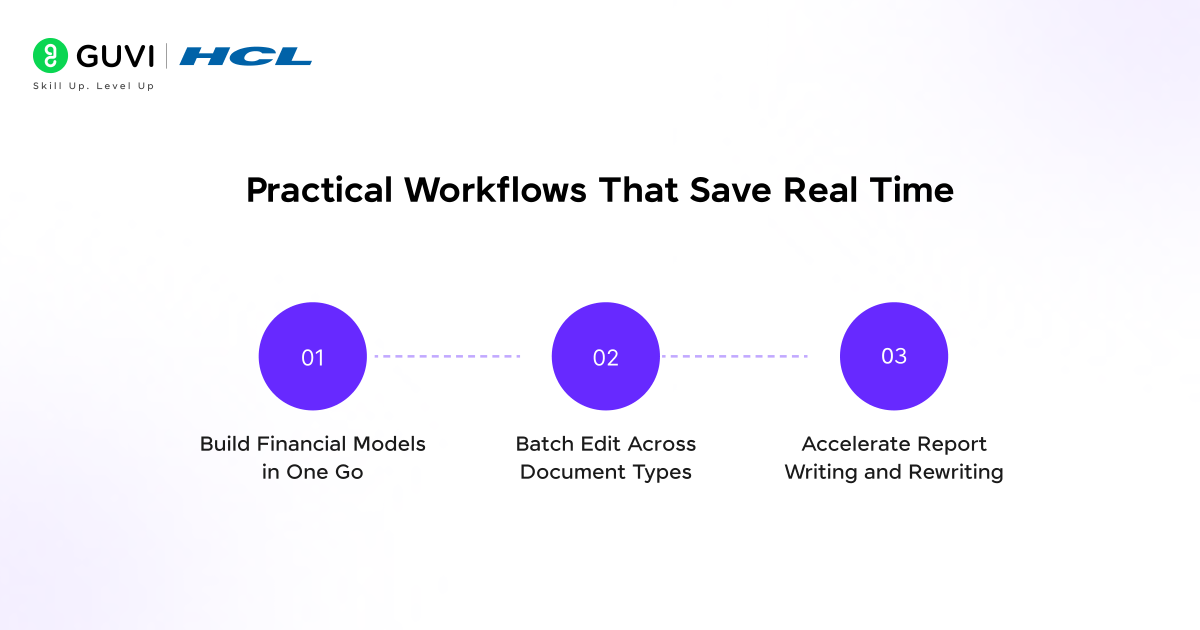
Step 1: Build Financial Models in One Go
Building financial models used to require either spreadsheet expertise or a developer, but Claude now handles the whole process. It can look up real market data and build it directly into working spreadsheet models, complete with formulas and scenario logic.
A property owner deciding between short‑term and long‑term rentals can get both the research and the analysis: Claude finds current rental rates, occupancy trends, and local regulations, then builds a multi‑sheet model that updates automatically when you change any input. The result is a ready‑to‑use financial tool backed by real data, all created from a natural‑language description.
Step 2: Batch Edit Across Document Types
Batch editing across multiple files is another place where Claude removes hours of manual work. Claude understands context when editing Word docs, PDFs, and Excel sheets.
PowerPoints in one pass, performing intelligent changes like turning “Acme Inc.” into “Acme” in informal text while keeping the legal form, updating “Customer Success” to “Customer Experience” except in job titles, or converting Euro prices to USD with proper calculations while preserving historical data. These edits keep the original formatting intact, so you get consistent, polished files without the tedious copy‑paste loop.
Step 3: Accelerate Report Writing and Rewriting
For report writing, long documents like project updates or strategy memos used to take hours to edit and polish.
Claude shortens this dramatically by restructuring paragraphs, improving flow, and highlighting inconsistencies directly in the document. Instead of getting a list of comments to fix, you upload your draft, describe what needs to change, and receive a revised file you can use immediately, making it much faster to turn rough drafts into professional deliverables.
More Advanced Things Claude Can Do With Files
- Beyond the standard create-and-download use cases, Claude’s file creation opens up workflows that most people have not thought to try yet.
- Claude can generate LaTeX files for mathematical proofs or technical documentation with proper formatting and equations.
- It can create interesting visualizations like animated GIFs of revenue growth based on your Excel file and implement them directly into presentations. It can also batch-add watermarks to a range of different file types, so you can upload your slides and get watermarked versions back to send to clients.
- These are the kinds of tasks that would normally require specialized software or someone with design or coding skills.
- Claude can leave suggestions and comments on documents, so you can work with them like you would a real coworker, taking feedback where you want it and not where you do not.
- This redline capability means Claude can act as a document reviewer and editor, not just a creator. You can upload a draft, ask for tracked changes or in-line comments, and get back something that looks like it went through a real editorial review.

How to Get the Best Results
- Getting the output you want from Claude’s file creation feature comes down to how clearly you describe what you need. Be specific in your requests, describe the structure, content, and formatting you want.
- You may need to review and refine Claude’s outputs to meet your exact requirements. Vague instructions produce generic outputs. Specific instructions, including the number of sheets, the formulas you need, the tone of a document, or the data you want highlighted, produce outputs that are much closer to ready-to-use on the first try.
- A few things make a consistent difference. Give Claude context about what the file is for and who will read it. Upload supporting materials like style guides, previous reports, or formatting examples if you have them.
- Use precise language, specifying file types, structures, and outputs. For example, “Generate a .xlsx file with conditional formatting for values over 100,” Claude applies rules accordingly. If you are doing a multi-step workflow, break it into stages: data cleaning first, analysis second, report generation third.
- Instead of spending hours on structure, use Claude to draft the first version of documents like PRDs, launch strategies, or competitive analyses. Once you have a foundation, iterating becomes thinking, not typing.
- Treat Claude’s first output as a strong starting draft, then iterate through the conversation. Ask for specific changes rather than starting over, and the quality compounds quickly.
Complete Guide to Creating and Editing Files With Claude in India in 2026
Claude is officially available in India, and Indian users can access its file creation capabilities through Claude.ai, the desktop app, and Claude Mobile.
The feature is particularly useful for students, analysts, marketers, founders, developers, and other professionals who regularly work with spreadsheets, reports, presentations, and PDFs.
Some practical workflows include:
- Students: Turn research notes into formatted Word reports or PowerPoint presentations.
- Data analysts: Convert CSV data into Excel workbooks with formulas, charts, and analysis.
- Finance professionals: Build budgets, financial models, and scenario-based spreadsheets.
- Marketers: Convert research and campaign data into reports and presentation decks.
- Founders and teams: Create proposals, business reports, project trackers, and stakeholder presentations.
- Researchers: Extract information from PDFs and organize it into structured spreadsheets or reports.
As of August 2026, Claude Sonnet 5 is the default model for Free and Pro users. Claude Opus 5 is the default model on Max and Anthropic describes it as the strongest model available on Pro. File creation itself is available across Claude plans rather than being restricted to one specific model.
Who Can Access It and How to Enable It
1. Who Can Use Code Execution and File Creation?
Claude’s code execution and file creation capability is now available to users on Free, Pro, Max, Team, and Enterprise plans. It works across Claude on the web, Claude Desktop, and Claude Mobile.
For Free, Pro, and Max users, Anthropic currently lists code execution and file creation as enabled by default. If the feature has been turned off, users can manage it through Settings > Capabilities > Code execution and file creation.
Team and Enterprise organizations also have access. Organization owners can control whether the capability is available and can manage network access based on their security requirements.
2. How to Enable File Creation
On web or desktop:
- Open Settings in Claude.
- Select Capabilities.
- Find Code execution and file creation.
- Make sure the feature is enabled.
- Start a chat and describe the file you want Claude to create or edit.
On Claude Mobile, open Settings > Capabilities and manage the same file creation option.
3. Saving and Sharing Files
Claude can generate downloadable Excel, Word, PowerPoint, and PDF files directly in a conversation. Created files can also be saved directly to Google Drive for easier sharing and collaboration.
Claude can transform a single CSV file into a fully formatted PowerPoint deck, detailed PDF report, and Excel workbook — all consistent and ready to share. Its code execution environment enables formula calculations, scenario analysis, and batch edits across documents, reducing hours of manual work to minutes.
This transforms Claude from a chat-based assistant into a document-driven collaborator that integrates seamlessly with Google Drive and Office workflows.
Limitations to Know Before You Start
Claude’s file creation capabilities are significantly more useful in 2026, but several limits still matter.
- The standard file size limit is 30MB per file for both uploads and downloads. Claude chats currently support up to 20 uploaded files per chat.
- Creating files uses more of your Claude usage allowance than a normal text conversation. Complex spreadsheets, presentations, and multi-file workflows may therefore consume plan limits faster.
- Network access depends on account and organization settings. Team and Enterprise administrators can restrict network access or allow only approved domains and package sources.
- Sensitive files still require caution. Anthropic warns that external files or websites can potentially contain malicious instructions designed to manipulate code execution or network activity. Users should monitor Claude when working with sensitive information.
- Human review remains important. Check spreadsheet formulas, calculations, source data, document formatting, and presentation claims before using Claude-generated files for clients or important decisions.
If you want to go beyond prompting and learn how Claude’s code execution, file creation, and agentic workflows fit into modern AI–driven development, explore HCL GUVI’s IIT Pravartak AI and ML Course at HCL GUVI. Build real‑world AI tools, automate document workflows, and master agentic coding step by step.
Final Thoughts
Claude’s file creation feature changes the relationship between you and the documents you produce at work.
The productivity problem for most knowledge workers is not time; it is friction. Context switching, decision fatigue, and manual busywork drain energy before the real thinking even begins. Claude does not remove the work, but it radically reduces the friction.
Start with one workflow that matches something you already do regularly. Maybe it is a weekly report, a recurring data analysis, or a presentation you build from the same source material each time.
Run that task through Claude, download the output, and see how much closer it is to being done than what you would have produced in the same amount of time manually. That first experience will tell you more than any guide can about where Claude fits into your workflow and where it can genuinely give you your time back.
FAQs
Can Claude create and edit Excel files?
Yes. Claude can create downloadable .xlsx spreadsheets with working formulas, multiple sheets, charts, calculations, and financial models. It can also analyze uploaded spreadsheet data and make changes based on natural-language instructions.
Can Claude create Word documents?
Yes. Claude can generate .docx Word documents such as reports, memos, technical documents, and structured business content. Users can also upload existing documents and ask Claude to revise or reorganize their content.
Can Claude create PowerPoint presentations?
Yes. Claude can create actual .pptx PowerPoint files from prompts, documents, notes, or research. It can also transform source material into structured presentation slides that can be downloaded and edited further.
Can Claude create and edit PDF files?
Yes. Claude can generate PDF documents and work with uploaded PDFs for tasks such as data extraction, analysis, format conversion, and form filling. PDF outputs should still be reviewed before final use.
Is Claude’s file creation feature available for free?
Yes. Anthropic currently makes code execution and file creation available to Free, Pro, Max, Team, and Enterprise users. Free users can therefore create files without upgrading, although usage limits vary by plan.
Success Stories

About the Author
Vaishali
I'm a seasoned writer with four years of experience across technical, non-technical, and just about every genre or niche you can imagine. Adaptable and curious, I enjoy exploring new topics and making information engaging and easy to understand. Fueled by a steady stream of tea, I approach each project with creativity, reliability, and genuine enthusiasm for storytelling.
View all posts by Vaishali
Connect with me @













Did you enjoy this article?