


Artificial Intelligence and Machine Learning Articles
Data Analyst vs Machine Learning Engineer: Which Career Grows Faster?
Finance Manager to Data Analytics: Career Growth, Salary and Seniority
How to Evaluate LLM Outputs in Production Deployments
AI/ML Skills Gap 2026: Why Companies Can't Find Job-Ready Talent


Get In Touch For Details! Request More Information
Setup and Fine-Tune Qwen 3 with Ollama: Complete Guide (2026)
Nov 16, 2026 8 Min Read 16004 Views
(Last Updated)
Running a large language model (LLM) used to mean paying for an API and sending your data to someone else’s servers. Today, open models like Qwen 3 run on an ordinary laptop or desktop, and Ollama makes starting one as simple as a single command.
This guide takes you from installation to a model trained on your own examples. You will install Ollama, run Qwen 3, control its thinking mode, call it from Python, then fine-tune it with LoRA and serve the result locally.
Quick Answer:
To run Qwen 3 locally, install Ollama from ollama.com and run ollama run qwen3:8b, which downloads the model and opens a chat. Ollama only runs models, so to fine-tune Qwen 3, you train a LoRA adapter with Unsloth, export the result as a GGUF file, and load it with ollama create and a Modelfile.
Table of contents
- What is Qwen 3?
- Qwen 3 Model Variants and Hardware Requirements
- What is Ollama?
- Features of Ollama
- How to Install Ollama
- Downloading and Running Qwen 3 Models
- Step 1: Pull a Qwen 3 Model
- Step 2: List Your Downloaded Models
- Step 3: Run Qwen 3 in Chat Mode
- Understanding Qwen 3 Thinking Mode
- Using Qwen 3 with Python
- Basic Chat with the Python Client
- Using the requests Module
- Streaming Responses
- Fine-Tuning Qwen 3 with a Modelfile
- How the Workflow Works
- Dataset Format and LoRA Settings
- Training the Model
- Before and After Evaluation
- Exporting the Model
- Creating the Modelfile and Running It in Ollama
- Practical Modelfile Examples
- Troubleshooting Qwen 3 and Ollama
- Tips for Getting the Best Results with Qwen 3 and Ollama
- FAQs
- How do I run Qwen 3 locally with Ollama?
- How much GPU memory do I need to run Qwen 3?
- Can I fine-tune Qwen 3 with Ollama?
- How do I turn off thinking mode in Qwen 3?
- Is Qwen 3 free for commercial use?
What is Qwen 3?
Qwen 3 is a series of LLMs built by Alibaba. You can download the models for free and use them commercially under the Apache 2.0 license. They come in sizes from 0.6B to 235B parameters, so there is a model for a laptop as well as for a powerful server.
Qwen 3 models can answer in two ways. In thinking mode, the model works through the problem step by step before answering, which helps with maths, logic, and coding. In non-thinking mode, it answers directly, which is faster and suits simple questions.
Running Qwen 3 locally is only the beginning. If LLMs have sparked something in you, HCL GUVI’s Intel & IITM Pravartak Certified AI/ML Course takes you from Python basics to building real AI systems, no prior coding experience needed. Explore the course.
Qwen 3 Model Variants and Hardware Requirements
Qwen 3 has two model types. Dense models (0.6B to 32B) use all their parameters for every token.
Mixture-of-Experts (MoE) models (30B and 235B) activate only a part of their parameters per token, making them faster, but all their weights must still fit in memory.
| Ollama Tag | Type | Download Size |
|---|---|---|
| qwen3:0.6b | Dense | 523MB |
| qwen3:1.7b | Dense | 1.4GB |
| qwen3:4b | Dense | 2.5GB |
| qwen3:8b (default) | Dense | 5.2GB |
| qwen3:14b | Dense | 9.3GB |
| qwen3:30b | MoE (3B active) | 19GB |
| qwen3:32b | Dense | 20GB |
| qwen3:235b | MoE (22B active) | 142GB |
A model’s memory needs are its download size plus the KV cache, which grows with context length. For qwen3:8b, the cache is about 4.8GB at a 32K context. If a model does not fit in your GPU memory, reduce the context length before switching to a smaller model.
Minimum VRAM for fine-tuning (Unsloth, QLoRA 4-bit)
| Model | Minimum VRAM |
|---|---|
| Qwen3-8B | 6GB |
| Qwen3-14B | 8.5GB |
| Qwen3-30B-A3B | 17.5GB |
These are minimums. If you run out of memory, lower the batch size to 1 or 2.
💡 Did You Know?
- Qwen3-32B delivers Qwen2.5-72B-level performance while fitting on a single RTX 4090 GPU with 24GB VRAM.
- Qwen3 supports 119 languages and dialects, including Hindi, Bengali, Tamil, and Telugu.
- All Qwen3 models use the Apache 2.0 licence, allowing free commercial use, modification, and distribution.
What is Ollama?
Ollama is a free, open-source tool that lets you run large language models on your own computer. It works on macOS, Linux and Windows. You download a model with one command and chat with it directly from the terminal.
Ollama uses your GPU automatically if it finds a supported one, and falls back to the CPU if not. It also runs a local API at http://localhost:11434, so you can use the same models from Python, JavaScript or curl, and your data never leaves your machine.
Features of Ollama
- Private by default: Models run on your machine, so your data never leaves it.
- Automatic GPU use: Detects supported NVIDIA, AMD and Apple Silicon GPUs, and falls back to the CPU.
- Cross-platform: Works on macOS, Linux and Windows with the same commands.
- Local API: Serves a REST API at
http://localhost:11434for use from any language. - Custom models: Builds tailored models from a base model with a Modelfile.
How to Install Ollama
Ollama installs with a single command on macOS, Linux and Windows. Run the command for your system below.
1. macOS
Ollama needs macOS 14 (Sonoma) or newer. Apple Silicon Macs use the GPU, and Intel Macs run on the CPU only. Run this in Terminal:
curl -fsSL https://ollama.com/install.sh | shYou can also download the .dmg file from ollama.com/download and drag Ollama into the Applications folder.
2. Linux
Run the same install script. It installs Ollama and, on systems with systemd, sets it up as a service that starts on boot.
curl -fsSL https://ollama.com/install.sh | shIf the script asks for zstd, install it first:
# Debian / Ubuntu
sudo apt-get install zstd

# RHEL / CentOS / Fedora
sudo dnf install zstd
3. Windows
Ollama needs Windows 10 22H2 or newer. Open PowerShell and run:
irm https://ollama.com/install.ps1 | iexYou can also download OllamaSetup.exe from ollama.com/download and run it. Ollama keeps running in the background after the installation.
4. Verifying the Installation
Open a new terminal window and check the installed version:
ollama --versionTo confirm the Ollama server is running, call its local API. It returns the server version:
curl http://localhost:11434/api/versionIf the ollama command isn’t found on macOS or Windows, open the Ollama app once to start the server. On Linux, run ollama serve in a separate terminal.
Explore: How to Audit LLM Models for Backdoors: Tools & Frameworks
Downloading and Running Qwen 3 Models
Ollama names every model as name:tag, where the tag is the size, for example qwen3:8b. The 8B model is the default tag and a good starting point for most machines. Pick a different size from the table in the first section.
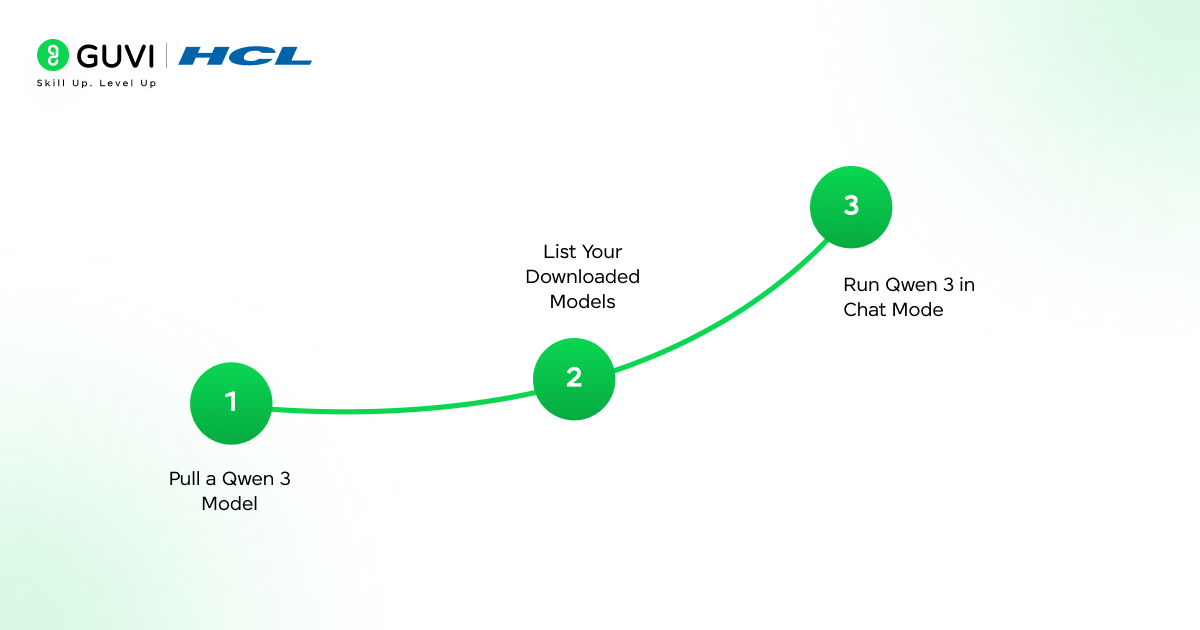
Step 1: Pull a Qwen 3 Model
Download the model to your computer. You only need to do this once.
ollama pull qwen3:8bFor a smaller model on limited hardware, use a smaller tag:
ollama pull qwen3:4bStep 2: List Your Downloaded Models
Check which models are installed. The output shows each model’s name, ID, size and last modified time.
ollama listTo delete a model and free up disk space:
ollama rm qwen3:8bStep 3: Run Qwen 3 in Chat Mode
Start an interactive chat in the terminal. If the model is not downloaded yet, Ollama pulls it first.
ollama run qwen3:8bType your message at the >>> prompt and press Enter. Qwen 3 prints its reasoning between Thinking... and ...done thinking. before the final answer. To exit the chat, type:
/byeUnderstanding Qwen 3 Thinking Mode
In thinking mode, Qwen 3 works through a problem step by step before it gives the final answer. The reasoning appears in the output ahead of the answer. This improves accuracy in maths, logic and coding, but responses take longer.
In non-thinking mode, the model skips the reasoning and answers directly. This is faster and suits simple questions, summaries and translation. Ollama turns thinking on by default. The updated 2507 Instruct and Thinking models run in only one mode, so they do not switch.
1. Switching Thinking Mode in the CLI
Set the mode with a flag when you start the chat:
# Thinking on
ollama run qwen3:8b --think

# Thinking off
ollama run qwen3:8b --think=false

# Model still thinks, but only the final answer is shown
ollama run qwen3:8b --hidethinking
Inside a running chat, switch modes with these commands:
/set think
/set nothink
2. Controlling Thinking Mode via the API
Add the think field to a chat request. Ollama returns the reasoning in message.thinking and the final answer in message.content, so your app can show or hide them separately.
curl http://localhost:11434/api/chat -d '{
  "model": "qwen3:8b",
  "messages": [{"role": "user", "content": "How many r are in strawberry?"}],
  "think": true,
  "stream": false
}'
The same call with the Python client (pip install ollama):
from ollama import chat

response = chat(
    model="qwen3:8b",
    messages=[{"role": "user", "content": "How many r are in strawberry?"}],
    think=True,
)

print("Thinking:", response.message.thinking)
print("Answer:", response.message.content)
Set think to false (False in Python) for fast replies without the reasoning.
Using Qwen 3 with Python
Ollama runs a local REST API, and you can call it from Python in two ways: the official Ollama library, or the standard requests module. Before running the examples, make sure Ollama is running and the model is downloaded ollama pull qwen3:8b.
1. Basic Chat with the Python Client
Install the library. It needs Python 3.8 or newer.
pip install ollamaSend a message and print the reply:
from ollama import chat

reply = chat(
    model="qwen3:8b",
    messages=[{"role": "user", "content": "Explain what a REST API is in two sentences."}],
)

print(reply.message.content)
2. Using the requests Module
If you do not want an extra library, call the API directly. Set stream to False to get the full reply as one JSON object.
pip install requestsimport requests
payload = {
"model": "qwen3:8b",
"messages": [{"role": "user", "content": "List three uses of a hash map."}],
"stream": False,
}
response = requests.post("http://localhost:11434/api/chat", json=payload, timeout=120)
response.raise_for_status()
print(response.json()["message"]["content"])Add "think": False to the payload to skip the reasoning and get a faster reply.
3. Streaming Responses
Streaming prints the reply as it is generated, which gives the typing effect seen in chat apps. Set stream=True and loop over the chunks:
from ollama import chat

stream = chat(
    model="qwen3:8b",
    messages=[{"role": "user", "content": "Write a short checklist for debugging a slow SQL query."}],
    stream=True,
    think=False,
)

for chunk in stream:
    print(chunk.message.content, end="", flush=True)
With thinking on, the reasoning arrives first in chunk.message.thinking while content stays empty, and the answer follows in content. The example turns thinking off so every chunk contains answer text.
Fine-Tuning Qwen 3 with a Modelfile
Fine-tuning Qwen 3 means training it on your own examples so it follows your format, tone or subject without a long prompt each time. Ollama cannot train models, so you fine-tune with LoRA in a library such as Unsloth, then export the model as a GGUF file and run it in Ollama.

1. How the Workflow Works
Ollama runs models but cannot train them. Fine-tuning is done in a separate library, and the result is then loaded into Ollama:
- Prepare a dataset of example conversations.
- Train a LoRA adapter on Qwen 3 with Unsloth. Hugging Face PEFT with TRL follows the same steps.
- Compare the tuned model with the base model on held-out examples.
- Export the merged model as a GGUF file.
- Create a Modelfile and load the model into Ollama.
Training needs an NVIDIA GPU. A free Colab T4 is enough for Qwen3-14B, and the VRAM table in the first section shows the minimums. If you only need a fixed role, tone or settings, skip training and use a Modelfile alone (see Practical Modelfile Examples).
Also Read: Fine-Tuning LLMs with Unsloth and Ollama
2. Dataset Format and LoRA Settings
Use a JSONL file with one conversation per line. Keep a separate test.jsonl with examples the model never trains on for evaluation.
{"messages": [{"role": "user", "content": "How do I reset my password?"}, {"role": "assistant", "content": "Open Settings, choose Security, then select Reset password. A reset link is sent to your registered email."}]}To keep thinking mode working after training, Qwen recommends mixing about 75% reasoning examples with 25% non-reasoning ones.
| Setting | Value | What it does |
|---|---|---|
| load_in_4bit | True | Loads the base model in 4-bit (QLoRA) to save VRAM |
| max_seq_length | 2048 | Longest sequence used in training |
| r | 16 | Adapter rank. Higher values (up to 64) learn more but need more VRAM |
| lora_alpha | 16 | Adapter scaling. Keep it equal to r |
| lora_dropout | 0 | No dropout on the adapter |
| target_modules | all attention and MLP projections | Layers that receive adapters |
| learning_rate | 2e-4 | Step size for training |
| batch size x accumulation | 1 x 4 | Effective batch of 4. Lower the batch size if you run out of memory |
| max_steps | 100 | Short first run. Increase it, or use epochs, for real training |
3. Training the Model
pip install unslothfrom unsloth import FastLanguageModel
from datasets import load_dataset
from trl import SFTTrainer, SFTConfig
model, tokenizer = FastLanguageModel.from_pretrained(
model_name="unsloth/Qwen3-8B",
max_seq_length=2048,
load_in_4bit=True,
)
model = FastLanguageModel.get_peft_model(
model,
r=16,
lora_alpha=16,
lora_dropout=0,
target_modules=["q_proj", "k_proj", "v_proj", "o_proj",
"gate_proj", "up_proj", "down_proj"],
use_gradient_checkpointing="unsloth",
random_state=3407,
)
dataset = load_dataset("json", data_files={"train": "train.jsonl", "test": "test.jsonl"})
def to_text(example):
return {"text": tokenizer.apply_chat_template(example["messages"], tokenize=False)}
dataset = dataset.map(to_text)
trainer = SFTTrainer(
model=model,
tokenizer=tokenizer,
train_dataset=dataset["train"],
args=SFTConfig(
dataset_text_field="text",
per_device_train_batch_size=1,
gradient_accumulation_steps=4,
warmup_steps=10,
max_steps=100,
learning_rate=2e-4,
logging_steps=10,
optim="adamw_8bit",
output_dir="outputs",
seed=3407,
),
)
trainer.train()The apply_chat_template step formats each conversation with Qwen 3’s own template. Training and later use in Ollama must use the same template.
4. Before and After Evaluation
Run the same unseen prompts through the base model and the tuned model, then compare the answers. Run the script below once the tuned model is loaded in Ollama; the next two steps cover that. The tuned model is called qwen3-support here.
import json
import re
from ollama import chat

def ask(model, prompt):
    reply = chat(model=model, messages=[{"role": "user", "content": prompt}])
    return re.sub(r"<think>.*?</think>", "", reply.message.content, flags=re.DOTALL).strip()

with open("test.jsonl") as f:
    rows = [json.loads(line) for line in f]

for row in rows[:10]:
    prompt = row["messages"][0]["content"]
    print("PROMPT:  ", prompt)
    print("EXPECTED:", row["messages"][1]["content"])
    print("BASE:    ", ask("qwen3:8b", prompt))
    print("TUNED:   ", ask("qwen3-support", prompt))
    print("-" * 40)
For tasks with a fixed answer, such as classification, count how many answers match the expected one for each model. The tuned model should score clearly higher. If it doesn’t, fix the dataset before retraining.
5. Exporting the Model
This call merges the adapter into the base model and writes a quantized GGUF file in one step:
model.save_pretrained_gguf("qwen3-support-gguf", tokenizer, quantization_method="q4_k_m")q4_k_m is the recommended balance of size and quality. Use q8_0 for higher quality or f16 for full precision. Unsloth also writes a ready-made Modelfile into the export folder.
If you trained with plain PEFT instead, merge the adapter with merge_and_unload(), then convert the merged model to GGUF with convert_hf_to_gguf.py from llama.cpp.
6. Creating the Modelfile and Running It in Ollama
Open the generated Modelfile in the export folder. It points to the GGUF file and contains the Qwen 3 TEMPLATE used in training. Edit only the lines you need and leave the TEMPLATE block as it is:
SYSTEM """You are a support assistant for Acme Cloud. Answer briefly and accurately."""
PARAMETER temperature 0.2
PARAMETER num_ctx 4096
Build and run the model:
cd qwen3-support-gguf
ollama create qwen3-support -f Modelfile
ollama run qwen3-support
7. Practical Modelfile Examples
A Modelfile on its own does not train anything. It fixes a system prompt and settings on top of a base model, which is enough for many tasks.
FROM qwen3:14b
SYSTEM """Review the code you receive. List bugs first, then suggest improvements, and explain each point briefly."""
PARAMETER temperature 0.2| Use Case | Base Model | SYSTEM Prompt | Parameters |
|---|---|---|---|
| Code reviewer | qwen3:14b | Review code, list bugs, suggest fixes | temperature 0.2 |
| Support assistant | qwen3:8b | Product name, known issues, escalate when unsure | num_ctx 8192 |
| Classifier | qwen3:4b | Reply with one label only | temperature 0 |
Also Read: How to Fine-Tune Large Language Models (LLMs)?
Every good model starts with a few failed training runs. HCL GUVI’s Intel & IITM Pravartak Certified AI/ML Course teaches LoRA, PEFT, dataset preparation and evaluation with live classes and 1:1 doubt sessions, so expert help is within reach. See what you will learn.
Troubleshooting Qwen 3 and Ollama
Start with ollama ps, which shows whether a model runs on the GPU or CPU and what context size it uses.
connection refusedon port 11434: The Ollama server is not running. Start it withollama serve, orsudo systemctl start ollamaon Linux.- Slow responses: If
ollama psshows CPU or a CPU/GPU split, the model does not fit in GPU memory. Use a smaller tag or a shorter context. - Out of memory: Memory use is the model weights plus the context cache. Pull a smaller tag such as
qwen3:4bor reducenum_ctx. - Qwen 3 repeats or loops: The context window is usually too small, or the temperature is 0. Raise it with
/set parameter num_ctx 8192and use the sampling values in the tips below. - Fine-tuned model gives gibberish in Ollama: The chat template differs from the one used in training. Use the Modelfile Unsloth generated and leave its
TEMPLATEblock unchanged.
Tips for Getting the Best Results with Qwen 3 and Ollama
These settings keep Qwen 3 fast and stable.
- Match the model to your GPU memory: A model that fits fully on the GPU runs much faster than one split between the GPU and CPU. Look for
100% GPUinollama ps. - Use Qwen’s sampling values: Thinking mode uses temperature 0.6, top_p 0.95, top_k 20 and min_p 0. Non-thinking mode uses temperature 0.7, top_p 0.8, top_k 20 and min_p 0. Avoid temperature 0.
- Set the context window on purpose: Ollama’s default is small, so raise
num_ctxfor long inputs. A larger context uses more memory. - Turn thinking off for simple tasks: Use
think=Falsefor extraction, classification and summaries, and keep it on for maths, logic and code. - Keep the model loaded: Ollama unloads a model after 5 minutes by default. Set
OLLAMA_KEEP_ALIVE(for example30m) to avoid the reload delay.
FAQs
1. How do I run Qwen 3 locally with Ollama?
Install Ollama, then run ollama run qwen3:8b, which downloads the model on first use and opens a chat.
2. How much GPU memory do I need to run Qwen 3?
Memory use is the download size plus the context cache, so qwen3:8b (5.2GB) fits on an 8GB GPU at a modest context length.
3. Can I fine-tune Qwen 3 with Ollama?
No, Ollama only runs models, so fine-tune with Unsloth or Hugging Face PEFT, export a GGUF file and load it with a Modelfile.
4. How do I turn off thinking mode in Qwen 3?
Start the chat with ollama run qwen3:8b --think=false, type /set nothink during a chat, or pass think=False in the API.
5. Is Qwen 3 free for commercial use?
Yes, the open-weight Qwen 3 models are released under the Apache 2.0 license, which permits commercial use.
Success Stories













Did you enjoy this article?