


Artificial Intelligence and Machine Learning Articles
Finance Manager to Data Analytics: Career Growth, Salary and Seniority
How to Evaluate LLM Outputs in Production Deployments
AI/ML Skills Gap 2026: Why Companies Can't Find Job-Ready Talent
20 AI/ML Interview Questions Recruiters Can Use Without a Tech Background - Best Guide


Get In Touch For Details! Request More Information
How to Use the ChatGPT Text-to-Speech (TTS) Model in 2026
Apr 07, 2026 7 Min Read 3837 Views
(Last Updated)
Have you ever wished your AI assistant could just talk to you instead of making you read through long answers? That is exactly what the ChatGPT Text-to-Speech model lets you do. Whether you want to listen to a story, get hands-free answers while cooking, or build your own voice-powered app, ChatGPT TTS has a solution for you.
In this guide, you will learn what the ChatGPT TTS model is, how to use it right now without any coding, and how developers can tap into the OpenAI TTS API to build voice features into their own projects. No jargon, no fluff, just everything you need to get started in 2026.
Quick Answer
The ChatGPT Text-to-Speech (TTS) model converts written text into natural, human-like audio. You can use it directly inside ChatGPT through the Read Aloud button or Voice Mode. Developers can access it via the OpenAI Audio API using models like gpt-4o-mini-tts, tts-1, and tts-1-hd.
Table of contents
- What Is the ChatGPT Text-to-Speech Model?
- How to Use ChatGPT TTS
- Using Read Aloud on the Web
- Using Read Aloud on the Mobile App
- Using Voice Mode for a Full Conversation
- How to Change the Voice in ChatGPT
- Changing Voice on the Web and Desktop
- Changing Voice Within Voice Mode
- How to Use the ChatGPT TTS API as a Developer
- Understanding ChatGPT TTS API Pricing in 2026
- Practical Use Cases for ChatGPT TTS in 2026
- Tips for Getting the Best Results from ChatGPT TTS
- 💡 Did You Know?
- Conclusion
- FAQs
- Is the ChatGPT Text-to-Speech feature free to use?
- What is the difference between tts-1 and tts-1-hd?
- Can I control how the AI voice sounds, like making it sound excited or calm?
- What languages does the ChatGPT TTS model support?
- How do I fix the Read Aloud feature if it stops working?
What Is the ChatGPT Text-to-Speech Model?
The ChatGPT TTS model is OpenAI’s technology that turns written text into spoken audio. It is part of the OpenAI Audio API and is powered by OpenAI’s latest multimodal models. Unlike older text-to-speech systems that sounded robotic, modern TTS produces natural and expressive voices that feel much closer to real human speech. Before jumping into the how-to steps, here is a quick look at the models and voices currently available.
Understanding the Three ChatGPT TTS Models Available in 2026
OpenAI currently offers three ChatGPT TTS model options, each suited for a different type of project or use case. Knowing which one to pick before you start will save you both time and money down the line.
- tts-1: The standard model designed for real-time use cases. It has lower latency, meaning audio starts playing faster, but the audio quality is slightly lower. Good for chatbots and quick responses.
- tts-1-hd: The high-definition version of the standard model. It produces better audio quality and is best for audiobooks, podcasts, and professional content. It costs about twice as much as tts-1.
- gpt-4o-mini-tts: The newest and most advanced model as of 2026. It lets you control not just what is said, but how it is said. You can add instructions like “speak in a calm, friendly tone” and the model follows them. It supports up to 2,000 input tokens.
Which model would you reach for if you had to narrate your own life story right now?
Also read – Getting Started with OpenAI Models: A Practical Guide
Knowing the Available Voices
One of the best parts of the ChatGPT Text-To-Speech system is the variety of voices you can choose from. Each voice has its own personality and works better for certain types of content, so it is worth trying a few before settling on one.
ChatGPT TTS offers a range of voices (typically around a dozen), but the exact number and availability may vary depending on the model, platform, and region. Some voices are optimized for specific models like gpt-4o-mini-tts, while others are more broadly available.
Instead of relying on a fixed list, it is best to explore the available options directly in ChatGPT settings and preview them before use.
- Alloy: Neutral and balanced. Great for general-purpose use.
- Ash: Warm and conversational. Suits casual content.
- Ballad: Expressive and storytelling-friendly.
- Coral: Friendly and clear. Recommended for best quality.
- Echo: Professional and steady. Good for formal narration.
- Fable: Warm and inviting. Works well for storytelling.
- Marin: Natural and expressive. Available only on gpt-4o-mini-tts and recommended for best quality.
- Cedar: Smooth and approachable. Also exclusive to gpt-4o-mini-tts.
- Nova: Energetic and engaging. Great for dynamic content.
- Onyx: Deep and authoritative. Good for educational content.
- Sage: Calm and thoughtful. Works for meditation or advice content.
- Shimmer: Soft and gentle. Suitable for relaxing or supportive topics.
- Verse: Versatile and expressive. Supports a wide range of tones.
Do check out HCL GUVI’s Artificial Intelligence and Machine Learning course if you want to move beyond using tools like ChatGPT and actually build AI-powered applications. The program offers live mentor-led sessions, hands-on projects, and placement support, making it a great option for both beginners and professionals looking to become job-ready in AI and ML.
How to Use ChatGPT TTS
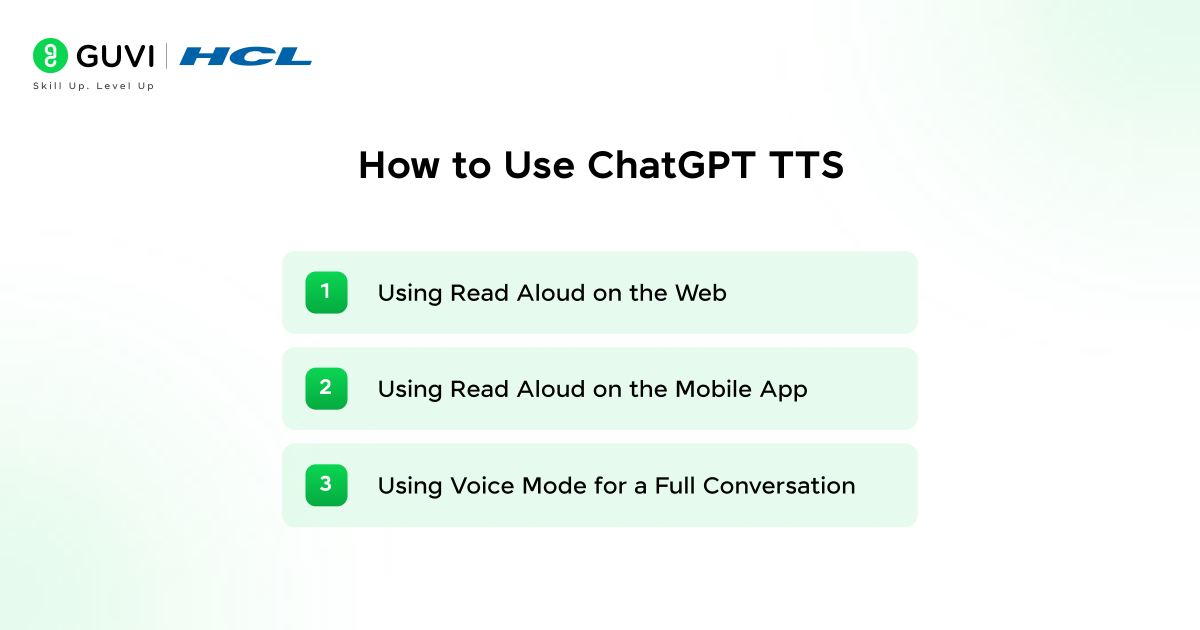
You do not need to be a developer to use text-to-speech in ChatGPT. OpenAI has built the feature right into the app and website, so anyone with a free account can start listening within seconds. There are three main ways to do it depending on whether you are on a browser, a phone, or want a full two-way spoken conversation.
1. Using Read Aloud on the Web
The simplest way to hear ChatGPT speak is through the Read Aloud feature on the ChatGPT website. It requires no setup at all and works instantly on any browser after you log in.
- Open chatgpt.com and log in to your account. A free account works fine for this.
- Ask ChatGPT anything and wait for the text response to appear on screen.
- Look for the speaker icon that appears below the response text.
- Click the speaker icon and the audio will start playing immediately.
- Use the playback controls to pause, fast-forward, or rewind as needed.
2. Using Read Aloud on the Mobile App
The mobile app gives you even more flexibility, especially for on-the-go listening. The steps are slightly different from the web but just as simple and quick to follow.
- Open the ChatGPT app on your iPhone or Android device.
- Start a conversation and let ChatGPT respond with a text message.
- Tap and hold the message bubble and a small popup menu will appear.
- Tap the Read Aloud icon (it looks like a small speaker) from the popup menu.
- The audio will start playing and you can use the player bar to control playback.
3. Using Voice Mode for a Full Conversation
Voice Mode takes things a step further by turning ChatGPT into a real-time voice assistant. Instead of just reading responses aloud, it lets you speak your question and hear the answer back immediately, just like a phone call.
- On mobile, tap the headphones icon inside the chat to enter Voice Mode.
- On the web, click the Voice icon on the right side of the prompt input box.
- Speak your question and ChatGPT will listen and respond out loud.
- Change your voice preference anytime by going to Settings, then Voice.
Did you know? Voice Mode is available to most logged-in users on both the ChatGPT mobile app and website, though some advanced voice features and limits may vary depending on your plan and region.
How to Change the Voice in ChatGPT
Picking the right voice makes a big difference in how the audio feels to whoever is listening. ChatGPT lets you preview and switch between all available voices from the settings menu, and you can also swap voices mid-session if you are in Voice Mode. Here is exactly how to do both.
1. Changing Voice on the Web and Desktop
You can update your voice setting in just a few clicks from the settings menu. The change applies instantly and sticks for all future Read Aloud and Voice Mode sessions until you change it again.
- Click your profile icon in the top-right corner of ChatGPT.
- Go to Settings and then click on the Speech section.
- Browse the available voices and click each one to hear a short preview clip.
- Select the voice you like and your choice will apply to all future sessions.
2. Changing Voice Within Voice Mode
You can also switch voices while you are already inside an active Voice Mode session. This is useful if you want to compare how different voices sound with the same conversation in real time.
- Enter Voice Mode by tapping the headphones icon in the chat.
- Tap the customization menu in the top-right corner of the Voice Mode screen.
- Select a new voice from the list and it takes effect immediately.
How to Use the ChatGPT TTS API as a Developer
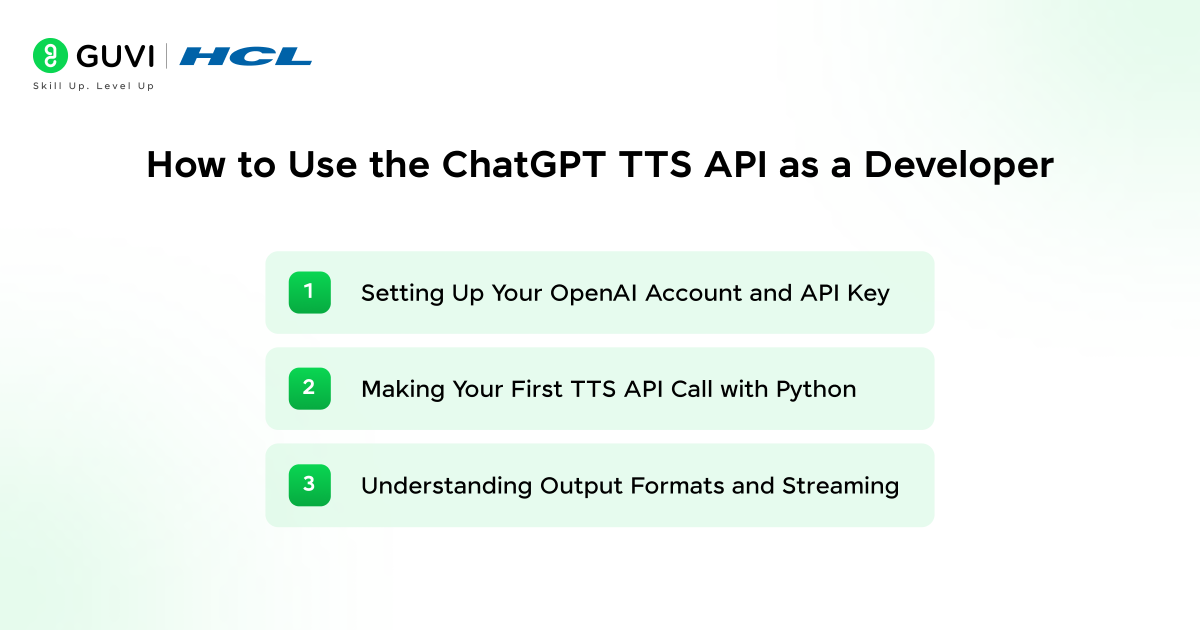
If you want to build a voice feature into your own app or automate audio generation at scale, the OpenAI TTS API is what you need. It is well-documented, beginner-friendly, and works with Python, Node.js, and any language that can make HTTP requests. Here is how to go from zero to generating your first audio file.
Setting Up Your OpenAI Account and API Key
Before you write a single line of code, you need access to the API. The setup takes just a few minutes and gives you everything required to start building.
- Go to platform.openai.com and sign up or log in to your account.
- Navigate to API Keys in the dashboard and click Create New Secret Key.
- Copy the key immediately and store it securely, as you may not be able to view it again.
- Some accounts may receive free trial credits to experiment with the API, though availability can vary.
Making Your First TTS API Call with Python
The Python SDK makes it very easy to generate your first audio file with just a few lines of code. Install the OpenAI library by running pip install openai in your terminal, then create a Python file and paste in the following code:

Python
from pathlib import Path
from openai import OpenAI

client = OpenAI(api_key="your-api-key-here")

speech_file_path = Path(__file__).parent / "output.mp3"

with client.audio.speech.with_streaming_response.create(
    model="gpt-4o-mini-tts",
    voice="coral",
    input="Hello! Welcome to my app. How can I help you today?",
    instructions="Speak in a warm and friendly tone.",
) as response:
    response.stream_to_file(speech_file_path)
Run the file and you will find an output.mp3 saved in the same folder. Open it and you will hear ChatGPT speak your text in the Coral voice with the exact tone you requested.
Understanding Output Formats and Streaming
The API gives you flexibility in how you receive and use the audio depending on your project needs. Streaming is especially useful for apps where you want playback to start before the full audio file has finished generating.
- The default output format is MP3, which works on most devices and platforms.
- Other supported formats may include Opus, AAC, FLAC, WAV, and PCM depending on the model and configuration.
- Streaming allows audio playback to begin before the entire file is generated, improving responsiveness in real-time applications.
Understanding ChatGPT TTS API Pricing in 2026
Knowing the cost structure helps you plan your project budget before you build anything. Pricing differs across the three models, and the right choice depends on your expected usage volume and the audio quality you need. Here is a clear breakdown of what each option will cost you.
Breaking Down the Three Pricing Tiers
Each model is priced differently, so it is worth matching the tier to your actual use case before committing to one for a production app or large-scale project.
- tts-1 (Standard): Costs $15 per one million characters (approximately Rs 1,245 per million characters). Low latency of around 0.5 seconds. Best for chatbots, notifications, and e-learning.
- tts-1-hd (High Definition): Costs $30 per one million characters (approximately Rs 2,490 per million characters). Same speed as standard but better audio quality. Best for audiobooks, podcasts, and professional voiceovers.
- gpt-4o-mini-tts: Uses token-based pricing. Text input costs $0.60 per million tokens and audio output costs $12 per million audio tokens (approximately Rs 50 and Rs 997 respectively). Best for advanced voice agents and multimodal applications.
Estimating Your Project Costs
A simple calculation can help you understand what you will spend before you go live. These rough estimates give you a solid starting point for budgeting your project.
- 5,000 characters on tts-1 costs about $0.075 (approximately Rs 6.25).
- 5,000 characters on tts-1-hd costs about $0.15 (approximately Rs 12.50).
- One minute of generated audio on gpt-4o-mini-tts costs roughly $0.015 (approximately Rs 1.25).
If you were building a voice-powered homework helper for students, which pricing tier would make the most sense for your budget?
Practical Use Cases for ChatGPT TTS in 2026
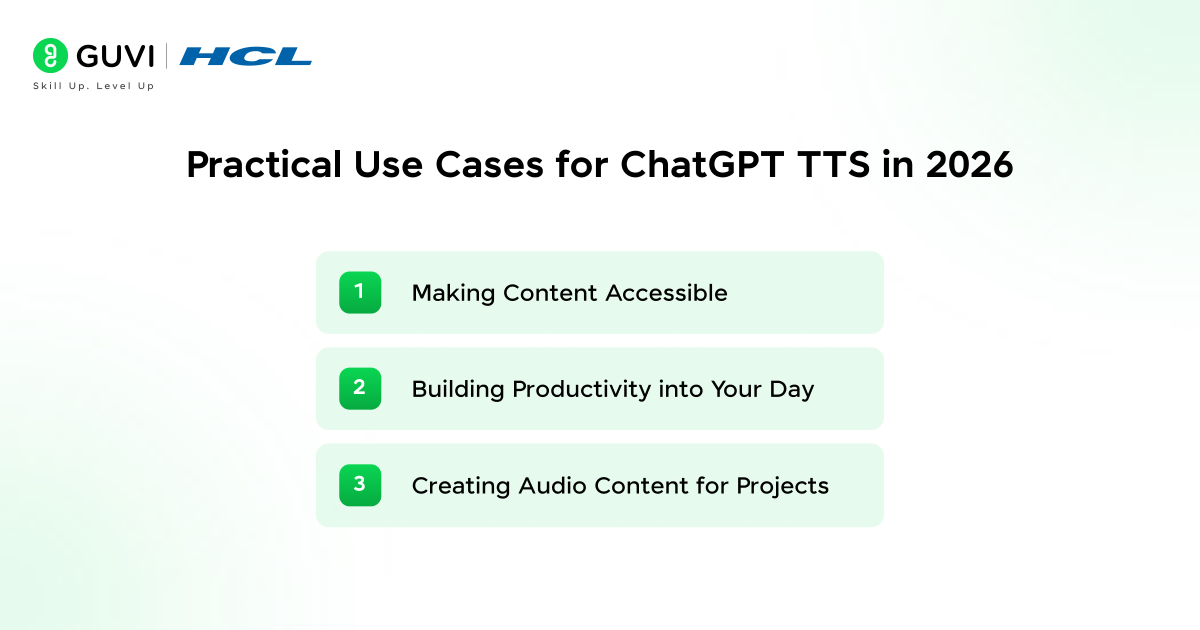
Knowing the tool is one thing. Knowing when and why to use it is what turns that knowledge into something genuinely useful. The ChatGPT TTS model fits naturally into a wide range of real-world scenarios, from helping people with disabilities to speeding up content production for creators and developers.
1. Making Content Accessible
ChatGPT Text-to-speech removes barriers for people who find reading difficult or tiring. It is one of the most impactful ways to make digital content inclusive without any extra effort on your part.
- People with visual impairments can listen to full ChatGPT responses without needing a separate screen reader.
- People with dyslexia or reading fatigue can absorb information by listening instead of reading long text blocks.
- Language learners can hear correct pronunciation of words and phrases in real time.
2. Building Productivity into Your Day
Listening while doing something else is one of the biggest advantages of ChatGPT TTS. It turns passive downtime into productive learning or task completion without requiring your full attention.
- Listen to articles or summaries while commuting, cooking, or exercising.
- Review your writing by having ChatGPT read it back to you to catch awkward phrasing.
- Get step-by-step instructions hands-free when your eyes and hands are busy with a task.
3. Creating Audio Content for Projects
Developers and content creators can use the API to produce audio at scale, cutting production time and cost significantly. This is where the ChatGPT TTS API truly shines beyond personal everyday use.
- Generate voiceovers for YouTube videos or explainer content without hiring a voice actor.
- Build voice assistants for mobile apps or customer service bots.
- Create e-learning narration for courses and training modules at any scale.
- Produce audiobook chapters programmatically using tts-1-hd for the best sound quality.
Tips for Getting the Best Results from ChatGPT TTS
- Use simple, natural sentences because shorter sentences with clear punctuation produce cleaner, more natural-sounding audio.
- Try different voices for different content types because a voice like Onyx works better for educational content while Fable suits storytelling.
- Use the instructions parameter on gpt-4o-mini-tts to control tone and emotion, for example “speak slowly and calmly” or “sound enthusiastic and energetic.”
- Choose tts-1-hd for anything you plan to publish because the quality difference is very noticeable when listeners use headphones.
- Test with Marin or Cedar if you are using gpt-4o-mini-tts because OpenAI specifically recommends these two voices for the best quality on that model.
💡 Did You Know?
- OpenAI collaborated with professional voice actors to create each of the voices in the ChatGPT TTS system.
- The ChatGPT TTS model supports multiple languages, though voice quality and pronunciation accuracy may vary depending on the language and selected voice.
- The Read Aloud feature in ChatGPT works even when you switch to another app on your phone, so audio keeps playing in the background.
Conclusion
The ChatGPT Text-to-Speech model has come a long way from robotic computer voices. With 13 natural-sounding voices, support for multiple languages, a free built-in Read Aloud feature, and a developer API that supports emotional tone control, it is one of the most accessible and powerful TTS tools available today.
Whether you are a student who wants to listen to study notes, a content creator building voiceovers, or a developer adding voice to an app, the ChatGPT TTS model has a path for you. Start with the free Read Aloud feature, experiment with Voice Mode, and when you are ready to build something bigger, the OpenAI Audio API is right there waiting.
FAQs
1. Is the ChatGPT Text-to-Speech feature free to use?
Yes, the Read Aloud and Voice Mode features inside ChatGPT are free for all logged-in users on both mobile and web. You do not need a ChatGPT Plus subscription to use them. The API, however, is a paid service billed per character or token depending on the model you choose.
2. What is the difference between tts-1 and tts-1-hd?
Both models use the same voices and support the same languages. The tts-1 model has lower latency and is cheaper, while tts-1-hd produces noticeably better sound quality and costs twice as much. Use tts-1-hd when you are creating content people will listen to carefully, like audiobooks or podcasts.
3. Can I control how the AI voice sounds, like making it sound excited or calm?
Yes, but only with the gpt-4o-mini-tts model. This model accepts an instruction parameter where you can describe the tone, emotion, or speaking style you want. The older tts-1 and tts-1-hd models do not support this feature at all.
4. What languages does the ChatGPT TTS model support?
The TTS model supports dozens of languages because it follows the same language coverage as OpenAI’s Whisper speech model. If ChatGPT responds in a particular language, the Read Aloud feature will pronounce that language correctly. The voices are optimized for English but many other languages work well too.
5. How do I fix the Read Aloud feature if it stops working?
First, check that your device is not in silent mode and that the ChatGPT app has audio permissions enabled in your phone settings. If you are on the web, clear your browser cache and refresh the page. Browser extensions like ad blockers can sometimes interfere with the audio, so try disabling them temporarily.
Success Stories

About the Author
Jebasta
I translate the language of data into stories that anyone can understand. As a writer with a data science background, I simplify analytics, AI, and decision-making so beginners and enthusiasts can confidently explore the world of data.
View all posts by Jebasta
Connect with me @







Did you enjoy this article?