


Artificial Intelligence and Machine Learning Articles
AI/ML Skills Gap 2026: Why Companies Can't Find Job-Ready Talent
20 AI/ML Interview Questions Recruiters Can Use Without a Tech Background - Best Guide
How Industry-Backed AI/ML Bootcamps Are Changing the AI/ML Hiring Pipeline - Best Guide 2026
From IT Support to AI Engineer: A Realistic Career Switch Guide 2026


Get In Touch For Details! Request More Information
Getting Started with Claude Connectors in 2026: Step-by-Step Guide
Sep 02, 2026 12 Min Read 2750 Views
(Last Updated)
Claude is much more useful when it can work with the tools where your information already lives.
Instead of manually copying an email, downloading a Google Drive document or switching between Claude and your calendar, Claude connectors allow the AI assistant to access supported external services directly.
In 2026, connectors have expanded well beyond simple document retrieval. Depending on the connector and permissions you grant, Claude can search information, read content and perform supported actions inside connected services.
Claude connectors are powered by the Model Context Protocol or MCP, which provides a standard way for AI applications to interact with external tools and data sources.
TL;DR Summary
- Claude connectors connect Claude to external applications such as Google Drive, Gmail, Calendar, Slack, GitHub and Microsoft 365.
- The basic setup follows three stages: enable the connector → connect and authenticate your account → use the connector in a Claude conversation.
- Google Workspace connectors now support much more than search. Gmail, Google Calendar and Google Drive include supported read-and-write actions.
- Claude’s Connectors Directory has expanded significantly in 2026 with integrations covering productivity, coding, data, sales, finance, healthcare, design and communication.
- Claude connectors use MCP. You can use prebuilt connectors from the directory or connect custom MCP services.
- Connector availability and actions can depend on the service, account permissions, Claude plan and organization settings.
Table of contents
- What Are Claude Connectors?
- What Is New With Claude Connectors in 2026?
- Why Are Claude Connectors Important?
- Direct Data Access
- Access to Current Information
- Better Productivity
- Expanded Capabilities
- Seamless Workflow
- How Do Claude Connectors Work?
- Step 1: Add a Connector
- Step 2: Authenticate the Connected Service
- Step 3: Make the Connector Available to Claude
- Step 4: Claude Uses the Required Tools
- Step 5: Claude Processes the Result
- Types of Claude Connectors
- File and Document Connectors
- Communication Connectors
- Development and Code Connectors
- Data and Analytics Connectors
- Productivity and Project Management Connectors
- Local and Desktop Connectors
- Common Use Cases for Claude Connectors
- Document Search and Analysis
- Team Knowledge Search and Communication
- Email Management
- Calendar and Meeting Management
- Data and Analytics Workflows
- Software Development Workflows
- Project and Task Management
- Step-by-Step Guide to Setting Up Your First Claude Connector
- Step 1: Open Claude
- Step 2: Open Connectors
- Step 3: Find Google Drive
- Step 4: Connect Your Google Account
- Step 5: Review and Grant Permissions
- Step 6: Confirm the Connection
- Step 7: Enable the Connector in Your Conversation
- Step 8: Ask Claude to Use Google Drive
- Step 9: Review the Sources
- Step 10: Try a Supported Action
- Claude Connectors vs ChatGPT Plugins — Comparison
- Claude Connectors for Google Drive, Gmail, Calendar- Setup Guide
- How to Set Up Google Workspace Connectors in Claude
- Connect Google Drive to Claude
- Connect Gmail to Claude
- Connect Google Calendar to Claude
- Using Google Drive, Gmail and Calendar Together
- Best Practices When Using Claude Connectors
- Review Permissions Carefully
- Connect Only the Tools You Actually Need
- Manage Tool Access
- Understand Read and Write Actions
- Use the Correct Account
- Use Specific Requests
- Review Connected Services Regularly
- Be Careful With Custom Connectors
- Common Challenges and How to Solve Them
- Authentication Failure
- Permission Error
- Connector Does Not Appear
- Claude Is Not Using the Expected Connector
- Claude Cannot Find Information You Know Exists
- Too Many Connectors Affect the Conversation
- A Connector Cannot Perform the Requested Action
- Conclusion
- FAQs
- Are Claude connectors safe to use?
- Do I need technical skills to set up connectors?
- Can I use multiple connectors at the same time?
- What happens to my data when I use connectors?
- Can I disconnect a connector after setting it up?
What Are Claude Connectors?
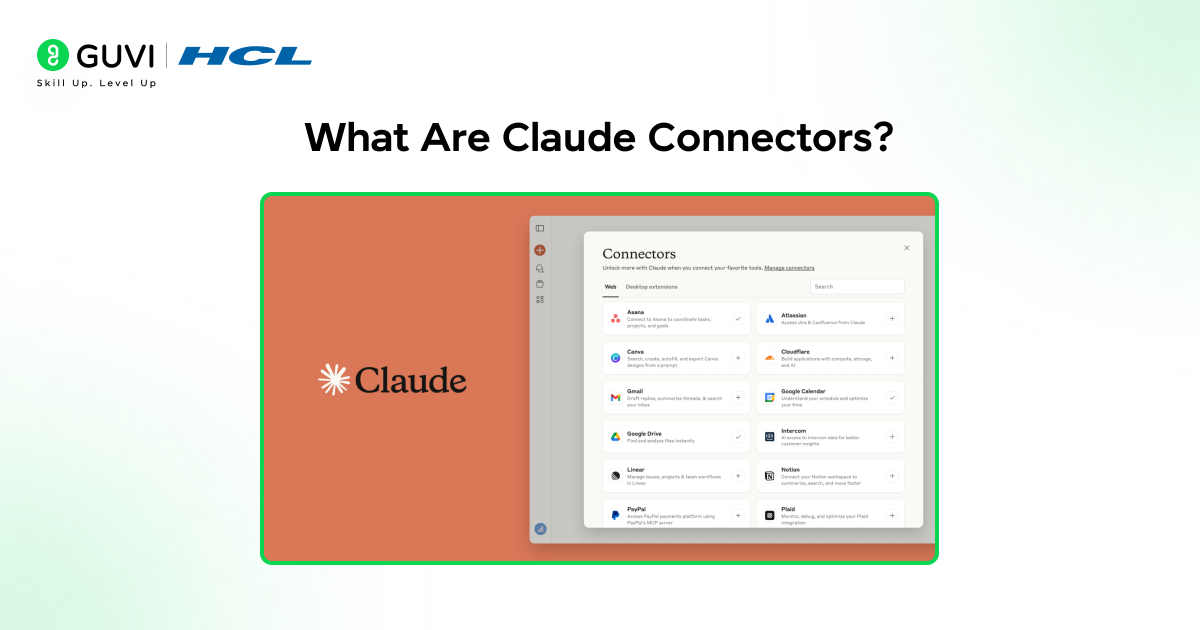
Claude connectors are integrations that connect Claude with external applications, services and data sources.
Think of them as bridges between Claude and the applications you already use.
For example, a Google Drive connector can allow Claude to search documents and work with files. Gmail can provide email context. Google Calendar can provide schedule information and perform supported calendar actions.
Connectors can also connect Claude with development, collaboration, CRM, analytics and productivity platforms.
Claude connectors use MCP (Model Context Protocol) to standardize communication between Claude and external tools.
In 2026, Anthropic describes connectors as capable of providing both external information and tools. Some can only read information while others support actions such as creating issues, sending messages or managing files.
What Is New With Claude Connectors in 2026?
Claude’s connector ecosystem has changed considerably during 2026.
Anthropic now provides a Connectors Directory containing verified MCP integrations that can work across Claude products. The directory includes connectors for productivity, communication, coding, data, design, financial services, healthcare, sales and other specialised workflows.
Several important additions and updates appeared during 2026:
| Connector or Update | 2026 Release | What It Adds |
|---|---|---|
| Salesforce Beta | Aug. 27 | Salesforce workflows inside Claude |
| DeepL | Aug. 24 | Translation across text and documents |
| ThoughtSpot Spotter | Aug. 18 | Conversational data analysis |
| Gmail | Aug. 17 | Email search, insights and supported email actions |
| Google Drive | Aug. 17 | Search, read and organize Drive content |
| ICE Data Services | Aug. 17 | Fixed-income data analysis |
| Anthropic Economic Index | July 22 | Direct exploration of Economic Index data |
| ServiceNow | July 20 | Enterprise workflow automation |
| Lusha | July 17 | B2B contact and company data |
| Google Calendar | Feb. 24 | Calendar access and scheduling workflows |
The Anthropic Economic Index connector, for example, launched on July 22, 2026 and allows users to ask Claude questions directly against Anthropic Economic Index data.
Anthropic also introduced a unified directory in 2026 that brings skills, connectors and plugins into a more centralized discovery experience.
Why Are Claude Connectors Important?
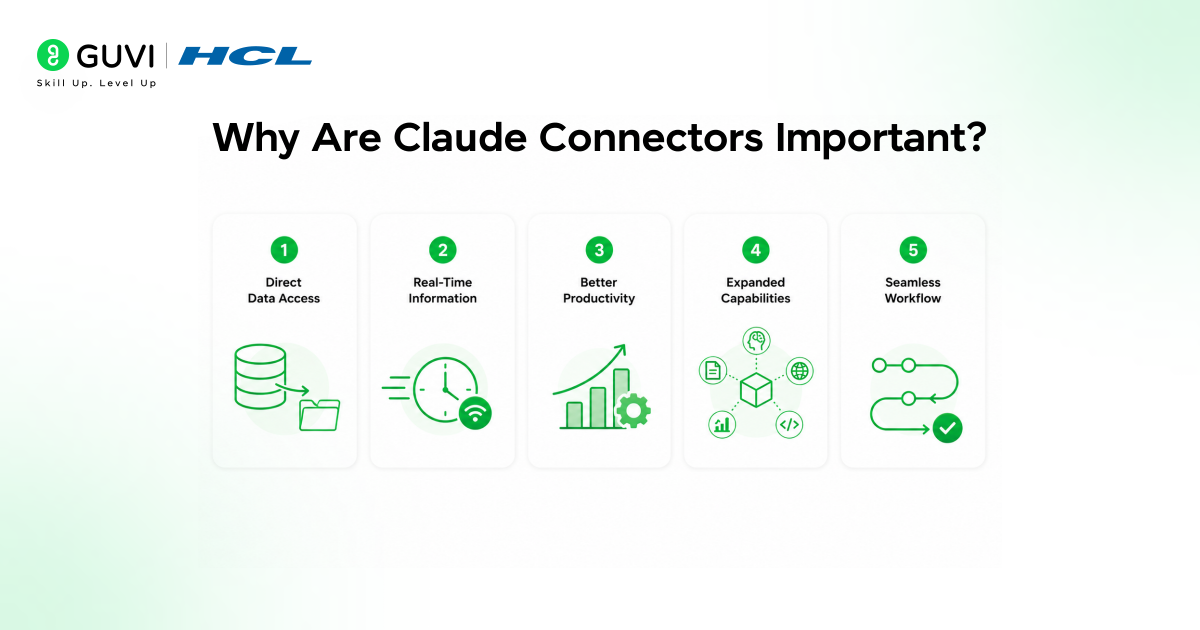
Claude connectors solve a major limitation in how AI assistants work. Without connectors, users often need to manually copy information from external tools into Claude. This interrupts the workflow and makes even simple tasks more time-consuming.
Here’s why Claude connectors matter:
1. Direct Data Access
Claude can access supported files, applications and data sources through connected services. This reduces the need to copy and paste information between different tools.
2. Access to Current Information
Connectors allow Claude to retrieve the latest available information from connected sources. This is especially useful when working with frequently updated documents, emails, calendars or business data.
3. Better Productivity
Connectors reduce repetitive manual steps by bringing external information directly into Claude conversations. Tasks such as finding documents, reviewing messages or checking connected data can therefore be completed more efficiently.
4. Expanded Capabilities
Each connector extends what Claude can do with a specific external service. Connect a code repository and Claude can work with repository context. Connect a supported database or analytics platform and Claude can access relevant structured data through the connector.
5. Seamless Workflow
Connectors allow users to work across multiple applications without constantly switching between tabs and manually transferring information. This creates a more connected workflow and makes Claude more practical for everyday work.
Read More: Turning Claude into Your Thinking Partner
How Do Claude Connectors Work?
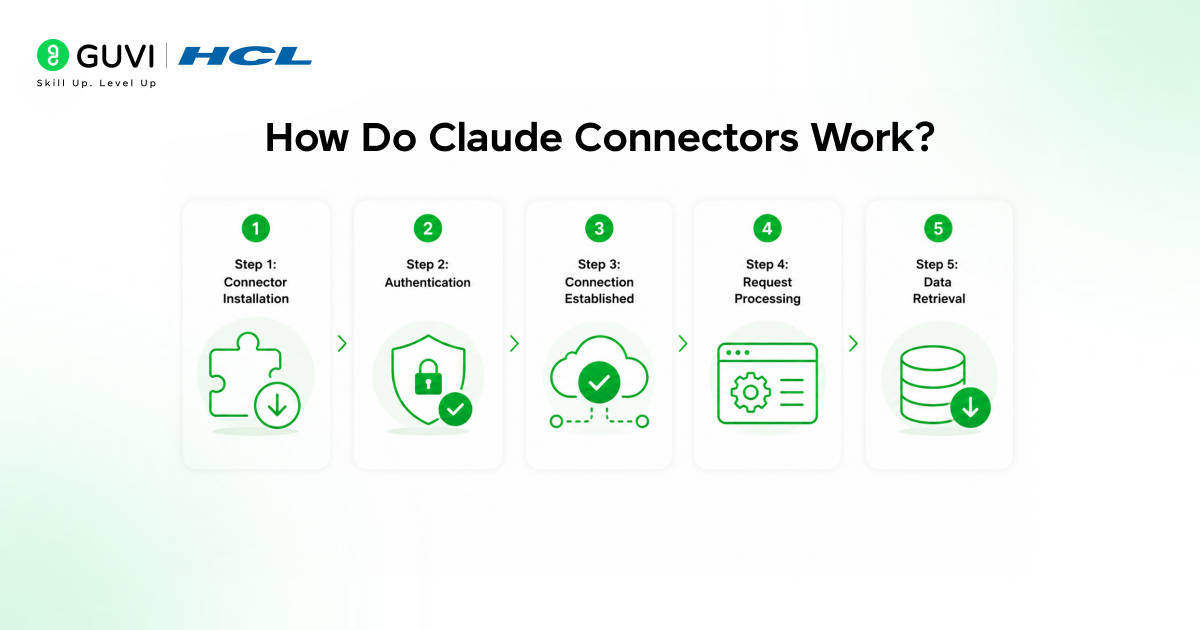
Claude connectors are powered by MCP (Model Context Protocol), an open standard that allows AI applications to connect with external tools, services and data sources. Instead of requiring a different integration method for every application, MCP provides a standard framework through which Claude can access information and use supported tools.
Here’s how the process works in 2026:
Step 1: Add a Connector
Open Claude and browse the available connectors through Customize → Connectors or the Connectors menu within a conversation. Select the application you want to connect, such as Google Drive, Slack, GitHub or another supported service.
Claude also supports custom connectors that connect to compatible remote MCP servers.
Step 2: Authenticate the Connected Service
Select Connect and sign in to the external service when prompted. Review the permissions being requested before approving access.
Claude inherits your existing permissions from the connected service. This means the connector can only access files, channels, records or other information that your account is already authorised to access.
Step 3: Make the Connector Available to Claude
After authentication, the connector becomes available for Claude to use in conversations. Claude can automatically determine when a connected application is relevant to your request, so you do not always need to mention the connector explicitly.
For example, if Google Drive is connected and you ask Claude to find a project document, Claude can identify Google Drive as the appropriate source.
Step 4: Claude Uses the Required Tools
When your request requires external information or an action, Claude can call the appropriate tools provided by the connector.
Depending on the connector, this may involve:
- Searching files or records
- Reading documents or messages
- Retrieving current information
- Creating or updating content
- Performing supported actions in the connected service
Not every connector supports the same actions. Some provide read-only access, while others include both read and write capabilities.
Step 5: Claude Processes the Result
The connector returns the requested information or action result to Claude. Claude then uses that context to answer your question, summarise information or continue the workflow.
The complete process can be represented as:
User request
→ Claude identifies the relevant connector
→ Connector accesses the authorised service
→ Data or tool result returns to Claude
→ Claude generates the response or continues the task
For most users, this happens automatically within the conversation. Claude can also manage how connected tools are loaded, with Auto as the default tool-access mode for selecting relevant connectors when needed.
Claude can access and work with files up to 200MB in size when using connectors like Google Drive. This allows you to analyze large datasets, lengthy documents, or multiple files at once without worrying about typical upload limitations.
Explore: ICD-10 Connector in Claude: Find Medical Codes Instantly
Types of Claude Connectors
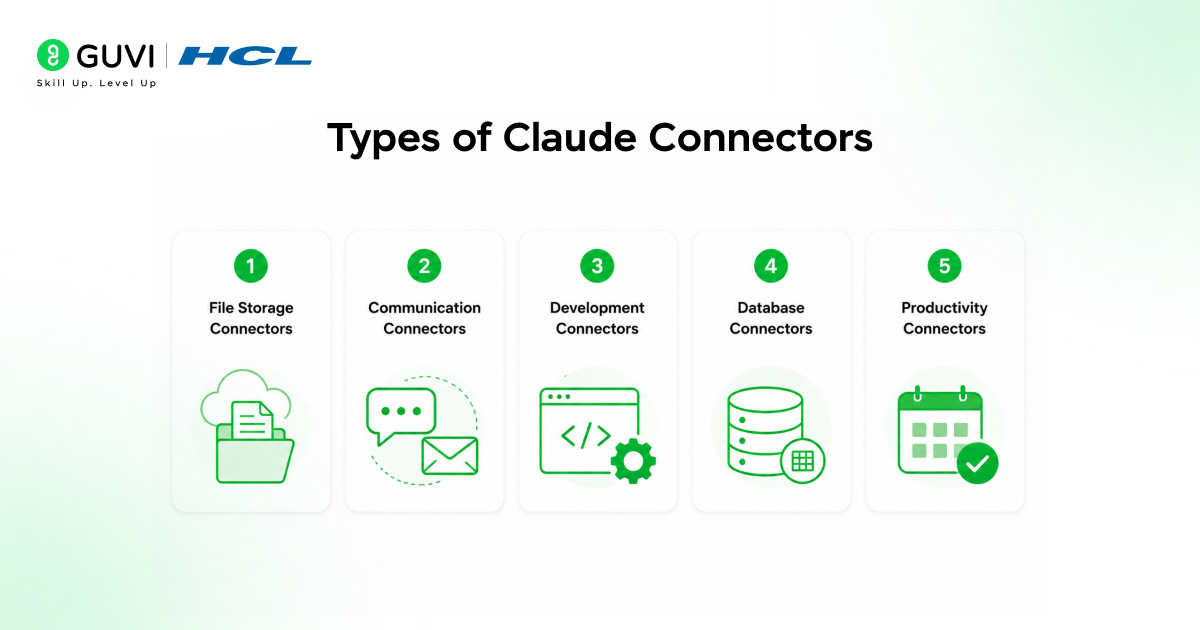
Different Claude connectors serve different purposes. Some provide access to cloud applications and services, while others connect Claude to local tools running on your computer. Understanding these categories can help you choose the right connectors for your workflow.
1. File and Document Connectors
These connectors allow Claude to work with documents, files and knowledge stored in cloud platforms.
Popular options include:
- Google Drive
- Box
- Microsoft OneDrive through Microsoft 365
- Notion
Depending on the connector, Claude can search, read, create, organise or update content. For example, the Google Drive connector can search documents, read supported files, create folders and perform supported file-management actions.
Use these connectors when you want Claude to work with documents without repeatedly downloading and uploading files.
2. Communication Connectors
Communication connectors connect Claude with messaging, email and collaboration platforms.
Examples include:
- Slack
- Gmail
- Microsoft 365
- Asana
These connectors can help Claude search conversations, retrieve relevant messages and support communication workflows. Some connectors also allow Claude to take actions. For example, Slack can support message-related workflows, while Gmail can search, draft, send, reply to and forward emails.
Use these connectors when Claude needs context from conversations or when you want to handle communication tasks directly from Claude.
3. Development and Code Connectors
Development connectors give Claude access to software-development tools and code repositories.
Popular options include:
- GitHub
- Sentry
- Replit
- Retool
- PagerDuty
A GitHub connector can provide Claude with repository context so it can examine files and folders while helping with software-development tasks.
Use these connectors when Claude needs access to actual project code, development issues or engineering workflows.
4. Data and Analytics Connectors
These connectors connect Claude with platforms used to store, analyse and explore structured data.
Examples include:
- Snowflake
- Google Cloud BigQuery
- dbt
- Hex
- Amplitude
- ThoughtSpot Spotter
Depending on the connector, Claude may be able to search data, analyse information, explore dashboards or work with analytics workflows.
Use these connectors when you need Claude to investigate business data, assist with analysis or work with information stored in data platforms.
5. Productivity and Project Management Connectors
Productivity connectors help Claude work with tasks, schedules, projects and workplace information.
Popular options include:
- Google Calendar
- Notion
- Asana
- Airtable
- Todoist
- ServiceNow
Some of these connectors now support actions instead of simply retrieving information. Google Calendar, for example, can support creating, updating and deleting events, while Asana can help search, create and update tasks and projects.
Use these connectors when you want Claude to manage schedules, organise information or turn conversations into actionable work.
6. Local and Desktop Connectors
Claude also supports desktop extensions for tools and resources that run locally on your computer.
These are useful for:
- Local files
- Local databases
- Desktop applications
- Local development tools
- Services running on localhost
Unlike most remote connectors, desktop extensions run locally and are primarily available through Claude Desktop and Claude Code.
This distinction is useful in 2026:
Remote connectors → Cloud services such as Slack, Notion, GitHub and Google Drive
Desktop extensions → Local files, databases and applications running on your computer
The best connector therefore depends not only on the task you want Claude to perform but also on where the application or data is located.
Explore: HealthEx Connector Guide: Manage Health Data with Claude
Common Use Cases for Claude Connectors
Claude connectors can support a wide range of workflows by allowing Claude to retrieve information and perform supported actions within connected applications. Here are some practical examples:
1. Document Search and Analysis
A marketing team can connect Claude to Google Drive and ask it to find campaign reports, compare information across documents and summarise important findings.
For example:
Find the latest campaign performance reports in Google Drive.
Compare the results and summarise the biggest changes.
The Google Drive connector can search and read supported files such as Docs, Sheets, Slides and PDFs. It can also perform supported file-management actions such as moving, sharing and organising files. This reduces the need to manually download and upload documents.
2. Team Knowledge Search and Communication
A customer support team can connect Claude to Slack and use it to find information from previous team conversations.
For example:
Find the latest Slack discussions about the payment issue
and summarise the proposed solutions.
This can help employees retrieve information from long conversation histories without manually searching through multiple channels.
Depending on the connector’s capabilities, Claude can also perform supported communication actions rather than simply retrieve messages.
3. Email Management
With Gmail connected, Claude can search email threads, summarise conversations and identify messages that require follow-up.
For example:
Find emails from the client about the product launch
and summarise the decisions and unresolved questions.
The Gmail connector can also support actions such as drafting, sending, replying to and forwarding emails. Claude asks for approval by default before sending supported email actions.
4. Calendar and Meeting Management
Connecting Google Calendar allows Claude to work with schedules directly from a conversation.
For example:
Find a 30-minute slot when the project team is available
this week and create a meeting.
Claude can use the connector to view events, check mutual availability, create or update meetings and manage supported invitation actions.
5. Data and Analytics Workflows
Data and analytics connectors can help Claude work with information stored in platforms such as Snowflake, BigQuery, dbt, ThoughtSpot or other supported services.
An analyst might ask:
Analyse this month's sales data
and identify the regions with the largest decline.
Depending on the connector, Claude can retrieve relevant structured data, work with analytics tools and explain the results in natural language.
6. Software Development Workflows
Development connectors can provide Claude with context from repositories and engineering tools.
For example, a developer could connect GitHub and ask:
Review the authentication module
and identify where login errors are being handled.
Claude can use repository context to understand actual project files instead of requiring developers to manually paste large sections of code.
7. Project and Task Management
Connectors for tools such as Asana, Linear, Airtable or ServiceNow can bring project information into Claude.
For example:
Find all open tasks assigned to me for the product launch
and summarise the highest-priority items.
Where supported, connectors can also allow Claude to create or update tasks and other records. This makes connectors useful not only for retrieving information but also for completing parts of everyday workflows.
Step-by-Step Guide to Setting Up Your First Claude Connector
Setting up a Claude connector in 2026 is straightforward. This example shows how to connect Google Drive to Claude and start using it in a conversation.
Step 1: Open Claude
Open Claude or Claude Desktop and sign in to your account.
Step 2: Open Connectors
Navigate to:
Customize
→ Connectors
Click the + button next to Connectors and select Browse connectors to open the Connectors Directory.
Step 3: Find Google Drive
Search the Connectors Directory for Google Drive and select the connector.
The directory contains supported connectors for productivity, development, communication, analytics and other workflows.
Step 4: Connect Your Google Account
Click Connect and sign in to the Google account containing the Drive files you want Claude to access.
For Team and Enterprise accounts, an Owner or Primary Owner may need to enable Google Workspace connectors at the organization level before individual users can authenticate.
Step 5: Review and Grant Permissions
Review the access Claude requests from your Google account.
Claude mirrors your existing Google Workspace permissions. Connecting Google Drive does not give Claude access to files that your Google account itself cannot access.
Step 6: Confirm the Connection
After authentication, return to Claude and check Customize → Connectors.
Google Drive should now appear among your connected services.
You can manage connected services from this section, including reviewing settings or disconnecting services you no longer want to use.
Step 7: Enable the Connector in Your Conversation
Claude can automatically determine when a connected tool is useful.
You can also manage connectors for an individual conversation by clicking the + button in the chat interface, hovering over Connectors and enabling or disabling specific services.
Step 8: Ask Claude to Use Google Drive
Start a conversation and make a request involving information stored in Drive.
For example:
Find the latest project roadmap in my Google Drive
and summarise the major changes.
Claude can search supported Drive content and use relevant files to answer your question.
Step 9: Review the Sources
When Claude uses Google Workspace connectors, its response can include citations showing which documents, emails or calendar events were used as sources, along with links to the originals when available.
Step 10: Try a Supported Action
Google Drive is no longer limited to document search.

Depending on the requested action and permissions, Claude can also perform supported tasks such as:
- Uploading files
- Creating folders
- Moving files
- Sharing files
- Trashing files
- Viewing permissions
- Saving Claude-generated files to Drive
Some actions require your approval before Claude performs them.
Your basic setup is now complete:
Browse connector
→ Connect
→ Authenticate
→ Enable
→ Ask Claude
→ Review result or approve action
Claude Connectors vs ChatGPT Plugins — Comparison
Claude connectors and ChatGPT plugins both extend what an AI assistant can do, but they are structured differently.
Claude connectors primarily connect Claude to external applications, tools and data sources using the Model Context Protocol (MCP). Depending on the connector, Claude can retrieve information or perform supported actions within the connected service.
In ChatGPT’s 2026 system, plugins are broader workflow packages. A plugin can contain skills, connected apps and app templates. The connected apps are the components that actually connect ChatGPT to external services and allow it to access information or perform actions.
| Feature | Claude Connectors | ChatGPT Plugins |
|---|---|---|
| Main purpose | Connect Claude to external tools, data and actions | Package capabilities required for a workflow |
| External service connection | Connector | Connected app inside or alongside a plugin |
| Integration standard | Primarily MCP | Apps can provide external data and actions |
| Workflow instructions | Primarily provided through Claude and related capabilities | Plugins can include reusable skills |
| External account authentication | Required when the connected service needs it | Required for app-backed capabilities when needed |
| Examples | Google Drive, Gmail, Slack, GitHub | Plugins containing apps, skills or app templates |
| Can retrieve external information | Yes | Yes, through connected apps |
| Can perform actions | Yes, when supported by the connector | Yes, when supported by the underlying app |
| Custom workflows | Custom MCP connectors can be added | Plugins can package custom skills and app integrations |
| Admin controls | Available for managed Claude organisations | Available for managed ChatGPT workspaces |
The biggest difference is therefore the level at which each term operates.
A Claude connector is primarily the bridge between Claude and an external system.
A ChatGPT plugin can represent a broader workflow package that combines instructions and connected capabilities. The actual external connection in ChatGPT is generally provided by an app included in or used by that plugin.
For example:
Claude:
Connector
→ Google Drive
→ Files and supported Drive actions
ChatGPT:
Plugin
→ Connected app
→ Google Drive
→ External information or supported actions
OpenAI moved app discovery into the Plugin Directory in July 2026. Existing app connections continue to work, while plugins can now package apps, skills and app templates into more complete workflows.
Both approaches ultimately aim to reduce context switching by allowing AI assistants to work with information and tools outside the basic conversation.
Build stronger AI and machine learning foundations to understand Claude Connectors and modern AI workflow integrations with HCL GUVI’s Artificial Intelligence and Machine Learning Program. Learn Python, SQL, ML, MLOps, Generative AI, Agentic AI, and real-world AI workflows through live online classes, Intel-designed curriculum, industry-grade projects, 1:1 doubt sessions, and placement assistance with 1000+ hiring partners.
Claude Connectors for Google Drive, Gmail, Calendar- Setup Guide
Google Drive, Gmail and Google Calendar are among the most useful Claude connectors for everyday productivity.
In 2026, all three Google Workspace connectors are available on Claude and Claude Desktop. For Team and Enterprise accounts, an Owner or Primary Owner may first need to enable the connectors at the organisation level before individual users authenticate their Google accounts.
How to Set Up Google Workspace Connectors in Claude
The basic connection process is similar for Google Drive, Gmail and Google Calendar.
- Open Claude.
- Go to Customize → Connectors.
- Browse the available connectors.
- Select Google Drive, Gmail or Google Calendar.
- Click Connect.
- Sign in to the Google account you want Claude to use.
- Review the requested permissions.
- Approve the connection.
- Return to Claude.
- Start a conversation and ask Claude to use information from the connected service.
Once connected, Claude can automatically determine when one of the Google Workspace tools is relevant to your request.
1. Connect Google Drive to Claude
The Google Drive connector allows Claude to work directly with files stored in your Drive.
Claude can currently use Google Drive to:
- Search and retrieve Google Docs
- Read Sheets
- Read Slides
- Read PDFs
- Read supported Microsoft Office files
- Read supported images
- View file metadata
- View file permissions
- List recent Drive changes
- Upload files
- Create folders
- Move files
- Share files
- Trash files
- Save Claude-generated files to Drive when supported
For actions such as moving, sharing or deleting files, Claude asks for approval by default.
For example:
Find the latest project roadmap in my Google Drive
and summarise the changes made this month.
Claude can search the connected Drive and use the relevant documents as context.
One current limitation is that Claude extracts text from Google Drive documents but does not process images embedded inside those documents.
2. Connect Gmail to Claude
The Gmail connector allows Claude to work with your mailbox without requiring you to copy complete email threads into the conversation.
Claude can currently:
- Search Gmail
- Read emails
- Access email metadata
- Work with labels and threads
- List saved drafts
- Draft emails
- Send emails
- Reply to emails
- Forward emails
By default, Claude asks for your approval before sending, replying to or forwarding an email.
For example:
Find the latest emails from the client about
the website launch and summarise the final decisions.
You could then follow up with:
Draft a reply confirming those decisions.
The Gmail connector can access attachment metadata, but current Anthropic documentation notes that it does not retrieve the actual attachment content through Gmail itself.
3. Connect Google Calendar to Claude
The Google Calendar connector allows Claude to work with your schedule directly from a conversation.
Claude can currently:
- View calendar events
- Search calendars you can access
- Work with shared calendars
- Find mutual availability
- Create events
- Update events
- Delete events
- Add or remove attendees
- Respond to invitations
- Create recurring meetings
For example:
Find a 30-minute slot when Rahul and I are both
available this week.
You can then ask:
Create a meeting for that time and invite Rahul.
Google Calendar is therefore no longer limited to providing schedule information. Claude can perform supported scheduling actions directly through the connector.
Using Google Drive, Gmail and Calendar Together
The three connectors become particularly useful when combined.
For example:
Find the latest project proposal in Google Drive,
check my Gmail for the client's feedback,
and tell me when I have a free 30-minute slot tomorrow
to discuss the revisions.
Claude can use the relevant Google Workspace connectors during the same workflow.
Another example is:
Find the final campaign report in Google Drive,
summarise it,
draft an email to the marketing team,
and check my calendar for a suitable review meeting.
Claude’s responses can include citations to the emails, events or documents used as sources, with links to the originals when available.
This makes Google Workspace connectors particularly useful for workflows that move naturally between documents → communication → scheduling.
Best Practices When Using Claude Connectors
Following a few practical guidelines can make Claude connectors safer and easier to manage.
1. Review Permissions Carefully
Check what information and actions each connector can access before authenticating it.
Connector capabilities vary. Some primarily retrieve information, while others can create, update or delete content in connected applications.
2. Connect Only the Tools You Actually Need
Avoid enabling every available connector simply because it is available.
Start with the applications you use regularly, such as Google Drive, Gmail, Calendar, Slack or GitHub.
This makes it easier to understand which services Claude is using during your conversations.
3. Manage Tool Access
Claude provides different tool-access modes for controlling how connectors are loaded into conversations.
Auto is the default and allows Claude to determine which connectors are relevant.
If you have many active connectors, particularly 10 or more, Anthropic recommends considering On demand mode so connector definitions consume less conversation space.
4. Understand Read and Write Actions
Do not assume that a connector can only search information.
Some current connectors support actions.
For example, Google Workspace connectors can support:
- Sending Gmail messages
- Creating Calendar events
- Moving Drive files
- Creating Drive folders
Review actions before approving changes to connected services.
5. Use the Correct Account
Make sure you authenticate the account containing the information you expect Claude to access.
If you connect a personal Google account but the document belongs to your work account, Claude will not automatically gain access to it.
6. Use Specific Requests
Specific prompts help Claude identify the correct connector and information more efficiently.
Instead of:
Find my report.
try:
Search Google Drive for the latest Q2 sales report
and summarise the revenue changes by region.
7. Review Connected Services Regularly
Go to:
Customize
→ Connectors
and periodically review which services remain connected.
Disconnect applications you no longer use or no longer want Claude to access.
8. Be Careful With Custom Connectors
Claude also allows users to add custom connectors using remote MCP servers.
Custom connectors may not have been verified by Anthropic. Only connect to MCP servers from organizations you trust and review authentication permissions carefully before granting access.
Common Challenges and How to Solve Them
Even correctly configured Claude connectors can occasionally encounter access or authentication problems.
1. Authentication Failure
Problem: The connector does not complete authentication or repeatedly asks you to sign in.
Solution: Confirm that you are signing in with the correct external account. If the connection continues to fail, disconnect the service from Customize → Connectors and authenticate it again.
2. Permission Error
Problem: Claude can connect to the application but cannot access a particular file, email, calendar or other resource.
Solution: Check whether your connected account itself has permission to access that information.
Claude mirrors the permissions of your connected account. A connector cannot give Claude access to content that the authenticated account cannot access.
3. Connector Does Not Appear
Problem: A connector is available but does not appear as an option for your account.
Solution: Check the Connectors Directory and your organization settings.
On Team and Enterprise plans, some connectors must first be enabled by an Owner or Primary Owner before individual users can authenticate them.
4. Claude Is Not Using the Expected Connector
Problem: The connector is connected, but Claude does not appear to use it during the conversation.
Solution: Click the + button in the chat interface and check Connectors to make sure the relevant service is enabled for that conversation.
You can also review the Tool access setting. Claude’s default Auto mode determines which available connectors are relevant to the current task.
5. Claude Cannot Find Information You Know Exists
Problem: Claude cannot locate a file, email or other information in a connected service.
Solution: Verify:
- The correct account is connected
- The relevant connector is enabled
- Your account has access to the resource
- The request clearly identifies what Claude should search for
- The connector supports that particular content type
For Google Workspace, Claude can only access data available to the Google account you authenticated.
6. Too Many Connectors Affect the Conversation
Problem: You have many connectors enabled and want Claude to load only the tools relevant to the current task.
Solution: Open Tool access from the Connectors menu.
Claude supports tool-access modes that determine how connectors are loaded. Auto works well for most users, while On demand can be useful when you have 10 or more connected services.
7. A Connector Cannot Perform the Requested Action
Problem: Claude can retrieve information from a service but cannot perform the action you requested.
Solution: Check the connector’s supported capabilities.
Not every connector provides the same tools. Some support information retrieval only, while others support interactive or write actions. Connectors with interactive capabilities are identified in the Connectors Directory, and Anthropic continues to add support for additional interactive connectors.
Teams using Claude connectors report saving up to 5–10 hours per week on tasks that previously required constant app switching and manual data gathering. By bringing data directly into the workflow, connectors eliminate context switching and streamline productivity.
Conclusion
Claude connectors transform how you work with AI by linking Claude to your existing tools and data sources. They eliminate the friction of manually feeding information to Claude and unlock new capabilities that make your work faster and easier. Starting with one or two essential connectors helps you build confidence before expanding to more complex setups.
As AI becomes more integrated into daily workflows, understanding how to connect and configure these tools becomes increasingly valuable. This knowledge makes you more efficient and helps you get better results from AI assistants.
Set up your first Claude connector today and experience how seamless access to your data transforms what you can accomplish.
FAQs
1. Are Claude connectors safe to use?
Yes, Claude connectors use secure authentication methods and only access data you explicitly grant permission for. Reputable connectors follow industry-standard security practices. Always review permissions before connecting and only use official connectors.
2. Do I need technical skills to set up connectors?
No, most Claude connectors are designed for non-technical users. The setup process involves clicking through authentication steps similar to signing in to any application. No coding or programming knowledge is required.
3. Can I use multiple connectors at the same time?
Yes, you can enable as many connectors as you need. Claude can access multiple data sources in a single conversation. For example, it might pull data from your database and reference documents from Google Drive simultaneously.
4. What happens to my data when I use connectors?
Connectors allow Claude to read your data temporarily to answer your questions. The data is not permanently stored by Claude. Always check the privacy policy of specific connectors to understand data handling practices.
5. Can I disconnect a connector after setting it up?
Yes, you can disable or remove connectors anytime through Claude’s settings. Disconnecting a connector revokes Claude’s access to that application immediately. Your data in the connected application remains unchanged.
Success Stories

About the Author
Vaishali
I'm a seasoned writer with four years of experience across technical, non-technical, and just about every genre or niche you can imagine. Adaptable and curious, I enjoy exploring new topics and making information engaging and easy to understand. Fueled by a steady stream of tea, I approach each project with creativity, reliability, and genuine enthusiasm for storytelling.
View all posts by Vaishali
Connect with me @










Did you enjoy this article?