


Artificial Intelligence and Machine Learning Articles
AI/ML Skills Gap 2026: Why Companies Can't Find Job-Ready Talent
20 AI/ML Interview Questions Recruiters Can Use Without a Tech Background - Best Guide
How Industry-Backed AI/ML Bootcamps Are Changing the AI/ML Hiring Pipeline - Best Guide 2026
From IT Support to AI Engineer: A Realistic Career Switch Guide 2026


Get In Touch For Details! Request More Information

Advancing Claude For Excel & PowerPoint: Full Guide
Sep 21, 2026 6 Min Read 1690 Views
(Last Updated)
If you have ever built a financial model in Excel, then manually copied every key number into a PowerPoint deck slide by slide, you already know the pain. It is slow, it is error-prone, and by the time you are done, you have spent more time on formatting than on thinking.
Claude for Excel is an official add-in that lets Claude read your workbook and write formulas, now working alongside Claude for PowerPoint to carry data straight into your slides. Claude no longer lives inside one app alone, it works across both at once.
This guide walks you through Claude for Excel and PowerPoint, what has changed, why it matters, and how to start using it today. No technical background needed.
Table of contents
- TL;DR Summary
- What is Claude for Excel and PowerPoint?
- What Can Claude Actually Do? Here's the Full Breakdown
- In Excel
- In PowerPoint
- Claude for Excel vs Claude for PowerPoint: Quick Comparison
- Why This Upgrade Changes Everything
- 4 Practical Use Cases
- Use Case 1: Turning a Financial Model Into a Presentation
- Use Case 2: Auditing a Workbook Before a Client Meeting
- Use Case 3: Generating a First Draft Deck From Scratch
- Use Case 4: Updating a Recurring Report
- Step-by-Step: How to Get Started
- Step 1: Install the Add-Ins
- Step 2: Sign In With Your Claude Account
- Step 3: Enable Cross-App Context
- Step 4: Open Both Files Before You Start
- Step 5: Start With a Simple Question
- Step 6: Ask Claude to Move Data Across Apps
- Step 7: Explore or Build a Skill
- Step 8: Verify Before You Send
- Key Features That Make Claude Useful Here
- Common Mistakes to Avoid When Using Claude for Excel and PowerPoint
- Pros and Cons of using Claude for Excel and PowerPoint
- Pros:
- Cons:
- Top Tips to Get Started with Claude for Excel and PowerPoint
- Conclusion
- FAQs
- Do I need a Microsoft 365 subscription to use Claude in Excel and PowerPoint?
- Is Claude for PowerPoint available on the Pro plan?
- Can Claude see all the data in my workbook?
- Does Claude remember my previous sessions?
- Is it safe to use Claude with sensitive company data?
TL;DR Summary
- What it is: Claude for Excel and Claude for PowerPoint are official Microsoft add-ins that let Claude read, analyze, and edit your spreadsheets and decks directly
- What changed: the two apps now share context in one continuous conversation, so data flows from Excel into PowerPoint automatically
- Plan access: Claude for Excel is available on Pro, Max, Team, and Enterprise; Claude for PowerPoint is currently Max, Team, and Enterprise only, not Pro
- The real time-saver: reusable Skills let your team turn a repeated workflow into a one-click action
- Where it falls short: it can only read files that are currently open, and chat history doesn’t carry over between sessions
What is Claude for Excel and PowerPoint?
Claude is an AI assistant made by Anthropic. Most people know it as a chat tool, similar to ChatGPT. But Anthropic has been building Claude directly into the apps people already use at work, starting with Microsoft Excel and Microsoft PowerPoint.
The Claude add-in sits in a sidebar panel inside each app. You type what you need in plain English, and Claude reads your spreadsheet or your deck, understands the content, and either answers your question or makes the changes directly.
Think of it like having a very capable analyst sitting next to you who has already read every tab in your workbook and every slide in your deck, and is ready to help the moment you ask.
What Can Claude Actually Do? Here’s the Full Breakdown
In Excel
- Write formulas from plain English descriptions
- Explain complex or inherited formulas in simple terms
- Analyse data across multiple tabs at once
- Create charts and pivot tables on request
- Audit your workbook for formula errors and inconsistencies
In PowerPoint
- Generate full slide decks from a short description
- Edit individual slides while preserving your template and branding
- Restructure your presentation’s storyline
- Convert bullet points into diagrams or charts
- Write speaker notes based on slide content
Read More: How to Build Claude Skills: Lesson Plan Generator Tutorial
Claude for Excel vs Claude for PowerPoint: Quick Comparison
Since access and maturity differ between the two apps, it’s worth knowing exactly how they compare before you plan a workflow around both.
| Factor | Claude for Excel | Claude for PowerPoint |
|---|---|---|
| Plan availability | Pro, Max, Team, Enterprise | Max, Team, Enterprise only |
| Status | Generally available | Research preview |
| Reads across | All open tabs in a workbook | All open slides in a deck |
| Core strength | Formula writing, auditing, multi-tab analysis | Template-aware slide generation, restructuring |
| Cross-app context | Available (toggle defaults on for Pro/Max, off for Team/Enterprise) | Same shared toggle |
Why This Upgrade Changes Everything
Until March 2026, Claude in Excel and PowerPoint worked separately, requiring manual rework between apps.
Now, two key updates transform the workflow:
- Shared Context: Claude maintains one continuous conversation across both apps, so data flows automatically, with no re-explaining or copying needed.
- Reusable Skills: Teams can save workflows such as analyses or slide formats and reuse them instantly with one click.
With built-in tools like a formula auditor and slide generator, plus custom Skills, work becomes faster, consistent, and far more efficient.
4 Practical Use Cases
Use Case 1: Turning a Financial Model Into a Presentation
You have a multi-tab Excel model with revenue projections, cost assumptions, and scenario analysis. Ask Claude to pull the key figures and build a valuation summary slide in your existing PowerPoint template. Claude reads both files, understands the structure, and creates the slide, no copy-pasting required.
Use Case 2: Auditing a Workbook Before a Client Meeting
Use the pre-built Excel formula audit Skill to check your workbook for errors, circular references, and balance-sheet issues before you send it to a client. Claude flags problems and explains them in plain English so you can fix them quickly.
Use Case 3: Generating a First Draft Deck From Scratch
Describe the presentation you need in plain English, for example, “a competitive landscape slide comparing four players in the payments space”, and Claude generates a full slide with the correct layouts, fonts, and colours from your existing slide master. Edit from there rather than starting from a blank page.
Use Case 4: Updating a Recurring Report
If you produce a monthly performance review with data from Excel and slides in PowerPoint, Claude can pull the latest figures from your updated workbook and refresh the slides automatically. What used to take an hour of manual updating now takes a few seconds.
A study by McKinsey found that knowledge workers spend an average of 1.8 hours every day just searching for and gathering information. With Claude reading across your entire Excel workbook and PowerPoint deck simultaneously, that number can drop dramatically giving you back time to focus on the actual thinking, not the manual switching between tools.
Step-by-Step: How to Get Started

Step 1: Install the Add-Ins
Go to the Microsoft Marketplace and search for “Claude by Anthropic.” Install the add-in for both Excel and PowerPoint. The process takes about two minutes and works on both Mac and Windows.
Step 2: Sign In With Your Claude Account
Once installed, open either app and you will see a Claude sidebar appear on the right. Sign in with your Anthropic account. You need a paid Claude plan to access the add-ins.
Step 3: Enable Cross-App Context
Go to Settings inside each add-in and toggle on “Let Claude work across files.” This is what allows Claude to read your Excel workbook and your PowerPoint deck at the same time.
This toggle defaults to on for Pro and Max plans, but defaults to off for Team and Enterprise plans, where an organisation owner needs to enable it first.
Step 4: Open Both Files Before You Start
Claude can only read files that are currently open. Make sure your Excel workbook and your PowerPoint presentation are both open before you begin a cross-app task.
Step 5: Start With a Simple Question
In the Chat panel, type something like: “What are the key outputs from this model?” or “Summarise the structure of this spreadsheet.” Get comfortable with how Claude reads and responds before asking it to make changes.
Step 6: Ask Claude to Move Data Across Apps
Once you are ready, try something like: “Pull the revenue figures from my Excel workbook and add them to a new slide in my PowerPoint deck.” Watch how Claude coordinates between the two files without you having to switch or copy anything.
Step 7: Explore or Build a Skill
In the Skills section of the sidebar, try one of the pre-built Skills Anthropic has included. Once you see how they work, you can build your own by saving a workflow you use regularly.
Step 8: Verify Before You Send
Always review Claude’s output before it goes to a client or a senior stakeholder. Claude is fast and usually accurate, but it works best as a first draft, not a final one.
Key Features That Make Claude Useful Here
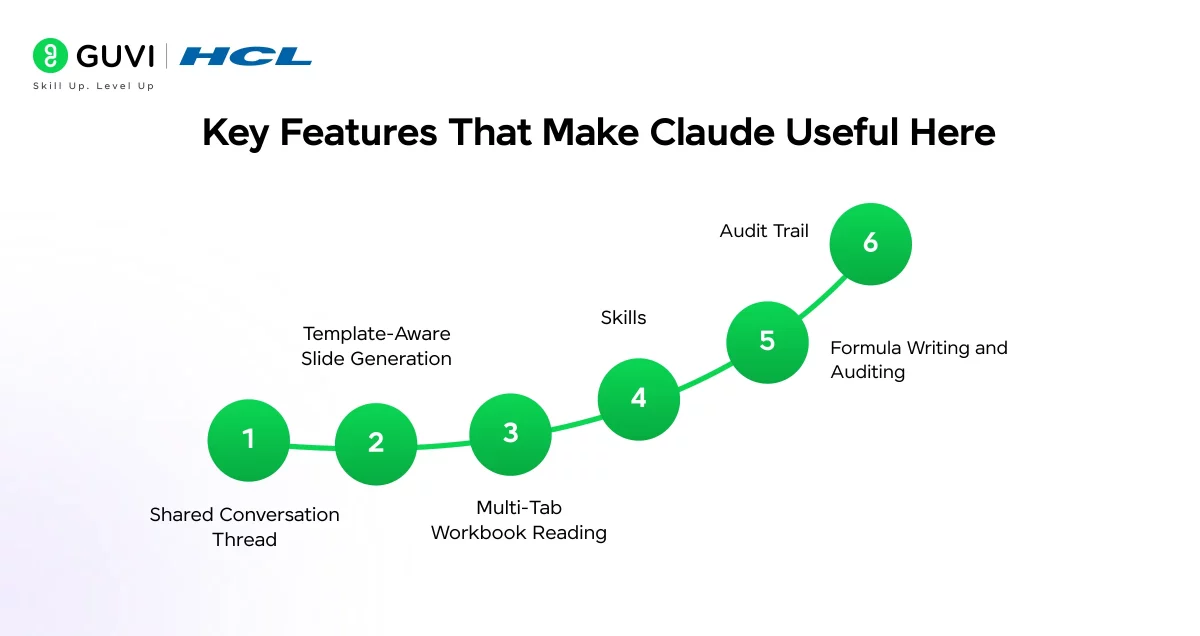
- Shared Conversation Thread:
One continuous chat that carries context across both Excel and PowerPoint simultaneously. No more starting over every time you switch apps.
- Template-Aware Slide Generation:
Claude reads your existing slide master, including fonts, colours, and layouts, and generates new slides that match your brand without you having to adjust anything.
- Multi-Tab Workbook Reading:
Claude reads across all the tabs in your workbook, not just the one you have open. You can ask questions that reference data from multiple sheets at once.

- Skills:
Saved, reusable workflows that turn your best prompts and processes into one-click actions available to your whole team.
- Formula Writing and Auditing:
Describe a calculation in plain English and Claude writes the formula. Or paste in a formula you inherited from someone else and ask Claude to explain what it does.
- Audit Trail:
Claude tracks every change it makes with a plain English explanation of each step, so you always know what was changed and why before you accept it.
Common Mistakes to Avoid When Using Claude for Excel and PowerPoint
A handful of avoidable mistakes cause the most frustration for first-time users.
- Forgetting to open both files before starting a cross-app task. Claude can only read what’s currently open, if your PowerPoint file isn’t open yet, a cross-app request will fail or produce an incomplete result.
- Assuming Team or Enterprise access works the same as Pro or Max. The cross-app toggle defaults differently by plan, if you’re on Team or Enterprise and nothing seems to be working, check whether your organisation owner has enabled it.
- Sending client deliverables without a human review. Anthropic itself advises against using Claude for Excel for final client deliverables or audit-critical calculations without verification.
- Using the add-ins with files from untrusted sources. This creates real prompt injection risk, treat external files with the same caution you’d apply to any untrusted attachment.
- Expecting chat history to persist. Since sessions don’t carry over, keep a note of useful prompts you want to reuse rather than relying on Claude to remember a previous conversation.
Pros and Cons of using Claude for Excel and PowerPoint
Pros:
- Eliminates the manual process of moving data between Excel and PowerPoint
- Saves significant time on recurring reports, pitch decks, and financial summaries
- Skills make it easy for the whole team to follow the same process every time
- Works with your existing templates, so outputs match your brand from the start
- Available to all paid Claude plan users on Mac and Windows
- Enterprises can connect through existing cloud setups including Amazon Bedrock and Google Cloud Vertex AI
Cons:
- Claude can only read files that are currently open, it cannot open or switch files itself
- Chat history is not saved between sessions, so each new session starts fresh
- Claude for PowerPoint is currently a research preview available only on Max, Team, and Enterprise plans, not on the basic Pro plan
- The sidebar experience is slightly less seamless than a natively embedded feature like Microsoft Copilot
- Users should not use the add-ins with files from external or untrusted sources due to prompt injection risks
- AI output should always be reviewed before being sent to clients or stakeholders
According to a 2025 Gartner report, 80% of enterprise teams that adopted AI-powered workflow tools reported a significant reduction in repeated manual tasks within the first 90 days. Claude’s Skills feature is built exactly for this, turning your team’s best processes into one-click actions so no one has to reinvent the wheel every single week.
Top Tips to Get Started with Claude for Excel and PowerPoint
- Start with something you actually need this week. Do not open Claude and try to learn everything at once. Start with the one report or deck you need to finish today. Real tasks produce better results than experimenting for the sake of it.
- Ask follow-up questions. If Claude’s first answer is not quite right, say “Can you adjust the format?” or “Make this more concise” or “Add a row for the second scenario.” Claude handles follow-ups well and refines its output based on your feedback.
- Use it to prepare, not just to produce. Before a client meeting or board presentation, ask Claude to review your deck and suggest a better structure. Getting a second opinion in two minutes before you present is one of the most underrated uses of this tool.
- Build your team’s first Skill together. Gather the two or three workflows your team repeats every month and save them as Skills. Even one saved Skill eliminates a recurring bottleneck. Start small and build from there.
- Never send the first draft straight to a client. Claude is fast and impressively accurate, but treat every output as a strong starting point, not a finished product. A quick review of the numbers and the narrative before it goes out is always worth the extra five minutes.
If you want to learn more about using Claude for Excel and PowerPoint, don’t miss the chance to enroll in HCL GUVI’s Intel & IITM Pravartak Certified Artificial Intelligence & Machine Learning course.
Endorsed with Intel certification, this course adds a globally recognized credential to your resume, a powerful edge that sets you apart in the competitive AI job market.
Conclusion
Claude started as a chat tool, but it is now built into two of the most widely used productivity apps, making it far more useful for anyone working with data and presentations.
The move from separate add-ins to a shared, cross-app experience removes the friction of transferring information between tools. With reusable Skills added, it becomes a system that can genuinely improve how teams work on a regular basis.
You do not need technical expertise to use it. Open your files, describe what you need, and let Claude handle the work. The real value comes when it becomes part of your daily workflow, not just a one-time tool.
FAQs
Do I need a Microsoft 365 subscription to use Claude in Excel and PowerPoint?
You need a Microsoft account to use Excel and PowerPoint, but Claude is a separate add-in. It does not require a Microsoft 365 Copilot licence. You do need a paid Claude plan from Anthropic.
Is Claude for PowerPoint available on the Pro plan?
Not currently. Claude for PowerPoint is available on Max, Team, and Enterprise plans. Claude for Excel is available to Pro plan subscribers.
Can Claude see all the data in my workbook?
Yes. Claude reads across all tabs in an open workbook, not just the one you are currently viewing. This allows it to answer questions and make changes that reference data from multiple sheets at once.
Does Claude remember my previous sessions?
No. Chat history is not saved between sessions. Each time you open a new session, Claude starts fresh. This is something to keep in mind if you are working on a multi-day project.
Is it safe to use Claude with sensitive company data?
Anthropic automatically deletes inputs and outputs from its backend within 30 days of receipt or generation.
However, Claude for Excel and PowerPoint do not inherit custom organisational data retention settings, and activity isn’t currently included in Enterprise audit logs or the Compliance API for these add-ins specifically.
Review your company’s data handling policies before using the add-ins with sensitive files, and avoid using them with files received from external or untrusted sources.
Success Stories

About the Author
Jebasta
I translate the language of data into stories that anyone can understand. As a writer with a data science background, I simplify analytics, AI, and decision-making so beginners and enthusiasts can confidently explore the world of data.
View all posts by Jebasta
Connect with me @













Did you enjoy this article?