


Artificial Intelligence and Machine Learning Articles
AI/ML Skills Gap 2026: Why Companies Can't Find Job-Ready Talent
20 AI/ML Interview Questions Recruiters Can Use Without a Tech Background - Best Guide
How Industry-Backed AI/ML Bootcamps Are Changing the AI/ML Hiring Pipeline - Best Guide 2026
From IT Support to AI Engineer: A Realistic Career Switch Guide 2026


Get In Touch For Details! Request More Information
Claude + Google Workspace: Docs, Sheets and Gmail
Aug 17, 2026 4 Min Read 444 Views
(Last Updated)
Most professionals spend the majority of their working day inside Google Workspace, writing documents, managing spreadsheets, and handling email, yet much of that time goes toward repetitive, low-complexity tasks that consume attention without producing strategic value. Claude and Google Workspace together change this by bringing AI assistance into the tools where work already happens, reducing the time spent on first drafts, formula writing, and inbox management significantly.
Table of contents
- Quick TL;DR
- How Claude Connects to Google Workspace
- Using Claude with Google Docs
- Using Claude with Google Sheets
- Using Claude with Gmail
- Conclusion
- FAQ
- How do I use Claude with Google Docs?
- Can Claude write Google Sheets formulas?
- How does Claude help with Gmail?
- Do I need technical skills to use Claude with Google Workspace?
- Can Claude be automated to work with Google Workspace without manual copy-paste?
- Is it safe to paste work documents into Claude?
Quick TL;DR
Claude and Google Workspace together let you use AI assistance directly within the tools your team already works in every day, including Google Docs for writing and editing, Google Sheets for data analysis and formula generation, and Gmail for drafting and summarizing emails. Claude can accelerate document creation, automate repetitive writing tasks, clean and analyze spreadsheet data, and help manage high-volume email communication without switching between applications.
Want to make smarter, data-driven decisions using AI tools across your daily workflows? Explore HCL GUVI’s Business Analytics Course, designed to help you build the analytical thinking and AI fluency modern workplaces demand.
How Claude Connects to Google Workspace
Claude integrates with Google Workspace in two primary ways depending on your setup and team size.
- Claude.ai with copy-paste workflow: The simplest approach requires no technical setup. Open Claude.ai alongside your Google Workspace tool, paste in the content you are working with, prompt Claude for the output you need, and paste the result back. This works immediately for any user with a Claude account.
- Claude via Zapier or Make: For automated, recurring workflows, connect Claude to Google Workspace through Zapier or Make. This allows Claude to process new Docs, Sheets rows, or Gmail messages automatically without manual copy-paste for each instance.
- Claude API with Google Apps Script: For teams with technical resources, the Claude API can be called directly from Google Apps Script, embedding Claude’s capabilities as a custom function or sidebar within any Google Workspace file.
Most individual users and small teams start with the copy-paste workflow and graduate to automation as their use cases become clearer and more consistent.
Read More: Create And Edit Files with Claude in One Click
Using Claude with Google Docs
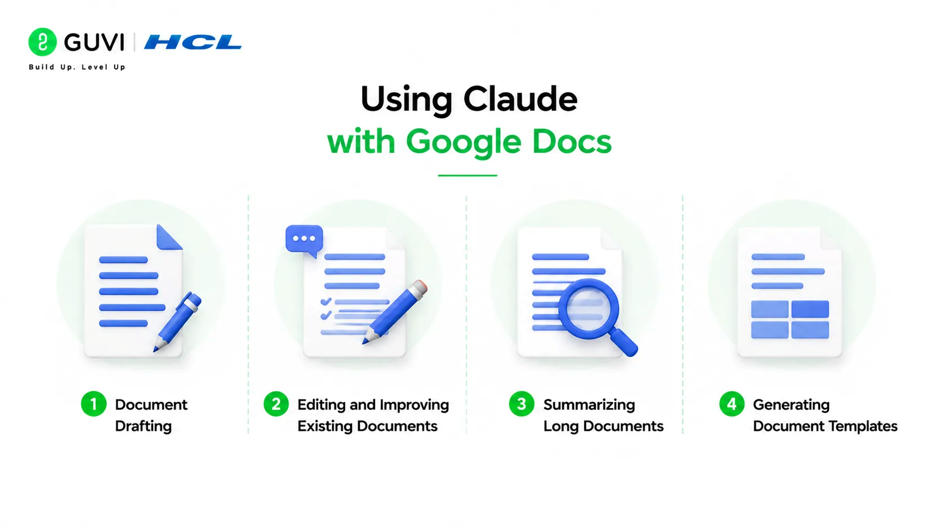
Google Docs is where most long-form professional writing happens, making it one of the highest-value surfaces for Claude assistance.
- Document Drafting
Paste a brief or outline into Claude and ask it to produce a first draft that you then edit inside Docs. This approach works for reports, proposals, SOPs, policy documents, and any structured long-form content.
Write a first draft of a project proposal for a new employee onboarding
portal. The proposal is for an internal IT team audience. It should cover
the business case, proposed solution, estimated timeline, and budget range
of 8-12 lakhs. Tone: professional and direct, not overly formal.
Editing a Claude draft inside Google Docs is consistently faster than writing from a blank page, even when significant revision is needed.
Want to make smarter, data-driven decisions using AI tools across your daily workflows? Explore HCL GUVI’s Business Analytics Course, designed to help you build the analytical thinking and AI fluency modern workplaces demand.
- Editing and Improving Existing Documents
Paste an existing document section into Claude and ask for specific improvements rather than a full rewrite:
Here is a paragraph from our product documentation. Rewrite it to be
clearer and more concise without losing any technical accuracy. The
audience is a non-technical business user, not a developer.

[paste paragraph]
This targeted editing approach preserves your voice and structure while improving clarity in specific areas.
- Summarizing Long Documents
For long reports, research papers, or policy documents that need to be distilled for a specific audience:
Summarize the following document in 5 bullet points for a senior
leadership audience who need the key decisions and recommendations
only, not the background context.

[paste document]- Generating Document Templates
Claude can generate reusable document templates with placeholder fields for recurring document types like meeting agendas, project briefs, status reports, and performance review frameworks.
Create a weekly project status report template for a software development
team. Include sections for: progress this week, blockers, next week's
priorities, risks, and a RAG status indicator. Use placeholder text
showing what each section should contain.Google Workspace has over 3 billion users globally as of 2025, making it the most widely used productivity suite in the world. Even modest AI-assisted productivity gains, like reducing email drafting time or eliminating formula lookup time, translate into enormous aggregate time savings across the global workforce.
Using Claude with Google Sheets
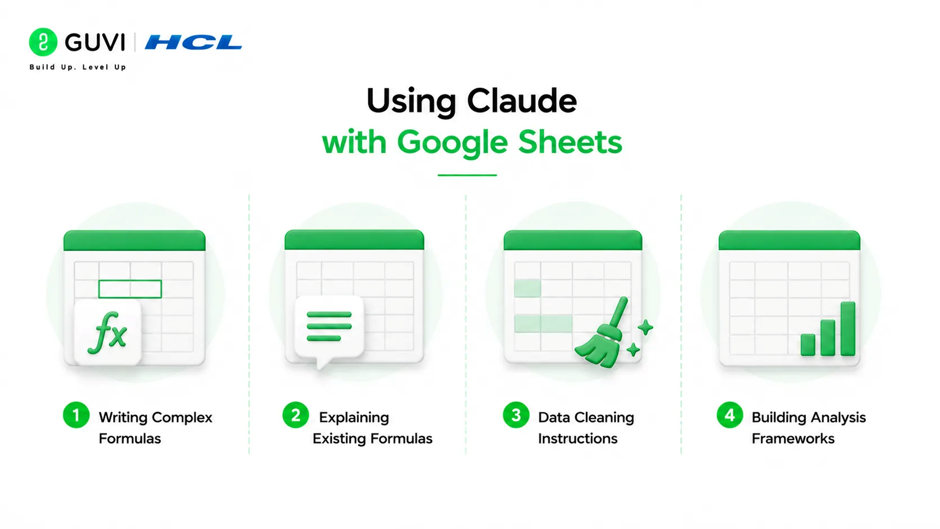
Google Sheets presents some of Claude’s highest-leverage use cases because formula writing, data cleaning, and analysis explanation are time-consuming for non-technical users and highly automatable.
- Writing Complex Formulas
Describing what you need in plain English and asking Claude to produce the formula is significantly faster than searching documentation or Stack Overflow for most users.
Write a Google Sheets formula that looks up a value in column A of
Sheet2 and returns the corresponding value from column C. If no match
is found, return "Not Found" instead of an error.
Claude produces the formula with an explanation of how each part works, which helps users understand and adapt it for similar future needs.

- Explaining Existing Formulas
Paste a complex formula from an inherited spreadsheet and ask Claude to explain it in plain English:
Explain what this Google Sheets formula does in simple terms:
=IFERROR(INDEX(Sheet2!C:C,MATCH(A2,Sheet2!A:A,0)),"Not Found")
This is particularly useful when taking over spreadsheets built by someone else without documentation.
- Data Cleaning Instructions
Paste a sample of messy data and ask Claude to write the step-by-step cleaning instructions or the specific formulas needed:
I have a column of phone numbers in inconsistent formats including
+91-9876543210, 9876543210, 091-9876-543210, and (91) 9876543210.
Write a Google Sheets formula that standardizes all of them to the
format 9876543210 with no country code, spaces, or special characters.- Building Analysis Frameworks
For teams that need to analyze data without a data analyst, Claude can suggest what to measure, which charts to build, and how to structure a dashboard for a given business question:
I have a Google Sheet with monthly sales data including columns for
salesperson name, region, product category, units sold, and revenue.
Suggest 5 analyses I should run and which chart type would work best
for each, given that my audience is a regional sales manager.A study by the European Spreadsheet Risks Interest Group found that 88% of spreadsheets contain errors, with formula mistakes among the most common. Using Claude to write and verify formulas before they enter a production spreadsheet is an increasingly common quality control step in finance and analytics teams.
Using Claude with Gmail
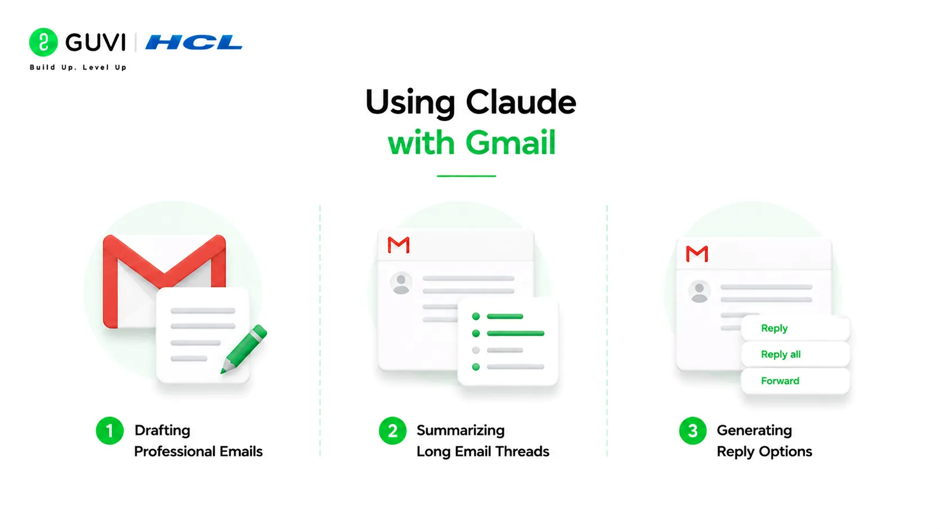
Gmail is where communication overhead accumulates fastest, making it a high-value surface for AI assistance focused on drafting speed and inbox clarity.
- Drafting Professional Emails
Paste a rough note or bullet points into Claude and ask it to produce a complete, professionally toned email:
Draft a professional email declining a vendor's proposal politely.
Key points to include: we appreciated the detailed proposal, we have
decided to go with another vendor for now, we would like to keep the
relationship open for future projects. Tone: warm but clear. Length: short.- Summarizing Long Email Threads
Paste a long email chain into Claude and ask for a summary before you reply:
Summarize this email thread in 3 bullet points: what was requested,
what decisions were made, and what is still unresolved.

[paste thread]
This is especially useful for long threads you have been CC’d on and need to understand quickly before contributing.
- Generating Reply Options
For emails requiring a response but where the right tone is unclear, ask Claude to generate multiple reply options at different levels of firmness or warmth:
Generate three reply options to this client email requesting a deadline
extension. Option 1: approve the extension with conditions. Option 2:
decline but offer an alternative. Option 3: ask clarifying questions
before deciding.

[paste email]
Conclusion
Claude and Google Workspace together reduce the time professionals spend on the mechanical aspects of writing, formula building, and inbox management, freeing attention for the higher-judgment work that AI cannot substitute for.
The productivity gains are most significant for users who invest a small amount of time in learning to write clear, specific prompts that reflect their actual needs rather than relying on vague requests.
FAQ
How do I use Claude with Google Docs?
Open Claude.ai alongside your Google Doc, paste the content you are working with, prompt Claude for drafting, editing, or summarizing, and paste the result back into your document.
Can Claude write Google Sheets formulas?
Yes. Describe what you need in plain English and Claude will produce the formula with an explanation. Always test the formula on a small data sample before applying it to your full dataset.
How does Claude help with Gmail?
Claude can draft professional emails from bullet points, summarize long email threads, and generate multiple reply options at different tones for emails requiring a carefully considered response.
Do I need technical skills to use Claude with Google Workspace?
No. The simplest approach is a copy-paste workflow between Claude.ai and your Google Workspace tools, which requires no technical setup or coding knowledge.
Can Claude be automated to work with Google Workspace without manual copy-paste?
Yes. Connect Claude to Google Workspace through Zapier or Make for automated workflows, or use the Claude API with Google Apps Script for deeper integration within specific files.
Is it safe to paste work documents into Claude?
Review Anthropic’s data handling policies and your organization’s data governance requirements before pasting confidential, sensitive, or personally identifiable information into Claude.
Success Stories

About the Author
Vishalini Devarajan
An Aerospace Engineer turned content writer, I focus on making complex concepts easy to understand through well-structured, reader-friendly blogs. Whether it’s a technical topic or a non-technical one, I love creating content that is clear, engaging, and impactful.
View all posts by Vishalini Devarajan
Connect with me @













Did you enjoy this article?