


Product Management Articles
How to Write a Product Requirements Document That Teams Actually Use
APIs for Product Managers: A Non-Technical Guide to API Basics, REST APIs, and Integrations
What Is Net Promoter Score? A Beginner’s Guide to NPS
Top Product Analytics Tools Compared: Amplitude vs Mixpanel vs Google Analytics


Get In Touch For Details! Request More Information
How to Use ClickUp: Best Guide for Software Development Projects
Jul 09, 2026 9 Min Read 240 Views
(Last Updated)
Table of contents
- TL;DR Summary
- What is ClickUp for Software Development?
- Why Should Software Teams Use ClickUp?
- What Do You Need Before Using ClickUp?
- How Does ClickUp Work for Software Development Projects?
- What’s New in ClickUp for Software Teams in 2026?
- Step 1: Create a ClickUp Workspace for Your Software Team
- Step 2: Set Up Spaces, Folders, and Lists
- Step 3: Create a Product Backlog
- Step 4: Plan Sprints in ClickUp
- Example Sprint Task
- Step 5: Track Bugs and Issues
- Step 6: Use Views for Better Project Tracking
- Step 7: Use ClickUp Docs for Project Documentation
- Step 8: Connect Code Repositories and Automations
- Step 9: Track Progress with Dashboards
- Practical ClickUp Workflow Example
- ClickUp vs Jira: Which One Should Software Teams Use?
- When ClickUp May Not Be Enough for Software Projects
- Notion, Jira, GitHub, and ClickUp: Where ClickUp Fits
- Real-World Example: Managing a SaaS Feature Release
- Common Mistakes to Avoid
- Creating Too Many Spaces and Folders
- Using Unclear Task Names
- Not Adding Enough Task Details
- Ignoring Bug Severity
- Automating Before Understanding the Workflow
- Best Practices for Using ClickUp in Software Projects
- Use Standard Statuses
- Add Acceptance Criteria
- Review the Dashboard Regularly
- Keep Docs Close to Tasks
- Build Product Management Skills With HCL GUVI
- Conclusion
- FAQS
- What is ClickUp used for in software development?
- How do I use ClickUp for a software project?
- Can ClickUp be used for agile software development?
- Is ClickUp good for bug tracking?
- Is ClickUp better than Jira for software development?
- Can ClickUp replace Jira?
- Can developers connect GitHub with ClickUp?
- Can ClickUp be used for software documentation?
- Is ClickUp useful for students and freshers?
- What should beginners avoid while using ClickUp?
TL;DR Summary
To learn how to use ClickUp for software development projects, start by creating a workspace, setting up Spaces and Folders, building a product backlog, planning sprints, assigning tasks, tracking bugs, linking docs, connecting code repositories, and monitoring progress with dashboards. ClickUp helps software teams manage features, bugs, QA work, code reviews, release checklists, documentation, and team updates in one place. It is useful for students, freshers, developers, QA learners, DevOps learners, product managers, and software teams that want a clear workflow from planning to delivery.
How to use ClickUp is a common question for software teams that want to manage tasks, bugs, sprints, docs, releases, and team updates in one place.
Software development projects often become confusing when planning is in one tool, code is in another, bugs are in spreadsheets, and updates are shared only in chats.
ClickUp helps teams bring project planning, task ownership, sprint tracking, documentation, and development updates into a more organized workflow.
This guide explains ClickUp in a simple way for students, freshers, developers, QA learners, project managers, and working professionals.
What is ClickUp for Software Development?
ClickUp for software development means using ClickUp to plan, organize, assign, track, and deliver software work.
A software team can use ClickUp to manage:
- Product backlogs
- Sprint tasks
- Feature requests
- Bug reports
- QA testing
- Code review tasks
- Release checklists
- Technical documentation
- Team updates
- Project dashboards
ClickUp’s official guide on ClickUp for software development explains how teams can use hierarchy, Custom Fields, views, Docs, automations, integrations, and dashboards for engineering workflows.
Instead of tracking work across disconnected spreadsheets and chat messages, ClickUp gives the team a shared workspace.
For example, a team building a login feature can create tasks for UI design, frontend development, backend API, testing, code review, and release.
Each task can have an owner, priority, due date, status, comments, files, and related documents.
Before using ClickUp for project tracking, it helps to understand the software development life cycle, because every task usually connects to planning, development, testing, deployment, or maintenance.
Why Should Software Teams Use ClickUp?
Software teams should use ClickUp because software projects need clear planning and visibility.
A developer should know what to build.
A QA engineer should know what to test.
A product manager should know what is delayed.
A team lead should know whether the sprint is on track.
ClickUp helps by giving teams a single place to track:
- Who owns each task
- What is in progress
- What is blocked
- What bugs need attention
- What is ready for testing
- What is ready for release
This is useful for both professional teams and student project teams.
For example, a final-year project team can use ClickUp to divide work between frontend, backend, database, testing, and documentation instead of managing everything through WhatsApp messages.
What Do You Need Before Using ClickUp?
Before setting up you need a basic project plan.
Do not start by creating random tasks.
First, decide what your software project needs.
You should know:
- Project name
- Team members
- Main modules or features
- Development timeline
- Task categories
- Bug tracking process
- Sprint duration
- Documentation needs
- Release process
For example, if you are building a food delivery app, your main modules may be login, restaurant listing, cart, payment, order tracking, and admin dashboard.
These modules can later become Folders, Lists, or task groups in ClickUp.
How Does ClickUp Work for Software Development Projects?
ClickUp works through a hierarchy.
A simple software development setup can look like this:
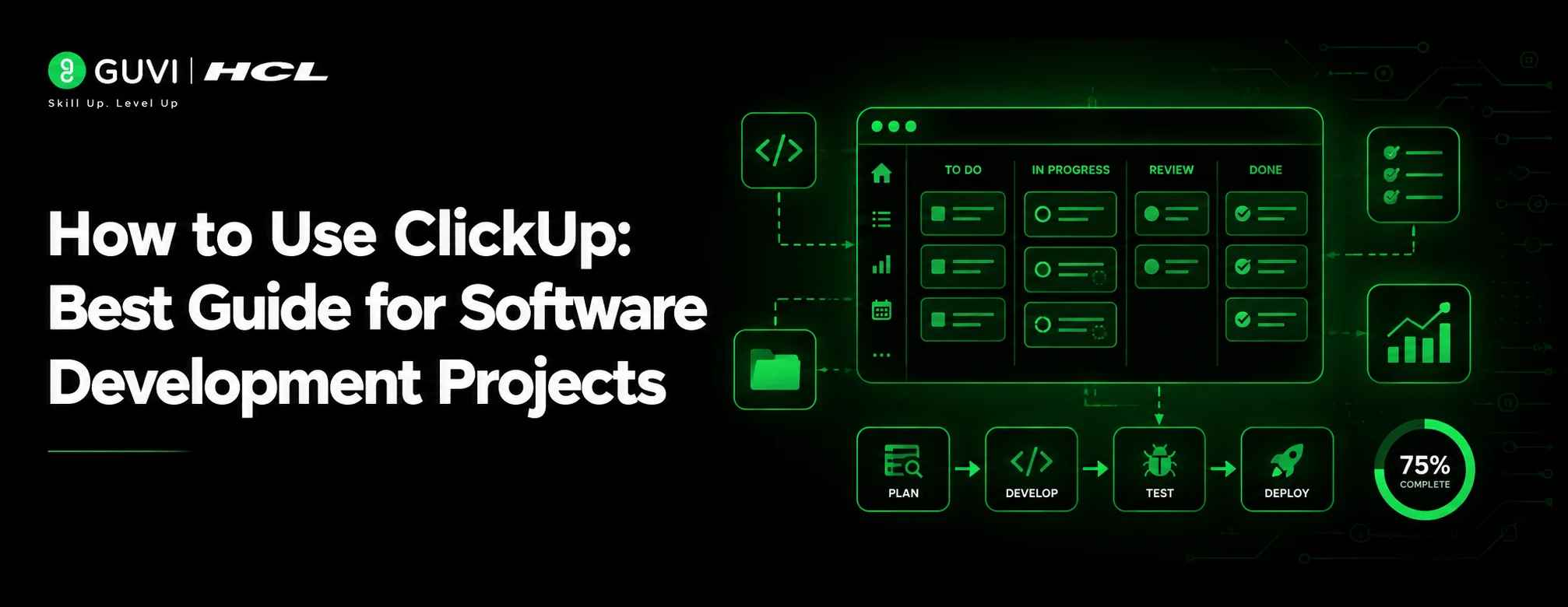
A simple ClickUp software development workflow showing how teams move from backlog and sprint planning to development, code review, QA, and release tracking.
| ClickUp Level | Software Project Example |
| Workspace | Company, college team, or startup team |
| Space | Software Development |
| Folder | Product Backend, Frontend, QA, Releases |
| List | Sprint 1, Sprint 2, Bug Tracker, Backlog |
| Task | Build login API, Fix payment bug |
| Subtask | Write validation, test API, review code |
This structure helps teams organize work from high-level project planning to small development tasks.
It also supports views like List, Board, Calendar, Gantt, and Dashboard.
These views help different team members see the same project in different ways.
You can also map ClickUp tasks to different software development life cycle phases such as requirements, design, development, testing, deployment, and maintenance.
What’s New in ClickUp for Software Teams in 2026?
In 2026, ClickUp is no longer just a task management tool.
It now supports AI-assisted project updates, meeting notes, automations, dashboards, workload planning, and connected documentation.
For software development teams, this matters because project work is spread across many activities.
These include sprint planning, daily standups, bug tracking, QA handoffs, release notes, code reviews, and documentation.
Useful 2026 ClickUp features for software teams include:
- AI Notetaker for capturing meetings, decisions, and key takeaways
- AI-powered project updates for summarizing discussions and next steps
- AI-powered fields for tracking project details like progress and blockers
- Automations for reducing repeated task updates
- Dashboard widgets for visualizing project health and team capacity
- Workload view for balancing team assignments
- Gantt charts for tracking dependencies and timelines
- Docs and Wikis for software documentation
These features makes it useful for teams that want project tracking, documentation, collaboration, and reporting in one place.
However, teams should also understand the challenges of using AI in software development, especially around accuracy, privacy, and over-dependence on AI summaries.
The growing role of AI in software development is also changing how teams plan work, summarize updates, review progress, and manage delivery.
ClickUp’s current project management page highlights AI-powered fields, workload view, dashboards, automations, and AI project updates. This makes ClickUp more relevant for 2026 software teams that need sprint visibility, workload tracking, and automated project updates in one workspace.
Step 1: Create a ClickUp Workspace for Your Software Team
Start by creating a Workspace for your team or project.
A Workspace is the highest-level area in ClickUp.
For a student team, the Workspace can be named after the project.
Example:
“Food Delivery App Team”
For a company, the Workspace can be the company or department name.
Example:
“Product Engineering Team”
Keep the Workspace simple.
Do not create too many Workspaces for the same team, or project tracking will become scattered.
Step 2: Set Up Spaces, Folders, and Lists
After creating the Workspace, create a Space for software development.
Example Space:
“Software Development”
Inside this Space, create Folders based on your workflow.
Example Folders:
- Product Backlog
- Active Sprints
- Bug Tracking
- QA Testing
- Documentation
- Releases
Inside each Folder, create Lists.
Example Lists:
- Sprint 1
- Sprint 2
- Critical Bugs
- Test Cases
- Release 1.0
- Technical Docs
This gives your software team a clean structure.
Step 3: Create a Product Backlog
A product backlog is a list of all features, improvements, bugs, and technical tasks that the team may work on.
It is not the same as a sprint.
The backlog is the larger pool of upcoming work.
Example backlog tasks:
- Build user login
- Add password reset
- Create product listing page
- Build payment API
- Add search filter
- Fix mobile layout issue
- Improve page loading speed
Each backlog task should have enough details so the team understands what needs to be done.
Use fields like:
- Priority
- Task type
- Module
- Owner
- Effort estimate
- Due date
- Status
This helps the team pick the right tasks during sprint planning.
Step 4: Plan Sprints in ClickUp
A sprint is a short development cycle where the team completes selected tasks.
Most software teams use one-week, two-week, or three-week sprints.
In ClickUp, create a Sprint List for each sprint.
Example:
- Sprint 1 – Login and User Profile
- Sprint 2 – Product Listing and Cart
- Sprint 3 – Payment and Order Tracking
Move the highest-priority backlog tasks into the active sprint.
A simple sprint task flow can be:
To Do → In Progress → Code Review → QA Testing → Done
This flow helps everyone know where each task stands.
Example Sprint Task
Task name: Build password reset flow
Task details:
- Create reset password page
- Add backend API
- Send reset email
- Validate token expiry
- Test success and error cases
Owner: Backend developer and frontend developer
Priority: High
Status: In Progress
Due date: 25 June 2026
This level of detail reduces confusion during development.
If your team follows Agile, Scrum, Kanban, or Waterfall, understanding different software development methodologies can help you set up ClickUp workflows more clearly.
If your team works in sprints, understanding Agile product management can help you connect sprint planning with product goals, timelines, and team ownership.
Step 5: Track Bugs and Issues
Bug tracking is one of the most important parts of software development project management.
Create a separate Bug Tracker List in ClickUp.
Use statuses like:
Reported → Needs Triage → In Progress → Ready for QA → Resolved → Closed
Add useful fields such as:
| Field | Example |
| Bug Severity | Critical, High, Medium, Low |
| Environment | Production, Staging, Local |
| Module | Login, Payment, Dashboard |
| Steps to Reproduce | What the tester did |
| Expected Result | What should happen |
| Actual Result | What happened instead |
| Owner | Developer fixing the bug |
This helps QA engineers and developers work faster.
For example, instead of writing “payment not working,” a good bug task should explain the exact payment flow, browser, test account, error message, and screenshot.
When bugs are reported in this app, developers should also understand the basics of debugging in software development to identify, reproduce, and fix issues properly.
To manage QA tasks better, it is useful to understand the difference between software testing and quality assurance before setting up bug workflows in ClickUp.
If your team uses ClickUp for QA, learning how to write better test scenarios can help testers create clearer bug reports and validation steps.
Step 6: Use Views for Better Project Tracking
Different team members need different views of the same project.
ClickUp views help you organize the same work in different formats.
Common views for software teams include:
| View | Best Use |
| List View | Detailed task tracking |
| Board View | Kanban-style sprint tracking |
| Calendar View | Deadlines and release dates |
| Gantt View | Timeline and dependencies |
| Dashboard | Sprint progress, bugs, and workload |
| Docs View | Documentation and meeting notes |
For daily standups, Board View is useful because the team can quickly see what is in progress, what is blocked, and what is ready for review.
For project managers, Dashboard View is useful because it gives a high-level view of sprint progress and delays.
Step 7: Use ClickUp Docs for Project Documentation
Software projects need documentation.
ClickUp Docs can be used for:
- Requirement notes
- API documentation
- Setup instructions
- Test plans
- Release notes
- Sprint meeting notes
- Architecture decisions
- Onboarding guides
For example, a “Login Module Documentation” page can include:
- Feature overview
- User flow
- API endpoints
- Validation rules
- Error messages
- Test cases
- Known issues
A good software project should not depend only on task comments.
Use ClickUp Docs to create a central knowledge base for setup guides, API notes, coding standards, testing instructions, release steps, and onboarding documents.
For example, a student team building a placement portal can create separate Docs for frontend setup, backend setup, database schema, API endpoints, test cases, and release checklist.
This makes the app more useful than a simple task board because your team can connect tasks and documentation in one place.
If your ClickUp Docs include backend documentation, API response structure best practices can help your team write clearer API notes.
ClickUp’s guide on ClickUp Docs for project management shows how Docs can be used for team wikis, planning notes, and project-related documentation.
Step 8: Connect Code Repositories and Automations
Software teams often manage code in tools like GitHub, GitLab, or Bitbucket.
ClickUp can connect development work with code activity.
For example, a ClickUp task can be linked to a GitHub pull request.
This helps the team see which code change belongs to which task.
You can also use automations to reduce manual updates.
Examples:
- When a task moves to “Ready for QA,” assign it to a QA engineer
- When a bug is marked “Critical,” notify the team lead
- When a pull request is merged, update the task status
- When a sprint ends, create a release checklist
- When a task is blocked, notify the assignee
Automation is useful because software projects have many repeated steps.

But do not automate everything on day one.
Start with one or two simple automations.
If you are a beginner, first learn how to upload your project to GitHub using Git before connecting code repositories with ClickUp tasks.
Understanding GitHub repositories helps developers connect commits, branches, pull requests, and code changes with ClickUp tasks more effectively.
Step 9: Track Progress with Dashboards
Dashboards help teams understand project progress quickly.
For software development, dashboards can show:
- Tasks completed
- Tasks pending
- Blocked tasks
- Bugs by severity
- Workload by assignee
- Sprint burndown
- Sprint velocity
- Upcoming deadlines
A team lead can use dashboards to answer questions like:
- Are we on track for the sprint?
- Which bugs are blocking release?
- Who has too many tasks?
- What is delayed?
- What is ready for QA?
This helps the team take action before the sprint fails.
ClickUp’s founder Zeb Evans says the company’s mission is to “make the world more productive.” That mission explains why ClickUp evolved from task management into a broader workspace where teams can manage tasks, docs, goals, dashboards, chat, and project workflows together.
Practical ClickUp Workflow Example
Let us say your team is building a “Student Placement Portal.”
The project has these modules:
- Student login
- Resume upload
- Job listing
- Application tracker
- Admin dashboard
- Interview scheduling
You can set up ClickUp like this:
Workspace: Placement Portal Team
Space: Software Development
Folders: Backlog, Active Sprints, Bugs, QA, Docs, Releases
Lists: Sprint 1, Sprint 2, Bug Tracker, Release 1.0
Example task:
Task: Build Resume Upload Feature
Subtasks:
- Design upload UI
- Create backend upload API
- Validate file type
- Store resume file
- Show success message
- Add test cases
- Review pull request
This workflow makes the project easier to manage.
Everyone knows what to do, who owns each task, and what is pending.
ClickUp vs Jira: Which One Should Software Teams Use?
ClickUp and Jira can both support software development teams, but they are useful in different situations.
ClickUp is better when your team wants tasks, docs, dashboards, sprint tracking, bugs, team updates, and project collaboration in one flexible workspace.
Jira is better when your team needs deeper agile issue tracking, advanced scrum workflows, complex engineering reports, and mature software-specific controls.
For small teams, student projects, startups, and cross-functional product teams, ClickUp can be easier to start with.
For large engineering teams with strict agile processes, Jira may still be preferred or used along with this app.
| Use ClickUp When | Use Jira When |
| You want tasks, docs, dashboards, and team collaboration together | You need advanced agile issue tracking |
| Your team is small or mid-sized | Your engineering process is highly mature |
| You want a beginner-friendly project workspace | You need deep Jira-based reporting |
| You manage software plus marketing, design, QA, and operations together | Your team works mainly around engineering tickets |
| You want flexible views and documentation in one place | Your company already follows Jira workflows |
When ClickUp May Not Be Enough for Software Projects
ClickUp is useful for managing software projects, but it may not be enough for every engineering team.
You may need Jira, Azure DevOps, Linear, GitHub Projects, or a dedicated engineering tool if your team needs:
- Very advanced scrum reporting
- Complex issue hierarchy
- Enterprise-level agile governance
- Deep release management
- Large-scale dependency tracking
- Strict engineering audit workflows
- Highly customized development pipelines
For beginners, student projects, startups, and small teams, ClickUp is a strong starting point.
For large enterprise engineering teams, ClickUp may work better as a collaboration and documentation layer alongside dedicated developer tools.
Notion, Jira, GitHub, and ClickUp: Where ClickUp Fits
ClickUp is not a replacement for every developer tool.
It works best as a project management and collaboration layer.
| Tool | Main Use in Software Projects |
| ClickUp | Tasks, sprints, bugs, docs, dashboards |
| GitHub/GitLab | Code, branches, commits, pull requests |
| Jira | Advanced issue tracking and agile boards |
| Notion | Notes, docs, wikis, planning |
| Slack/Teams | Team communication |
A small team may manage most planning inside ClickUp.
A larger engineering team may use ClickUp along with GitHub, Jira, Slack, and CI/CD tools.
It works best when it is used along with the right software development tools for code, testing, deployment, and collaboration.
Real-World Example: Managing a SaaS Feature Release
Imagine a SaaS startup in Bengaluru is building a new “Team Analytics Dashboard” feature.
The team includes:
- One product manager
- Two frontend developers
- Two backend developers
- One QA engineer
- One DevOps engineer
- One UI designer
The product manager creates a feature brief in ClickUp Docs.
The team adds tasks to the product backlog:
- Design dashboard layout
- Create analytics API
- Build frontend charts
- Add role-based access
- Write test cases
- Fix dashboard bugs
- Prepare release notes
During sprint planning, the team moves selected tasks into Sprint 1.
Developers update task statuses as they work.
QA reports bugs in the Bug Tracker List.
The DevOps engineer uses a Release Checklist before deployment.
The team lead checks the Dashboard to see sprint progress, blockers, and critical bugs.
This gives the entire team one clear view of the release.
For teams managing releases and deployment, understanding DevOps can help connect development tasks with testing, deployment, and monitoring.
Common Mistakes to Avoid
1. Creating Too Many Spaces and Folders
Many beginners create too many Spaces, Folders, and Lists. This makes the workspace confusing.
Fix it by starting with a simple structure: Backlog, Sprints, Bugs, Docs, and Releases.
2. Using Unclear Task Names
Task names like “fix issue” or “update page” do not help the team.
Fix it by writing clear task names like “Fix login error after password reset.”
3. Not Adding Enough Task Details
A task without context creates repeated questions.
Fix it by adding acceptance criteria, screenshots, links, due dates, owners, and expected output.
4. Ignoring Bug Severity
If every bug is marked as urgent, the team cannot prioritize properly.
Fix it by using severity levels like Critical, High, Medium, and Low.
5. Automating Before Understanding the Workflow
Automation can create confusion if the workflow is not stable.
Fix it by first running the process manually, then automating repeated steps.
Best Practices for Using ClickUp in Software Projects
Start simple.
A clean ClickUp setup is better than a complicated one.
Use a structure that your team can understand quickly.
Use Standard Statuses
For software tasks, use statuses like:
To Do → In Progress → Code Review → QA Testing → Done
For bugs, use:
Reported → Needs Triage → In Progress → Ready for QA → Closed
Clear statuses help everyone understand progress.
Add Acceptance Criteria
Every feature task should explain what “done” means.
Example:
A login task is done when:
- The user can log in with valid details
- Invalid login shows an error
- Password field is hidden
- API errors are handled
- Test cases are passed
This helps developers and QA teams avoid confusion.
Review the Dashboard Regularly
Do not check the dashboard only at the end of the sprint.
Review it during standups or every few days.
This helps the team catch delays early.
Keep Docs Close to Tasks
Link documentation directly inside related tasks.
For example, link the API documentation inside the backend API task.
This saves time and reduces repeated explanations.
A clean ClickUp workflow becomes more effective when your team also follows strong software development best practices around planning, coding, testing, and documentation.
Build Product Management Skills With HCL GUVI
ClickUp helps teams manage software development projects through backlogs, sprints, bug tracking, documentation, dashboards, and release workflows. But to manage products effectively, you also need strong foundations in product planning, agile workflows, user stories, prioritization, stakeholder communication, and delivery tracking.
Explore HCL GUVI’s Product Management Course to build practical product skills through structured learning, real-world workflows, and career-focused training.
Conclusion
Learning how to use ClickUp for software development projects can help you manage tasks, sprints, bugs, documentation, and releases in a more organized way. Start with a simple workspace, create a product backlog, plan sprints, track bugs clearly, connect docs to tasks, and use dashboards to monitor progress. For students and freshers, ClickUp is also a useful tool for understanding how real software teams plan and deliver projects. Once your workflow is clear, ClickUp can make software project management easier, more transparent, and more collaborative.
FAQS
1. What is ClickUp used for in software development?
ClickUp is used to manage software tasks, product backlogs, sprints, bugs, QA work, documentation, release checklists, and team dashboards. It helps software teams track work from planning to delivery.
2. How do I use ClickUp for a software project?
Start by creating a Workspace, then set up Spaces, Folders, Lists, tasks, statuses, Custom Fields, and views. Use separate areas for backlog, active sprints, bugs, docs, and releases.
3. Can ClickUp be used for agile software development?
Yes, ClickUp can be used for agile workflows such as Scrum and Kanban. Teams can manage backlogs, plan sprints, assign tasks, track bugs, and review progress using boards and dashboards.
4. Is ClickUp good for bug tracking?
Yes, ClickUp can be used for bug tracking by creating a Bug Tracker List with fields like severity, module, environment, steps to reproduce, owner, and status.
5. Is ClickUp better than Jira for software development?
ClickUp is better for teams that want tasks, docs, dashboards, collaboration, and software tracking in one workspace. Jira is better for teams that need advanced agile issue tracking and mature engineering workflows.
6. Can ClickUp replace Jira?
ClickUp can replace Jira for some small and medium teams that need task tracking, sprints, docs, and dashboards in one place. However, large engineering teams with advanced issue tracking may still prefer Jira or use both tools.
7. Can developers connect GitHub with ClickUp?
Yes, development teams can connect ClickUp with tools like GitHub, GitLab, or Bitbucket. This helps link tasks with commits, branches, and pull requests.
8. Can ClickUp be used for software documentation?
Yes, ClickUp Docs and Wikis can be used for setup guides, API notes, coding standards, sprint notes, release checklists, and onboarding documentation. This helps software teams keep project knowledge connected with tasks.
9. Is ClickUp useful for students and freshers?
Yes, students and freshers can use ClickUp to manage final-year projects, coding projects, team tasks, bugs, deadlines, and documentation. It also helps them understand real software team workflows.
10. What should beginners avoid while using ClickUp?
Beginners should avoid creating too many folders, using unclear task names, skipping task details, ignoring bug severity, and adding automations before understanding the workflow.
Success Stories

About the Author
Reemsha Khan
Always been a storyteller at heart. Now, I turn complex topics into simple, easy-to-understand stories through content. Hope you find it helpful.
View all posts by Reemsha Khan
Connect with me @











Did you enjoy this article?