


Artificial Intelligence and Machine Learning Articles
AI/ML Skills Gap 2026: Why Companies Can't Find Job-Ready Talent
20 AI/ML Interview Questions Recruiters Can Use Without a Tech Background - Best Guide
How Industry-Backed AI/ML Bootcamps Are Changing the AI/ML Hiring Pipeline - Best Guide 2026
From IT Support to AI Engineer: A Realistic Career Switch Guide 2026


Get In Touch For Details! Request More Information
How to Use Claude Code: 7 Best Steps to Build and Debug Projects with AI
Jul 09, 2026 8 Min Read 340 Views
(Last Updated)
Table of contents
- TL;DR Summary
- What is Claude Code?
- Why Use Claude Code CLI for Building and Debugging Projects?
- How Claude Code Supports AI-Assisted Terminal Coding
- Claude Code Workflow for Building and Debugging Projects
- Prerequisites Before Using Claude Code
- How to Install Claude Code
- macOS, Linux, and WSL
- Windows PowerShell
- Windows CMD
- Homebrew
- WinGet
- How to Set Up and Authenticate Claude Code
- How to Start Claude Code in the Terminal
- How to Use Claude Code Inside a Project Folder
- Basic Claude Code Prompt Examples
- How to Use Claude Code to Understand a Codebase
- How to Use Claude Code to Build a Small Project
- How to Use Claude Code for Debugging Errors
- How to Use Claude Code for Refactoring Code
- How to Use Claude Code to Write Tests and Documentation
- Real-World Example: Building and Debugging a Simple Project with Claude Code
- Common Claude Code Errors Beginners Face
- claude Command Not Found
- Authentication Not Completed
- Wrong Folder Opened
- Permission or Install Errors
- Common Mistakes to Avoid When Using Claude Code
- Copying AI Code Without Understanding It
- Sharing Private Data or Secrets
- Giving Vague Prompts
- Skipping Tests After AI Changes
- Letting AI Make Too Many Changes at Once
- Best Practices for AI-Assisted Coding with Claude Code
- Build Full Stack Skills With HCL GUVI
- Final Thoughts
- FAQS
- What is Claude Code?
- How do I install Claude Code?
- How do I start Claude Code?
- Can Claude Code build a project for me?
- Can Claude Code debug errors?
- Can Claude Code understand my full project folder?
- Is Claude Code good for beginners?
- What should I not share with Claude Code?
- Does Claude Code replace developers?
- What is the best way to use Claude Code for learning?
TL;DR Summary
To use Claude Code, install the CLI, open your terminal inside a project folder, run the claude command, complete authentication, and ask coding prompts in natural language. Claude Code can understand your codebase, explain files, suggest edits, build features, debug errors, refactor code, write tests, and help with documentation. It is useful for developers who want AI-assisted coding inside the terminal, but every AI-generated change should be reviewed, tested, and understood before use.
If you want to learn how to use Claude Code, think of it as working with an AI coding assistant directly inside your terminal.
Instead of switching between your browser, chatbot, editor, and terminal, Claude Code lets you ask coding questions, understand files, build features, debug errors, and improve projects from one place.
This is useful for students, freshers, and developers who want hands-on help while working on real projects.
In this guide, you will learn how Claude Code CLI works, how to set it up, and how to use it for AI-assisted project building and debugging.
What is Claude Code?
Claude Code is an AI coding tool from Anthropic that works inside your terminal.
It helps you interact with your codebase using natural language. You can ask it to explain a project, find a bug, suggest a fix, write tests, improve documentation, or refactor code.
If you are completely new to the tool, you can first understand what Claude Code is before moving into setup, terminal commands, and project-based usage.
A CLI, or command line interface, is a tool you use by typing commands in the terminal. Claude Code brings AI assistance into that command-line workflow.
In simple words, Claude Code acts like an AI coding partner that can read project context and help you work faster without leaving the terminal.
Why Use Claude Code CLI for Building and Debugging Projects?
Claude Code is useful because it works where developers already spend a lot of time: inside the terminal and project folder.
When you are building a project, you can ask Claude Code to understand files, explain errors, suggest code changes, write tests, and help with Git tasks.
You can use Claude Code for:
- Understanding an unfamiliar project
- Building a small feature
- Explaining confusing code
- Debugging terminal errors
- Refactoring repeated code
- Writing test cases
- Creating or improving documentation
- Reviewing file changes
- Understanding Git changes
- Improving code quality
For example, if your JavaScript app gives a runtime error, you can ask Claude Code to explain the error, locate the likely cause, and suggest a fix based on the project context.
How Claude Code Supports AI-Assisted Terminal Coding
Claude Code supports AI-assisted terminal coding by letting you work with code through natural language prompts.
A simple workflow looks like this:
- Open your terminal
- Go to your project folder
- Run the claude command
- Ask Claude Code a coding prompt
- Review the suggested change
- Approve useful edits
- Run and test your code
This makes the workflow practical. You are not only asking general coding questions. You are asking questions inside the same project where the code exists.
For example, instead of asking “Why is my login form broken?” in a separate chatbot, you can run Claude Code inside your project and ask it to inspect the relevant files.
This gives Claude Code more context and makes the response more useful.
Claude Code Workflow for Building and Debugging Projects
The simplest way to use Claude Code for project work is to run it inside the folder where your code is stored.
A beginner-friendly workflow looks like this:
- Open your project folder in the terminal
- Run the claude command
- Ask Claude Code to understand the project
- Give one clear task, such as building a feature or fixing an error
- Review the suggested changes
- Approve only the changes you understand
- Run the project
- Test the output
For example, if you are building a Python marks calculator, you can first ask Claude Code to explain the project, then ask it to add input validation, fix errors, write tests, and create a README.
This makes Claude Code useful not just for asking coding questions, but for working through a real project step by step.
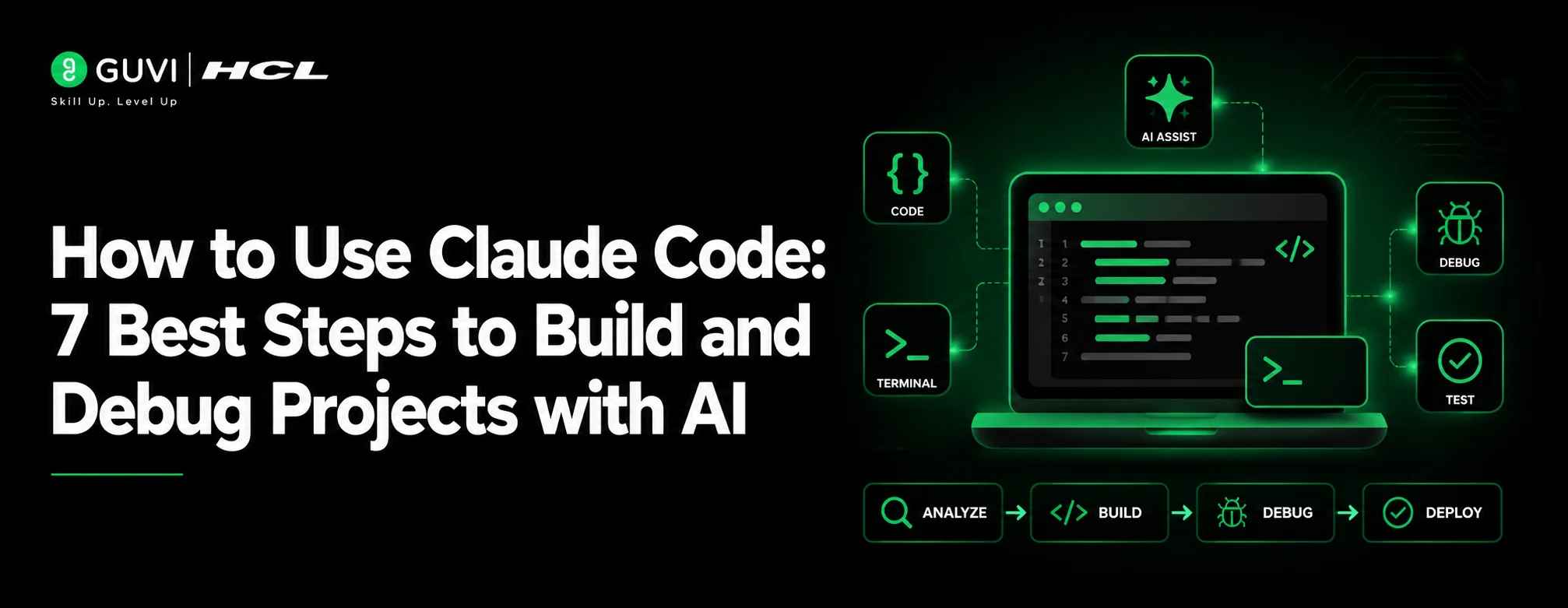
Here’s a quick visual overview of how Claude Code helps you move from terminal setup to building, debugging, reviewing, and testing a project with AI assistance.
Prerequisites Before Using Claude Code
Before using Claude Code, make sure you have the basic setup ready.
You may need:
- A terminal or command prompt
- A code project to work with
- A Claude subscription, Claude Console account, or supported cloud provider access
- Basic command-line knowledge
- Git installed, especially if you want to work with version control
- A code editor like VS Code, if you want to review files visually
The exact requirements may change based on your operating system, account type, Claude Code version, and authentication method.
For beginners, the most important thing is simple: have a project folder ready and know how to open that folder in the terminal.
A 2026 Stack Overflow article on agentic AI workflows reported that among surveyed full-stack developers, Claude Code was one of the preferred single-agent workflows, selected by 50% of respondents. This shows that Claude Code is becoming a serious tool for developers who want AI help directly inside coding workflows.
How to Install Claude Code
Claude Code installation methods can change, so always check the latest official documentation before publishing.
As of the verified official documentation, the recommended native install commands are:
macOS, Linux, and WSL
curl -fsSL https://claude.ai/install.sh | bash
Windows PowerShell
irm https://claude.ai/install.ps1 | iex
Windows CMD
curl -fsSL https://claude.ai/install.cmd -o install.cmd && install.cmd && del install.cmd
Homebrew
brew install –cask claude-code
WinGet
winget install Anthropic.ClaudeCode
Claude Code may also be installed through npm, but official sources now mark npm installation as deprecated or secondary in some contexts.
If you still need npm installation for a specific setup, the command is:
npm install -g @anthropic-ai/claude-code
Use the recommended native installer when possible, and avoid using outdated commands without checking the official documentation.
How to Set Up and Authenticate Claude Code
After installing Claude Code, open your terminal and run:
claude
The first time you run it, Claude Code will ask you to log in or complete authentication.
Depending on your setup, you may authenticate using:
- Claude Pro, Max, Team, or Enterprise account
- Claude Console account
- Supported cloud provider access
- API-based configuration for advanced environments
For most learners, browser-based sign-in is the easiest option.
Once login is complete, Claude Code stores your credentials on your system so you do not need to log in every time.
If you need to switch accounts or log in again, you can use:
/login
inside an active Claude Code session.
How to Start Claude Code in the Terminal
To start Claude Code inside a project, first move into the project folder.
Example:
cd path/to/your/project
claude
Once Claude Code starts, you can ask questions like:
what does this project do?
explain the folder structure
where is the main entry point?
what technologies does this project use?
Claude Code can read your project files as needed, so you do not have to manually paste every file into the prompt.
This is one of the biggest advantages of using Claude Code inside a project folder.
How to Use Claude Code Inside a Project Folder
Claude Code becomes more useful when you run it inside the folder where your code is stored.
For example:
cd student-marks-app
claude
Then you can ask:
explain this project in simple terms
find possible bugs in this project
add input validation to the main file
write tests for the average marks function
create a README for this project
This project-aware workflow helps you build and debug faster because Claude Code can understand the files, structure, and context of your project.
For beginners, this is better than asking isolated coding questions because the response is connected to the actual code you are working on.
As you move into larger projects, you can also use Claude.md files to customize how Claude Code understands your project instructions and coding preferences.
According to Stack Overflow’s 2026 article on agentic AI, 60% of survey respondents block agents from making unapproved system changes, and 68% prefer predictable single-agent setups over complex multi-agent systems. This is why Claude Code’s review-and-approve workflow matters for beginners and developers working on real projects.
Basic Claude Code Prompt Examples
Here are simple Claude Code prompt examples you can try as a beginner.
| Task | Prompt Example |
| Understand project | “What does this project do?” |
| Explain files | “Explain this file in beginner-friendly language.” |
| Find entry point | “Where does this app start?” |
| Generate code | “Add a function to calculate average marks.” |
| Debug error | “This error appears in the terminal. Explain the cause and suggest a fix.” |
| Refactor code | “Refactor this function to make it cleaner without changing the output.” |
| Write tests | “Suggest unit tests for this function.” |
| Improve docs | “Create a simple README for this project.” |
| Git help | “What files have I changed?” |
| Code review | “Review this code for possible bugs and readability issues.” |
The best prompts are specific. Instead of saying “fix this,” explain the error, expected output, and what you already tried.
Claude Code can read your project files as needed when you run it inside a project folder. This means you can ask questions like “what does this project do?” or “where is the main entry point?” without manually pasting every file.
How to Use Claude Code to Understand a Codebase
Claude Code can help you understand an unfamiliar project quickly.
Start by running Claude Code inside the project folder.
claude
Then ask:
what does this project do?
You can follow up with:
explain the folder structure
which files are most important?
where should I start reading this code?
explain the main workflow of this project
This is useful when you join a team project, open an old assignment, or explore an open-source repository.
Instead of reading every file manually at the beginning, you can first get a high-level understanding and then inspect important files one by one.
How to Use Claude Code to Build a Small Project
Claude Code can help you build a small project step by step.
For example, suppose you want to build a simple Python marks calculator.
You can ask:
Create a simple Python project that calculates the average marks of students.
Then ask:
Add input validation so the program handles empty marks lists safely.
You can continue with:
Add comments so a beginner can understand the code.
Suggest unit tests for this project.

Create a README explaining how to run the project.
This is how Claude Code becomes useful for project-based learning.
It can help you move from idea to code, then from code to testing and documentation.
How to Use Claude Code for Debugging Errors
Claude Code is especially useful for debugging because it can look at your project context and error message together.
For example, if your terminal shows:
ZeroDivisionError: division by zero
You can ask:
This Python project gives ZeroDivisionError: division by zero. Find where it happens and suggest a safe fix.
A better debugging prompt includes:
- The exact error message
- What you expected to happen
- What actually happened
- The file or function involved
- Any recent change you made
Example:
The average marks function fails when the marks list is empty. Explain the bug, suggest a fix, and add a test case for the empty list case.
Claude Code can suggest a fix, but you should still run the code and test the result yourself.
Once you understand the basics, learning advanced debugging techniques can help you review Claude Code’s suggestions more confidently.
How to Use Claude Code for Refactoring Code
Refactoring means improving the structure or readability of code without changing what it does.
You can use Claude Code to clean up repeated logic, rename confusing variables, simplify functions, or improve file organization.
Example prompts:
Refactor this function to make it easier to read without changing the output.
Remove repeated code from this file.
Suggest better variable names for this Python script.
Make this JavaScript function beginner-friendly and easier to maintain.
When Claude Code suggests edits, review them carefully.
A refactor should not break existing behavior. Always run your project and tests after applying changes.
How to Use Claude Code to Write Tests and Documentation
Claude Code can also help you write tests and documentation.
For tests, you can ask:
Write unit tests for this function using simple test cases.
Add edge case tests for empty input and invalid values.
Suggest test cases for this login validation function.
For documentation, you can ask:
Create a README file for this project.
Explain how to run this project locally.
Add comments to this code for beginners.
This is useful because many beginners write code but skip testing and documentation.
Claude Code can help you build better project habits from the beginning.
Real-World Example: Building and Debugging a Simple Project with Claude Code
Imagine you are building a simple student marks calculator in Python.
The project has one file called marks.py, and the function calculates the average marks from a list.
You start Claude Code inside the project folder:
cd student-marks-calculator
claude
Then you ask:
Explain this project and tell me what the marks.py file does.
Next, you ask Claude Code to improve the project:
Add input validation so the average function handles empty lists safely.
Now suppose the program gives an error when the list is empty.
You can ask:
The program fails when the marks list is empty. Find the bug, suggest a fix, and add a simple test case.
Claude Code may propose a change, show the suggested edit, and ask for approval before modifying files.
After applying the change, you should run the script and tests yourself.
This workflow helps you learn how to build, debug, test, and document a small project without leaving the terminal.
If you are new to terminal-based Python projects, first learn how to run a Python file in terminal so you can test Claude Code’s suggested changes properly.
Common Claude Code Errors Beginners Face
Beginners may face a few common issues while using Claude Code.
1. claude Command Not Found
This usually means Claude Code is not installed correctly or the terminal cannot find the installed command.
Try closing and reopening the terminal, checking the installation method, or reinstalling Claude Code using the official instructions.
2. Authentication Not Completed
Claude Code may not work if login is incomplete.
Run claude again, follow the browser login flow, or use /login inside the session if you need to re-authenticate.
3. Wrong Folder Opened
Claude Code works best when you start it inside the correct project folder.
If it gives irrelevant answers, check your current directory using pwd on macOS/Linux or cd on Windows.
4. Permission or Install Errors
Some systems may block installation because of permissions or package manager issues.
Use the official installer where possible, avoid unsafe permission shortcuts, and check the official troubleshooting guide if installation fails.
Common Mistakes to Avoid When Using Claude Code
Claude Code is powerful, but beginners should use it carefully.
1. Copying AI Code Without Understanding It
Do not accept every AI-generated change blindly.
Ask Claude Code to explain the code, then review and test it before using it.
2. Sharing Private Data or Secrets
Never paste passwords, API keys, tokens, private customer data, or confidential production code unless your organization has approved that workflow.
AI coding tools should be used with security awareness.
3. Giving Vague Prompts
A prompt like “fix this” is too unclear.
Give the exact error, expected behavior, current behavior, and file context.
4. Skipping Tests After AI Changes
Even if Claude Code suggests a fix, you still need to run the project.
Test the normal case, edge cases, and failure cases before trusting the change.
5. Letting AI Make Too Many Changes at Once
Large changes are harder to review.
Ask for small, focused changes so you can understand and approve them safely.
Best Practices for AI-Assisted Coding with Claude Code
Use Claude Code as a coding assistant, not as a replacement for your own understanding.
A good workflow is:
- Ask Claude Code to explain the problem.
- Ask for a suggested solution.
- Review the proposed change.
- Approve only what you understand.
- Run the project.
- Test the output.
- Ask follow-up questions if needed.
For better results, write prompts with:
- Programming language
- Error message
- Expected output
- Current behavior
- File or function name
- Project context
- Any constraints, such as “keep it beginner-friendly”
This helps Claude Code give more useful suggestions and reduces confusion.
For advanced workflows, developers can also configure Claude Code hooks to automate specific actions and improve project-level control.
You can also explore Claude Code MCP servers if you want Claude Code to connect with external tools, data sources, or development workflows.
Build Full Stack Skills With HCL GUVI
Claude Code can help you build, debug, refactor, and document projects faster with AI support. But to use AI coding tools confidently, you still need strong foundations in programming, frontend, backend, APIs, databases, Git, and real-world project development.
Explore HCL GUVI’s Full Stack Development Course to build job-ready development skills through hands-on projects, guided learning, and career-focused training.
To go deeper, learners can focus on building skills for Claude Code so they know how to prompt, review, debug, and test AI-generated code safely.
Final Thoughts
Learning how to use Claude Code is useful for anyone who wants AI support inside the terminal while building and debugging projects.
Claude Code can help you understand a codebase, generate code, fix bugs, refactor files, write tests, and create documentation.
For beginners, the best approach is to start with small projects and clear prompts.
Use Claude Code to learn faster, but always review, test, and understand every
FAQS
1. What is Claude Code?
Claude Code is an AI coding tool from Anthropic that works inside your terminal. It helps you understand codebases, generate code, debug errors, refactor files, write tests, and manage coding tasks using natural language prompts.
2. How do I install Claude Code?
You can install Claude Code using the official native installer for your operating system. The official docs also list Homebrew, WinGet, and npm options, but you should verify the latest recommended method before installing.
3. How do I start Claude Code?
Open your terminal, go to your project folder, and run the claude command. Claude Code will start an interactive session where you can ask coding-related questions.
4. Can Claude Code build a project for me?
Claude Code can help you build small features, create files, suggest project structure, write code, and improve documentation. You should still review, approve, and test the generated code.
5. Can Claude Code debug errors?
Yes, Claude Code can help explain errors, find likely causes, and suggest fixes based on your project context. Always run the code and test the fix before trusting it.
6. Can Claude Code understand my full project folder?
Claude Code can analyze project files as needed when you run it inside a project directory. This helps it answer project-specific questions better than a general chatbot.
7. Is Claude Code good for beginners?
Yes, Claude Code can help beginners understand code, debug errors, and build small projects. However, beginners should avoid blindly accepting code and should ask for explanations.
8. What should I not share with Claude Code?
Do not share passwords, API keys, private tokens, customer data, confidential company code, or sensitive production information unless your organization has approved that usage.
9. Does Claude Code replace developers?
No, Claude Code does not replace developers. It helps with coding tasks, but developers still need to understand logic, review changes, test code, and make final decisions.
10. What is the best way to use Claude Code for learning?
The best way is to use Claude Code on small projects. Ask it to explain code, suggest improvements, debug errors, write tests, and then review every answer carefully.
Success Stories

About the Author
Reemsha Khan
Always been a storyteller at heart. Now, I turn complex topics into simple, easy-to-understand stories through content. Hope you find it helpful.
View all posts by Reemsha Khan
Connect with me @













Did you enjoy this article?