


Python Articles
Excel SQL Python for BPO Professionals Best Guide to Move Into Data Science
Go vs Python for Forward Deployed Engineering Workloads
Python for Forward Deployed Engineers: What You Actually Need to Know
Freelancing as a Python Developer: Getting Your First Client


Get In Touch For Details! Request More Information
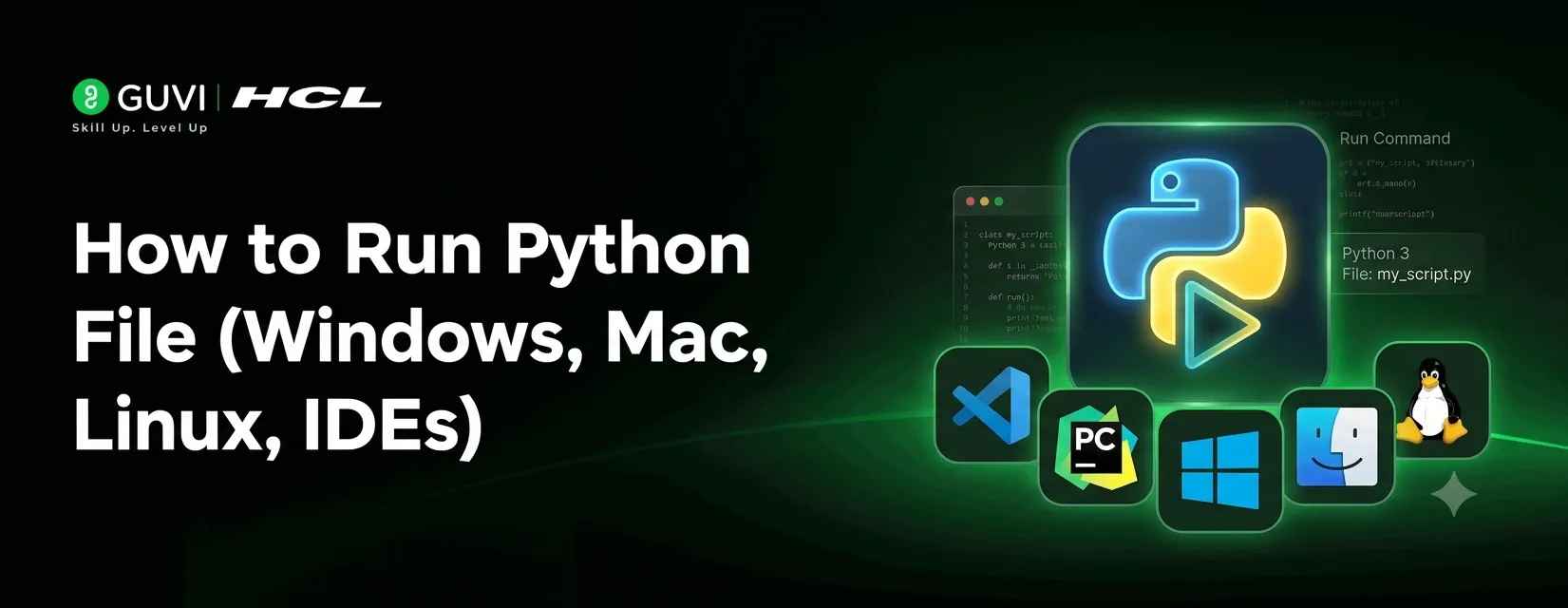
How to Run Python File (Windows, Mac, Linux, IDEs)
Sep 19, 2026 5 Min Read 2476 Views
(Last Updated)
To run a Python file, you just need to open a terminal or command prompt, navigate to the folder where your file is saved, and type a simple command. That’s the entire idea behind how to run Python file, no complicated setup, no extra tools required, just a few keystrokes and your code comes to life.
But here’s the catch, the exact steps look a little different depending on whether you’re on Windows, Mac, or Linux, or if you prefer working inside a code editor like VS Code or PyCharm. This guide walks you through every version of that process, so no matter what setup you’re using, you’ll know exactly what to type and where.
Table of contents
- TL;DR Summary
- What Does It Mean to Run a Python File
- Prerequisites Before You Start
- a. Checking if Python Is Installed
- b. Installing Python (Windows, Mac, Linux)
- c. Verifying Your Python Version
- How to Run a Python File in Windows
- a. Using Command Prompt (CMD)
- b. Using PowerShell
- c. Fixing "Python Is Not Recognized" Error
- How to Run a Python File on Mac
- a. Using Terminal
- b. Python vs Python3 Command on Mac
- How to Run a Python File on Linux
- a. Using Terminal
- b. Giving Execute Permission (chmod +x)
- c. Running with ./filename.py
- How to Run a Python File Using Code Editors and IDEs
- Running a Python File in VS Code
- Common Errors While Running Python Files and How to Fix Them
- Conclusion
- FAQs
- How do I run Python file for the first time?
- Why does "python is not recognized" show up when I run my file?
- Can I run a Python file without using the terminal?
- Do I need to use python3 instead of python?
- What's the difference between running a file and importing it?
- Why does my Python file close immediately after running?
- Is there a difference between running a Python file and a Python script?
TL;DR Summary
- Learn how to run Python file using a simple command in Terminal, Command Prompt, or PowerShell; no advanced setup required.
- Covers step-by-step instructions for Windows, Mac, and Linux, since each system handles it slightly differently.
- Includes how to run Python files directly inside code editors like VS Code, for a more visual, click and run experience.
- Fixes for common errors like “Python is not recognized” and “ModuleNotFoundError” so you’re not stuck troubleshooting alone.
- A quick, practical guide you can follow along with, whether you’re running your first script or just need a refresher.
Python was created by Guido van Rossum and first released in 1991; it was named after the comedy show Monty Python’s Flying Circus, not the snake.
What Does It Mean to Run a Python File
When you write Python code, you save it in a file with a .py extension, like app.py or script.py. That file just sits there on your computer; it does nothing on its own.
Running the file means telling your computer to actually read that code, line by line, and carry out whatever instructions you wrote, print something, do a calculation, open a webpage, whatever your script is built to do.
Think of it like a recipe. Writing the code is like writing down the recipe; running it is like actually cooking the meal. Until you run it, it’s just text sitting in a file, not doing any real work yet.
Turn Your Python Skills Into a Data Science Career. Knowing how to run a script is just the beginning. The HCL GUVI’s Advanced Data Science & Generative AI Course helps you build real machine learning models, work on AI-powered projects, and gain skills companies actively hire for, with live mentor sessions, hands-on projects, and placement support to help you land your first data science role. Enroll now and start your Data Science journey today!
Prerequisites Before You Start
Before you jump into how to run Python file on your system, check a couple of things first.
Skipping these is the number one reason people get stuck. Not because the process is hard, but because Python isn’t installed properly or isn’t set up right.
a. Checking if Python Is Installed
Open your terminal or command prompt. Type python --version.
If Python is installed, you’ll see something like Python 3.12.0. If you see an error instead, Python isn’t installed or isn’t added to your system PATH.
On Mac and Linux, try python3 --version instead. These systems often use python3 as the default command name.
b. Installing Python (Windows, Mac, Linux)
If Python isn’t installed, go to the official Python website. Download the latest version for your operating system.
Windows users should check the box that says “Add Python to PATH” during installation. This one step avoids a lot of headaches later.
Mac users can install Python through Homebrew using brew install python3. Most Linux distributions come with Python pre-installed, or you can install it with sudo apt install python3 on Ubuntu.
c. Verifying Your Python Version
Once installed, confirm it worked. Run python --version or python3 --version again.
This quick check saves you from confusing errors later when you try running a Python file for the first time. If the version number shows up correctly, you’re ready to move on.
Also Read: Check Python Version in CMD, Terminal & VS Code
How to Run a Python File in Windows
Windows users have a couple of options here: Command Prompt or PowerShell. Both work fine, pick whichever one you’re comfortable with.
Here’s how to run Python file on Windows, step by step:
a. Using Command Prompt (CMD)
Open Command Prompt. You can search for “cmd” in the Start menu.
Navigate to the folder where your file is saved using the cd command.
cd C:\Users\YourName\Documents\ProjectsThen run your file with:
python filename.pyPress Enter. Your script runs and the output shows up right there in the same window.
b. Using PowerShell
PowerShell works almost the same way. Open it from the Start menu, then navigate to your file’s folder.
cd C:\Users\YourName\Documents\ProjectsRun the file with:
python filename.pySome setups may require python3 or py instead of python, depending on how Python was installed on your machine.
c. Fixing “Python Is Not Recognized” Error
This is the most common issue Windows users run into. It shows up like this:
'python' is not recognized as an internal or external commandIt means Python isn’t added to your system PATH. To fix it, reinstall Python from the official Python website and make sure you check the box that says “Add Python to PATH” during setup.
If Python is already installed and you still see this error, search for “Environment Variables” in the Start menu, edit the PATH variable, and manually add the folder where Python is installed.
How to Run a Python File on Mac
Running a Python file on Mac is straightforward once Terminal is open.
a. Using Terminal
Open Terminal from Spotlight search or your Applications folder.
Navigate to the folder where you saved your file.
cd /Users/YourName/Documents/ProjectsThen run your file.
python3 filename.pyPress Enter. Your output shows up right in Terminal.
b. Python vs Python3 Command on Mac
Macs come with Python pre installed, but it’s usually an older version meant for the system itself, not for your own projects. Because of this, typing just python often doesn’t work or points to the wrong version.
That’s why python3 is the command you’ll use most of the time on Mac. If you installed Python yourself from python.org or Homebrew, python3 is the safest way to run your file correctly, this is essentially how to run Python file on a modern Mac setup.
How to Run a Python File on Linux
Linux works a lot like Mac here, since both are built on similar terminal systems.

a. Using Terminal
Open your terminal application, this varies slightly by distribution but is usually easy to find in your applications menu.
Navigate to your file’s folder.
cd /home/yourname/projectsRun the file.
python3 filename.pyb. Giving Execute Permission (chmod +x)
Sometimes you’ll want to run a Python file directly without typing python3 before it every time. For that, the file needs execute permission first.
chmod +x filename.pyThis command tells Linux the file can be run as a program, not just opened or edited.
c. Running with ./filename.py
Once the file has execute permission, and as long as the file starts with a shebang line like #!/usr/bin/env python3 at the very top, you can run it directly like this.
./filename.pyHow to Run a Python File Using Code Editors and IDEs
If typing commands in a terminal isn’t your thing, code editors and IDEs make running Python files a lot more visual and beginner-friendly. Popular options include VS Code, PyCharm, Jupyter Notebook, and Sublime Text, but VS Code is by far the most widely used, so let’s focus on that here.
Running a Python File in VS Code
First, make sure you have the official Python extension installed in VS Code. You’ll find it in the Extensions panel; just search for “Python” and install the one published by Microsoft.
Once that’s set up, open your .py file inside VS Code. You’ll notice a small play button (a triangle icon) in the top right corner of the editor window. Click it, and VS Code runs your file instantly, showing the output in a built-in terminal panel at the bottom of the screen.
If you prefer typing commands, VS Code’s built-in terminal works exactly like your regular terminal or command prompt.
Just open it with `Ctrl + (backtick) on Windows or Cmd + on Mac, then type:
python filename.pyOr on Mac and Linux:
python3 filename.pyEither method works fine, this is really just how to run Python file inside an editor instead of a separate terminal window.
The play button is quicker for beginners, while the built-in terminal gives you more control if your script needs input or command-line arguments.
(The play button (▷) in VS Code sits in the top right corner and is called “Run Python File.” Click it to run your script instantly in the built in terminal below.)
VS Code also shows errors directly in the editor with red underlines, so if something’s wrong with your code, you’ll often spot it before you even hit run.
Common Errors While Running Python Files and How to Fix Them
Even when you know exactly how to run Python file, a few common errors tend to trip people up. Here are the ones you’ll run into most often.
- Python is not recognized as an internal or external command: This means Python isn’t added to your system PATH on Windows. Reinstall Python and check the “Add Python to PATH” box during setup.
- No such file or directory: You’re likely in the wrong folder. Use
cdto navigate to the exact location where your.pyfile is saved before running it. - SyntaxError in your code: This usually points to a typo, missing colon, or incorrect indentation somewhere in your script. Python will tell you the exact line number, so start there.
- ModuleNotFoundError: This shows up when your script uses a library that isn’t installed yet. Install it using
pip install modulenameand try running the file again. - Permission denied (Mac/Linux): This happens when you try running a file directly with
./filename.py, but it doesn’t have execute permission yet. Fix it withchmod +x filename.pybefore running it again.
Conclusion
Running a Python file really comes down to picking the method that fits how you work, whether that’s a quick terminal command, Windows-specific tools like CMD or PowerShell, or a code editor like VS Code. Once you know how to run Python file the way that suits your setup, it becomes second nature within a few tries, no need to overthink it every time.
FAQs
1. How do I run Python file for the first time?
Open your terminal, navigate to the file’s folder, type python filename.py, and press Enter. That’s the basic way to run a Python file.
2. Why does “python is not recognized” show up when I run my file?
Python isn’t added to your system PATH. Reinstall Python and check “Add Python to PATH” during setup, then try running Python file again.
3. Can I run a Python file without using the terminal?
Yes, code editors like VS Code let you run Python file with a single click using the built-in play button.
4. Do I need to use python3 instead of python?
On Mac and Linux, yes, most systems default to python3. That’s simply how to run Python file correctly on those platforms.
5. What’s the difference between running a file and importing it?
Running executes the file directly. Importing brings its code into another file to reuse functions; it doesn’t run the file’s main output on its own.
6. Why does my Python file close immediately after running?
This usually happens on Windows when double-clicking a .py file. The window opens and closes too fast to see output. Run it from the terminal instead, using python filename.py to see the results properly.
7. Is there a difference between running a Python file and a Python script?
No, both terms mean the same thing. Whether you call it a file or a script, how to run Python file stays exactly the same process.
Success Stories









Did you enjoy this article?