


Artificial Intelligence and Machine Learning Articles
AI/ML Skills Gap 2026: Why Companies Can't Find Job-Ready Talent
20 AI/ML Interview Questions Recruiters Can Use Without a Tech Background - Best Guide
How Industry-Backed AI/ML Bootcamps Are Changing the AI/ML Hiring Pipeline - Best Guide 2026
From IT Support to AI Engineer: A Realistic Career Switch Guide 2026


Get In Touch For Details! Request More Information
How to Use Zapier: Best Guide to Automate Tasks Without Code
Jul 09, 2026 8 Min Read 425 Views
(Last Updated)
Table of contents
- TL;DR Summary
- What is Zapier?
- Why Should Beginners Learn Zapier Automation?
- What Do You Need Before Using Zapier?
- How Does Zapier Work?
- Key Zapier Terms Beginners Should Know
- Step 1: Choose the Task You Want to Automate
- Good Tasks to Automate First
- Step 2: Select the Trigger App
- Step 3: Connect Your App Account
- Simple Safety Tip
- Step 4: Add the Action App
- Step 5: Map the Data Fields Correctly
- Field Mapping Example
- Step 6: Test Your Zap
- Step 7: Turn on the Zap and Monitor It
- Practical Zapier Automation Examples
- Zapier Automation Examples for Students and Freshers
- Zapier Automation Examples for Marketing Teams
- Zapier Automation Examples for HR Teams
- Zapier Automation Examples for Small Businesses
- Real-World Example of Zapier Automation
- Common Mistakes to Avoid While Using Zapier
- Automating Without Planning the Workflow
- Choosing the Wrong Trigger
- Mapping Fields Incorrectly
- Skipping the Test Step
- Ignoring Task Usage and Errors
- Best Practices for Zapier Automation
- Use Clear Zap Names
- Use Filters to Control When a Zap Runs
- Keep Sensitive Data Safe
- Review Your Zaps Regularly
- Zapier vs Manual Work: Simple Comparison
- What Skills Can You Learn by Using Zapier?
- Beginner Project Idea: Build a Job Application Tracker
- Project Goal
- Tools Needed
- Workflow
- Build Automation Skills With HCL GUVI
- Conclusion
- FAQS
- What is Zapier used for?
- Do I need coding knowledge to use Zapier?
- What is a Zap in Zapier?
- What is the easiest Zapier automation for beginners?
- Can Zapier send automatic emails?
- Is Zapier free for beginners?
- What apps can I connect with Zapier?
- How do I know if a task should be automated in Zapier?
- Can students use Zapier for placement preparation?
- What is the difference between a trigger and an action in Zapier?
TL;DR Summary
To understand how to use Zapier, start by choosing a repetitive task, selecting a trigger app, adding an action app, mapping the right data fields, testing the workflow, and turning it on. Zapier is a no-code automation tool that connects apps like Gmail, Google Sheets, Slack, Trello, Notion, HubSpot, and many others. It helps you automate tasks between apps without writing code. For beginners, Zapier is useful for saving time, reducing manual work, and learning how real business workflows are automated.
How to use Zapier is a common question for beginners who want to automate daily tasks without learning coding.
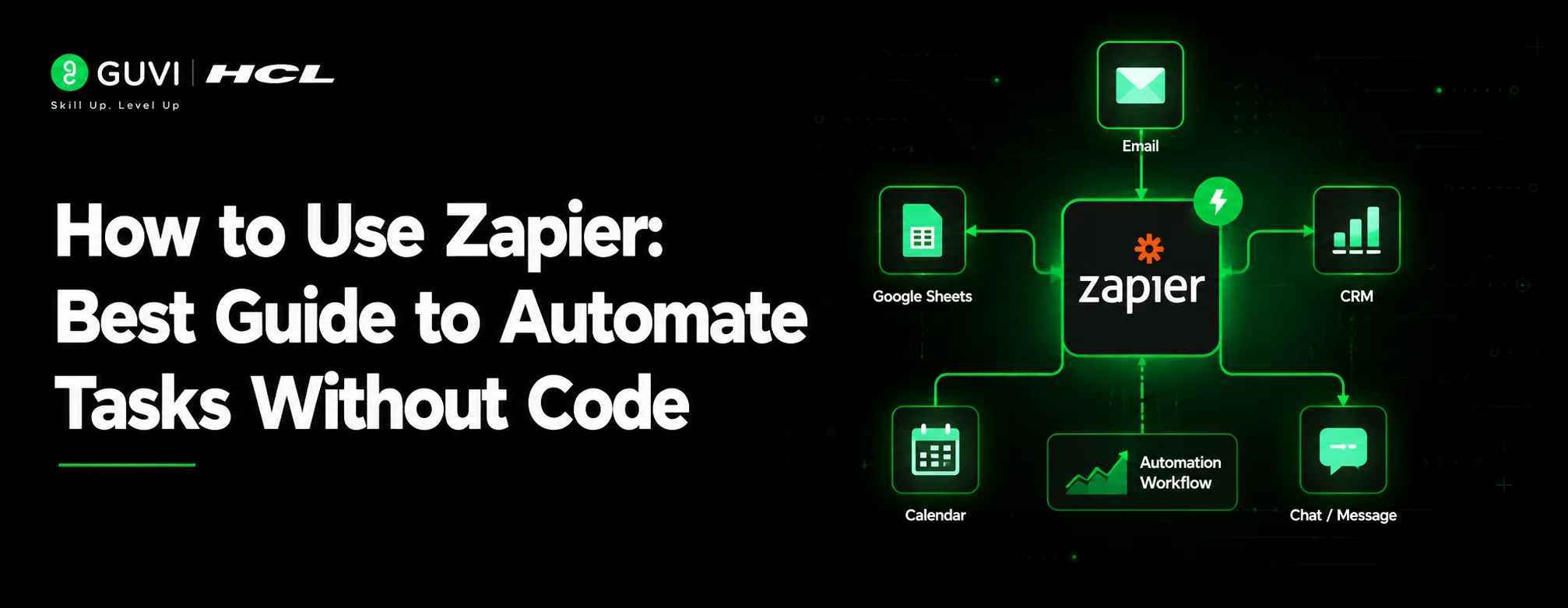
Zapier helps you connect different apps and create automated workflows called Zaps.
For example, when someone fills a Google Form, Zapier can add the response to Google Sheets, send a Gmail confirmation, and notify your team on Slack.
This guide explains Zapier in a simple way with steps, examples, mistakes, and practical use cases for students, freshers, marketers, HR teams, and working professionals.
What is Zapier?
Zapier is a no-code automation platform that connects different apps and helps them work together automatically.
It is a good example of no-code development, where users can build useful workflows without writing traditional code.
Instead of copying data manually from one app to another, you can create an automation called a Zap.
Zapier connects with 9,000+ apps, which makes it useful for automating tasks across tools like Gmail, Google Sheets, Slack, Trello, Notion, HubSpot, and more.
A simple Zap looks like this:
- A new Google Form response is submitted
- Zapier adds the response to Google Sheets
- It then sends a confirmation email through Gmail
This means you can automate tasks between apps without writing Python, JavaScript, or API code.
Zapier is useful when your work follows a simple rule: “When this happens, do that.”
Why Should Beginners Learn Zapier Automation?
Beginners should learn Zapier automation because it teaches workflow thinking without requiring coding knowledge.
Many workplaces use tools like Gmail, Google Sheets, Slack, Trello, Notion, HubSpot, Airtable, and CRMs. Zapier helps these tools share information automatically.
This makes it useful for learners who want to understand how modern teams reduce manual work.
If you are comparing Zapier with other automation platforms, you can also read our detailed guide on Make vs Zapier.
If your team uses Slack heavily, you can also learn how to make a Slack bot for more customized notifications and workflows.
It can help you:
- Save time on repetitive tasks
- Reduce copy-paste errors
- Build beginner automation projects
- Understand how business workflows work
- Improve productivity without coding
- Add no-code automation skills to your resume
For example, a fresher can build a job application tracker where every new application entry creates a follow-up reminder automatically.
You can also explore different AI tools for automation to understand how modern teams combine AI and no-code workflows.
Zapier’s Free plan currently includes 100 tasks per month, which is useful for testing simple beginner automations like form-to-sheet or email confirmation workflows. Always check the latest plan details before publishing because pricing and limits may change.
What Do You Need Before Using Zapier?
Before using the app , you need a few basic things ready.
- A Zapier account
- Access to the apps you want to connect
- A clear workflow idea
- Sample data for testing
- Permission to connect work or team accounts
- A basic understanding of the task you want to automate
You do not need coding knowledge to begin.
But you should know what task starts the workflow and what result you want at the end.
For example, if your task is webinar registration, the starting point may be a Google Form response. The final result may be a Google Sheet entry and a confirmation email.
How Does Zapier Work?
Zapier works through a trigger-and-action system.
A trigger is the event that starts the automation. An action is the task it performs after the trigger happens.
Here is a simple example:
- Trigger: A student submits a webinar registration form
- Action 1: Add the student details to Google Sheets
- Action 2: Send a confirmation email
- Action 3: Notify the counselling team
This workflow runs automatically after you turn on the Zap.
A Zap is an automated workflow that connects your apps and usually includes a trigger and one or more actions.
Key Zapier Terms Beginners Should Know
Before creating your first automation, understand these terms.
| Zapier Term | Simple Meaning | Example |
| Zap | An automated workflow | Google Form to Google Sheets |
| Trigger | The event that starts the Zap | New form response |
| Action | The task Zapier performs | Send email |
| Task | A completed action | One email sent |
| Filter | A condition that controls the workflow | Continue only if city is Chennai |
| Path | Different workflow routes | Student lead vs working professional lead |
| Formatter | A tool to clean or change data | Change date format |
These terms may sound technical at first, but they become easy once you build your first Zap.
Step 1: Choose the Task You Want to Automate
Start by choosing one repetitive task.
Do not open Zapier and randomly connect apps. First, write your workflow in simple English.
Example:
“When someone fills my course enquiry form, I want their details saved in Google Sheets and a confirmation email sent automatically.”
This sentence helps you identify three things:
- What starts the workflow
- Which apps are involved
- What final action should happen
A good beginner workflow should be simple, clear, and repeatable.
Good Tasks to Automate First
You can start with tasks like:
- Saving form responses in a spreadsheet
- Sending automatic confirmation emails
- Creating calendar reminders
- Adding leads to a CRM
- Creating Trello or Notion tasks
- Sending team notifications
Avoid complex workflows in the beginning.
Start with one trigger and one action. Once you understand the flow, add more steps.
Step 2: Select the Trigger App
The trigger app is where the automation starts.
For example, if your workflow starts when someone fills a form, your trigger app can be Google Forms.
If your workflow starts when a new row is added to a spreadsheet, your trigger app can be Google Sheets.
Examples of trigger apps include:
- Google Forms
- Gmail
- Google Sheets
- Typeform
- Facebook Lead Ads
- HubSpot
- Shopify
- Trello
- Notion
For our beginner example, let us use this workflow:
Google Form response → Google Sheets row → Gmail confirmation
Here, the trigger app is Google Forms.
The trigger event is “New Form Response.”
In this app , a trigger is the event that starts a Zap, such as a new form response, new spreadsheet row, or new CRM lead.
Step 3: Connect Your App Account
After selecting the trigger app, Zapier will ask you to connect your account.
For example, if your trigger app is Google Forms, you need to connect your Google account.
This allows Zapier to access the selected form and read new responses.
Be careful if you use multiple accounts.
Many students and professionals have separate accounts for personal use, college work, internships, or office work. Connect the correct account before moving ahead.
Simple Safety Tip
Only connect apps you trust and accounts you are allowed to use.
If you are automating workplace data, check your company’s data policy before connecting tools.
This is especially important for customer data, student records, employee details, or payment-related information.
Step 4: Add the Action App
The action app is where Zapier performs the task after the trigger happens.
In our example, the first action app is Google Sheets.
The action event is “Create Spreadsheet Row.”
This means every new Google Form response will become a new row in your spreadsheet.
You can also add another action app.
For example, Gmail can be the second action app to send a confirmation email.
The flow becomes:
Google Forms → Google Sheets → Gmail
This is called a multi-step workflow.
For official step-by-step guidance, you can also refer to Zapier’s guide on how to set up your Zap action.
This is useful for readers who want to try the steps practically
Step 5: Map the Data Fields Correctly
Field mapping means sending the right data from one app to the right place in another app.
For example:
- Name field from Google Form → Name column in Google Sheets
- Email field from Google Form → Email column in Google Sheets
- Phone field from Google Form → Phone column in Google Sheets
- Course interest field from Google Form → Course column in Google Sheets
This step is very important.
If fields are mapped incorrectly, your spreadsheet may show emails in the phone column or names in the wrong place.
Field Mapping Example
| Google Form Field | Google Sheets Column |
| Full Name | Name |
| Email Address | |
| Phone Number | Phone |
| City | City |
| Course Interested In | Course Interest |
Always check sample data before publishing your Zap.
Step 6: Test Your Zap
Testing helps you confirm that the automation works correctly.
Before turning on the Zap, test each step.
Check whether:
- The form data is being captured correctly
- The spreadsheet row is created properly
- The email goes to the correct person
- The email content has the correct name
- No field is missing
- No duplicate record is created
Testing may feel like an extra step, but it prevents mistakes later.
For important workflows like leads, applications, payments, or interviews, never skip testing.
Step 7: Turn on the Zap and Monitor It
Once the test works, turn on your Zap.
After this, the app will run the automation whenever the trigger event happens.
But your work does not end there.
Check your Zap history regularly to see whether the automation is running successfully.
Zap history helps you find:
- Failed runs
- Missing fields
- App connection errors
- Task usage
- Duplicate actions
This is useful when your workflow handles important data like student registrations, customer leads, or interview schedules.
Practical Zapier Automation Examples
This app can be used by students, freshers, marketers, HR teams, sales teams, and small businesses.
Here are some simple examples.
Zapier Automation Examples for Students and Freshers
Students can use Zapier to organise learning, applications, and reminders.
Examples:
- Add job application details from Google Forms to Google Sheets
- Create a Trello task for every new assignment deadline
- Send yourself an email reminder before an interview
- Save project ideas from a form into Notion
- Track internship applications in a spreadsheet
This can also become a small portfolio project.
For example, a fresher can build a “Job Application Tracker” using Google Forms, Google Sheets, Gmail, and Trello.
If you are interested in lead management and campaign workflows, check out these marketing automation tools used by businesses.
Zapier Automation Examples for Marketing Teams
Marketing teams can use it to manage leads and campaigns.

Examples:
- Add webinar registrations to Google Sheets
- Send new leads to a CRM
- Notify the sales team when a high-intent lead arrives
- Add event attendees to an email list
- Create follow-up tasks for counsellors or sales executives
This is useful for EdTech, SaaS, coaching institutes, agencies, and small businesses.
Zapier Automation Examples for HR Teams
HR teams can use Zapier to reduce repetitive hiring tasks.
Examples:
- Save candidate applications to a spreadsheet
- Send automatic interview confirmation emails
- Create Google Calendar events for interviews
- Notify recruiters when a candidate applies
- Move shortlisted candidates into a hiring tracker
This helps HR teams avoid missing candidate details.
Zapier Automation Examples for Small Businesses
Small businesses can use Zapier to manage daily operations.
Examples:
- Save customer enquiries automatically
- Send order confirmation emails
- Create invoices from form submissions
- Add new customers to a CRM
- Notify the team about support requests
This is helpful when the team is small and cannot manually handle every task.
For marketing teams, it can also work along with popular SEO automation tools to reduce repetitive campaign and reporting tasks.
Real-World Example of Zapier Automation
Imagine an EdTech company in India is running a free placement preparation webinar.
Without automation, the team may need to:
- Check Google Form responses manually
- Copy learner details to Google Sheets
- Send confirmation emails one by one
- Inform the counselling team manually
- Create follow-up tasks separately
With Zapier, the workflow can be automated like this:
- A learner submits the webinar registration form
- Zapier adds the learner details to Google Sheets
- Zapier sends a confirmation email through Gmail
- Zapier posts the lead details in Slack
- Zapier creates a follow-up task in Trello
This saves time and reduces manual errors.
It also helps the team respond faster to learners who are interested in the session.
Common Mistakes to Avoid While Using Zapier
1. Automating Without Planning the Workflow
Many beginners open Zapier first and think about the workflow later. This creates confusion because they do not know the trigger, action, or final output clearly.
Fix it by writing the workflow in one simple sentence before building the Zap.
2. Choosing the Wrong Trigger
A wrong trigger can make the Zap run at the wrong time or not run at all. For example, choosing “new spreadsheet row” instead of “new form response” may create confusion.
Fix it by checking where the workflow actually starts.
3. Mapping Fields Incorrectly
Incorrect field mapping can send the wrong data to the wrong place. For example, an email address may appear in the phone number column.
Fix it by testing sample data and checking each mapped field carefully.
4. Skipping the Test Step
A Zap may look correct but still fail during real use. This usually happens because of missing fields, app permission issues, or wrong account connections.
Fix it by testing every trigger and action before turning on the Zap.
5. Ignoring Task Usage and Errors
Every completed action may count as a task. If your Zap runs frequently, you may use your monthly task limit quickly.
Fix it by checking Zap history, task usage, and error logs regularly.
If your workflow needs complex custom logic, you may need to create an API in Python instead of depending only on no-code automation.
Best Practices for Zapier Automation
Start with a simple workflow before creating complex automations.
A beginner-friendly Zap should have one trigger and one action.
For example:
Google Form response → Google Sheets row
Once this works, you can add Gmail, Slack, Trello, or Notion as extra actions.
Use Clear Zap Names
Name your Zaps clearly so you can understand them later.
Good name:
Webinar Registration – Form to Sheets and Email
Poor name:
Test Zap 1
Clear names are useful when you manage multiple workflows.
Use Filters to Control When a Zap Runs
Filters help your Zap continue only when a condition is true.
Example:
Send a Slack alert only if the course interest is “Data Science.”
This prevents unnecessary notifications and saves task usage.
Keep Sensitive Data Safe
Be careful when automating workflows that involve:
- Phone numbers
- Email addresses
- Payment information
- Student records
- Employee details
- Customer data
Only connect trusted apps and use accounts with proper permission.
Review Your Zaps Regularly
Check your active Zaps once in a while.
This helps you find broken connections, outdated fields, failed runs, and unnecessary steps.
A simple monthly review can prevent automation errors.
Zapier vs Manual Work: Simple Comparison
| Task | Manual Work | Zapier Automation |
| Form response tracking | Copy responses manually | Add responses to Sheets automatically |
| Confirmation email | Send emails one by one | Send emails instantly |
| Team notification | Message the team manually | Send auto alerts |
| Follow-up task | Create task manually | Create task automatically |
| Error risk | Higher due to copy-paste | Lower with correct mapping |
| Coding required | No coding, but manual work | No coding and less manual work |
Repetitive work is one of the biggest reasons teams adopt automation. Zapier has reported that knowledge workers can spend upwards of 20 hours each week on repetitive tasks, which directly affects time available for strategic work.
What Skills Can You Learn by Using Zapier?
It helps you learn practical automation skills that are useful in many job roles.
You learn:
- Workflow planning
- Process automation
- App integration
- Data mapping
- Conditional logic
- Testing and troubleshooting
- No-code tool usage
- Productivity improvement
Once you are comfortable with basic no-code automation, you can also learn how to build no-code AI agents for more advanced workflows.
These skills are useful for roles such as:
- Digital marketer
- Business analyst
- HR executive
- Operations executive
- Sales operations associate
- Product associate
- Startup founder
- No-code automation specialist
For freshers, even a simple Zapier project can show practical problem-solving skills.
Beginner Project Idea: Build a Job Application Tracker
A job application tracker is a simple Zapier project for students and freshers.
Project Goal
Track every job application and create follow-up reminders automatically.
Tools Needed
- Google Forms
- Google Sheets
- Gmail
- Trello or Notion
- Zapier
Workflow
- Fill a Google Form whenever you apply for a job
- Zapier adds the details to Google Sheets
- Zapier creates a task in Trello or Notion
- Zapier sends a reminder email for follow-up
This project helps you stay organised during placement preparation.
It also gives you a practical automation project to mention in your resume or portfolio.
Build Automation Skills With HCL GUVI
Zapier helps you automate repetitive tasks, connect apps, reduce manual work, and understand how real business workflows run without code. But to use automation confidently in professional projects, you also need strong basics in workflow logic, testing, error handling, troubleshooting, and process optimization.
Explore HCL GUVI’s Automation & Testing Course to build practical automation and testing skills through hands-on learning, real-world tools, and career-focused training.
Conclusion
Learning how to use Zapier is a simple way to start with no-code automation. It helps you connect apps, automate repetitive work, reduce manual errors, and understand how real business workflows run. Start with a small two-step Zap, test it carefully, and then move to filters, multiple actions, and advanced workflows. For students, freshers, and working professionals, Zapier is more than a productivity tool. It is a practical way to learn workflow automation, tool integration, and process thinking for modern workplace roles.
FAQS
1. What is Zapier used for?
Zapier is used to automate tasks between different apps. It can move data, send emails, create tasks, update spreadsheets, and send team notifications without coding.
2. Do I need coding knowledge to use Zapier?
No, you do not need coding knowledge to use Zapier. Zapier is a no-code automation tool where you create workflows using triggers, actions, filters, and app connections.
3. What is a Zap in Zapier?
A Zap is an automated workflow created in Zapier. It starts with a trigger and then performs one or more actions automatically.
4. What is the easiest Zapier automation for beginners?
The easiest Zapier automation for beginners is connecting Google Forms to Google Sheets. When someone submits a form, Zapier can automatically add the response to a spreadsheet.
5. Can Zapier send automatic emails?
Yes, Zapier can send automatic emails through apps like Gmail or email marketing tools. For example, it can send a confirmation email when someone fills a registration form.
6. Is Zapier free for beginners?
Zapier has a free plan for basic automation with limited monthly tasks. Beginners can use it to test simple workflows before creating more advanced automations.
7. What apps can I connect with Zapier?
Zapier connects thousands of apps, including Gmail, Google Sheets, Slack, Trello, Notion, HubSpot, Airtable, Shopify, and many more.
8. How do I know if a task should be automated in Zapier?
A task is good for Zapier automation if it is repetitive, rule-based, and involves moving data between apps. If you do the same copy-paste work often, it is a good automation opportunity.
9. Can students use Zapier for placement preparation?
Yes, students can use Zapier to track job applications, create interview reminders, organise placement tasks, and manage follow-ups automatically.
10. What is the difference between a trigger and an action in Zapier?
A trigger is the event that starts the workflow. An action is what Zapier does after the trigger happens.
Success Stories

About the Author
Reemsha Khan
Always been a storyteller at heart. Now, I turn complex topics into simple, easy-to-understand stories through content. Hope you find it helpful.
View all posts by Reemsha Khan
Connect with me @










Did you enjoy this article?