


Javascript Articles
GraphQL with Strawberry Tutorial: Build Your First Python API
gRPC Tutorial: A Beginner's Guide to Building Fast, Modern APIs
Temporal Workflow Engine Tutorial: Build Reliable Workflows
Tauri 2.0 Desktop App Tutorial: Build Your First App Without the Bloat


Get In Touch For Details! Request More Information

Deno 2.0 Tutorial: A Beginner’s Guide to Getting Started
Aug 13, 2026 3 Min Read 296 Views
(Last Updated)
Deno 2.0, released in October 2024 by Node.js creator Ryan Dahl, added full Node.js and npm compatibility to Deno’s secure, all-in-one runtime. You can import npm packages, use package.json, and get built-in TypeScript support, testing, linting, and formatting — without installing extra tools. This tutorial walks you through installing it and running your first project.
Table of contents
- TL;DR Summary
- What is Deno 2.0?
- Why Deno 2.0 Still Matters in 2026
- Deno 2.0 vs Node.js vs Bun: Quick Comparison
- How to Install Deno 2.0
- Writing and Running Your First Deno Script
- How to Use npm Packages in Deno 2.0
- Build a Tiny API
- Common Mistakes Beginners Make With Deno 2.0
- Key Takeaways
- FAQs
- Is Deno 2.0 the same as Deno?
- Is Deno 2.0 faster than Node.js?
- Can I use Express with Deno 2.0?
- Do I need to learn Node.js before Deno?
- Is Deno 2.0 good for beginners?
- Does Deno 2.0 support TypeScript natively?
TL;DR Summary
- Deno 2.0 added full Node.js and npm compatibility to a runtime that already shipped with TypeScript, testing, and formatting built in.
- You can install it with one command and run your first script in under five minutes.
- npm packages work through the npm: specifier — no separate package manager needed.
- Deno has moved on to the 2.8.x release line, with faster npm installs and new security tooling.
- This guide covers install, first script, npm imports, and a tiny working API.
By the end of this guide, you’ll know what Deno 2.0 actually is, why it still matters now that the project is well past version 2.0, and how it stacks up against Node.js and Bun. Then we’ll get hands-on: installing it, writing and running your first script, pulling in an npm package, and building a working API in a handful of lines.
What is Deno 2.0?
Deno is a runtime for running JavaScript and TypeScript outside the browser, built by the same person who created Node.js. It’s been around since 2018, but version 2.0 is the release that made it genuinely usable for everyday projects.
The big change: Deno 2.0 is fully backward compatible with Node.js and npm. You can import npm packages, rely on a package.json and node_modules folder when you need one, and use Node’s built-in modules with the node: prefix.
💡 Pro Tip: If you already know Node.js, almost everything transfers. Deno just cuts out a lot of setup.
Why Deno 2.0 Still Matters in 2026
Deno has shipped a lot since October 2024 — it’s now on the 2.8.x line, and the May 2026 release alone added six new subcommands plus npm cold-install speeds Deno reports as 3.66x faster than before. But “Deno 2.0” stays the search term people use, because that’s the version where Deno stopped being a curiosity and started being a real Node alternative.
For a beginner, that matters because Deno bundles a formatter, linter, test runner, and dependency manager into one binary. You’re not assembling five npm packages just to get a project off the ground.
📊 Data Point: Deno’s own benchmarks at the 2.0 launch showed deno install running 15% faster than npm install on a cold cache, and 90% faster on a warm one.
Deno 2.0 vs Node.js vs Bun: Quick Comparison
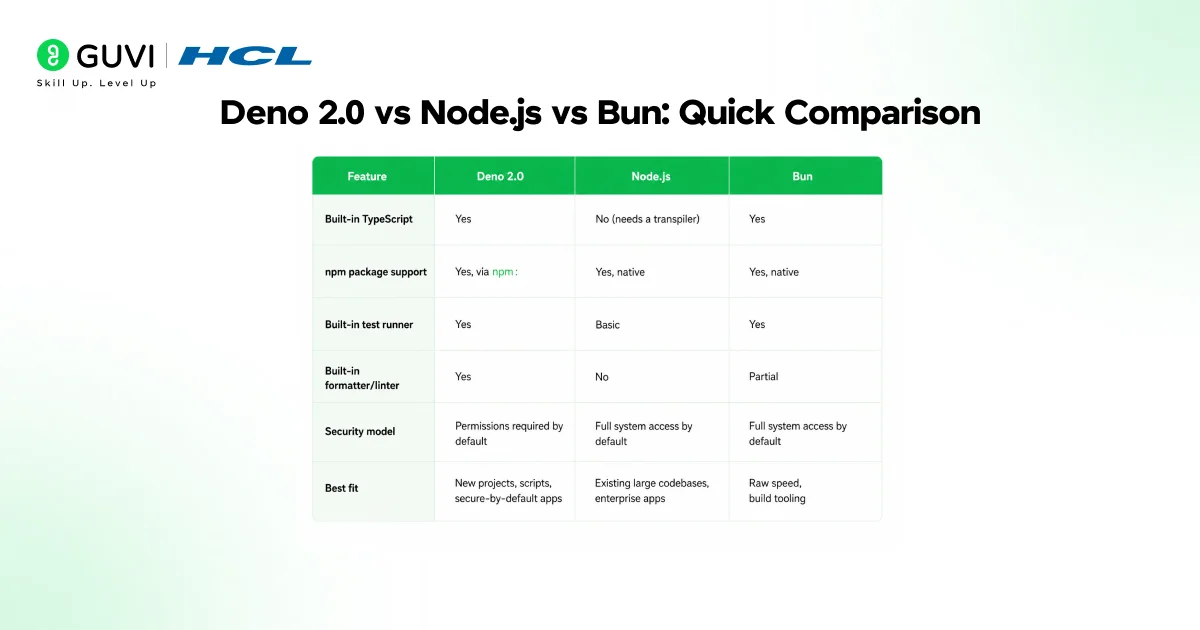
| Feature | Deno 2.0 | Node.js | Bun |
| Built-in TypeScript | Yes | No (needs a transpiler) | Yes |
| npm package support | Yes, via npm: | Yes, native | Yes, native |
| Built-in test runner | Yes | Basic | Yes |
| Built-in formatter/linter | Yes | No | Partial |
| Security model | Permissions required by default | Full system access by default | Full system access by default |
| Best fit | New projects, scripts, secure-by-default apps | Existing large codebases, enterprise apps | Raw speed, build tooling |
None of these is the “wrong” choice. Node.js still runs most production backends. Bun chases raw speed. Deno 2.0 sits in the middle — Node-compatible enough to adopt gradually, with security and tooling Node never had out of the box.

How to Install Deno 2.0
On macOS or Linux, run this in your terminal:
curl -fsSL https://deno.land/install.sh | sh
On Windows, use PowerShell:
irm https://deno.land/install.ps1 | iex
Verify it worked:
deno --version
You should see version numbers for Deno, V8, and TypeScript. If the command isn’t found, restart your terminal — the installer needs to update your PATH first.
Writing and Running Your First Deno Script
Create a file called hello.ts:
const name: string = "Deno";

console.log(`Hello from ${name} 2.0!`);
Run it:
deno run hello.ts
That’s it — no tsc step, no config file required. If your script needs to read files or hit the network, Deno will ask for permission first:
deno run --allow-net server.ts
⚠️ Warning: This permission prompt trips up a lot of beginners coming from Node.js. It’s not a bug — it’s Deno’s security model working as intended.
How to Use npm Packages in Deno 2.0
Add a package the same way you’d add it with npm add, just with the npm: prefix:
deno add npm:lodash

Then import and use it like normal:

import _ from "lodash";

console.log(_.capitalize("deno is fun"));
Most npm packages work without changes. Complex frameworks like Next.js and Astro work too, since Deno 2.0 added support for the build processes they rely on.
Build a Tiny API
Deno’s built-in HTTP server means you don’t need Express to get something running:
Deno.serve((req: Request) => {

  return new Response("Hello from your Deno 2.0 API!");

});

Run it with:

deno run --allow-net server.ts
Visit http://localhost:8000 and you’ll see your response. That’s a working API in six lines.
Common Mistakes Beginners Make With Deno 2.0
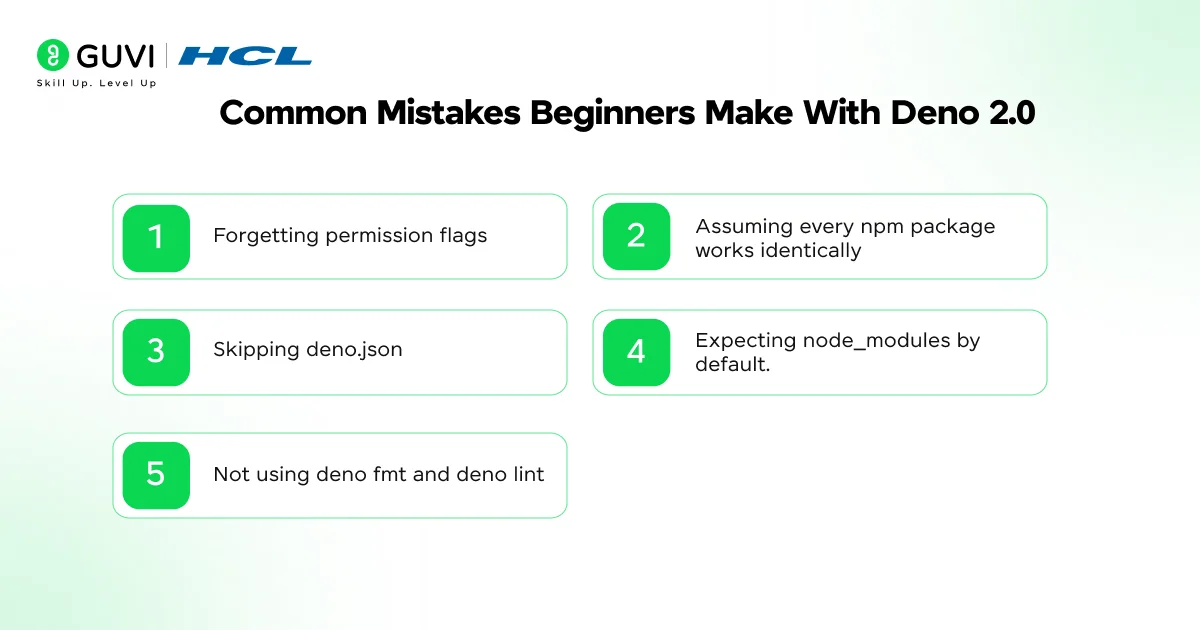
- Forgetting permission flags. Scripts that touch the network or filesystem need –allow-net, –allow-read, or similar — Deno won’t assume access.
- Assuming every npm package works identically. Most do, but packages using native Node-API addons can need extra setup.
- Skipping deno.json. This config file controls formatting rules, import maps, and tasks — worth setting up even for small projects.
- Expecting node_modules by default. Deno only creates it automatically if your project has a package.json.
- Not using deno fmt and deno lint. They’re already installed — there’s no reason to add Prettier or ESLint separately.
If you are intrigued by Deno 2.0 and want to learn more tools like this in JavaScript, consider enrolling in HCL GUVI’s JavaScript Course For Beginners, where you’ll learn about JavaScript, which is used to create dynamic and interactive web content like applications and browsers.
Key Takeaways
- Deno 2.0 made Deno Node-compatible without losing its built-in tooling or security model.
- Installation and your first script take a few minutes, even with zero Deno experience.
- npm packages work through the npm: specifier, and most frameworks run with little to no changes.
- Deno is actively maintained — by mid-2026 it’s on the 2.8.x line, so check deno upgrade for the latest.
- The permission system is the one habit that takes adjusting to if you’re coming from Node.js.
FAQs
1. Is Deno 2.0 the same as Deno?
No — Deno 2.0 is the major version released in October 2024 that added Node.js and npm compatibility. “Deno” refers to the project as a whole, including newer versions like 2.8.
2. Is Deno 2.0 faster than Node.js?
For dependency installation, yes — Deno reported its installer running notably faster than npm in its own benchmarks. Raw script execution speed depends on the specific workload.
3. Can I use Express with Deno 2.0?
Yes, Express runs in Deno 2.0 through npm compatibility, though Deno’s built-in Deno.serve() is often simpler for new projects.
4. Do I need to learn Node.js before Deno?
No, but it helps. Deno 2.0 was built to feel familiar to Node.js developers, so prior JavaScript or Node experience speeds things up.
5. Is Deno 2.0 good for beginners?
Yes. The built-in TypeScript support, formatter, and linter remove a lot of the setup decisions that confuse people new to backend JavaScript.
6. Does Deno 2.0 support TypeScript natively?
Yes, without any configuration. You can run .ts files directly with deno run.
Success Stories

About the Author
Lukesh S
A professional content writer who has experience in freelancing and now working as a Technical Content Writer at HCL GUVI having sound knowledge in Blog Writing and Creative Writing!
View all posts by Lukesh S
Connect with me @













Did you enjoy this article?