


AWS Kubernetes Articles
Istio Service Mesh Tutorial for Beginners
Crossplane Tutorial: A Practical Guide for Learners


Get In Touch For Details! Request More Information
What is AWS Instances Explained: How Your First Cloud Server Actually Works
Aug 19, 2026 4 Min Read 702 Views
(Last Updated)
Table of contents
- QUICK TL;DR
- Introduction
- Understanding Instances in Plain Terms
- How Does an AWS Instance Actually Work?
- STEP-1
- STEP-2
- STEP-3
- The Instance Lifecycle
- Types of AWS EC2 Instances
- Key Features You Should Know
- Spot Instances vs On-Demand vs Reserved
- A Real-World Example
- Conclusion
- FAQs
- What’s the difference between stopping and terminating an instance?
- How do I choose the right instance type?
- When should I use Spot, On-Demand, or Reserved instances?
- How do I secure access to my instance?
- Do I lose my data if I stop an instance?
- How can I scale when traffic grows?
QUICK TL;DR
- An AWS instance is a virtual server (EC2) providing CPU, memory, storage, and networking on demand.
- You launch it from an AMI and choose an instance type to set compute and memory capacity. Instances progress through Pending → Running → Stopped → Terminated; stopping halts compute charges but storage (EBS) still costs.
- Match instance families to workloads and optimize costs with On‑Demand, Reserved, or Spot pricing while securing access via security groups and key pairs.
Introduction
If you’ve just started exploring AWS, the word “instance” comes up almost immediately and for good reason. Understanding what an instance is forms the foundation of everything you’ll do in the cloud. Whether you’re a developer, a student, or someone switching careers into cloud computing, knowing how AWS instances work will save you hours of confusion.
What Is an AWS Instance?
An AWS instance is a virtual server provided through Amazon Web Services (AWS), typically using Amazon EC2 (Elastic Compute Cloud). It enables users to run applications, host websites, process data, and perform computing tasks without purchasing or maintaining physical hardware. AWS instances can be configured with different amounts of CPU, memory, storage, and networking resources, allowing organizations to scale their infrastructure based on demand. Since instances are rented on a pay-as-you-go basis, users only pay for the resources they consume.
Understanding Instances in Plain Terms
- Think of a physical server sitting in a data center. It has a CPU, RAM, storage, and a network connection.
- An AWS instance gives you all of that, but virtually.
- Amazon owns the actual hardware.
- You get a slice of it, isolated from everyone else, available within minutes.
- This is the core idea behind Amazon EC2 (Elastic Compute Cloud).
- EC2 is the AWS service that provides these virtual servers, which are called instances. You launch one, install your software, and you’re running in the cloud.
- The word “elastic” matters here. You can scale up when traffic spikes and scale down when things are quiet. You don’t need to buy new hardware every time your needs change.
How Does an AWS Instance Actually Work?
STEP-1
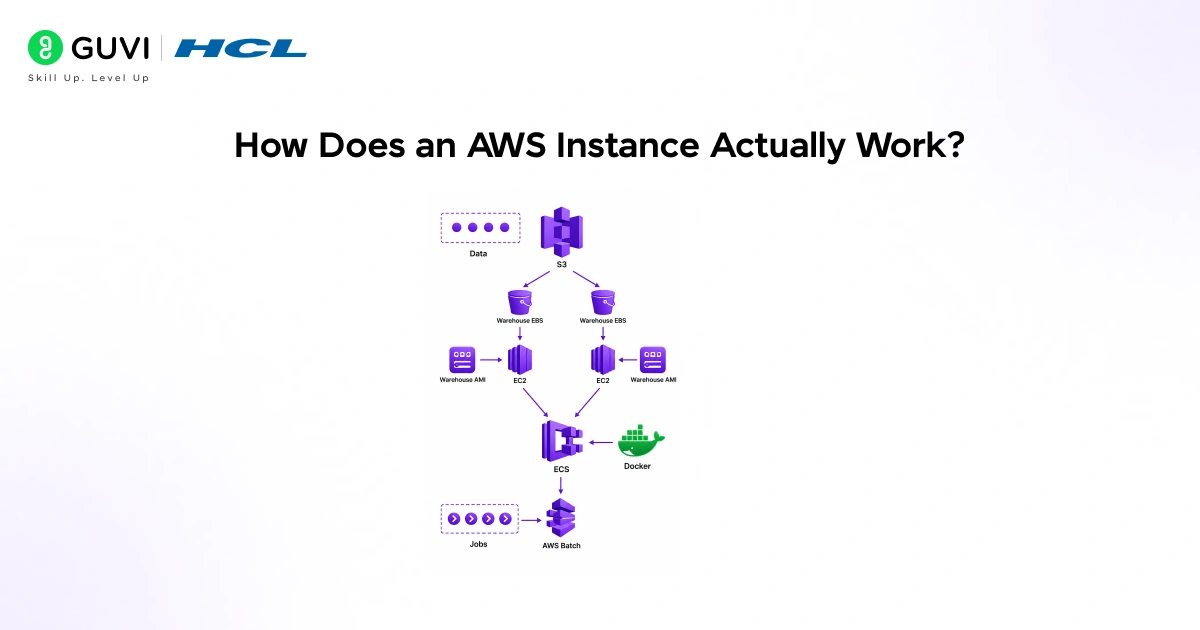
- AWS uses virtualization technology to run multiple virtual servers on a single physical machine. Each instance is isolated, meaning your workload doesn’t affect someone else’s, even if you’re sharing the same physical hardware.
STEP-2
- When you launch an instance, you choose an Amazon Machine Image (AMI). An AMI is basically a pre-configured template. It includes the operating system and sometimes additional software. Think of it as a snapshot that gets loaded onto your virtual server when it starts.
STEP-3
- You also pick an instance type, which defines the hardware specs: how much CPU, memory, storage, and network bandwidth your instance gets.
The Instance Lifecycle
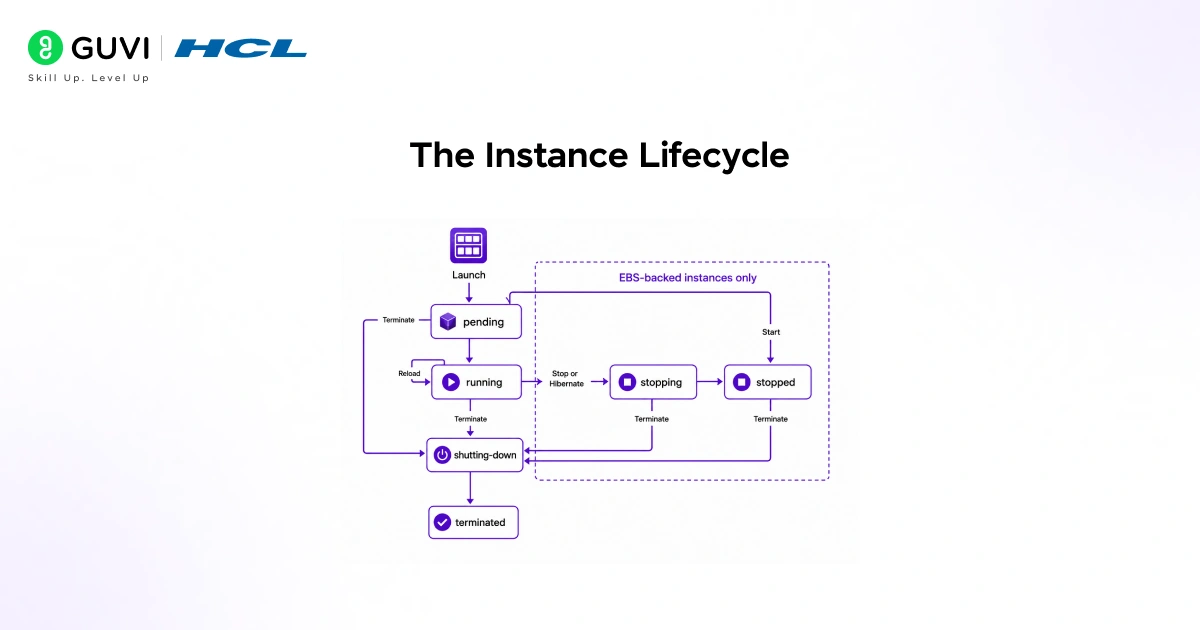
Every instance goes through a clear set of stages.
- Pending: Right after you launch, the instance is preparing to start. Nothing is billed yet.
- Running: The instance is live and ready to use. Billing starts here.
- Stopped: The instance is paused. You’re not billed for compute, but your storage still costs money. You can restart it whenever you want.
- Terminated: The instance is permanently deleted. Data on the instance store is gone. This action cannot be undone.
Understanding this lifecycle helps you manage costs. If you’re not using an instance, stop it. If you’re done with it entirely, terminate it.
Types of AWS EC2 Instances
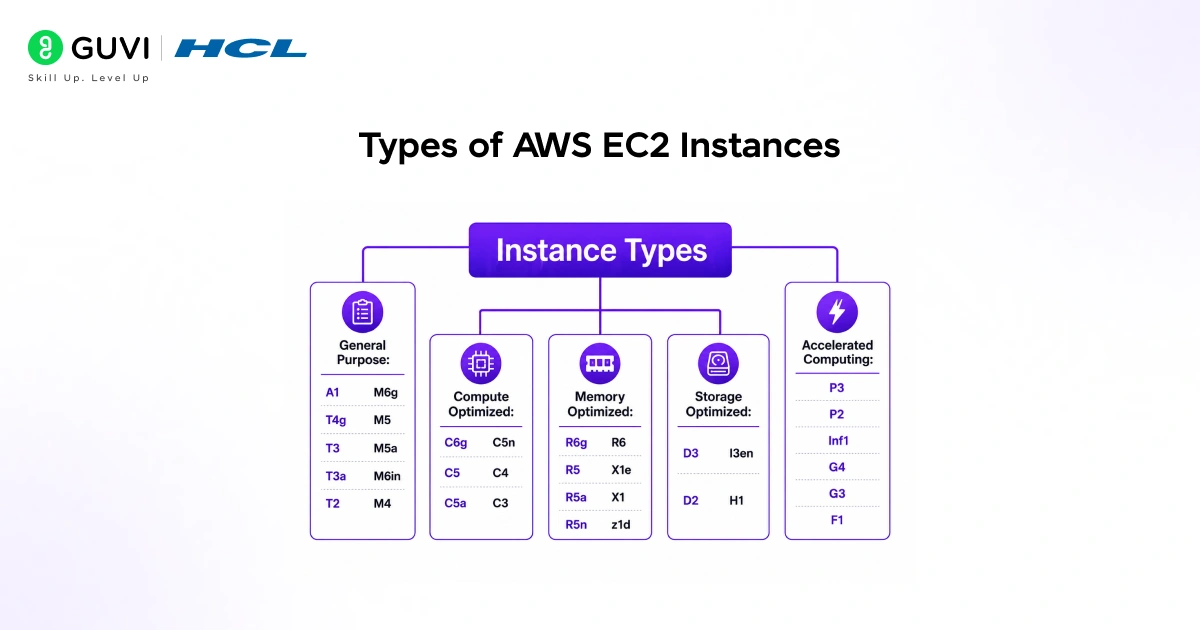
AWS offers several instance families, each built for different workloads. Choosing the right type saves money and improves performance.
| Instance Type | Best For | Examples |
| General Purpose | Balanced workloads, web servers | t3, m6i |
| Compute Optimized | High CPU tasks, gaming servers | c6i, c5 |
| Memory Optimized | Big data, high-performance databases | r6i, x2idn |
| Storage Optimized | High-speed disk read/write, search engines | i3, d3 |
| Accelerated Computing | ML, graphics, video encoding | p4, g5, inf2 |
- General-purpose instances are the go-to starting point for most beginners. They balance CPU and memory and work well for web servers, small databases, and development environments.
- Compute Optimized instances are designed for CPU-heavy workloads. If you’re running a game server or processing video, these handle the load without breaking a sweat.
- Memory Optimized instances are built for apps that chew through RAM. Real-time analytics platforms and large in-memory databases belong here.
- Storage Optimized instances give you fast, high-throughput disk access. They’re ideal for data warehousing and search engine backends.
- Accelerated Computing instances come with GPUs or custom chips like AWS Inferentia. Machine learning engineers use these to train and deploy models faster.
A cloud instance is essentially a virtual machine created through virtualization technology, allowing multiple isolated workloads to share the resources of a single physical server. This approach enables cloud providers to run dozens or even hundreds of instances efficiently on the same hardware. In cloud environments such as AWS, Elastic Block Store (EBS) volumes provide persistent storage that remains intact even when an instance is stopped or restarted, whereas instance store storage is temporary and is typically lost when the instance is terminated. For cost-conscious workloads, Spot Instances offer access to unused cloud capacity at substantial discounts, but they can be interrupted with short notice, making them best suited for fault-tolerant applications such as batch processing, data analysis, and large-scale testing workloads.

Key Features You Should Know
AWS instances come with several built-in features that make them more useful than a plain virtual machine.
- Security Groups act as a virtual firewall. You control which ports and IP addresses can reach your instance. By default, all inbound traffic is blocked until you open it.
- Elastic IP addresses give your instance a static public IP. Normally, stopping and restarting an instance changes its public IP. An Elastic IP sticks around even after a restart.
- Key Pairs handle login security. Instead of a password, AWS uses a cryptographic key pair to authenticate SSH access to your Linux instance.
- Amazon EBS (Elastic Block Store) provides persistent storage. Unlike the temporary instance store, EBS volumes stick around even after your instance stops. Your data survives a restart.
- Tags let you label your instances with metadata like project name or team. This is a small but powerful way to stay organized when you have many resources running.
Spot Instances vs On-Demand vs Reserved
AWS offers three main pricing models for instances.
- On-demand means you pay a fixed hourly rate with no commitment. This is the default and works well for variable workloads.
- Reserved Instances let you commit to a one- or three-year term in exchange for a significant discount, sometimes up to 72% off on-demand prices.
- Spot Instances use spare AWS capacity at deeply discounted rates, sometimes up to 90% cheaper. The catch is that AWS can reclaim them with a two-minute warning. They’re perfect for fault-tolerant or batch workloads.
A Real-World Example
- Imagine you’re building a web app. You launch a t3. micro General Purpose instance (which is free-tier eligible), install an Nginx web server, and deploy your application. Within 10 minutes, your app is live on the internet.
- As your user base grows, you notice the server slowing down. You stop the instance, change it to an m6i.large with more CPU and RAM, and restart.
- Your app runs smoothly again. No hardware to buy. No downtime for hardware upgrades. That’s the real power of AWS instances.
You just learned how AWS instances work and what happens when you launch your first cloud server. Take it further with HCL GUVI’s AWS Course and master cloud computing hands-on. Learn to launch instances, configure AMIs, and build real-world AWS solutions from the ground up.
Conclusion
An AWS instance is simply a virtual server you can rent from Amazon, configure to your needs, and scale at any time. EC2 gives you complete control over compute resources without the hassle of managing physical hardware.
The key things to remember: pick the right instance type for your workload, understand the lifecycle so you manage costs properly, and use features like security groups and EBS to keep your setup secure and reliable. Once you’re comfortable with instances, you have a strong foundation to explore everything else AWS has to offer.
FAQs
1. What’s the difference between stopping and terminating an instance?
Stopping pauses the VM: compute stops and you’re not billed for CPU, but attached EBS volumes still incur storage charges. Terminating deletes the instance permanently and removes instance-store data; recovery is not possible.
2. How do I choose the right instance type?
Match the instance family to your dominant need: general-purpose for web apps, compute for CPU-heavy tasks, memory for in-memory databases, storage for high I/O, and accelerated for GPU/ML workloads.
3. When should I use Spot, On-Demand, or Reserved instances?
Use On-Demand for variable or short-lived workloads; Reserved for steady-state, predictable use to save money; and Spot for fault-tolerant or batch jobs where interruptions are acceptable.
4. How do I secure access to my instance?
Use security groups to restrict inbound traffic, disable password logins, use key pairs (SSH) for Linux, and apply least-privilege IAM roles for services that the instance accesses.
5. Do I lose my data if I stop an instance?
No, data on attached EBS volumes persists after a stop. Data on instance stores is ephemeral and is lost when the instance stops or terminates.
6. How can I scale when traffic grows?
Use Auto Scaling groups with a launch configuration or template (AMI + instance type) to add identical instances automatically, combined with load balancers to distribute traffic.
Success Stories

About the Author
Vishalini Devarajan
An Aerospace Engineer turned content writer, I focus on making complex concepts easy to understand through well-structured, reader-friendly blogs. Whether it’s a technical topic or a non-technical one, I love creating content that is clear, engaging, and impactful.
View all posts by Vishalini Devarajan
Connect with me @












Did you enjoy this article?