


Artificial Intelligence and Machine Learning Articles
AI/ML Skills Gap 2026: Why Companies Can't Find Job-Ready Talent
20 AI/ML Interview Questions Recruiters Can Use Without a Tech Background - Best Guide
How Industry-Backed AI/ML Bootcamps Are Changing the AI/ML Hiring Pipeline - Best Guide 2026
From IT Support to AI Engineer: A Realistic Career Switch Guide 2026


Get In Touch For Details! Request More Information

BioRender-Claude Integration: Transforming Scientific Visualization
Jun 24, 2026 5 Min Read 1728 Views
(Last Updated)
Science advances rapidly in labs, but communication lags. Researchers spend weeks generating crucial data, then nearly as long crafting clear figures for reviewers, collaborators, or funders.
Traditional scientific illustration tools are fragmented, steep to learn, and disconnected from AI workflows. This gap between discovery and effective sharing has become a major bottleneck in scientific progress.
In October 2025, Anthropic and BioRender launched a strategic partnership to bridge it. BioRender, the leading AI platform for scientific visuals, integrated its vetted icons and templates into Claude for Life Sciences. As AI accelerates biological breakthroughs, human comprehension and communication speed are the new limits. Streamlining scientific visualization is now essential to the pace of discovery.
In this article, we will walk through exactly what the BioRender connector in Claude is, how it works, how to set it up, what you can use it for, and how to get the most out of it in your research workflow.
Quick TL;DR
- Claude’s BioRender connector integrates 50K+ vetted scientific icons/templates via MCP, enabling natural language searches without workflow switching, ideal for life sciences visuals in slides, grants, and journals.
- Setup takes 5 minutes: Add https://mcp.services.biorender.com/mcp in settings, authenticate with a free BioRender account (paid for high-res exports).
- Describe mechanisms precisely (Cas9 protein, DNA breaks, panel counts, grant/poster context) for targeted suggestions vs. generic results.
- Covers full research cycle: slide decks, grant proposals, graphical abstracts; pairs with Benchling/PubMed for end-to-end data-to-presentation workflows.
- Trusted by 4M+ researchers, including 15 Nobel labs, launched Oct 2025 to fix science’s visualization bottleneck as AI accelerates discovery.
Table of contents
- What Is the BioRender Connector in Claude?
- What Does the BioRender Library Actually Contain?
- How to Set Up the BioRender Connector
- Step 1: Set Up the Connector
- Step 2: Meet Requirements and Start Using
- What Can You Actually Do With It?
- Full Cycle of Research Communication
- Slide Decks Workflow
- Grant Proposals Example
- Writing Better Prompts for Scientific Figures
- Prompt Quality Matters
- Be Specific on Mechanisms
- Include Detailed Steps
- Specify Figure Context
- How This Fits Into the Broader Claude for Life Sciences Ecosystem
- Why Visual Communication Matters Now More Than Ever
- Final Thoughts
- FAQs
- Q1: Do I need a paid BioRender account to use the connector?
- Q2: How long does setup take?
- Q3: Can I use this for non-life sciences fields?
- Q4: Does the connector work across Claude sessions?
- Q5: What if my prompt doesn't return good results?
What Is the BioRender Connector in Claude?
It lets you search BioRender’s scientific library directly from Claude using plain language
- The BioRender connector enables you to search BioRender’s extensive library of vetted scientific figures to quickly find scientifically accurate content for your presentations, posters, grant proposal figures, journal graphical abstracts, and more. Simply describe your needs and receive recommended scientific icons, figures, and templates in return.
- This integration works through Model Context Protocol, which is the same open standard that allows Claude to connect to databases, lab platforms, and research tools across the life sciences ecosystem.
- When the connector is active, you do not need to leave Claude, open BioRender separately, browse their library manually, or hunt through categories looking for the right visual.
- Instead, you describe what you need in plain language, the same way you would explain a figure to a colleague, and Claude searches BioRender’s library on your behalf and returns relevant suggestions.
- BioRender’s platform is trusted by more than 4 million researchers globally, including 15 Nobel Prize-winning labs over the past five years.
- It has created the visual language of modern science. Having that entire library accessible through a conversation with Claude means the visual assets that usually take hours to find and piece together can now be part of a continuous research workflow without any context switching.
What Does the BioRender Library Actually Contain?
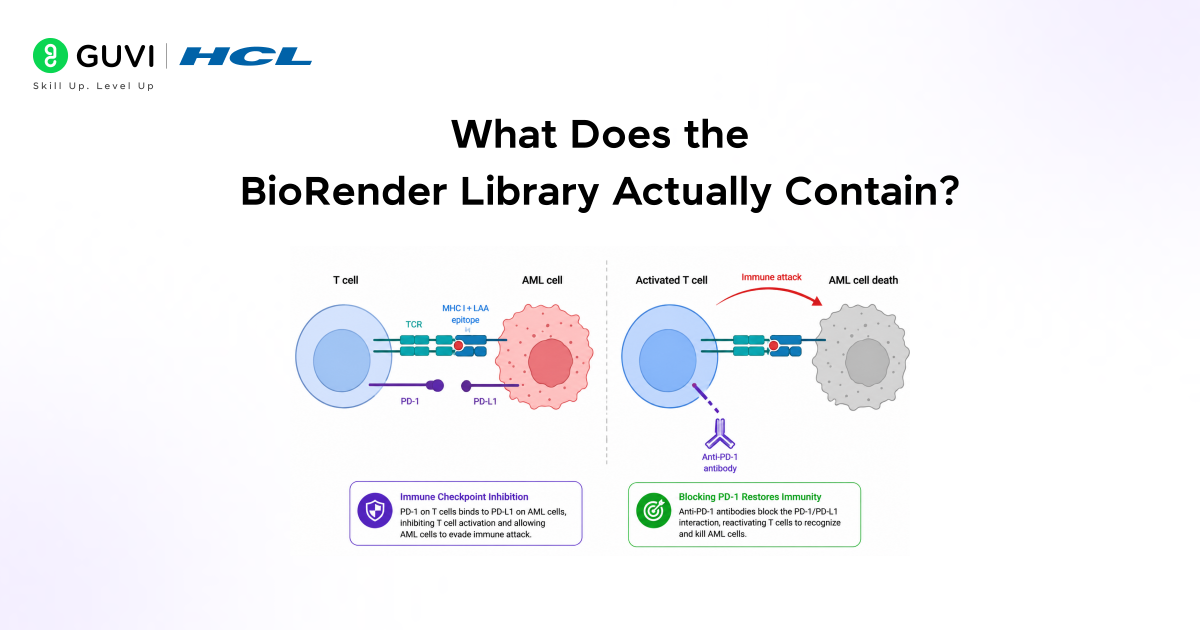
- Before diving into how to use the connector, it helps to understand the scale and quality of what you are accessing through it.
- The integration provides access to BioRender’s scientific icons and templates, which include 50,000 or more verified scientific icons across all fields of life sciences, professionally designed figure templates for meetings, presentations, research posters, grant applications, publications, patient material, and internal workflows, as well as regularly updated visual assets curated by world-class medical illustrators.
- These are not generic clipart or stock images; they are scientifically validated visuals built specifically for biological and medical communication.
- The breadth of the library matters a lot in practice. Whether you are working on cell biology, immunology, genomics, neuroscience, pharmacology, or clinical research, the icons and templates are specific enough to represent the mechanisms and processes you are actually trying to illustrate.
- This level of scientific accuracy is what separates BioRender from general-purpose design tools, and it is exactly what you are plugging into when you connect it to Claude.
How to Set Up the BioRender Connector
Step 1: Set Up the Connector
Getting the connector running takes only a few minutes, and you do not need any technical background to complete the process. Open your AI assistant’s settings and navigate to “Connectors” or “Integrations.” Click to add a new MCP server connection.
Enter the BioRender MCP server URL, which is https://mcp.services.biorender.com/mcp. Save the configuration. In your AI assistant, select “Connect to BioRender.” Log in using your BioRender credentials. Approve the requested permissions. Once authenticated, you will be redirected back to your AI assistant.
Step 2: Meet Requirements and Start Using
There is one requirement worth noting before you start: the BioRender integration is available to all BioRender users with an active account. Users must log in using their BioRender credentials to authenticate the connection.
If you do not already have a BioRender account, you can create one for free at biorender.com. The free account gives you access to search and browse the library through Claude, though you will need a paid BioRender subscription to export high-resolution files for publication. Once you have authenticated, the connector stays active across Claude sessions, and you can start using it right away.
What Can You Actually Do With It?
1. Full Cycle of Research Communication
The range of use cases for the BioRender connector spans the full cycle of research communication from internal discussions to journal submissions.
Through the Model Context Protocol, scientists can search BioRender’s library directly from Claude and receive recommended scientific figures and templates in return. The most common workflows include figure suggestions for slide decks, grant and funding application figures, journal figures, and graphical abstracts.
2. Slide Decks Workflow
For slide decks, the workflow is straightforward: describe your experimental workflow or the mechanism you want to illustrate, and Claude searches BioRender and returns curated icon and template suggestions suited to your presentation context.
Whether that is an internal R&D review, a stage-gate decision meeting, or a conference presentation, you get a shortlist of relevant visuals. You receive these without having to know exactly what search terms to use in BioRender’s own interface.
3. Grant Proposals Example
For grant proposals, the connector helps you build the kinds of compelling figures that reviewers respond to. The official example prompt from Anthropic captures the level of detail you can provide: “I’m working on a figure for a grant proposal about chimeric CAR T cell therapy targeting solid tumors.
I need two panels: one showing T cells engineered with chimeric antigen receptors, and one showing CAR T cells mediating cancer cell death. Can you help me find templates that show CAR T cell receptors and CAR T cells trafficking and targeting cancer cells?” That level of specificity in your prompt leads to highly targeted suggestions rather than generic results.

Writing Better Prompts for Scientific Figures
Prompt Quality Matters
The quality of what Claude returns from BioRender depends heavily on how clearly you describe what you need. A few prompt-writing habits make a real difference.
Be Specific on Mechanisms
Be specific about the mechanism or process you are illustrating. Instead of saying “show me a CRISPR figure,” describe the specific steps you need to visualize. A strong prompt example for a graphical abstract looks like this: “I need to create a graphical abstract showing how CRISPR-Cas9 gene editing works in plant cells for my NSF grant proposal.
Include Detailed Steps
I want to show the Cas9 protein, guide RNA, DNA double-strand break, and then the DNA repair process. Can you find me templates for CRISPR mechanisms and plant cell structures?” That level of detail guides Claude to search BioRender with precision rather than returning a broad mix of loosely related results.
Specify Figure Context
Also, describe the context in which the figure will appear, whether it is for a publication, a poster, a slide deck, or a grant application. Each context has different formatting needs and visual conventions, and Claude can use that information to filter suggestions accordingly.
If you need multiple panels or a multi-step workflow figure, specify how many panels you need and what each one should show. The more context you give, the more directly usable the returned suggestions will be.
How This Fits Into the Broader Claude for Life Sciences Ecosystem
- The BioRender connector does not stand alone — it is part of a larger set of tools that Anthropic has assembled to support scientists across the full research workflow.
- Benchling gives Claude the ability to respond to scientists’ questions with links back to source experiments, notebooks, and records. BioRender connects Claude to its extensive library of vetted scientific figures, icons, and templates.
- PubMed provides access to millions of biomedical research articles and clinical studies. Scholar Gateway, developed by Wiley, provides access to authoritative, peer-reviewed scientific content within Claude to accelerate research discovery. Each connector covers a different layer of the research process, and they are designed to work together.
- Claude can analyze data, conduct a literature review, dive into potentially novel insights, turn the analysis into a presentation, and put the finishing touches on slides with a figure from BioRender.
- That end-to-end workflow from raw data to literature review to finished presentation with accurate scientific figures is now possible within a single Claude conversation. You no longer have to move between five different tools and manually piece together the outputs.
BioRender powers over 4 million scientists, including teams from 15 Nobel Prize–winning labs, with access to 50,000+ vetted scientific icons. Its Anthropic MCP integration, launched in October 2025, helps solve science’s visualization bottleneck by combining AI with trusted, publication-ready assets — far more reliable than generic AI-generated visuals for grants and journals. The setup enables instant workflow improvements without constant context switching.
Why Visual Communication Matters Now More Than Ever
- It is easy to think of scientific figures as a finishing step, something you add after the real work is done. But the BioRender-Anthropic partnership was built on a more serious observation about where the bottlenecks in science actually are.
- Anthropic CEO Dario Amodei has predicted that AI could compress 100 years of biological progress into 5 to 10 years. But scientific breakthroughs do not change the world simply by existing.
- They require understanding, validation, funding, and collaboration. Each of those steps depends on communication that clearly shows what you found, so reviewers find it, colleagues build on it, and clinicians eventually apply it.
- By embedding BioRender’s visual tools directly into AI workflows, BioRender provides the cognitive translation layer that lets scientists comprehend and communicate discoveries as fast as AI generates them.
- If AI is accelerating discovery, then the ability to communicate those discoveries accurately and quickly becomes the rate-limiting step. The BioRender connector in Claude is built to address exactly that.
If you want to master AI-powered research workflows, streamline scientific visualization, and integrate tools like BioRender-Claude in your projects, explore HCL GUVI’s AI and ML Course and accelerate your technical career.
Final Thoughts
The BioRender connector in Claude is one of the more practically useful integrations available for anyone working in life sciences research. It removes the hours that used to go into finding, selecting, and assembling scientific figures by making BioRender’s entire library searchable through natural language right inside the same conversation where you are writing your paper, planning your analysis, or drafting your grant.
The BioRender MCP connector enables you to search BioRender’s library of icons and templates using natural language prompts and quickly find and reference professional scientific illustrations for use in presentations, publications, and more.
If you have a BioRender account, setup takes about five minutes. If you do not, creating a free account gives you access to start exploring right away. Start with a figure you are currently building, describe it to Claude the way you would explain it to a colleague, and let the connector do the searching. The gap between your research and its visual representation just got a lot smaller.
FAQs
Q1: Do I need a paid BioRender account to use the connector?
A: No free accounts let you search and browse via Claude. Paid subscriptions are required only for exporting high-res files.
Q2: How long does setup take?
A: About 5 minutes. No technical skills needed, just add the MCP URL and log in with BioRender credentials.
Q3: Can I use this for non-life sciences fields?
A: Primarily for life sciences, but the library covers cell biology to clinical research with 50,000+ icons.
Q4: Does the connector work across Claude sessions?
A: Yes, once authenticated, it stays active, so you can jump right back in.
Q5: What if my prompt doesn’t return good results?
A: Add specifics like mechanisms, panels, and context (e.g., “grant proposal”). Vague prompts yield generic suggestions.
Success Stories

About the Author
Vishalini Devarajan
An Aerospace Engineer turned content writer, I focus on making complex concepts easy to understand through well-structured, reader-friendly blogs. Whether it’s a technical topic or a non-technical one, I love creating content that is clear, engaging, and impactful.
View all posts by Vishalini Devarajan
Connect with me @













Did you enjoy this article?