


Artificial Intelligence and Machine Learning Articles
Data Analyst vs Machine Learning Engineer: Which Career Grows Faster?
Finance Manager to Data Analytics: Career Growth, Salary and Seniority
How to Evaluate LLM Outputs in Production Deployments
AI/ML Skills Gap 2026: Why Companies Can't Find Job-Ready Talent


Get In Touch For Details! Request More Information
What is GitHub Copilot? The Complete Beginner’s Guide
Nov 21, 2026 4 Min Read 2271 Views
(Last Updated)
GitHub Copilot is an AI coding assistant developed by GitHub that generates code suggestions, answers programming questions, and helps complete development tasks inside the code editor using project context.
Software development involves a large amount of repetitive work, such as writing boilerplate code, searching documentation, and fixing minor errors. These tasks add up to a significant share of working hours. GitHub Copilot addresses this problem by reducing manual effort, so developers can spend more time on design decisions and application logic.
Table of contents
- TL;DR Summary
- What is GitHub Copilot?
- Applications of GitHub Copilot
- Key Features of GitHub Copilot
- GitHub Copilot Plans and Pricing
- How to Set Up GitHub Copilot in VS Code and JetBrains
- Prerequisites
- VS Code
- JetBrains
- GitHub Copilot vs ChatGPT vs Cursor: What Is the Difference?
- Limitations of GitHub Copilot
- Tips for Getting the Best Results from GitHub Copilot
- FAQs
- Is GitHub Copilot free?
- Is GitHub Copilot worth it?
- Is GitHub Copilot better than ChatGPT for coding?
- Can GitHub Copilot replace programmers?
- What programming languages does GitHub Copilot support?
TL;DR Summary
- GitHub Copilot goes beyond autocomplete, with chat, code review, and agents that handle whole tasks.
- A free tier exists, and the first paid plan costs $10 per month.
- Installing it in VS Code or JetBrains takes a few minutes and needs only a GitHub account.
- Cursor is an editor of its own, and ChatGPT is a chat tool, so the right pick depends on where you prefer to work.
- Output can be flawed, so check and test it before use, and clear comments lead to better results.
What is GitHub Copilot?
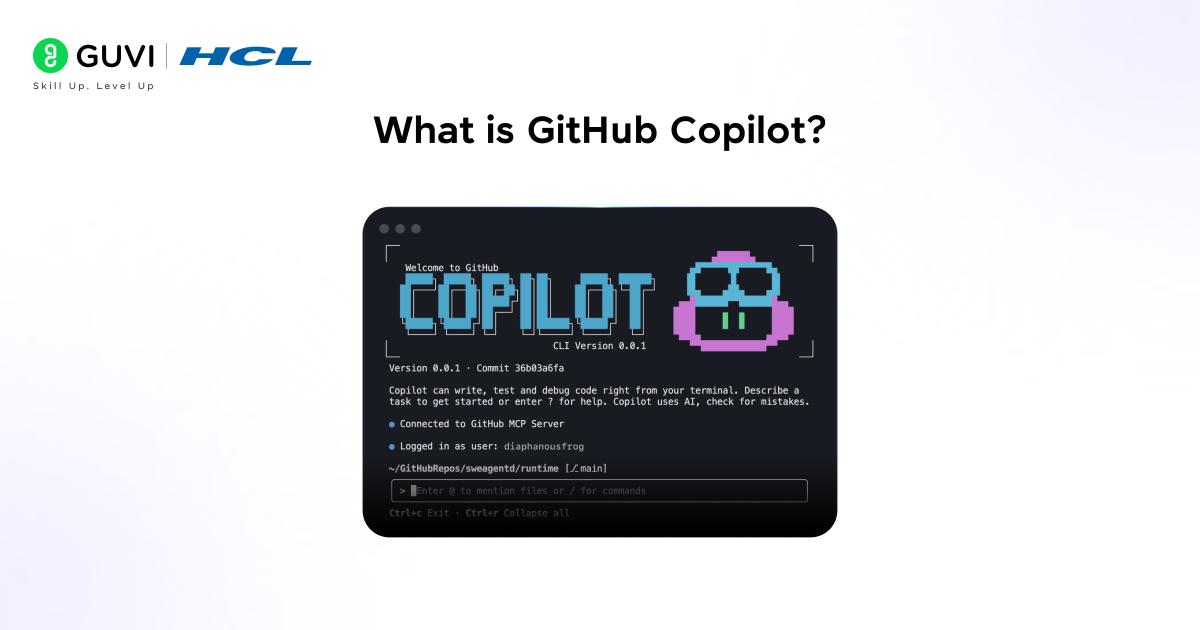
GitHub Copilot is an AI tool that helps developers build software faster. Suggestions appear as you type, predicting what should come next, and a built-in chat answers questions about the project.
It runs inside editors such as VS Code and JetBrains IDEs, and also works in the browser and the terminal. Selected paid plans add an agent that handles a task independently and submits a pull request for review.
Applications of GitHub Copilot
- Writing Unit Tests: Generates test cases for existing functions.
- Debugging: Identifies likely causes of errors and proposes fixes.
- Refactoring: Restructures messy sections to make them easier to maintain.
- Learning New Languages: Shows syntax and framework patterns through examples as you practice.
- Pull Request Reviews: Summarizes changes and flags possible issues before merging.
Please refer to: How to Install and Use GitHub Copilot CLI
Copilot shows what AI can do for your code. Imagine building such systems yourself. HCL GUVI’s Intel & IITM Pravartak Certified AI/ML Course starts with the basics, requires no coding background, and takes you toward real, hands-on AI projects.
Key Features of GitHub Copilot
The table below lists the main features of GitHub Copilot, what each one does, and the situations where it helps most:
| Feature | What It Does | Best Used For |
|---|---|---|
| Code Completions and Next Edit Suggestions | Suggests code as you type in your editor. Paid plans include unlimited use. | Writing functions and repetitive code faster. |
| Issue to Pull Request Workflow | Starts a session from an issue or pull request with the task and repository context attached. An agent works on the change and returns a pull request. | Handing off a clearly described task. |
| Code Review | Checks local changes for quality and security issues before a pull request. Also reviews pull requests. | Catching problems before code is merged. |
| Custom Instructions and Context | Uses your repository, issues, and pull requests as context. Follows the instructions and skills you define. | Keeping output in line with team coding standards. |
| Model Selection | Lets Copilot choose a model for each task, or lets you pick one. You can also connect your own models. | Balancing quality, speed, and cost. |
| Copilot CLI | Brings Copilot into the terminal. Included in the Free plan. | Developers who work mainly in the command line. |
| Parallel and Cross-Surface Sessions | Gives each task its own session, tracked from one view. Sessions can be resumed from the app, CLI, editor, GitHub website, or GitHub Mobile. | Running several tasks at once or continuing work on another device. |
| Connectors and MCP Tools | Brings in data and tools from outside services. MCP servers, skills, and plugins add further capabilities. | Connecting Copilot to the tools a team already uses. |
| Automations | Runs reusable agent tasks on demand, on a schedule, or from supported triggers. | Recurring work such as daily issue triage. |
💡 Did You Know?
When GitHub CEO Thomas Dohmke announced Copilot’s public launch in June 2022, more than 1.2 million developers had already tested it during a 12-month preview built with OpenAI.
GitHub Copilot Plans and Pricing
GitHub Copilot comes in free and paid plans, and the table below compares their prices and what each includes:
| Plan | Price | What Is Included | Best For |
|---|---|---|---|
| Free | $0 | 2,000 completions per month, limited chat and agent usage, Copilot CLI, Fusion Standard, models like Haiku 4.5 and GPT-5 mini | Trying Copilot or occasional coding |
| Pro | $10 per user per month | Unlimited completions and next edit suggestions, Copilot in the cloud, code review, model selection, $15 monthly AI credits | Everyday coding with agents |
| Pro+ | $39 per user per month | Premium models including Opus, third-party agents (Preview), audit logs, Fusion Standard, High and Max, 4x+ the usage of Pro, $70 monthly AI credits | Complex development that needs premium models |
| Max | $100 per user per month | Priority access to new models and features, 2.9x+ the usage of Pro+, $200 monthly AI credits | Sustained, high-volume agent workflows |
How to Set Up GitHub Copilot in VS Code and JetBrains
Prerequisites
- A GitHub account. The Free plan is enough to begin.
- A recent version of Visual Studio Code, or a compatible JetBrains IDE such as IntelliJ IDEA, PyCharm, or WebStorm.
- An internet connection for signing in.
VS Code
- Open the Extensions view with Ctrl+Shift+X (Cmd+Shift+X on macOS).
- Search for “GitHub Copilot Chat,” published by GitHub, and click Install. The base Copilot extension is installed automatically.
- When the sign-in prompt appears, choose Sign in to GitHub and approve access in the browser window that opens.
- Open a code file and begin typing, or open the Chat panel and ask a question.

JetBrains
- Go to the Plugins settings and search the Marketplace for “GitHub Copilot.”
- Click Install, then restart the IDE when prompted.
- Choose Sign in to GitHub and click Copy and Open to launch the device activation page.
- Paste the device code in the browser and authorize the plugin.
Note: Once signed in, the Copilot icon in the VS Code status bar or the Copilot Chat icon on the right side of the JetBrains window confirms the setup is active.
Copilot is running, so what next? Tools help most when you understand what powers them. HCL GUVI’s Intel & IITM Pravartak Certified AI/ML Course covers Python, machine learning, and Generative AI through 20+ projects, led by industry experts and expert mentors.
GitHub Copilot vs ChatGPT vs Cursor: What Is the Difference?
The main difference is where each tool sits in your workflow. GitHub Copilot extends the editors you already use, Cursor is a separate AI-first editor that replaces them, and ChatGPT is a general-purpose chat tool that works alongside your editor.
| Feature | GitHub Copilot | Cursor | ChatGPT |
|---|---|---|---|
| Best For | Developers who want AI inside their current editor and GitHub workflow | Developers who want an AI-first editor built around agents | General questions, learning, and coding help through chat |
| Pricing | Pro at $10 per user per month | Pro at $20 per month | Go from $8 per month (US price), Plus at $20 per month |
| Free Plan | Yes, 2,000 completions per month with limited chat and agent usage | Yes, Hobby plan with limited agent requests and tab completions | Yes, with limited messages and limited Codex access |
| IDE Support | VS Code, Visual Studio, JetBrains, Xcode, Neovim, Eclipse, Zed, and more | Standalone editor built on VS Code | Web and apps, plus the Codex extension for VS Code, JetBrains, and Xcode |
| Code Completion | Unlimited on paid plans, including next edit suggestions | Multi-line tab suggestions, unlimited on paid plans | Not its main function; code is generated through chat or Codex |
| Agent Mode | Agent mode on all plans, cloud agent on paid plans | Agent mode for complex tasks, extended limits on paid plans | Yes, through Codex |
| AI Models | Models from Anthropic, OpenAI, Google, and others | Its own Composer models plus third-party models | OpenAI models only |
Limitations of GitHub Copilot
Like any AI tool, Copilot has some limitations, and knowing them helps you use it with the right expectations:
- Code Accuracy: Generated code can contain errors or unsafe patterns, so review and testing are needed before it enters a project.
- Usage Caps: The Free plan allows 2,000 completions a month, and chat and agent features on every plan consume a monthly credit allowance.
- Licensing Risk: A small share of suggestions can resemble existing public code, which is why GitHub provides a filter that blocks such matches.
- Weaker Results Outside English: Prompts written in other languages may produce lower-quality answers than English ones.
- Human Oversight Needed: Copilot supports development work but cannot replace a developer’s judgment, testing, and security review.
Copilot speeds up coding, but the people who build AI shape what comes next. HCL GUVI’s Intel & IITM Pravartak Certified AI/ML Course gives you 20+ projects, a capstone, joint certification, and placement assistance with 1000+ hiring partners. Your AI career can begin today!
Tips for Getting the Best Results from GitHub Copilot
- Write Clear Comments First: Describe what a function should do before writing it. A specific comment such as “return the age from a birthdate string” gives better suggestions than a vague one.
- Use Descriptive Names: Meaningful function and variable names give Copilot more context to work with.
- Review Before Accepting: Read each suggestion and test it as you would any third-party code. If something is unclear, ask Copilot Chat to explain it first.
- Add Custom Instructions: Save your coding standards in repository instructions so Copilot follows them across tasks.
- Start Agent Mode Small: Begin with a narrow, well-defined task and check the result before moving to larger changes.
FAQs
1. Is GitHub Copilot free?
Yes, the Free plan includes 2,000 completions a month with limited chat and agent use, and paid plans start at $10 per month.
2. Is GitHub Copilot worth it?
It is worth it for anyone who codes regularly, and the Free plan lets you test it before paying for unlimited completions on Pro.
3. Is GitHub Copilot better than ChatGPT for coding?
Copilot suits coding inside your editor, while ChatGPT suits broader questions and learning through conversation.
4. Can GitHub Copilot replace programmers?
No, it speeds up development, but its output still needs a developer’s review and testing.
5. What programming languages does GitHub Copilot support?
It supports most languages found in public repositories, so popular ones like Python and JavaScript are well covered.
Success Stories


















Did you enjoy this article?