


Artificial Intelligence and Machine Learning Articles
AI/ML Skills Gap 2026: Why Companies Can't Find Job-Ready Talent
20 AI/ML Interview Questions Recruiters Can Use Without a Tech Background - Best Guide
How Industry-Backed AI/ML Bootcamps Are Changing the AI/ML Hiring Pipeline - Best Guide 2026
From IT Support to AI Engineer: A Realistic Career Switch Guide 2026


Get In Touch For Details! Request More Information
Claude Code Hooks: How to Configure Them
Jun 12, 2026 7 Min Read 1039 Views
(Last Updated)
If you have ever used Claude Code to write or edit code, you have probably noticed something frustrating: Claude is great at writing code, but it tends to forget things. You remind it to run your tests it does it once and then forgets. They respond to prompts in the moment, but they do not carry habits across every single action they take.
This is exactly the problem that Claude Code Hooks were built to solve. Hooks are user-defined shell commands that run automatically at specific points in Claude Code’s lifecycle before it writes a file, after it runs a command, when a session starts, or when it finishes responding. Unlike instructions you type in a prompt, hooks are deterministic.
In this article, you will learn what Claude Code Hooks are, how they work under the hood, where to configure them, and how to write your first hook from scratch. We will walk through the key lifecycle events, look at real examples like auto-formatting code and protecting sensitive files, and cover best practices to help you use hooks safely and effectively.
TL;DR:
- Solve AI forgetfulness: Hooks auto-run shell commands on lifecycle events (e.g., PreToolUse, PostToolUse) for reliable enforcement—no more prompt reminders.
- Configure easily: Use /hooks command or edit .claude/settings.json (global, project, or local scopes).
- Key examples: Auto-Prettier on edits, block .env writes, desktop notifications, bash logging.
- Matchers & control: Regex patterns filter events; exit code 2 blocks actions.
- Security first: Review scripts, no hot-reload, repo approval—treat like Git hooks.
Table of contents
- Why Hooks Exist
- Understanding the Hook Lifecycle
- How Hooks Are Configured
- Matchers: Filtering Which Events Trigger Your Hook
- Practical Examples to Get You Started
- Understanding Exit Codes and Output
- Handler Types Beyond Shell Commands
- Best Practices for Starting Out
- Wrapping Up
- FAQ
- What are Claude Code Hooks?
- Where do I configure hooks?
- How do matchers work?
- Can hooks block dangerous actions?
- Are hooks secure for teams/open-source?
Why Hooks Exist
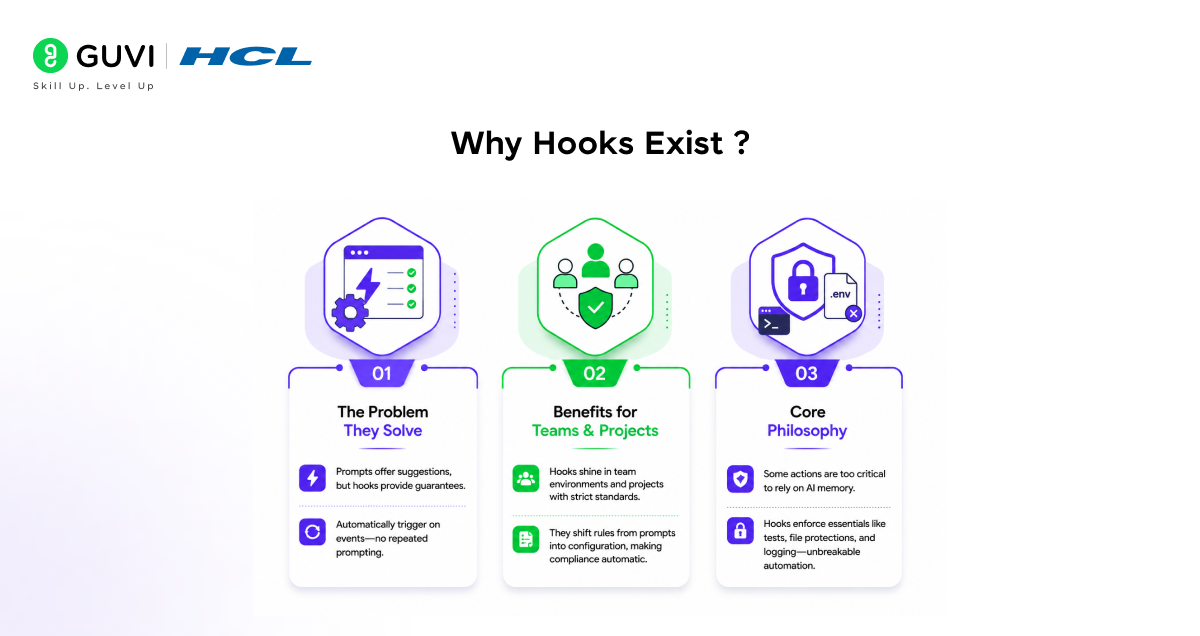
Hooks address a core limitation in AI coding assistants like Claude: suggestions from prompts aren’t always reliable. While Claude might format code with Prettier after edits as instructed, it often skips this during complex tasks due to no built-in enforcement.
- The Problem They Solve
Prompts offer suggestions, but hooks provide guarantees. They automatically trigger on specific events before a tool runs, after an edit, or at session start/endensuring consistent formatting, policy enforcement, and guardrails without repeated prompting.
- Benefits for Teams and Projects
Hooks shine in team environments or projects needing strict standards. They shift rules from fragile prompts into robust configuration, making compliance automatic.
- Core Philosophy
Some actions are too critical to rely on AI memory. Hooks enforce essentials like running tests before final submissions, blocking writes to sensitive files (e.g., .env), or logging every terminal command delivering unbreakable automation.
Understanding the Hook Lifecycle
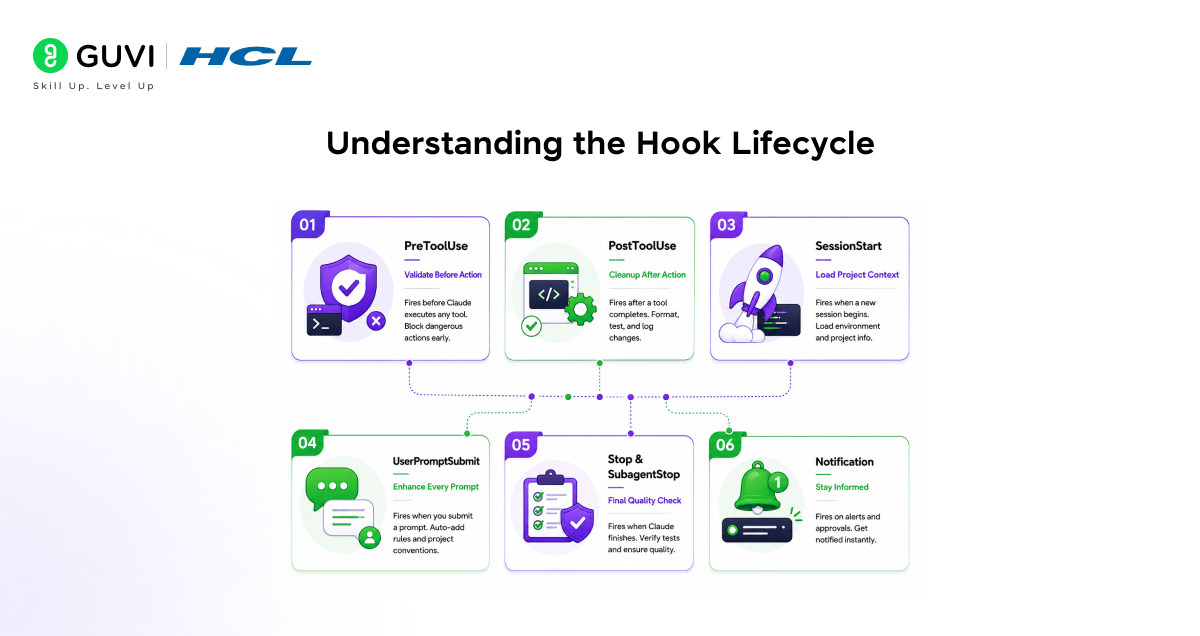
Before you write a single hook, it helps to understand when hooks can run. Hooks fire at specific points during a Claude Code session. When an event fires and a matcher matches, Claude Code passes JSON context about the event to your hook handler. As of early 2026, Claude Code supports over a dozen lifecycle events. Here are the ones you will encounter most often.
1.PreToolUse- fires before Claude executes any tool writing a file, running a bash command, reading a file, or searching the web. This is your primary control point. If you want to block a dangerous action before it happens, this is the event to use.
PreToolUse hooks run before Claude executes an action, making them ideal for validation and blocking dangerous operations. You can inspect what Claude is about to do and stop it if needed by exiting with code 2.
2.PostToolUse – It fires after a tool successfully completes. This is where cleanup tasks live: auto-formatting, running tests, logging what happened.
It cannot undo what Claude just did, but it is perfect for actions that should follow every file change. PostToolUse hooks run after Claude completes an action, making them perfect for cleanup tasks like formatting code, running tests, or logging what happened.
3.SessionStart- It fires when a new Claude Code session begins or an existing one resumes. It is useful for loading development context like existing issues or recent changes to your codebase, or setting up environment variables.
You might use this to automatically inject your current git branch, recent commits, or a coding checklist into the conversation before Claude even sees your first prompt.
4.UserPromptSubmit – It fires when you submit a prompt, but before Claude processes it. This gives you a chance to add context to every prompt automatically like appending your project conventions or validation rules without typing them manually each time.
5.Stop and SubagentStop It fires when Claude finishes responding. These are useful for final quality checks, like verifying that tests pass before Claude declares itself done. The difference between the two is that Stop fires when Claude finishes its overall response, while SubagentStop does so when a tool-spawned helper finishes its work.
6.Notification It fires when Claude sends you an alert like when it needs your approval to run a command. You can use this to trigger a desktop notification so you are not sitting there staring at a terminal waiting for something to happen.
How Hooks Are Configured
- Hooks live in JSON settings files. There are three places you can put them, each with a different scope.
- The global settings file at ~/.claude/settings.json applies to every project on your machine. This is a good place for hooks you want everywhere like desktop notifications or bash command logging. The project-level file at .claude/settings.json inside your project folder applies only to that project and can be committed to version control so your whole team shares the same hooks.
- The local-only file at .claude/settings.local.json is project-specific but stays off version control, which is handy for personal preferences you do not want to share.
- You can set up hooks in two ways. The easiest method is using the interactive /hooks command in Claude Code, which walks you through selecting an event, a matcher pattern, and your command.
- Alternatively, you can manually edit your configuration JSON to define hooks directly. If you are just starting out, the /hooks command is the friendliest path. Type /hooks inside a Claude Code session, pick an event, set your matcher, and paste your command. Claude Code will write the JSON for you.
Here is what a basic hook configuration looks like in your settings file:
{
“hooks”: {
“PostToolUse”: [
{
“matcher”: “Write|Edit”,
“hooks”: [
{
“type”: “command”,
“command”: “npx prettier –write \”$CLAUDE_TOOL_INPUT_FILE_PATH\””
}
]
}
]
}
}
This hook has three layers. The outer key is the lifecycle event
Post Tool Use – Inside it, you define a matcher group with a matcher field and a list of hook handlers. The matcher here is Write|Edit, which is a regular expression matching either the Write or Edit tool. The hooks array holds the actual commands to run. Every time Claude writes or edits a file, Prettier runs automatically on that file.
Matchers: Filtering Which Events Trigger Your Hook
- The matcher is what makes hooks precise instead of chaotic. Matchers are strings interpreted as regular expressions, so you can use either exact matches or more flexible patterns. If you write Bash as your matcher, your hook only fires on bash commands.
- If you write Write|Edit, it fires on either file writes or edits. If you write *, it matches every tool Claude uses useful for broad logging, but something to use carefully.
- You can also target specific MCP tools using a pattern like mcp__server__toolname. This level of precision means you can build very targeted rules for example, only logging web search calls, or only blocking writes to a specific directory without your hooks interfering with everything else Claude does.
Practical Examples to Get You Started
- Auto-Format Code After Every Edit –This is probably the most common hook people set up, and it takes about thirty seconds to configure. Add this to your .claude/settings.json:
{
“hooks”: {
“PostToolUse”: [
{
“matcher”: “Write|Edit”,
“hooks”: [
{
“type”: “command”,
“command”: “npx prettier –write \”$CLAUDE_TOOL_INPUT_FILE_PATH\””
}
]
}
]
}
}
Every time Claude writes or edits a file, Prettier runs on that exact file path. No more manually formatting or reminding Claude to do it.
- Protect Sensitive Files From Being Modified
You can block writes to .env, production config, or .git using a PreToolUse hook with exit code control. Here is a simple version that blocks Claude from editing your .env file:

{
“hooks”: {
“PreToolUse”: [
{
“matcher”: “Edit|Write”,
“hooks”: [
{
“type”: “command”,
“command”: “python3 -c \”import json, sys; d=json.load(sys.stdin); p=d.get(‘tool_input’,{}).get(‘file_path’,”); sys.exit(2 if ‘.env’ in p else 0)\””
}
]
}
]
}
}
When your script exits with code 2, Claude Code blocks the action entirely and surfaces your error message to Claude. This is the mechanism that makes hooks genuinely enforcing rather than just advisory.
- Get Desktop Notifications When Claude Needs You
If you run long Claude Code sessions and step away from your screen, this hook will send you a desktop alert whenever Claude is waiting for your input:
{
“hooks”: {
“Notification”: [
{
“hooks”: [
{
“type”: “command”,
“command”: “notify-send ‘Claude Code’ ‘Waiting for your input'”
}
]
}
]
}
}
On macOS, replace notify-send with osascript -e ‘display notification “Waiting for your input” with title “Claude Code”‘.
- Log Every Bash Command Claude Runs
This is a great hook to set up early, especially when you are learning what Claude Code actually does under the hood:
jq -r ‘”\(.tool_input.command)”‘ >> ~/.claude/bash-command-log.txt
Register this as a PreToolUse hook with the matcher Bash. Every terminal command Claude runs gets appended to a log file, giving you a readable audit trail of your entire session.
Understanding Exit Codes and Output
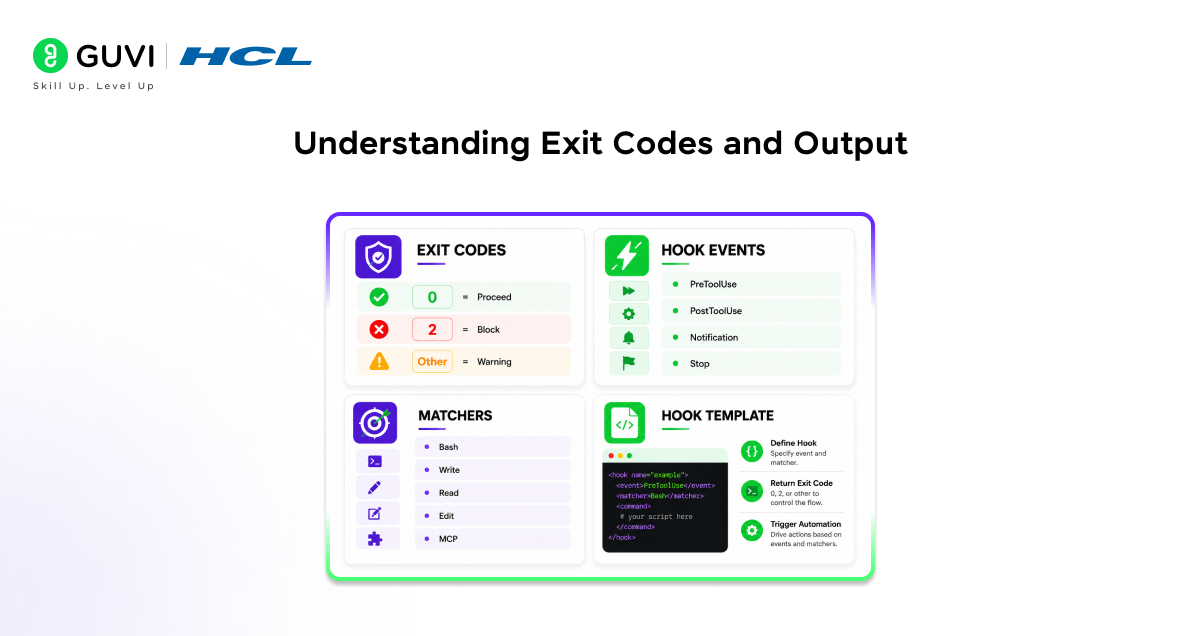
- Exit code 2 skips JSON, uses stderr as the message, and blocks the action according to per-event rules for example, denying a PreToolUse. Other non-zero codes are non-blocking and show stderr only in verbose mode. This distinction matters a lot.
- If you want to stop Claude from doing something, you need to exit with code 2. If you just want to log a warning without blocking anything, exit with a different non-zero code.
- When your hook exits with code 0, you can optionally output JSON to stdout for more advanced control. For example, a PreToolUse hook can return a JSON decision object that explicitly approves or denies the action, includes a reason, or even modifies the tool’s input before it runs.
- This structured output approach is more powerful than just relying on exit codes and opens up sophisticated patterns like auto-approving read-only operations or transforming commands before Claude executes them.
Handler Types Beyond Shell Commands
Most people start with type: “command” hooks, which run a shell script. But Claude Code supports three other handler types worth knowing about.
- type: “http” sends the event’s JSON payload as a POST request to a URL you specify. This is useful if you want a remote service like a team-wide policy server to approve or deny Claude’s actions. It is also handy for integrating hooks with existing CI/CD infrastructure.
- type: “prompt” sends a single-turn evaluation to a Claude model and gets back a yes/no decision. This is powerful for semantic checks that require actual judgment, like “does this code follow our project conventions?” or “does this test adequately cover the changed function?” You can think of it as using a smaller Claude model as a quality gate for the main Claude Code session.
- type: “agent” spawns a full sub-agent with access to tools like Read, Grep, and Glob. This is for deep verification tasks where you need an AI to actually explore the codebase before making a decision not just evaluate a single string of text.
Hooks execute shell commands automatically using your user’s credentials, which makes them powerful but also potentially risky. Without proper safeguards, they can expose systems to vulnerabilities. Following best practices like quoting variables, validating inputs, avoiding sensitive paths, and using absolute paths is essential to ensure secure and reliable execution.
Best Practices for Starting Out
- Start small. For developers starting with hooks, begin with three: git safety (PreToolUse on Bash), context injection (UserPromptSubmit), and a quality gate (Stop).
- Add more only when you have a real problem to solve. It is easy to get excited and configure twenty hooks at once, but hooks you do not actually need add overhead to every tool call Claude makes.
- Keep your hook scripts fast. SessionStart hooks run every time you open a Claude Code session, so anything slow there directly impacts your startup time. If a hook needs to do something expensive, consider making it asynchronous using “async”: true in your hook config.
- Test hooks before relying on them. Pipe a sample JSON payload to your script manually and check the exit code. A hook that silently fails is worse than no hook at all, because you assume the automation is working when it is not.
- Finally, document what your hooks do, especially if you are committing them to a shared repository. A .claude/settings.json file with a dozen hooks and no comments can be confusing to teammates who did not write them. A simple comment in a nearby README explaining what each hook enforces goes a long way.
Ready to enforce unbreakable workflows in your AI coding projects? Discover how Claude Code Hooks can transform your development process with HCL GUVI’s Artificial Intelligence & Machine Learning Course master agent automation, deterministic scripting, and production-grade AI tooling hands-on!
Wrapping Up
Claude Code Hooks bridge the gap between what AI can do with a prompt and what a well-configured development environment should do automatically. They give you a layer of deterministic control that sits on top of Claude’s intelligence enforcing the rules that matter too much to leave to chance.
Whether you are auto-formatting code, protecting sensitive files, injecting context at session start, or building a full quality gate pipeline, hooks are the mechanism that makes Claude Code feel less like a chatbot you have to manage and more like a teammate who already knows the rules.
The best place to begin is with the /hooks command inside Claude Code. Pick one event, write one command, and see how it feels. Once the value clicks once you realize you have not manually reminded Claude to format your code in a week you will understand why hooks are one of the most underrated features in the entire Claude Code ecosystem.
FAQ
1. What are Claude Code Hooks?
Hooks are user-defined shell commands that trigger automatically at specific points in Claude Code’s lifecycle, like before/after tool use or session start. They ensure consistent actions (e.g., formatting, testing) without relying on Claude’s memory.
2. Where do I configure hooks?
In ~/.claude/settings.json (global), .claude/settings.json (project, git-committable), or .claude/settings.local.json (personal). Use the interactive /hooks command for easy setup.
3. How do matchers work?
Matchers are regex patterns (e.g., Write|Edit, Bash, *) to target specific tools/events. They filter when hooks fire, enabling precise control like “only on file edits.”
4. Can hooks block dangerous actions?
Yes use PreToolUse hooks and exit with code 2 to inspect/block (e.g., prevent .env edits). JSON output allows advanced approvals/modifications.
5. Are hooks secure for teams/open-source?
Hooks run with your credentials; follow best practices (quote vars, absolute paths). No hot-reload Claude snapshots at start and requires repo hook approval.
Success Stories

About the Author
Vishalini Devarajan
An Aerospace Engineer turned content writer, I focus on making complex concepts easy to understand through well-structured, reader-friendly blogs. Whether it’s a technical topic or a non-technical one, I love creating content that is clear, engaging, and impactful.
View all posts by Vishalini Devarajan
Connect with me @











Did you enjoy this article?