


Artificial Intelligence and Machine Learning Articles
AI/ML Skills Gap 2026: Why Companies Can't Find Job-Ready Talent
20 AI/ML Interview Questions Recruiters Can Use Without a Tech Background - Best Guide
How Industry-Backed AI/ML Bootcamps Are Changing the AI/ML Hiring Pipeline - Best Guide 2026
From IT Support to AI Engineer: A Realistic Career Switch Guide 2026


Get In Touch For Details! Request More Information
Cursor’s Design Mode: An Informative Breakdown
Apr 21, 2026 6 Min Read 2127 Views
(Last Updated)
Imagine you’re building a UI, and everything’s going along swimmingly, until you need to make some minor adjustments, maybe some spacing, moving a button, aligning some things. Before you know it, you’re jumping around between files, making edits, refreshing, making more edits, refreshing again, and so on.
This isn’t a skill issue; this is a workflow issue. Cursor’s Design Mode solves this problem by allowing you to visually edit your UI, all within your code editor, with real-time results.
In this article, we’ll be discussing how Cursor’s Design Mode works, what features it has, and how it can help developers and designers collaborate more effectively in building today’s applications.
Quick TL;DR Summary
- Cursor Design Mode is a visual editing feature in Cursor that lets you modify UI directly inside your code editor and converts those changes into real code using AI, reducing the need to switch between tools.
- This blog explains how Cursor Design Mode simplifies UI development by allowing real time visual changes without manual code edits.
- It highlights key features of Cursor Design Mode like drag and drop editing, style controls, component props, and Point and Prompt.
- The article shows how Cursor Design Mode works step by step, from making visual changes to applying them as actual code.
- It explains who should use Cursor Design Mode and where it works best, especially for improving existing UI.
- The blog also covers tips, pros, and limitations to help you use Cursor Design Mode effectively.
Table of contents
- What is Cursor?
- How It Works in Real Life
- Scenario 1:
- Scenario 2:
- The Problem It’s Actually Solving
- What "Design Mode" really is
- Top 4 Cursor Design Mode Features Explained
- How Cursor Design Mode Works Step by Step
- Step 1: Start your app locally.
- Step 2: Open the visual editor sidebar.
- Step 3: Make your visual changes.
- Step 4: Hit "Apply."
- Step 5: Review carefully.
- Step 6: Commit the code.
- Two loops you need to understand
- Pros and Cons of Cursor Design Mode
- How to Work Smarter with Design Mode
- Final thoughts
- FAQs
- How is Cursor Design Mode different from tools like Figma or Adobe XD?
- Does using Cursor Design Mode cost money or use AI credits?
- Can Cursor Design Mode be used for building projects from scratch?
- Is Cursor Design Mode suitable for professional or production-level projects?
- How do I make sure the AI applies changes correctly without breaking my code?
What is Cursor?
Cursor is a code editor that runs on top of VS Code, and if you are already familiar with VS Code, then you are already familiar with Cursor. The major difference is that, unlike VS Code, Cursor is shipped with a highly integrated AI that can read, edit, and even build features based on your code.
It also popularized the concept of “vibe coding,” where you simply tell the AI what you want, and the AI does the rest for you. This concept was popularized by Andrej Karpathy.
The Cursor has been growing rapidly, and with the release of version 2.2 in December 2025, Cursor introduced powerful new features, including the Visual Editor, which is discussed in this article.
How It Works in Real Life
Scenario 1:
Let’s say you’re a freelance developer and your client wants last minute changes to their landing page: tighter spacing, a different button color, and a shifted headline. Normally, that’s 30 minutes of hunting through CSS files. With Design Mode, you click, adjust, and apply in under five minutes.
Scenario 2:
Or imagine you’re a startup founder with no coding background. Instead of waiting on a developer to move a banner or resize a card, you simply click on it and type “make this smaller and center it.” Done. Real code, real change, no back and forth.
The Problem It’s Actually Solving
If you’ve worked on the visual side of a web project, you know how frustrating small UI changes can be. You open the browser, inspect elements, search for the right class, tweak styles, and then go back to your code to update it manually.
All this effort just to adjust something simple like spacing or alignment. When you have multiple design changes, it quickly becomes tiring and time consuming.
Cursor’s Visual Editor simplifies this process. You make changes directly on the live UI, and the AI automatically finds the right place in your code and updates it for you.
What “Design Mode” really is
First, a small note: Cursor doesn’t officially call this “Design Mode.” In their announcements, they use terms like visual editor, browser sidebar, or web layout editor. The developer community simply adopted “Design Mode” as a shorthand, and it stuck.
So when people refer to Cursor’s Design Mode, they’re talking about a combination of features working together to simplify UI editing:
- Visual inspector + sidebar – Similar to Chrome DevTools, but built inside Cursor. You can click any element and view or adjust its styles and layout instantly
- AI Apply step – Once your changes look right, you hit Apply. The AI understands your edits and updates the actual code in your project
All of this runs inside Cursor’s built-in browser, a full browser environment integrated directly into the editor. It allows you to interact with your live app while the visual editor and AI work together to turn your changes into real, usable code.
Read More: How To Use Cursor AI: A Complete Guide With a Practical Example
Top 4 Cursor Design Mode Features Explained
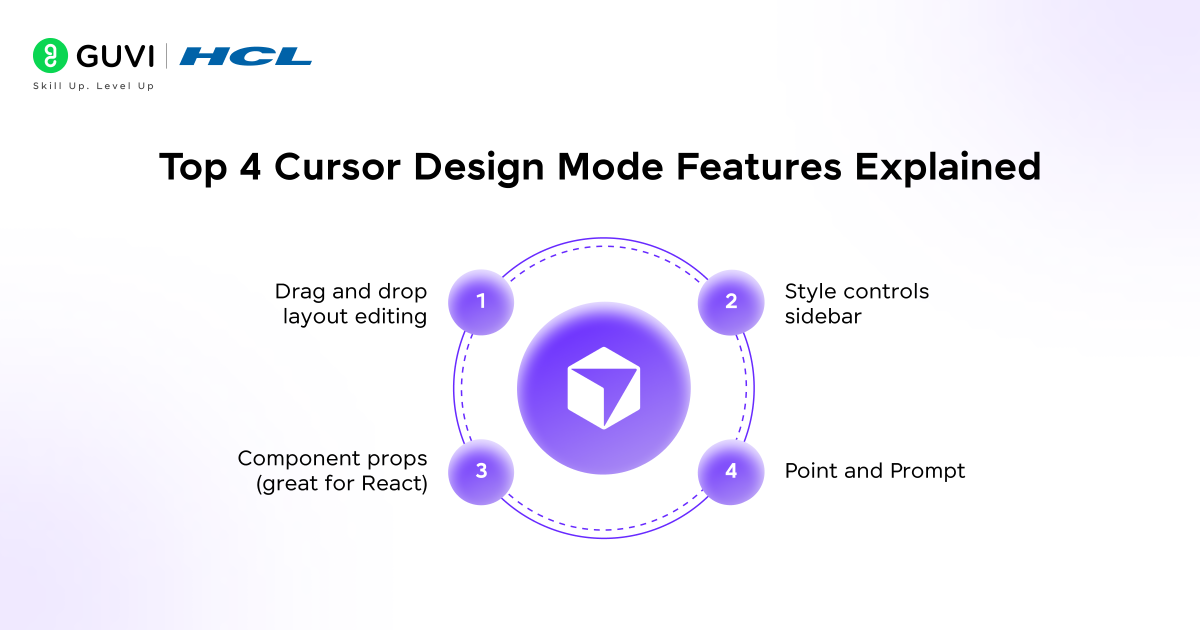
- Drag and drop layout editing
You can directly manipulate elements on your page. If you want to switch your buttons or rearrange your sections, just drag them!
- Style controls sidebar
If you want to pick different colors, spacing, fonts, and layouts, Our sidebar makes it easy. Plus, you can see your changes instantly applied to your page.
- Component props (great for React)
If you’re working in React, you can enable props like “disabled” or “loading” right from your sidebar. It’s easy to test different states for your components.
- Point and Prompt
Want to select an element and tell it what you want? Just click on it and say things like “make this bigger” or “make this color green.” Our AI understands you and changes your code accordingly. You can even give multiple instructions at once, and it’ll apply them all at once.
Cursor was adopted by over 1 million developers within just a few months of launch, making it one of the fastest-growing code editors in history.
How Cursor Design Mode Works Step by Step
Let’s walk through what actually happens from opening Cursor to committing your design changes:
Step 1: Start your app locally.
Open your project in Cursor and run your dev server, usually something like npm run dev. Cursor’s built-in browser points to your localhost automatically.
Step 2: Open the visual editor sidebar.
A panel opens alongside your running app. You’ll see your live web page and the editing tools side by side.
Step 3: Make your visual changes.
Drag things around, tweak colors and spacing using the controls, or type instructions for the things you want changed. Every change is instantly visible in the browser. At this point, nothing has changed in your actual code; it’s all temporary, in the browser only. If you refresh the page right now, everything resets.
Step 4: Hit “Apply.”
This is the important step. Clicking Apply triggers the AI agent. It analyzes the visual changes you made, searches your file system for the corresponding components and CSS, and writes the code edits. Your local dev server hot reloads and you see the result in real code.
Step 5: Review carefully.
Don’t skip this. Check the changes the AI made. Did it break any other state of the component? Does the layout still hold up on mobile? Does anything look off? The visual result might look right, but the code might have been implemented in a slightly unexpected way.
Step 6: Commit the code.
Once you’re satisfied, commit it just like any other code change. Run it through your normal review process. It’s just code at this point

The most common mistake new users make is forgetting that visual changes aren’t saved until they click Apply. Refreshing the page before applying wipes everything. Treat the visual editor like a sketch pad, finalize your ideas, then apply them all at once.
Two loops you need to understand
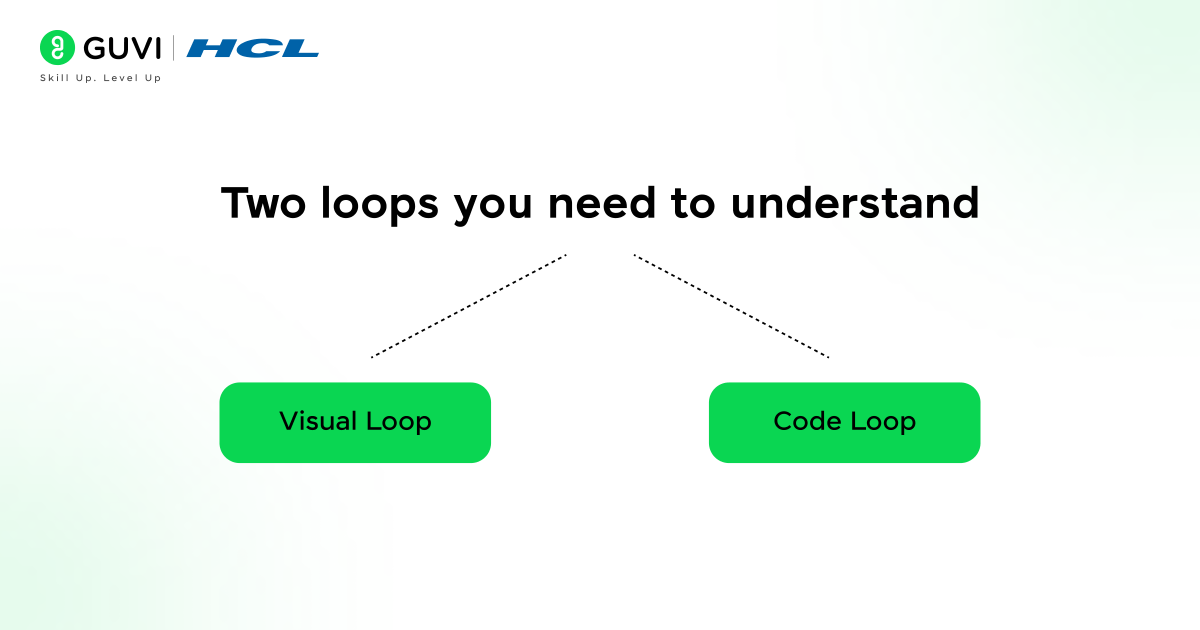
One of the clearest ways to think about how Design Mode actually works is as two separate loops running together:
- The visual loop — You adjust styles and see updates instantly in the browser. This is fast, free, and doesn’t touch any code. Great for exploring ideas and experimenting without any cost.
- The code loop — When you hit Apply, the AI edits your repo. Hot reload shows the result in your app. This is where real changes are made — and where AI credits are spent.
Understanding these two loops separately helps you use the tool smarter. Use the visual loop to freely drag things, experiment, and play around. Only trigger the code loop (Apply) when you’re actually happy with the result. That way you’re not burning AI credits on exploratory tweaks you’re going to undo anyway.
Studies show developers lose up to 2 hours a day switching between tools . Cursor’s Design Mode is built specifically to eliminate that context-switching tax.
Pros and Cons of Cursor Design Mode
There are quite a few things Cursor Design Mode gets right, especially when it comes to speed and ease of use.
- Eliminates tool-switching mid-workflow
- Live preview is instant and satisfying
- React component props inspection is very useful
- Point and Prompt is genuinely impressive in practice
- Parallel AI changes across multiple elements save real time
- No deep coding knowledge required for many common tweaks
- Changes turn into real, reviewable code instead of temporary visual edits
It’s powerful, but there are still a few limitations and things to be careful about.
- AI can sometimes break other states of a component without noticing
- No multi select, which feels limiting compared to tools like Figma
- Every Apply action uses AI credits, so costs can add up
- Works best with React and is more limited with other frameworks
- UI changes frequently between versions, which can feel a bit confusing
- Sometimes outputs raw values instead of using your design system
- Requires a local dev server, so it won’t work on static pages
How to Work Smarter with Design Mode
- Start simple
Don’t test Design Mode on your most complex, heavily nested component on day one. Start with a basic page, straightforward CSS, and a simple layout. Get a feel for how the visual to code translation works before trusting it on anything critical.
- Use manual controls for precision
For exact values of a specific hex code, a precise pixel margin uses the sidebar sliders and pickers directly. These are free, instant, and more predictable. Reserve Point and Prompt for changes that need AI judgment, like “make the spacing consistent with the rest of the page.”
- Always review the code after Apply
It’s easy to get complacent because things look right on screen. But the AI can implement a change unexpectedly: maybe it added an inline style instead of updating your CSS class, or it missed the mobile breakpoint. Review the diff like any other code change before you commit.
- React users: name your props consistently
Some users found that giving component props a consistent prefix or naming convention helped the visual editor detect and display them more reliably in the sidebar. Worth keeping in mind if you’re building new components going forward.
- Test across screen sizes before committing
The visual editor shows your app at one browser size. After applying changes, manually check that your layout still holds up on mobile and tablet. It’s easy to make a change that looks perfect on a desktop and breaks on smaller screens. The AI doesn’t always check this for you.
React powers over 40% of all web applications worldwide, which is exactly why Cursor’s Design Mode was optimized for React-first workflows from the ground up.
If you’re serious about understanding how to use cursor design mode, HCL GUVI’s Intel & IITM Pravartak Certified Artificial Intelligence and Machine Learning Course is exactly where you need to be. This live online programme is taught directly by Intel engineers and industry experts. You also get the opportunity to attend 1:1 doubt sessions with top SMEs, work on 20+ industry-grade projects, including a capstone project, learn in your preferred language, and receive placement assistance through 1000+ hiring partners.
Final thoughts
As AI continues to reshape how developers build and design, tools like Cursor’s Design Mode represent where modern UI development is heading. The ability to visually edit a live application and have production-ready code generated instantly is no longer a concept; it’s a workflow available today.
For developers looking to stay competitive, mastering AI-powered editors like Cursor is becoming less of an advantage and more of an expectation. Whether you’re a developer streamlining your workflow or a designer bridging into code, getting comfortable with Design Mode now puts you ahead of the curve.
FAQs
How is Cursor Design Mode different from tools like Figma or Adobe XD?
Unlike Figma, Design Mode edits your actual live code rather than creating mockups. It’s better suited for refining existing UI than full design workflows.
Does using Cursor Design Mode cost money or use AI credits?
Visual changes are free to explore, but hitting Apply uses AI credits. Depending on your Cursor plan, credits may be limited or require an upgrade.
Can Cursor Design Mode be used for building projects from scratch?
It’s possible but not ideal. Design Mode works best when iterating on an existing codebase. Building from scratch may lead to inconsistent AI outputs and styling issues.
Is Cursor Design Mode suitable for professional or production-level projects?
Yes, but always review the AI-generated code before committing. It produces real, editable code, so treat it like any other code change in your workflow.
How do I make sure the AI applies changes correctly without breaking my code?
Always review the code diff after clicking Apply and test across different screen sizes. Avoid applying too many changes at once to keep the AI’s edits predictable and manageable.
Success Stories

About the Author
Lukesh S
A professional content writer who has experience in freelancing and now working as a Technical Content Writer at HCL GUVI having sound knowledge in Blog Writing and Creative Writing!
View all posts by Lukesh S
Connect with me @










Did you enjoy this article?