


Artificial Intelligence and Machine Learning Articles
AI/ML Skills Gap 2026: Why Companies Can't Find Job-Ready Talent
20 AI/ML Interview Questions Recruiters Can Use Without a Tech Background - Best Guide
How Industry-Backed AI/ML Bootcamps Are Changing the AI/ML Hiring Pipeline - Best Guide 2026
From IT Support to AI Engineer: A Realistic Career Switch Guide 2026


Get In Touch For Details! Request More Information

How to Build Apps using App Builder in Microsoft 365 Copilot
Apr 09, 2026 2 Min Read 756 Views
(Last Updated)
The App Builder tool in Microsoft 365 Copilot is fundamentally altering how apps are built, enabling rapid transformation from concept to reality at a pace never seen before. The ability to pass a prompt and have everything ready feels surprisingly simple. But this is precisely what application development has been all about, but it required coding skills and a long development time.
Picture this: you describe your idea in a few words, and within minutes, the app is up and running. The new approach enables everyone to build, test, and share apps without getting caught up in technical confusion.
Quick Answer:
To build an application with Microsoft 365 Copilot, navigate to App Builder (Frontier) and write a prompt. Allow Copilot to create the app, adjust it with prompts, preview it, and share it seamlessly.
Table of contents
- What is Microsoft 365 Copilot App Builder
- Note:
- Step-by-Step Guide to Develop Applications using App Builder in Microsoft 365 Copilot
- Step 1. Open Microsoft 365 Copilot
- Step 2. Go to Agents and Select App Builder (Frontier)
- Step 3. Enter Your App Idea as a Prompt
- Step 4. Let Copilot Generate the App
- Step 5. Review the Generated App
- Step 6. Fine-Tuning the App Using Prompts
- Step 7. Preview (Play) the App
- Step 8. Share the App
- Best Practices for Building Apps with Copilot
- Conclusion
- FAQs
- How does Microsoft 365 Copilot App Builder create apps without coding?
- What is the best way to improve an app after it is generated?
- Which types of apps work best with App Builder (Frontier)?
What is Microsoft 365 Copilot App Builder
The App Builder feature in Microsoft 365 Copilot lets you create apps just by typing commands or requests. You don’t code. You provide a prompt, and then the app builds itself.
It is part of the Frontier program, which develops early- and advanced-level AI features. This is why the App Builder (Frontier) has a faster, more experimental feel, making it easy to turn ideas into apps.
Note:
The Frontier program is an early-access initiative by Microsoft that introduces new and experimental AI features before full release.
Also Read: A Beginner’s Guide to AI Agents, MCPs & GitHub Copilot [2026]
App Builder (Frontier) was launched on October 28, 2025, as part of Microsoft’s Frontier program, which allows users to create apps in natural language without coding.
Navigate the future of tech by starting your AI/ML journey with HCL’s free 5-day email course: AI/ML Email Course
Step-by-Step Guide to Develop Applications using App Builder in Microsoft 365 Copilot
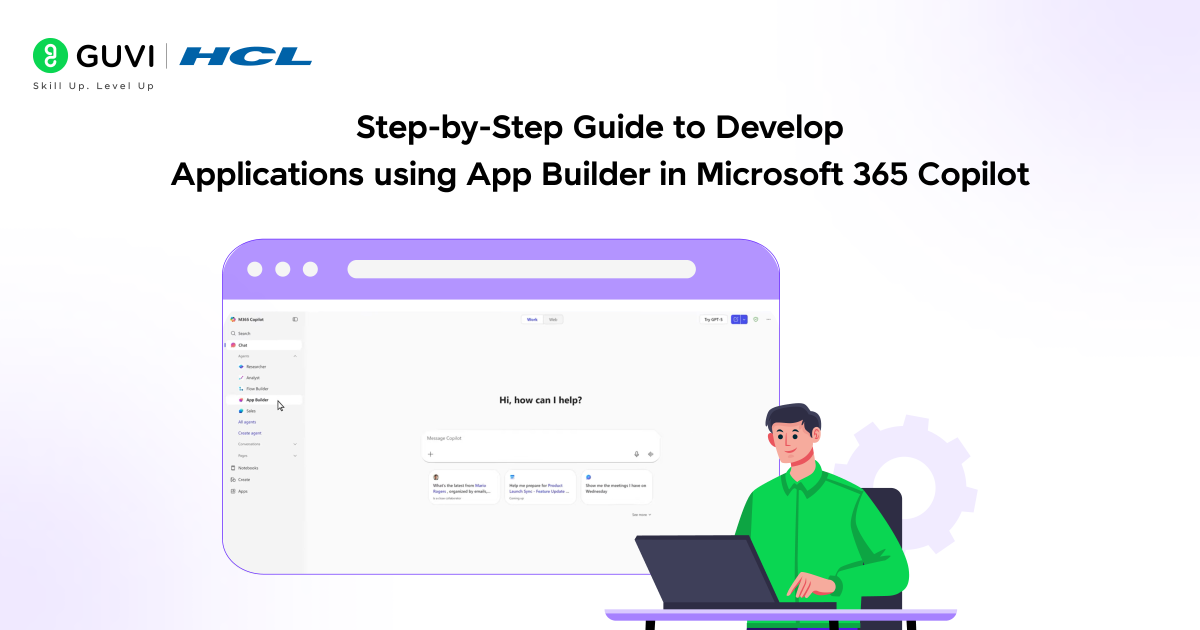
These are the following steps you need to follow to build your app using Microsoft 365 Copilot App Builder (Frontier) easily and quickly:
Step 1. Open Microsoft 365 Copilot
- You can open Copilot in the browser with your Microsoft 365 account.
- This is where you can comfortably build and maintain your apps.
Step 2. Go to Agents and Select App Builder (Frontier)
- Within Copilot, there is a section called Agents.
- Select App Builder (Frontier) to begin creating your AI-based app.
Step 3. Enter Your App Idea as a Prompt
- Write your app idea in clear and easy words.
- Prompt Examples:
- “Develop a leave request application for employees.”
- “Build a student feedback form application that includes name and comments.”
Step 4. Let Copilot Generate the App
- Copilot will know what you want and automatically develop the app.
- It provides basic structure, such as forms, fields, and layout, in a few seconds.
Step 5. Review the Generated App
- Please verify that the application matches your request.
- Check the essential elements such as input fields, buttons, and the overall appearance to ensure everything is in order.

Step 6. Fine-Tuning the App Using Prompts
- Make your application better by entering additional prompts.
- Prompt Examples:
- “Add a dropdown in department selection.”
- “Make this form interactive and mobile-friendly.”
Step 7. Preview (Play) the App
- Test your app by using the preview or play option.
- Try entering data and clicking buttons to see how it works.
Step 8. Share the App
- Once you are satisfied with your app, share it with others so they can use it too.
- Your team or users can easily access and start using it.
Best Practices for Building Apps with Copilot
These are the following best practices to build better and more effective apps using Microsoft 365 Copilot:
- Write clear and direct prompts that help Copilot quickly grasp your app concept.
- Begin with a basic app first, then improve it step by step.
- Review the app carefully on generation to catch small mistakes.
- Refine layout, fields, and functionality using prompts as required.
- Make sure everything in your app runs smoothly before sharing it.
Take the next step toward building real-world AI/ML skills with confidence. Join HCL GUVI’s Intel & IITM Pravartak Certified Artificial Intelligence & Machine Learning course today to gain hands-on experience, industry-focused learning, and a globally recognized Intel certification that helps you stand out in the AI job market.
Conclusion
The Microsoft 365 Copilot App Builder (Frontier) lets you build apps quickly and easily without coding. With simple prompts, you can easily create, improve, and test your app in a step-by-step manner. To summarize, it is a smart way to turn your idea into an app in just a few minutes with the app builder platform.
FAQs
How does Microsoft 365 Copilot App Builder create apps without coding?
It works by understanding your prompts to automatically create the app’s structure, layout, and features.
What is the best way to improve an app after it is generated?
Using clear and specific prompts helps refine the app. Small changes, step by step, give better results than trying everything at once.
Which types of apps work best with App Builder (Frontier)?
Simple apps like forms, tracking tools, and internal business apps work best, especially when the idea is clearly defined through prompts.
Success Stories










Did you enjoy this article?