


Artificial Intelligence and Machine Learning Articles
Finance Manager to Data Analytics: Career Growth, Salary and Seniority
How to Evaluate LLM Outputs in Production Deployments
AI/ML Skills Gap 2026: Why Companies Can't Find Job-Ready Talent
20 AI/ML Interview Questions Recruiters Can Use Without a Tech Background - Best Guide


Get In Touch For Details! Request More Information
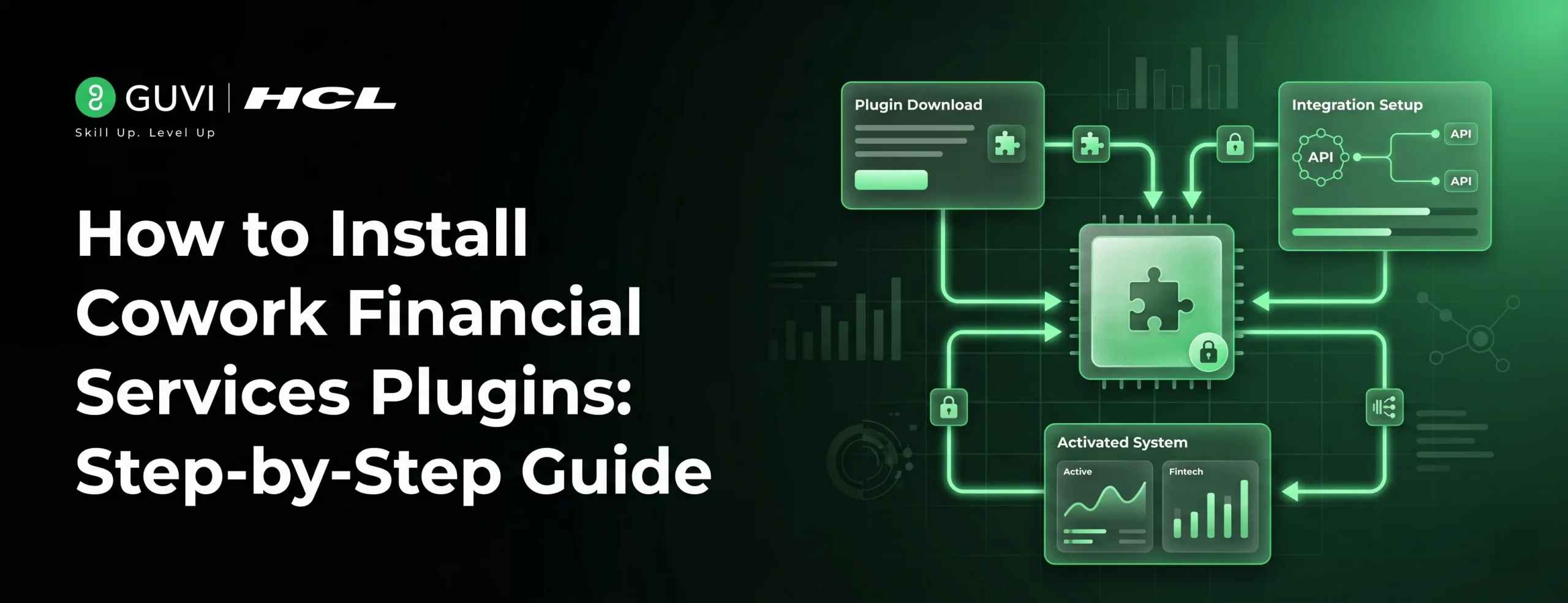
How to Install Cowork Financial Services Plugins: Step-by-Step Guide
Jun 20, 2026 5 Min Read 828 Views
(Last Updated)
When building financial workflows today, speed, accuracy, and automation are essential. Platforms like Cowork address this by allowing users to extend functionality through specialized plugins designed for financial operations.
Cowork financial services plugins help automate tasks such as reporting, analysis, and integrations, enabling workflows to run more efficiently within a single environment.
In this tutorial, you will learn how to install Cowork financial services plugins and configure them for effective and reliable use.
TL;DR
- Cowork financial services plugins extend Cowork with tools for financial workflows, including data analysis, reporting, and integrations.
- These plugins transform Cowork into a finance-focused workspace by enabling data modeling, transaction handling, and structured financial operations.
- Installation involves accessing the plugin marketplace, adding the financial services repository, and configuring plugin credentials.
- The core financial services plugin must be installed first before adding other dependent plugins.
- Using these plugins helps automate financial tasks, reduce errors, and streamline end-to-end financial workflows.
Table of contents
- What Are Cowork Financial Services Plugins
- Why Financial Services Plugins Matter in Cowork
- Types of Cowork Financial Services Plugins
- Financial Modeling and Analysis Plugins
- Investment and Deal Workflow Plugins
- Accounting, Compliance, and Reporting Plugins
- Real Financial Task Example Using Cowork Plugins
- Automating Monthly Financial Reporting
- Prerequisites Before Installing Plugins
- How to Install Cowork Financial Services Plugins
- Accessing Cowork and the Plugin Marketplace
- Adding the Financial Services Plugin Repository
- Installing and Configuring the Core Plugin
- Testing and Enabling Plugins
- Optimizing Cowork Financial Services Plugins for Secure and Efficient Workflows
- Critical Setup and Integration Errors in Cowork Financial Services Plugins
- Conclusion
- FAQs
- What are Cowork financial services plugins used for?
- Do I need technical knowledge to install these plugins?
- Why is the core plugin important?
- Are these plugins secure?
- Can I use multiple financial plugins together?
- What should I do if a plugin is not working after installation?
What Are Cowork Financial Services Plugins

Cowork financial services plugins are extensions that transform Cowork from a general-purpose AI workspace into a finance-specific execution environment. These plugins enable Cowork to specialize in tasks such as financial modeling, reporting, and data-driven decision making.
They achieve this by integrating directly with financial systems and embedding predefined workflows that users can execute without switching tools. This allows users to automate tasks like generating financial reports, analyzing income statements, and handling compliance processes more efficiently.
In simple terms, these plugins turn Cowork into a functional financial assistant, capable of executing structured financial workflows with minimal manual effort.
Why Financial Services Plugins Matter in Cowork
Financial operations require precision, speed, and consistency, and manual workflows often lead to delays and errors. Cowork financial services plugins address this by enabling automation through direct integration with financial systems.
By reducing manual intervention, these plugins improve consistency and reliability in financial processes. More importantly, they allow users to shift from executing tasks, such as analyzing financial statements, to focusing on interpreting results and making informed decisions, as explored in this guide on Cowork AI and finance plugins for financial workflows.
Types of Cowork Financial Services Plugins
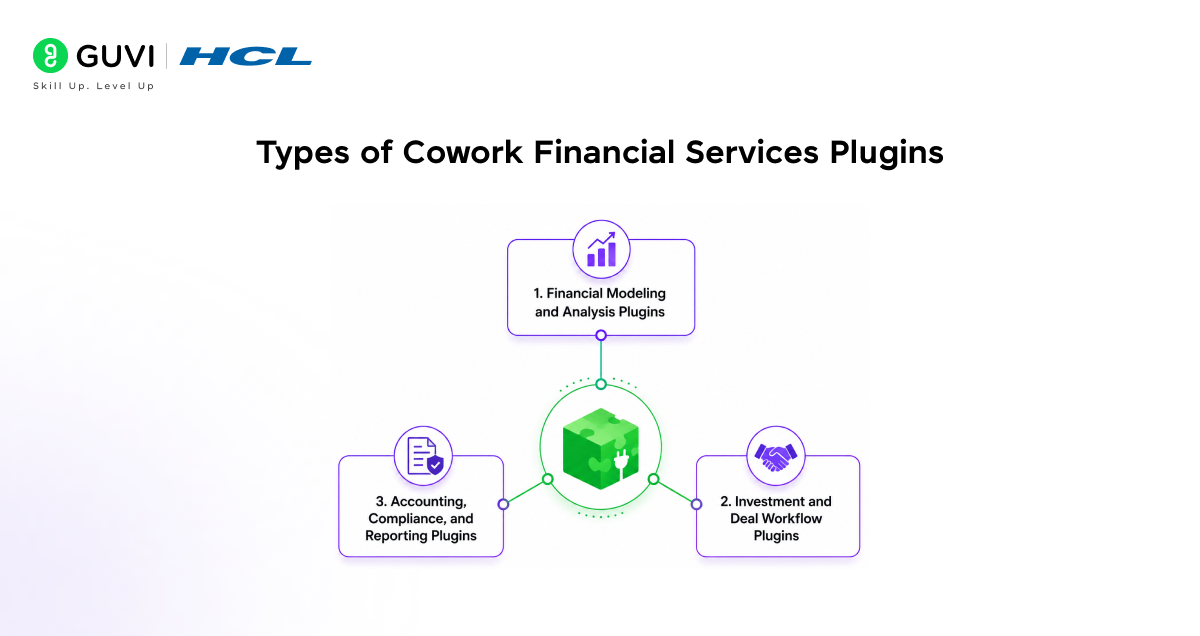
There are different types of plugins designed to support various financial workflows. Each category addresses a specific layer of financial operations, depending on the user’s needs and use case.
Financial Modeling and Analysis Plugins
Financial modeling and analysis plugins focus on structured calculations and projections, including revenue forecasting, valuation models, and scenario planning. These plugins help analysts perform calculations more efficiently while reducing the risk of errors.
They are particularly useful for finance teams working on budgeting, forecasting, and investment analysis, where accuracy and speed are critical.
These workflows rely heavily on data science, which plays a key role in analyzing financial data and generating actionable insights.
Financial teams are shifting from manual reporting to automated, plugin-driven workflows, where data is processed in real time and reports are generated instantly. This transformation significantly improves speed, accuracy, and decision-making efficiency.
Investment and Deal Workflow Plugins
Plugins centered on investment are helpful in automating and facilitating a range of activities, such as due diligence, screening, deal evaluation, and investment summaries, and are frequently employed in investment banking, private equity, and venture capital departments.
The use of plugins allows investment teams to process and sort vast quantities of financial data and present it in an easy-to-use and informative format. This process helps teams conduct analysis and assess opportunities quickly and consistently with other deals being reviewed.
Accounting, Compliance, and Reporting Plugins
A plugin that centers on reporting and accounting for financial data assists in regulatory compliance and reporting. The use of plugins can organize transactions, generate financial reports, and ensure standards are met for reporting purposes.
This plugin will not only streamline reporting processes and decrease effort for reporting teams but will also help teams maintain the necessary financial reporting readiness.
Want to see how AI-driven automation is shaping real systems like financial workflows and plugins? This GenAI ebook gives you a deeper, practical perspective.
Real Financial Task Example Using Cowork Plugins
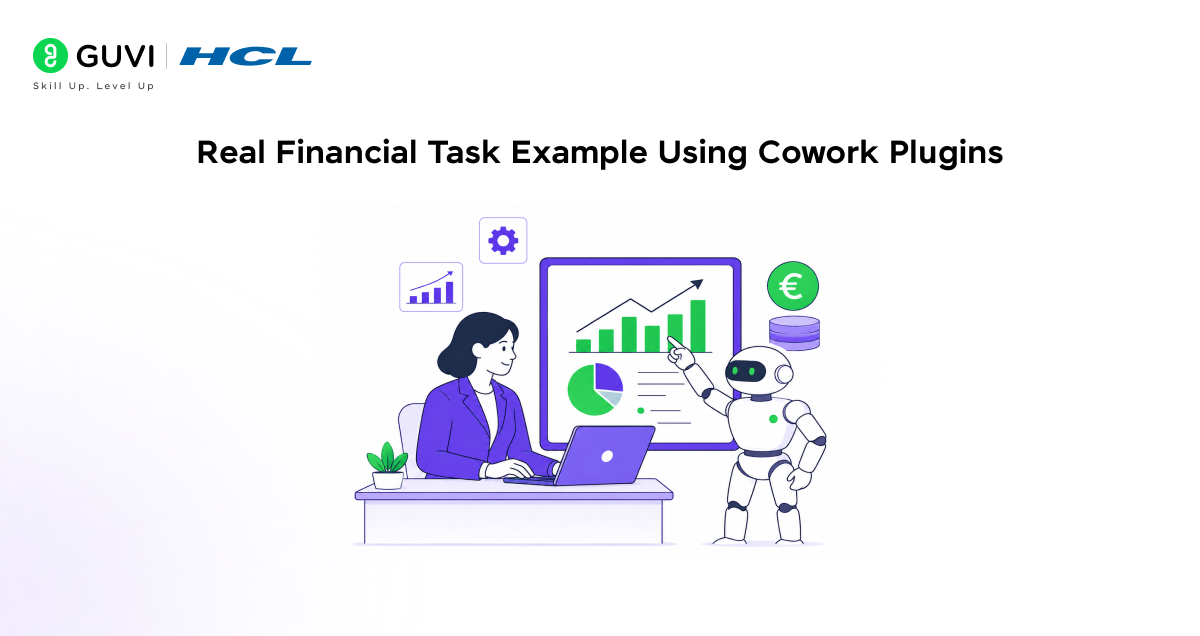
To better understand how Cowork financial services plugins work in practice, let’s look at a real financial workflow that can be automated within the platform.
Automating Monthly Financial Reporting
A common task for many finance teams is to prepare a monthly report indicating their financial performance over the past month. This is usually a task that involves multiple tools and a considerable amount of manual work to pull data, arrange it, and create an analysis.
Before generating reports, data often needs cleaning and structuring, which is a key step in data preprocessing.
Using a Cowork financial plugin can automate the process of preparing these monthly reports by simplifying multiple tools and tasks within one application. Once the plugin is linked to financial data inputs such as revenues and expenses, data can be compiled and structured into a monthly performance report and summary within a single tool.
You can select the time period to be included in the report, and all necessary information will be compiled in a timely and organized manner. This allows teams to skip several time-consuming steps that are typically involved in traditional financial reporting processes.
Prerequisites Before Installing Plugins
Your setup must be prepared to receive and install a plugin before you start any installation. Failure to do so is one of the primary reasons a plugin may not be installing.
You require access to Cowork, with the correct permissions to install and manage plugins. Administrative access to plugins will be necessary for you to configure integrations.
You must have access to your credentials for the financial service you will be integrating with. This is typically in the form of API keys or an authentication token required to communicate between services securely.
An example of the API details you would use for this integration is below:
API_KEY=your_financial_service_key
API_SECRET=your_secret_key
Be sure to do a final security check; your plugin must be appropriate for your existing setup and must not request access that may expose your sensitive financial data.

How to Install Cowork Financial Services Plugins
The Cowork financial services plugin installation follows an organized process. To ensure proper configuration, it should follow the steps mentioned below.
Accessing Cowork and the Plugin Marketplace
Log in to your Cowork environment and navigate to “Plugins”. All third-party integrations will appear under this section.
Find the financial services plugin you want to install by browsing through the list of integrations in Cowork’s marketplace or by adding an external repository.
Adding the Financial Services Plugin Repository
Financial services plugin installation is most effective when you begin by browsing available plugins in Cowork’s store. However, if you need plugins from an external provider, adding that provider’s repository will allow Cowork to fetch and display their available plugins.
This expands the list of integrations and gives you access to additional financial service plugins beyond the default marketplace.
Installing and Configuring the Core Plugin
The core financial services plugin must always be installed before any other plugins, as it is the basis for other plugins to work.
Once the plugin is installed, you need to configure it with your API credentials along with the necessary permissions.
Example configuration:
{
“plugin”: “financial-core”,
“apikey”: “yourapi_key”,
“permissions”: [“read”, “write”, “analyze”]
}
Once configured, the plugin can connect to your financial systems through Cowork.
Testing and Enabling Plugins
Before running your plugins in your actual workflow, make sure to test them. This can be as simple as performing a financial summary task or querying sample financial data to ensure the plugin connects and communicates properly with your financial system.
Once it works as expected, the plugin is ready to be enabled.
Optimizing Cowork Financial Services Plugins for Secure and Efficient Workflows
Once the plugin is installed, optimization will ensure a smooth, fast, and secure financial process in your workspace. Smart configuration will guarantee good performance as well as high security.
Start by configuring the permission level to only the minimum required. Accessing financial information requires high security, and any additional permission on the plugin is a potential risk.
Make sure to associate plugins with specific processes. A plugin should handle as few tasks as possible. For example, one plugin can analyze your account balance, while another can handle your payment system.
Monitor your plugin performance regularly and keep them up to date with any new versions available. Monitoring also helps identify and resolve issues early, keeping your financial processes in an optimal working state.
Critical Setup and Integration Errors in Cowork Financial Services Plugins
There are certain issues with these plugins that are caused by poor installation and setup rather than actual problems with the plugin itself, and identifying them is crucial.
Forgetting to install the core financial services plugin is a common issue, as subsequent plugins may not work correctly if the core one is not installed or configured properly.
Incorrect API setup will affect plugin integration, as it directly impacts communication between Cowork and your financial systems. Make sure to provide correct and valid API keys and keep track of them.
Skipping plugin testing before implementing it in your workflow, or ignoring compatibility between plugins, can lead to inefficient operation or unstable performance.
To build practical skills in real-world financial workflows and plugin-based automation, programs such as the Artificial Intelligence and Machine Learning Course by HCL GUVI can help bridge the gap between conceptual understanding and hands-on implementation. Designed with industry-focused training, live sessions, and project-based learning, this program equips learners with the skills required to build, integrate, and manage scalable systems effectively.
Conclusion
These Cowork financial services plugins offer a systematic way to execute financial operations by enabling you to incorporate them directly into your business processes, making tasks easier, reducing tedious manual effort, and improving efficiency.
With correct installation and proper configuration, you can make Cowork a reliable financial execution workspace. As financial processes continue to evolve rapidly, these plugins will play a central role in helping you stay fast, accurate, and scalable.
FAQs
1. What are Cowork financial services plugins used for?
Cowork financial services plugins automate financial workflows like analysis, reporting, and compliance within the platform. They reduce manual effort and improve efficiency across financial operations.
2. Do I need technical knowledge to install these plugins?
You do not need advanced technical knowledge, but a basic understanding of API keys can help. Most plugins provide a guided setup, making the installation process simple.
3. Why is the core plugin important?
The core plugin acts as the foundation that enables other financial plugins to function correctly. Without it, additional plugins may not install or work properly.
4. Are these plugins secure?
These plugins are secure when configured with proper permissions and valid API credentials. Limiting access and using trusted sources helps protect sensitive financial data.
5. Can I use multiple financial plugins together?
Yes, you can use multiple plugins as long as they are compatible and correctly configured. Proper setup ensures smooth performance without conflicts.
6. What should I do if a plugin is not working after installation?
Check your API credentials, permissions, and ensure the core plugin is installed correctly. Running a test and reviewing the configuration usually resolves most issues.
Success Stories

About the Author
Vishalini Devarajan
An Aerospace Engineer turned content writer, I focus on making complex concepts easy to understand through well-structured, reader-friendly blogs. Whether it’s a technical topic or a non-technical one, I love creating content that is clear, engaging, and impactful.
View all posts by Vishalini Devarajan
Connect with me @










Did you enjoy this article?