


Artificial Intelligence and Machine Learning Articles
AI/ML Skills Gap 2026: Why Companies Can't Find Job-Ready Talent
20 AI/ML Interview Questions Recruiters Can Use Without a Tech Background - Best Guide
How Industry-Backed AI/ML Bootcamps Are Changing the AI/ML Hiring Pipeline - Best Guide 2026
From IT Support to AI Engineer: A Realistic Career Switch Guide 2026

Get In Touch For Details! Request More Information
How to Build a Document Q&A Bot with Claude
Aug 17, 2026 3 Min Read 338 Views
(Last Updated)
Many developers and teams need a way to make large documents searchable and queryable without requiring users to read the entire document themselves, whether that is a legal contract, a technical manual, a research paper, or an internal policy document. A Claude document Q&A bot solves this by accepting a document as context and answering specific questions about its content accurately and in plain language.
Table of contents
- Quick TL;DR
- How a Document Q&A Bot Works
- What You Need Before Starting
- Building the Document Q&A Bot
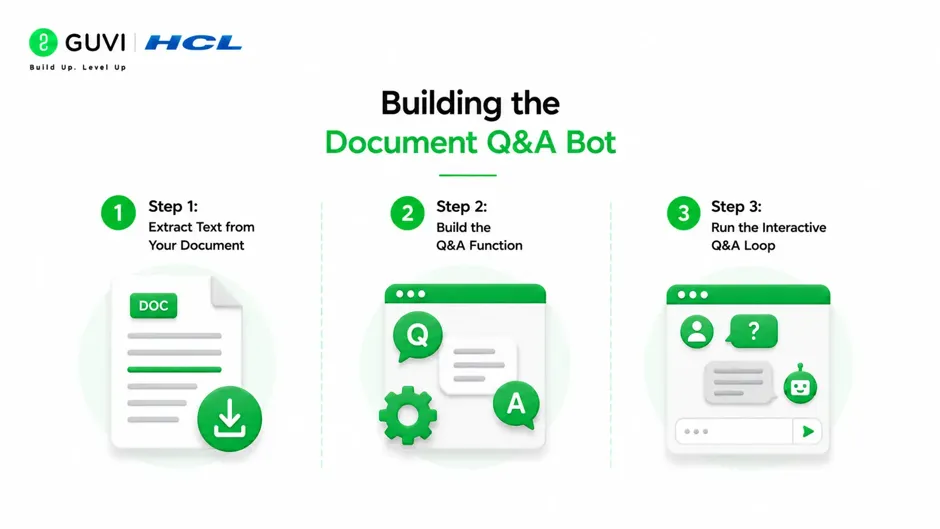
- Step 1: Extract Text from Your Document
- Step 2: Build the Q&A Function
- Step 3: Run the Interactive Q&A Loop
- Handling Large Documents
- Conclusion
- FAQs
- What is a Claude document Q&A bot?
- What document types can the Claude Q&A bot handle?
- How do I handle documents that are too long for the context window?
- Can the bot answer questions using multiple documents simultaneously?
- How do I prevent Claude from answering outside the document content?
- Does the bot maintain context across follow-up questions?
Quick TL;DR
A Claude document Q&A bot lets users ask natural language questions about any document and receive accurate, context-aware answers drawn directly from that document’s content. Building one requires the Claude API, a method for extracting and passing document text as context, and a simple interface for accepting user questions and returning Claude’s answers.
Want to build real AI-powered applications and develop the Python and API skills modern development roles demand? Explore HCL GUVI’s Artificial Intelligence & Machine Learning Course, designed to help you go from AI concepts to deployed, working systems.
How a Document Q&A Bot Works
The core flow has four stages:
- Extract text from the source document
- Pass the extracted text to Claude as context in the system prompt
- Accept a user question and send it to the Claude API alongside the document
- Return Claude’s answer and repeat for follow-up questions
Claude reads the document text you provide and answers questions based only on that content, a pattern called grounded generation. This ensures answers are anchored to the specific document rather than Claude’s general training knowledge.
Read More: How to Build a Smart Q&A Bot using Haystack: RAG Made Easy
What You Need Before Starting
- An Anthropic API key from console.anthropic.com
- Python 3.8 or above
- The following libraries installed:
pip install anthropic pypdf python-docx- A sample PDF, DOCX, or TXT file to test against
Building the Document Q&A Bot
Step 1: Extract Text from Your Document
import pypdf
from docx import Document as DocxDocument

def extract_text(file_path):
    if file_path.endswith(".pdf"):
        text = ""
        with open(file_path, "rb") as f:
            reader = pypdf.PdfReader(f)
            for page in reader.pages:
                text += page.extract_text() + "\n"
        return text.strip()

    elif file_path.endswith(".docx"):
        doc = DocxDocument(file_path)
        return "\n".join([p.text for p in doc.paragraphs]).strip()

    elif file_path.endswith(".txt"):
        with open(file_path, "r", encoding="utf-8") as f:
            return f.read().strip()

    else:
raise ValueError("Unsupported file type. Use PDF, DOCX, or TXT.")Internal knowledge base querying and document search are the top two use cases organizations deploy language model APIs for, ahead of content generation and code assistance, because the ROI from reducing document search time is immediate and measurable.
Step 2: Build the Q&A Function
import anthropic
import os

client = anthropic.Anthropic(api_key=os.environ.get("ANTHROPIC_API_KEY"))

def ask_question(document_text, question, conversation_history=None):
    if conversation_history is None:
        conversation_history = []

    system_prompt = f"""You are a document assistant. Answer questions strictly
based on the document content below. If the answer is not in the document,
say so clearly rather than guessing.

DOCUMENT:
{document_text}"""

    conversation_history.append({"role": "user", "content": question})

    response = client.messages.create(
        model="claude-sonnet-4-6",
        max_tokens=1024,
        system=system_prompt,
        messages=conversation_history
    )

    answer = response.content[0].text
    conversation_history.append({"role": "assistant", "content": answer})

    return answer, conversation_history
The conversation_history list maintains the full exchange so Claude understands follow-up questions in context.
Want to build real AI-powered applications and develop the Python and API skills modern development roles demand? Explore HCL GUVI’s Artificial Intelligence & Machine Learning Course, designed to help you go from AI concepts to deployed, working systems.
Step 3: Run the Interactive Q&A Loop
def run_qa_bot(file_path):
    print("Loading document...")
    document_text = extract_text(file_path)
    print(f"Document loaded. ({len(document_text)} characters)")
    print("Ask questions about your document. Type 'quit' to exit.\n")

    conversation_history = []

    while True:
        question = input("Your question: ").strip()
        if question.lower() in ["quit", "exit", "q"]:
            break
        if not question:
            continue

        answer, conversation_history = ask_question(
            document_text, question, conversation_history
        )
        print(f"\nAnswer: {answer}\n")
        print("-" * 50)

if __name__ == "__main__":
    run_qa_bot("your_document.pdf")
Running this script loads your document and opens an interactive session that maintains context across all questions until you type quit.
Claude’s context window is large enough to handle entire research papers, lengthy contracts, and technical manuals in a single API call without chunking, significantly simplifying implementation compared to earlier language models with much smaller context limits.

Handling Large Documents
For documents that exceed Claude’s context window, split the text into overlapping chunks and retrieve only the most relevant chunk per question:
def chunk_document(text, chunk_size=4000, overlap=200):
    chunks = []
    start = 0
    while start < len(text):
        chunks.append(text[start:start + chunk_size])
        start += chunk_size - overlap
    return chunks
For production systems handling very large documents, combine chunking with a vector similarity search using FAISS or ChromaDB to retrieve the most relevant chunks before passing them to Claude.
Conclusion
Building a Claude document Q&A bot is one of the most practical and immediately valuable AI applications a developer can build, turning any static document into an interactive, queryable knowledge source.
Start by building the command-line version against a document your team uses regularly, verify the answer quality against questions you already know the answers to, then wrap it in the Flask interface for broader team access.
FAQs
What is a Claude document Q&A bot?
It is an application that passes document text to Claude as context and allows users to ask natural language questions about the document, receiving accurate answers drawn directly from its content.
What document types can the Claude Q&A bot handle?
The implementation in this guide supports PDF, DOCX, and plain text files. Additional formats like HTML, CSV, or Markdown can be added by writing the appropriate text extraction function for each type.
How do I handle documents that are too long for the context window?
Split the document into overlapping chunks and use a vector similarity search to retrieve only the most relevant chunks for each question before passing them to Claude, rather than passing the full document.
Can the bot answer questions using multiple documents simultaneously?
Yes. Concatenate the extracted text from multiple documents into a single context string, clearly labeling each document section so Claude can identify which document a piece of information comes from.
How do I prevent Claude from answering outside the document content?
Include an explicit instruction in the system prompt telling Claude to answer only from the provided document and to state clearly when information is not found in the document rather than drawing on outside knowledge.
Does the bot maintain context across follow-up questions?
Yes, when the conversation history list is passed to each API call. The implementation in this guide maintains full conversation history throughout each session, allowing Claude to understand follow-up and clarifying questions.
Success Stories

About the Author
Vishalini Devarajan
An Aerospace Engineer turned content writer, I focus on making complex concepts easy to understand through well-structured, reader-friendly blogs. Whether it’s a technical topic or a non-technical one, I love creating content that is clear, engaging, and impactful.
View all posts by Vishalini Devarajan
Connect with me @








Did you enjoy this article?