


Artificial Intelligence and Machine Learning Articles
Dropout Regularization in Neural Networks
Federated Learning: Training Models Without Centralizing Data
Attention Mechanism Explained: The Building Block of Transformers


Get In Touch For Details! Request More Information

Visuals That Appear as You Study with Claude
Jul 16, 2026 6 Min Read 711 Views
(Last Updated)
Some things land faster drawn than said. A good teacher knows when to reach for the whiteboard.
Now, Claude can do that too. When a visual is the clearer answer to what you asked, Claude builds one as part of its response. The Claude study visuals sit alongside the text, shaped directly to your question a diagram you click into as Claude explains, a chart you filter while you ask follow-ups, something that plays when the concept is a sound.
The visual streams in where the text would have been, and the conversation keeps going. You adjust it, click into what is still unclear, ask a follow-up and Claude draws the next one. If something turns out worth keeping, there is a one-click path to save it for later.
You do not need to do anything special. Claude decides when a visual would help. You can also ask to explicitly trigger it, any version of “draw this,” “show me,” or “can I see that” works.
Quick TL;DR Summary
- What it is: Claude now builds interactive visuals diagrams, charts, simulations, quizzes directly inside your conversation as part of its response, not in a separate panel.
- How it works: Claude decides when a visual would help, or you can ask directly. Visuals stream in alongside the text and evolve as the conversation continues.
- Four study uses: Seeing mechanisms drawn out, interacting with a concept, visualizing how things connect, and practising with quizzes that appear right where you are learning.
- What you can do with it: Make it interactive, go deeper with follow-up buttons, adjust what is wrong, evaluate what Claude drew, and save it as an image, artifact, or source file.
- Availability: Available to all Claude users, including the free plan, in beta. Works on claude.ai web and desktop apps. Not on mobile yet.
- How to trigger it: Any version of “draw this,” “show me,” “visualize this,” or “can I see that” brings a visual in. Or just ask your question, Claude will build one when it thinks it helps.
Table of contents
- What Are Claude Study Visuals?
- What This Is, Practically
- Four Moments Where This Helps
- Seeing the Explanation Drawn Out
- Interacting with the Concept in Chat
- Visualising How Things Connect
- Practising What You Just Learned
- Things to Try in Your Prompt
- See the Mechanism Behind an Explanation
- See the Thing You Cannot Picture
- Apply a Concept as You Learn It
- Work Through Your Own Material
- Go Deeper: The Full Set of Use Cases
- For Students
- For Your Own Work and Research
- For Teaching and Planning
- Conclusion
- FAQs
- What are Claude study visuals?
- How do I get Claude to show a visual?
- Is this feature available on the free plan?
- What is the difference between Claude study visuals and Artifacts?
- Can I adjust a visual after Claude builds it?
What Are Claude Study Visuals?
Claude study visuals are interactive charts, diagrams, simulations, and tools that Claude builds directly inside your conversation without you needing to write any code or open any external tool.
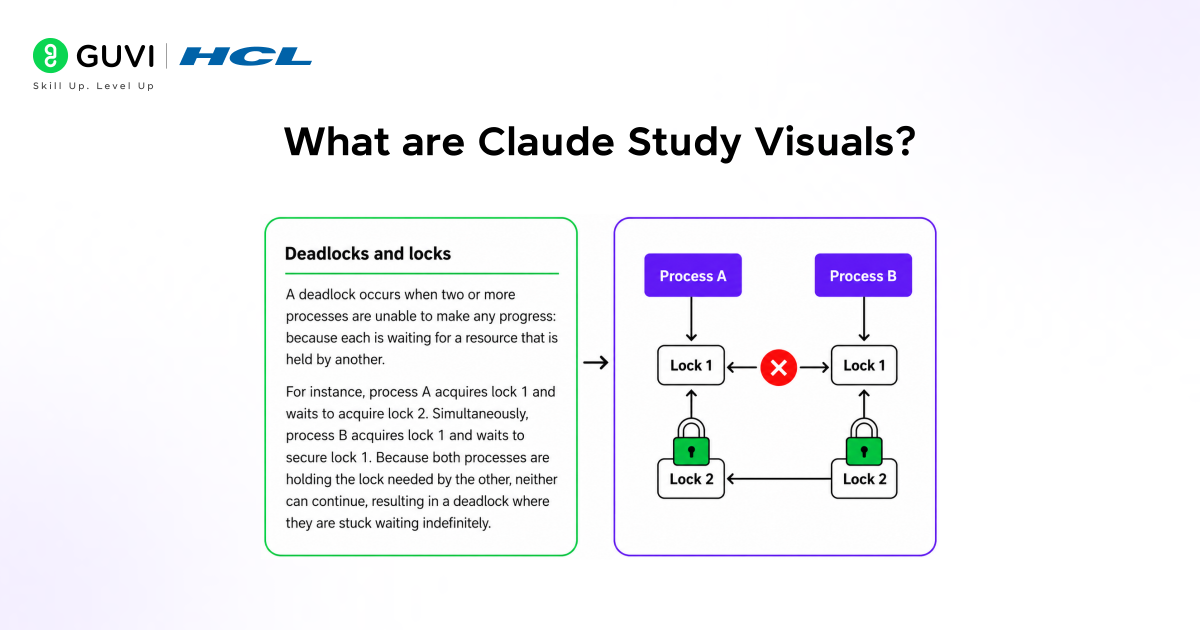
This is not image generation. Claude builds visuals using HTML and SVG which means they are web-native, interactive, and responsive to follow-up prompts. A slider actually slides. A diagram actually branches. A quiz actually checks your answer and explains what you got wrong.
These visuals are different from artifacts, the documents and tools Claude can create that are designed to be saved and shared. Study visuals are lighter. They appear in the flow of conversation, serve the explanation happening right now, and change or disappear as the conversation moves on. If you want to keep one, you can but their default purpose is to help you understand something in the moment, not to become a polished deliverable.
Claude’s study visual feature is available to all users, including those on the free plan, during its beta phase. It was built as an extension of “Imagine with Claude” — a feature previewed in late 2025 that demonstrated how AI can create interactive interfaces in real time without requiring any code from the user.
What This Is, Practically
Before getting into specific examples, here is exactly what you are working with when Claude builds a visual during a study session:
- Appears as part of Claude’s answer in the flow of the conversation, not a side panel. If you have used Artifacts, this is the lighter version that lives inside the chat itself.
- Interactive, often sliders, draggable points, buttons, clickable elements, and even sound when the concept calls for it.
- Built from what you gave it Claude uses context from the conversation, files you uploaded, or what it knows about the topic.
- Diagrams, charts, tools not generated images. These are functional, built components that respond to interaction.
- Web and desktop, all plans available while in beta. Not on mobile yet.
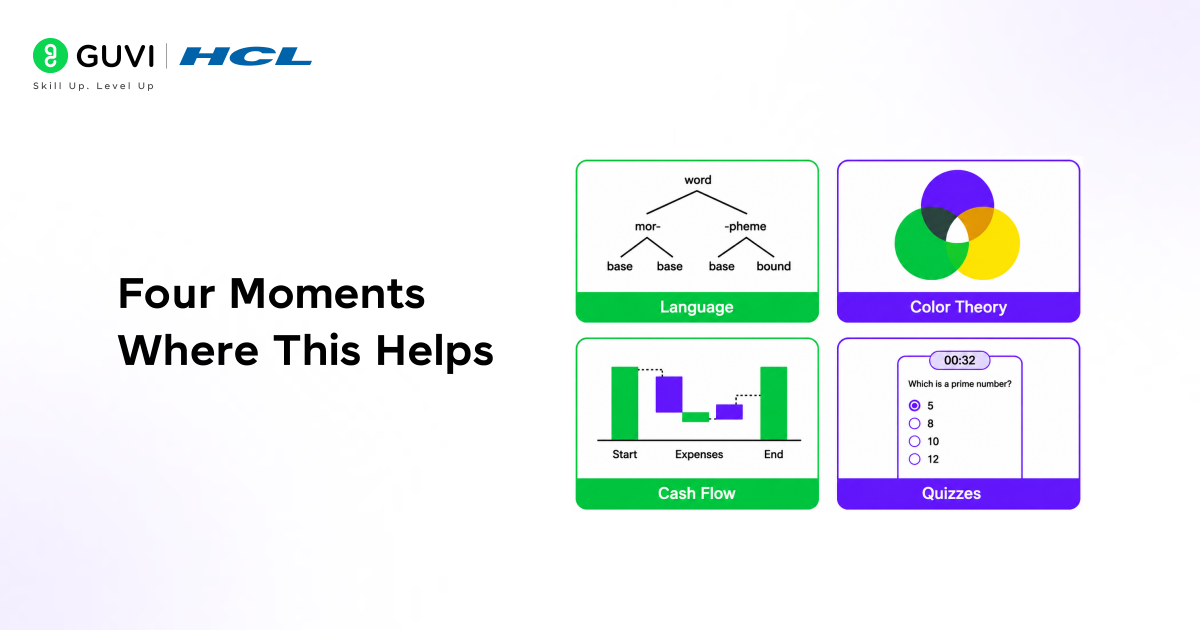
Four Moments Where This Helps
Here is what Claude study visuals look like in practice the kind of prompt, and the kind of visual that appears in response.
1. Seeing the Explanation Drawn Out
A concept from a lecture, a dense passage from a textbook, a thing you keep hearing about but cannot picture drawn so you can see what it actually means.
Example: a linguistics student asked Claude to explain agglutinative grammar in Turkish. Instead of a written explanation, Claude built an interactive morpheme diagram one word, broken into its suffix layers, each piece labelled and stacked in sequence. You watch the word build, one piece at a time, until the full meaning assembles in front of you.
Turkish is supposedly agglutinative suffixes stack up. I get that in principle but I can’t picture how one word ends up meaning a whole sentence. Build me an example step by step so I can see each piece doing its job.
Claude explains: “That’s what agglutinative means in practice each suffix does one job, the order is fixed, and the boundaries stay clean. Once you know the slots, you can read a word back off like a formula.”
2. Interacting with the Concept in Chat
Some things you need to change, or click, or hear. Claude builds the interactive version so you are doing, not just reading.
Example: a student asked why mixing red and green light gives yellow on a screen but brown when mixing paint. Claude built a two-panel interactive colour-mixing diagram one for additive light, one for subtractive pigment with sliders you can adjust to see exactly why the results diverge.
Wait red + green light makes yellow on a screen, but red + green paint makes brown. Why does mixing colors work completely differently depending on whether it’s light or paint?
The visual shows the mechanism, not just the answer. Light starts at black and adds. Paint starts at white and subtracts. The diagram makes that distinction immediately clear in a way a paragraph cannot.
3. Visualising How Things Connect
Some concepts are spatial things connect, one number feeds into another. Text forces you to hold the whole structure in your head at once. Claude draws the connections so you can trace them one step at a time.
Example: an accounting student kept memorising that depreciation gets added back on the cash flow statement but could not understand why. Claude built a visual bridge from net income to operating cash flow, with each adjustment line labelled and each arrow showing the direction of the correction.
I keep memorizing that depreciation gets added back on the cash flow statement, but I don’t get why. Show me what’s actually happening between net income and the operating section I want to see the connection, not just the rule.
Claude’s note at the bottom: “Every adjustment line answers the same question did accrual accounting get ahead of or behind the actual cash? Stop memorising signs. Ask whether it helped or hurt your bank balance compared to what the income statement claims, and the sign follows automatically.”
Claude’s cash flow visual example was chosen because it highlights a common learning gap — while textbooks explain concepts in prose, many students only understand them when they see visual representations. This is because spatial understanding and verbal understanding are different cognitive processes. Claude study visuals combine both, making complex ideas easier to grasp.
4. Practising What You Just Learned
Stay hands-on while you study. The quiz appears right where you are learning, so you are trying things while the idea is fresh, not switching to a separate revision app.
Example: a student kept getting distance-versus-speed graph questions wrong on tests. Claude built a timed practice question targeting exactly that confusion the trap of reading height instead of slope and then unpacked the reasoning after the student answered.

I keep getting distance-vs-speed graph questions wrong on tests. Give me one practice question that targets that confusion, something I’ll want to answer fast and then find out where my instinct was off.
Claude’s debrief after the answer: “The question asked about speed a rate but the y-axis plots distance, a cumulative amount. When the axis is a total, rate lives in the slope, not in how high the curve sits. This swap recurs everywhere: total revenue vs growth, total downloads vs daily downloads, water level vs fill rate. Different labels, same trick.”
Explore: OpenCode vs Claude Code: Which AI Coding Agent Should You Choose?
Things to Try in Your Prompt
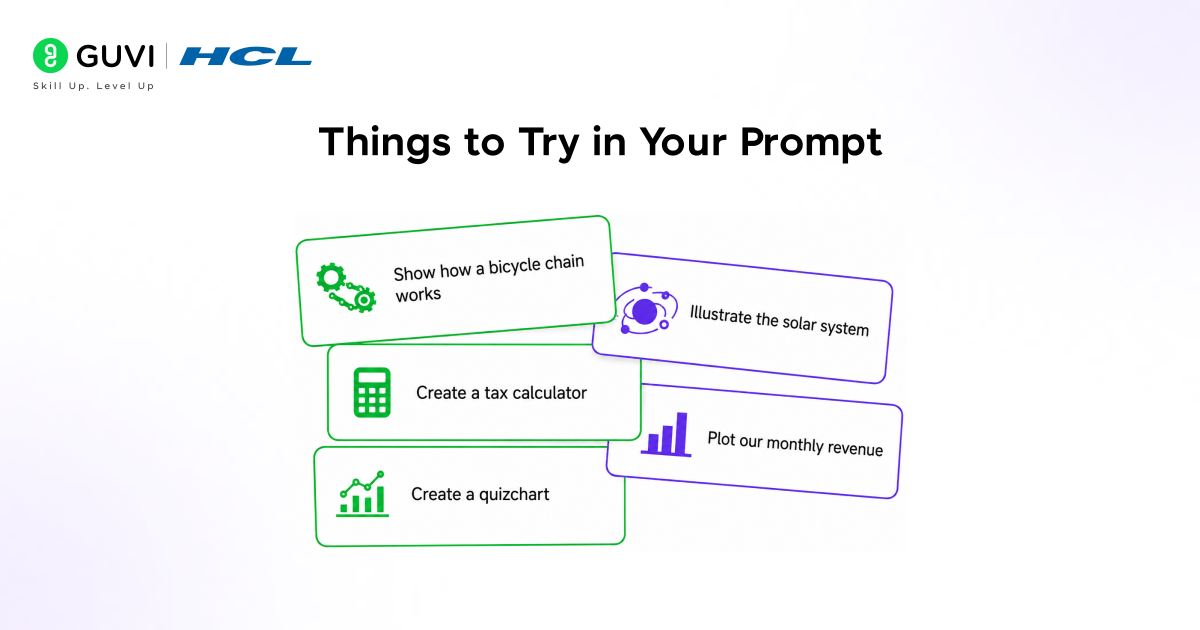
These are the four ways to use Claude study visuals that Anthropic specifically documents, with example prompts you can adapt directly:
1. See the Mechanism Behind an Explanation
When a concept has moving parts, a cycle, a cascade, a sequence, ask Claude to draw it so you can watch it move instead of reading static steps.
- “Show me how [mechanism] works, step by step I want to watch it move, not just read the steps.”
- “Walk me through one pass of this process. I want to see what happens at each stage.”
- “A concept from class has moving parts I can’t picture. Draw where each piece goes.”
2. See the Thing You Cannot Picture
When a textbook passage describes a structure or shape but gives you no diagram, paste the text. Claude draws the thing the words are referring to.
- “Here’s a passage I can’t picture. Draw what it’s describing so I can see it”
- “I keep rereading this and it’s not landing. Show me what this concept actually looks like.”
- “The textbook explains this in words. I need the diagram that it didn’t include.”
3. Apply a Concept as You Learn It
When you want to move from understanding to doing, get an interactive simulation, a quiz that responds to your answer, or a tool that lets you change the inputs.
- “I get this concept on paper. Give me something interactive so I can try it and see what changes.”
- “Explain this topic, then let me put it in my own words. Show me where I’ve got it wrong.”
- “Quiz me on this concept, I want to find the gaps before the exam does.”
4. Work Through Your Own Material
Bring your own data, notes, or a difficult problem. As you talk it through with Claude, a visual appears built around your specific material not a generic example.
- “Here’s my data/notes/draft. Help me see what’s in it before I write anything up.”
- “These are my notes so far. Map how the ideas connect so I can see what’s still missing.”
- “I know something’s wrong in here. Walk me through where I went off.”
Go Deeper: The Full Set of Use Cases
Anthropic has published a full set of walkthroughs for each use case — with tested prompts, chat-window views of what Claude builds, suggested follow-ups, and tips for getting the best result. Here is the complete list:
For Students
- Visualize the mechanism behind an explanation mid-chat
- Apply a formula as you learn it, in chat with Claude
- See the textbook passage you cannot picture
For Your Own Work and Research
- Chart your data in conversation with Claude before you commit to a reading
- Map your literature review mid-conversation to surface the underlying debate
- Work through grant options in chat with Claude
For Teaching and Planning
- Bring your whiteboard lesson to life in conversation with Claude
- Plan your syllabus in chat with Claude, see which weeks are locked
Next time something is not clicking, ask Claude to draw it. The visual appears in the conversation, and you keep going from there.
If you want to learn more about building skills for Claude Code and automating your procedural knowledge, do not miss the chance to enroll in HCL GUVI’s Intel & IITM Pravartak Certified Artificial Intelligence & Machine Learning courses. Endorsed with Intel certification, this course adds a globally recognized credential to your resume, a powerful edge that sets you apart in the competitive AI job market
Conclusion
In conclusion, Claude study visuals change what it means to ask Claude a question when you are learning. Text answers are still the default for most things. But when the answer is inherently spatial, sequential, or interactive when the thing you are trying to understand has structure that words struggle to carry, Claude now builds the visual instead.
You do not manage it or configure it. You study. Claude decides when drawing is clearer than saying, and the diagram appears alongside the explanation. You click into it, adjust it, ask a follow-up, and keep going.
For students, researchers, and anyone working through material that has not clicked yet, that is a meaningfully different way to use an AI tool during a study session.
FAQs
1. What are Claude study visuals?
Claude study visuals are interactive diagrams, charts, simulations, and tools that Claude builds directly inside a conversation as part of its response. They appear inline alongside the text not in a side panel and are built using HTML and SVG, which means they can be interactive: sliders move, diagrams branch, quizzes check your answers in real time.
2. How do I get Claude to show a visual?
Claude will sometimes build a visual automatically when it decides a diagram or chart would explain something more clearly than text. You can also ask directly any version of “draw this,” “show me,” “visualise this,” or “can I see that” will trigger one. If you expected a visual and did not get one, just ask explicitly.
3. Is this feature available on the free plan?
Yes. Claude study visuals are available to all users, including those on the free plan, during the beta period. The feature works on claude.ai web and the desktop apps. It is not available on mobile yet.
4. What is the difference between Claude study visuals and Artifacts?
Artifacts are permanent documents and tools Claude creates designed to be saved, downloaded, or shared as finished work. Study visuals are temporary and inline. They appear during the conversation to support an explanation and change or disappear as the conversation moves on. If you want to keep a visual, you can save it as an artifact, copy it as an image, or download the source code.
5. Can I adjust a visual after Claude builds it?
Yes. The first version is a starting point. You can ask Claude to add a layer, make the practice harder, make it interactive if it came back static, or fix the formatting if anything looks off. Claude will redraw based on your feedback. Buttons at the bottom of visuals also send follow-up prompts that build the next visual below the first.
Success Stories

About the Author
Vishalini Devarajan
An Aerospace Engineer turned content writer, I focus on making complex concepts easy to understand through well-structured, reader-friendly blogs. Whether it’s a technical topic or a non-technical one, I love creating content that is clear, engaging, and impactful.
View all posts by Vishalini Devarajan
Connect with me @












Did you enjoy this article?