


Artificial Intelligence and Machine Learning Articles
Claude vs AI Writing Tools: Jasper, Copy.ai, and Writesonic Compared
Does Claude Have Opinions? How It Handles Controversial Topics


Get In Touch For Details! Request More Information
How to Build a Claude-Powered Chrome Extension
Aug 17, 2026 4 Min Read 52 Views
(Last Updated)
Most Claude users open a separate tab, copy text from whatever they are reading, paste it into Claude, and switch back with the result. A Claude-powered Chrome extension eliminates this friction by putting Claude directly in the browser, accessible from any page with a single click
Table of contents
- Quick TL;DR
- What You Need Before Starting
- How a Chrome Extension Is Structured
- Building a Claude Chrome Extension: Step-by-Step Setup
- Step 1: Create the File Structure and Manifest
- Step 2: Build the Popup Interface and Claude Integration
- Step 3: Add the Content Script and Secure the API Key
- Step 4: Load and Test Locally
- Extension Features to Build Next
- Conclusion
- FAQs
- Do I need a Chrome Web Store account to build and test an extension?
- Why can't I call the Claude API from a content script?
- How do I securely store my Anthropic API key in the extension?
- What is the difference between Manifest V2 and V3 for AI extensions?
- Can this extension be published to the Chrome Web Store?
Quick TL;DR
A Claude-powered Chrome extension brings Claude’s AI capabilities directly into your browser, enabling text summarization, rewriting, translation, and content analysis on any webpage without switching tabs. Building one requires basic JavaScript, the Chrome Extensions API, and the Anthropic API.
What You Need Before Starting
- Basic JavaScript knowledge including async/await and fetch
- Google Chrome browser installed
- An Anthropic API key from console.anthropic.com
- A code editor like VS Code
- No Chrome Web Store account needed for local development and testing
Read More: Claude Takes Over: Hands-Free Browsing Hacks
How a Chrome Extension Is Structured
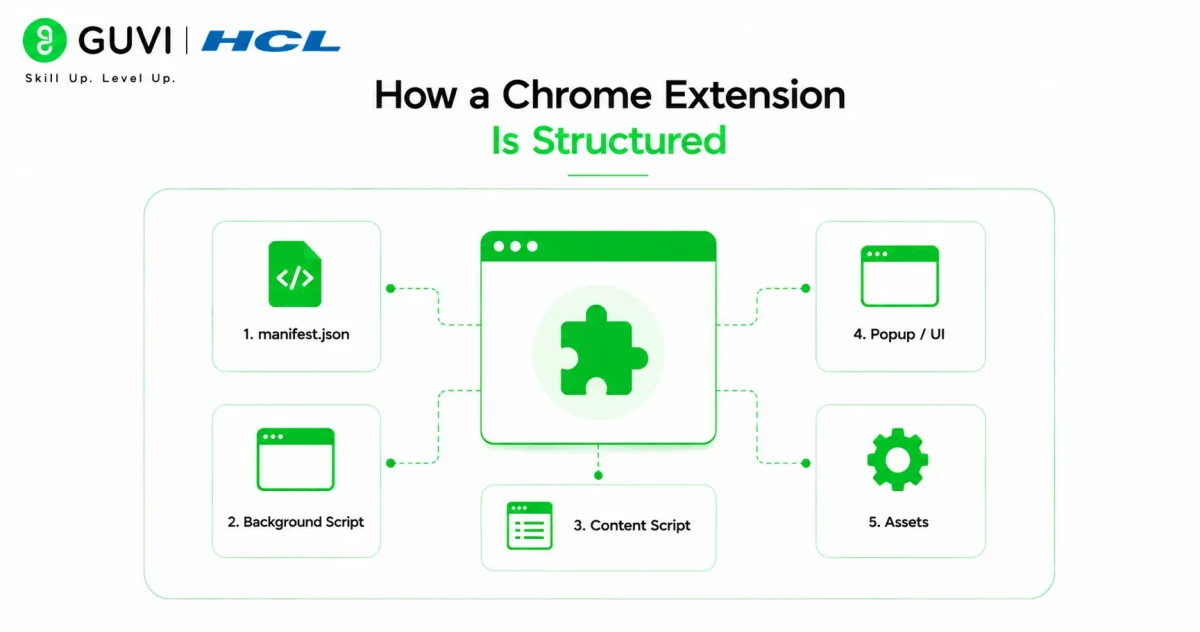
Every Chrome extension has three distinct parts that communicate with each other.
The manifest file (manifest.json) declares the extension’s permissions, files, and capabilities. Every extension starts here and Chrome reads it first.
The popup (popup.html and popup.js) is the small UI that appears when the user clicks the extension icon. This is where user interaction and Claude API calls happen.
The content script (content.js) runs in the context of the current webpage and can read page content, selected text, and DOM elements. It passes content to the popup for processing but never calls the Claude API directly since content scripts cannot make cross-origin requests.
Chrome extensions have over 3 billion active installations globally, making the Chrome Web Store one of the largest software distribution platforms in the world. AI-powered productivity and writing assistance extensions have been among the fastest-growing categories since 2023, driven by developers integrating language model APIs into browser workflows.
Building a Claude Chrome Extension: Step-by-Step Setup
Step 1: Create the File Structure and Manifest
Create a project folder with these files: manifest.json, popup.html, popup.js, content.js, and icon.png (any 128×128 PNG).
The manifest is the foundation of every extension. Use Manifest V3, the current required standard:
{
  "manifest_version": 3,
  "name": "Claude AI Assistant",
  "version": "1.0",
  "description": "Bring Claude AI to any webpage",
  "permissions": ["activeTab", "scripting", "storage"],
  "host_permissions": ["https://api.anthropic.com/*"],
  "action": {
    "default_popup": "popup.html",
    "default_icon": "icon.png"
  },
  "content_scripts": [
    {
      "matches": ["<all_urls>"],
      "js": ["content.js"]
    }
  ]
}
The host_permissions entry for api.anthropic.com is required to make API calls to Claude. Without it Chrome blocks every request silently.
Want to build the full-stack JavaScript and AI integration skills that modern web development roles demand? Explore HCL GUVI’s Full Stack Course, designed to help you develop the programming foundations that power real browser-based AI applications.

Step 2: Build the Popup Interface and Claude Integration
The popup needs an input area, action buttons for “summarize,” “improve writing,” and “explain,” and a result panel. Build popup.html as a simple HTML file with a textarea, three buttons, and a result div. Keep the width at 350px so it fits comfortably in the Chrome extension popup frame.
The popup.js file handles everything: getting selected text from the page, calling Claude, and displaying the result:
const ANTHROPIC_API_KEY = "your-api-key-here";

async function callClaude(prompt) {
  document.getElementById("status").textContent = "Thinking...";

  const response = await fetch("https://api.anthropic.com/v1/messages", {
    method: "POST",
    headers: {
      "Content-Type": "application/json",
      "x-api-key": ANTHROPIC_API_KEY,
      "anthropic-version": "2023-06-01"
    },
    body: JSON.stringify({
      model: "claude-sonnet-4-6",
      max_tokens: 1024,
      messages: [{ role: "user", content: prompt }]
    })
  });

  const data = await response.json();
  document.getElementById("status").textContent = "";
  document.getElementById("result").textContent = data.content[0].text;
}

document.getElementById("getSelected").addEventListener("click", async () => {
  const [tab] = await chrome.tabs.query({ active: true, currentWindow: true });
  const results = await chrome.scripting.executeScript({
    target: { tabId: tab.id },
    func: () => window.getSelection().toString()
  });
  if (results[0].result) {
    document.getElementById("inputText").value = results[0].result;
  }
});

document.getElementById("summarize").addEventListener("click", () => {
  const text = document.getElementById("inputText").value.trim();
  if (text) callClaude(`Summarize this in 3 bullet points:\n\n${text}`);
});

document.getElementById("improve").addEventListener("click", () => {
  const text = document.getElementById("inputText").value.trim();
  if (text) callClaude(`Improve the writing clarity of this text, return only the improved version:\n\n${text}`);
});

document.getElementById("explain").addEventListener("click", () => {
  const text = document.getElementById("inputText").value.trim();
  if (text) callClaude(`Explain this simply for a beginner:\n\n${text}`);
});
Step 3: Add the Content Script and Secure the API Key
The content.js file listens for messages from the popup and returns page text or selected text on request. Add message listeners for getPageText and getSelectedText, each returning the relevant content via sendResponse. This keeps page access in the content script while API calls stay in the popup.
Never hardcode your API key in the extension files. Store it using Chrome’s storage API instead: call chrome.storage.local.set to save the key on first run and chrome. storage.local.get to retrieve it before each Claude call. This prevents accidental key exposure if you share extension files or push code to a repository.
Step 4: Load and Test Locally
Loading your extension requires no Chrome Web Store account. Open Chrome and navigate to chrome://extensions, enable Developer mode using the toggle in the top right, click “Load unpacked,” and select your project folder. The extension icon appears in your Chrome toolbar immediately.
To test, visit any article, select some text, click the extension icon, click Use Selected Text, then click Summarize. Claude’s summary appears in the result panel within seconds. Test each button across different content types before extending the functionality further.
Chrome’s Manifest V3, required for all new extension submissions since 2023, replaced persistent background pages with limited-lifespan service workers. This is why API calls in this guide are made from the popup rather than a background script, a critical architectural difference that causes silent failures in extensions built using outdated V2 patterns.
Extension Features to Build Next
Once the core works, these high-value additions each require only a new prompt in the same callClaude function:
- Page summarizer that sends full article text for a one-paragraph overview
- Tone rewriter that converts selected text to formal, casual, or persuasive versions
- Translation to any language from selected text
- Email responder that detects Gmail context and drafts replies
- Code explainer that identifies and explains code blocks on developer pages
Conclusion
A Claude-powered Chrome extension removes the context-switching friction that slows every workflow where you need AI assistance on content you are already reading in the browser.
Load the extension locally, test it against real content from your daily workflow, then extend it with the use cases most relevant to your work. Publishing to the Chrome Web Store requires a one-time developer account fee and review process, but local loading is sufficient for personal productivity tools and internal team extensions that do not need public distribution.
FAQs
Do I need a Chrome Web Store account to build and test an extension?
No. Load and test extensions locally using Developer mode in chrome://extensions without any account or review process.
Why can’t I call the Claude API from a content script?
Chrome blocks cross-origin requests from content scripts for security reasons. Make all API calls from popup.js or a background service worker instead.
How do I securely store my Anthropic API key in the extension?
Use Chrome’s storage API with chrome.storage.local.set to store the key rather than hardcoding it in source files. Retrieve it with chrome.storage.local.get before each API call.
What is the difference between Manifest V2 and V3 for AI extensions?
Manifest V3 replaces persistent background pages with service workers, requires explicit host permissions, and enforces stricter content security policies. All new Chrome extension submissions require V3.
Can this extension be published to the Chrome Web Store?
Yes, after creating a developer account and passing Google’s review. Extensions with AI capabilities require additional data handling disclosures during submission.
Success Stories

About the Author
HCL GUVI
This article was selected and published as part of the HCL GUVI AI Blogathon 2026, an initiative designed to encourage students, AI enthusiasts, and aspiring tech writers to simplify complex AI concepts through impactful technical content. The contest recognized high-quality, original, and insightful AI-focused blogs, with selected authors receiving publication opportunities on the HCL GUVI blog platform along with official author credits and recognition.
View all posts by HCL GUVI
Connect with me @








Did you enjoy this article?